PowerPoint Tutorial: The Complete Guide to Every Feature
PowerPoint tutorial covering every feature you need. File conversion, presenting, file management, multimedia, formatting, and advanced tips for all levels.
PowerPoint has over 400 features. Most professionals use about 10% of them. The gap between a basic user and an expert is not talent or design sense — it is knowing which features exist and when to use each one.
This PowerPoint tutorial covers every major feature organized by workflow: converting files, presenting to audiences, managing file size, embedding multimedia, formatting slides, and the advanced tips that separate good decks from great ones. Whether you are building your first presentation or refining professional decks, this guide maps the complete landscape so you know exactly where to go deeper.
Key Takeaways:
- PowerPoint proficiency comes from knowing the right feature for each task, not memorizing menus
- File conversion (PDF, Word, Excel) is the most commonly searched PowerPoint skill
- Presenter View and speaker notes are essential for professional delivery but widely underused
- File size management prevents the most common sharing headaches
- Formatting consistency through Slide Master and templates separates amateur decks from professional ones
- Add-ins fill critical gaps in charts, alignment shortcuts, and AI-powered slide creation
After training 300+ professionals on PowerPoint across McKinsey, Deloitte, and corporate strategy teams, the pattern is clear: people struggle not because PowerPoint is hard, but because they don't know which feature solves their specific problem. This guide is the map. Each section provides genuine overview content, then points you to the detailed tutorial for hands-on steps.
PowerPoint Tutorial: File Conversion and Export
File conversion is the single most searched category of PowerPoint questions. You build a deck in PowerPoint, then need it in PDF for email, in Word for editing, or you receive a PDF that needs to become editable slides. Each conversion has quirks, quality trade-offs, and methods that preserve formatting better than others.
PowerPoint supports direct export to several formats including PDF, video (MP4), images (PNG/JPEG), and OpenDocument Presentation (.odp). It can also import from limited formats, though converting into PowerPoint typically requires external tools or careful copy-paste workflows. Microsoft's official PowerPoint training page covers the basics, but the real-world workflows below go much deeper. The key insight: no conversion is truly lossless. Every format translation involves trade-offs between editability, visual fidelity, and file size.
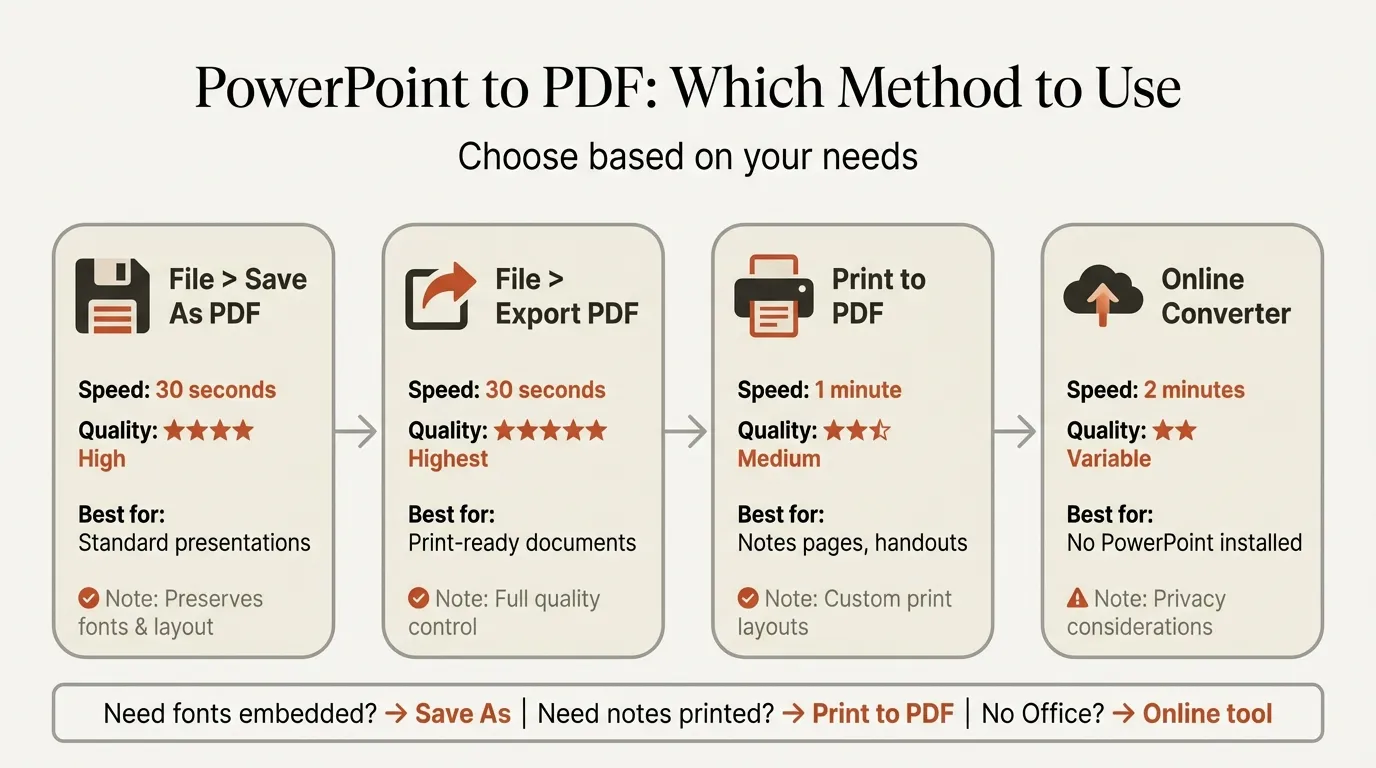
The two most common conversions deserve dedicated attention:
PowerPoint to PDF is essential for distributing final presentations. PDF locks formatting so recipients see exactly what you designed, regardless of their fonts or PowerPoint version. There are five methods ranging from File > Export (best quality) to online converters (most convenient). The critical decision is whether to include speaker notes, hidden slides, and what quality level to use for embedded images. See the full walkthrough: PowerPoint to PDF: 5 Methods Compared.
PDF to PowerPoint is the reverse problem — you receive a finalized PDF and need to edit it. Adobe Acrobat, online converters, and Microsoft's built-in tools all handle this differently. Simple text-heavy PDFs convert well. Complex layouts with overlapping images and custom fonts rarely survive intact. The guide covers which tool to use based on your PDF's complexity: PDF to PowerPoint: 5 Best Conversion Methods Compared.
Beyond PDF, several other conversions come up regularly in professional workflows:
| Conversion | Common Use Case | Key Challenge |
|---|---|---|
| PowerPoint to Word | Creating handouts or document versions of presentations | Preserving slide layout in a linear document format |
| Word to PowerPoint | Converting reports or proposals into presentation format | Transforming paragraphs into visual slide content |
| Excel to PowerPoint | Bringing data tables and charts into presentations | Maintaining live data links versus static copies |
| Figma to PowerPoint | Moving designer mockups into editable PowerPoint | Converting vector graphics to PowerPoint shapes |
Each of these conversions has a dedicated guide covering step-by-step instructions, quality comparisons between methods, and workarounds for common formatting issues.
Presenting and Delivery: The PowerPoint Tutorial for Speakers
Building a great deck is half the job. Delivering it effectively is the other half. PowerPoint includes several features specifically designed for live presentation, and most speakers underuse them. The difference between a nervous presenter reading from slides and a confident speaker working the room often comes down to three features: Presenter View, speaker notes, and slideshow shortcuts.
Presenter View
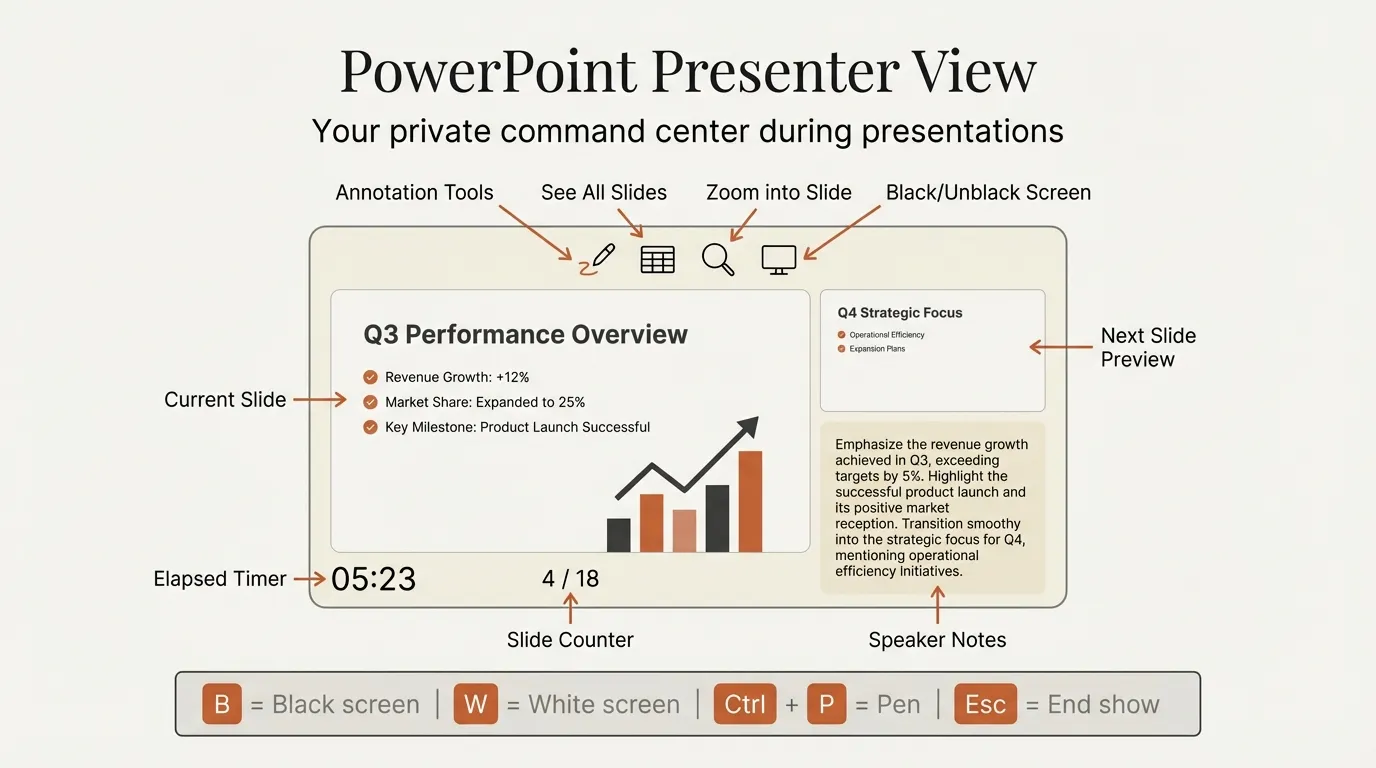
Presenter View transforms your laptop screen into a private control center while the audience sees only your slides. You get your current slide, next slide preview, speaker notes, elapsed time, and navigation controls — all invisible to your audience. This feature alone eliminates the need to memorize your talk or read from printed notes.
Setting up Presenter View requires a second display (projector, external monitor, or virtual meeting screen share). The configuration differs between Windows and Mac, and common issues include the wrong screen showing the presenter panel and notes appearing too small to read. Our dedicated guide covers setup, shortcuts, and every troubleshooting scenario: PowerPoint Presenter View: Setup, Shortcuts, and Fixes.
Speaker Notes
Speaker notes live in the panel below each slide in Normal view. They are invisible to your audience during presentations (when using Presenter View) but serve as your talking-point reference, data source citations, and backup details for anticipated questions.
Effective speaker notes are not scripts. They are keywords and phrases that trigger your memory. The best consultants write 3-5 bullet points per slide: the key message, supporting data point, transition phrase to the next slide, and answers to likely questions. For the complete workflow including how to add, format, print, and present with notes: PowerPoint Speaker Notes: Add, View, Print, and Present.
Recording and Narration
PowerPoint can record your presentation with voice narration, webcam video, slide timings, and laser pointer movements. This is increasingly relevant for asynchronous presentations — sending a narrated deck instead of scheduling a meeting. The recording feature captures your audio and video for each slide, producing an MP4 or a self-running presentation file.
Recording works well for training materials, pre-recorded client updates, and presentations distributed across time zones. Detailed walkthroughs for recording setup and narration best practices are covered in the upcoming guides: PowerPoint Recording and PowerPoint Narration.
PowerPoint Tutorial: File Management and Optimization
Large PowerPoint files cause real problems. They fail to send via email (most inboxes cap at 25 MB), take minutes to open, crash during editing, and make collaboration difficult. Consultants working with image-heavy decks routinely encounter files over 100 MB — far beyond what email or most file-sharing platforms handle smoothly.
The root causes of bloated files are predictable: uncompressed images, unused slide masters and layouts, embedded fonts, copy-pasted content from other decks that carries hidden formatting baggage, and embedded media files. The good news is that most files can be reduced by 50-90% without visible quality loss.
Reducing File Size
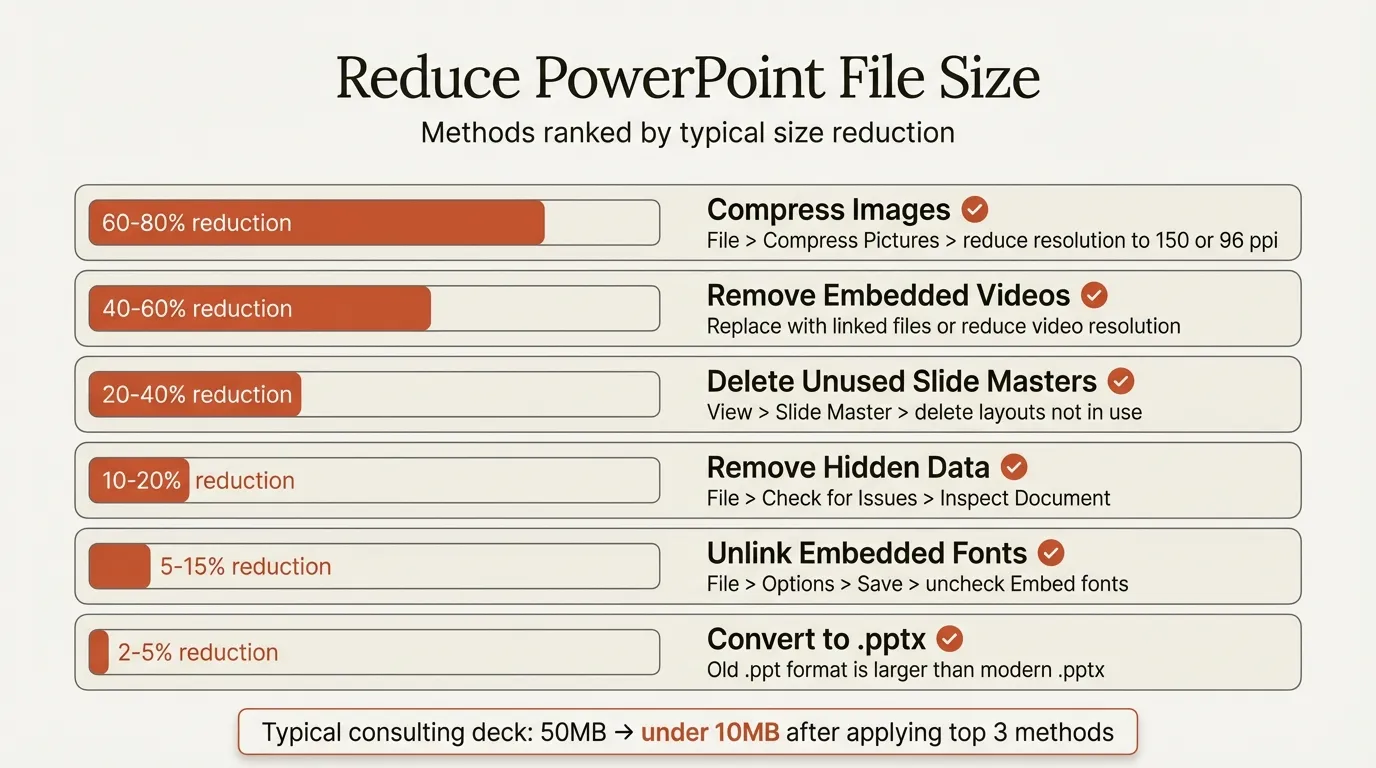
There are eight proven methods for reducing file size, ranked by impact. Image compression alone typically cuts 40-70% of total file size because PowerPoint stores images at their original resolution, even when they display at a fraction of that size on screen. A 4000x3000 pixel photo displayed in a 2-inch thumbnail still stores all 12 million pixels.
Beyond images, removing unused slide masters (which accumulate when copying slides between decks), stripping embedded fonts, and clearing the editing history all contribute meaningful reductions. The full ranked breakdown: How to Reduce PowerPoint File Size: 8 Proven Methods.
Compressing PowerPoint Files
Compression overlaps with file size reduction but focuses specifically on making files small enough for email or upload. This includes using PowerPoint's built-in image compression tool, optimizing media files, converting to PDF when editability is not needed, and using online compression tools as a last resort.
The built-in compression tool (File > Compress Pictures) offers four quality presets: HD (330 ppi), Print (220 ppi), Web (150 ppi), and Email (96 ppi). For most business presentations, Print quality is the sweet spot — sharp enough for projection, small enough for email. Step-by-step instructions for each compression method: Compress PowerPoint: 5 Methods That Shrink File Size.
Sharing and Version Control
Once your file is optimized, you need to distribute it effectively. PowerPoint files can be shared via email attachment, OneDrive/SharePoint links, or export to PDF. Each method has trade-offs between editability, version control, and recipient convenience.
OneDrive sharing preserves real-time collaboration and version history. Email attachments create disconnected copies that diverge immediately. PDF export locks the content but eliminates editability. For teams working on shared decks, understanding these trade-offs prevents version conflicts and lost work. Detailed guidance is coming in Share PowerPoint and PowerPoint Version History.
Continue reading: PowerPoint Animation · PowerPoint SmartArt · How to Use AI in PowerPoint
Create an editable presentation in your browser
Turn a prompt or source files into slides you can edit and export to PowerPoint. 14-day free trial. No credit card required.
Multimedia and Interactive Elements
Static slides with text and basic shapes are the default. But PowerPoint supports rich multimedia — video, audio, interactive zoom navigation, and dynamic SmartArt diagrams — that can elevate presentations when used purposefully. The key word is "purposefully." Multimedia should clarify your message, not decorate it.
Embedding Video
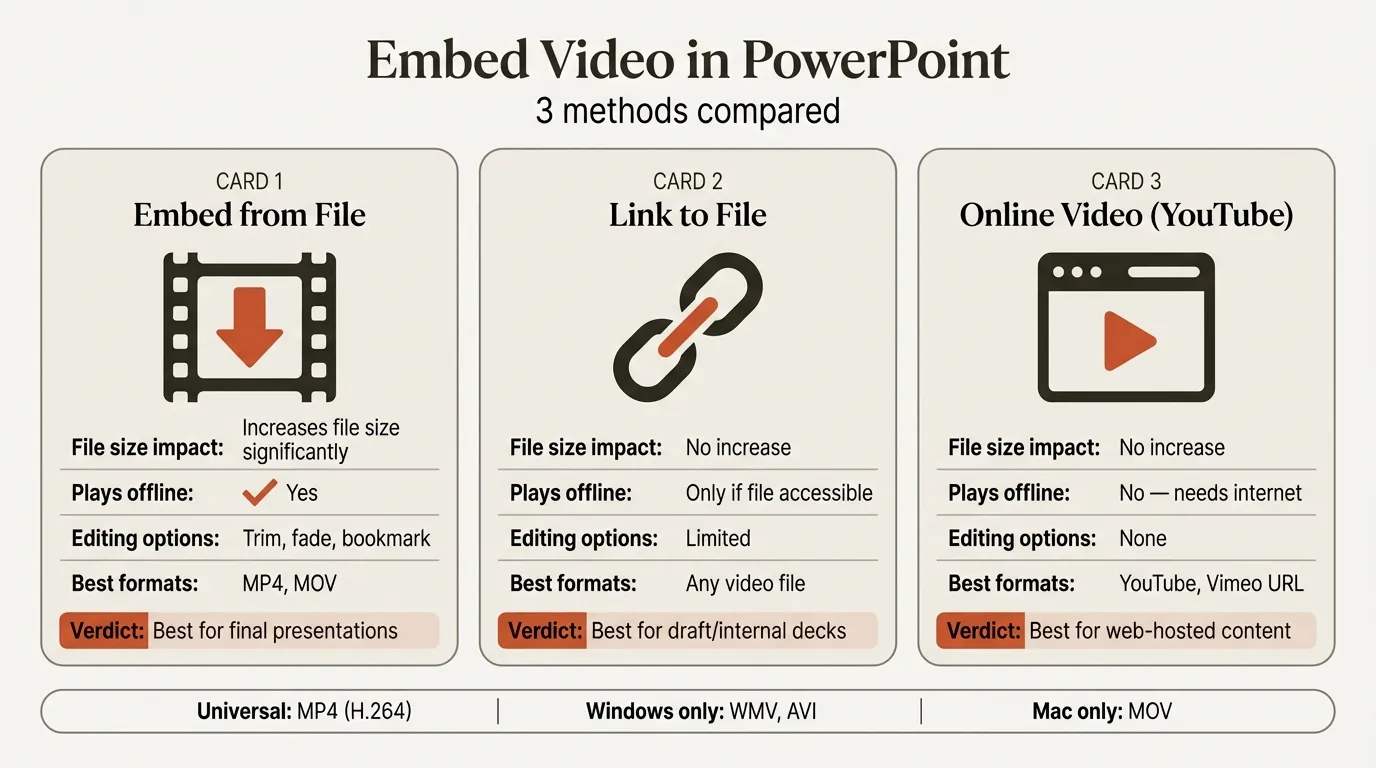
Video embedded directly in PowerPoint plays within the slide without switching to a browser or media player. This is essential for product demos, customer testimonials, training content, and any presentation where motion communicates more than a still image.
PowerPoint supports three video insertion methods: from your computer (MP4 recommended), from YouTube via embed code, and from online video sources. Each method has different offline availability, quality options, and file size implications. Videos from your computer work offline but increase file size dramatically. YouTube embeds keep files small but require internet access during presentation.
Common issues include videos not playing on a different computer, audio/video sync problems, and massive file sizes from embedded video. Our complete guide covers all three methods with troubleshooting: Embed Video in PowerPoint: 3 Methods That Actually Work.
SmartArt Diagrams
SmartArt converts bullet-point text into visual diagrams — process flows, hierarchies like org charts, cycle diagrams, and relationship maps. While experienced designers often avoid SmartArt (the templates are recognizable and somewhat dated), it remains useful for quick internal presentations and drafts where speed matters more than visual originality.
The best use of SmartArt is as a starting point. Insert a SmartArt diagram, then ungroup it (Ctrl+Shift+G) to convert it into editable shapes that you can restyle. This gives you the layout logic without the generic SmartArt appearance. A dedicated guide will cover SmartArt workflows: PowerPoint SmartArt.
Slide Zoom and Navigation
PowerPoint's Zoom feature creates interactive, non-linear presentations. Instead of advancing slide-by-slide, you create a summary slide with clickable thumbnails that zoom into different sections. This is powerful for presentations where the audience might want to explore topics in a different order than you planned.
Zoom works best for sales presentations (let the prospect choose which product area to explore), training decks (navigate to relevant modules), and large presentations where different audience members care about different sections. Detailed setup and best practices are covered in PowerPoint Zoom.
PowerPoint Tutorial: Formatting and Layout
Formatting determines whether your deck looks professional or amateur. The content might be identical, but inconsistent fonts, misaligned objects, and random color choices signal carelessness. Professionals who format well are not spending more time — they are using the right features to enforce consistency automatically.
Slide Numbers, Headers, and Footers
Slide numbers seem trivial until you are in a meeting and someone says "go back to slide 14." Without visible slide numbers, navigation becomes awkward. PowerPoint's slide number feature automatically updates when slides are reordered, deleted, or added — but the default placement and formatting rarely match your template design.
Headers and footers allow you to display consistent information (date, company name, confidentiality notice) across all slides without manually adding text boxes to each one. These are controlled through Insert > Header & Footer, and the positioning is determined by your Slide Master layout.
Detailed walkthroughs for both features: PowerPoint Slide Numbers and PowerPoint Header and Footer.
Background Removal and Image Editing
PowerPoint includes a surprisingly capable background removal tool that eliminates the need for Photoshop in many cases. Select an image, click Format > Remove Background, and PowerPoint uses AI to detect and remove the background. You can mark areas to keep or remove for fine-tuning.
This feature works well for product photos, headshots, and simple compositions. It struggles with hair, transparent objects, and complex backgrounds. When PowerPoint's tool falls short, free online alternatives like remove.bg provide better results. Full guidance: Remove Background in PowerPoint.
Conditional Formatting and Data-Driven Slides
While Excel is known for conditional formatting, PowerPoint supports similar concepts through linked tables, color-coded shapes, and data-driven charts. Conditional formatting in presentations typically means using color to highlight above/below target performance, formatting table cells based on values, and creating dashboard slides that change appearance based on underlying data.
This is an advanced workflow that combines Excel linking with PowerPoint formatting. Detailed techniques are covered in PowerPoint Conditional Formatting.
Accessibility
Creating accessible presentations ensures that people using screen readers, those with color vision deficiency, and audiences with other accessibility needs can understand your content. PowerPoint includes an Accessibility Checker (Review > Check Accessibility) that flags issues like missing alt text on images, insufficient color contrast, and reading order problems.
Accessibility is increasingly required for government, education, and large enterprise presentations. Even when not required, accessible design practices (clear fonts, sufficient contrast, descriptive alt text) improve readability for everyone. Microsoft provides an accessibility overview for PowerPoint as a starting point, and a comprehensive walkthrough is covered in PowerPoint Accessibility.
Tips, Tricks, and Advanced PowerPoint Features
Once you have the fundamentals, advanced features and workflow optimizations separate efficient users from everyone else. These are the techniques that consultants, investment bankers, and corporate strategists use to build decks in half the time.
Keyboard Shortcuts
Keyboard shortcuts are the single biggest productivity lever in PowerPoint. The difference between a four-hour deck and a two-hour deck is often whether you are clicking through menus or pressing keys. Start with five essential shortcuts (Ctrl+D for duplicate, Ctrl+G for group, Ctrl+Z for undo, Ctrl+S for save, and Shift+F5 to present from current slide), then expand to alignment and formatting shortcuts.
PowerPoint's biggest shortcut gap is alignment — there are no native keyboard shortcuts for aligning objects left, center, right, top, middle, or bottom. Add-ins like Deckary fill this gap with single-keystroke alignment commands. For the complete shortcut reference, see the PowerPoint Keyboard Shortcuts: The Complete Productivity Guide.
Slide Master and Template Design
Slide Master is the control center for deck-wide formatting. Changes made in Slide Master propagate to every slide that uses that layout. This means you can change every title font, adjust every footer position, or update your color palette across 100 slides with a single edit.
Understanding Slide Master is the difference between spending 30 minutes reformatting individual slides after a brand update and spending 30 seconds updating the master. Professional templates are built entirely in Slide Master, with multiple layouts for different content types (title slide, content slide, two-column layout, chart slide, agenda slide, executive summary).
Charts and Data Visualization
PowerPoint charts transform raw data into visual stories. The challenge is choosing the right chart type for your message and formatting it to consulting standards. Bar charts for comparisons, waterfall charts for change analysis, Mekko charts for two-dimensional views, and Gantt charts for timelines — each serves a specific communication purpose.
Native PowerPoint handles basic charts well but falls short on consulting staples. For the complete charting guide including waterfall, Mekko, Gantt, and advanced chart types, see PowerPoint Charts: The Complete Data Visualization Guide.
AI-Powered Slide Creation
The latest advancement in PowerPoint productivity is AI-assisted slide building. Rather than starting from a blank slide, you describe the content you need and AI generates a formatted slide with appropriate layout, bullet points, and chart placeholders. This is particularly effective for consulting-style slides that follow predictable structures (situation-complication-resolution, comparison table, data-driven argument).
Deckary's AI Slide Builder generates MBB-style consulting slides from text descriptions and CSV data. Describe your business problem, attach relevant data, and receive formatted slides ready for refinement — cutting first-draft time from 30 minutes per slide to under a minute.
PowerPoint Tips and Tricks
Beyond individual features, workflow habits make the biggest difference in day-to-day efficiency. Techniques like using the Selection Pane to manage complex slides, setting default shapes to avoid reformatting, using Ctrl+D's hidden "jump" feature for evenly spaced layouts, and building a personal shape library for repeated elements can save hours each week.
A curated collection of the most impactful tips is covered in PowerPoint Tips and Tricks.
Quick Reference: PowerPoint Feature Map
This table maps common tasks to the right PowerPoint feature, so you can find what you need quickly.
| Task | PowerPoint Feature | Skill Level | Guide |
|---|---|---|---|
| Convert to PDF | File > Export | Beginner | PowerPoint to PDF |
| Convert from PDF | External tools | Beginner | PDF to PowerPoint |
| See notes while presenting | Presenter View | Beginner | Presenter View |
| Add talking points | Speaker Notes | Beginner | Speaker Notes |
| Shrink file for email | Image Compression | Beginner | Reduce File Size |
| Compress entire file | Multiple methods | Beginner | Compress PowerPoint |
| Play video in slides | Insert > Video | Intermediate | Embed Video |
| Create data charts | Insert > Chart | Intermediate | Charts Guide |
| Speed up workflows | Keyboard shortcuts | Intermediate | Shortcuts Guide |
| Build slides with AI | Add-in (Deckary) | Intermediate | AI Slide Builder |
| Edit all slides at once | Slide Master | Advanced | Coming soon |
| Create non-linear decks | Zoom | Advanced | Coming soon |
Summary
PowerPoint mastery is not about memorizing every feature. It is about knowing which feature solves the problem in front of you and having practiced the workflow enough that execution is fast.
Start with the fundamentals that apply to every presentation: converting to PDF for distribution, using Presenter View for delivery, and compressing files for sharing. Then build toward intermediate skills: embedding video, keyboard shortcuts, and chart creation. Advanced workflows like Slide Master design, Excel-linked charts, and AI-powered slide building come last — they matter most for professionals creating presentations daily.
The guides linked throughout this tutorial provide step-by-step instructions for every feature. Bookmark this page as your starting point, and work through the specific guides as each need arises in your real projects.
Related Guides
Explore every topic in this PowerPoint tutorial series:
File Conversion and Export
- PowerPoint to PDF: 5 Methods Compared — Built-in export, Save As, and online tools for Windows and Mac
- PDF to PowerPoint: 5 Best Conversion Methods — Adobe Acrobat, free tools, and formatting quality comparison
- PowerPoint to Word — Creating document versions of your presentations
- Word to PowerPoint — Converting reports and proposals into slide format
- Excel to PowerPoint — Bringing data tables and charts into presentations
- Figma to PowerPoint — Moving designer mockups into editable slides
Presenting and Delivery
- PowerPoint Presenter View — Setup, shortcuts, and troubleshooting for dual-screen presenting
- PowerPoint Speaker Notes — Add, format, print, and present with notes
- PowerPoint Recording — Record presentations with voice and video
- PowerPoint Narration — Add narration to self-running presentations
File Management and Optimization
- Reduce PowerPoint File Size — 8 proven methods ranked by impact
- Compress PowerPoint — 5 methods to shrink files for email and sharing
- Share PowerPoint — Best practices for distributing presentations
- PowerPoint Version History — Track and restore previous versions
Multimedia and Interactive Elements
- Embed Video in PowerPoint — 3 methods with troubleshooting for common issues
- PowerPoint SmartArt — Diagram creation and customization workflows
- PowerPoint Zoom — Interactive, non-linear presentation navigation
Formatting and Layout
- PowerPoint Slide Numbers — Automatic numbering setup and formatting
- PowerPoint Header and Footer — Consistent information across all slides
- Remove Background in PowerPoint — AI-powered background removal and editing
- PowerPoint Conditional Formatting — Data-driven formatting techniques
- PowerPoint Accessibility — Creating inclusive presentations for all audiences
Tips, Tricks, and Advanced Features
- PowerPoint Tips and Tricks — Curated productivity techniques for professionals
- PowerPoint Keyboard Shortcuts Guide — Complete shortcut reference with time-saving data
- PowerPoint Charts Guide — Data visualization for consultants and business professionals
Create an editable presentation in your browser
Turn a prompt or source files into slides you can edit and export to PowerPoint. 14-day free trial. No credit card required.