PowerPoint Header and Footer: How to Add, Customize, and Format
Learn how to add headers and footers in PowerPoint for slides, handouts, and notes pages. Step-by-step guide with customization and troubleshooting tips.
PowerPoint headers and footers add consistent information across slides, handouts, and notes pages—company names, dates, page numbers, and confidentiality notices. For consulting presentations, board decks, and client deliverables, footers signal professionalism and provide navigation reference points.
After formatting footers for over 300 client presentations, including partner reviews, investor pitches, and board meetings, we have documented exactly what works, where PowerPoint's header and footer system breaks expectations, and how to customize beyond the default settings. This guide covers adding footers to slides, handouts, and notes pages, customization via Slide Master, and troubleshooting when footers do not appear.
Understanding PowerPoint's Header and Footer System
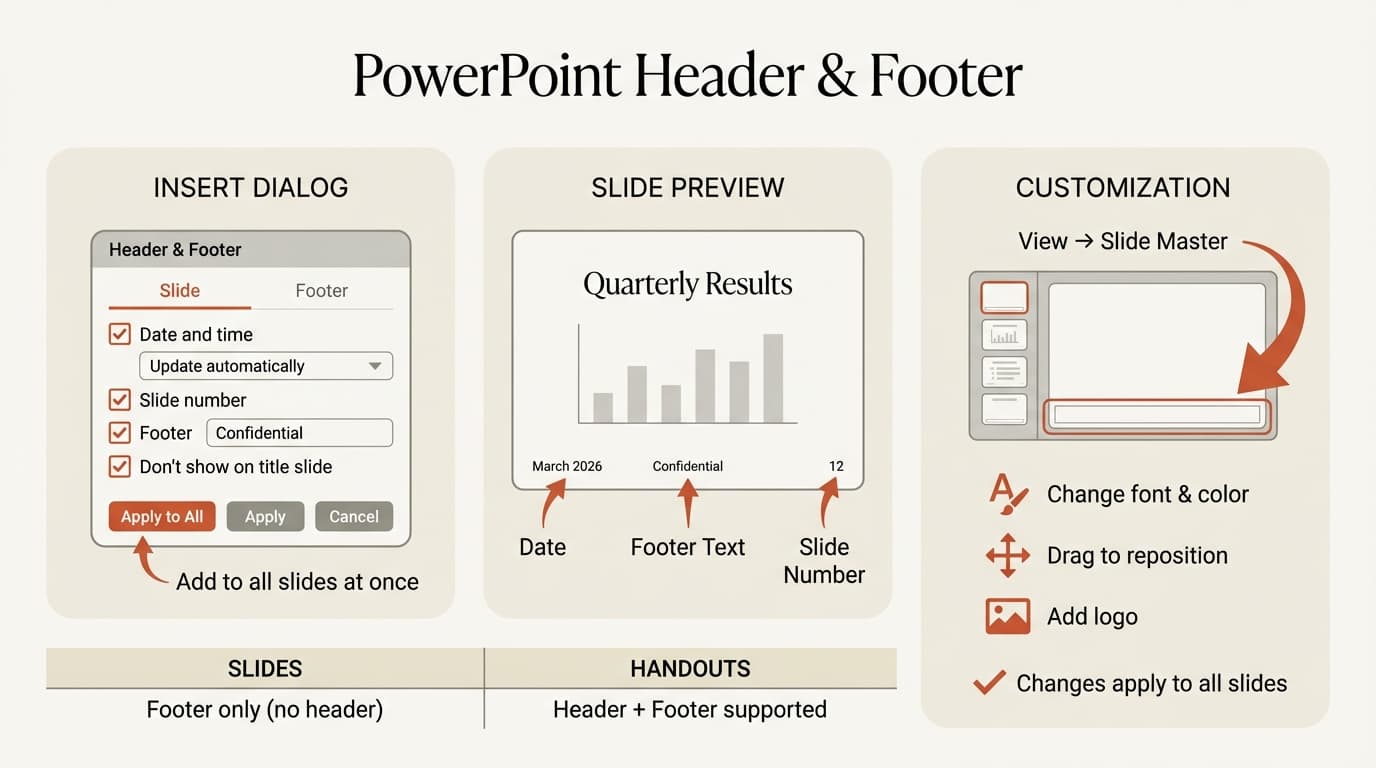
PowerPoint separates headers and footers into two distinct systems: one for on-screen slides and one for printed handouts and notes pages.
For slides (what audiences see during presentations):
- No header option—only date, slide number, and footer text
- Managed via Insert, Header & Footer, Slide tab
- Footers appear in the bottom corner by default
For handouts and notes pages (printed or PDF versions):
- Both header and footer supported
- Managed via Insert, Header & Footer, Notes and Handouts tab
- Headers appear at top, footers at bottom with page numbers
This design reflects how presentations are typically used: slides are projected or shared on screen where headers would compete with slide titles, while handouts and notes pages are printed documents where traditional header/footer conventions apply.
According to SlideModel's PowerPoint header guide, this separation exists because slides are primarily presented through display devices while notes and handouts are intended for printing or PDF distribution.
How to Add Footer to PowerPoint Slides
PowerPoint adds slide footers via the Header & Footer dialog, which applies date, slide number, and text to all slides or selected slides.
Steps to Add Slide Footer
- Click Insert then Header & Footer
- In the Slide tab, check Date and time (choose Update automatically for current date or Fixed for a specific date), Slide number, and Footer (enter your text)
- Check Don't show on title slide to skip the first slide
- Click Apply to All
Footer text, date, and slide number appear in the bottom corners by default—typically bottom left, center, and right.
Microsoft's official PowerPoint footer documentation confirms this method works identically on Windows and Mac.
What to Include in Slide Footers
| Presentation Type | Typical Footer Content |
|---|---|
| Client deliverables | Company name, date, slide number, "Confidential" |
| Internal strategy decks | Date, slide number, project name |
| Investor pitch decks | Company name, slide number (skip date) |
| Conference presentations | Speaker name or Twitter handle, slide number |
| Academic presentations | Author name, date, slide number |
According to SlideModel's McKinsey presentation structure guide, consulting presentations typically include source notes in the footer of each slide, with slide numbers and dates in consistent positions. The body includes content while the footer contains attributions and citations.
Date Options: Update Automatically vs Fixed
Update automatically refreshes the date each time you open the file. Use this for recurring presentations where you want the current date to appear without manual updates.
Fixed locks a specific date. Use this for final deliverables where the date represents when analysis was completed, not when the file was opened.
For board presentations and client deliverables that reference data "as of March 2026," use Fixed to prevent the date from changing when the file is opened months later.
How to Add Header and Footer to Handouts and Notes Pages
Handouts and notes pages support both headers and footers, unlike slides. These are managed separately from slide footers.
Steps to Add Handout and Notes Headers/Footers
- Click Insert then Header & Footer
- Select the Notes and Handouts tab
- Check Date and time, Page number, Header, and Footer as needed
- Click Apply to All
Headers appear at top center, page numbers at top right, and footers at bottom when printed or exported to PDF.
Microsoft's handout footer guide notes that handout page numbering is separate from slide numbering—a 20-slide presentation printed 4 slides per page produces 5 handout pages numbered 1-5.
When to Use Handout Headers and Footers
Headers typically include:
- Company name and logo (requires Slide Master editing—see below)
- Document title or project name
- Confidentiality notice
Footers typically include:
- Copyright notice
- Document version or revision date
- Author name or department
For presentations distributed as PDFs alongside in-person delivery, handout footers provide essential context. If someone prints the PDF months later, the footer reminds them of the source, date, and confidentiality status.
Continue reading: Combo Charts in PowerPoint · After Action Review Template · How to Add Icons to PowerPoint
Work faster in PowerPoint
Use shortcuts, icons, logos, and reusable slides without leaving PowerPoint. 14-day free trial. No credit card required.
How to Customize Footer Position and Format via Slide Master
The default footer position is bottom corners in a small gray font. For branded presentations with specific layout requirements, customize position, font, size, and color via Slide Master.
Steps to Customize Slide Footer Format
- Go to View then Slide Master
- Select the top slide (the master slide)
- Click a footer placeholder at the bottom (
<date/time>,<#>, or<footer>) - Drag to reposition, or use the Home tab to change font, size, color, and alignment
- Repeat for other footer placeholders
- Click Close Master View
Changes apply to all slides using that master. To customize specific layouts separately, select that layout in the thumbnail pane.
According to SlideModel's footer editing guide, editing in Slide Master is essential for making consistent, presentation-wide changes rather than manually editing individual slides.
Adding Logo or Custom Elements to Footers
To add a company logo or custom graphics, go to View, Slide Master, select the master slide, then Insert, Pictures. Resize and position in the footer area, then Close Master View. The logo appears on every slide using that master.
Common Footer Formatting Adjustments
| Presentation Type | Typical Footer Formatting |
|---|---|
| Corporate decks | 9-10pt gray sans-serif, bottom corners, company logo bottom left |
| Investment banking pitch books | 8pt light gray, bottom right only (slide number), logo bottom left |
| Academic presentations | 10-12pt black serif, bottom center for all elements |
| Dark-themed presentations | White or light gray text for visibility |
For presentations with dark backgrounds, white or light gray footer text is essential. If you cannot read the footer from the back of the room, the audience cannot either.
Adding a Header to PowerPoint Slides (Workaround)
PowerPoint does not support headers on slides via the Header & Footer dialog. If you need header text on slides (e.g., persistent branding or section titles), use Slide Master to add a text box at the top.
Steps to Add Slide Header via Slide Master
- Go to View then Slide Master
- Select the master slide or layout
- Click Insert then Text Box, draw at the top, enter your text
- Format using the Home tab
- Click Close Master View
The header now appears on all slides using that layout as static text.
According to Noble Desktop's PowerPoint header and footer guide, manually adding a text box to Slide Master is the only way to create a persistent slide header, as PowerPoint's native system does not support this.
When to Add Slide Headers
Use slide headers when:
- Company branding guidelines require logo and name at top of every slide
- Presentation covers multiple topics and section titles help navigation
- Conference submission guidelines require speaker name at top
Avoid slide headers when:
- Slide titles already provide context (headers compete with titles for attention)
- Visual hierarchy matters—headers add clutter to minimalist designs
- Presentation uses full-bleed images where headers obstruct visuals
Most professional presentations skip slide headers. The slide title serves as the header, and footer elements provide supplementary information.
Best Practices for PowerPoint Headers and Footers
Always include slide numbers on client deliverables. Board presentations, investor decks, and consulting deliverables without slide numbers feel incomplete, especially during Q&A when someone asks to return to a specific slide.
Use "Don't show on title slide" by default. Every professional presentation we have reviewed omits footers from the title slide. This is the standard.
Keep footer text concise. A footer reading "Confidential – For Internal Use Only – Property of XYZ Corporation" is excessive. Use "Confidential" or "Internal Only" instead.
Match footer formatting to your brand. If your presentation uses a specific font and color palette, footers should match. Inconsistent formatting signals rushed work.
For handouts, include document metadata in headers. When printing handouts, add the document title or project name in the header so printed pages are identifiable when separated from the deck.
Test footer visibility after theme changes. If you apply a new theme to an existing presentation, footer colors may become invisible against the new background. Go to Slide Master and verify footer text is readable.
For presentations with data-driven charts and executive summary slides, footers provide source citations and reference points. When a CFO asks about data sourcing during a board meeting, the footer citation answers the question without interrupting the narrative.
Tools like Deckary help with the slide creation side—generating waterfall charts, Mekko charts, and professional slide layouts. Footers are a small detail, but they signal attention to quality that clients and partners notice.
Troubleshooting: Footer Not Appearing
If you have enabled footers but they do not appear on some or all slides, these are the most common causes and fixes.
Footer Placeholder Is Missing or Deleted
Go to View, Slide Master, select the master slide, click Insert Placeholder, choose Date, Slide Number, or Footer, draw the text box, then Close Master View.
Footer Text Is the Same Color as the Background
Go to View, Slide Master, select the master slide, click each footer placeholder, change font color via Home tab to a high-contrast color, then Close Master View.
Footer Is Covered by Another Object
Go to Home, Select, Selection Pane. Hide objects temporarily by clicking the eye icon. When the footer becomes visible, reorder the covering object by dragging it down in the pane.
"Don't Show on Title Slide" Affects More Than Title Slide
If multiple slides use the Title Slide layout, footers hide on all of them. Select the slide, go to Home, Layout, and choose a different layout.
Common Footer Mistakes
Numbering the title slide. This looks amateurish. Always check "Don't show on title slide."
Overcrowding the footer. A footer with company name, full date, slide number, copyright notice, and disclaimer text is unreadable at 9pt font. Choose the 2-3 most important elements.
Inconsistent formatting across slides. This happens when copying slides from multiple sources. Each slide brings its own Slide Master, resulting in footers that change position or font midway through the deck. Fix by deleting unused masters in Slide Master view.
Placing footers where they overlap content. If your slides have charts or diagrams in the bottom corners, move footer placeholders in Slide Master to avoid overlap.
Using Update automatically for final deliverables. If you send a board presentation dated "March 15, 2026" and the recipient opens it in June, the date changes to June. Use Fixed for final versions.
Forgetting to update handout headers. If you reuse a presentation template and forget to update the handout header, printed pages still show the old project name. Always verify Notes and Handouts settings before printing.
Sources
Work faster in PowerPoint
Use shortcuts, icons, logos, and reusable slides without leaving PowerPoint. 14-day free trial. No credit card required.