Excel to PowerPoint: Editable, Linked Charts Without Broken Formatting
Compare four ways to move Excel tables and charts into PowerPoint by editability, refresh behavior, file size, source traceability, and formatting.
There are four reliable ways to move Excel into PowerPoint: copy as a PowerPoint object, link to the external workbook, embed an Excel object, or paste a visual snapshot. The right method depends on whether the slide must refresh, remain editable, preserve exact formatting, or travel safely without the source workbook.
Last verified: 9 August 2026. This guide focuses on current Microsoft Office behavior. Menu wording varies between Windows, Mac, and Microsoft 365 builds, so test the final file on the platform used for delivery.
Excel to PowerPoint Methods Compared
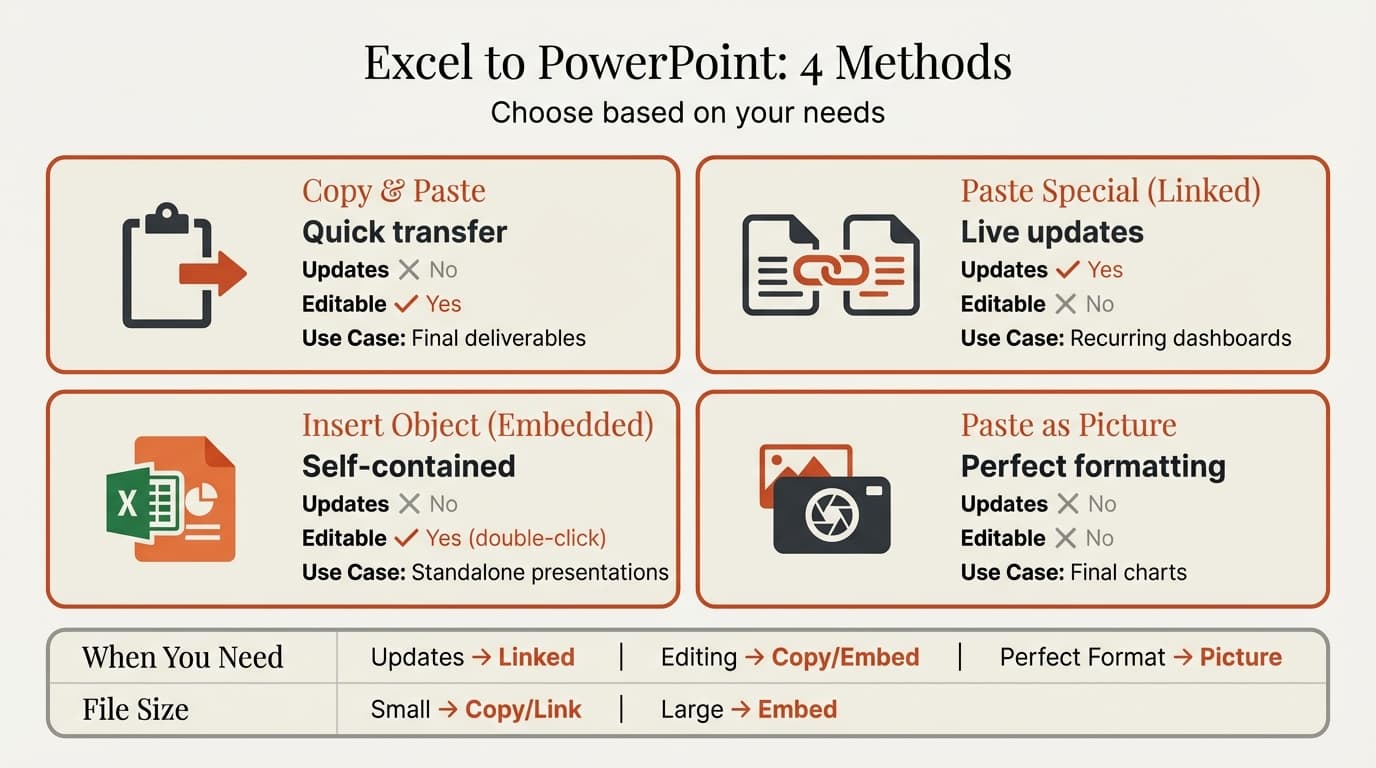
| Method | Refreshes from source | Editable after pasting | Main risk | Best for |
|---|---|---|---|---|
| Copy and paste | No | Usually, depending on paste option | Theme and scale changes | One-off tables and charts |
| Paste link | Yes | Through source workbook | Broken paths and stale values | Recurring internal reporting |
| Embed Excel object | No external refresh | Yes, inside embedded workbook | Large file and hidden data | Self-contained working files |
| Paste as picture | No | No | Flattened content | Locked visual snapshots |
The best professional handoff is often a fifth option: rebuild the exhibit as a native PowerPoint chart while preserving a clear source map back to Excel.
Method 1: Copy and Paste
Copying an Excel range or chart and pasting it into PowerPoint is the fastest method. The result depends on the paste option selected:
- Use Destination Styles adapts the object to the PowerPoint theme.
- Keep Source Formatting attempts to preserve the Excel appearance.
- Embed stores Excel data inside the presentation.
- Picture preserves appearance but removes normal editability.
- Keep Text Only discards the table or chart structure.
Use ordinary copy and paste when the exhibit is simple and does not need to refresh from the original workbook. After pasting, verify fonts, number formats, column widths, labels, colors, and chart data.
Method 2: Link Excel to PowerPoint
A linked object keeps a reference to the external workbook. It is useful for monthly reports, dashboards, and board materials that continue changing until the reporting cut-off.
Typical workflow:
- Copy the Excel range or chart.
- In PowerPoint, open Paste Special.
- Choose Paste link and the appropriate Excel object type.
- Save both files in their controlled project location.
- Reopen the presentation and test a refresh.
Linking has two operational risks. The source path can break when files move, and the presentation can display stale values when the workbook is unavailable or the link has not refreshed. Add a visible reporting period and confirm the values before sharing.
Method 3: Embed an Excel Object
Embedding stores a copy of the workbook or worksheet object inside the PowerPoint file. The recipient can double-click the object and edit its embedded Excel data without the original external workbook.
Use embedding when the presentation must be self-contained but still needs Excel editing. Avoid embedding an entire sensitive workbook merely to show one table. Embedded content increases file size and may expose worksheets or data that were not intended for the recipient.
Before delivery:
- Inspect every embedded sheet
- Remove confidential or unnecessary data
- Confirm formulas and external connections
- Test the file on the recipient's platform
Continue reading: How to Link Excel Charts to PowerPoint (Auto-Update Guide) · Capacity Planning Template · How to Add Icons to PowerPoint
Create professional charts in PowerPoint
Build native waterfall, Mekko, Gantt, and business charts without manual formatting. 14-day free trial. No credit card required.
Method 4: Paste as a Picture
Pasting as a picture freezes the visual result. It prevents accidental data changes and often preserves appearance more reliably than an editable object.
Use a picture when:
- The numbers are final
- The exhibit should not be edited
- Exact appearance matters more than accessibility or reuse
- The source workbook must not travel with the deck
Do not use pictures when the recipient expects to edit chart values, copy table data, apply a theme, or inspect object structure. A sharp image is still a flattened artifact.
How to Keep Excel Charts Editable
An editable PowerPoint chart should pass five checks:
- The chart can be selected as a chart, not only as an image.
- The underlying values can be opened and changed.
- Labels, axes, colors, and series can be formatted separately.
- One manual data change updates the visual correctly.
- The chart still works after the presentation is saved, closed, and reopened.
For client-facing slides, a native PowerPoint chart is often easier to hand off than an embedded worksheet object. For recurring internal reporting, a link may be worth the file-management discipline.
Fixing Common Formatting Problems
Fonts and line breaks change
Excel and PowerPoint use different themes and layout constraints. Try both Keep Source Formatting and Use Destination Styles, then choose the result that requires less cleanup. Avoid relying on very small Excel fonts to survive slide scaling.
Tables become unreadably small
Do not force a large worksheet range into one slide. Remove non-essential columns, shorten headers, split the table, or turn the message into a chart with an appendix table.
Colors and borders shift
PowerPoint may apply destination theme colors. If brand consistency matters, convert the exhibit to the presentation theme deliberately instead of trying to preserve every Excel cell style.
The chart carries too much workbook data
Inspect embedded chart data and connections before external sharing. If the recipient only needs the visual, use a picture. If the recipient needs editability, rebuild with a limited native data table.
Links break after sharing
Linked objects depend on access to the source location. Test the deck from the recipient's environment or convert the final copy to embedded, native, or static objects before sending.
Make Every Chart Traceable
An editable chart is not automatically a verifiable chart. Preserve this information for every material exhibit:
| Field | Example |
|---|---|
| Workbook | FY26_board_pack.xlsx |
| Worksheet | Revenue bridge |
| Range or table | B4:H9 or tbl_revenue_bridge |
| Reporting period | Q2 FY2026 |
| Refresh date | 9 August 2026 |
| Transformation | Constant-currency adjustment; discontinued segment removed |
| Owner | Finance planning team |
Put a compact source line on the slide and the full mapping in speaker notes or an appendix. This lets another analyst update the exhibit without reverse-engineering the workbook.
Using AI Between Excel and PowerPoint
AI can interpret a workbook, recommend a chart, write an action title, and create or update slides. It should not become the source of truth for the numbers.
Use this review sequence:
- Reconcile the displayed values to the authoritative workbook range.
- Confirm units, periods, currencies, signs, and totals.
- Verify that the action title states what the data supports.
- Check that the chart remains editable and the source mapping is preserved.
- Reopen the delivered file and test one manual data change.
Deckary's Excel workflow is designed for this Office handoff: analyze or edit the workbook, create native presentation output, and continue working in PowerPoint.
Which Method Should You Use?
- One-off editable table: copy and paste, then restyle in PowerPoint.
- Recurring internal report: link to a controlled workbook.
- Self-contained working file: embed only the necessary Excel content.
- Locked final visual: paste as a picture.
- Editable client chart: create or rebuild a native PowerPoint chart with a documented Excel source.
Sources
- Microsoft Support — Insert and update Excel data in PowerPoint
- Microsoft Support — Copy from Excel to another Office program
Need to turn workbook analysis into editable presentation output? Explore the Deckary Excel agent, PowerPoint AI workflow, and consulting charts.
Create professional charts in PowerPoint
Build native waterfall, Mekko, Gantt, and business charts without manual formatting. 14-day free trial. No credit card required.