Bar Charts in PowerPoint: The Complete Guide for Business Presentations
Learn how to create effective bar charts in PowerPoint, when to use horizontal vs vertical orientation, and formatting rules from 230+ consulting presentations.
Bar charts solve the most common problem in business presentations: comparing values across categories. Cleveland and McGill's 1984 study "Graphical Perception: Theory, Experimentation, and Application to the Development of Graphical Methods" found position judgments (reading bar lengths) were the most accurate perceptual task—more accurate than angle, area, or color comparisons.
After analyzing 230+ consulting presentations and board decks, we found bar charts appear in 78% of strategy presentations—more than any other chart type. They work because the audience can decode them instantly without training.
Whether you use Deckary or native PowerPoint, the same bar chart design principles apply. This guide covers when to use horizontal versus vertical orientation, how to create bar charts in PowerPoint, and the formatting decisions that separate cluttered charts from clear insights. For a complete chart type reference, see our PowerPoint Charts Guide.
What Is a Bar Chart?
A bar chart displays categorical data using rectangular bars where the length of each bar represents a quantitative value. The bars can be oriented horizontally (bar chart) or vertically (column chart)—both display the same type of data with different layouts.
| Term | Definition |
|---|---|
| Bar chart | Horizontal rectangular bars showing values |
| Column chart | Vertical rectangular bars (PowerPoint's name for vertical bar charts) |
| Category axis | The axis showing category labels (departments, products, regions) |
| Value axis | The axis showing numeric values |
| Gap width | Space between bars as percentage of bar width |
Bar charts are widely used because they are simple and intuitive. Because bar charts are familiar to all audiences, they work especially well in executive presentations where not everyone is an analyst.
When to Use Bar Charts
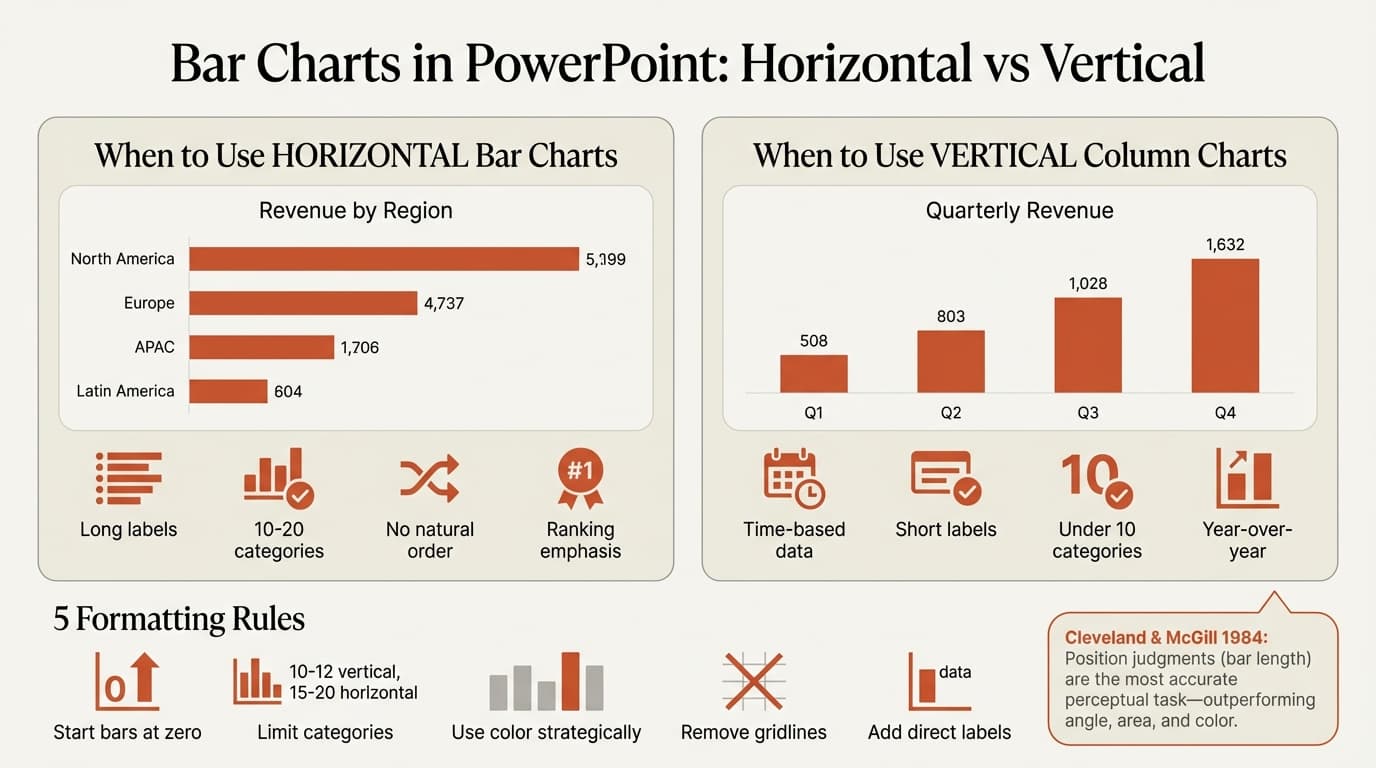
Bar charts excel in three scenarios:
Comparing values across categories. Revenue by product line, sales by region, costs by department, or survey results by response option. Bar charts make magnitude differences immediately visible—your audience sees which category is largest without reading numbers.
Ranking categories. When order matters—top 10 customers by revenue, most common defect types, or highest-scoring survey items—bar charts show hierarchy clearly. Sort from highest to lowest and the ranking is obvious.
Showing small datasets with discrete categories. Bar charts work for 3-20 categories. Fewer than 3 categories and a table is clearer. More than 20 and you should filter to top categories or use a different visualization.
When NOT to Use Bar Charts
| Scenario | Problem | Better Alternative |
|---|---|---|
| Continuous data over time | Discrete bars imply data gaps | Line chart or area chart |
| Part-to-whole relationships | Doesn't show total | Pie chart or 100% stacked bar |
| Distribution of values | Shows counts, not shape | Histogram or box plot |
| Correlation between variables | Only shows one dimension | Scatter plot |
| Too many categories (over 20) | Visual clutter | Filter to top 10, or use table |
| All values nearly identical | Differences invisible | Table with exact values |
Horizontal vs. Vertical: Which Orientation to Use
PowerPoint offers both horizontal bar charts and vertical column charts. The choice depends on your data structure and labels.
Use Horizontal Bar Charts When:
Category labels are long. Horizontal orientation allows full left-to-right reading. Labels under vertical bars must rotate, truncate, or wrap—all reduce readability.
You have many categories. Horizontal bar charts can display 15-20 categories comfortably. Vertical column charts become cluttered beyond 10-12 categories.
Categories have no natural order. Survey responses, department names, or product categories without sequence are easier to scan vertically down the page.
You want to emphasize ranking. Sorting horizontal bars from longest at top to shortest at bottom creates an obvious hierarchy.
Use Vertical Column Charts When:
Categories are time-based. Months, quarters, years, or sequential stages read naturally left-to-right. Audiences expect time to flow horizontally.
Labels are short. One or two-word labels fit well under vertical bars without rotation.
You have fewer than 10 categories. Vertical orientation uses space efficiently for small datasets.
Comparing to previous time periods. Side-by-side vertical bars showing This Year vs Last Year are standard and intuitive.
| Situation | Horizontal | Vertical |
|---|---|---|
| Long labels (3+ words) | ✓ | |
| 10-20 categories | ✓ | |
| Time series data | ✓ | |
| Under 10 categories | ✓ | ✓ |
| Short labels (1-2 words) | ✓ | ✓ |
| Ranking emphasis | ✓ |
Continue reading: Business Presentation Guide · Agile vs Waterfall · PowerPoint Design Tips
Create professional charts in PowerPoint
Build native waterfall, Mekko, Gantt, and business charts without manual formatting. 10 free AI prompts. No credit card required.
How to Create a Bar Chart in PowerPoint
Step 1: Insert the Chart
- Click on your slide where you want the chart
- Go to Insert > Chart in the ribbon
- Select Bar (horizontal) or Column (vertical) from the left panel
- Choose your style: Clustered Bar, Stacked Bar, or 100% Stacked Bar
- Click OK
PowerPoint opens an Excel-like data editor.
Step 2: Enter Your Data
- Replace sample categories in the first column with your category names
- Replace sample values with your data
- Delete extra rows or columns you don't need
- Close the data editor when finished
The chart updates automatically as you type.
Step 3: Format the Axes
Remove unnecessary gridlines. Click the gridlines and press Delete. Gridlines add visual clutter—direct bar labels are clearer.
Adjust value axis scale. Right-click the value axis > Format Axis > Bounds. Set the maximum to slightly above your highest value for better visual proportions.
Format category labels. Select category axis labels, increase font size to at least 11pt. For horizontal bars, left-align labels for better readability.
Step 4: Add Data Labels
- Select the chart
- Click the + icon (Chart Elements)
- Check Data Labels
- Click the arrow next to Data Labels > More Options
- Position labels at Outside End for easy reading
Data labels eliminate the need for readers to trace back to the axis.
Step 5: Format for Clarity
Adjust bar width. Right-click a bar > Format Data Series > Series Options. Change Gap Width from default 182% to 80-120% for better visual density. PowerPoint's default makes bars too thin with excessive white space.
Apply consistent color. Select the bars > Format Data Series > Fill. Use one color for all bars unless highlighting specific categories. Blue or gray work well for neutral comparisons.
Highlight key data. To emphasize one category, click that bar twice (once to select all, again to select one), then apply a contrasting color.
Sort by value. For ranking, manually reorder your data rows so the largest value appears first. This creates an immediate visual hierarchy.
Bar Chart Best Practices
After analyzing 230+ consulting presentations, these patterns separate clear visualizations from cluttered ones.
Start Bars at Zero
Always begin the value axis at zero. Truncating the axis exaggerates small differences and misleads readers about magnitude. If all your values are similar (95, 97, 96, 98), use a table instead—a bar chart will be visually uninformative.
Limit Categories
Vertical column charts: Maximum 10-12 categories. Beyond that, labels overlap and bars become too narrow.
Horizontal bar charts: Maximum 15-20 categories. More than that creates a scrolling effect where readers lose context.
When you have too many categories, show only the top 10 and group the rest into "Other."
Use Color Strategically
Single color for neutral comparisons. When all categories have equal importance, use one color (typically gray or brand blue) for all bars.
Contrasting color for emphasis. To highlight one or two bars, use gray for most bars and a bright color (orange, red, green) for the highlighted bars.
Avoid rainbow patterns. Using different colors for every bar adds no information and forces readers to constantly decode a legend.
Remove Unnecessary Elements
Following principles of reducing visual clutter, remove:
- Gridlines (replace with direct labels)
- Borders around the chart area
- Background fills
- 3D effects
- Drop shadows
- Legends (use direct labels instead)
Each element you remove increases the data-to-ink ratio and makes comprehension faster.
Write Action Titles
| Weak Title | Strong Action Title |
|---|---|
| Revenue by Region | APAC drives 43% of global revenue, up from 31% last year |
| Customer Satisfaction | Satisfaction scores declined 12 points in Q4 |
| Top Products | Premium subscription accounts for 68% of new bookings |
Action titles tell the reader what conclusion to draw from the data.
Common Bar Chart Mistakes
Truncated axes. Starting the axis above zero distorts comparisons. A bar that looks twice as tall might represent only a 5% difference when the axis runs from 90-100 instead of 0-100.
Too many categories. Beyond 12 vertical bars or 20 horizontal bars, comprehension drops. Filter to the most important categories.
3D bar charts. 3D effects distort perspective and make accurate reading impossible. Always use 2D bars.
Inconsistent sorting. Mixing alphabetical and value-based sorting confuses readers. Pick one approach: sort by value for ranking emphasis, or keep natural order for time-based or sequential categories.
Horizontal bars sorted bottom-to-top. Unlike vertical charts where we read left-to-right, horizontal bar rankings should place the largest value at the top, not the bottom. Readers scan top-to-bottom.
Multiple bars with identical colors. When showing multiple series (This Year vs Last Year), use clearly different colors—not two shades of blue that blend together.
Legends far from bars. If you must include a legend, position it close to the chart. Better: add series labels directly next to bars and eliminate the legend entirely.
Bar Chart Variations
PowerPoint includes specialized bar chart types for different analysis needs.
Clustered Bar Chart
Multiple bars side-by-side for each category. Use when comparing 2-3 series across categories (Actual vs Budget vs Forecast, or This Year vs Last Year).
Best for: Direct comparison of series. The bars sit next to each other so length differences are obvious.
Limit: Works for 2-3 series. Four or more series create visual clutter.
Stacked Bar Chart
Bars divided into segments showing sub-category composition. Use when you need both the total and the breakdown (Revenue by Region with segments by Product Line).
Best for: Showing part-to-whole within categories while comparing totals across categories.
Drawback: Only the bottom segment has a common baseline. Middle segments are hard to compare across categories because they start at different heights.
100% Stacked Bar Chart
Bars all reach 100%, showing percentage composition rather than absolute values. Use when proportions matter more than totals (Market Share by Product over Time).
Best for: Comparing distributions across categories when totals differ or are irrelevant.
Limitation: Hides absolute magnitude. You see percentages but lose sense of total size.
Creating Bar Charts from Excel Data
For presentations with dynamic data, linking bar charts to Excel eliminates manual updates.
Manual method: Create your chart in Excel, copy it, then use Paste Special > Paste Link in PowerPoint. When Excel data changes, right-click the chart in PowerPoint and select Update Link. Note that links break when files move or rename.
Add-in method: Tools like Deckary maintain Excel links automatically, updating PowerPoint charts when source data changes. For recurring presentations with multiple charts, this reduces maintenance time significantly.
Bar Charts in Consulting Presentations
Consultants default to bar charts for most comparisons. Common patterns include:
Performance dashboards. Actual vs Target across business units, with clustered bars showing the gap.
Market sizing. Horizontal bars showing TAM, SAM, SOM from largest to smallest with clear hierarchy.
Survey results. Horizontal bars for Likert scale responses, with longest bar (highest agreement) at top.
Waterfall components. Starting with a bar chart showing Year 1 vs Year 2, then waterfall chart to explain the change drivers.
The pattern: bar charts when magnitude and ranking matter, other chart types when relationships or distributions are the insight.
Key Takeaways
Bar charts are the most accurate visualization type. Cleveland and McGill's research proved position judgments (reading bar length) outperform all other perceptual tasks.
Orientation depends on labels and count. Use horizontal bars for long labels or 10+ categories. Use vertical columns for time-based data or under 10 categories.
Format for clarity, not decoration. Remove gridlines, use direct labels, keep color simple, and always start axes at zero.
Limit categories. Maximum 10-12 for vertical bars, 15-20 for horizontal bars. Beyond that, filter to top categories.
Sort intentionally. Largest-to-smallest for ranking emphasis. Natural order for time or sequence. Never mix both approaches in one chart.
Bar charts are the workhorse of business presentations because they do one thing exceptionally well: show magnitude differences at a glance. When you need precise comparisons across categories, no other chart type performs better.
Create professional charts in PowerPoint
Build native waterfall, Mekko, Gantt, and business charts without manual formatting. 10 free AI prompts. No credit card required.