Fishbone Diagram in PowerPoint: 3 Methods Compared
Learn how to create a fishbone diagram in PowerPoint using shapes, SmartArt, or templates. Step-by-step guide with Ishikawa diagram standards for consultants.
PowerPoint has no native fishbone diagram tool. When a partner requests a root cause analysis slide, you face three options: SmartArt layouts that simplify beyond recognition, manual shape construction that takes 60+ minutes, or template libraries built for consulting standards.
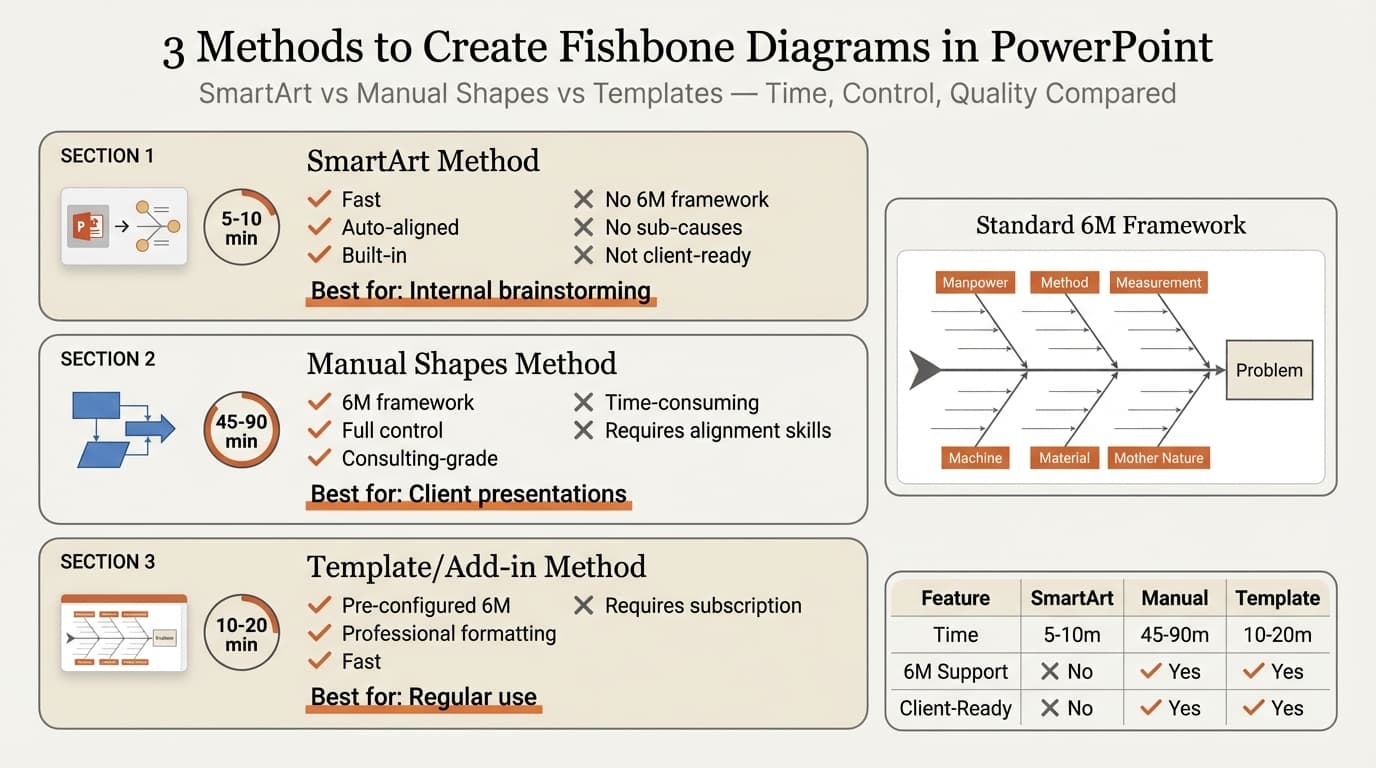
After building fishbone diagrams for 90+ operational improvement and Six Sigma projects, we have tested every method. SmartArt produces basic cause-and-effect visuals but cannot support the 6M framework. Manual shapes handle any complexity but require precision alignment work. Templates balance speed with professional formatting that follows Ishikawa diagram conventions.
This guide walks through all three methods with step-by-step instructions, the standard 6M category framework, and formatting best practices that keep root cause analysis diagrams readable at a glance.
What Is a Fishbone Diagram
A fishbone diagram visualizes the relationship between an effect (a problem) and its potential causes. The diagram resembles a fish skeleton: the problem sits at the head, major cause categories form the bones, and specific factors branch off each bone.
ASQ (American Society for Quality) defines it as "a causal diagram created by Kaoru Ishikawa that shows the potential causes of a specific event." Ishikawa introduced the diagram in the 1960s at Kawasaki shipyards. It organizes causes into categories, helping teams identify root causes rather than symptoms.
When to Use a Fishbone Diagram
Fishbone diagrams work when you need to explore all possible root causes of a known problem—quality defects, process delays, customer complaints, safety incidents, or project failures. Use them during problem definition phases, not solution evaluation.
Do not use fishbone diagrams for comparing solutions, showing process steps, displaying quantitative data, or mapping project timelines. Use comparison tables, flowcharts, bar charts, or Gantt charts instead.
The 6M Categories Framework
The 6M framework provides standard categories for organizing causes:
| Category | Focus | Example Causes |
|---|---|---|
| Manpower | People, skills, training | Insufficient training, high turnover, unclear roles |
| Machine | Equipment, tools, technology | Equipment downtime, outdated software, capacity constraints |
| Method | Processes, procedures | Inconsistent procedures, missing documentation, bottlenecks |
| Material | Raw materials, supplies | Supplier quality issues, inventory shortages, defects |
| Measurement | Data, metrics, monitoring | Inaccurate tracking, delayed reporting, inconsistent KPIs |
| Mother Nature | External factors | Temperature fluctuations, regulatory changes, facility constraints |
Lean Six Sigma practitioners apply the 6M framework in manufacturing. Service industries modify categories—replacing "Machine" with "Technology" or "Mother Nature" with "Management."
Adapt category names to your audience. Executive teams understand "Technology" more readily than "Machine."
Method 1: Fishbone Diagram with SmartArt
SmartArt offers a Basic Cause and Effect layout that resembles a fishbone diagram. It handles basic cause-and-effect relationships but does not support the 6M framework or customized category labels.
Time required: 5-10 minutes.
Steps
- Go to Insert > SmartArt > Relationship
- Select Basic Cause and Effect (shows a horizontal arrow with branching lines)
- Click OK
- Enter your problem statement in the rightmost box (the arrowhead)
- Enter causes in the text pane on the left side
- Press Enter to add more causes; press Delete to remove causes
- Use SmartArt Design > Change Colors to adjust the color scheme
- Use SmartArt Design > SmartArt Styles to change visual formatting
Limitations
PowerPoint SmartArt does not allow category customization. You cannot label bones with "Manpower," "Machine," and "Method"—the diagram treats all causes as equivalent items. You cannot add sub-causes branching off individual causes.
For consulting work, SmartArt produces diagrams that look like fishbone diagrams without functioning like them. Clients expect the 6M framework and hierarchical cause relationships. SmartArt cannot deliver either.
Best for: Rapid brainstorming slides for internal meetings where the diagram serves as a conversation starter rather than a polished deliverable.
Continue reading: Case Study Template PowerPoint · Fishbone Diagram Examples · PowerPoint SmartArt
Create professional charts in PowerPoint
Build native waterfall, Mekko, Gantt, and business charts without manual formatting. 10 free AI prompts. No credit card required.
Method 2: Fishbone Diagram with Manual Shapes
The manual shapes method gives you full control over category labels, bone placement, and cause-subcause hierarchies. This is the standard approach for client-facing root cause analysis slides.
Time required: 45-90 minutes depending on complexity.
Steps
- Draw the spine — Go to Insert > Shapes > Line and draw a horizontal line across the slide from left to right
- Add the problem box — Use Insert > Shapes > Rectangle to create a box at the right end of the spine. Type your problem statement (e.g., "Order Fulfillment Delays")
- Draw category bones — Use Insert > Shapes > Line to draw diagonal lines extending from the spine at 45-degree angles. For the 6M framework, draw three bones above the spine and three below, evenly spaced
- Label categories — Use Insert > Text Box to add category labels ("Manpower," "Machine," "Method," etc.) above or below each bone
- Add cause lines — Draw smaller diagonal lines branching off each category bone using Insert > Shapes > Line
- Add cause text — Use Insert > Text Box to label each cause. Keep labels short—3-6 words maximum
- Add sub-causes (optional) — For causes with multiple contributing factors, draw additional branching lines off the cause lines
- Align and distribute — Select all shapes and use Format > Align > Distribute Horizontally and Distribute Vertically to create even spacing
Alignment and Formatting
After drawing all shapes, select the category bones and use Format > Align > Align Middle to ensure they connect at the same vertical position. Use Distribute Horizontally to create equal spacing along the spine.
Hold Shift while drawing lines to snap to 15-degree increments. Draw one bone at 45 degrees, then copy and paste it for the remaining bones.
Manual shapes are the only native PowerPoint method that produces diagrams matching Ishikawa's original design conventions with the 6M framework.
Best for: Client-facing root cause analysis slides, operational improvement presentations, and Six Sigma project documentation.
Method 3: Using Templates and Add-ins
Template libraries provide pre-built fishbone layouts with the 6M framework already structured.
Time required: 10-20 minutes.
PowerPoint's built-in templates do not include fishbone diagrams. External sites like SlideModel and Smartsheet provide templates, but most use generic layouts without consulting formatting.
For consulting-grade diagrams, add-ins like Deckary include Ishikawa templates with the 6M framework pre-configured and MBB-style formatting. Tools like Lucidchart and Visio offer PowerPoint export options.
Best for: Teams building root cause analysis diagrams regularly.
Method Comparison
| Feature | SmartArt | Manual Shapes | Template |
|---|---|---|---|
| Time | 5-10 min | 45-90 min | 10-20 min |
| 6M support | No | Yes | Yes |
| Client-ready | No | Yes | Yes |
| Cost | Free | Free | $0-119/year |
SmartArt for quick internal brainstorms. Manual shapes for client deliverables. Templates when you need consulting-grade diagrams in 20 minutes.
Formatting Standards
Use color to distinguish categories—one color per bone. Keep the spine and problem box neutral (black or dark gray). Limit your palette to 6 colors maximum.
Use a sans-serif font at 10-12pt for causes. Keep labels short—nouns or short phrases, not sentences. "Insufficient training on new ERP system" becomes "Training gaps."
Position the problem box on the right side. Place three bones above the spine and three below at 45-degree angles. Leave 0.3-0.5 inches between cause lines. If you have more than 4 causes per category, group related causes or create separate diagrams.
Common Mistakes
After reviewing 90+ fishbone diagrams, these errors appear most frequently:
| Mistake | Fix |
|---|---|
| No category labels | Label all bones with 6M categories |
| Too many causes | Limit to 2-4 causes per category |
| Symptoms, not root causes | Use "5 Whys" to drill down |
| Unequal spacing | Use Distribute Horizontally |
| Inconsistent angles | Hold Shift or copy-paste one bone |
| Long labels | Keep under 6 words; use nouns |
When Not to Use a Fishbone Diagram
For problems with one dominant causal chain, 5 Whys produces faster results. For problems where you suspect the top contributors, Pareto analysis quantifies their impact. Use fishbone diagrams when the problem has multiple potential causes across different categories and you need comprehensive exploration.
Sources
- ASQ — Fishbone Diagram (Ishikawa)
- Go Lean Six Sigma — Fishbone Diagram
- Microsoft Support — Create a SmartArt graphic from scratch
- Wikipedia — Ishikawa diagram
- SlideModel — Fishbone Diagram Templates
- Lucidchart — Free Fishbone Diagram Template PowerPoint
Summary
Creating a fishbone diagram in PowerPoint requires choosing the right method for your specific analysis. SmartArt works for quick brainstorming but cannot support the 6M framework consultants need. Manual shapes handle full Ishikawa diagram conventions but take 90 minutes to build. Templates provide consulting-grade layouts in 20 minutes.
Key takeaways:
- Use the 6M framework to ensure comprehensive root cause exploration across people, equipment, processes, materials, data, and environment
- SmartArt is not suitable for client work because it lacks category labels and cause hierarchy support
- Manual shapes are the consulting standard but require precise alignment and 45-90 minutes of formatting work
- Limit to 2-4 causes per category to maintain readability—group related causes under broader labels for complex problems
- Label every category bone with clear names your audience understands, not framework jargon
- Use fishbone diagrams to identify causes, not evaluate solutions—switch to decision matrices or comparison tables when moving from problem definition to solution selection
For consultants building root cause analysis diagrams regularly, pre-built templates save significant time over starting from scratch. Explore Deckary's slide library for fishbone diagram templates that follow Ishikawa diagram standards and include the 6M framework pre-configured.
Create professional charts in PowerPoint
Build native waterfall, Mekko, Gantt, and business charts without manual formatting. 10 free AI prompts. No credit card required.