Best Tools for Creating Business Case Presentations in PowerPoint
The best tools for building business case presentations in PowerPoint. Covers add-ins for financial charts, templates, AI slide generation, and the slides every business case needs.
The best tools for creating business case presentations in PowerPoint handle two things native PowerPoint cannot: Excel-linked financial charts (waterfall bridges, sensitivity tables) and structured consulting-style slide layouts (executive summaries, options comparisons, risk matrices).
After building business case presentations for 40+ investment decisions (from $200K software purchases to $5M market entries), we have tested every approach: native PowerPoint charts, Deckary's Excel-linked waterfall and Gantt charts, AI slide generation, and template-based workflows. This guide covers which tools matter for each section of a business case and how to build the full deck in under an hour. For the methodology behind business cases, see our business case template guide and worked examples.
The Slides Every Business Case Needs
Before choosing tools, understand the deliverable. A standard business case presentation follows this structure:
| Slide | Purpose | Key Visual |
|---|---|---|
| Executive summary | State recommendation + headline financials | KPI boxes (NPV, IRR, payback) |
| Problem statement | Define the gap or opportunity | Before/after comparison |
| Options analysis | Compare 3 alternatives | Comparison table |
| Financial analysis | Show the numbers | Waterfall chart + sensitivity table |
| Risk assessment | Address objections preemptively | Risk matrix |
| Implementation timeline | Show the plan | Gantt chart |
| Recommendation | State the ask | Decision framework |
Each slide type has specific tool requirements. The financial analysis slide needs Excel-linked charts. The implementation timeline needs a Gantt chart. The options comparison needs a structured table. Here is how to build each one efficiently.
Tools for Financial Charts
Financial analysis is where native PowerPoint falls short. Business cases require waterfall charts (cost bridges, revenue walks, ROI breakdowns), comparison bar charts (option A vs B vs C), and sensitivity tables (best case, base case, worst case).
Waterfall Charts
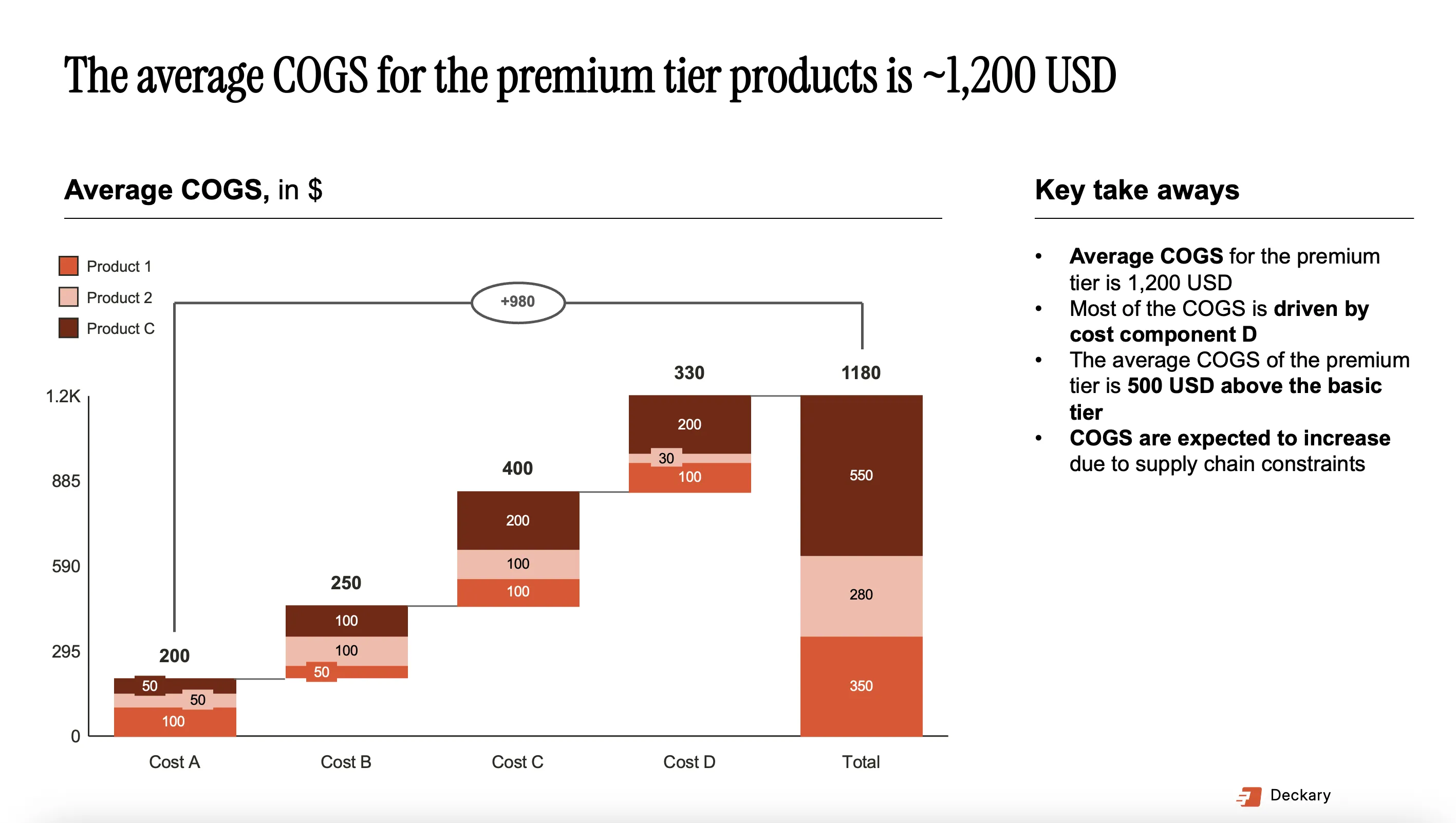
The centerpiece of most business case financial slides. A waterfall chart shows how you get from investment cost to net return, with each bar representing a cost component, revenue driver, or savings category.
Native PowerPoint includes a basic waterfall chart since Office 2016, but it lacks Excel linking, stacked waterfalls, and automatic connectors. When your CFO asks "what if we reduce the marketing budget by 20%?" and you need to update the chart live, native waterfalls require manual rebuilding.
Deckary's waterfall charts link directly to Excel. Change a number in your spreadsheet, and the chart updates automatically with correct connectors and formatting. Creating a waterfall from Excel data takes under 30 seconds versus 15+ minutes natively.
Comparison Charts
Options analysis slides need side-by-side bar charts comparing costs, returns, or timelines across alternatives. Native PowerPoint handles grouped bar charts well, but formatting them to consulting standards (consistent colors, clean labels, data callouts) takes time.
Sensitivity Analysis
Present best-case, base-case, and worst-case scenarios using tornado charts or data tables. These show which assumptions have the biggest impact on your business case outcome. For calculation, our NPV calculator and IRR calculator can model scenarios before you build the slides.
Continue reading: Appendix Slide PowerPoint · PowerPoint Chart Templates · Competitive Landscape Slide
Use consulting-grade layouts in PowerPoint
Start from structured business slides and customize them in your own deck. 10 free AI prompts. No credit card required.
Tools for Implementation Timelines
Every business case needs an implementation plan. Executives want to see not just the financial return but when it arrives and what the execution path looks like.
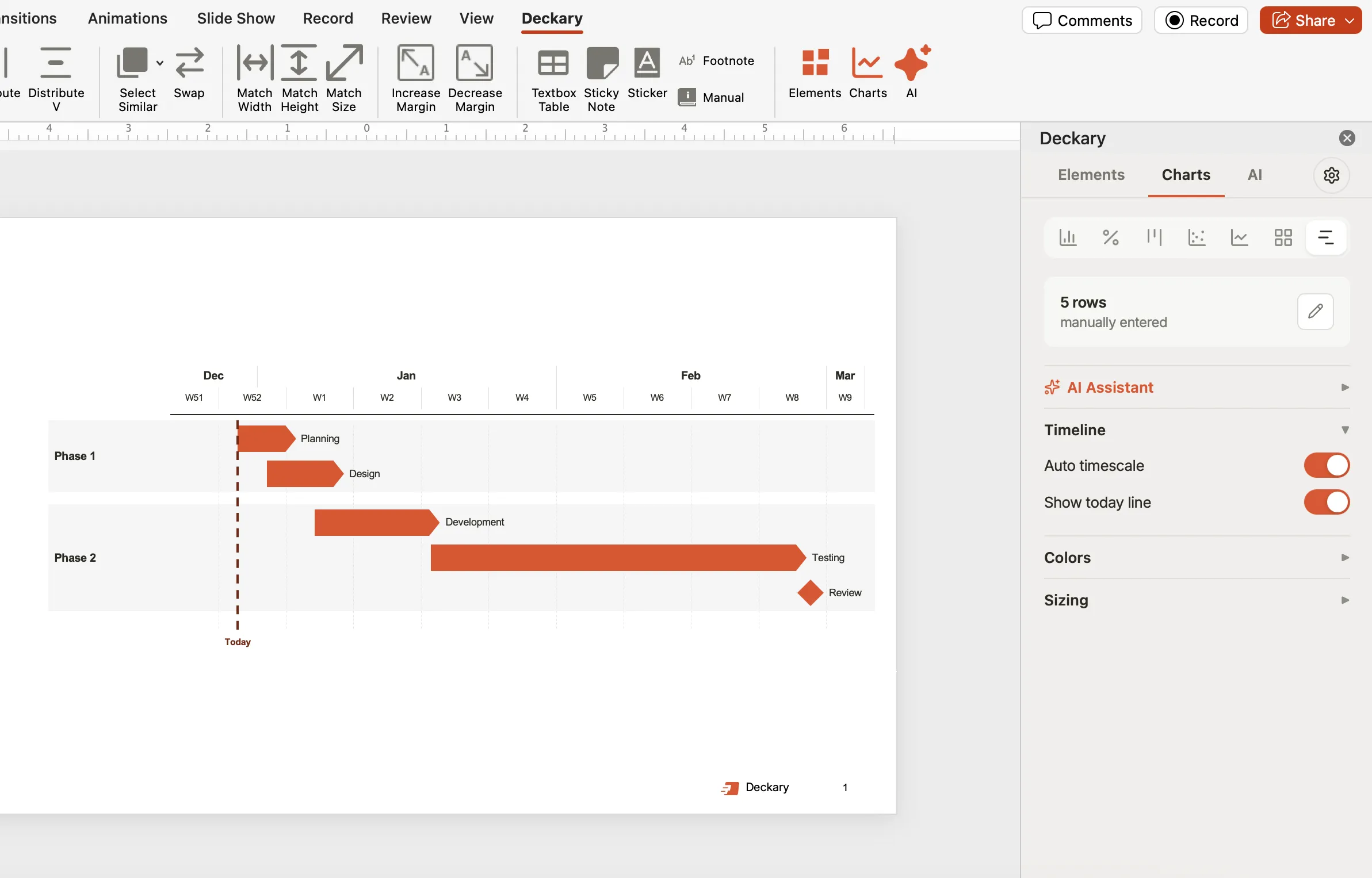
Gantt charts are the standard visualization. PowerPoint has no native Gantt chart. The common workaround uses a stacked bar chart with an invisible series, which takes 30-45 minutes and breaks when dates change.
Deckary's Gantt charts build directly from Excel data with automatic date scaling, milestone markers, and workstream grouping. When the implementation timeline shifts (and it always shifts), updating the chart takes seconds instead of rebuilding it.
For simpler implementations, a timeline slide showing 4-6 phases may be sufficient. Browse our project management templates for pre-built layouts.
Tools for Structured Slides
Beyond charts, business case presentations need well-structured content slides: executive summaries, comparison tables, risk matrices, and recommendation frameworks.
AI Slide Generation
Deckary's AI slide builder generates complete business case slides from text descriptions. Describe your initiative ("Create an executive summary slide for a $1.2M CRM implementation with 68% IRR and 11-month payback") and the AI produces a structured slide with KPI boxes, key findings, and recommendation text following consulting conventions.
This is particularly useful for the narrative slides (problem statement, recommendation) where you need consulting-style structure (action titles, supporting bullet points, visual hierarchy) without spending 20 minutes on formatting.
Templates
Pre-built templates eliminate the blank-slide problem. Instead of deciding how to lay out a risk matrix or options comparison, start from a proven structure and fill in your data.
Deckary includes business case templates covering ROI analysis (8 slides), break-even analysis, financial projection layouts, and executive summary formats. Each template follows consulting formatting standards: action titles, consistent typography, and clean visual hierarchy.
Icons and Visual Elements
Business case slides benefit from visual shorthand: icons for risk categories, status indicators for implementation phases, and flags for international scope. Deckary includes 2,000+ icons organized by business category, insertable directly from the PowerPoint ribbon.
Tool Comparison for Business Cases
| Capability | Native PowerPoint | Deckary | Canva | Beautiful.ai |
|---|---|---|---|---|
| Waterfall charts | Basic, no Excel link | Excel-linked, auto-format | Not available | Not available |
| Gantt charts | No native option | Excel-linked, automatic | Basic only | Not available |
| Excel data linking | Limited | Full chart linking | No | No |
| Business case templates | None | 8+ dedicated slides | Generic only | Generic only |
| AI slide generation | Copilot (limited) | Consulting-tuned AI | Magic Design | Auto-layout |
| Sensitivity tables | Manual formatting | Template-based | No | No |
| Works in PowerPoint | Yes | Yes (add-in) | Export only | Export only |
| Price | Included with Office | From $120/yr | From $120/yr | From $144/yr |
For business case presentations specifically, the key differentiator is Excel linking. Business cases involve iterative financial modeling. Assumptions change, scenarios get added, numbers get refined. Tools that link to Excel eliminate the rework cycle of manually updating charts every time the model changes.
Workflow: Building a Business Case Presentation
Here is a practical workflow using these tools together:
- Build the financial model in Excel. NPV, IRR, payback period, sensitivity analysis.
- Generate narrative slides with AI. Executive summary, problem statement, recommendation using Deckary's AI builder.
- Create financial charts from Excel. Waterfall chart for the cost/benefit bridge, linked to your model.
- Add the implementation Gantt. Pull from your project plan data in Excel.
- Insert templates. Risk matrix, options comparison from the business case template library.
- Add icons and visual polish. Status indicators, category icons from the icon library.
- Review and iterate. When assumptions change, Excel-linked charts update automatically.
This workflow produces a 10-15 slide business case presentation in under an hour. Without linked charts and templates, the same deck takes 3-4 hours, and every revision adds another 30-60 minutes of manual chart updates.
Summary
Business case presentations require specific capabilities that generic presentation tools do not provide. Financial charts need Excel linking. Implementation timelines need proper Gantt charts. Structured slides need consulting-grade templates.
Key takeaways:
- Waterfall charts are essential for financial analysis slides — use Excel-linked versions to handle iterative modeling
- Gantt charts communicate implementation plans better than bulleted timelines
- AI slide generation accelerates narrative slides (executive summary, problem statement, recommendation)
- Templates eliminate the blank-slide problem for standard business case patterns
- Excel linking is the critical differentiator — business cases involve constant number changes, and manual chart updates waste hours
For a ready-to-use starting point, explore Deckary's business case templates and charting capabilities. Everything you need to go from financial model to approved presentation.
Use consulting-grade layouts in PowerPoint
Start from structured business slides and customize them in your own deck. 10 free AI prompts. No credit card required.