How to Make a Gantt Chart in PowerPoint (Free Template)
Learn how to create professional Gantt charts in PowerPoint. Step-by-step guide covering native methods, SmartArt timelines, and add-ins with templates and best practices.
- Bob · Former McKinsey and Deloitte consultant with 6 years of experience
- July 19, 2026
- 8 min read
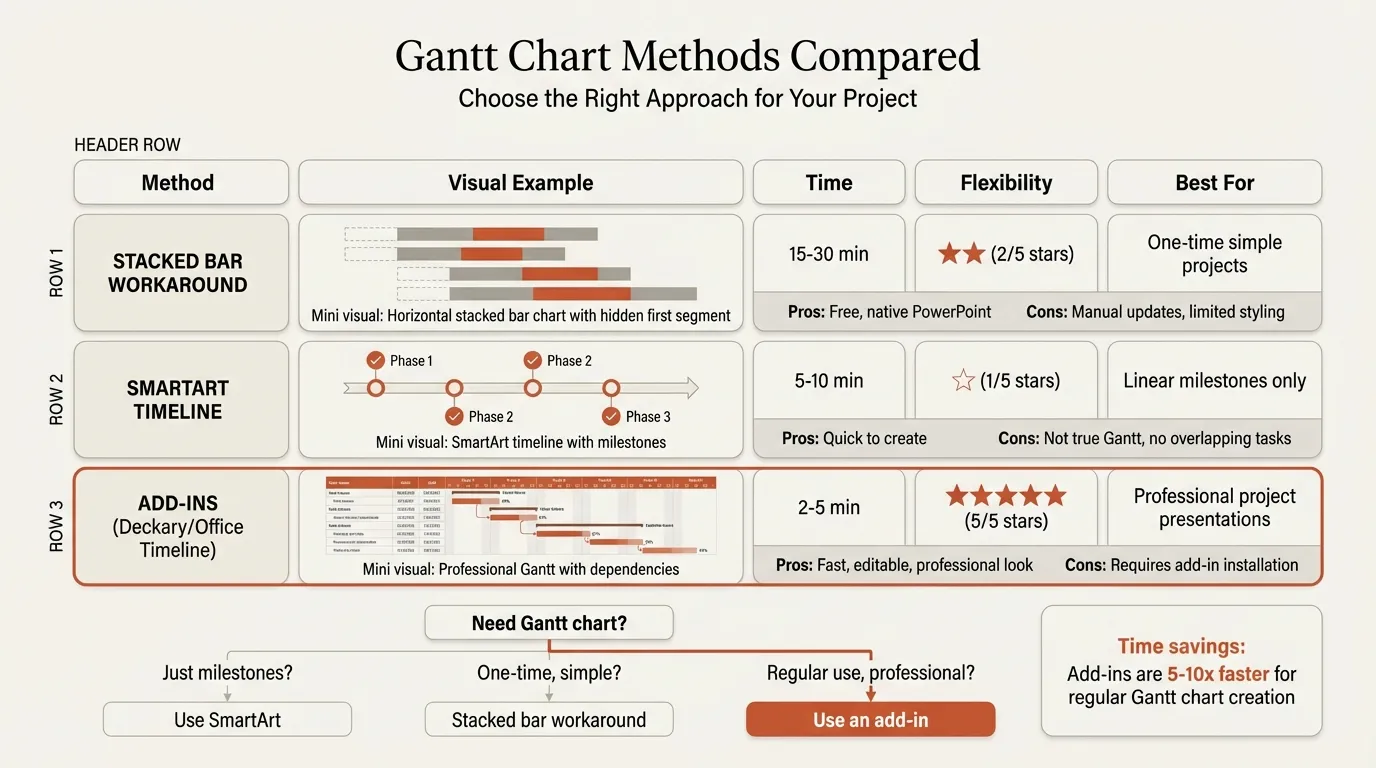
PowerPoint has no native Gantt chart. When a partner requests an implementation timeline for a steering committee deck, you are left with three imperfect options: SmartArt timelines that cannot handle overlapping tasks, stacked bar chart workarounds that require invisible placeholder series, or add-ins that produce professional results in minutes.
Whether you use Deckary, Office Timeline, or a manual workaround, the formatting standards for readable timelines remain the same. This guide covers each method with honest assessments of when each makes sense, plus the formatting principles that make timelines clear at a glance. Gantt charts are one of several essential chart types for consultants — for the full picture, see our PowerPoint Charts Guide.
Get the Template: Download our free Gantt Chart PowerPoint Template with professional timeline layouts, milestone markers, and workstream grouping.
What Is a Gantt Chart?
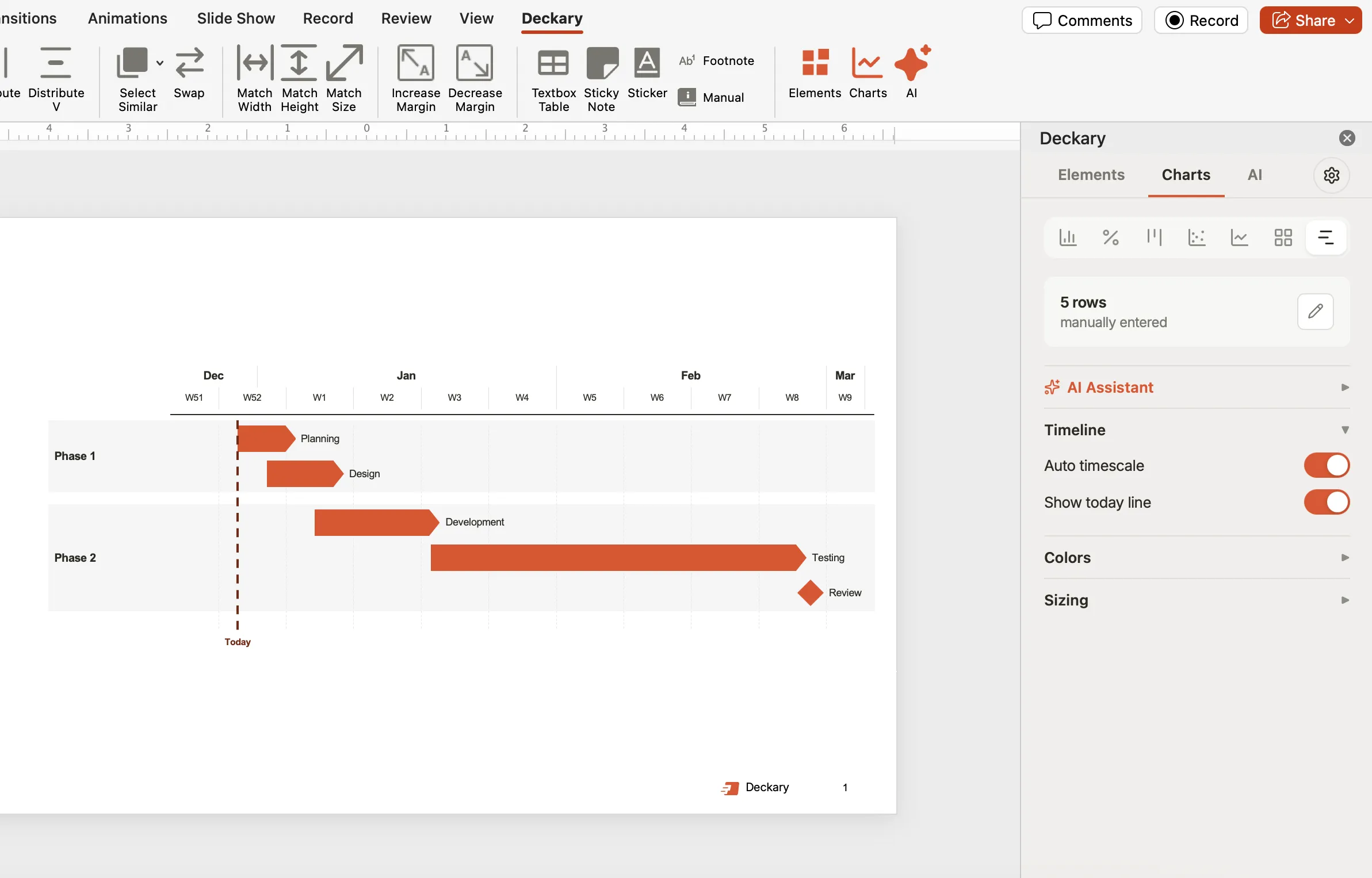
A Gantt chart is a horizontal bar chart that visualizes a project schedule. Each bar represents a task, with its position showing when the task starts and its length showing duration.
| Element | What It Shows |
|---|---|
| Horizontal bars | Task duration (start to end) |
| Vertical axis | List of tasks or workstreams |
| Horizontal axis | Timeline (days, weeks, months) |
| Milestones | Key dates or deliverables (often diamonds) |
| Dependencies | Which tasks must complete before others start |
When to Use Gantt Charts
Gantt charts work best in three scenarios: communicating project timelines to executives who need the overall picture at a glance, showing task dependencies and critical path for implementations and launches, and tracking progress against plan with a "today" marker in status meetings.
| Don't Use When | Use Instead |
|---|---|
| Showing high-level strategy phases only | Simple timeline or roadmap |
| Tasks have no time dimension | Org chart or hierarchy diagram |
| Comparing multiple project options | Table or decision matrix |
| More than 20 tasks | Summarized version + appendix detail |
Gantt Chart Best Practices
Choose the Right Time Scale
| Project Duration | Recommended Scale |
|---|---|
| 1-4 weeks | Days |
| 1-3 months | Weeks |
| 3-12 months | Weeks or Months |
| 1+ years | Months or Quarters |
Keep Tasks to 10-15 Maximum
Group related activities rather than listing every sub-task:
| Too Granular | Better Grouping |
|---|---|
| Conduct user interviews, Analyze notes, Create personas... | Discovery & Research (4 weeks) |
| Install servers, Configure network, Deploy app... | Technical Setup (3 weeks) |
The detailed breakdown belongs in your project plan, not your executive presentation.
Use Color and Milestones Strategically
| Element | Recommended Approach |
|---|---|
| Different workstreams | Different colors (limit to 5-6) |
| Completed tasks | Filled/solid bars |
| Future tasks | Outlined or lighter shade |
| Milestones | Diamonds at key dates (go-live, deliverables, decisions) |
| Critical path | Bold or highlighted color |
For status presentations, always add a vertical "today" marker — it instantly answers "Where are we?"
Continue reading: Capacity Planning Template · How to Create an Org Chart in PPT · PowerPoint Infographic Template
Method 1: Stacked Bar Chart Workaround (Native PowerPoint)
The classic workaround uses a stacked bar chart with an invisible "start" series to position task bars.
Time required: 30-45 minutes for creation, 15-20 minutes per update
Step 1: Prepare Your Data
| Task | Start Day | Duration |
|---|---|---|
| Phase 1: Discovery | 0 | 14 |
| Phase 2: Design | 14 | 21 |
| Phase 3: Build | 35 | 28 |
| Phase 4: Test | 63 | 14 |
| Phase 5: Deploy | 77 | 7 |
Step 2: Go to Insert > Chart > Bar > Stacked Bar. Enter your data in the Excel sheet that opens.
Step 3: Click the Start series bars, right-click > Format Data Series. Set Fill to "No fill" and Border to "No line."
Step 4: Right-click the horizontal axis > Format Axis. Set minimum to 0, maximum to your project length.
Step 5: Click the vertical axis > Format Axis > check "Categories in reverse order."
Step 6: Adjust bar colors, manually add milestone diamonds using shapes, and add a "today" marker line.
Limitations: No automatic date calculation, updates require recalculating all start positions, and no dependency lines or Excel linking. A simple request to "move Phase 2 back two weeks" means recalculating every subsequent phase manually.
Best for: One-time Gantt charts that will not need updates.
Method 2: SmartArt Timeline (Native PowerPoint)
For simple timelines without overlapping tasks, SmartArt offers a faster native option.
Time required: 10-15 minutes
- Go to Insert > SmartArt > Process > "Basic Timeline"
- Enter milestone names or phase titles in placeholders
- Use SmartArt Design tab to change colors and add date labels
Limitations: Cannot show overlapping tasks, no duration bars, limited customization, and no Excel linking.
Best for: Simple milestone timelines with 5-8 sequential items.
Method 3: PowerPoint Add-ins
Add-ins like Deckary and Office Timeline are purpose-built for professional Gantt charts.
Time required: 2-5 minutes
Deckary
Deckary creates Gantt charts directly from your data with automatic date handling and formatting. Select your task data in Excel, click "Gantt" in the Deckary ribbon, and drag the chart onto your slide. Features include automatic date scaling, milestone markers, workstream grouping, live Excel linking, and cross-platform support.
Price: Starter is $15/month or $120/year; Premium is $19/month or $180/year
Office Timeline
A dedicated timeline and Gantt chart add-in with a template library and import from Excel/Project/Smartsheet.
Price: Free basic version, $59/year Pro, $199/year Pro+
Method Comparison Table
| Feature | Stacked Bar | SmartArt | Deckary | Office Timeline |
|---|---|---|---|---|
| Time to create | 30-45 min | 10-15 min | 2-5 min | 5-10 min |
| Time to update | 15-20 min | 5-10 min | 30 sec | 2-3 min |
| Excel linking | No | No | Yes | Yes (Pro) |
| Overlapping tasks | Yes | No | Yes | Yes |
| Milestones | Manual | Limited | Yes | Yes |
| Mac support | Yes | Yes | Yes | Yes |
| Price | Free | Free | $120-180/yr | $0-199/yr |
Which Method Should You Use?
Choose Stacked Bar Workaround if: No budget, one-time chart, fewer than 10 tasks, 30+ minutes available.
Choose SmartArt Timeline if: Simple milestone timeline needed, tasks are sequential, 5-8 items maximum.
Choose Deckary if: Professional Gantt charts needed regularly, data lives in Excel and changes frequently, budget matters ($120-180/year vs $300+), need other chart types too.
Choose Office Timeline if: You only need timeline/Gantt functionality and want project management tool integration.
Gantt Chart vs Timeline vs Roadmap
These formats answer different management questions:
| Format | Primary question | Best level of detail |
|---|---|---|
| Gantt chart | What work happens when, and which tasks overlap? | Tasks, durations, dependencies, milestones |
| Timeline | What happened or will happen in sequence? | Major dates and events |
| Roadmap | Where are we heading, and which themes come first? | Strategic initiatives and broad time horizons |
Use a Gantt chart when dates, duration, and coordination matter. Use a timeline when the audience needs sequence without task mechanics. Use a roadmap when exact dates would imply more certainty than the plan supports. For executive decks, summarize the Gantt into workstreams and milestones; keep task-level detail in the appendix or project system.
Gantt Chart Checklist
Before presenting, verify:
Data Accuracy
- All dates are correct and realistic
- Dependencies make logical sense
- Milestones are placed at correct dates
Visual Clarity
- Timeline scale matches project duration
- Tasks limited to 10-15 items
- Workstreams color-coded consistently
- "Today" marker included for status presentations
Formatting
- Bars aligned and evenly spaced
- Legend explains color coding
- Font size legible when projected
Summary
Gantt charts are the standard for project timeline visualization. When built correctly, they communicate complex schedules in seconds.
Key takeaways:
- PowerPoint has no native Gantt chart — use workarounds or add-ins
- Match granularity to audience — executives need summary views, not 50-task details
- Limit tasks to 10-15 — group related activities, put details in appendix
- Include milestones — key dates matter more than task details
- Choose the right tool:
- One-time chart: Stacked bar workaround
- Simple timeline: SmartArt
- Professional recurring charts: Deckary
- Plan for updates — if dates will change, use Excel-linked add-ins
For consultants building Gantt charts regularly, the right tools matter. A chart that should take 3 minutes should not take 45 — and when the partner asks to "move Phase 2 back two weeks," you should be able to do it in seconds. Explore Deckary's timeline and Gantt chart capabilities with Excel linking and automatic date handling.