Donut Chart PowerPoint: How to Create and When to Use Them
Learn how to create donut charts in PowerPoint, when they outperform pie charts, and formatting best practices for displaying KPIs with proportional data.
Donut charts solve a problem pie charts cannot: displaying proportional data while highlighting a summary metric in the center. The removed center creates space for KPIs, total values, or growth rates—turning the chart into both a breakdown and a headline number.
After reviewing 140+ dashboard and board presentations where donut charts appeared, we found they work best with 2-4 categories when the center metric matters as much as the proportions. When presenters used donut charts without center text or with more than 5 segments, they created visual clutter without the functional advantage donut charts provide.
This guide covers when donut charts outperform pie charts, how to create them in PowerPoint with center text, and the formatting rules that ensure clarity. For a complete chart type reference, see our PowerPoint Charts Guide.
What Is a Donut Chart?
A donut chart (or doughnut chart) is a circular statistical graphic divided into ring segments to illustrate proportions. Functionally identical to a pie chart, the removed center distinguishes it—creating space for text, icons, or summary metrics. Each segment's arc length represents its proportion of the total.
| Term | Definition |
|---|---|
| Donut chart | Ring chart with center removed for text or metrics |
| Hole size | Percentage of center removed (10-90% range) |
| Arc length | Visual size of segment (proportional to value) |
| Center text | KPI, total, or summary displayed in center hole |
The key structural difference from pie charts: donut charts emphasize arc length comparison rather than slice area, which some research suggests leads to more accurate proportion reading.
When to Use Donut Charts
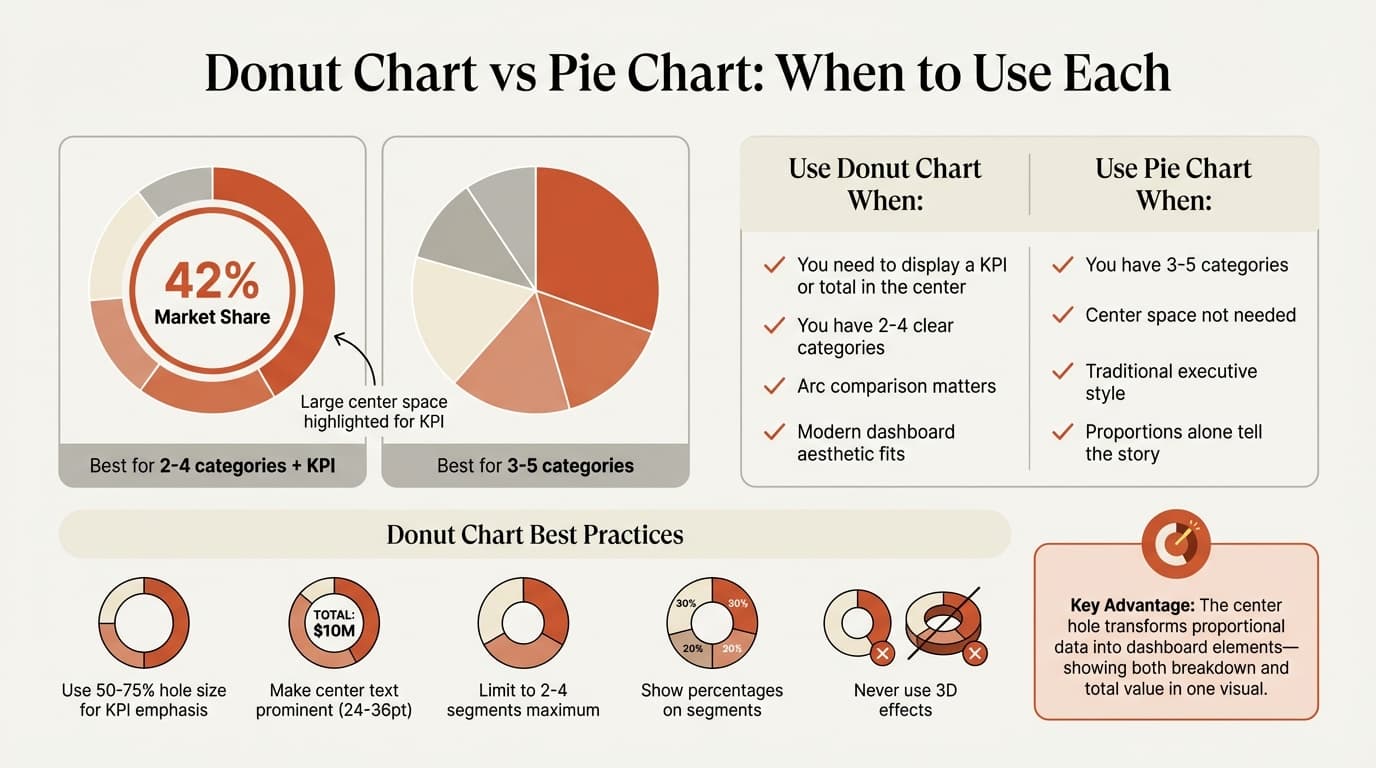
Donut charts excel in three specific scenarios where pie charts fall short.
Scenario 1: Display a KPI with Proportional Breakdown
Revenue by product line with total revenue in the center. Market share by competitor with your company's percentage highlighted centrally. Budget allocation showing total budget figure.
The center space transforms the chart from a simple proportion visualization into a dashboard element—showing both the breakdown and the summary metric in one compact visual.
Scenario 2: Fewer Categories (2-4 Segments)
Best practices recommend limiting donut charts to 3-5 slices maximum, with 2-4 being ideal. The removed center reduces available visual space, making too many segments harder to distinguish than in pie charts.
| Segments | Donut Chart | Pie Chart |
|---|---|---|
| 2-3 | Excellent—clean arcs, space for center KPI | Good but center space wasted |
| 4-5 | Good if center text adds value | Good—slightly easier to read |
| 6+ | Poor—arcs become too narrow | Poor—slices become too small |
Scenario 3: Modern, Dashboard-Style Presentations
Donut charts suit data-dense dashboards and executive summaries where multiple metrics share limited space. The clean ring aesthetic and functional center space work well alongside other modern chart types.
Donut Chart vs. Pie Chart: Which to Use
Both show part-to-whole relationships, but they serve different purposes.
| Factor | Donut Chart | Pie Chart |
|---|---|---|
| Best for | 2-4 categories + KPI display | 3-5 categories, no center metric needed |
| Center space | Displays totals, KPIs, icons | Unused (visual center of slices) |
| Readability | Better for arc comparison | Better for larger slice counts |
| Aesthetic | Modern, dashboard-style | Traditional, executive presentation |
| Data labels | Often in center + on arcs | Typically on slices or with legend |
The decision rule: If you have a summary metric worth highlighting (total revenue, overall growth rate, key percentage), use a donut chart. If the proportions alone tell the story, use a pie chart.
How to Create a Donut Chart in PowerPoint
Step 1: Insert the Donut Chart
- Click on your slide where you want the chart
- Go to Insert > Chart in the ribbon
- Select Pie from the left panel
- Choose Doughnut from the chart subtypes
- Click OK
PowerPoint opens an Excel-like spreadsheet for data entry.
Step 2: Enter Your Data
- Replace sample categories in Column A with your categories
- Replace sample values in Column B with your data
- Delete extra rows you don't need
- Close the spreadsheet
The donut chart updates automatically.
Step 3: Adjust Hole Size
- Select the chart
- Right-click and choose Format Data Series
- Locate Doughnut Hole Size (shows as percentage)
- Adjust the slider or type a value between 10% and 90%
Recommended hole sizes:
- 50-75% for emphasis on center content (large KPI)
- 30-50% for balanced ring and center text
- 10-30% when center text is secondary to proportions
Microsoft recommends around 50% for most presentations, balancing ring visibility with center space.
Step 4: Add Center Text
PowerPoint does not automatically add center text—you must insert it manually.
- Go to Insert > Text Box
- Draw a text box in the center of the donut hole
- Type your KPI, total value, or summary metric
- Format for emphasis:
- Font size: 18-32pt for primary metric
- Weight: Bold for numbers, regular for labels
- Color: Match brand or use high contrast
- Alignment: Center both horizontally and vertically
Example center text formats:
$4.2MwithTotal Revenuebelow in smaller font+23%withYoY Growthlabel68%withMarket Sharedescriptor
Step 5: Format for Clarity
Add data labels. Select the chart, click the + icon (Chart Elements), check Data Labels, then choose More Options to show percentages and category names. Position labels outside the ring if the center text dominates.
Choose distinct colors. Right-click the chart, select Format Data Series, and customize fill colors for each segment. Use high-contrast colors that remain distinguishable when projected.
Remove legend if using labels. Legends force readers to look back and forth. Direct labels or center summaries eliminate this friction.
Order segments by size. Reorder your data rows so the largest segment appears at the top (12 o'clock position), proceeding clockwise by decreasing size. This visual hierarchy guides the eye naturally.
Continue reading: Status Report Template · Agile vs Waterfall · PowerPoint SmartArt
Create professional charts in PowerPoint
Build native waterfall, Mekko, Gantt, and business charts without manual formatting. 10 free AI prompts. No credit card required.
Donut Chart Best Practices
After analyzing donut chart usage across 140+ presentations, these patterns separate effective visualizations from cluttered ones.
Limit to 2-4 Segments
Research shows donut charts work best with fewer categories than pie charts—anywhere from 2 to 5, with 2-4 being ideal. The removed center reduces available space for arc comparison, making more segments harder to distinguish.
If you have 6 or more categories, use a bar chart instead.
Always Use Center Text
The center hole is the donut chart's defining advantage—wasting it creates a less readable pie chart. Use the center space for:
- Total values: "$8.4M Total Revenue"
- Key metrics: "+18% Growth"
- Primary percentage: "42% Market Leader"
- Summary labels: "Q4 2025 Results"
- Icons or logos when space permits
Without center content, a pie chart provides better readability.
Make Center Text Prominent
The center metric should be immediately readable from the back of the room. Use 24-36pt font for numbers, bold weight, and high contrast against the background. Supporting labels can be smaller (12-16pt).
Show Percentages on Segments
Even with center text, segment labels remain essential. Readers cannot accurately judge arc lengths by visual inspection. Place percentage labels outside the ring when the center text occupies most of the hole.
Use Larger Hole Sizes for KPI Emphasis
When the center metric is the primary message and proportions are secondary context, increase the hole size to 60-75%. This shifts visual weight to the center number. When proportions matter more, use 30-50% hole sizes.
Never Use 3D or Effects
Like pie charts, 3D donut charts distort proportions due to perspective. Shadows, gradients, and decorative fills add visual complexity without improving comprehension. Keep formatting minimal—flat colors, clear labels, prominent center text.
Write Action Titles
| Weak Title | Strong Action Title |
|---|---|
| Revenue Breakdown | SaaS drives 68% of $4.2M total revenue |
| Q4 Market Share | We gained 3pp market share to reach 31% in Q4 |
| Budget by Function | R&D consumes 42% of $8.1M operating budget |
Common Donut Chart Mistakes
Empty center. Using a donut chart without center text wastes its primary advantage. Use a pie chart instead.
Too many segments. Six or more segments create narrow arcs that are difficult to compare. Combine minor categories or switch to a bar chart.
Tiny hole size. A 10-20% hole barely creates space for readable text. Increase to at least 40% for functional center content.
Cluttered center. Cramming multiple metrics, logos, and labels into the center reduces readability. Prioritize one primary number or short phrase.
Missing segment labels. Center text alone doesn't identify individual segments. Add data labels showing percentages and category names.
Comparing multiple donut charts. Side-by-side donut charts force readers to compare arcs across two circles—nearly impossible to do accurately. Use a stacked bar chart instead.
Creating Donut Charts from Excel Data
For presentations with dynamic data, linking donut charts to Excel eliminates manual updates.
Manual method: Create your donut chart in Excel, copy it, then use Paste Special > Paste Link in PowerPoint. When Excel data changes, right-click the chart and select Update Link. Note that links break when files move or rename, and center text must be manually updated—it does not link to Excel.
Add-in method: Tools like Deckary maintain Excel links automatically, updating charts when source data changes. This works well for recurring dashboards with multiple donut charts showing monthly KPIs.
The limitation: center text in PowerPoint donut charts is always a separate text box, never part of the chart object, so it requires manual updates regardless of linking method.
Donut Charts in Dashboard Presentations
Donut charts appear frequently in executive dashboards and board reports where space is limited and each visual must communicate both detail and summary.
Common applications:
- KPI dashboards: Multiple donut charts showing different metrics (revenue breakdown, customer segments, product mix) with totals in centers
- Board decks: One-slide summaries with 2-3 donut charts showing key proportions and headline numbers
- Progress tracking: Completion percentages displayed as donut charts with "78% Complete" in the center
The pattern: consultants and executives use donut charts when the center metric is as important as the breakdown—transforming a simple proportion chart into a dual-purpose visual that shows both parts and whole.
Donut Chart Alternatives
When donut charts don't fit the use case, consider these alternatives.
| Alternative | When to Use |
|---|---|
| Pie chart | 3-5 categories, no center metric needed |
| Bar chart | More than 5 categories, precise comparisons required |
| Progress ring | Single percentage (e.g., "68% to goal") shown as incomplete circle |
| 100% stacked bar | Comparing proportions across multiple time periods |
| Waterfall chart | Showing how components add up to a total with directional flow |
Key Takeaways
When donut charts work: 2-4 categories representing parts of a whole, center metric adds value (total, KPI, or summary), and modern dashboard aesthetic fits the context.
When to use pie charts instead: 3-5 categories, center space not needed, traditional executive presentation style.
Core formatting rules: Limit to 2-4 segments, always use center text, make center metric prominent (24-36pt), use 50-75% hole size for KPI emphasis, show percentages on segments, never use 3D, and write action titles.
Center text best practices: Display one primary metric (total value, key percentage, or growth rate), use bold font at 24-36pt size, add small descriptor label below, and ensure high contrast for readability.
Donut charts transform proportional data from simple breakdowns into dashboard elements—showing both the parts and the total in one compact visual. Use them when the center metric matters as much as the proportions, format them for clarity, and your audience will grasp both detail and summary instantly.
Create professional charts in PowerPoint
Build native waterfall, Mekko, Gantt, and business charts without manual formatting. 10 free AI prompts. No credit card required.