Pie Charts in PowerPoint: When to Use Them and How to Create Them
Learn when pie charts work better than bar charts, how to create them in PowerPoint, and formatting best practices from 180+ business presentations.
Pie charts divide opinion more than any other visualization. Data scientists quote Cleveland and McGill's 1984 research showing bar charts outperform pie charts for accuracy. Business audiences prefer pie charts because they communicate part-whole relationships instantly.
After reviewing 180+ quarterly business reviews and board presentations, we found pie charts appear in 65% of executive decks—but only when they show 3-5 clear categories representing parts of a whole. When presenters use pie charts for other purposes or exceed 5 slices, they create confusion.
This guide covers when pie charts outperform alternatives, how to create them in PowerPoint, and the formatting rules that separate clear insights from cluttered circles. For a complete chart type reference, see our PowerPoint Charts Guide.
What Is a Pie Chart?
A pie chart is a circular statistical graphic divided into slices to illustrate numerical proportions. Each slice's arc length (and central angle) is proportional to the quantity it represents. The entire circle represents 100% of the data.
| Term | Definition |
|---|---|
| Pie chart | Circular chart with slices representing proportions |
| Donut chart | Pie chart with center removed (same function, different aesthetic) |
| Exploded slice | Slice pulled away from center for emphasis |
| Data label | Text showing category name and percentage |
When to Use Pie Charts
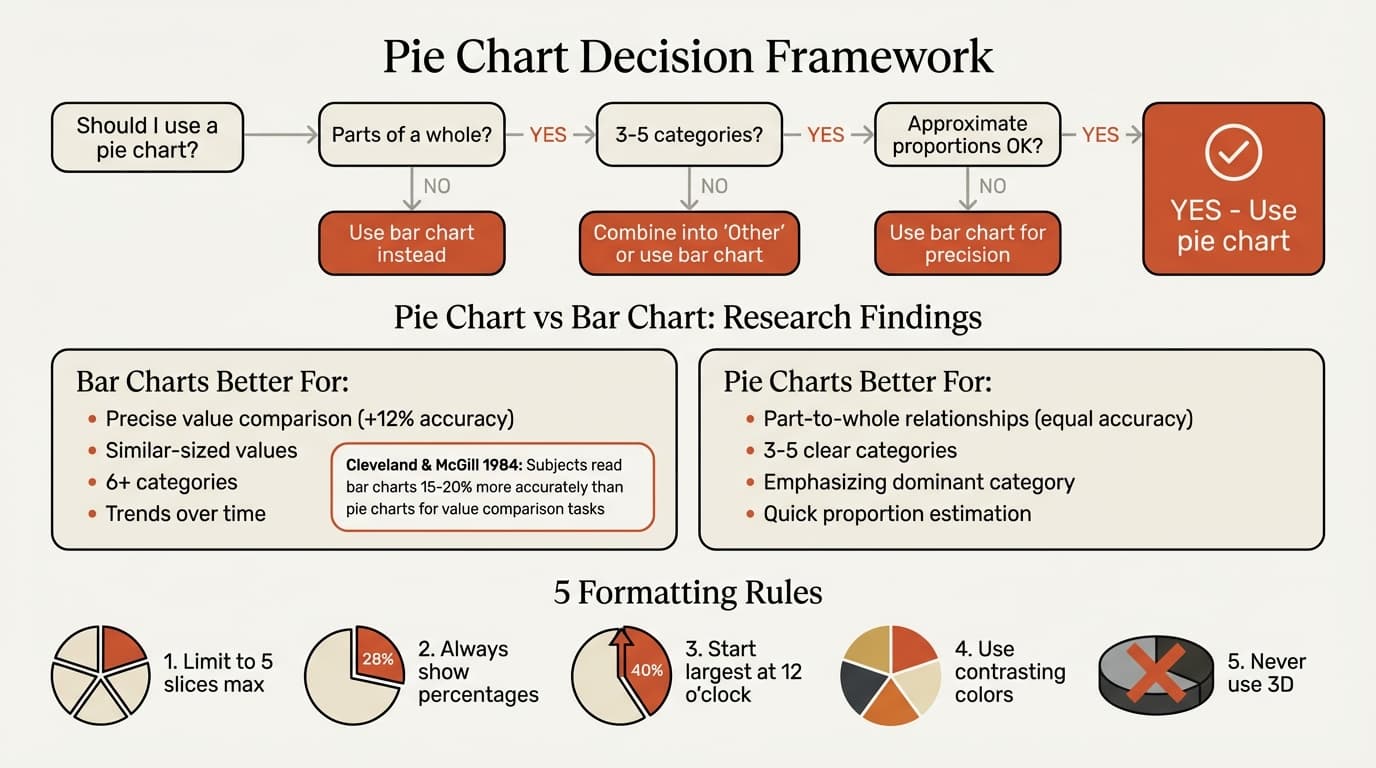
Pie charts work best in three specific scenarios:
Part-to-whole relationships. Market share distribution (Apple 28%, Samsung 22%, Other 50%), budget allocation by department, or revenue by product line. The key requirement: categories must sum to 100%. You cannot use pie charts for averages, growth rates, or values that do not represent parts of a total.
3-5 clear categories. When you have exactly the right number of distinct categories, pie charts communicate proportions at a glance. Best practices recommend limiting to 5 slices maximum—more than that makes visual comparison difficult and readers struggle to distinguish similar-sized slices.
Approximate proportions matter more than precision. If your audience needs to see "marketing represents about a quarter of the budget," a pie chart works. If they need to know whether marketing is 23.4% or 25.1%, use a bar chart or table instead.
When NOT to Use Pie Charts
| Scenario | Problem | Better Alternative |
|---|---|---|
| More than 5 categories | Slices become too small to distinguish | Bar chart or table |
| Precise comparisons needed | Humans compare angles poorly | Bar chart with labeled values |
| Similar-sized values | Cannot visually distinguish 23% from 25% | Bar chart or table |
| Trends over time | Pie charts are snapshots, not timelines | Line chart or stacked area |
| Multiple pie charts side-by-side | Cannot compare across charts | Stacked bar chart |
| Values exceed 100% | Mathematically invalid | Not a part-whole relationship |
Pie Charts vs. Bar Charts: The Research
The debate between pie charts and bar charts has research backing both sides.
The Case Against Pie Charts
Cleveland and McGill's 1984 study "Graphical Perception: Theory, Experimentation, and Application to the Development of Graphical Methods" tested how accurately people read different chart types. Subjects consistently read bar charts more accurately than pie charts because humans compare lengths better than angles.
This research explains why data visualization experts favor bar charts—accuracy matters for precise decision-making.
The Case For Pie Charts
Recent research challenges the blanket rejection of pie charts. A 2024 study published in the Journal of Information Visualization found that bar, pie, and donut charts achieved similar accuracy for part-whole estimation tasks, with mean bias around 1 percentage point for all chart types.
The key distinction: bar charts win for value comparison tasks, while pie charts perform equally well for proportion estimation tasks.
Which Should You Use?
| Your Goal | Best Choice | Why |
|---|---|---|
| Show approximate proportions | Pie chart | Intuitive part-whole visual |
| Enable precise comparisons | Bar chart | Length is easier to judge than angles |
| Display more than 5 categories | Bar chart | Too many slices create clutter |
| Compare across multiple periods | Stacked bar chart | Side-by-side comparison works |
| Emphasize one dominant category | Pie chart | Visual impact of large slice |
Continue reading: Scrum Framework · Agile vs Waterfall · PowerPoint Layout Ideas
Create professional charts in PowerPoint
Build native waterfall, Mekko, Gantt, and business charts without manual formatting. 10 free AI prompts. No credit card required.
How to Create a Pie Chart in PowerPoint
Step 1: Insert the Chart
- Click on your slide where you want the chart
- Go to Insert > Chart in the ribbon
- Select Pie from the left panel
- Choose your style: Pie, 3D Pie, Pie of Pie, or Bar of Pie
- Click OK
Recommended: Use the standard 2D pie chart. 3D pie charts distort perspective and make accurate reading impossible.
Step 2: Enter Your Data
PowerPoint opens an Excel-like spreadsheet.
- Replace sample categories in Column A with your categories
- Replace sample values in Column B with your data
- Delete any extra rows you do not need
- Close the spreadsheet when finished
The chart updates automatically.
Step 3: Add Data Labels
- Select the chart
- Click the + icon (Chart Elements) next to the chart
- Check Data Labels
- Click the arrow next to Data Labels and select More Options
- In the Format Data Labels pane, check Percentage and Category Name
- Uncheck Value unless you want to show both numbers and percentages
Step 4: Format for Clarity
Choose high-contrast colors. Right-click the chart, select Format Data Series, and adjust fill colors for each slice. Use distinct colors—avoid similar shades that blend together.
Remove unnecessary elements. Delete the legend if you have added category names to data labels. Legends force readers to look back and forth between the chart and the key.
Reorder slices by size. By default, PowerPoint orders slices as they appear in your data. Manually reorder your data rows so the largest slice appears first, then proceed clockwise by decreasing size. This makes the hierarchy immediately clear.
Pull out key slices. Click a slice once to select all slices, click again to select just that slice, then drag it away from the center to emphasize it. Use this sparingly—only for the most important category.
Pie Chart Best Practices
After analyzing pie chart usage across 180+ executive presentations, these patterns separate clear visualizations from cluttered ones.
Limit to 5 Slices Maximum
Research and practice consistently show pie charts become unreadable beyond 5 slices. If you have more categories, combine the smallest into an "Other" category. If "Other" would exceed 20%, use a bar chart instead—your data has too many meaningful categories for a pie chart.
Always Show Percentages
Readers cannot accurately judge slice sizes by visual inspection alone. Data labels showing percentages eliminate ambiguity. Place labels inside slices when space allows, outside with leader lines when slices are small.
Start at 12 O'Clock
Position your largest slice at the top (12 o'clock position) and proceed clockwise by decreasing size. This creates a visual hierarchy that guides the reader's eye naturally.
Use Contrasting Colors
Choose colors that are visually distinct. Blue, orange, gray, green, and red work well together. Avoid gradient fills—they add visual complexity without improving comprehension.
Never Use 3D
3D pie charts distort slice proportions due to perspective. Slices closer to the viewer appear larger than they are. This makes accurate interpretation impossible. Always use flat 2D pie charts.
Write Action Titles
| Weak Title | Strong Action Title |
|---|---|
| Revenue by Product | SaaS product drives 68% of total revenue |
| Market Share 2024 | We hold 31% market share, trailing leader by 8pp |
| Budget Allocation | R&D consumes 42% of operating budget |
Common Pie Chart Mistakes
Too many slices. Seven or more slices create visual clutter. Combine minor categories or switch to a bar chart.
Similar-sized slices without labels. When two slices are within 5 percentage points, readers cannot distinguish them visually. Data labels are mandatory.
Missing a category. If your slices sum to less than 100%, you are missing data. Either add the missing category or use a different chart type.
Comparing multiple pie charts. Side-by-side pie charts force readers to compare angles across two circles—nearly impossible to do accurately. Use a stacked bar chart or grouped bar chart instead.
Using pie charts for trends. Pie charts are static snapshots. To show how proportions change over time, use a 100% stacked bar chart or line chart.
Decorative elements. Shadows, gradients, borders, and backgrounds distract from data. Keep formatting minimal.
Pie Chart Variations
PowerPoint includes specialized pie chart types for specific use cases.
Donut Chart
A pie chart with the center removed. Functionally identical to a pie chart but offers space in the center for a title, total value, or key metric. Use donut charts when you want to emphasize the part-whole relationship while also displaying a summary statistic.
Pie of Pie
Breaks out one slice into a secondary pie chart showing its sub-components. For example, a main pie showing revenue by region with "APAC" expanded into a second pie showing country breakdown. Use this only when the audience needs both high-level and detailed views of one category.
Bar of Pie
Similar to pie of pie, but the secondary breakdown uses a bar chart instead. Slightly easier to read because bars enable more precise comparison of the sub-components.
When to use variations: Only when standard pie charts would require too many slices. In most cases, two separate charts provide better clarity.
Creating Pie Charts from Excel Data
For presentations with dynamic data, linking pie charts to Excel eliminates manual updates.
Manual method: Create your pie chart in Excel, copy it, then use Paste Special > Paste Link in PowerPoint. When Excel data changes, right-click the chart in PowerPoint and select Update Link. Links break when files move or rename.
Add-in method: Tools like Deckary maintain Excel links automatically, updating charts when source data changes. For recurring presentations with multiple charts, this reduces maintenance time significantly.
Pie Charts in Consulting Presentations
Consultants use pie charts sparingly but strategically. Common applications include:
Market share slides. Showing client position relative to competitors—typically 4-5 major players plus "Other."
Budget breakdowns. Illustrating how total spend divides across departments, typically with 3-5 major categories.
Segment analysis. Showing revenue, customer count, or units by segment when there are 3-4 clear segments.
The pattern: consultants use pie charts when the part-whole relationship is the insight, not when precise comparison matters. For everything else, they default to bar charts.
Key Takeaways
When pie charts work: 3-5 categories representing parts of a whole, approximate proportions matter more than precision, and you want to highlight the dominant category.
When to use bar charts instead: More than 5 categories, precise comparisons needed, similar-sized values, or trends over time.
Core formatting rules: Limit to 5 slices, always show percentages, start largest slice at 12 o'clock, use contrasting colors, never use 3D, and write action titles.
Research consensus: Bar charts enable more accurate value comparison, but pie charts perform equally well for part-whole estimation—the task they are designed for.
Pie charts solve a specific problem: showing how a total divides into parts when you have a handful of clear categories. Use them for that purpose, format them for clarity, and your audience will grasp proportions instantly.
Create professional charts in PowerPoint
Build native waterfall, Mekko, Gantt, and business charts without manual formatting. 10 free AI prompts. No credit card required.