Stacked Bar Charts in PowerPoint: When to Use Stacked vs 100% Stacked
Master stacked bar charts in PowerPoint. Learn when to use stacked vs 100% stacked bars, best practices for color coding and labeling, and common mistakes.
- Bob · Former McKinsey and Deloitte consultant with 6 years of experience
- September 22, 2025
- 6 min read
The single most common charting mistake in strategy decks: using a regular stacked bar chart when a 100% stacked version would have been clearer, or vice versa. A stacked bar emphasizes total size differences. A 100% stacked bar emphasizes composition differences. Pick the wrong one and your insight gets lost.
Whether you use Deckary or native PowerPoint, the stacked versus 100% stacked decision is the same. This guide covers that decision, formatting best practices, and the segment limits that keep your charts readable. Stacked bar charts are one of several essential chart types for consultants — for a complete overview, see our PowerPoint Charts Guide.
What Is a Stacked Bar Chart?
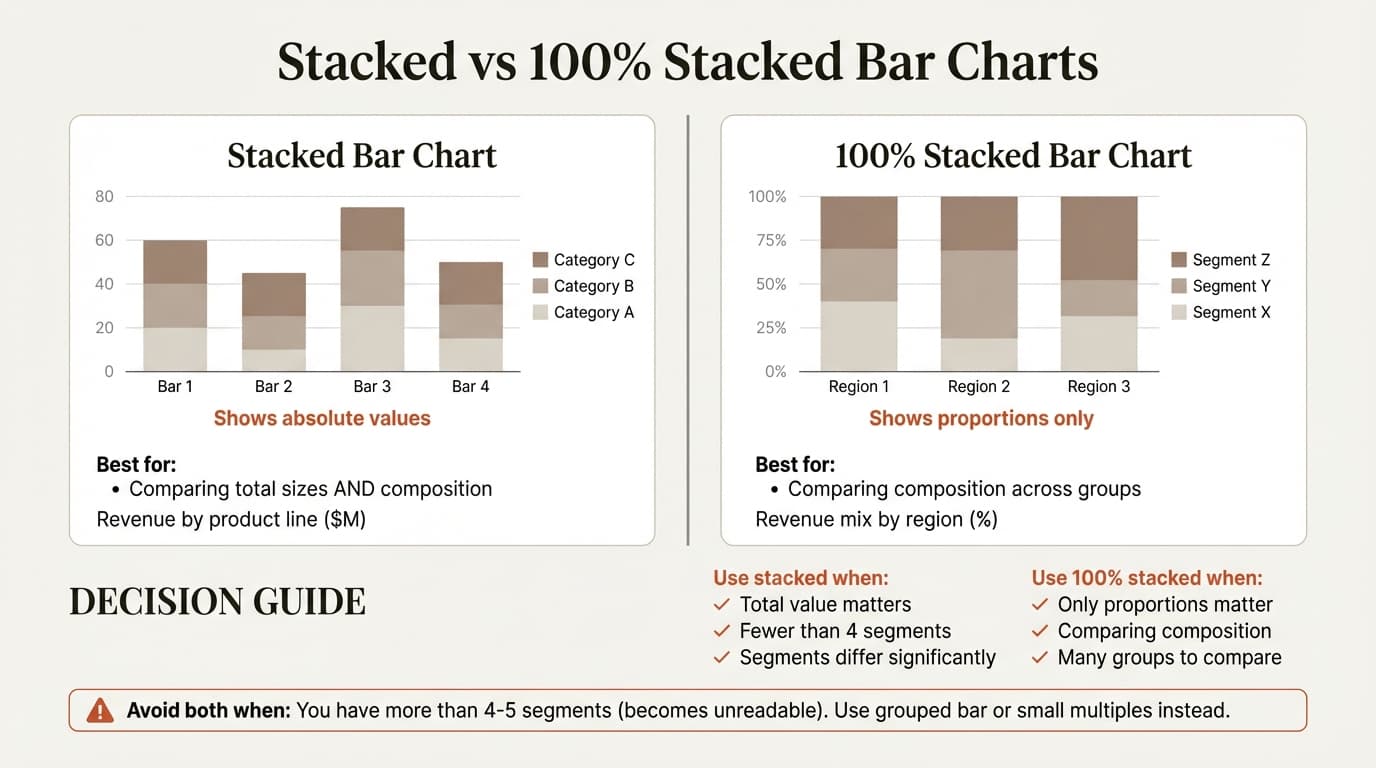
A stacked bar chart displays data series stacked on top of each other, where each segment represents a component of the total. Unlike standard bar charts showing one value per category, stacked bars show multiple values that sum to a total.
| Term | Description |
|---|---|
| Stacked bar chart | Horizontal, segments stacked left to right |
| Stacked column chart | Vertical, segments stacked bottom to top |
| 100% stacked chart | All bars normalized to equal length |
The key characteristic: they show part-to-whole relationships across categories.
Stacked vs 100% Stacked: The Critical Decision
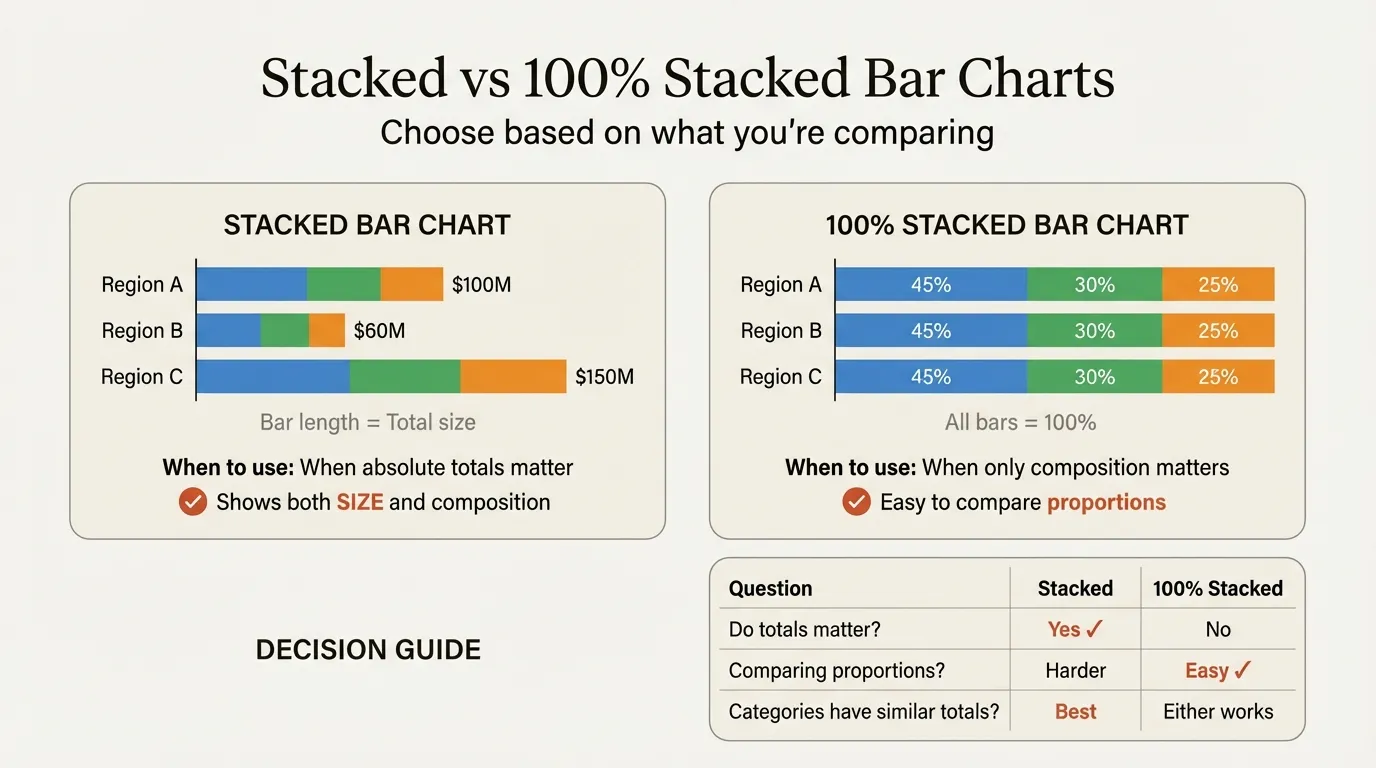
This is the decision that determines whether your chart communicates or confuses.
A stacked bar chart shows absolute values where bar lengths vary based on total size. Use it when the total matters as much as composition — for example, revenue by region with product mix, where you want to show that North America is both the largest market and dominated by Product A.
A 100% stacked bar chart normalizes all bars to the same length. Use it when only relative composition matters — for example, market share by region, where comparing competitive positions matters regardless of market size.
| Question | Stacked | 100% Stacked |
|---|---|---|
| Do totals matter? | Yes | No |
| Are totals similar? | Ideally | Doesn't matter |
| Primary focus? | Size AND composition | Composition only |
| Risk if wrong choice? | Small segments invisible | Lose absolute context |
Critical mistake: Using stacked bars when totals vary dramatically. If one bar is 10x longer than another, smaller segments become invisible slivers. Switch to 100% stacked.
Continue reading: Before and After Slide · Agile vs Waterfall · How to Distribute Objects Evenly in PowerPoint
When to Use Stacked Bar Charts
Market share analysis is the classic consulting use case. Use 100% stacked horizontal bars with market segments as categories and competitors as segments. Every bar is the same length, making competitive positions directly comparable.
Revenue composition works well with either variant. Use stacked bars if totals are similar across categories; use 100% stacked if they vary widely.
Cost structure breakdowns benefit from 100% stacked bars, which let you compare cost allocation (labor, materials, overhead) between entities with different cost bases.
How to Create in PowerPoint
- Insert: Click Insert, then Chart, then Bar, then Stacked Bar (or 100% Stacked Bar)
- Enter data: Replace placeholder data in the spreadsheet
- Format colors: Select segments and apply distinct colors
- Add labels: Chart Design, then Add Chart Element, then Data Labels
- Position legend: Chart Design, then Add Chart Element, then Legend
| Limitation | Impact |
|---|---|
| No live Excel linking | Manual re-entry when data changes |
| Basic formatting | Professional styling takes effort |
| No auto percentage labels | Calculate and add manually |
For frequent chart building, add-ins like Deckary address these with Excel linking and automatic formatting.
Horizontal vs Vertical
| Factor | Choose Horizontal | Choose Vertical |
|---|---|---|
| Label length | Long labels | Short labels |
| Categories | 7+ categories | 1-6 categories |
| Data type | Non-temporal | Time series |
Best Practices
Color Coding
| Element | Strategy |
|---|---|
| Your company/focus | Primary brand color |
| Competitors | Distinct, progressively lighter |
| "Other" category | Gray |
Same color must mean the same category throughout the entire deck.
Data Labels and Segment Ordering
For 100% stacked charts, place percentages inside segments. For stacked charts, place values inside and totals at bar ends. Hide labels for segments under 5%.
Order segments with the largest at the base and smallest at top. Keep segment order identical across all bars — varying it forces constant legend checking.
4-6 segments maximum. More creates visual noise. Group minor items into "Other."
Common Mistakes
| Mistake | Why It Fails | Fix |
|---|---|---|
| Too many segments | Can't compare 10+ colors | Limit to 4-6, group rest |
| Poor color contrast | Indistinguishable on projector | High-contrast colors |
| Inconsistent segment order | Forces re-checking legend | Lock order across all bars |
| Stacked with vastly different totals | Small bars become invisible | Use 100% stacked |
| Missing labels | Can't estimate from bar length | Label all significant segments |
Real-World Use Cases
Market Share by Segment
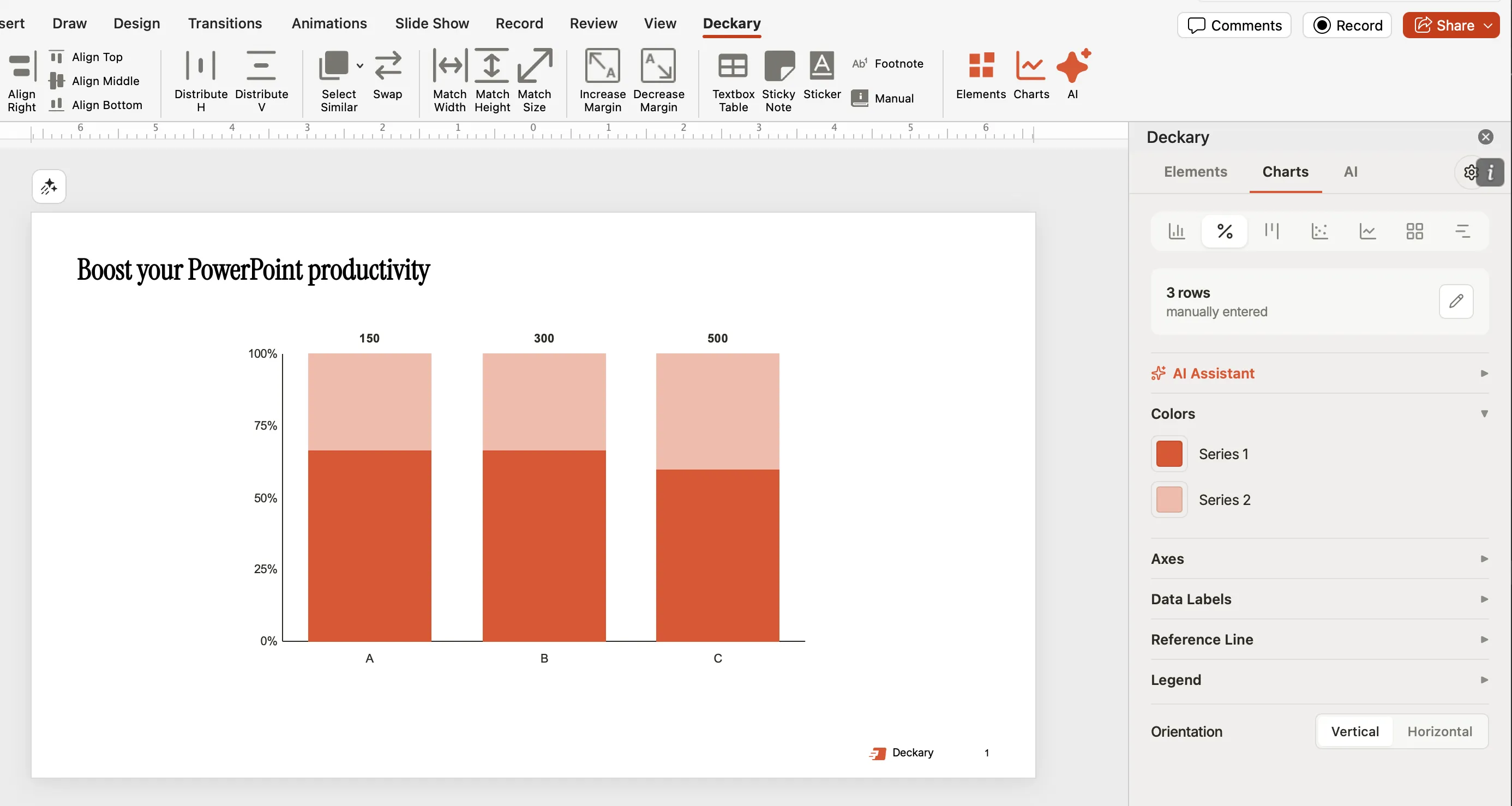
Structure: Regions as categories, competitors as segments, 100% stacked horizontal.
Put your client in a distinctive color, competitors in muted tones, and "Other" in gray. Sort categories by the client's share to build a visual narrative.
Revenue Composition Over Time
Structure: Time periods as categories, revenue sources as segments, stacked vertical.
Time flows left to right with the newest period on the right. Highlight significant shifts with callouts.
Stacked vs 100% Stacked vs Grouped: Quick Reference
| Criteria | Stacked | 100% Stacked | Grouped |
|---|---|---|---|
| Shows totals | Yes | No | No |
| Segment comparison | Difficult | Easier | Easiest |
| Max segments | 4-6 | 4-6 | 2-4 |
| Best for market share | No | Yes | No |
| Best for precise comparison | No | No | Yes |
Add-ins for Stacked Charts
| Tool | Price | Excel Linking | Mac Support |
|---|---|---|---|
| Deckary | $120-180/year | Yes | Yes |
| Native PowerPoint | Included | No | Yes |
For teams building stacked charts regularly, Deckary offers the best value with Excel linking and a 14-day free trial.
Summary
The stacked vs 100% stacked decision shapes how your audience interprets the data. Get it right and the insight is immediate. Get it wrong and viewers draw the wrong conclusion.
Key takeaways:
- Choose carefully: 100% stacked when only composition matters; stacked when totals matter too
- Limit to 4-6 segments — more creates noise
- Maintain consistent segment order — never vary across bars
- Use high-contrast colors — especially for projected presentations
- Label segments directly — don't make viewers estimate
- Horizontal for long labels, vertical for time series