Box Plot in PowerPoint: 3 Methods with Step-by-Step Instructions
Learn how to create a box plot in PowerPoint using built-in charts, Excel, or templates. Step-by-step guide with quartile setup, outlier handling, and formatting standards.
PowerPoint added native box plot support in 2016. Before that, analysts spent 90+ minutes manually calculating quartiles, drawing shapes, and positioning outlier markers—a process prone to errors when data changed. The built-in Box & Whisker chart eliminated this work, but only if you structure your data correctly and understand its limitations.
After building box plots for 50+ operational performance reviews and quality control analyses, we have tested PowerPoint's native chart type, the Excel-to-PowerPoint workflow, and template-based approaches. The native chart handles standard distributions well but fails when you need custom whisker calculations or multiple comparison groups with different scales.
This guide covers all three methods with step-by-step instructions, explains when box plots communicate better than bar charts or histograms, and includes formatting best practices that make distribution patterns immediately visible to non-statistical audiences.
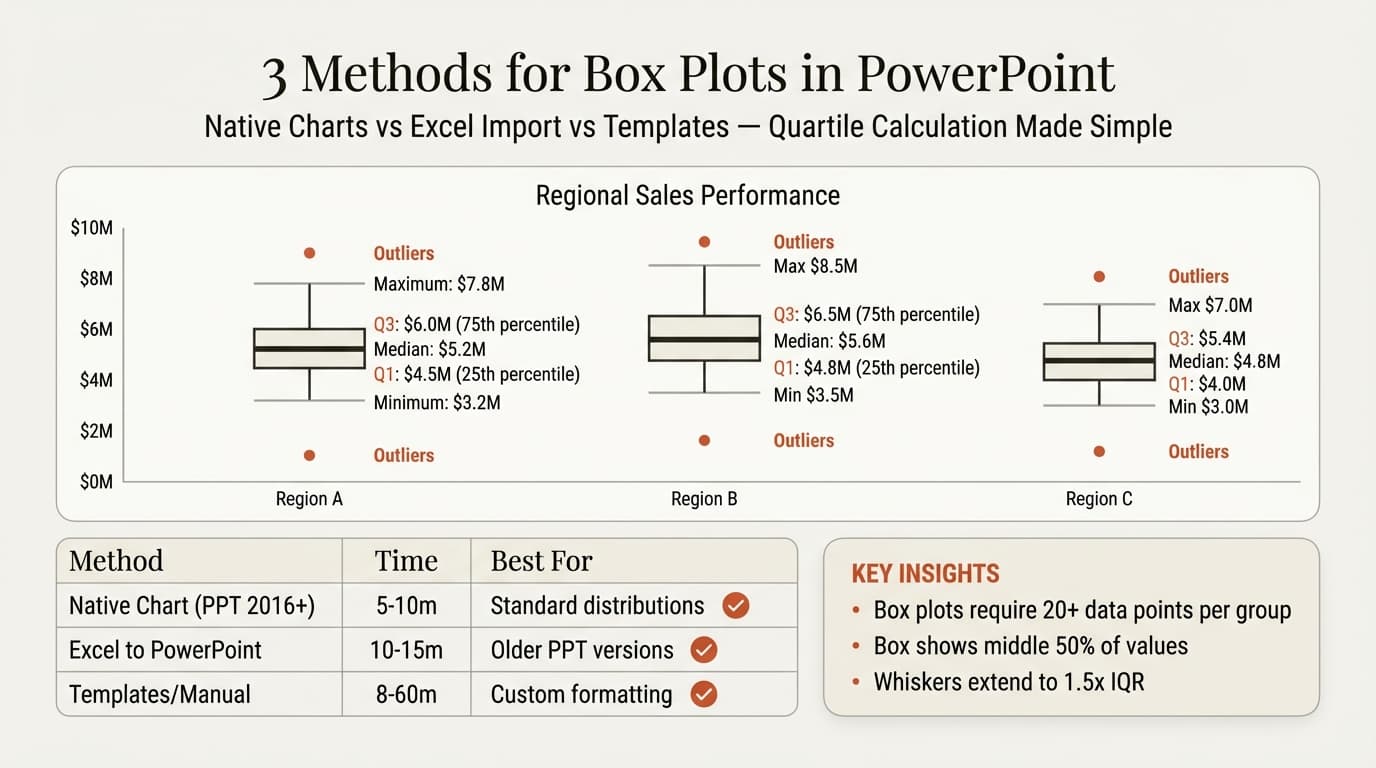
What Is a Box Plot
A box plot visualizes data distribution using five key statistics: minimum, first quartile (Q1), median (Q2), third quartile (Q3), and maximum. The "box" spans from Q1 to Q3, showing where the middle 50% of data falls. The "whiskers" extend to the data's minimum and maximum values within 1.5 times the interquartile range. Points beyond the whiskers appear as individual markers, flagging outliers.
Atlassian defines box plots as a standardized way of displaying the dataset based on the five-number summary. Statistics Canada notes that the line inside the box represents the median—half the values fall above it, half below. The distance between Q3 and Q1 is the interquartile range (IQR), which measures data spread.
Box plots were introduced by John Tukey in 1970 as part of exploratory data analysis. They compress complex distributions into a simple visual that reveals central tendency, spread, skewness, and outliers at a glance.
When to Use a Box Plot
Box plots work when you need to compare distributions across multiple groups or identify outliers. Use them for quality control metrics, sales performance across regions, survey response analysis, test score comparisons, and process cycle times where understanding variability matters as much as average values.
Do not use box plots for comparing simple averages (use bar charts), showing exact values (use tables), time-series trends (use line charts), or small samples under 10 points (use dot plots).
ASQ (American Society for Quality) emphasizes that box plots work best with at least 20 data points per group. Fewer points produce unreliable quartile estimates. Tableau's box plot guide notes that box plots excel at comparing distributions when you have a categorical grouping variable and a continuous outcome variable.
Method 1: Box Plot with PowerPoint's Built-in Chart
PowerPoint 2016 and later include a native Box & Whisker chart type that automatically calculates quartiles and outliers from raw data.
Time required: 5-10 minutes.
Version requirement: PowerPoint 2016 or later (Office 365, PowerPoint 2019, PowerPoint 2021).
Steps
- Open PowerPoint and navigate to the slide where you want the box plot
- Go to Insert > Chart
- In the chart gallery, click All Charts (bottom-left)
- Select Box & Whisker from the chart type list
- Click OK
- PowerPoint opens an embedded Excel spreadsheet with sample data
- Replace the sample data with your actual data—organize in columns with category names in the first row
- Enter raw data values in each column (do not pre-calculate quartiles)
- Close the Excel window to see your box plot
- Use Chart Design > Quick Layout to adjust elements (title, axis labels, legend)
- Use Format > Chart Elements to customize colors, borders, and styles
PowerPoint needs raw data values in columns with category headers in the first row. Each column represents one group to compare. PowerPoint calculates Q1, median, Q3, and outliers automatically.
Customize via Format > Format Data Series. Options include showing inner points, outlier points, mean markers, mean line, and adjusting gap width. Access by right-clicking the chart.
PowerPoint's native chart handles quartile calculations and outlier detection automatically. It uses fixed 1.5 IQR outlier detection—you cannot adjust the multiplier or use notched boxes.
Best for: Standard distribution comparisons with 2-10 groups, operational performance reviews, and quality control slides where the 1.5 IQR outlier rule is appropriate.
Continue reading: Capacity Planning Template · How to Create an Org Chart in PPT · How to Distribute Objects Evenly in PowerPoint
Create professional charts in PowerPoint
Build native waterfall, Mekko, Gantt, and business charts without manual formatting. 10 free AI prompts. No credit card required.
Method 2: Box Plot with Excel (for Older PowerPoint Versions)
For PowerPoint 2013 or earlier, create the chart in Excel 2016+ and copy it into PowerPoint.
Time required: 10-15 minutes.
Version requirement: Excel 2016 or later. PowerPoint 2013 or earlier.
Steps
- Open Excel and enter your raw data in columns with category labels in the first row
- Select the data range including headers
- Go to Insert > Insert Statistic Chart > Box and Whisker
- Excel creates the box plot with automatic quartile calculations
- Use Chart Design and Format tabs to customize appearance
- Select the chart and press Ctrl+C (Windows) or Cmd+C (Mac) to copy
- Switch to PowerPoint and navigate to your target slide
- Press Ctrl+V or Cmd+V to paste
- Choose Use Destination Theme & Embed Workbook to maintain editability
When you paste using "Embed Workbook," the chart remains linked to Excel data. Right-click the chart in PowerPoint and select Edit Data to modify values. For one-time slides, use Paste Special > Picture instead.
Best for: Teams using PowerPoint 2013 or earlier, recurring reports that need data updates, and analysts who prefer Excel's statistical capabilities.
Method 3: Using Templates and Manual Shapes
Time required: 8-15 minutes.
PowerPoint's built-in templates do not include box plot examples. External sites like Presentation Process offer templates with pre-configured quartile annotations. For manual construction, use rectangles for the box, lines for whiskers, and circles for outliers—but this requires manually calculating Q1, median, Q3, and IQR.
Add-ins like Deckary provide box plot templates with consulting-grade formatting. Tools like Tableau allow exporting to PowerPoint.
Best for: Teams needing consistent formatting across presentations and users of PowerPoint versions before 2016.
Method Comparison
| Feature | Native PowerPoint | Excel to PowerPoint | Template/Manual |
|---|---|---|---|
| Time to create | 5-10 min | 10-15 min | 8-60 min |
| Auto quartile calculation | Yes | Yes | No (manual) |
| Outlier detection | Yes (1.5 IQR) | Yes (1.5 IQR) | Manual calculation |
| Custom whisker rules | No | No | Yes (manual) |
| Editable after creation | Yes (embedded Excel) | Yes (if embedded) | Shapes only |
| Version requirement | PPT 2016+ | Excel 2016+ | Any version |
| Cost | Free | Free | Free to $180/year |
Native PowerPoint is fastest for standard use cases. Excel-to-PowerPoint works for older versions and recurring reports. Templates save time when building multiple box plots with consistent formatting.
Box Plot Formatting Standards
Formatting determines whether a box plot communicates distribution patterns instantly or requires statistical expertise to interpret. These standards apply regardless of creation method.
Use color to differentiate groups, not decorate. For single-group box plots, use neutral colors. For multi-group comparisons, assign one color per group. Highlight outliers in red or orange. Limit your palette to 3-5 colors. For non-statistical audiences, annotate that "the box shows where 50% of values fall."
Label axes with measurement units and category names. Use 10-12pt for labels, 14-16pt for titles. Box plots should occupy 50-70% of the slide. For more than 6 groups, split into multiple charts.
Common Box Plot Mistakes
After reviewing box plots across 50+ analytical presentations, these errors appear most frequently.
| Mistake | Problem | Fix |
|---|---|---|
| Using box plots for small samples | Quartiles are unreliable with fewer than 20 points | Use dot plots or tables for small datasets |
| Not explaining what components mean | Audience misinterprets boxes as ranges or averages | Add annotations or a legend explaining Q1, median, Q3 |
| Comparing groups with vastly different scales | Makes smaller-range groups unreadable | Use separate charts or normalized scales |
| Treating median as mean | Median and mean differ in skewed distributions | Show both if mean matters, or clarify which measure you are using |
| No outlier context | Outliers flagged but not explained | Annotate significant outliers with values or causes |
| Overcrowding with too many groups | Chart becomes cluttered and hard to compare | Limit to 6-8 groups per chart; split into multiple slides if needed |
For related visualization techniques, see our guides on creating waterfall charts and bar charts in PowerPoint.
Sources
- Atlassian — Box Plot Complete Guide
- Statistics Canada — Box Plots
- American Society for Quality — Box and Whisker Plots
- Tableau — What is a Box and Whisker Plot
- Statistics By Jim — Box Plot
- Presentation Process — Box and Whisker Plots
When Not to Use a Box Plot
Use bar charts for comparing simple averages, histograms for frequency distributions, scatter plots for correlations, and tables for exact values. Statistics By Jim notes that box plots work best when you need to understand data spread and outliers—not just central tendency. For audiences unfamiliar with quartiles, bar charts or tables communicate more clearly.
Summary
Creating a box plot in PowerPoint requires choosing the right method for your version and use case. PowerPoint 2016 and later include a native Box & Whisker chart that handles quartile calculations automatically. Older versions require creating the chart in Excel and copying it into PowerPoint. Templates provide consistent formatting for recurring analytical reports.
Key takeaways:
- Use native PowerPoint charts for PowerPoint 2016+ when you need standard box plots with automatic quartile calculation
- Provide raw data, not pre-calculated quartiles—PowerPoint and Excel compute Q1, median, Q3, and outliers from your data values
- Box plots require at least 20 data points per group for reliable quartile estimates—use dot plots or tables for smaller samples
- Annotate components for non-statistical audiences—explain that the box shows the middle 50% and the line shows the median
- Use color sparingly—differentiate groups but avoid decorative color that adds no information
- Limit to 6-8 groups per chart for readability—split into multiple slides for larger comparisons
- Box plots show distribution, not just averages—use them when variability and outliers matter as much as central tendency
For analysts building statistical charts regularly, pre-built templates save time over starting from scratch. Explore Deckary's chart library for box plot templates with consulting-grade formatting and annotation standards.
Create professional charts in PowerPoint
Build native waterfall, Mekko, Gantt, and business charts without manual formatting. 10 free AI prompts. No credit card required.