How to Make a Waterfall Chart in PowerPoint
Create editable PowerPoint waterfall charts for revenue bridges, EBITDA walks, and cost variances, with data, formatting, checks, and Excel-link guidance.
- Bob · Former McKinsey and Deloitte consultant with 6 years of experience
- August 9, 2026
- 10 min read
Waterfall charts explain how a starting value becomes an ending value through a sequence of positive and negative drivers. They are especially effective for revenue bridges, EBITDA walks, cash-flow reconciliations, budget variances, and price-volume-mix analysis.
Last verified: 9 August 2026. This guide covers native PowerPoint charts and add-in workflows. The quality check is the same for both: the bridge must reconcile, totals must be identified correctly, labels must remain readable, and the final chart must stay editable when the recipient needs to update it.
What Is a Waterfall Chart?
A waterfall chart visualizes how an initial value changes through a series of positive and negative contributions to reach a final value. The bars "float" between starting and ending points, creating a bridge-like visual.
| Other Names | Why It's Called That |
|---|---|
| Bridge chart | Bridges the gap between start and end values |
| Cascade chart | Values cascade from one to the next |
| Flying bricks chart | Floating bars resemble suspended bricks |
| Consultant bridge | Common shorthand in consulting and finance teams |
When to Use Waterfall Charts
Waterfall charts excel in three scenarios:
- Explaining change over time — How did revenue change from last year to this year? A waterfall breaks down the contributing factors, making the story immediately clear. Use cases include year-over-year revenue variance, quarter-over-quarter profit changes, and budget vs. actual gaps.
- Breaking down components of a total — How does gross revenue become net income? A waterfall shows each deduction until you reach the final number. Use cases include income statement walks (Revenue to Net Income), cost structure breakdowns, and margin analysis.
- Highlighting gaps between targets and actuals — Where are we versus where we need to be? A gap waterfall shows the current state, shortfall, and target. Use cases include sales pipeline vs. quota, headcount actual vs. plan, and market share current vs. target.
| Don't Use When | Use Instead |
|---|---|
| Showing category composition | Pie or 100% stacked bar |
| Comparing multiple entities | Grouped bar chart |
| Displaying trends over many periods | Line chart |
| Changes happen simultaneously, not sequentially | Bar chart with annotations |
The Three Types of Waterfall Charts
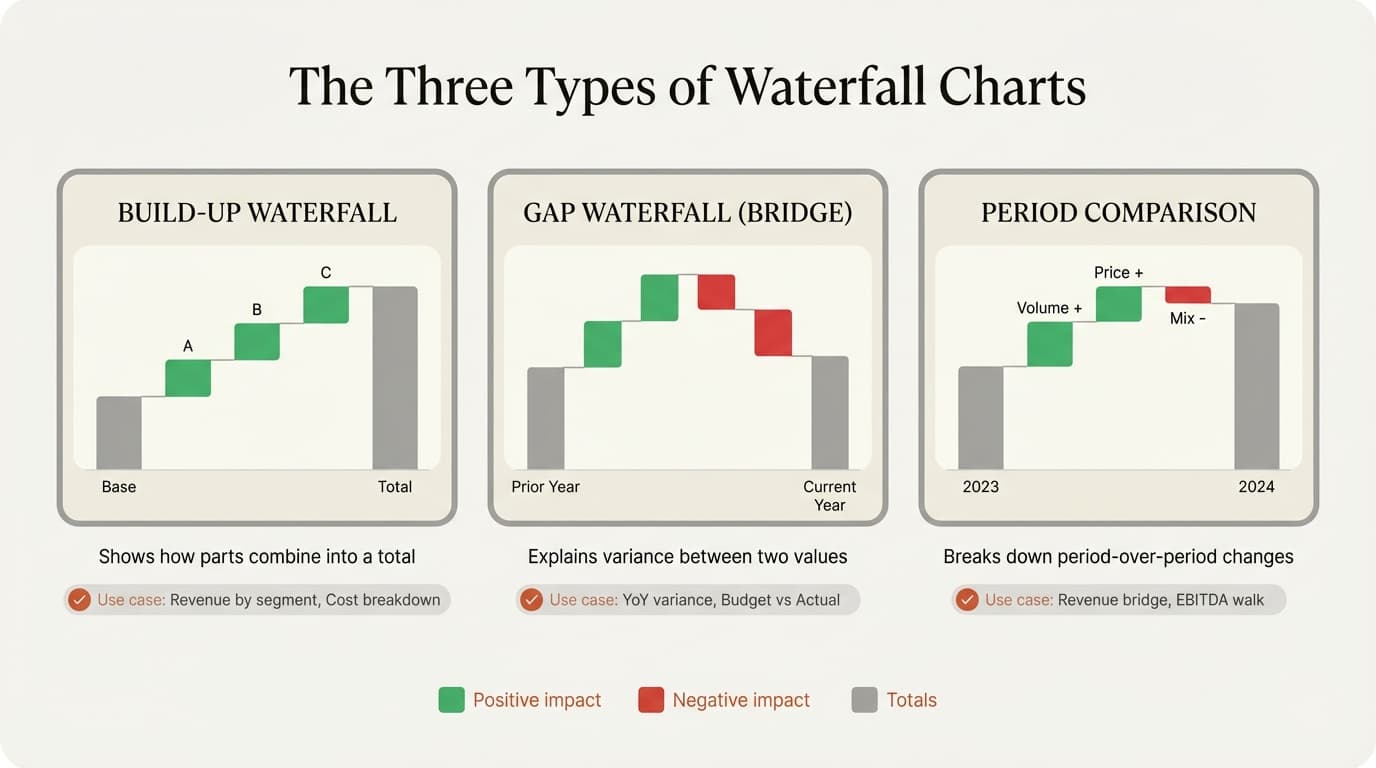
Consultants typically use three variations, each serving a different analytical purpose.
Type 1: Build-Up Waterfall
Shows how individual components combine to create a total. Revenue by segment building to total revenue, cost categories building to total costs, headcount by department building to total FTEs.
Structure: Start → Component 1 → Component 2 → Component 3 → Total
Best practice: Group related components and show subtotals. Instead of 15 individual bars, show 5 groups with subtotals for each.
Type 2: Gap Waterfall (Bridge Chart)
Shows the difference between two values — typically actual vs. target or current vs. prior period. Used for EBITDA bridges, revenue variance analysis, and profit walks.
Structure: Start Value → Positive Drivers → Negative Drivers → End Value
Best practice: Order bars by magnitude. Largest positive driver first, largest negative driver first in that section.
Type 3: Year-over-Year Comparison
A specific application of the gap waterfall for time-based comparisons. Annual revenue changes broken into price/volume/mix, cost variance by category, or market share movement.
Structure: Prior Period → Volume Effect → Price Effect → Mix Effect → Current Period
Best practice: Use consistent categories across periods. If Q1 includes "New Customer Revenue," Q2 should too.
Waterfall Chart Best Practices
Color should communicate direction instantly: green for positive changes, red for negative, and gray or blue for totals and starting values. Avoid using the same color throughout — the whole point of a waterfall is showing what helped and what hurt. Add plus/minus signs next to values to reinforce direction, percentage labels for relative impact, and callout boxes to highlight the key driver. Limit your chart to 7-10 bars maximum; group minor categories (anything under 5% of total change) and put the detailed breakdown in an appendix slide. Finally, ensure thin connector lines are present between bars — without them, the floating bars look disconnected and readers lose track of the running total.
Continue reading: BCG Presentation Style · Business Case Examples · Excel to PowerPoint
Common Waterfall Chart Mistakes
These errors undermine credibility and confuse audiences.
| Mistake | Problem | Fix |
|---|---|---|
| Inconsistent colors | Green for some positives, blue for others | Every positive green, every negative red, every total gray |
| Too many categories | 15+ bars because "the client needs detail" | Group minor items under 5% into "Other"; detail goes in appendix |
| Wrong ordering | Bars ordered alphabetically or randomly | Order by magnitude — largest impacts first |
| Missing labels | Assuming viewers calculate values from bar heights | Add numbers to each bar |
| Forced sequential logic | Waterfall used for simultaneous changes | Use a sorted bar chart instead |
| Inconsistent scales | $1M looks different across slides | Use consistent manual scaling across all waterfall charts in the deck |
Real-World Use Cases
Revenue Bridge (YoY Analysis)
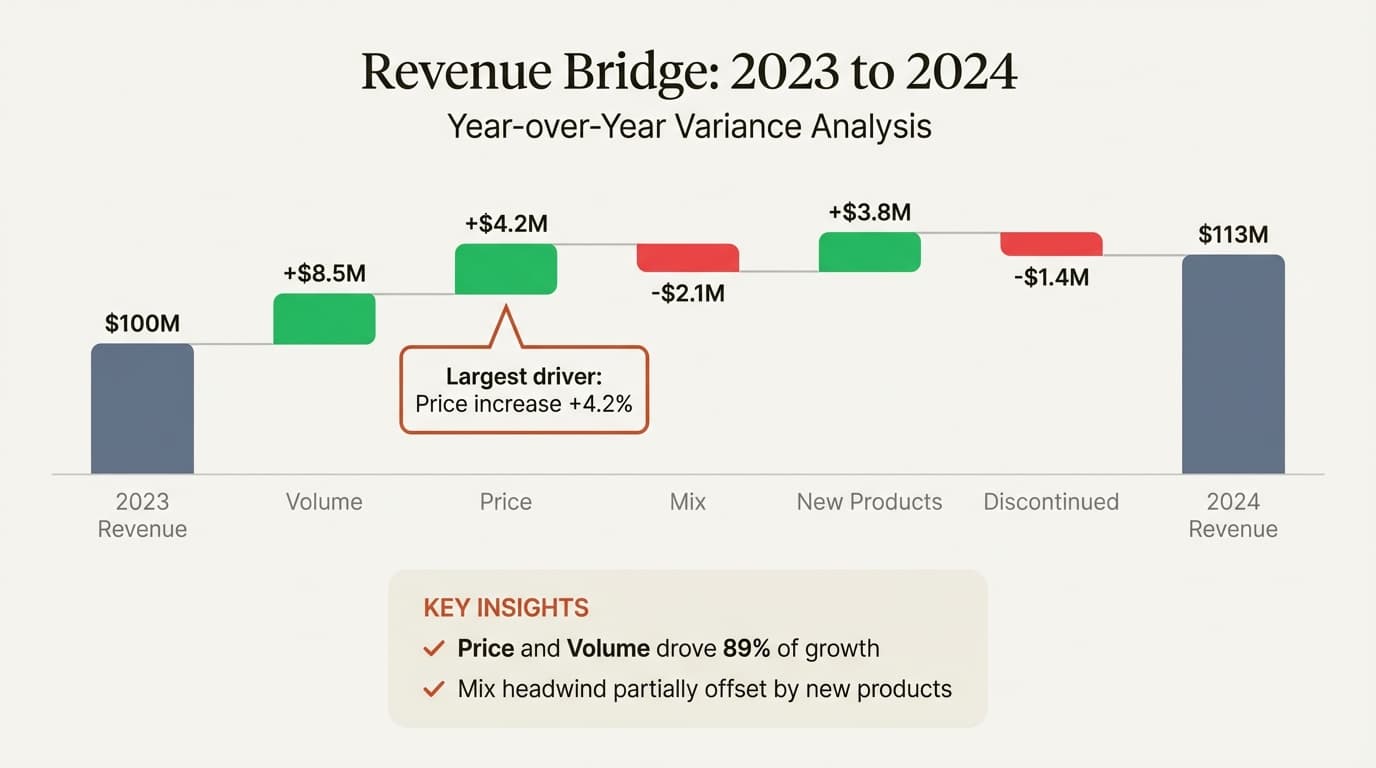
The most common consulting waterfall. Breaks revenue change into volume impact (units sold at prior year price), price impact (price change applied to current units), mix impact (shift between products or segments), new products, and discontinued products. Executives need to know whether growth came from selling more, charging more, or shifting mix — each has different strategic implications and requires different follow-up actions.
A typical structure runs from Prior Year Revenue through each driver to Current Year Revenue. The key is ordering drivers by magnitude so the largest contributor to the change stands out visually.
EBITDA Walk
The EBITDA bridge explains profit movement by isolating revenue change, gross-margin effects, SG&A, and other operating expenses. It is useful in board, investor, and due-diligence work because stakeholders need to understand what drove profitability—not only the final number.
Cost Variance Analysis
Shows where actual costs deviated from budget and why. The typical structure walks from budgeted costs through labor variance, materials variance, overhead variance, and one-time items to actual costs. Finance teams use this to explain budget misses to leadership without burying them in spreadsheets. When presented well, the chart immediately surfaces whether overruns came from controllable factors (headcount decisions) or external forces (material price inflation).
Cash Flow Bridge
Traces cash from operating profit through depreciation add-backs, working capital changes, CapEx, debt service, and dividends to ending cash balance. This chart answers one of the most common executive questions: why a profitable company might be short on cash, or why a company with declining profits still has healthy cash reserves. The visual bridge makes abstract accounting adjustments tangible.
How to Create a Waterfall Chart in PowerPoint
Start with a reconciliation table. Use one column for labels and one for signed values:
| Category | Value |
|---|---|
| FY2025 revenue | 100 |
| Price | 8 |
| Volume | 5 |
| Mix | -3 |
| FX | -4 |
| FY2026 revenue | 106 |
Check the arithmetic before formatting: 100 + 8 + 5 - 3 - 4 = 106. Then choose between a native chart and a specialist workflow based on how often the chart will change.
With Deckary for recurring use
Deckary creates Excel-linked waterfall charts directly inside PowerPoint:
- Prepare your data in Excel — starting value, positive/negative drivers, ending value
- Select the data range in Excel
- Click Waterfall in the Deckary ribbon inside PowerPoint
- Drag to position on your slide — connectors, colors, and labels appear automatically
Deckary handles recurring production tasks such as connectors, direction-based colors, labels, stacked bridges, and controlled links back to Excel data. Review the current plans on the pricing page rather than relying on a historical price in this guide.
Native PowerPoint (Office 2016+)
Insert a waterfall via Insert, Chart, Waterfall. Enter data in the spreadsheet, then right-click bars to set them as "Total" where needed.
Native PowerPoint is a good fit for a conventional one-off bridge. Use a specialist add-in when you need stacked waterfalls, repeated brand formatting, many labels, or a governed connection back to Excel.
Which Should You Use?
| Your Situation | Recommended Approach |
|---|---|
| One waterfall chart, won't update | Native PowerPoint |
| Multiple charts, data changes | Deckary |
| Need Excel linking | Deckary |
| Need stacked waterfalls | Deckary |
| Budget is zero | Native PowerPoint |
Building a Revenue Bridge: Example
| Driver | Impact ($M) |
|---|---|
| 2023 Revenue | 100.0 |
| Volume | +8.5 |
| Price | +4.2 |
| Mix | –2.1 |
| New Products | +3.8 |
| Discontinued | –1.4 |
| 2024 Revenue | 113.0 |
With Deckary, select the source data, create the waterfall from the ribbon, then verify labels, totals, colors, and the link back to Excel. In native PowerPoint, insert a Waterfall chart, enter the values, mark the first and last bars as totals, and apply the required formatting manually.
Waterfall Chart Checklist
Before presenting any waterfall chart, verify:
Data Accuracy
- All values sum correctly (start + changes = end)
- Direction of each bar matches the data (positive = up, negative = down)
- Totals are clearly marked
Visual Clarity
- Colors are consistent (green positive, red negative, gray totals)
- Bars are ordered by magnitude (largest impact first)
- Minor categories are grouped (no more than 10 bars)
- Connectors are present and aligned
Labels and Annotations
- Every bar has a value label
- Plus/minus signs clarify direction
- Key drivers have callouts explaining significance
- Chart has a clear title stating what it shows
- Source, period, unit, and currency are visible
- Workbook, worksheet, and range are recorded when the chart comes from Excel
- One value can be edited without rebuilding the chart
Using AI to Create or Update a Waterfall Chart
AI can help structure the bridge, identify likely drivers, write the action title, and create the visual. It must not invent the reconciliation.
Before accepting an AI-generated waterfall:
- Reconcile the start, signed changes, and end value.
- Confirm that totals and subtotals are marked correctly.
- Check units, currency, period, and sign convention.
- Trace every driver to the source workbook or document.
- Edit one value manually to confirm the chart is native and usable.
- Verify that the title states an insight supported by the bridge.
For example, “Revenue bridge” is a topic label. “Price and volume more than offset FX headwinds, lifting revenue 6%” is an action title the chart can prove.
Summary
Waterfall charts are a standard tool for financial storytelling in consulting and corporate strategy. When built correctly, they make a complex reconciliation understandable without forcing the reader back into the spreadsheet.
Key takeaways:
- Use waterfall charts for change analysis — explaining how you got from A to B
- Three types exist — Build-up, Gap/Bridge, and Year-over-Year
- Color coding is essential — green for positive, red for negative, gray for totals
- Limit to 7-10 bars — group minor categories to reduce noise
- Choose the workflow by update frequency — native PowerPoint works for one-offs; specialist tools help with recurring, stacked, or Excel-linked bridges
For recurring work, explore Deckary's waterfall chart capabilities, consulting charts, and Excel workflow.