Bubble Chart in PowerPoint: 3 Methods Compared
Learn how to create a bubble chart in PowerPoint using native charts, shapes, or templates. Step-by-step methods with pros, cons, and best practices for three-dimensional data.
Strategy presentations and competitive analysis decks often require comparing three dimensions simultaneously—market share versus growth rate versus revenue, or customer satisfaction versus retention rate versus customer count. Bubble charts encode the third dimension as bubble size, but only when that variable adds meaningful insight.
After building bubble charts for 70+ market analysis and portfolio optimization presentations, we have tested native PowerPoint charts, manual shapes, and template libraries. The right method depends on whether you need quick data-driven charts that update automatically or custom diagrams with precise size control.
This guide covers all three methods with step-by-step instructions, explains when bubble charts outperform scatter plots, and includes formatting best practices that prevent common readability problems.
What Is a Bubble Chart
A bubble chart is a data visualization that displays three dimensions of data using X position, Y position, and bubble size. Each bubble represents one entity—a product, market segment, or business unit.
Microsoft defines bubble charts as an extension of scatter plots where a third data series determines the size of each point. In business presentations, they appear in portfolio analysis (market share vs growth vs revenue), competitive benchmarking (customer satisfaction vs retention vs size), and resource allocation (ROI vs risk vs investment).
Bubble charts only make sense when all three variables are meaningful and related. Research from Storytelling with Data confirms that if the third dimension shows weak correlation, a scatter plot with two variables communicates more clearly.
When to Use a Bubble Chart
Bubble charts work when you need to compare three numeric dimensions across multiple items and when bubble size variation adds insight beyond X and Y position alone.
Best uses for bubble charts:
| Use Case | X Axis | Y Axis | Bubble Size |
|---|---|---|---|
| Market portfolio analysis | Market share | Growth rate | Revenue |
| Product comparison | Customer satisfaction | Retention rate | Customer count |
| Investment prioritization | Expected ROI | Implementation risk | Investment amount |
| Competitive positioning | Price point | Feature count | Market share |
Poor uses for bubble charts:
| Wrong Application | Problem | Better Alternative |
|---|---|---|
| Only two variables | Bubble size adds no information | Scatter plot |
| More than 20 data points | Overlapping bubbles obscure patterns | Bar chart or table |
| Categorical comparisons | Bubble size implies quantitative differences | Comparison table |
| Weak third variable correlation | Extra dimension clutters without insight | Scatter plot with two variables |
Guidance from Atlassian emphasizes that bubble charts excel at revealing relationships among three variables but fail when the third dimension does not vary meaningfully or when too many bubbles create overlap.
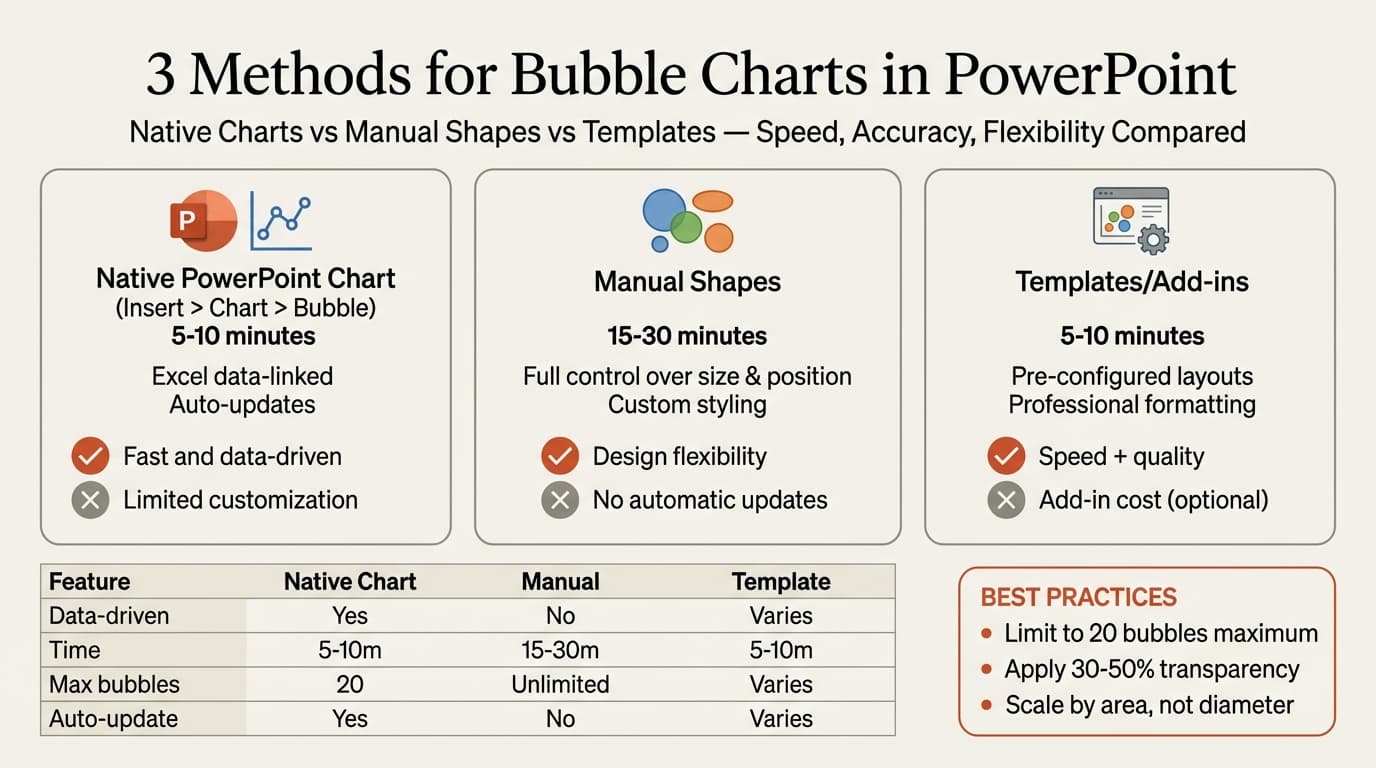
Method 1: Bubble Chart with Native PowerPoint Charts
PowerPoint includes a built-in bubble chart type under Insert > Chart that connects to an Excel data sheet. This is the fastest method for data-driven bubble charts that need to update when source data changes.
Time required: 5-10 minutes.
Steps
- Go to Insert > Chart > X Y (Scatter)
- Select Bubble or Bubble with 3-D Effect
- Click OK—PowerPoint opens an Excel data sheet
- Enter your data with four columns:
- Column 1 (X Values): First dimension (e.g., market share)
- Column 2 (Y Values): Second dimension (e.g., growth rate)
- Column 3 (Size Values): Third dimension that determines bubble size (e.g., revenue)
- Column 4 (Series Name): Optional labels for each bubble
- Close the Excel window—the chart updates automatically
- Use Chart Design > Quick Layout to add axis titles and data labels
- Right-click the chart and select Format Data Series to adjust bubble scale and spacing
Bubble Size Scaling
PowerPoint scales bubbles by area by default, which is the correct approach—visualization research from WPDataTables confirms that area scaling accurately represents proportional differences.
To adjust overall bubble sizes, right-click the chart, select Format Data Series, and change the Scale bubble size setting (default is 100%).
Native bubble charts link to Excel data, so updating the spreadsheet automatically updates the chart. However, you cannot independently position bubbles (they plot based on data values).
Best for: Market analysis slides with numeric data, portfolio reviews where data updates regularly, and client-facing presentations where data accuracy matters.
Continue reading: Capacity Planning Template · How to Create an Org Chart in PPT · How to Distribute Objects Evenly in PowerPoint
Create professional charts in PowerPoint
Build native waterfall, Mekko, Gantt, and business charts without manual formatting. 10 free AI prompts. No credit card required.
Method 2: Bubble Chart with Manual Shapes
The manual shapes method uses circles drawn with Insert > Shapes > Oval to create bubble diagrams where you control exact size, position, and appearance.
Time required: 15-30 minutes.
Steps
- Go to Insert > Shapes > Oval
- Hold Shift while dragging to draw a perfect circle
- Use Shape Format > Size to set exact width and height (same value for both)
- Repeat to add more bubbles, adjusting sizes based on your data
- Position bubbles manually by dragging them
- Use Insert > Text Box to add labels
- Right-click and select Send to Back or Bring to Front to control layering
- Apply 30-50% transparency via Shape Format > Shape Fill > More Fill Colors > Transparency
Size Calculation for Manual Bubbles
To size bubbles proportionally, calculate each bubble's diameter based on the square root of the value it represents. If your values are 100, 400, and 900, the diameters should be proportional to √100 = 10, √400 = 20, and √900 = 30.
Best for: Strategy slides showing conceptual relationships and presentations where visual design matters more than data precision.
Method 3: Using Templates and Add-ins
Template libraries provide pre-built bubble chart layouts that eliminate setup time.
Time required: 5-10 minutes.
Slide library add-ins like Deckary include bubble chart templates with pre-configured axes and bubble sizing. The icon library provides 2,000+ icons that pair well with bubbles—adding a product icon inside each bubble makes the diagram more scannable.
Best for: Teams building similar bubble charts across multiple presentations and consultants who create portfolio analysis regularly.
Method Comparison
| Feature | Native Chart | Manual Shapes | Template/Add-in |
|---|---|---|---|
| Time to create | 5-10 min | 15-30 min | 5-10 min |
| Data-driven | Yes (Excel-linked) | No | Depends on template |
| Automatic updates | Yes | No | Depends on add-in |
| Control over position | No | Full control | Varies |
| Cost | Free | Free | Free to $180/year |
Bubble Chart Formatting Standards
Formatting determines whether a bubble chart reveals patterns instantly or requires verbal explanation. These standards apply regardless of creation method.
Bubble Size Guidelines
LinkedIn's bubble chart best practices recommend making the largest bubble approximately one-tenth of the chart area. Larger bubbles create overlaps that obscure smaller points.
Stick to 20 or fewer bubbles. Research from Domo found that bubble charts with more than 20 points become cluttered—readers cannot distinguish individual bubbles or spot patterns.
Transparency and Overlap
Apply 30-50% transparency to bubbles using Shape Format > Shape Fill > More Fill Colors > Transparency. Visualization guidance from Data to Viz confirms that transparency reduces visual clutter when bubbles overlap, allowing readers to see all data points even when they occupy the same chart region.
Color Coding
Use color to distinguish categories or highlight specific bubbles, not to decorate. Assign one color per category (blue for Product A, green for Product B), use gradients to show magnitude (light to dark blue by revenue), or highlight key bubbles (red for underperformers, green for leaders). Limit your palette to 4-5 colors.
Axis Labels and Titles
Label both axes with clear metric names and units: "Market Share (%)" on the X axis and "Revenue Growth Rate (%)" on the Y axis. Include the third dimension in the chart title: "Product Portfolio: Market Share vs Growth (Bubble Size = Revenue)."
Use a single sans-serif font at 10-12pt for axis labels.
Data Labels
Add labels to critical bubbles only—not all bubbles. Label the largest bubbles, outliers, or items discussed in the presentation. Use Chart Design > Add Chart Element > Data Labels for native charts or Insert > Text Box for manual diagrams.
Common Bubble Chart Mistakes
| Mistake | Problem | Fix |
|---|---|---|
| More than 20 bubbles | Overlaps obscure patterns | Filter to top items or use a table |
| No transparency | Overlapping bubbles hide smaller points | Apply 30-50% transparency |
| Unlabeled axes | Reader cannot tell what X and Y represent | Add clear axis titles with units |
| Third dimension not explained | Audience guesses what bubble size means | Include "Bubble Size = [metric]" in title |
| Weak third variable | Extra dimension adds no insight | Use a scatter plot instead |
| Inconsistent bubble sizing | Implies incorrect proportions | Ensure bubbles scale by area |
For related chart techniques, see our guides on creating scatter plots and bar charts in PowerPoint.
When Not to Use a Bubble Chart
| Visualization Type | Best For | Example |
|---|---|---|
| Bubble chart | Three numeric variables with meaningful correlation | Market share vs growth vs revenue |
| Scatter plot | Two numeric variables showing correlation | Customer satisfaction vs retention rate |
| Bar chart | Comparing categories across one dimension | Revenue by product line |
| Venn diagram | Overlapping categories and shared attributes | Feature comparison across products |
| Table | Many variables across multiple items | Full competitor feature matrix |
Research from Metabase confirms that bubble charts work best when the third dimension varies significantly and adds insight beyond the X-Y relationship.
Summary
Key takeaways:
- Use native bubble charts for data-driven analysis where X, Y, and size dimensions are all numeric and link to Excel data
- Limit to 20 bubbles maximum for readability—filter to show only the most significant items
- Apply 30-50% transparency to bubbles so overlaps remain visible
- Verify all three variables add insight before using a bubble chart—if the third dimension shows weak correlation, use a scatter plot instead
- Label axes clearly with metric names and units, and explain what bubble size represents in the title
- Scale bubbles by area not diameter to accurately represent proportional differences
- Use manual shapes for conceptual diagrams where data precision matters less than visual design
For analysts building bubble charts regularly, explore Deckary's slide library for bubble chart templates that follow consulting formatting standards.
Sources:
- Microsoft - Bubble and scatter charts in Power View
- Atlassian - A Complete Guide to Bubble Charts
- Storytelling with Data - What is a bubble chart and when should I use a bubble chart
- Metabase - Scatterplots and bubble charts
- LinkedIn - What are the best practices for using bubble charts to visualize data in three dimensions
- WPDataTables - Bubble Charts: The Ultimate Guide
- Domo - Data Visualization with Bubble Charts
- Data to Viz - Bubble plot
Create professional charts in PowerPoint
Build native waterfall, Mekko, Gantt, and business charts without manual formatting. 10 free AI prompts. No credit card required.