Venn Diagram in PowerPoint: 3 Methods Compared
Learn how to create a Venn diagram in PowerPoint using SmartArt, shapes, or templates. Step-by-step methods with pros, cons, and best practices.
Venn diagrams appear in strategy presentations when you need to show overlapping categories—product feature comparisons, market segment analysis, or skill set intersections. PowerPoint offers two native methods for building them: SmartArt for speed and manual shapes for control. Each has significant trade-offs in customization and complexity limits.
After creating Venn diagrams for 80+ competitive analysis and market segmentation presentations, we have tested both approaches and mapped exactly when SmartArt hits its limits and when manual shapes are worth the extra time. The right choice depends on how many sets you are comparing and whether you need precise control over overlap size.
This guide covers both methods with step-by-step instructions, explains when to use Venn diagrams versus tables or other chart types, and includes formatting best practices that keep diagrams readable at a glance.
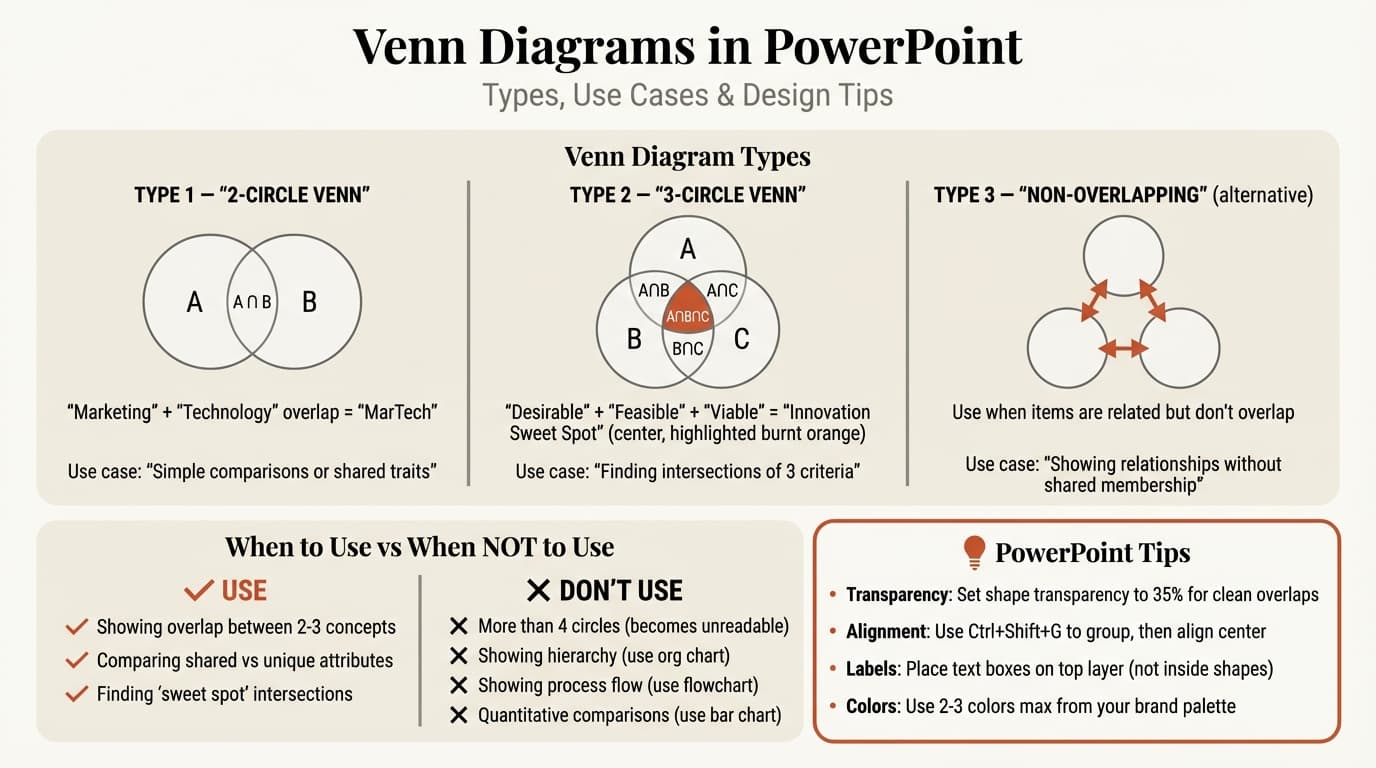
What Is a Venn Diagram
A Venn diagram uses overlapping circles to illustrate the relationships between sets. Each circle represents a category, and the overlapping areas show shared attributes. The non-overlapping portions show unique characteristics.
Microsoft defines a Venn diagram as a visualization tool for showing similarities and differences between concepts, ideas, categories, or groups. In business presentations, Venn diagrams most often compare two or three items—product features, customer segments, or strategic options.
Beyond three circles, Venn diagrams become difficult to parse. The number of possible intersections grows exponentially (a four-circle diagram has 16 regions, a five-circle diagram has 32). For comparisons involving more than three categories, tables or matrix charts work better.
When to Use a Venn Diagram
Venn diagrams work when you need to show conceptual overlap, not quantitative data. Use them for qualitative relationships—categories that share some attributes but remain distinct.
Best uses for Venn diagrams:
| Use Case | Example |
|---|---|
| Product comparison | Features unique to Product A, unique to Product B, and shared by both |
| Market segmentation | Customer groups with overlapping characteristics |
| Skill set mapping | Required skills for Role A, Role B, and skills needed by both |
| Strategic options | Capabilities required for Strategy 1, Strategy 2, and shared requirements |
| Competitive positioning | Unique strengths of your product and competitors |
Poor uses for Venn diagrams:
| Wrong Application | Better Alternative |
|---|---|
| Showing quantities or percentages | Bar chart or pie chart |
| Comparing more than three items | Comparison table |
| Displaying numerical survey data | Bar chart or stacked bar |
| Showing hierarchies | Org chart or tree diagram |
| Time-based changes | Line chart or timeline |
Research on data visualization shows that Venn diagrams excel at conceptualizing relationships but fail at displaying empirical data. If your data includes specific numbers, percentages, or measurements, charts designed for quantitative data communicate more clearly.
Method 1: Venn Diagram with SmartArt
SmartArt is the fastest way to create a Venn diagram in PowerPoint. It handles sizing, alignment, and basic formatting automatically.
Time required: 2-5 minutes.
Steps
- Go to Insert > SmartArt
- In the SmartArt gallery, click Relationship in the left panel
- Select Basic Venn (shows two overlapping circles by default)
- Click OK
- To add a third circle, click the SmartArt border, then click SmartArt Design > Add Shape
- Type text into each circle using the text pane
- Use SmartArt Design > Change Colors to adjust the color scheme
SmartArt Limitations
SmartArt locks you into a fixed layout. You cannot adjust the amount of overlap between circles—the intersection size is predetermined. You cannot create Venn diagrams with more than three circles. You cannot independently format the overlapping sections with different colors or labels.
Microsoft's documentation confirms that SmartArt Venn diagrams support only two- or three-set comparisons. For four or more sets, you need manual shapes.
Best for: Quick executive summaries, simple product comparisons, and presentations where speed matters more than precise customization.
Continue reading: Capacity Planning Template · How to Create an Org Chart in PPT · PowerPoint SmartArt
Create professional charts in PowerPoint
Build native waterfall, Mekko, Gantt, and business charts without manual formatting. 10 free AI prompts. No credit card required.
Method 2: Venn Diagram with Manual Shapes
The manual shapes method gives you full control over circle size, overlap, and intersection formatting. This is the standard approach when you need to highlight specific overlapping regions or create diagrams with more than three circles.
Time required: 10-20 minutes depending on complexity.
Steps
- Go to Insert > Shapes and select the Oval shape
- Hold Shift while dragging to draw a perfect circle
- Select the circle, press Ctrl+C (Windows) or Cmd+C (Mac) to copy
- Press Ctrl+V or Cmd+V to paste a second circle
- Drag the second circle to overlap partially with the first
- Repeat steps 3-5 to add a third circle if needed
- Select all circles by clicking the first, then holding Shift and clicking the others
- Go to Shape Format > Merge Shapes > Fragment to isolate the intersection regions
- After fragmenting, click individual sections to apply different colors or delete unwanted fragments
- Use Insert > Text Box to add labels to each section
Fragment vs. Union: Use Fragment from the Merge Shapes menu—it splits overlapping shapes into separate pieces so you can format each intersection independently. Union merges all circles into a single shape, which does not work for Venn diagrams.
Best for: Market segmentation slides with custom overlap zones, competitive analysis where intersection regions require emphasis, and any Venn diagram with more than three sets.
Method 3: Using Templates and Add-ins
Template libraries provide pre-built Venn diagram layouts. PowerPoint's built-in templates include several options—go to File > New and search "venn diagram."
Time required: 3-8 minutes.
For consulting-grade diagrams, slide library add-ins like Deckary include Venn diagram templates with pre-configured colors, intersection labels, and formatting that matches MBB presentation standards.
Best for: Teams building similar Venn diagrams across multiple presentations and consultants who need consistent formatting without manual shape work.
Method Comparison
| Feature | SmartArt | Manual Shapes | Template/Add-in |
|---|---|---|---|
| Time to create | 2-5 min | 10-20 min | 3-8 min |
| Maximum sets | 3 | 5+ (readability drops after 3) | Varies by template |
| Control over overlap | No | Full | Depends on template |
| Independent intersection formatting | No | Yes (after fragmenting) | Yes (pre-configured) |
| Custom colors | Theme colors only | Full RGB control | Pre-configured or customizable |
| Text labels in intersections | Limited | Full control | Pre-configured or customizable |
| Cost | Free | Free | Free to $180/year |
SmartArt is fastest but least flexible. Manual shapes take longer but handle any complexity. Templates balance speed with customization.
Venn Diagram Formatting Standards
Color Coding
Use color to distinguish categories, not to decorate. A common consulting pattern assigns one color per circle and a distinct color for overlapping regions:
| Section | Color | Purpose |
|---|---|---|
| Circle 1 (unique) | Blue | Attributes unique to first category |
| Circle 2 (unique) | Green | Attributes unique to second category |
| Circle 3 (unique) | Orange | Attributes unique to third category |
| Two-circle overlap | Purple or teal | Shared attributes between two categories |
| Three-circle overlap | Gray | Attributes shared by all categories |
Limit your palette to 4-5 colors.
Text Placement
Place category labels inside the non-overlapping portions of each circle. Place intersection labels in the overlap zone. For small intersections, use text boxes with leader lines.
Use a single sans-serif font at 10-12pt for labels.
Size and Proportion
Circles should occupy 50-70% of the slide area. For three-circle diagrams, arrange circles in a triangle formation rather than a line.
Common Venn Diagram Mistakes
After reviewing Venn diagrams across 80+ strategy presentations, these errors appear most frequently.
| Mistake | Problem | Fix |
|---|---|---|
| Using Venn diagrams for numerical data | Venn diagrams show qualitative relationships, not quantities | Use bar charts or pie charts for percentages and counts |
| Unlabeled overlap regions | Reader cannot tell what the intersection represents | Add text boxes to every overlap zone |
| More than three circles | Four- and five-circle Venn diagrams have too many intersections to parse | Use a comparison table instead |
| Inconsistent circle sizes | Implies magnitude differences that do not exist | Keep all circles the same size unless showing proportional set sizes |
| Overlapping text | Labels crammed into small intersections become unreadable | Use leader lines or arrows to label small sections |
| Too many labels per section | Each section filled with 5+ bullet points | Limit to 1-3 labels per section; add details in slide notes |
For related diagram techniques, see our guides on creating flowcharts in PowerPoint and comparison slides.
When Not to Use a Venn Diagram
| Diagram Type | Best For | Example |
|---|---|---|
| Venn diagram | Overlapping categories and shared attributes | Product features shared by competitors |
| Comparison table | Distinct features across multiple items | Side-by-side feature matrix for 4+ products |
| Bar chart | Quantitative comparisons and percentages | Market share by competitor |
| Pie chart | Part-to-whole relationships | Budget allocation across departments |
| Matrix chart | Many variables across multiple dimensions | 2x2 strategic positioning grid |
Data visualization research from 2024 found that bar charts outperform Venn diagrams for displaying numerical overlap data.
Venn Diagram Examples
Product Comparison:
- Circle 1: Features unique to Product A ("Advanced analytics", "API access")
- Circle 2: Features unique to Product B ("Mobile app", "Live chat support")
- Overlap: Shared features ("Reporting dashboard", "Data export")
Customer Segmentation:
- Circle 1: Enterprise customers ("Multi-year contracts", "Dedicated support")
- Circle 2: SMB customers ("Self-service onboarding", "Pay-as-you-go pricing")
- Overlap: Shared characteristics ("SaaS delivery", "Monthly billing option")
Sources
- Microsoft Support — Create a Venn Diagram
- Statistics By Jim — Venn Diagrams
- Lucidchart — How to Create Venn Diagram in PowerPoint
- Rayna Harris — Bar Plots as Venn Diagram Alternatives (2024)
Summary
Creating a Venn diagram in PowerPoint requires choosing the right method for your specific comparison. SmartArt works for simple two- or three-set diagrams but lacks customization. Manual shapes handle any complexity but take longer. Templates provide pre-configured layouts that balance speed with professional formatting.
Key takeaways:
- Use SmartArt for speed when you need a basic two- or three-circle Venn diagram in under five minutes
- Use manual shapes for control when you need to adjust overlap size, format intersections independently, or create four-set diagrams
- Fragment shapes to format intersections using Shape Format > Merge Shapes > Fragment after drawing overlapping circles
- Limit to three circles maximum for readability—use comparison tables for four or more categories
- Label every section including overlap zones so the diagram is self-explanatory
- Use Venn diagrams for qualitative relationships not quantitative data—switch to bar charts when showing percentages or counts
For consultants building Venn diagrams regularly, pre-built templates save significant time over starting from scratch. Explore Deckary's slide library for Venn diagram templates that follow consulting formatting standards.
Create professional charts in PowerPoint
Build native waterfall, Mekko, Gantt, and business charts without manual formatting. 10 free AI prompts. No credit card required.