How to Create an Org Chart in PPT: 3 Methods Compared
How to create an org chart in PowerPoint using SmartArt, manual shapes, or add-ins. Step-by-step instructions with formatting best practices for consulting.
Knowing how to create an org chart in PPT is a baseline consulting skill, but the gap between a quick SmartArt hierarchy and a consulting-grade organizational chart is significant. The method you choose determines whether your chart can handle dotted-line reporting, matrix structures, color-coded functions, and the inevitable last-minute restructuring that arrives the night before a steering committee.
After building org charts for 50+ due diligence reports, operating model redesigns, and post-merger integrations, we have tested every approach PowerPoint offers. SmartArt works for simple hierarchies under 20 people. Manual shapes give you full control but take 3-5x longer. Add-ins bridge the gap when scale or formatting standards matter.
This guide covers all three methods step by step, formatting best practices that meet consulting standards, and special cases like matrix organizations and large-scale restructurings. For the broader toolkit these charts support, see our Strategic Frameworks Guide.
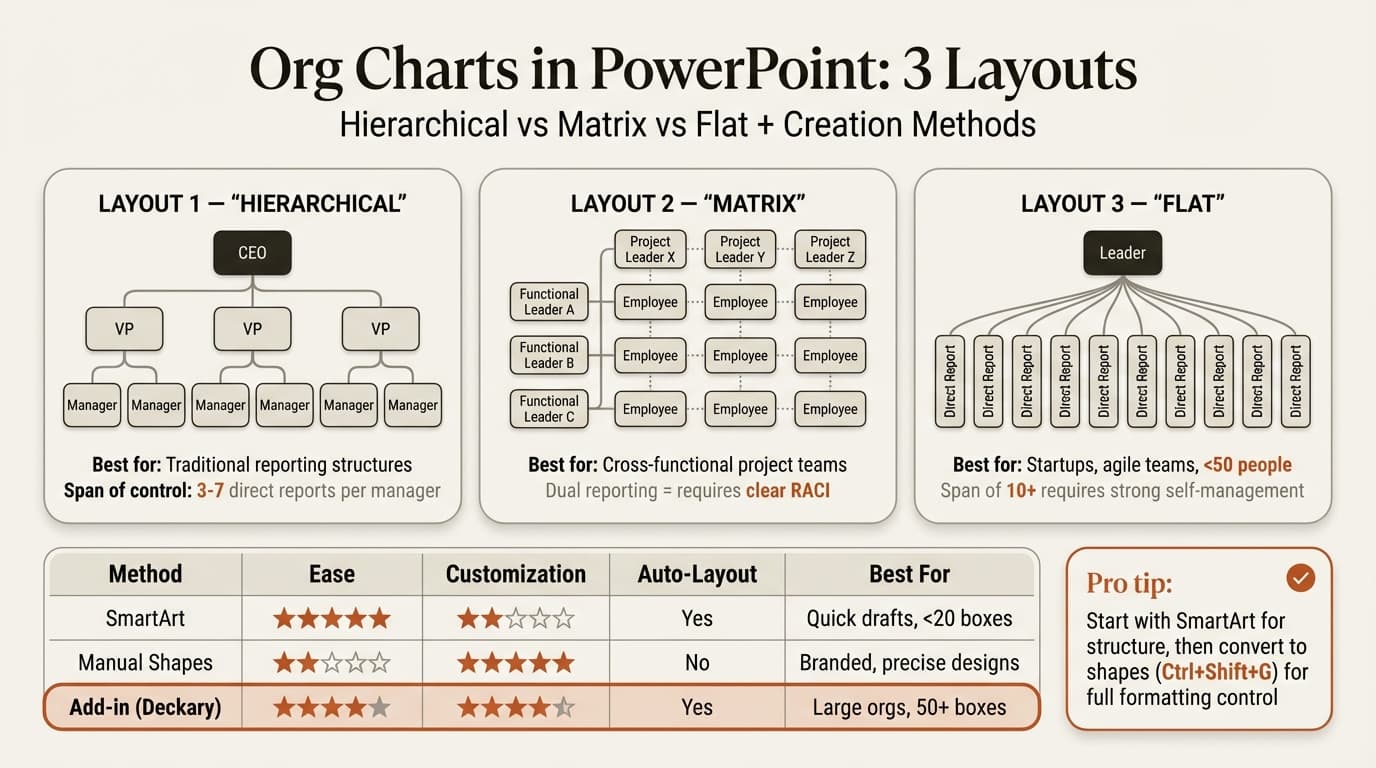
Method 1: How to Create an Org Chart in PPT with SmartArt
SmartArt is PowerPoint's built-in tool for hierarchy diagrams. Microsoft's official documentation walks through the basics, but here is the practical workflow consultants actually use.
Step-by-step:
- Open a blank slide. Go to Insert > SmartArt > Hierarchy, then select Organization Chart and click OK.
- Click inside the top shape and type the CEO or top-level name and title. Use Shift+Enter for a line break between name and title.
- Click in subordinate shapes to add direct reports. Use the Text Pane (toggle with the arrow on the left edge of the SmartArt) for faster data entry.
- To add positions: select a shape, go to SmartArt Design > Add Shape, then choose Add Shape Below, Add Shape After, or Add Assistant.
- To create subordinates quickly in the Text Pane, press Enter for a new peer role and Tab to demote a role one level down. Shift+Tab promotes it up.
- Apply a color scheme via SmartArt Design > Change Colors. Choose a scheme that maps to your client's brand.
- Resize the entire SmartArt frame to fill the slide, leaving margins for the slide title and footer.
When SmartArt works: Teams of 5-20 people, single reporting lines, quick internal presentations where formatting standards are flexible.
Where SmartArt falls short: No dotted-line reporting, limited control over individual box sizing, awkward behavior when you exceed 3-4 levels, and the auto-layout engine fights you when you need precise positioning. If a partner asks you to show a matrix structure or color-code boxes by function, SmartArt becomes a liability.
Method 2: Manual Shapes and Connectors
Manual construction gives you pixel-level control. This is the method used at most consulting firms for client-facing deliverables, because every box, connector, and color choice is intentional.
Step-by-step:
- Create a master box. Insert a rounded rectangle (Insert > Shapes). Set the size to exactly 2.5" wide x 0.7" tall. Add a name in bold (10-11pt) and title in regular weight (9-10pt). Set internal margins to 0.05" on all sides.
- Duplicate the box using Ctrl+D (Cmd+D on Mac). Position the duplicate where the next role belongs. Repeat for all positions at the same level before moving to the next level.
- Align each row. Select all boxes in a row, then use Align > Align Middle and Distribute Horizontally to space them evenly. Our guide on aligning objects in PowerPoint covers the shortcuts that make this fast.
- Add connectors. Insert an Elbow Connector (Insert > Shapes > Lines). Click the connection point on the bottom of a manager box and drag to the top connection point of a subordinate box. The connector will snap to the shape and stay attached when you move boxes.
- Add a horizontal bridge line for multiple direct reports: draw a straight line across the top of a group of subordinates, then connect the manager to the midpoint of that line.
- Group each level. Select all boxes and connectors for one hierarchical level and press Ctrl+G to group. This lets you move entire levels as a unit when adjusting spacing.
- Apply color coding. Select all boxes in a function (e.g., Finance) and apply the same fill color. Use your client's brand palette or a standard scheme: blue for leadership, green for revenue functions, gray for support functions.
Time investment: 30-60 minutes for a 20-person chart. 1-2 hours for 50+ people. The payoff is a chart that survives partner review without redlines.
Method 3: PowerPoint Add-ins
For org charts that need to be built quickly, updated frequently, or scaled beyond 50 people, add-ins eliminate the manual work. Tools like Deckary and dedicated org chart software read structured data and generate formatted hierarchies automatically.
Step-by-step with an add-in approach:
- Prepare your data in a structured format: name, title, department, reports-to. A spreadsheet with these four columns is all most tools need.
- Import the data into the add-in. The tool generates positioned boxes with connectors based on the reporting hierarchy.
- Apply formatting presets: box style, color coding by department, connector line style.
- Adjust positioning manually where needed. Most add-ins let you drag boxes after generation.
- Export or insert directly into your PowerPoint slide.
When add-ins make sense: Organizations over 30 people, charts that need frequent updates, teams that maintain standardized formatting across multiple deliverables. The tradeoff is cost and a learning curve, but the time savings compound fast.
Continue reading: Appendix Slide PowerPoint · Sankey Diagram in PowerPoint · Competitive Landscape Slide
Use consulting-grade layouts in PowerPoint
Start from structured business slides and customize them in your own deck. 14-day free trial. No credit card required.
Comparing the Three Methods
| Criteria | SmartArt | Manual Shapes | Add-in Tools |
|---|---|---|---|
| Time to create (20 people) | 5-10 min | 30-60 min | 10-15 min |
| Time to create (50+ people) | 15-30 min | 1-2 hours | 15-20 min |
| Flexibility | Low | High | Medium-High |
| Dotted-line reporting | No | Yes | Yes |
| Color coding by function | Limited | Full control | Full control |
| Scalability (100+ people) | Poor | Impractical | Good |
| Professional quality | Medium | High | High |
| Learning curve | None | Low | Medium |
| Cost | Free | Free | $120-299/year |
For quick internal presentations, SmartArt is adequate. For client deliverables, manual shapes or an add-in are the standard. The choice between the two depends on how often you build org charts and how large the organizations are.
Formatting Best Practices for Consulting-Grade Org Charts
The difference between a functional org chart and a consulting-grade one is formatting discipline. These are the standards that survive partner review, drawn from organizational chart design best practices and our own experience.
Consistent box sizing. Every box at the same level should be identical in width and height. We use 2.5" x 0.7" for standard roles and 3.0" x 0.9" for the top executive box. Inconsistent sizing creates visual hierarchy that does not match the actual hierarchy, which confuses the reader.
Uniform spacing. Maintain equal horizontal spacing between peers and equal vertical spacing between levels. Use PowerPoint's Distribute Horizontally and Distribute Vertically tools rather than eyeballing it.
Color coding with a legend. Assign one fill color per function or business unit and include a legend in the bottom-right corner. Without a legend, color coding is decoration rather than information. Common schemes:
| Color | Function |
|---|---|
| Dark blue | Executive leadership |
| Blue | Revenue / commercial |
| Green | Operations / delivery |
| Orange | Product / technology |
| Gray | Support functions (HR, Finance, Legal) |
Dotted-line reporting. Use a dashed connector in medium gray (RGB 150, 150, 150) to distinguish indirect reporting from the solid black lines of direct reporting. Always include a legend entry explaining what the dashed line means.
Vacant positions. Show open roles with a dashed box border and italic text reading "Vacant" or "TBH" (to be hired). This is critical for due diligence and restructuring scenarios where headcount gaps are part of the analysis.
Titles and names. Bold the name, regular weight for the title. If the chart is about structure rather than individuals, use titles only and omit names. This is common in operating model work where you are designing the future state.
Special Cases: Matrix, Large Orgs, and Restructuring
Matrix Organizations
A matrix structure has dual reporting lines, and PowerPoint's SmartArt cannot represent it. Use the manual shapes method with these conventions:
- Solid vertical lines for primary reporting (the person who writes your review)
- Dashed horizontal lines for secondary/functional reporting
- Position the primary hierarchy vertically and overlay matrix relationships horizontally
- Add a text box near each dashed line noting the nature of the relationship (e.g., "Functional guidance" or "Project oversight")
Large Organizations (100+ People)
No single slide can legibly display 100 people. Split the chart across multiple slides using a drill-down approach:
- Overview slide: Top 2-3 levels showing the executive team and their direct reports. Each division box gets a subtle "see slide X" reference or a consistent color.
- Division slides: One slide per major function or business unit, showing that leader's full reporting tree down to the individual contributor level.
- Summary slide: A simplified version showing headcount by function, span of control metrics, and layers from CEO to front line.
This approach mirrors how organizations like McKinsey structure operating model decks -- the audience sees the big picture first, then drills into the areas they care about.
Org Charts for Due Diligence and Restructuring
In transaction and restructuring contexts, org charts serve analytical purposes beyond simple hierarchy display:
- Color-code by retention risk: Green for retained, yellow for at-risk, red for planned exits
- Add cost data: Include compensation bands or total cost per role (common in cost reduction programs)
- Show before/after: Place current state on the left and proposed state on the right, using arrows or a bridging visual to show changes. This pairs well with our project plan template approach for sequencing restructuring phases
- Flag redundancies: Highlight overlapping roles across merging entities with a shared color or icon
Common Mistakes to Avoid
Too many levels on one slide. After 4 levels, box sizes shrink to the point where text is unreadable at presentation distance. Organization chart experts recommend splitting deep hierarchies across multiple slides instead of cramming everything onto one.
Inconsistent formatting across boxes. When different boxes have different fonts, sizes, or padding, the audience focuses on the formatting inconsistencies rather than the organizational structure. Set your master box first, then duplicate it for every role.
Missing legend for color coding. Color without explanation is ambiguity. Every org chart that uses color should include a legend box explaining what each color represents. This takes 30 seconds and prevents every audience member from asking the same question.
Ignoring span of control. If one manager has 12 direct reports and another has 2, your chart should prompt the question: is this intentional? Org charts are analytical tools, not just documentation. Use the RACI matrix approach alongside the org chart to clarify how work actually flows through the structure.
Static charts that are never updated. An org chart that shows last quarter's structure erodes trust with every departure and hire that is not reflected. If your org chart matters enough to present, it matters enough to maintain. Assign an owner and a quarterly review cadence, or use a tool that connects to your HR data.
Applying Org Charts to Broader Frameworks
Org charts rarely stand alone. They are one component of a broader organizational analysis that includes governance, decision rights, and accountability. Combine your org chart with:
- A RACI matrix to define who is Responsible, Accountable, Consulted, and Informed for key decisions across the structure
- A stakeholder map to identify influence and interest levels beyond the formal hierarchy
- A project plan to sequence organizational changes when the chart represents a future state
For a ready-to-use starting point, see our Org Chart Template -- it includes pre-formatted boxes, connectors, and a color legend that meets consulting formatting standards.
Key Takeaways
- SmartArt is fast but limited to simple, single-reporting hierarchies under 20 people
- Manual shapes give full control for client-facing deliverables but take 3-5x longer
- Add-ins balance speed and quality, especially for organizations over 30 people
- Format every box identically: same size, font, padding, and alignment at each level
- Always include a legend when using color coding
- Limit one slide to 3-4 hierarchical levels; use a drill-down approach for larger organizations
- For matrix structures, use solid lines for primary reporting and dashed lines for secondary relationships
- Treat org charts as analytical tools, not just documentation -- they should reveal span of control issues, redundancies, and governance gaps
Use consulting-grade layouts in PowerPoint
Start from structured business slides and customize them in your own deck. 14-day free trial. No credit card required.