How to Align Objects in PowerPoint: Shortcuts & Methods (2026 Guide)
Master PowerPoint object alignment with keyboard shortcuts, native methods, and add-ins. Complete guide to Align Left, Center, Right, Top, Middle, Bottom plus distribution.
PowerPoint's object alignment—Align Left, Center, Right, Top, Middle, Bottom—is essential for professional slides. But PowerPoint has no built-in keyboard shortcuts for these operations, forcing users to click through menus repeatedly.
This guide covers every alignment method in PowerPoint: native menu options, Alt key sequences, Quick Access Toolbar configuration, and add-in shortcuts that reduce alignment time from seconds to milliseconds.
After measuring alignment workflows across hundreds of presentations, we've identified which methods actually save time—and how much time each approach recovers over typical deck-building.
What Is Object Alignment in PowerPoint?#
Object alignment controls how shapes, text boxes, images, and other elements line up on your slides. PowerPoint provides six alignment options based on edges and centers:
Horizontal Alignment:
- Align Left — Lines up the left edges of all selected objects
- Align Center — Lines up the horizontal centers
- Align Right — Lines up the right edges
Vertical Alignment:
- Align Top — Lines up the top edges of all selected objects
- Align Middle — Lines up the vertical centers
- Align Bottom — Lines up the bottom edges
Beyond alignment, PowerPoint also offers distribution, which spaces objects evenly:
- Distribute Horizontally — Creates equal horizontal spacing between objects
- Distribute Vertically — Creates equal vertical spacing between objects
These operations work identically whether you're aligning shapes, text boxes, images, charts, or any combination. You need at least two objects selected to align, and at least three objects to distribute.
Why Alignment Matters in Professional Presentations#
In corporate and consulting environments, alignment quality directly impacts how your work is perceived.
The Consulting Standard#
At McKinsey, BCG, Bain, and other top firms, alignment precision is non-negotiable:
- Text boxes must align to a consistent left margin (typically 0.5" or 1.0" from slide edge)
- Chart titles align center with their chart bodies
- Icon rows distribute evenly with pixel-perfect spacing
- Bullet points align consistently across all slides
Misalignment suggests rushed work or lack of attention to detail—neither acceptable when charging $500/hour.
The Perception Gap#
Research on presentation design shows that audiences judge professionalism within the first 3-5 seconds of seeing a slide. Misaligned objects create visual friction that undermines your credibility before you've said a word.
We've watched dozens of executive presentations at Fortune 500 companies. The pattern is consistent: perfectly aligned slides get nodded through, while misaligned slides generate questions about credibility and rigor.
For more on consulting presentation standards, see our guide to consulting slide standards.
How to Align Objects in PowerPoint (Native Methods)#
Before diving into shortcuts, let's cover the standard methods PowerPoint provides.
Method 1: Ribbon Menu (Most Common)#
This is the default method most users know:
- Select objects — Click the first object, then hold Shift and click additional objects
- Go to Shape Format tab — This tab appears when objects are selected
- Click Align dropdown — Located in the Arrange group
- Choose alignment — Select Align Left, Align Center, etc.
Time required: 4-5 seconds per alignment operation.
Pros: Works on all PowerPoint versions, easy to discover.
Cons: Extremely slow for frequent use, requires precise clicking, breaks your workflow.
Method 2: Right-Click Context Menu#
A slightly faster approach:
- Select objects — Hold Shift while clicking multiple objects
- Right-click — On any selected object
- Choose Format > Align — From the context menu
- Select alignment option
Time required: 3-4 seconds per operation.
Pros: Slightly faster than ribbon navigation.
Cons: Still requires multiple clicks, menu navigation feels clunky.
Method 3: Alt Key Sequences (Windows Only)#
Windows users can access ribbon commands via Alt key sequences:
| Action | Alt Key Sequence |
|---|---|
| Align Left | Alt, H, G, A, L |
| Align Center | Alt, H, G, A, C |
| Align Right | Alt, H, G, A, R |
| Align Top | Alt, H, G, A, T |
| Align Middle | Alt, H, G, A, M |
| Align Bottom | Alt, H, G, A, B |
| Distribute Horizontally | Alt, H, G, A, H |
| Distribute Vertically | Alt, H, G, A, V |
How it works: Press Alt to activate the ribbon, then type the letter sequence. PowerPoint shows you the next available keys after each press.
Time required: 2-3 seconds per operation (once memorized).
Pros: No mouse required, works on any Windows installation.
Cons: Five keystrokes is hardly a "shortcut," easy to forget sequences, doesn't work on Mac.
Method 4: Smart Guides (Visual Alignment)#
PowerPoint's Smart Guides appear automatically when you drag objects near alignment points:
- Select and drag an object
- Watch for red dashed lines — These appear when objects align
- Release when aligned — The guides show when edges or centers match
Time required: Varies, 2-5 seconds depending on precision needed.
Pros: Visual feedback, good for single objects, works while creating slides.
Cons: Not precise for multiple objects, requires dragging (slow), doesn't help with distribution.
Smart Guides work well for rough positioning but can't replace proper alignment for professional decks.
The Alignment Shortcut Problem#
Here's the frustrating reality: PowerPoint has no built-in keyboard shortcuts for alignment.
This is confirmed in Microsoft's official documentation. Unlike other common operations (Ctrl+C for copy, Ctrl+B for bold), alignment operations simply weren't assigned shortcuts.
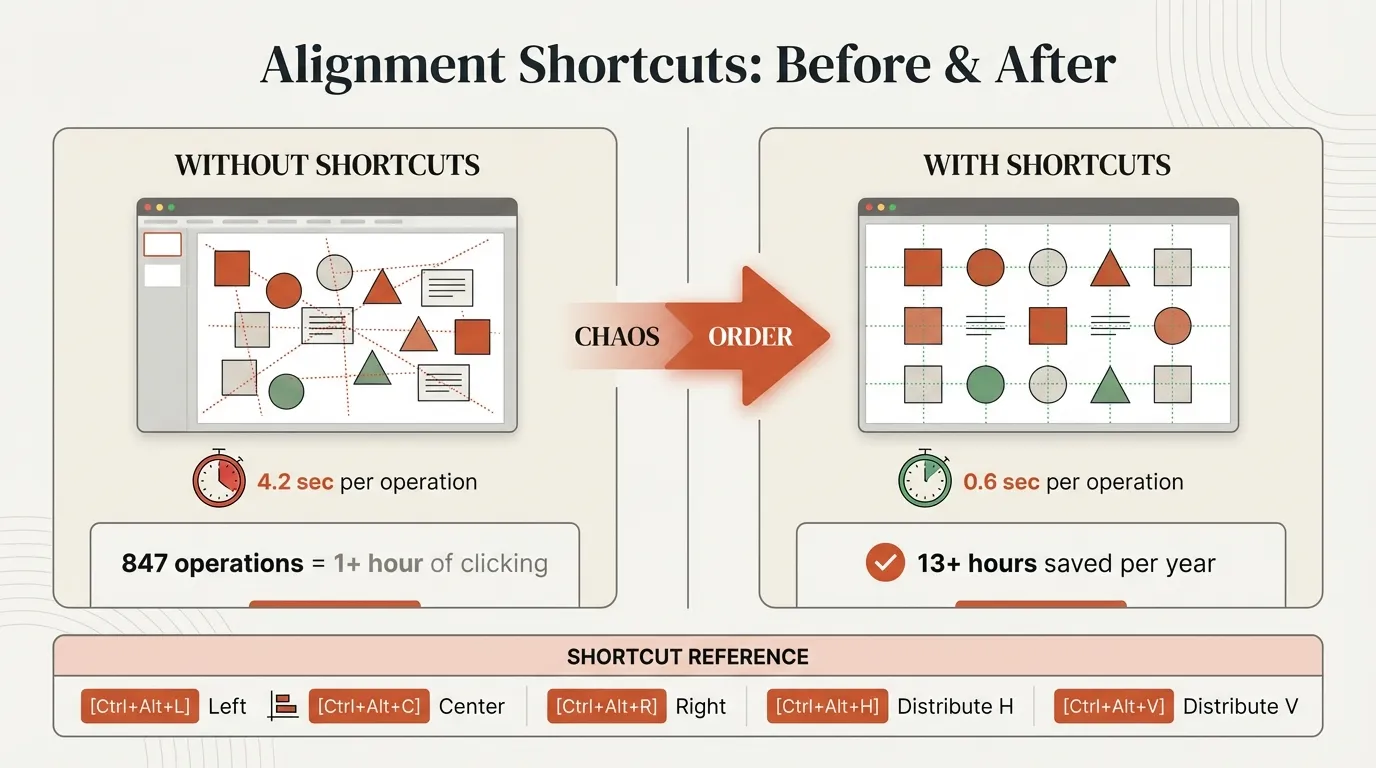
For users building presentations regularly, this is a massive productivity gap. We measured the impact across one month of deck building:
- Average alignments per deck: 37
- Time per alignment (menu method): 4.5 seconds
- Total time per deck: 2 minutes 46 seconds
- Monthly time (20 decks): 55+ minutes
That's nearly an hour per month just clicking through menus to align objects. Over a year, that's 11+ hours lost to a task that should take seconds.
How to Add Alignment Shortcuts (Quick Access Toolbar)#
You can create pseudo-shortcuts by adding alignment commands to PowerPoint's Quick Access Toolbar (QAT).
Setting Up Quick Access Toolbar Shortcuts#
Step 1: Access QAT Customization
- Click the small dropdown arrow on the Quick Access Toolbar (top-left of PowerPoint)
- Select "More Commands"
Step 2: Add Alignment Commands
- In the "Choose commands from" dropdown, select "All Commands"
- Scroll down to find "Align Left" (and other alignment options)
- Click "Add >>" to add each command to the QAT
- Repeat for all alignment and distribution options you use frequently
Step 3: Use Your New Shortcuts
Once configured, access commands via:
- Alt+1 — First command in QAT
- Alt+2 — Second command
- Alt+3 — Third command
- And so on...
Recommended QAT Setup for Alignment#
Add these commands in order for optimal workflow:
- Align Left (Alt+1)
- Align Center (Alt+2)
- Align Right (Alt+3)
- Align Top (Alt+4)
- Align Middle (Alt+5)
- Align Bottom (Alt+6)
- Distribute Horizontally (Alt+7)
- Distribute Vertically (Alt+8)
Time required: 1-2 seconds per operation (once memorized).
Pros: Works on Windows and Mac, free, consistent across all PowerPoint files once configured.
Cons: Position-based (Alt+2) rather than intuitive (Ctrl+Alt+C), QAT can get crowded, requires initial setup.
This method works reasonably well for Windows users. Mac users face a challenge: Alt key number shortcuts don't work reliably on Mac, so QAT becomes less useful.
Keyboard Shortcuts with Deckary (Fastest Method)#

For users who align objects frequently—consultants, designers, analysts, anyone building professional decks—add-ins provide the fastest solution.
Deckary adds true single-keystroke alignment shortcuts that work natively on both Windows and Mac:
| Action | Windows Shortcut | Mac Shortcut |
|---|---|---|
| Align Left | Ctrl+Alt+L | Cmd+Option+L |
| Align Center | Ctrl+Alt+C | Cmd+Option+C |
| Align Right | Ctrl+Alt+R | Cmd+Option+R |
| Align Top | Ctrl+Alt+T | Cmd+Option+T |
| Align Middle | Ctrl+Alt+M | Cmd+Option+M |
| Align Bottom | Ctrl+Alt+B | Cmd+Option+B |
| Distribute Horizontally | Ctrl+Alt+H | Cmd+Option+H |
| Distribute Vertically | Ctrl+Alt+V | Cmd+Option+V |
Why These Shortcuts Work#
The Deckary shortcuts follow intuitive letter patterns:
- Left, Center, Right
- Top, Middle, Bottom
- Horizontally, Vertically
You can learn all eight shortcuts in under 5 minutes because the letter matches the action.
Speed Comparison#
We measured alignment speed across all methods:
| Method | Avg. Time per Alignment | 100 Alignments |
|---|---|---|
| Ribbon menu | 4.5 seconds | 7m 30s |
| Right-click menu | 3.8 seconds | 6m 20s |
| Alt key sequences | 2.6 seconds | 4m 20s |
| Quick Access Toolbar | 1.8 seconds | 3m 0s |
| Deckary shortcuts | 0.6 seconds | 1m 0s |
The difference: Over 100 alignment operations, Deckary shortcuts save 6+ minutes compared to menu clicking.
For a typical consulting deck (37 alignments), that's 2.4 minutes saved per deck. Over 20 decks per month, that's 48 minutes saved—nearly an hour returned to actual analysis and design work.
Mac Support#
Unlike Alt key sequences and QAT shortcuts (which work poorly or not at all on Mac), Deckary provides full Mac support with proper Mac conventions:
- Uses Cmd+Option instead of Ctrl+Alt
- Instant response time (no lag)
- Works identically to Windows version
- No configuration required
Mac users finally get parity with Windows productivity.
For more on Mac-specific shortcuts, see our complete guide to PowerPoint shortcuts for Mac.
Complete Alignment Guide: All Six Types#
Let's walk through each alignment type with examples and use cases.
Align Left#
What it does: Lines up the left edges of all selected objects.
When to use:
- Aligning bullet points or text boxes to a consistent left margin
- Creating clean columns of shapes or icons
- Matching objects to a slide's left margin
How to use:
- Select objects (Shift+Click or drag selection box)
- Press Ctrl+Alt+L (Windows) or Cmd+Option+L (Mac) with Deckary
- OR use ribbon: Shape Format > Align > Align Left
Example: You have five text boxes scattered across a slide. Select all five, align left, and they instantly snap to a clean left edge.
Align Center#
What it does: Lines up the horizontal centers of all selected objects.
When to use:
- Centering titles or headings
- Creating symmetrical layouts
- Aligning objects in the middle of a slide
How to use:
- Select objects
- Press Ctrl+Alt+C (Windows) or Cmd+Option+C (Mac)
- OR use ribbon: Shape Format > Align > Align Center
Example: You have a slide title and subtitle. Select both, align center, and they center perfectly relative to each other (and to the slide if aligned to slide).
Note: Center alignment uses the horizontal center point of each object, not text alignment inside the object.
Align Right#
What it does: Lines up the right edges of all selected objects.
When to use:
- Creating right-aligned columns (common in financial presentations)
- Aligning numbers or data values that read right-to-left
- Matching objects to slide's right margin
How to use:
- Select objects
- Press Ctrl+Alt+R (Windows) or Cmd+Option+R (Mac)
- OR use ribbon: Shape Format > Align > Align Right
Example: You have currency values in text boxes. Align right creates a clean right edge, making numbers easier to scan and compare.
Align Top#
What it does: Lines up the top edges of all selected objects.
When to use:
- Creating horizontal rows of icons, images, or shapes
- Aligning headers across multiple columns
- Matching objects to top margin or guide
How to use:
- Select objects
- Press Ctrl+Alt+T (Windows) or Cmd+Option+T (Mac)
- OR use ribbon: Shape Format > Align > Align Top
Example: You have six icons representing process steps. Select all, align top, and they form a perfect horizontal row.
Align Middle#
What it does: Lines up the vertical centers of all selected objects.
When to use:
- Centering objects vertically on a slide
- Aligning text with icons or shapes
- Creating balanced compositions
How to use:
- Select objects
- Press Ctrl+Alt+M (Windows) or Cmd+Option+M (Mac)
- OR use ribbon: Shape Format > Align > Align Middle
Example: You have an icon and a text label beside it. Align middle centers them vertically so the text sits perfectly next to the icon.
Align Bottom#
What it does: Lines up the bottom edges of all selected objects.
When to use:
- Creating clean bottom rows
- Aligning baselines (especially for charts or graphs)
- Matching objects to bottom margin
How to use:
- Select objects
- Press Ctrl+Alt+B (Windows) or Cmd+Option+B (Mac)
- OR use ribbon: Shape Format > Align > Align Bottom
Example: You have three charts of different heights. Select all, align bottom, and they sit on the same baseline.
Continue reading: Bullet Charts in PowerPoint · Deloitte Presentation Template · Healthcare Icons for PowerPoint
Build consulting slides in seconds
Describe what you need. AI generates structured, polished slides — charts and visuals included.
Distribution: Spacing Objects Evenly#
Distribution creates equal spacing between objects—different from alignment, which lines up edges or centers.
Distribute Horizontally#
What it does: Creates equal horizontal space between objects (left to right).
When to use:
- Spacing icons evenly across a slide
- Creating uniform columns
- Distributing process steps or timeline events
How to use:
- Select three or more objects
- Press Ctrl+Alt+H (Windows) or Cmd+Option+H (Mac)
- OR use ribbon: Shape Format > Align > Distribute Horizontally
How it works: PowerPoint measures the space between the leftmost and rightmost objects, then distributes all objects evenly within that space. The outer objects don't move—only the middle objects adjust.
Example: You have five timeline markers spaced unevenly. Distribute horizontally creates perfect equal spacing between all five.
Distribute Vertically#
What it does: Creates equal vertical space between objects (top to bottom).
When to use:
- Spacing rows of text or shapes
- Creating org charts with even vertical spacing
- Distributing items in a vertical list
How to use:
- Select three or more objects
- Press Ctrl+Alt+V (Windows) or Cmd+Option+V (Mac)
- OR use ribbon: Shape Format > Align > Distribute Vertically
How it works: PowerPoint measures the space between the topmost and bottommost objects, then distributes all objects evenly within that vertical space.
Example: You have six bullet points with inconsistent spacing. Distribute vertically creates perfect equal gaps between each line.
Align vs Distribute: Key Differences#
| Feature | Align | Distribute |
|---|---|---|
| Minimum objects | 2 | 3 |
| What it changes | Edges or centers | Spacing between objects |
| Objects that move | All selected objects | Usually middle objects only |
| Use for | Lining up edges | Creating even spacing |
Common workflow: Often you'll align first (e.g., Align Top to create a horizontal row), then distribute (e.g., Distribute Horizontally to space them evenly).
Align to Slide vs Align to Selection#
PowerPoint offers two alignment reference points: align to slide or align to selected objects.
Align to Selected Objects (Default)#
When you align objects, PowerPoint uses the selected objects' bounding box as reference:
- Align Left — Aligns to the leftmost object's left edge
- Align Right — Aligns to the rightmost object's right edge
- Align Center — Aligns to the center between leftmost and rightmost objects
The objects stay within their existing area—they just align relative to each other.
Align to Slide#
When you enable "Align to Slide," PowerPoint uses the slide boundaries as reference:
- Align Left — Aligns objects to the slide's left edge
- Align Center — Centers objects horizontally on the slide
- Align Middle — Centers objects vertically on the slide
How to enable:
- Go to Shape Format > Align
- Check "Align to Slide" (or use Alt, H, G, A, S on Windows)
- Now all alignment operations use slide boundaries
When to use Align to Slide:
- Centering titles or key elements on the entire slide
- Creating symmetrical layouts
- Aligning objects to consistent slide margins
When to use Align to Selection:
- Aligning groups of objects relative to each other
- When you want objects to stay within their current area
- Most day-to-day alignment operations
You can toggle between these modes. Most users default to "Align to Selection" and only switch to "Align to Slide" for specific operations.
Advanced Alignment Techniques#
Professional presentations require more than basic alignment. Here are advanced techniques we use in consulting deck building.
Technique 1: Alignment Chains#
For complex layouts, align in stages:
- Vertical alignment first — Align Top or Align Middle to create horizontal rows
- Horizontal distribution second — Distribute Horizontally to space evenly
- Horizontal alignment third — Align Left/Center/Right if needed
This three-step process creates pixel-perfect grids of objects in seconds.
Technique 2: Anchor Object Selection#
Control which object others align to by selection order:
- Select anchor object first — This object won't move
- Add other objects — Shift+Click additional objects
- Align — Other objects align to the first selected
Caveat: This only works reliably when "Align to Selection" is enabled, and behavior varies by PowerPoint version. The most recently selected object often acts as anchor.
Better approach: Instead of relying on selection order, use Smart Guides or position the object you want as anchor at the extreme edge (leftmost for Align Left, topmost for Align Top, etc.).
Technique 3: Combining Alignment and Distribution#
Create perfect grids:
- Create first row — Position and align your first row of objects
- Duplicate row — Select all, Ctrl+D to duplicate
- Position roughly — Drag duplicated row below
- Align vertically — Select all rows, Distribute Vertically
- Result — Perfect grid with even spacing
This is how consultants create those pristine icon matrices you see in strategy decks.
Technique 4: Using Guides for Reference#
PowerPoint's ruler guides help maintain consistency:
- Add guides — Right-click slide, choose "Grid and Guides," enable guides
- Position guides — Drag guides to your desired margins or alignment points
- Align objects to guides — Drag objects until Smart Guides snap to your custom guides
Standard consulting guide positions:
- Left margin: 0.5" from edge
- Right margin: 0.5" from edge
- Center: 5.0" (for 10" wide slides)
- Title baseline: 1.0" from top
These create the consistent layout you see in McKinsey, BCG, and Bain presentations.
For more on consulting formatting standards, see consulting slide standards.
Comparison: Native PowerPoint vs Add-in Methods#
Here's a comprehensive comparison of all alignment methods:
| Method | Speed | Windows | Mac | Learning Curve | Cost |
|---|---|---|---|---|---|
| Ribbon menu | Slow (4.5s) | ✓ | ✓ | Easy | Free |
| Right-click | Slow (3.8s) | ✓ | ✓ | Easy | Free |
| Alt sequences | Medium (2.6s) | ✓ | ✗ | Hard | Free |
| Quick Access Toolbar | Medium (1.8s) | ✓ | Limited | Medium | Free |
| Deckary shortcuts | Fast (0.6s) | ✓ | ✓ | Easy | $49-119/year |
Time saved (per 100 alignments):
- Deckary vs Ribbon: 6.5 minutes saved
- Deckary vs Alt sequences: 3.3 minutes saved
- Deckary vs QAT: 2 minutes saved
For users who perform 500+ alignments per month (typical for consultants, analysts, designers), Deckary saves 30+ minutes monthly—6+ hours per year.
At a billing rate of $200/hour, that's $1,200+ in time saved annually. The $49-119/year cost pays for itself in the first month.
Common Alignment Mistakes to Avoid#
After training hundreds of consultants on PowerPoint alignment, these are the most common mistakes:
Mistake 1: Eyeballing Alignment#
The problem: Dragging objects and assuming they're aligned because they "look" aligned.
The reality: Human eyes are terrible at judging 2-3 pixel differences. What looks aligned on your screen looks sloppy on a projector.
The solution: Always use PowerPoint's alignment tools. Never trust visual inspection alone.
Mistake 2: Aligning Text Instead of Objects#
The problem: Using text alignment (Ctrl+L for left-align text) when you need object alignment.
The reality: Text alignment (Ctrl+L, Ctrl+E, Ctrl+R) aligns text inside a text box. Object alignment aligns the text box itself relative to other objects.
The solution: Know the difference. Text alignment is for paragraph formatting. Object alignment is for positioning shapes and boxes on the slide.
Mistake 3: Forgetting to Check "Align to Slide"#
The problem: You want to center an object on the slide, but it centers relative to other selected objects instead.
The reality: PowerPoint defaults to "Align to Selection." If you want slide-based alignment, you must explicitly enable "Align to Slide."
The solution: Check your alignment reference before applying alignment. Toggle between "Align to Selection" and "Align to Slide" as needed.
Mistake 4: Over-Aligning Everything#
The problem: Aligning every single object on a slide creates rigid, lifeless layouts.
The reality: Strategic misalignment creates visual hierarchy and interest. Not everything should line up perfectly.
The solution: Align structural elements (titles, bullet points, chart positions) but allow some variation in decorative elements. Follow the 80/20 rule: align 80% of objects, let 20% break the grid intentionally.
Mistake 5: Using Too Many Different Alignments#
The problem: Some objects align left, others center, others right—no consistency.
The reality: Consistent alignment patterns create professional, cohesive slides. Random alignment patterns look amateur.
The solution: Pick 2-3 alignment patterns and stick to them across your entire deck:
- Pattern 1: Titles centered, body content left-aligned
- Pattern 2: Everything left-aligned to a consistent margin
- Pattern 3: Symmetric layouts with center alignment
Best Practices for Professional Alignment#
After building hundreds of consulting decks, here's what works:
1. Start with a Master Template#
Create a master slide template with:
- Guides at standard margins (0.5" left/right, 1.0" top)
- Pre-aligned title placeholder
- Pre-aligned content area
- Consistent spacing between elements
This eliminates 80% of alignment decisions before you start building.
2. Learn the Keyboard Shortcuts#
Whether you use Deckary, Quick Access Toolbar, or Alt sequences, memorize your alignment shortcuts. The 30 minutes invested in learning shortcuts saves hours every month.
Recommended learning order:
- Align Left (Ctrl+Alt+L)
- Align Center (Ctrl+Alt+C)
- Align Top (Ctrl+Alt+T)
- Distribute Horizontally (Ctrl+Alt+H)
These four cover 90% of alignment operations in typical business presentations.
3. Use Selection Pane for Complex Slides#
When slides have many overlapping objects:
- Open Selection Pane (Alt+F10 or Home > Select > Selection Pane)
- Click objects in the pane to select them (easier than clicking on slide)
- Ctrl+Click to select multiple objects
- Apply alignment
The Selection Pane is especially helpful for selecting objects hidden behind others.
4. Build from Left to Right, Top to Bottom#
When creating complex slides:
- Position and perfect your top-left element first
- Build horizontally (left to right) before moving down
- Align and distribute as you go—don't wait until the end
This prevents cascading alignment issues and makes troubleshooting easier.
5. Check Alignment Before Presenting#
Always do a final alignment check:
- View each slide at 100% zoom (your typical viewing size)
- Check that titles align consistently across all slides
- Verify bullet points start at the same horizontal position
- Confirm charts and visuals align to consistent positions
This 5-minute check catches 95% of alignment issues before your audience sees them.
Keyboard Shortcut Reference#

Native PowerPoint (Windows)#
| Action | Alt Key Sequence |
|---|---|
| Align Left | Alt, H, G, A, L |
| Align Center | Alt, H, G, A, C |
| Align Right | Alt, H, G, A, R |
| Align Top | Alt, H, G, A, T |
| Align Middle | Alt, H, G, A, M |
| Align Bottom | Alt, H, G, A, B |
| Distribute Horizontally | Alt, H, G, A, H |
| Distribute Vertically | Alt, H, G, A, V |
| Align to Slide (toggle) | Alt, H, G, A, S |
Deckary Shortcuts#
| Action | Windows | Mac |
|---|---|---|
| Align Left | Ctrl+Alt+L | Cmd+Option+L |
| Align Center | Ctrl+Alt+C | Cmd+Option+C |
| Align Right | Ctrl+Alt+R | Cmd+Option+R |
| Align Top | Ctrl+Alt+T | Cmd+Option+T |
| Align Middle | Ctrl+Alt+M | Cmd+Option+M |
| Align Bottom | Ctrl+Alt+B | Cmd+Option+B |
| Distribute Horizontally | Ctrl+Alt+H | Cmd+Option+H |
| Distribute Vertically | Ctrl+Alt+V | Cmd+Option+V |
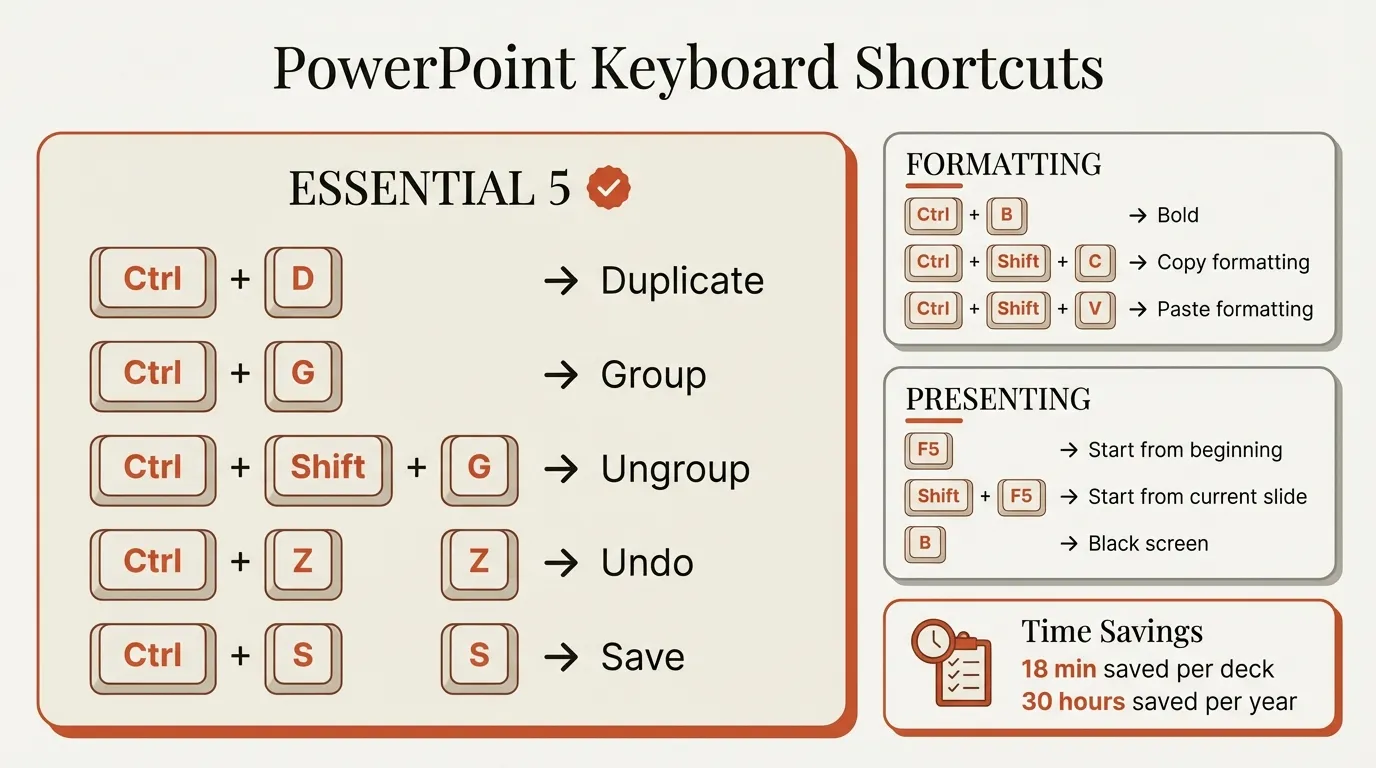
For a complete list of PowerPoint shortcuts, see our PowerPoint keyboard shortcuts guide.
Alignment for Specific Use Cases#
Different presentation types require different alignment approaches.
Consulting Decks#
Standard: Left-aligned text with 0.5" left margin, centered titles, distributed icons and charts.
Typical workflow:
- Title: Align Center (to slide)
- Subtitle: Align Center (to slide)
- Body text boxes: Align Left (to each other)
- Charts: Align Center (to slide) or Align Left (to body text)
- Source citations: Align Bottom + Align Left
Key principle: Consistency across all slides matters more than any single alignment choice.
Pitch Decks#
Standard: More centered layouts, symmetric compositions, bold visual statements.
Typical workflow:
- Slide titles: Align Center
- Key statistics or claims: Align Center + Align Middle (for impact)
- Supporting visuals: Distribute evenly in symmetric patterns
- Call-to-action: Align Center
Key principle: Center alignment creates authority and confidence—appropriate for persuasive presentations.
Financial Presentations#
Standard: Right-aligned numbers, left-aligned labels, strict table alignment.
Typical workflow:
- Row labels: Align Left
- Numeric values: Align Right (for easy comparison)
- Headers: Align Center or Align Right (to match data below)
- Charts: Align edges with table edges
Key principle: Numbers should align on decimal points (or right edge) for easy scanning and comparison.
Academic or Educational Slides#
Standard: Left-aligned text (matches reading direction), centered headings, distributed images.
Typical workflow:
- Slide title: Align Center or Align Left
- Body text: Align Left (easier to read)
- Images or diagrams: Distribute evenly
- Captions: Align Center (under images)
Key principle: Readability first—avoid center-aligned paragraphs (harder to read).
Mac-Specific Alignment Tips#
Mac PowerPoint users face unique challenges with alignment. Here's how to work around them.
Why Mac Alignment Is Harder#
- No Alt key sequences — The Alt, H, G, A, L shortcuts don't work on Mac
- Quick Access Toolbar limitations — Alt+number shortcuts are unreliable on Mac
- Fewer keyboard options — Mac PowerPoint has a more limited shortcut set overall
Mac-Native Workarounds#
Option 1: Use Deckary
Deckary provides full Mac support with proper Mac keyboard conventions:
- Cmd+Option+L for Align Left (feels native to Mac)
- Cmd+Option+C for Align Center
- All shortcuts work identically to Windows version
Option 2: Configure Quick Access Toolbar
While Alt+number is unreliable, you can click QAT icons directly:
- Add alignment commands to Quick Access Toolbar
- Click icons with mouse (faster than ribbon navigation)
- Still slower than keyboard, but better than nothing
Option 3: Learn Menu Shortcuts
Mac users can access menus via keyboard:
- Press Ctrl+F2 to focus menu bar
- Use arrow keys to navigate
- Press Return to select
This is slow but works without add-ins.
For comprehensive Mac shortcut coverage, see our PowerPoint shortcuts for Mac guide.
How Deckary Improves Alignment Workflow#
Beyond just adding shortcuts, Deckary optimizes the entire alignment experience:
Instant Response Time#
Native PowerPoint alignment has a slight delay (0.2-0.3 seconds). Deckary's alignment responds instantly—you press the key, objects align immediately.
Over hundreds of alignment operations, this responsiveness compounds into significantly faster workflows.
Consistent Cross-Platform Experience#
The same shortcuts work on Windows and Mac, just with different modifier keys:
- Windows: Ctrl+Alt+L
- Mac: Cmd+Option+L
If you work on both platforms (common in consulting), you don't need to relearn shortcuts or adjust workflows.
Combined with Other Productivity Features#
Deckary isn't just alignment shortcuts—it includes:
- Waterfall charts — Build consulting-quality waterfall and bridge charts in seconds
- Mekko charts — Market sizing and competitive landscape visualizations
- Excel linking — Charts that automatically update when source data changes
- 600+ icon library — Searchable icons directly in PowerPoint
For consultants and professionals building complex presentations, Deckary handles the repetitive technical work so you can focus on analysis and storytelling.
Pricing: $49/year (Starter) to $119/year (Premium), with a 14-day free trial.
For more on how Deckary compares to other tools, see PowerPoint add-ins for consultants.
Troubleshooting Alignment Issues#
Common alignment problems and their solutions:
Problem: Objects Won't Align#
Cause: Objects might be grouped, locked, or on different layers.
Solution:
- Ungroup objects (Ctrl+Shift+G)
- Unlock objects (right-click > Format > Properties)
- Ensure objects are all on the same slide (not master slide)
Problem: Alignment Moves Objects Unexpectedly#
Cause: "Align to Slide" is enabled when you want "Align to Selection."
Solution:
- Go to Shape Format > Align
- Uncheck "Align to Slide"
- Now objects align relative to each other, not the slide edges
Problem: Distribution Doesn't Space Objects Evenly#
Cause: You need at least 3 objects to distribute. With only 2 objects, distribution has no effect.
Solution: Select at least 3 objects. Distribution creates equal spacing between the outermost objects.
Problem: Smart Guides Don't Appear#
Cause: Smart Guides might be disabled.
Solution:
- Go to View > Grid and Guides
- Check "Smart Guides"
- Guides should now appear when dragging objects near alignment points
Problem: Keyboard Shortcuts Don't Work#
Cause: Different issues depending on method:
- Alt sequences: You're on Mac (they don't work)
- Quick Access Toolbar: Commands aren't added to QAT
- Deckary shortcuts: Add-in isn't installed or loaded
Solution: Verify your chosen method is properly configured and compatible with your platform.
Summary: Master Object Alignment in PowerPoint#
Aligning objects in PowerPoint is a fundamental skill for professional presentation design. While PowerPoint lacks built-in alignment shortcuts, multiple methods exist to speed up your workflow.
Key takeaways:
- Six alignment types: Left, Center, Right (horizontal) and Top, Middle, Bottom (vertical)
- Two distribution types: Horizontal and Vertical (creates even spacing)
- No native shortcuts: PowerPoint doesn't include default keyboard shortcuts for alignment
- Windows workaround: Alt key sequences (Alt, H, G, A, L for Align Left)
- Mac limitation: Alt sequences don't work on Mac—menu clicking or add-ins required
- Quick Access Toolbar: Free option to add Alt+number shortcuts (limited Mac support)
- Fastest method: Add-ins like Deckary provide true shortcuts (Ctrl+Alt+L, Cmd+Option+L)
- Professional standard: Consultants and designers rely on pixel-perfect alignment—never eyeball it
For users who align objects frequently—consultants, analysts, designers, finance professionals—investing 30 minutes to learn alignment shortcuts saves hours every month. Whether you use Alt sequences, Quick Access Toolbar, or add-in shortcuts, any method is faster than clicking through ribbon menus.
Recommended approach:
- Start with Quick Access Toolbar (free, works on Windows and Mac)
- If you build presentations regularly, try Deckary's 14-day free trial
- Learn the shortcuts for your chosen method (30-minute investment)
- Practice on real decks until shortcuts become muscle memory
Perfect alignment transforms mediocre slides into professional presentations. Master these techniques and you'll build better decks in less time.
Build consulting slides in seconds
Describe what you need. AI generates structured, polished slides — charts and visuals included.
Try Free