PowerPoint Shortcuts Mac: The Complete 2026 Cheat Sheet
Master PowerPoint keyboard shortcuts on Mac. Complete list of 70+ shortcuts for navigation, editing, formatting, alignment, and slideshow mode with Windows comparisons.
- Bob · Former McKinsey and Deloitte consultant with 6 years of experience
- October 15, 2025
- 13 min read
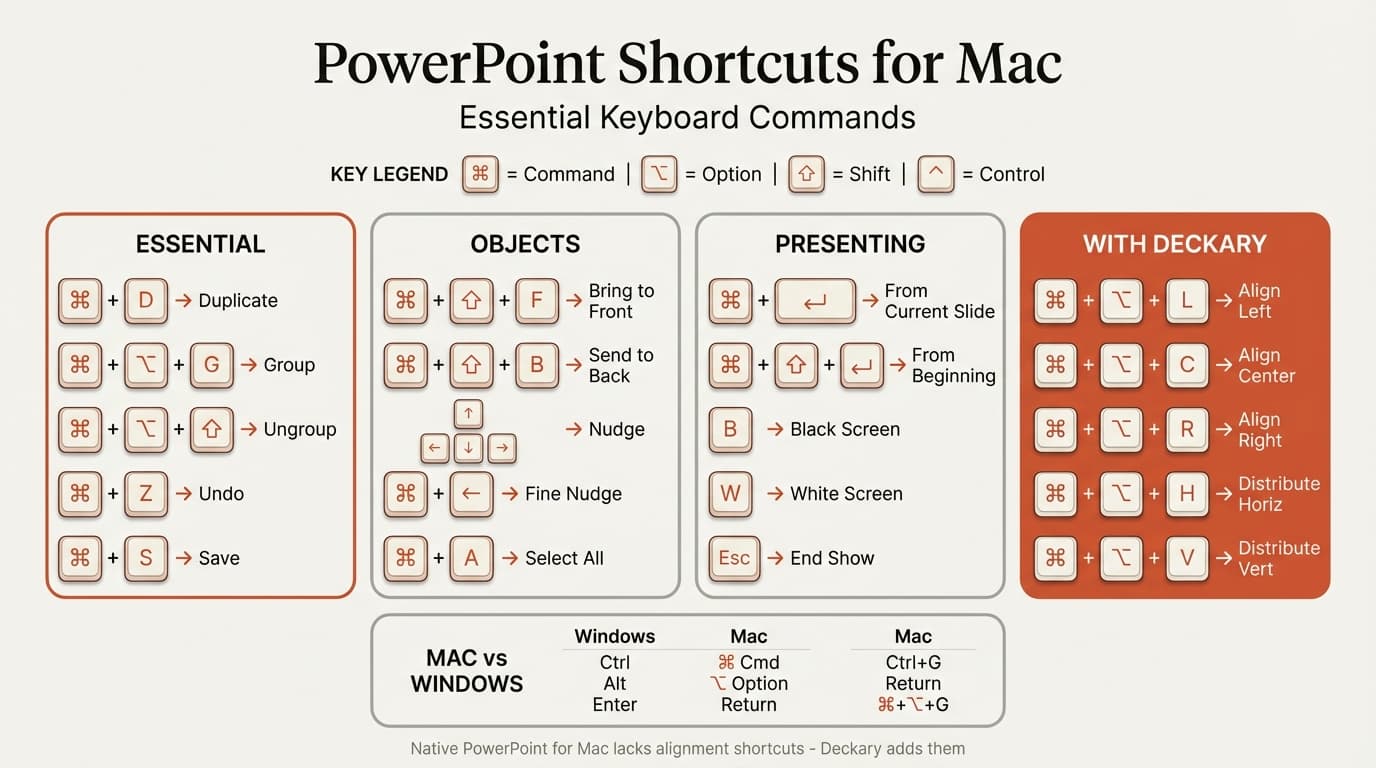
PowerPoint shortcuts on Mac work differently than Windows—and in some cases, they don't exist at all. The Ctrl-to-Cmd translation covers most basics, but critical shortcuts like grouping (Cmd+Option+G, not Cmd+G) and new slide (Cmd+Shift+N, not Cmd+M) are different enough to break your workflow.
This guide covers every PowerPoint shortcut that works on Mac, organized by category, with Windows equivalents for comparison. We've also identified where Mac falls short—operations that take one keystroke on Windows but require menu clicks on Mac—and the workarounds that actually help.
Why Mac PowerPoint Shortcuts Are Different
Before diving into the shortcuts, understanding the differences helps you adapt faster.
The Translation Rules
Most Windows shortcuts translate to Mac by replacing:
| Windows | Mac |
|---|---|
| Ctrl | Cmd |
| Alt | Option |
| Enter | Return |
So Ctrl+B (Bold) becomes Cmd+B. Ctrl+Shift+G (Ungroup) becomes Cmd+Option+Shift+G. This pattern covers about 70% of shortcuts.
What Doesn't Translate
Here's where Mac users struggle:
Alt Key Navigation — Windows users can press Alt to activate the ribbon, then type letters to navigate (Alt, H, G, A, L for Align Left). This entire system doesn't exist on Mac. There's no keyboard-driven ribbon navigation.
Function Keys — F5 to start a presentation on Windows? On Mac, you need Cmd+Shift+Return. Many F-key shortcuts either don't work or require holding the Fn key.
Missing Commands — Some shortcuts simply don't exist on Mac. PowerPoint for Mac has a more limited API, so certain operations that have shortcuts on Windows require mouse clicks.
We've timed the impact across real deck-building sessions: Mac users without workarounds spend 15-20% more time on formatting operations compared to Windows users who've mastered shortcuts. The good news is that most of this gap can be closed with the right tools and techniques. For a complete reference of all PowerPoint shortcuts across both platforms, see our PowerPoint Shortcuts Guide.
Navigation Shortcuts for Mac
Moving around your presentation efficiently.
| Action | Mac Shortcut | Windows Equivalent |
|---|---|---|
| Next slide | Page Down or Fn+Down | Page Down |
| Previous slide | Page Up or Fn+Up | Page Up |
| First slide | Fn+Left or Cmd+Home | Ctrl+Home |
| Last slide | Fn+Right or Cmd+End | Ctrl+End |
| Go to specific slide | Type number + Return (in slideshow) | Same |
| Jump to slide (edit mode) | Cmd+G, type number | Ctrl+G |
View Switching on Mac
| Action | Mac Shortcut | Windows Equivalent |
|---|---|---|
| Normal view | Cmd+1 | Alt+W, L |
| Slide sorter view | Cmd+2 | Alt+W, I |
| Outline view | Cmd+3 | Alt+W, P, O |
| Notes page view | View menu | Alt+W, P, N |
| Start slideshow from beginning | Cmd+Shift+Return | F5 |
| Start slideshow from current slide | Cmd+Return | Shift+F5 |
Mac-specific note: The Cmd+1/2/3 view shortcuts are actually easier than the Windows Alt sequences. This is one area where Mac has an advantage.
Text Formatting Shortcuts
The classics work similarly on both platforms.
| Action | Mac Shortcut | Windows Equivalent |
|---|---|---|
| Bold | Cmd+B | Ctrl+B |
| Italic | Cmd+I | Ctrl+I |
| Underline | Cmd+U | Ctrl+U |
| Strikethrough | Cmd+Shift+X | Alt+H, 4 |
| Subscript | Cmd+= | Ctrl+= |
| Superscript | Cmd+Shift+= | Ctrl+Shift+= |
| Increase font size | Cmd+Shift+Period | Ctrl+Shift+Period |
| Decrease font size | Cmd+Shift+Comma | Ctrl+Shift+Comma |
| Copy formatting | Cmd+Shift+C | Ctrl+Shift+C |
| Paste formatting | Cmd+Shift+V | Ctrl+Shift+V |
Paragraph Formatting
| Action | Mac Shortcut | Windows Equivalent |
|---|---|---|
| Left align text | Cmd+L | Ctrl+L |
| Center align text | Cmd+E | Ctrl+E |
| Right align text | Cmd+R | Ctrl+R |
| Justify text | Cmd+J | Ctrl+J |
| Increase indent | Tab | Tab |
| Decrease indent | Shift+Tab | Shift+Tab |
| Line spacing 1.0 | Cmd+1 (in text box) | Ctrl+1 |
| Line spacing 1.5 | Cmd+5 (in text box) | Ctrl+5 |
| Line spacing 2.0 | Cmd+2 (in text box) | Ctrl+2 |
Tip: Text alignment shortcuts (Cmd+L/E/R) only work when you're editing text inside a text box. For aligning objects on the slide, see the alignment section below.
Object Manipulation Shortcuts
Working with shapes, images, and other objects.
| Action | Mac Shortcut | Windows Equivalent |
|---|---|---|
| Select all | Cmd+A | Ctrl+A |
| Duplicate | Cmd+D | Ctrl+D |
| Copy | Cmd+C | Ctrl+C |
| Cut | Cmd+X | Ctrl+X |
| Paste | Cmd+V | Ctrl+V |
| Paste special | Cmd+Option+V | Ctrl+Alt+V |
| Delete | Delete or Fn+Backspace | Delete |
| Undo | Cmd+Z | Ctrl+Z |
| Redo | Cmd+Y or Cmd+Shift+Z | Ctrl+Y |
| Group objects | Cmd+Option+G | Ctrl+G |
| Ungroup objects | Cmd+Option+Shift+G | Ctrl+Shift+G |
Important difference: Grouping on Mac is Cmd+Option+G, not just Cmd+G like you might expect. Cmd+G on Mac opens the "Go To Slide" dialog instead.
Layer Ordering
| Action | Mac Shortcut | Windows Equivalent |
|---|---|---|
| Bring to front | Cmd+Shift+F | Ctrl+Shift+] |
| Send to back | Cmd+Shift+B | Ctrl+Shift+[ |
| Bring forward one layer | Cmd+Option+Shift+F | Ctrl+] |
| Send backward one layer | Cmd+Option+Shift+B | Ctrl+[ |
The Mac layer shortcuts use letters (F for Front, B for Back) rather than brackets. More intuitive once you know them.
Moving and Resizing Objects
| Action | Mac Shortcut | Windows Equivalent |
|---|---|---|
| Nudge object | Arrow keys | Arrow keys |
| Fine nudge (smaller movement) | Cmd+Arrow keys | Ctrl+Arrow keys |
| Move constrained (horizontal/vertical) | Shift+Drag | Shift+Drag |
| Duplicate while moving | Option+Drag | Ctrl+Drag |
| Resize proportionally | Shift+Drag corner | Shift+Drag corner |
| Resize from center | Option+Drag | Ctrl+Drag |
| Resize proportionally from center | Option+Shift+Drag corner | Ctrl+Shift+Drag corner |
Continue reading: Fishbone Diagram in PowerPoint · How to Make a Good PowerPoint · Arrow Icons PowerPoint
Slide Management
Creating and organizing slides.
| Action | Mac Shortcut | Windows Equivalent |
|---|---|---|
| New slide | Cmd+Shift+N | Ctrl+M |
| Duplicate slide | Cmd+D (with slide selected) | Ctrl+D |
| Delete slide | Delete (in slide panel) | Delete |
| Move slide up | Cmd+Up (in slide panel) | Alt+Shift+Up |
| Move slide down | Cmd+Down (in slide panel) | Alt+Shift+Down |
Note: The new slide shortcut is Cmd+Shift+N on Mac, not Cmd+M. This trips up Windows converts constantly.
Presentation Mode Shortcuts
When you're presenting live, these shortcuts work identically on both platforms (with a few exceptions).
| Action | Shortcut (Mac & Windows) |
|---|---|
| Next slide/animation | N, Return, Space, Right Arrow, Down Arrow, Page Down |
| Previous slide/animation | P, Delete, Left Arrow, Up Arrow, Page Up |
| Go to slide number | Type number + Return |
| First slide | Home or Fn+Left |
| Last slide | End or Fn+Right |
| Black screen (blank) | B |
| White screen (blank) | W |
| End slideshow | Esc |
| Show all slides (grid view) | G |
| Zoom in on slide | + or = |
| Show/hide pointer | Cmd+P |
| Pen tool | Cmd+P |
| Highlighter | Cmd+I |
| Eraser | Cmd+E |
Presentation mode is where Mac and Windows are most similar. Once you're presenting, the experience is nearly identical.
File Operations
| Action | Mac Shortcut | Windows Equivalent |
|---|---|---|
| New presentation | Cmd+N | Ctrl+N |
| Open file | Cmd+O | Ctrl+O |
| Save | Cmd+S | Ctrl+S |
| Save As | Cmd+Shift+S | F12 or Ctrl+Shift+S |
| Cmd+P | Ctrl+P | |
| Close file | Cmd+W | Ctrl+W |
| Close PowerPoint | Cmd+Q | Alt+F4 |
| Find | Cmd+F | Ctrl+F |
| Replace | Cmd+H | Ctrl+H |
The Missing Shortcuts: Alignment on Mac
Here's where Mac users face a real disadvantage. PowerPoint has no built-in keyboard shortcuts for object alignment on any platform—but Windows users have a workaround that Mac users don't.
The Windows Workaround (That Doesn't Work on Mac)
On Windows, you can use Alt key sequences to access any ribbon command:
| Action | Windows Alt Sequence |
|---|---|
| Align Left | Alt, H, G, A, L |
| Align Center | Alt, H, G, A, C |
| Align Right | Alt, H, G, A, R |
| Align Top | Alt, H, G, A, T |
| Align Middle | Alt, H, G, A, M |
| Align Bottom | Alt, H, G, A, B |
| Distribute Horizontally | Alt, H, G, A, H |
| Distribute Vertically | Alt, H, G, A, V |
Five keystrokes isn't great, but it's faster than clicking. On Mac? These don't work at all. You must use the mouse:
- Select objects
- Click Shape Format tab
- Click Align dropdown
- Click your alignment option
That's 4+ clicks per alignment operation. On a 50-slide deck with 100 alignment operations, you're looking at 400 unnecessary clicks.
The Solution: Add-ins for Mac Alignment Shortcuts
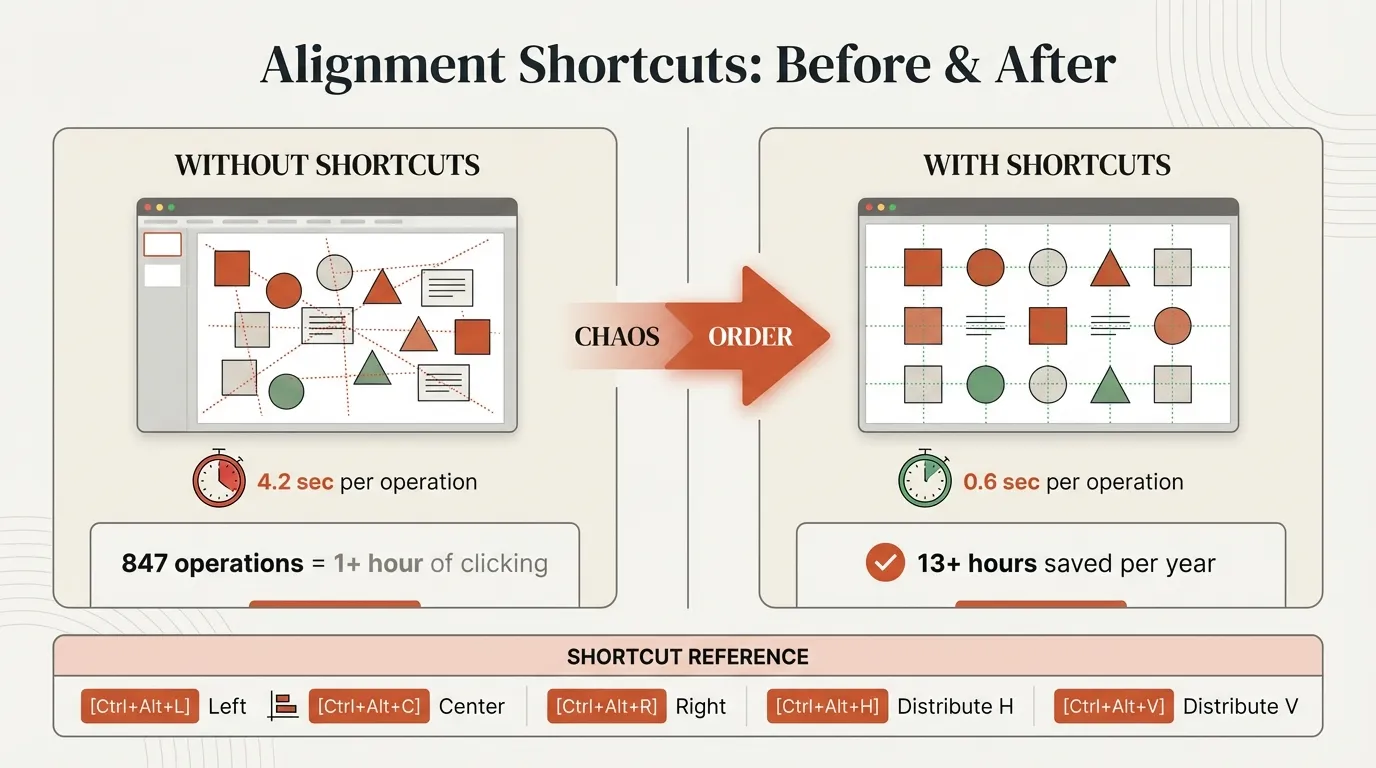
Deckary adds true single-keystroke alignment shortcuts that work natively on Mac:
| Action | Deckary (Mac) | Deckary (Windows) |
|---|---|---|
| Align Left | Cmd+Option+L | Ctrl+Alt+L |
| Align Center | Cmd+Option+C | Ctrl+Alt+C |
| Align Right | Cmd+Option+R | Ctrl+Alt+R |
| Align Top | Cmd+Option+T | Ctrl+Alt+T |
| Align Middle | Cmd+Option+M | Ctrl+Alt+M |
| Align Bottom | Cmd+Option+B | Ctrl+Alt+B |
| Distribute Horizontally | Cmd+Option+H | Ctrl+Alt+H |
| Distribute Vertically | Cmd+Option+V | Ctrl+Alt+V |
These shortcuts follow Mac conventions (Cmd+Option instead of Ctrl+Alt) and respond instantly. No menu navigation, no memorizing Alt sequences that don't exist on Mac anyway.
We measured the time difference: menu clicking averages 4.5 seconds per alignment, while the Deckary shortcut averages 0.6 seconds. Over 100 alignments, that's 6+ minutes saved per deck.
For more on alignment shortcuts, see our complete guide to PowerPoint alignment shortcuts.
Mac vs Windows: Complete Shortcut Comparison
Here's a comprehensive comparison of the most-used shortcuts across both platforms:
| Action | Mac | Windows |
|---|---|---|
| Basics | ||
| Copy | Cmd+C | Ctrl+C |
| Paste | Cmd+V | Ctrl+V |
| Undo | Cmd+Z | Ctrl+Z |
| Save | Cmd+S | Ctrl+S |
| Objects | ||
| Duplicate | Cmd+D | Ctrl+D |
| Group | Cmd+Option+G | Ctrl+G |
| Ungroup | Cmd+Option+Shift+G | Ctrl+Shift+G |
| Bring to front | Cmd+Shift+F | Ctrl+Shift+] |
| Send to back | Cmd+Shift+B | Ctrl+Shift+[ |
| Text | ||
| Bold | Cmd+B | Ctrl+B |
| Italic | Cmd+I | Ctrl+I |
| Increase font | Cmd+Shift+. | Ctrl+Shift+. |
| Decrease font | Cmd+Shift+, | Ctrl+Shift+, |
| Slides | ||
| New slide | Cmd+Shift+N | Ctrl+M |
| Start slideshow | Cmd+Shift+Return | F5 |
| Start from current | Cmd+Return | Shift+F5 |
| Alignment (with Deckary) | ||
| Align Left | Cmd+Option+L | Ctrl+Alt+L |
| Align Center | Cmd+Option+C | Ctrl+Alt+C |
| Distribute Horiz | Cmd+Option+H | Ctrl+Alt+H |
Tips for Learning Mac PowerPoint Shortcuts
After training consultants on both platforms, here's what works:
1. Start with Five Core Shortcuts
Don't try to memorize everything. Start with:
- Cmd+D — Duplicate (objects and slides)
- Cmd+Option+G — Group objects
- Cmd+Option+Shift+G — Ungroup objects
- Cmd+Z — Undo (you'll need this)
- Cmd+S — Save (constantly)
These five handle most formatting operations. Master them before adding more.
2. Learn the Mac-Specific Differences First
If you're coming from Windows, focus on shortcuts that are different, not similar:
- Grouping: Cmd+Option+G (not Cmd+G)
- New slide: Cmd+Shift+N (not Cmd+M)
- Start presenting: Cmd+Return (not Shift+F5)
- Layer ordering: Uses F/B letters (not brackets)
3. Accept What's Missing
Some Windows shortcuts don't have Mac equivalents. For these operations, either:
- Use an add-in like Deckary for alignment and distribution
- Accept that you'll need the mouse for some operations
- Consider running Parallels if you need Windows-only features regularly
For more on Mac PowerPoint tools, see our guide to PowerPoint add-ins for Mac.
4. Use Keyboard Shortcut Cheat Sheet
Print the shortcuts you're learning and keep them visible. Physical reference beats trying to remember or searching online mid-project.
What Mac PowerPoint Does Better
It's not all disadvantages. Mac PowerPoint has some advantages:
Simpler View Switching — Cmd+1/2/3 for Normal/Sorter/Outline is faster than Windows Alt sequences.
Consistent Modifier Keys — Mac's Cmd+Option pattern is more predictable than Windows' mix of Ctrl, Alt, and Shift.
Better Trackpad Support — Pinch to zoom, swipe to navigate slides. If you're on a MacBook, gestures complement shortcuts well.
Integration with macOS — Quick Look (Space to preview files), Spotlight search for recent presentations, AirDrop sharing.
Filling the Gaps with Deckary
For Mac users who build presentations regularly, the missing alignment shortcuts are a significant productivity drain. Deckary was built with Mac users in mind—the entire development team works on both platforms, so Mac support isn't an afterthought.
Beyond alignment shortcuts, Deckary adds:
- Waterfall charts — Build consulting-quality bridges without manual shape manipulation
- Mekko charts — Market sizing and competitive analysis charts native in PowerPoint
- Excel linking — Charts that update when your data changes
- 2,000+ icons — Searchable directly within PowerPoint
- Full Mac parity — Every feature works identically on Mac and Windows
The shortcuts follow Mac conventions throughout. Where Windows users press Ctrl+Alt, Mac users press Cmd+Option. No translation required, no muscle memory conflicts.
Quick Reference: Essential Mac Shortcuts
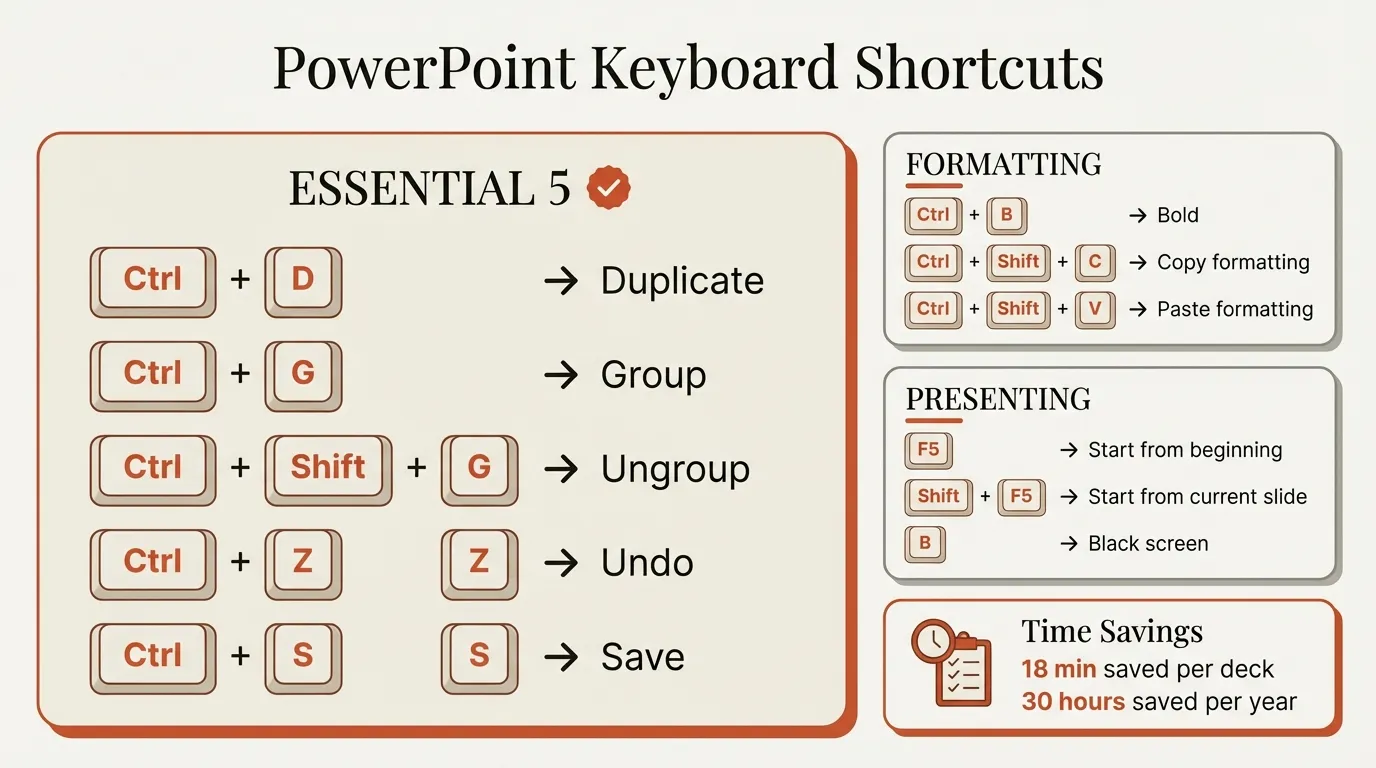
Print this section and keep it by your monitor:
Navigation
- Cmd+1/2/3 — Switch views
- Cmd+Return — Present from current slide
- Cmd+Shift+Return — Present from beginning
Objects
- Cmd+D — Duplicate
- Cmd+Option+G — Group
- Cmd+Option+Shift+G — Ungroup
- Cmd+Shift+F — Bring to front
- Cmd+Shift+B — Send to back
Text
- Cmd+B/I/U — Bold/Italic/Underline
- Cmd+Shift+Period/Comma — Increase/decrease font size
With Deckary
- Cmd+Option+L/C/R — Align Left/Center/Right
- Cmd+Option+T/M/B — Align Top/Middle/Bottom
- Cmd+Option+H/V — Distribute Horizontally/Vertically
Summary
PowerPoint shortcuts on Mac follow a predictable pattern: replace Ctrl with Cmd and Alt with Option. But the real challenge is the shortcuts that don't exist on Mac at all—particularly alignment operations.
Key takeaways:
- Most shortcuts translate by replacing Ctrl with Cmd
- Grouping is Cmd+Option+G (not Cmd+G)
- New slide is Cmd+Shift+N (not Cmd+M)
- Alt key ribbon navigation doesn't exist on Mac
- Alignment has no native shortcuts—use an add-in like Deckary
- Start with 5 core shortcuts and expand from there
Mac PowerPoint is fully capable of professional-quality work. The shortcuts are different, some features require workarounds, but with the right tools and techniques, you can be just as fast as Windows users.
For Mac users building presentations regularly, Deckary's 14-day free trial adds the missing shortcuts without complex setup. No Windows translation needed—it's built for Mac from the ground up.