Figma to PowerPoint: 4 Methods to Export Editable Slides
Export Figma designs to PowerPoint using plugins, manual export, or image conversion. Comparison of methods with editable text and layer preservation.
Figma is a design tool, PowerPoint is a presentation platform, and teams need to move work between them constantly. Design teams create slide concepts in Figma. Stakeholders request PowerPoint files for editing. Clients require PPTX format for their systems.
After testing eight Figma-to-PowerPoint conversion methods across 65+ presentations—product pitches, consulting decks, and board presentations—the most reliable approach uses dedicated plugins that preserve text editability and maintain layout structure. Manual export methods work for simple static visuals but break when designs include multiple text layers, grouped elements, or animations.
Figma to PowerPoint Methods Compared
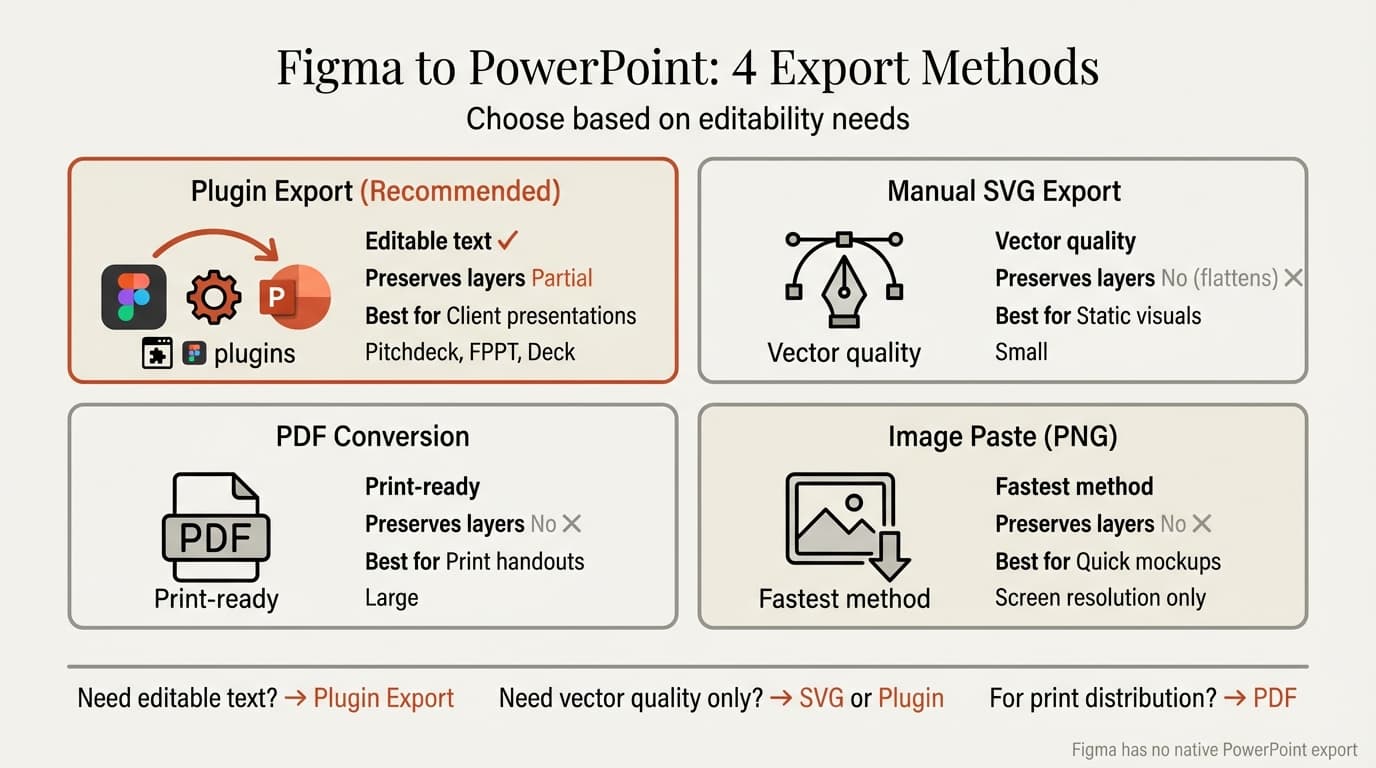
Figma does not natively export to PowerPoint. According to Figma's official help documentation, Figma Slides supports export to PNG, JPG, SVG, and PDF only. PowerPoint requires third-party solutions.
| Method | Editable Text | Preserves Layers | File Size | Best For |
|---|---|---|---|---|
| Plugin Export (Pitchdeck, FPPT) | Yes | Partial | Medium | Presentations needing edits |
| Manual SVG Export | No | No (flattens) | Small | Static visuals, logos |
| PDF Conversion | No | No | Large | Print handouts |
| Image Paste (PNG) | No | No | Varies | Quick static mockups |
The right choice depends on whether recipients need to edit text, update designs, or just view the slides.
Method 1: Plugin Export (Recommended for Editable Slides)
Plugins convert Figma frames directly to PowerPoint with editable text and preserved shapes. This is the fastest method for presentations that require editing after export.
Top Figma to PowerPoint Plugins
Pitchdeck Presentation Studio — The most feature-rich option. Preserves animations, embeds videos, and exports editable text. According to Hypermatic's documentation, Pitchdeck supports exporting to PowerPoint, Keynote, Google Slides, and PDF with MP4 video embeds that remain playable in PowerPoint.
FPPT (Figma to PowerPoint) — One-click export with editable text and shapes. The FPPT plugin page shows the plugin was updated February 9, 2026, and converts Figma designs into presentation-ready slides with a single click.
Figma-to-PPT — Basic plugin that turns frames into editable PowerPoint slides. Free tier available.
Deck — Free converter that supports text and basic shapes but does not handle complex layouts or effects.
Steps to Export with Pitchdeck
- Open your Figma file
- Click Resources (top toolbar) then Plugins then Find more plugins
- Search for "Pitchdeck Presentation Studio" and click Install
- Select the frames you want to export
- Right-click and select Plugins then Pitchdeck Presentation Studio
- Click Export PowerPoint
- Enable Use Editable Text (instead of images) if you need text editing in PowerPoint
- Click Export and save the PPTX file
According to Hypermatic's tutorial, export takes five to ten seconds per presentation. The plugin preserves frame order, text layers, and basic shapes.
When to use: Client presentations that need editing, recurring monthly reports where text updates frequently, or decks where stakeholders add speaker notes in PowerPoint after design handoff.
Font requirement: PowerPoint only displays fonts installed on your computer. If you use custom Google Fonts or branded typefaces in Figma, install those exact fonts before opening the exported PowerPoint file. Otherwise PowerPoint substitutes Arial or Calibri.
What Preserves and What Breaks
Preserves:
- Text content (when editable text option is enabled)
- Frame order and slide sequence
- Basic shapes (rectangles, circles, lines)
- Fill colors and stroke weights
- Image placements
Breaks or flattens:
- Figma auto-layout constraints
- Component instances (become static shapes)
- Complex effects (drop shadows, blurs convert to images)
- Nested groups with clipping masks
- Vector effects that PowerPoint does not support
For design-heavy presentations with advanced Figma features, expect to spend 10 to 20 minutes cleaning up layouts after export.
Method 2: Manual SVG Export (Static Visuals)
Exporting frames as SVG creates vector images that insert cleanly into PowerPoint. This method works best for diagrams, logos, and illustrations that do not need text editing.
Steps:
- Select the frame or group in Figma
- Click Export in the right panel (Design tab)
- Set format to SVG
- Click Export [frame name] and save the file
- Open PowerPoint
- Navigate to the target slide
- Click Insert then Pictures then This Device
- Select the SVG file and click Insert
Figma exports the frame as a single vector graphic. PowerPoint treats it as an image—resizable without pixelation but not editable as text or shapes.
When to use: Final deliverables where content should not change, design mockups for approval meetings, or diagrams embedded in larger presentations.
File size: SVG files are typically under 100 KB for simple designs but can exceed 1 MB for complex illustrations with gradients and effects.
SVG maintains sharpness at any scale. For presentations on large screens or projectors, SVG prevents the blurriness that appears when PNG images scale beyond their original resolution.
Continue reading: Harvey Balls in PowerPoint · Quarterly Business Review Template · How to Add Icons to PowerPoint
Work faster in PowerPoint
Use shortcuts, icons, logos, and reusable slides without leaving PowerPoint. 14-day free trial. No credit card required.
Method 3: PDF Conversion (Print Handouts)
Exporting Figma as PDF and opening it in PowerPoint creates static slides optimized for print distribution.
Steps:
- In Figma, select frames to export
- Click Export then choose PDF
- Click Export and save the PDF
- Open PowerPoint
- Click Insert then Object then Create from File
- Browse to your PDF and click Insert
Each PDF page becomes a PowerPoint slide. Text, shapes, and images flatten into static graphics.
When to use: Print handouts for workshops or training sessions, archival versions of final presentations, or deliverables where clients need PDF backup alongside PowerPoint.
File size impact: PDF export often produces larger files than plugin exports because Figma embeds full-resolution images. A 20-slide presentation exported as PDF can reach 15 to 25 MB versus 3 to 5 MB for a plugin-exported PPTX.
Method 4: Image Paste (Quick Mockups)
Copying frames as PNG and pasting into PowerPoint works for quick concept sharing but sacrifices all editability.
Steps:
- Select frame in Figma
- Right-click and select Copy as PNG
- Open PowerPoint and navigate to target slide
- Press Ctrl+V (Windows) or Cmd+V (Mac)
Figma copies the frame at screen resolution (typically 72 to 96 DPI). PowerPoint pastes it as a bitmap image. Text becomes pixels, shapes flatten, and scaling reduces quality.
When to use: Early-stage design reviews, internal team presentations, or status updates where visual accuracy matters less than speed.
Quality limitation: PNG images export at Figma's default resolution. For high-DPI displays or projectors, the image may appear pixelated when scaled. Use 2x or 3x export multiplier in Figma's export settings before copying.
For polished client deliverables, avoid this method.
Comparison: When to Use Each Method
| Scenario | Best Method | Why |
|---|---|---|
| Client needs to edit text after handoff | Plugin export with editable text | Preserves text layers as editable PowerPoint text boxes |
| Design mockup for stakeholder review | Manual SVG export | Vector quality, no editing needed, clean visuals |
| Monthly recurring report that updates | Plugin export | Editable text allows content updates without redesigning |
| Print handout for conference workshop | PDF conversion | Print-optimized, includes all pages as static images |
| Quick internal concept share | Image paste | Fastest method, sufficient for informal feedback |
| Presentation with embedded videos | Pitchdeck plugin | Only method that preserves MP4 embeds in PowerPoint |
For presentations where the recipient needs to change text, update numbers, or add slides, plugin export is the only practical option.
Fixing Common Figma to PowerPoint Conversion Issues
Fonts Change After Export
Custom fonts in Figma become Arial or Calibri in PowerPoint when the font is not installed locally.
Fix: Before opening the exported PowerPoint file, install the exact fonts used in Figma. For Google Fonts, download from Google Fonts and install on your system.
According to Magicul's export guide, font compatibility is the most common complaint after Figma-to-PowerPoint conversion. PowerPoint cannot access web fonts.
Text Layers Export as Images
Forgetting to enable the "Use Editable Text" option in plugin settings causes all text to flatten.
Fix: In Pitchdeck or FPPT settings, enable Use Editable Text (instead of images) before exporting. Without this option, the plugin renders all layers as images to preserve exact visual appearance but eliminates editing capability.
If you already exported without this setting, re-export with the option enabled. There is no way to convert flattened text images back to editable text boxes in PowerPoint.
Layers Flatten Into Single Images
Complex layer structures with clipping masks, blend modes, or effects often export as flattened images even when using editable text settings.
Fix: Simplify the design in Figma before exporting. Ungroup nested elements, remove blend modes that PowerPoint does not support, and convert effects like drop shadows to separate background shapes. Plugins can only preserve text and basic shapes.
Slide Layouts Break After Import
Figma auto-layout and constraints do not transfer to PowerPoint. Objects may shift or overlap incorrectly.
Fix: After export, manually reposition elements in PowerPoint. Use PowerPoint's alignment tools (Home then Arrange then Align) to distribute objects evenly and align edges. For recurring presentations, create a PowerPoint master slide template and paste Figma content into predefined placeholders.
Tools like Deckary provide keyboard shortcuts for alignment and distribution, reducing the time required to fix layout issues in PowerPoint after Figma import.
File Size Exceeds Email Limits
Plugin exports with embedded images can produce 20 to 50 MB PowerPoint files that exceed email attachment limits.
Fix: In PowerPoint, compress images by selecting any image, clicking Picture Format then Compress Pictures, and choosing Email (96 ppi). This reduces file size by 60 to 80 percent.
Alternatively, use PowerPoint's built-in compression feature (File then Info then Compress Media) for presentations with embedded videos.
Best Practices for Design-to-Presentation Workflows
Design with PowerPoint limitations in mind. If the final deliverable is PowerPoint, avoid Figma features that do not translate—complex auto-layouts, advanced blend modes, and nested component instances.
Install required fonts before export. Font substitution is the most frequent complaint after conversion. Build a shared team library of approved fonts and install them on all team members' machines.
Use plugins for recurring decks. One-off presentations can tolerate manual export and cleanup. Monthly reports, quarterly reviews, or weekly team updates should use plugin workflows to eliminate repetitive formatting fixes.
Test export early. Export a sample slide early in the design process to verify the plugin handles your layout correctly.
Create reusable templates. For teams that export Figma to PowerPoint constantly, build a Figma file with pre-formatted slide templates that match PowerPoint's text box and image placeholder structure.
When to Design in PowerPoint Instead
Design in PowerPoint if:
- The presentation requires frequent text updates and version control
- Stakeholders need to edit content after designer handoff
- The deck includes complex data tables or charts that update from Excel
- You need to preserve animation timings that Figma plugins do not export correctly
Design in Figma if:
- Visual design quality matters more than editing flexibility
- The presentation is a one-time deliverable with finalized content
- You need design system components and version control that PowerPoint lacks
For brand launch presentations with heavy visual design and minimal text, Figma provides better creative tools. For monthly executive updates with data that changes weekly, PowerPoint's native editing and Excel linking eliminates conversion friction.
Figma to PowerPoint Automation Tools
For teams exporting Figma to PowerPoint daily, automation tools reduce manual conversion time.
Magicul offers a direct Figma-to-PowerPoint converter at magicul.io/converter/figma-to-powerpoint that processes files without requiring plugin installation.
Pitchdeck Pro includes batch export features that convert multiple Figma files to PowerPoint automatically.
API integrations using Figma's API and PowerPoint generation libraries enable fully automated pipelines.
Manual plugin exports work for occasional transfers. For teams converting ten or more presentations per week, automation eliminates repetitive clicking.
Sources
- Figma Help Documentation — Export from Figma Slides
- Hypermatic — Pitchdeck Documentation
- Hypermatic — How to Export Presentations from Figma to PowerPoint Using Pitchdeck
- Figma Community — FPPT (Figma to PowerPoint) Plugin
- Magicul — How to Export Figma to PowerPoint
Related Resources
Figma-to-PowerPoint conversion is one workflow in the broader design-to-presentation pipeline. For teams optimizing the entire process:
- Learn how to compress PowerPoint files after importing large Figma images
- Explore PowerPoint master slides to create reusable templates that match Figma layouts
- Understand PowerPoint themes to apply consistent brand styling after Figma import
Converting designs to presentations is only half the workflow. Building presentation systems that support both design quality and editing flexibility requires understanding both platforms' strengths.
Work faster in PowerPoint
Use shortcuts, icons, logos, and reusable slides without leaving PowerPoint. 14-day free trial. No credit card required.