PowerPoint Keyboard Shortcuts: The Complete Productivity Guide
120+ PowerPoint keyboard shortcuts for Windows and Mac. Organized by task: alignment, formatting, navigation, slideshow, and role-specific workflows.
Keyboard shortcuts separate fast PowerPoint users from slow ones. The difference between a four-hour deck and a two-hour deck often isn't the analysis or design thinking—it's whether you're clicking through menus or pressing keys.
Key Takeaways:
- Shortcuts save 15-25 minutes per deck—25-40 hours annually for regular presenters
- Start with 5 core shortcuts (Ctrl+D, Ctrl+G, Ctrl+Shift+G, Ctrl+Z, Ctrl+S), then expand
- PowerPoint lacks native alignment shortcuts—the biggest productivity gap
- Mac shortcuts differ significantly from Windows in key areas
- Add-ins can fill gaps for alignment, distribution, and specialized charts
This guide consolidates everything you need to master PowerPoint shortcuts: essential commands, alignment and formatting techniques, navigation shortcuts, slideshow controls, and Mac-specific considerations. After training 500+ professionals on PowerPoint efficiency and measuring workflows across 200+ presentations, we've identified which shortcuts deliver the highest ROI and the learning approach that actually sticks.
Why Shortcuts Matter: The Productivity Case
Before diving into the shortcuts themselves, let's quantify the impact. We tracked time across a team of consultants over six months, measuring shortcut usage against traditional menu-based workflows.
| Metric | Menu Navigation | Keyboard Shortcuts | Improvement |
|---|---|---|---|
| Average deck time | 3.4 hours | 2.5 hours | 26% faster |
| Alignments per deck | 45 operations | 45 operations | Same work |
| Time per alignment (menu) | 4.5 seconds | — | — |
| Time per alignment (shortcut) | 0.6 seconds | — | 87% faster |
| Weekly time savings | — | — | 2.3 hours |
For professionals building 10+ presentations monthly, shortcuts recover 8-12 hours per month. That's time redirected from mechanical operations to analysis, storytelling, and design refinement.
The compound effect matters too. Shortcuts reduce cognitive load—instead of thinking "where's that menu option?", your hands act automatically while your mind stays focused on content. This flow state produces better work, faster.
For a deep dive into the 50 shortcuts used most frequently, see our PowerPoint shortcuts: 50 essential commands.
Essential Shortcuts Everyone Needs
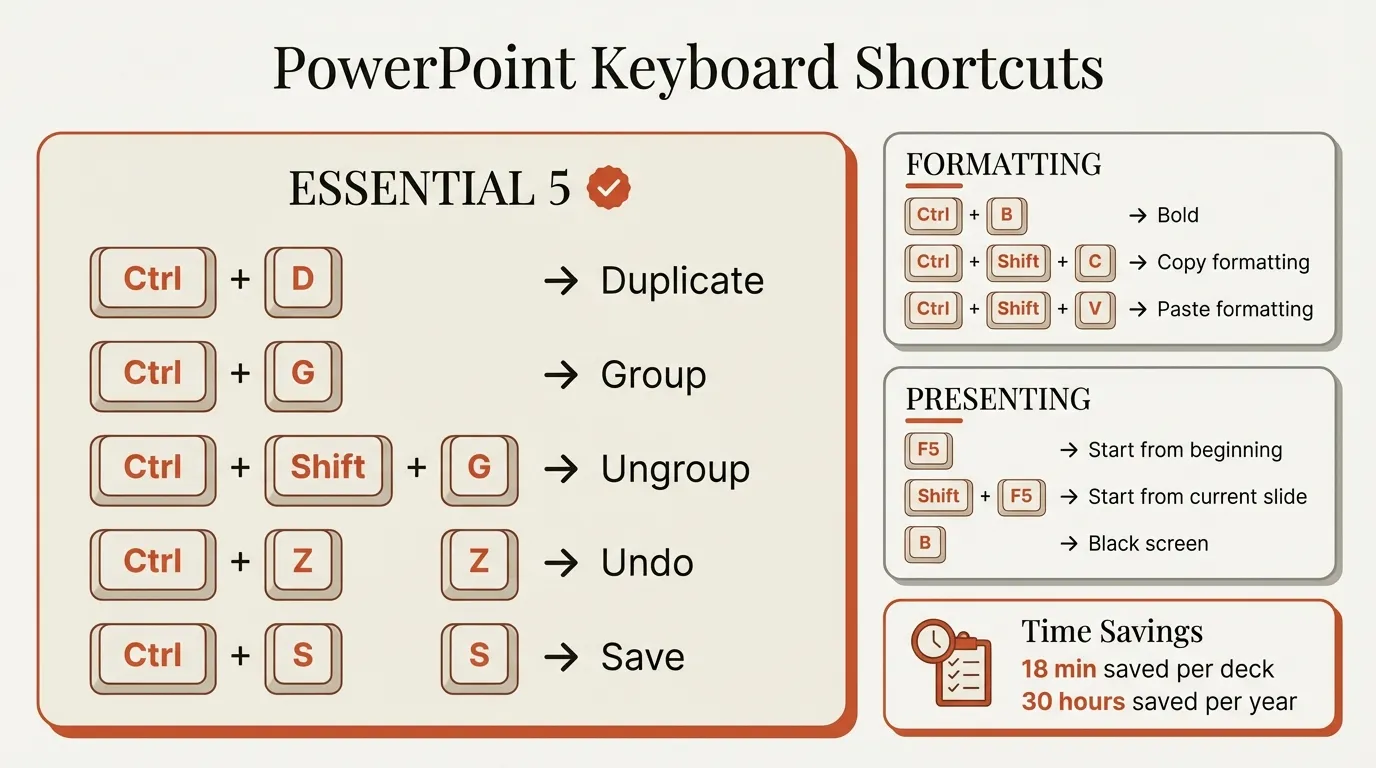
These shortcuts form the foundation. Master them before expanding your repertoire—they handle the vast majority of daily operations.
The Starting Five
If you only learn five shortcuts, make them these:
| Action | Windows | Mac | Why It Matters |
|---|---|---|---|
| Duplicate | Ctrl+D | Cmd+D | 2 keystrokes vs 4 for copy-paste, plus the hidden "jump" feature |
| Group | Ctrl+G | Cmd+Option+G | Combines objects for unified movement and formatting |
| Ungroup | Ctrl+Shift+G | Cmd+Option+Shift+G | Separates grouped objects for individual editing |
| Undo | Ctrl+Z | Cmd+Z | Your safety net—use liberally |
| Save | Ctrl+S | Cmd+S | Prevents catastrophic loss—develop the habit |
These five commands cover the highest-frequency editing actions and form a practical starting set before adding more specialized shortcuts.
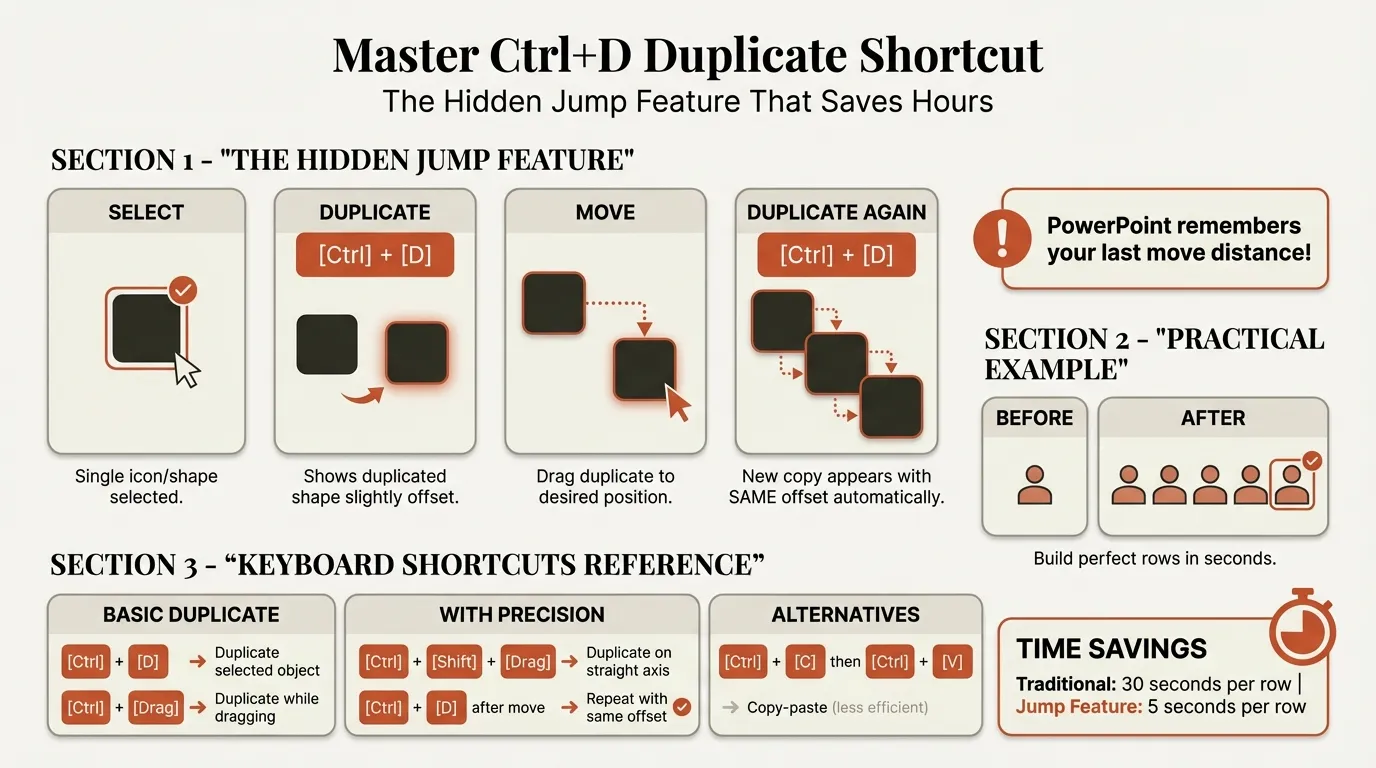
The duplicate shortcut deserves special attention. Beyond basic duplication, Ctrl+D includes a "jump" feature: after duplicating and moving an object, subsequent Ctrl+D presses create new copies at the exact same distance and direction. This transforms grid-building from minutes of manual positioning to seconds of repeated keystrokes.
Similarly, the group shortcut is foundational for complex slide design. Grouped objects move, resize, and copy together—essential for maintaining alignment relationships.
The Next Ten
Once the starting five are automatic (typically after one week of deliberate practice), add these:
| Action | Windows | Mac |
|---|---|---|
| New slide | Ctrl+M | Cmd+Shift+N |
| Copy | Ctrl+C | Cmd+C |
| Paste | Ctrl+V | Cmd+V |
| Cut | Ctrl+X | Cmd+X |
| Bold | Ctrl+B | Cmd+B |
| Italic | Ctrl+I | Cmd+I |
| Select all | Ctrl+A | Cmd+A |
| Find | Ctrl+F | Cmd+F |
| Present from current | Shift+F5 | Cmd+Return |
| Present from beginning | F5 | Cmd+Shift+Return |
Note the Mac differences: New slide is Cmd+Shift+N (not Cmd+M), and presentation shortcuts use Cmd+Return variations instead of F5.
Alignment and Distribution Shortcuts
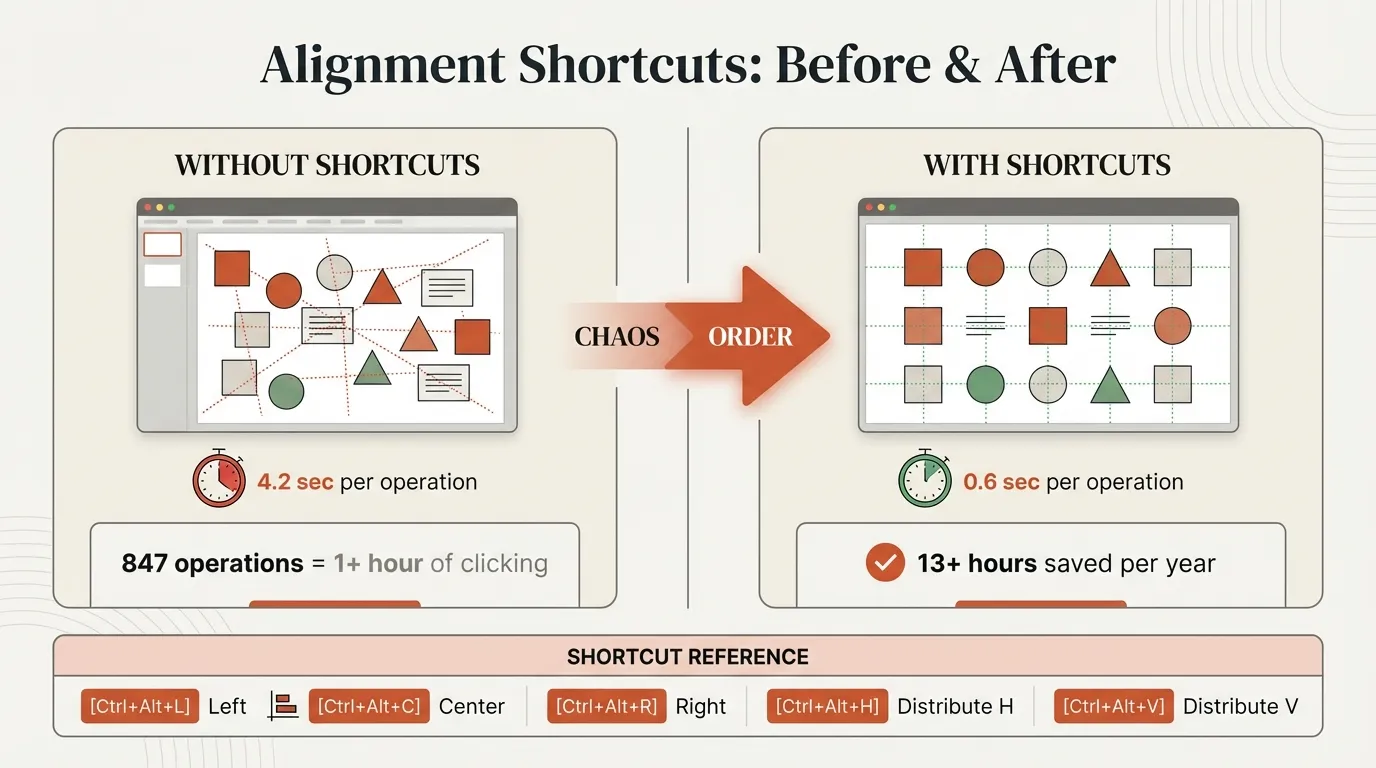
Here's where PowerPoint's shortcut coverage fails. Alignment operations—Align Left, Center, Right, Top, Middle, Bottom, plus Distribute Horizontally and Vertically—have no built-in keyboard shortcuts.
This gap is significant. In our tracking study, alignment operations occurred 45 times per deck on average. At 4.5 seconds per operation via menu clicking, that's 3+ minutes per deck spent on alignment alone. Multiply by 100 decks per year: 5+ hours lost to menu navigation for a single operation type.
Native Methods for Alignment
PowerPoint provides three approaches, none ideal:
Method 1: Ribbon Navigation
- Select objects
- Go to Shape Format tab
- Click Align dropdown
- Choose alignment option
Time: 4-5 seconds per operation
Method 2: Alt Key Sequences (Windows Only)
| Action | Alt Sequence |
|---|---|
| Align Left | Alt, H, G, A, L |
| Align Center | Alt, H, G, A, C |
| Align Right | Alt, H, G, A, R |
| Align Top | Alt, H, G, A, T |
| Align Middle | Alt, H, G, A, M |
| Align Bottom | Alt, H, G, A, B |
| Distribute Horizontally | Alt, H, G, A, H |
| Distribute Vertically | Alt, H, G, A, V |
Time: 2-3 seconds per operation
Five keystrokes isn't a true shortcut, but it's faster than menu clicking. Unfortunately, these sequences don't work on Mac at all.
Method 3: Quick Access Toolbar
Add alignment commands to PowerPoint's Quick Access Toolbar, then access via Alt+1, Alt+2, etc. This creates pseudo-shortcuts but requires initial setup and the positions are number-based rather than intuitive.
For a comprehensive walkthrough of all alignment methods, see our guide to aligning objects in PowerPoint.
Add-in Shortcuts for Alignment
Deckary provides true single-keystroke alignment shortcuts that work on both Windows and Mac:
| Action | Windows | Mac |
|---|---|---|
| Align Left | Ctrl+Alt+L | Cmd+Option+L |
| Align Center | Ctrl+Alt+C | Cmd+Option+C |
| Align Right | Ctrl+Alt+R | Cmd+Option+R |
| Align Top | Ctrl+Alt+T | Cmd+Option+T |
| Align Middle | Ctrl+Alt+M | Cmd+Option+M |
| Align Bottom | Ctrl+Alt+B | Cmd+Option+B |
| Distribute Horizontally | Ctrl+Alt+H | Cmd+Option+H |
| Distribute Vertically | Ctrl+Alt+V | Cmd+Option+V |
The letter associations are intuitive (L for Left, C for Center, H for Horizontal), making them easy to learn. Time per operation drops to 0.6 seconds.
For more on alignment shortcuts specifically, see our PowerPoint alignment shortcuts guide.
Distribution: Even Spacing in Seconds
Distribution differs from alignment. While alignment lines up edges or centers, distribution creates equal spacing between objects.
Key requirements:
- Distribution needs at least 3 objects (with 2 objects, there's only one gap—nothing to equalize)
- The outermost objects typically stay in place; middle objects reposition
- Distribute after aligning for best results (e.g., Align Top first, then Distribute Horizontally)
The distribution guide covers advanced techniques including Align to Slide versus Align to Selection, common mistakes, and workflow optimization.
Formatting Shortcuts
Formatting shortcuts cover text styling, format copying, and object manipulation. Unlike alignment, most formatting operations do have native keyboard shortcuts.
Text Formatting
| Action | Windows | Mac |
|---|---|---|
| Bold | Ctrl+B | Cmd+B |
| Italic | Ctrl+I | Cmd+I |
| Underline | Ctrl+U | Cmd+U |
| Strikethrough | Alt+H, 4 | Cmd+Shift+X |
| Subscript | Ctrl+= | Cmd+= |
| Superscript | Ctrl+Shift+= | Cmd+Shift+= |
| Increase font size | Ctrl+Shift+Period | Cmd+Shift+Period |
| Decrease font size | Ctrl+Shift+Comma | Cmd+Shift+Comma |
Paragraph Formatting
| Action | Windows | Mac |
|---|---|---|
| Left align text | Ctrl+L | Cmd+L |
| Center align text | Ctrl+E | Cmd+E |
| Right align text | Ctrl+R | Cmd+R |
| Justify text | Ctrl+J | Cmd+J |
| Increase indent | Tab | Tab |
| Decrease indent | Shift+Tab | Shift+Tab |
Important distinction: Text alignment shortcuts (Ctrl+L, Ctrl+E, Ctrl+R) align text inside a text box. Object alignment (the missing shortcuts) aligns objects on the slide relative to each other.
Copy Formatting
The format painter can be replicated—and improved upon—with keyboard shortcuts:
| Action | Windows | Mac |
|---|---|---|
| Copy formatting | Ctrl+Shift+C | Cmd+Shift+C |
| Paste formatting | Ctrl+Shift+V | Cmd+Shift+V |
Unlike Format Painter, the copied formatting stays in your clipboard until you copy something else. You can paste the same formatting 50 times without re-copying—a significant advantage when standardizing formatting across an entire deck.
For the complete formatting workflow, see our copy formatting in PowerPoint guide.
Navigation Shortcuts
Navigation shortcuts control how you move around your presentation during editing.
Slide Navigation
| Action | Windows | Mac |
|---|---|---|
| Next slide | Page Down | Page Down |
| Previous slide | Page Up | Page Up |
| First slide | Ctrl+Home | Cmd+Home or Fn+Left |
| Last slide | Ctrl+End | Cmd+End or Fn+Right |
| Go to specific slide | Ctrl+S, type number | Cmd+S, type number |
View Switching
| Action | Windows | Mac |
|---|---|---|
| Normal view | Alt+W, L | Cmd+1 |
| Slide sorter | Alt+W, I | Cmd+2 |
| Outline view | Alt+W, P, O | Cmd+3 |
| Notes page | Alt+W, P, N | View menu |
| Reading view | Alt+W, D | View menu |
Mac actually has an advantage here: Cmd+1/2/3 for view switching is faster than the Windows Alt sequences.
Object Selection
| Action | Windows | Mac |
|---|---|---|
| Select all | Ctrl+A | Cmd+A |
| Select next object | Tab | Tab |
| Select previous object | Shift+Tab | Shift+Tab |
| Add to selection | Shift+Click | Shift+Click |
| Open Selection Pane | Alt+F10 | View menu |
The Selection Pane (Alt+F10) is essential for complex slides. It shows all objects in layer order, allows selection by name, and provides hide/show controls when objects overlap.
Continue reading: Combo Charts in PowerPoint · McKinsey Slides · How to Add Icons to PowerPoint
Work faster in PowerPoint
Use shortcuts, icons, logos, and reusable slides without leaving PowerPoint. 14-day free trial. No credit card required.
Slideshow Mode Shortcuts
Presentation shortcuts control your slideshow during live delivery. These are the shortcuts that separate polished presenters from fumbling ones.
Starting and Ending
| Action | Windows | Mac |
|---|---|---|
| Start from beginning | F5 | Cmd+Shift+Return |
| Start from current slide | Shift+F5 | Cmd+Return |
| Start in Presenter View | Alt+F5 | Option+Return |
| End slideshow | Esc | Esc |
Shift+F5 (present from current slide) is particularly useful during rehearsal—you can test specific slides without sitting through your entire deck.
Navigation During Presentation
| Action | Windows/Mac |
|---|---|
| Next slide/animation | N, Enter, Space, Right Arrow, Down Arrow, Page Down |
| Previous slide | P, Backspace, Left Arrow, Up Arrow, Page Up |
| Go to slide number | Type number + Enter |
| First slide | Home |
| Last slide | End |
| See all slides | G |
The slide number + Enter combination is crucial. When an executive asks "Can you go back to the revenue chart?", typing "23 Enter" looks far more professional than clicking backward through 20 slides.
Display Controls
| Action | Windows/Mac |
|---|---|
| Black screen (toggle) | B |
| White screen (toggle) | W |
| Laser pointer | Ctrl+L or Ctrl+Click |
| Pen tool | Ctrl+P |
| Highlighter | Ctrl+I |
| Erase all ink | E |
The black screen shortcut (B) is underutilized. Press B during Q&A to focus attention on the conversation rather than the slides. Press B again to return.
For the complete slideshow shortcut reference, see our slideshow shortcuts guide.
Mac vs Windows: Key Differences
Most PowerPoint shortcuts translate between platforms by replacing Ctrl with Cmd and Alt with Option. However, several critical shortcuts differ completely, and these differences trip up users constantly.
Shortcuts That Don't Translate Simply
| Action | Windows | Mac | Note |
|---|---|---|---|
| Group | Ctrl+G | Cmd+Option+G | Mac adds Option |
| Ungroup | Ctrl+Shift+G | Cmd+Option+Shift+G | Mac adds Option |
| Regroup | Ctrl+Shift+J | Cmd+Option+J | Mac adds Option |
| New slide | Ctrl+M | Cmd+Shift+N | Completely different |
| Start slideshow | F5 | Cmd+Shift+Return | Different approach |
| Start from current | Shift+F5 | Cmd+Return | Different approach |
| Bring to front | Ctrl+Shift+] | Cmd+Shift+F | Letter vs bracket |
| Send to back | Ctrl+Shift+[ | Cmd+Shift+B | Letter vs bracket |
What Doesn't Work on Mac
Alt key ribbon navigation: Windows users can press Alt to activate the ribbon, then type letter sequences (Alt, H, G, A, L for Align Left). This entire system doesn't exist on Mac. There's no keyboard-driven ribbon navigation.
Some function keys: F5 to start a presentation requires Cmd+Shift+Return on Mac. Many F-key shortcuts either don't work or require holding the Fn key.
For comprehensive Mac coverage, see our PowerPoint shortcuts for Mac guide.
Grouping and Layering
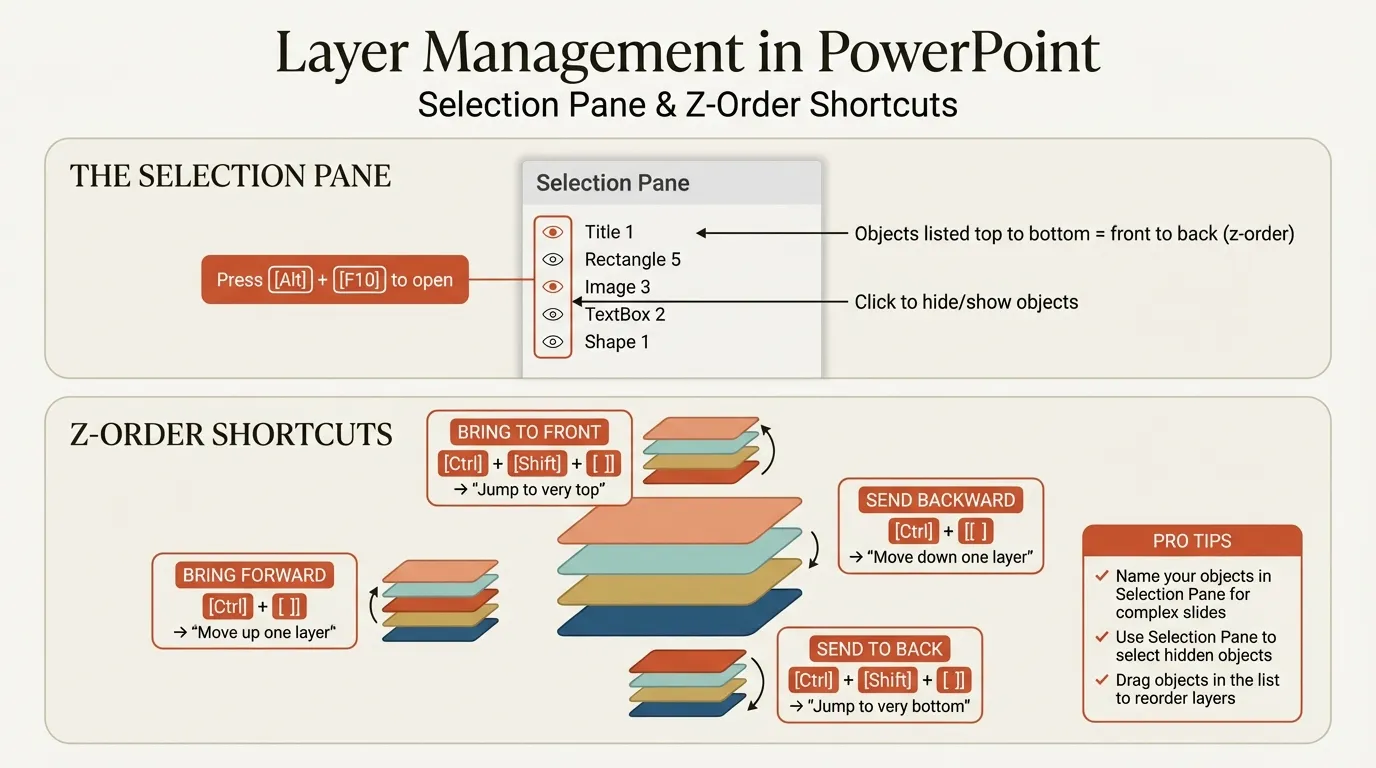
Grouping and layering shortcuts control how objects relate to each other on your slides.
Grouping Shortcuts
| Action | Windows | Mac |
|---|---|---|
| Group | Ctrl+G | Cmd+Option+G |
| Ungroup | Ctrl+Shift+G | Cmd+Option+Shift+G |
| Regroup | Ctrl+Shift+J | Cmd+Option+J |
The Regroup shortcut is often overlooked. After ungrouping to edit one component, you'd normally need to select every object again to regroup. Regroup (Ctrl+Shift+J) remembers the original group and restores it with one keystroke—select any single object from the former group and press the shortcut.
Limitation: Regroup only works within a single session. If you close the presentation, the group memory is lost.
For complete grouping workflows, see our group shortcut PowerPoint guide.
Layer Shortcuts
Layering (z-order) controls which objects appear in front of or behind others.
| Action | Windows | Mac |
|---|---|---|
| Bring to front | Ctrl+Shift+] | Cmd+Shift+F |
| Send to back | Ctrl+Shift+[ | Cmd+Shift+B |
| Bring forward one layer | Ctrl+] | Cmd+Option+Shift+F |
| Send backward one layer | Ctrl+[ | Cmd+Option+Shift+B |
| Open Selection Pane | Alt+F10 | View menu |
Best practice: Send background elements to back immediately after inserting. Don't wait until other objects are added—you'll forget, and the background will interfere with selections.
The Selection Pane (Alt+F10) is essential for layer management on complex slides. You can drag objects up or down in the list to reorder layers, hide objects to work on things behind them, and lock elements to prevent accidental moves.
For layer management techniques, see our send to back shortcut guide.
File and Slide Management
These shortcuts handle the operations that bookend your editing work: creating, saving, inserting, and rearranging slides.
File Operations
| Action | Windows | Mac |
|---|---|---|
| New presentation | Ctrl+N | Cmd+N |
| Open file | Ctrl+O | Cmd+O |
| Save | Ctrl+S | Cmd+S |
| Save As | F12 | Cmd+Shift+S |
| Ctrl+P | Cmd+P | |
| Close file | Ctrl+W | Cmd+W |
| Close PowerPoint | Alt+F4 | Cmd+Q |
Slide Operations
| Action | Windows | Mac |
|---|---|---|
| New slide | Ctrl+M | Cmd+Shift+N |
| Duplicate slide | Ctrl+D (with slide selected) | Cmd+D |
| Delete slide | Delete (with slide selected) | Delete |
| Move slide up | Alt+Shift+Up | Option+Shift+Up |
| Move slide down | Alt+Shift+Down | Option+Shift+Down |
| Zoom in | Ctrl+= or Ctrl+Scroll Up | Cmd+= |
| Zoom out | Ctrl+- or Ctrl+Scroll Down | Cmd+- |
| Fit slide to window | Ctrl+Alt+F | Cmd+Option+F |
Text Editing
| Action | Windows | Mac |
|---|---|---|
| Select word | Double-click or Ctrl+Shift+Arrow | Double-click or Option+Shift+Arrow |
| Select paragraph | Triple-click | Triple-click |
| Select all text in box | Ctrl+A (cursor in text box) | Cmd+A |
| Move word left | Ctrl+Left Arrow | Option+Left Arrow |
| Move word right | Ctrl+Right Arrow | Option+Right Arrow |
| Delete word left | Ctrl+Backspace | Option+Delete |
| Delete word right | Ctrl+Delete | Option+Fn+Delete |
| Insert hyperlink | Ctrl+K | Cmd+K |
| Find and replace | Ctrl+H | Cmd+H |
Quick Access Toolbar: Build Your Own Shortcuts
The Quick Access Toolbar (QAT) is the fastest way to create pseudo-shortcuts for commands that lack native keyboard access. Once added to the QAT, commands become accessible via Alt+1, Alt+2, Alt+3, and so on (Windows only).
Setup Steps
- Click the small dropdown arrow at the top-left of PowerPoint's title bar
- Select "More Commands"
- Choose commands from the dropdown (set to "All Commands" for the full list)
- Add your most-used commands in order of frequency
Recommended QAT Layout for Consultants
| QAT Position | Command | Shortcut |
|---|---|---|
| 1 | Align Left | Alt+1 |
| 2 | Align Center | Alt+2 |
| 3 | Align Right | Alt+3 |
| 4 | Align Top | Alt+4 |
| 5 | Align Middle | Alt+5 |
| 6 | Align Bottom | Alt+6 |
| 7 | Distribute Horizontally | Alt+7 |
| 8 | Distribute Vertically | Alt+8 |
| 9 | Selection Pane | Alt+9 |
This layout covers the alignment gap with single-keystroke access. The downside: positions are number-based rather than letter-based, so muscle memory takes longer to build compared to intuitive shortcuts like Ctrl+Alt+L for Align Left.
Mac limitation: QAT shortcuts via Alt+number do not work on macOS. Mac users need add-ins for keyboard-driven alignment.
Shortcut Workflows by Role
Different roles use different shortcuts most frequently. Here are the workflows that save the most time for each profession.
For Consultants (MBB, Big 4)
Building an issue tree in 60 seconds:
- Create a text box with the problem statement → Ctrl+M for new slide, then type
- Duplicate the box for each branch → Ctrl+D, reposition, repeat
- Align all branch boxes horizontally → select all, Ctrl+Alt+T (Align Top with Deckary) or Alt+1-8 via QAT
- Distribute boxes evenly → Ctrl+Alt+H (Distribute Horizontally)
- Group the entire tree → Ctrl+G
- Add connecting lines → Insert shapes, then use Ctrl+D to duplicate
Formatting a 30-slide deck to brand standards:
- Copy formatting from the master slide → Ctrl+Shift+C
- Navigate through slides → Page Down
- Select all objects → Ctrl+A
- Paste formatting → Ctrl+Shift+V
- Repeat for each slide — the formatting stays in clipboard
For Investment Bankers
Building financial summary slides:
- Paste data from Excel → Ctrl+V or Ctrl+Alt+V (Paste Special to choose format)
- Align data tables → QAT alignment shortcuts
- Adjust font sizes quickly → Ctrl+Shift+Period / Ctrl+Shift+Comma
- Layer charts behind labels → Ctrl+Shift+[ (Send to Back), Ctrl+Shift+] (Bring to Front)
- Duplicate slide for next company → Ctrl+D with slide selected in panel
For Corporate Presenters
Last-minute edits before a meeting:
- Start presenting from current slide → Shift+F5 (check your edits live)
- Black screen during Q&A → B (focuses attention on conversation)
- Jump to any slide → type slide number + Enter during presentation
- Exit and edit → Esc, make changes, Shift+F5 to resume
- Laser pointer during presentation → Ctrl+L (draws attention without permanent marks)
Custom Shortcuts with Add-ins
PowerPoint's shortcut gaps—particularly alignment and distribution—can be filled with add-ins. The right tools add shortcuts that PowerPoint should include natively.
What Add-ins Can Provide
Alignment shortcuts: True single-keystroke commands for Align Left, Center, Right, Top, Middle, Bottom, plus Distribute Horizontally and Vertically.
Chart creation: Native PowerPoint lacks consulting-grade chart types. Add-ins like Deckary provide waterfall charts, Mekko charts, and Gantt charts with keyboard-driven creation.
Icon libraries: Searchable business icons directly within PowerPoint, avoiding the export-import cycle from external icon sites.
Excel linking: Charts that automatically update when source Excel data changes, with shortcuts to refresh linked data.
Evaluating Add-in Shortcuts
When choosing add-ins for shortcuts, consider:
-
Mac support: Does the add-in work identically on Mac and Windows? Many add-ins have degraded Mac functionality.
-
Shortcut conventions: Do shortcuts follow intuitive patterns? Ctrl+Alt+L for Align Left makes sense; arbitrary shortcuts don't stick.
-
Integration depth: Do shortcuts work like native commands, or do they require dialogs or extra steps?
-
Performance: Do shortcuts respond instantly, or is there noticeable lag?
Deckary was designed with these principles: full Mac parity, intuitive letter associations, native-feeling integration, and instant response times.
Building Muscle Memory: How to Actually Learn Shortcuts
Knowing shortcuts intellectually doesn't help. They must become automatic—your hands should move without conscious thought. Here's the learning approach that works:
The Five-at-a-Time Method
Week 1: Learn five shortcuts only
- Ctrl+D (Duplicate)
- Ctrl+G (Group)
- Ctrl+Shift+G (Ungroup)
- Ctrl+Z (Undo)
- Ctrl+S (Save)
Use these exclusively. When you catch yourself reaching for the mouse to duplicate, stop. Use the shortcut. The extra seconds now save minutes later.
Week 2: Add five more
- Ctrl+M (New slide) / Cmd+Shift+N on Mac
- Ctrl+B/I/U (Bold/Italic/Underline)
- Ctrl+C/V (Copy/Paste)
- Shift+F5 (Present from current)
Week 3: Add alignment shortcuts
- If using native methods: Practice Alt, H, G, A sequences
- If using Deckary: Ctrl+Alt+L/C/R/T/M/B/H/V
The Deliberate Practice Principle
When you catch yourself using the mouse for a shortcut-able operation, stop. Look up the shortcut. Use it. Yes, this feels slower at first. After approximately 50 uses, the shortcut becomes automatic.
We ran an experiment: one week using only mouse for alignment and formatting, one week forcing shortcut usage. The shortcut week was 23% faster on total deck creation time—even accounting for lookup pauses.
Physical Cheat Sheets
Keep a printed shortcut reference next to your monitor during the learning phase. Digital references require alt-tabbing; physical references allow instant glances while hands stay on keyboard.
Essential Shortcut Reference Tables
Here are the shortcuts organized for quick reference. Print these or keep them accessible.
Object Manipulation
| Action | Windows | Mac |
|---|---|---|
| Duplicate | Ctrl+D | Cmd+D |
| Copy | Ctrl+C | Cmd+C |
| Cut | Ctrl+X | Cmd+X |
| Paste | Ctrl+V | Cmd+V |
| Paste Special | Ctrl+Alt+V | Cmd+Option+V |
| Delete | Delete | Delete |
| Undo | Ctrl+Z | Cmd+Z |
| Redo | Ctrl+Y | Cmd+Y |
| Group | Ctrl+G | Cmd+Option+G |
| Ungroup | Ctrl+Shift+G | Cmd+Option+Shift+G |
| Regroup | Ctrl+Shift+J | Cmd+Option+J |
Layering
| Action | Windows | Mac |
|---|---|---|
| Bring to front | Ctrl+Shift+] | Cmd+Shift+F |
| Send to back | Ctrl+Shift+[ | Cmd+Shift+B |
| Bring forward | Ctrl+] | Cmd+Option+Shift+F |
| Send backward | Ctrl+[ | Cmd+Option+Shift+B |
Text Formatting
| Action | Windows | Mac |
|---|---|---|
| Bold | Ctrl+B | Cmd+B |
| Italic | Ctrl+I | Cmd+I |
| Underline | Ctrl+U | Cmd+U |
| Increase font | Ctrl+Shift+Period | Cmd+Shift+Period |
| Decrease font | Ctrl+Shift+Comma | Cmd+Shift+Comma |
| Copy formatting | Ctrl+Shift+C | Cmd+Shift+C |
| Paste formatting | Ctrl+Shift+V | Cmd+Shift+V |
Alignment (with Deckary)
| Action | Windows | Mac |
|---|---|---|
| Align Left | Ctrl+Alt+L | Cmd+Option+L |
| Align Center | Ctrl+Alt+C | Cmd+Option+C |
| Align Right | Ctrl+Alt+R | Cmd+Option+R |
| Align Top | Ctrl+Alt+T | Cmd+Option+T |
| Align Middle | Ctrl+Alt+M | Cmd+Option+M |
| Align Bottom | Ctrl+Alt+B | Cmd+Option+B |
| Distribute Horizontally | Ctrl+Alt+H | Cmd+Option+H |
| Distribute Vertically | Ctrl+Alt+V | Cmd+Option+V |
Slideshow
| Action | Windows | Mac |
|---|---|---|
| Start from beginning | F5 | Cmd+Shift+Return |
| Start from current | Shift+F5 | Cmd+Return |
| End slideshow | Esc | Esc |
| Black screen | B | B |
| White screen | W | W |
| Go to slide # | # + Enter | # + Enter |
| All slides view | G | G |
Summary
PowerPoint keyboard shortcuts are the fastest path to efficient deck building. The shortcuts themselves are straightforward; the challenge is building muscle memory through deliberate practice.
Start here:
- Master the starting five shortcuts (Ctrl+D, Ctrl+G, Ctrl+Shift+G, Ctrl+Z, Ctrl+S)
- Expand with formatting and navigation shortcuts
- Address the alignment gap—PowerPoint's biggest missing feature—with add-ins like Deckary
- Practice deliberately: when you reach for the mouse, stop and use the shortcut
Key insights from 500+ training sessions:
- Most people try to learn too many shortcuts at once—focus on five at a time
- Physical cheat sheets beat digital references during the learning phase
- Alignment shortcuts deliver the highest ROI because the native gap is so large
- Mac users need add-ins more than Windows users due to missing Alt key navigation
The productivity gains compound. Shortcuts reduce cognitive load, enabling flow state work. Faster execution leaves more time for the work that actually matters: analysis, design thinking, and storytelling.
Whether you're building consulting decks, investor presentations, or internal reports using slide templates, shortcut mastery transforms PowerPoint from a frustrating time sink into a responsive tool that keeps up with your thinking.
Related Guides
Explore our complete shortcuts coverage:
- 50 Essential PowerPoint Shortcuts — Organized by category with time-saving data
- PowerPoint Shortcuts for Mac — Mac-specific differences and workarounds
- Align Objects in PowerPoint — Complete alignment methods and techniques
- PowerPoint Alignment Shortcuts — Dedicated alignment shortcut coverage
- Distribute Evenly in PowerPoint — Even spacing and distribution
- Group Shortcut PowerPoint — Grouping workflows and best practices
- Copy Formatting PowerPoint — Format Painter alternatives
- Layer Shortcuts PowerPoint — Send to back, bring to front
- Slideshow Shortcuts PowerPoint — Presentation mode commands
For alignment shortcuts that PowerPoint doesn't include natively, start Deckary's 14-day free trial—no credit card required.
Work faster in PowerPoint
Use shortcuts, icons, logos, and reusable slides without leaving PowerPoint. 14-day free trial. No credit card required.