Group Shortcut PowerPoint: Complete Guide for Windows & Mac (2026)
Ctrl+G groups objects, Ctrl+Shift+G ungroups, Ctrl+Shift+J regroups. Every PowerPoint grouping shortcut for Windows and Mac with troubleshooting tips.
- Bob · Former McKinsey and Deloitte consultant with 6 years of experience
- November 26, 2025
- 9 min read
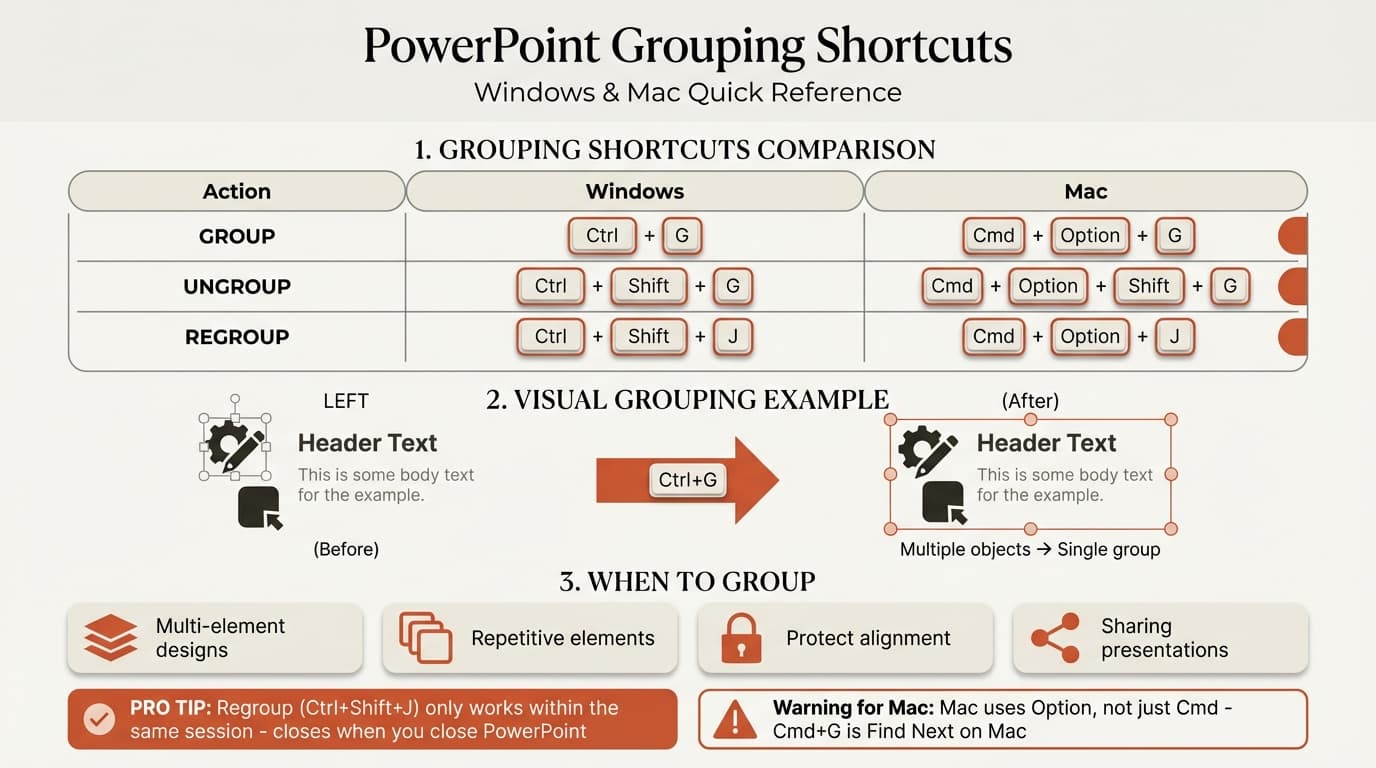
Grouping (Ctrl+G on Windows, Cmd+Option+G on Mac) combines multiple objects into a single unit that moves, resizes, and copies together. Once grouped, carefully aligned elements stay aligned—no more accidentally nudging icons out of position when repositioning text.
This guide covers all grouping shortcuts: Ctrl+G to group, Ctrl+Shift+G to ungroup, Ctrl+Shift+J to regroup (the hidden shortcut that remembers your last group), plus the common errors that prevent grouping from working. For a complete reference of all PowerPoint keyboard shortcuts including grouping, see our PowerPoint Shortcuts Guide.
When to Use Grouping in PowerPoint
Grouping combines multiple objects—shapes, text boxes, images, icons—into a single unit that moves, resizes, copies, and formats as one. It is essential for complex layouts where multiple elements need to stay in fixed positions relative to each other.
Complex layouts benefit most. When a single "element" in your design is actually multiple objects—like a circle shape, icon, header text box, and description text box—grouping turns four objects into one. Moving each piece individually is slow and error-prone.
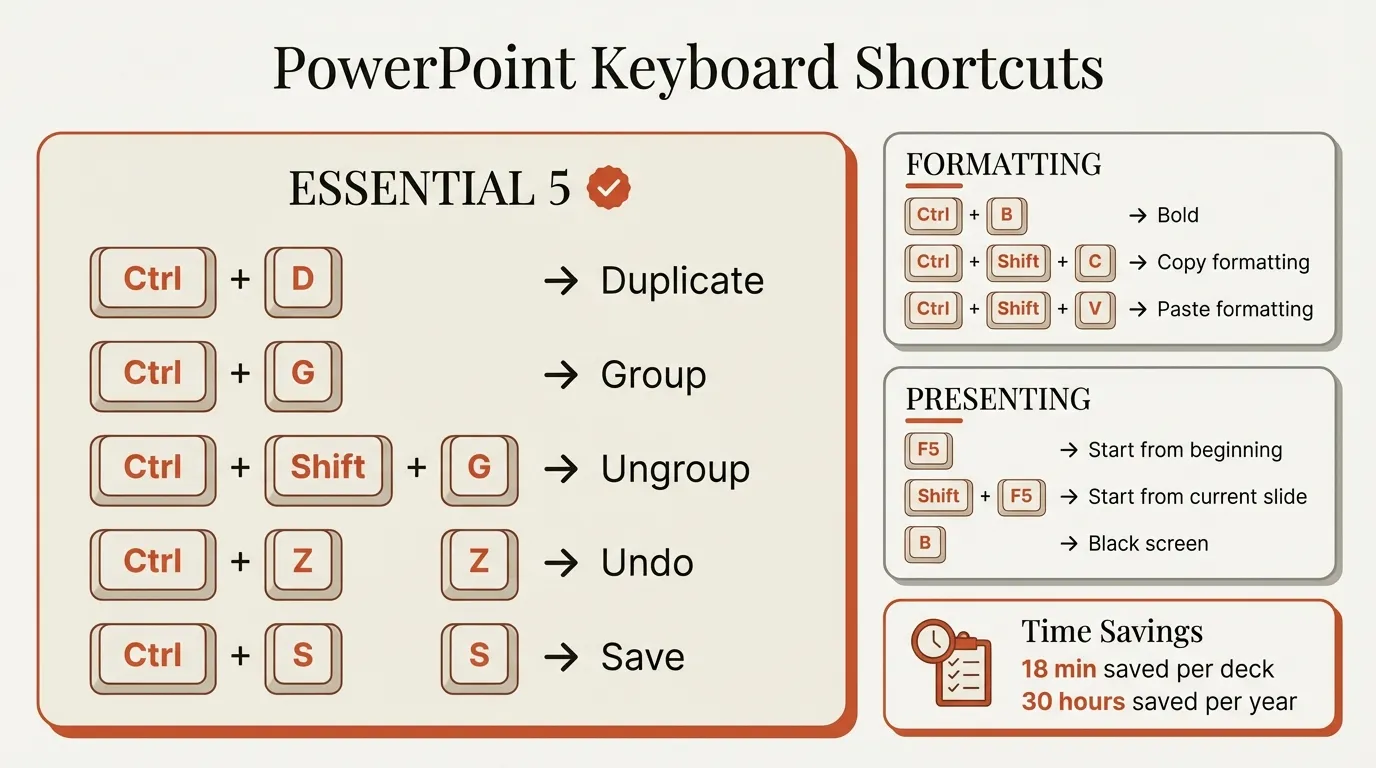
Repetitive elements are the second key use case. Group an icon + label pair first (Ctrl+G), then duplicate with Ctrl+D. Each duplicate maintains the internal relationship. See our duplicate shortcut guide for the full technique.
Alignment protection is the third reason to group. Once objects are aligned correctly, grouping locks that alignment so you can move the group around the slide without individual pieces shifting. When sharing presentations, grouping also prevents recipients from accidentally misaligning internal components.
Windows Shortcuts for Grouping
| Action | Shortcut | Description |
|---|---|---|
| Group | Ctrl+G | Combines selected objects into one group |
| Ungroup | Ctrl+Shift+G | Separates group into individual objects |
| Regroup | Ctrl+Shift+J | Restores previously ungrouped objects to their original group |
How to Group (Ctrl+G)
- Select multiple objects — Hold Ctrl and click each object, or drag a selection box around them
- Press Ctrl+G — Objects combine into a single group
- The group is now selected — You'll see one set of handles around all objects
The individual objects retain their properties but are now linked. Moving, resizing, or copying the group affects all members.
How to Ungroup (Ctrl+Shift+G)
- Select the group — Click anywhere on the grouped object
- Press Ctrl+Shift+G — The group dissolves
- All objects are now selected — Click elsewhere to deselect, then select individual objects
Use this when you need to edit one component of a group—change a single icon's color, resize one text box, etc.
How to Regroup (Ctrl+Shift+J)
- Select any single object that was part of the original group
- Press Ctrl+Shift+J — The entire group is restored
After ungrouping to edit, you'd normally have to select every object again to regroup. The Regroup shortcut remembers the original group composition and restores it with one keystroke.
Limitation: Regroup only works if you haven't closed the presentation since ungrouping. PowerPoint's memory of the group is lost when you close and reopen the file.
Mac Shortcuts for Grouping
| Action | Shortcut | Description |
|---|---|---|
| Group | Cmd+Option+G | Combines selected objects into one group |
| Ungroup | Cmd+Option+Shift+G | Separates group into individual objects |
| Regroup | Cmd+Option+J | Restores previously ungrouped objects to their original group |
The Mac shortcuts use Option (not just Cmd) as the modifier. In macOS, Cmd+G is reserved for "Find Next" in text editing, and Cmd+Shift+G for "Find Previous." PowerPoint for Mac uses Cmd+Option+G and Cmd+Option+Shift+G to avoid these conflicts. If Cmd+G doesn't work for grouping on your Mac, use Cmd+Option+G instead.
Continue reading: Combo Charts in PowerPoint · Presentation Tips · How to Add Icons to PowerPoint
Complete Shortcut Comparison Table
| Action | Windows | Mac |
|---|---|---|
| Group | Ctrl+G | Cmd+Option+G |
| Ungroup | Ctrl+Shift+G | Cmd+Option+Shift+G |
| Regroup | Ctrl+Shift+J | Cmd+Option+J |
| Select All | Ctrl+A | Cmd+A |
| Duplicate | Ctrl+D | Cmd+D |
| Copy | Ctrl+C | Cmd+C |
| Paste | Ctrl+V | Cmd+V |
For a complete Mac shortcut reference, see our PowerPoint shortcuts for Mac guide.
Best Practices for Grouping
1. Group Logically, Not Arbitrarily
Group objects that genuinely belong together—a chart title with its chart, an icon with its label. Don't group unrelated elements just because they're nearby. Keep groups small and manageable (3-5 objects each). If you group 20 objects together, you'll constantly ungroup, edit, and regroup.
2. Align Before Grouping
Always align objects before grouping. Use alignment shortcuts or tools to position objects perfectly, then group to lock that alignment.
Workflow:
- Select objects
- Align (Ctrl+Alt+C for center with Deckary, or use Format > Align menu)
- Group (Ctrl+G)
If you group first and align second, the group moves as a unit—but internal alignment isn't fixed.
3. Name Your Groups (Selection Pane)
For complex slides, use the Selection Pane (Alt+F10 on Windows, Cmd+Option+Shift+P on Mac) to see all objects. Click on group names to rename them—"Group 1" becomes "Process Step 1." Named groups are easier to identify when you have many elements. The Selection Pane is also useful for selecting overlapping objects that are difficult to click directly.
4. Use Nested Groups for Flexibility
You can group groups. For a process diagram, each step (icon + text) can be a group at Level 1, and all steps together form a larger group at Level 2. Ungroup once to access inner groups, or ungroup twice to reach individual objects.
Common Mistakes and Troubleshooting
If the Group command is grayed out or Ctrl+G does nothing, one of the following issues is the cause.
| Issue | Cause | Solution |
|---|---|---|
| Only one object selected | Need 2+ objects to group | Select additional objects |
| Placeholder selected | Placeholders can't be grouped | Convert to text box (see below) |
| Table selected | Tables can't be grouped | Convert to image via Paste Special |
| Worksheet or GIF selected | Embedded worksheets and GIFs can't be grouped | Convert to static image |
| SVG selected | SVGs require conversion | Right-click > Convert to Shape |
| Objects on different slides | Can only group objects on same slide | Move objects to same slide |
Fixing Placeholders
Placeholders are the most common cause of grayed-out grouping. They are special objects tied to slide layouts. To identify them, click the object and check for "Click to add text" or similar placeholder text.
Fix: Select the text inside the placeholder, cut it (Ctrl+X), insert a new text box (Insert > Text Box), paste the text (Ctrl+V), then delete the original placeholder. The text box can now be grouped with other objects.
Fixing Tables
If you must group a table with other objects, select the table, copy it (Ctrl+C), use Paste Special (Ctrl+Alt+V) and choose "Picture (PNG)" or "Picture (Enhanced Metafile)," then delete the original. Note that converting to an image means you can no longer edit the table data.
Fixing SVG Icons
SVG icons must be converted to shapes before grouping. Right-click the SVG, select "Convert to Shape," and then group normally. After conversion, you can ungroup the shape to access individual vector components—useful for changing colors of specific parts.
Losing Regroup After Closing
PowerPoint's memory of the original group is cleared when you close the file. If you ungroup, close, and reopen, Ctrl+Shift+J will not work—you must manually select all objects and group them again. Complete your editing before closing, or create a backup copy before ungrouping.
Objects Hidden After Grouping
Objects retain their original layer order (z-order) within the group. Before grouping, arrange the layer order by selecting the object that should be in front and using Right-click > Bring to Front (or Ctrl+Shift+] on Windows).
Alignment Shortcuts to Use with Grouping
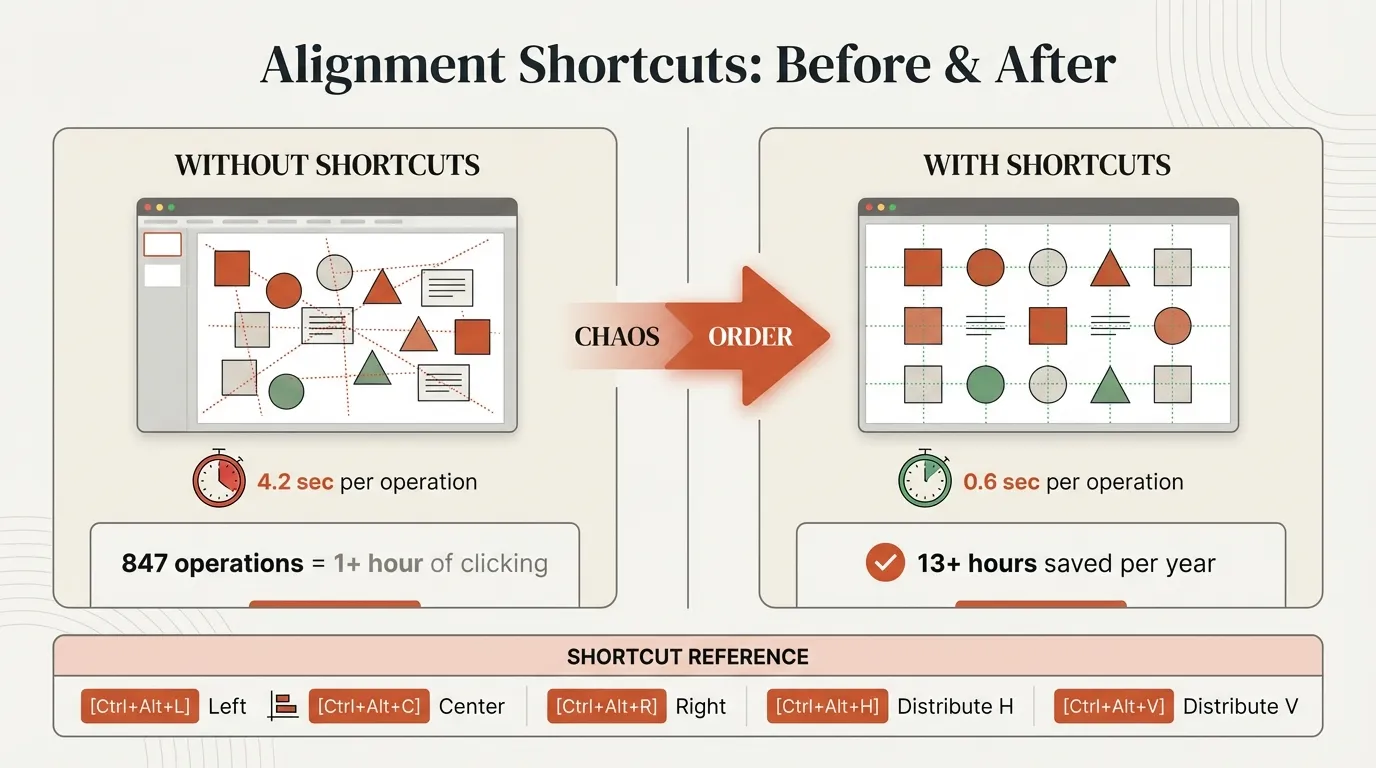
After creating groups, you'll often need to align them. Native PowerPoint requires menu navigation for alignment, but Deckary adds single-keystroke shortcuts:
| Action | Deckary Windows | Deckary Mac |
|---|---|---|
| Align Left | Ctrl+Alt+L | Cmd+Option+L |
| Align Center | Ctrl+Alt+C | Cmd+Option+C |
| Align Right | Ctrl+Alt+R | Cmd+Option+R |
| Distribute Horizontally | Ctrl+Alt+H | Cmd+Option+H |
| Distribute Vertically | Ctrl+Alt+V | Cmd+Option+V |
Workflow example:
- Create four process step groups
- Select all groups
- Align Top (Ctrl+Alt+T with Deckary) — all groups on same horizontal line
- Distribute Horizontally (Ctrl+Alt+H) — equal spacing between groups
Without shortcuts, this requires multiple clicks through Format > Align menus. With Deckary, it's two keystrokes after selection. Deckary also provides 2,000+ business icons that insert as native shapes—no SVG conversion needed—so they group immediately with other objects. Start Deckary's 14-day free trial — no credit card required.
For more alignment techniques, see our PowerPoint alignment shortcuts guide.
Summary
Core shortcuts:
- Windows: Ctrl+G (group), Ctrl+Shift+G (ungroup), Ctrl+Shift+J (regroup)
- Mac: Cmd+Option+G (group), Cmd+Option+Shift+G (ungroup), Cmd+Option+J (regroup)
Best practices:
- Group logically, not arbitrarily—keep groups small (3-5 objects)
- Align objects before grouping to lock positioning
- Use Selection Pane (Alt+F10) for complex slides
- Use nested groups for multi-level flexibility
Key limitation: Regroup (Ctrl+Shift+J) only works within a single session. If you close the file, you lose the ability to regroup—you'll need to manually select all objects again.
Grouping is one of those shortcuts that seems minor until you use it consistently. Once you start thinking in terms of grouped elements rather than individual objects, slide building becomes dramatically faster.