PowerPoint Accessibility: Complete Guide to WCAG Compliance
Master PowerPoint accessibility with WCAG 2.0 Level AA compliance. Add alt text, fix color contrast, check reading order, and meet Section 508 standards.
PowerPoint's visual-first design works against accessibility unless you deliberately override defaults at every step. After auditing 300+ consulting presentations for accessibility compliance, the pattern is clear: presentations fail automated checks at rates above 80 percent, with the same handful of issues appearing repeatedly.
This guide walks through every PowerPoint accessibility requirement, ranked by compliance impact, with exact steps for meeting WCAG 2.0 Level AA standards and passing Section 508 audits.
What Is PowerPoint Accessibility
PowerPoint accessibility means designing presentations so people with disabilities can access content using assistive technologies like screen readers, magnifiers, and keyboard navigation.
The standard is WCAG 2.0 Level AA, which applies to all digital documents. Federal agencies and organizations receiving federal funding must meet Section 508 compliance, which uses WCAG 2.0 Level AA as the baseline.
An estimated 26 percent of US adults have disabilities—61 million people. For presentations distributed internally or shared publicly, accessibility is legal compliance and professional responsibility.
Why PowerPoint Accessibility Matters
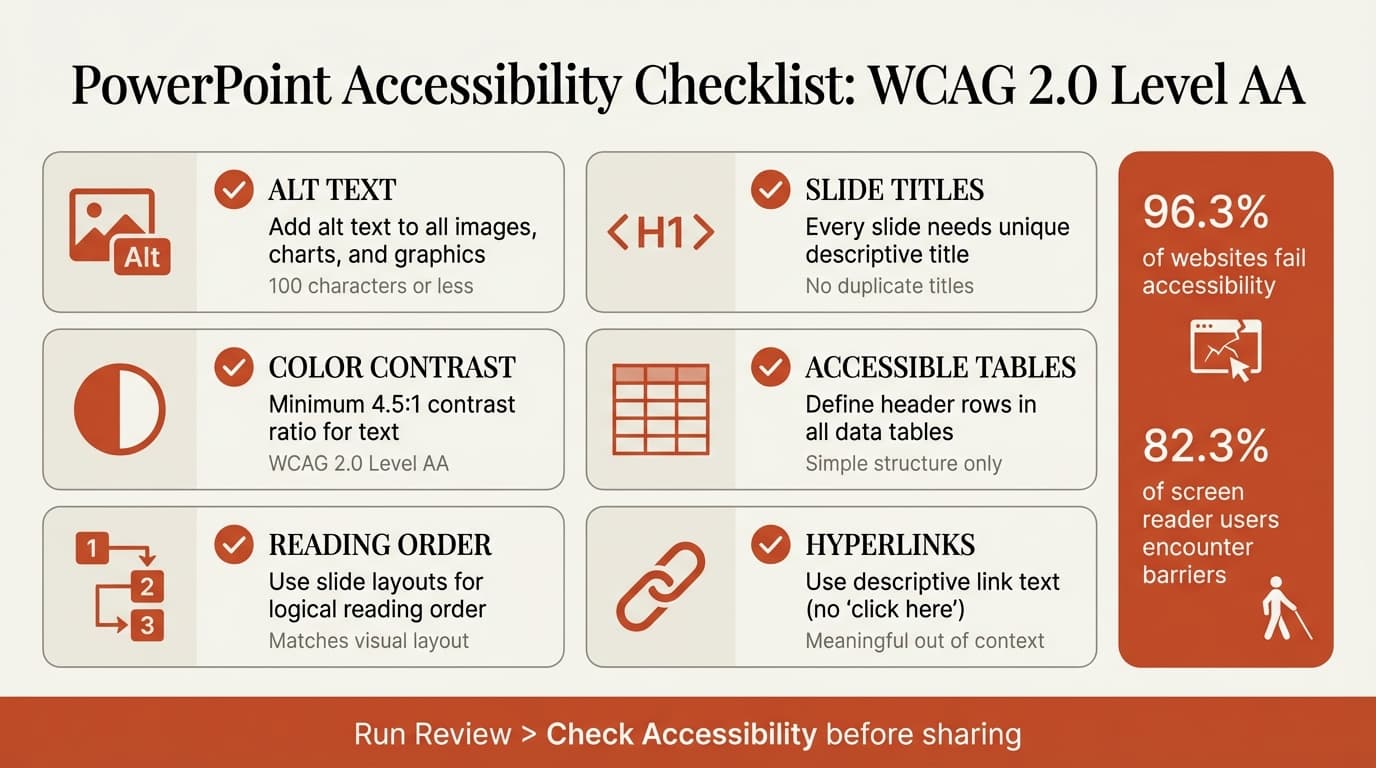
In 2025, 96.3 percent of websites have at least one detectable accessibility failure, averaging 51 errors per homepage. PowerPoint presentations follow the same pattern. Among screen reader users, 82.3 percent report encountering barriers on digital content.
The most common PowerPoint barriers are missing alt text, insufficient color contrast, incorrect reading order, and tables without headers. For consulting presentations, investment pitches, and board decks, these issues exclude stakeholders who could influence decisions.
PowerPoint Accessibility Checker: How to Use It
PowerPoint includes a built-in Accessibility Checker. Go to Review > Check Accessibility. The pane shows errors (missing alt text, poor contrast), warnings (ambiguous links), and tips (duplicate slide titles). Click each issue to jump to the problem.
| Issue Type | Example | Impact |
|---|---|---|
| Error | Missing alt text on chart | Screen reader announces only filename, user loses all data context |
| Error | Color contrast below 4.5:1 | Low-vision users cannot read text |
| Warning | Table without headers | Screen reader cannot announce row/column relationships |
| Tip | Duplicate slide titles | Screen reader users cannot distinguish slides in navigation |
Microsoft's Accessibility Checker documentation provides the full list of issues the tool detects.
Important limitation: Automated checkers catch only 30 to 40 percent of accessibility issues. The checker will not identify if reading order is inaccurate, if color alone conveys information, or if captions are incorrect. Manual review with a screen reader is necessary for full compliance.
How to Add Alt Text in PowerPoint
Alt text is the single most critical accessibility feature. Without it, screen reader users hear only the image filename—often "image1.png"—with no visual context.
How to add alt text:
- Right-click the image, shape, chart, or SmartArt graphic
- Select Edit Alt Text
- Write a concise description (100 characters or less recommended)
- If the image is purely decorative, check Mark as decorative
Writing effective alt text:
| Do | Don't |
|---|---|
| "Waterfall chart showing Q4 revenue drop from $2.4M to $1.8M" | "A graphic of a chart" |
| "BCG matrix with product A in Star quadrant" | "Image of BCG matrix" |
| "Headshot of Sarah Chen, VP of Operations" | "Photo" |
Avoid phrases like "image of" or "picture of"—screen readers already announce that it is an image.
When to mark images as decorative:
Mark images as decorative if they add visual interest but no information. Screen readers skip them entirely.
Complex images like charts and infographics:
For complex visuals—waterfall charts, process flows, infographics—a short alt text is not sufficient. Use one of these methods:
- Caption below the image — Visible to all users, ideal for data callouts
- Long description in speaker notes — Screen reader users can access the Notes pane
- Accessible table — For data charts, include the data table on the slide or in an appendix
For consulting presentations that rely heavily on data visualization, tools like Deckary generate charts directly in PowerPoint with accessible data tables linked from Excel, making it easier to provide alternative formats for screen reader users.
Continue reading: Diagrams in PowerPoint · Consulting Presentations · How to Add Icons to PowerPoint
Work faster in PowerPoint
Use shortcuts, icons, logos, and reusable slides without leaving PowerPoint. 14-day free trial. No credit card required.
Color Contrast Requirements for Accessibility
Text must have sufficient contrast against its background or low-vision users cannot read it. WCAG 2.0 Level AA requires a contrast ratio of at least 4.5:1 for normal text and 3:1 for large text (18pt or 14pt bold).
Common contrast failures in PowerPoint:
- Light gray text on white backgrounds
- Yellow or light blue text on white
- Dark blue text on black
- Any text over busy background images
How to check color contrast:
PowerPoint's Accessibility Checker flags obvious contrast issues. For precise measurement, use WebAIM Contrast Checker or Colour Contrast Analyser. Enter your text and background colors to verify WCAG AA compliance.
| Text/Background Example | Contrast Ratio | WCAG AA Pass? |
|---|---|---|
| Black text on white | 21:1 | Pass |
| Dark gray (#595959) on white | 7:1 | Pass |
| Light gray (#767676) on white | 4.5:1 | Pass (minimum) |
| Light gray (#888888) on white | 3.5:1 | Fail |
| Yellow (#FFFF00) on white | 1.1:1 | Fail |
How to fix contrast issues:
- Darken light text or lighten dark backgrounds
- Remove text overlays on photos unless you add a semi-transparent background box
- Avoid colored text on colored backgrounds unless contrast is verified
- Use PowerPoint's built-in themes, which generally meet contrast minimums
Reading Order and Slide Structure
Screen readers announce slide content in a specific sequence called reading order. If reading order does not match visual layout, blind users hear information out of context or miss content entirely.
How PowerPoint determines reading order:
Slide layouts assign logical reading order automatically. Manual text boxes create unpredictable order.
How to check and fix reading order:
- Go to Home > Arrange > Selection Pane
- The Selection Pane shows all objects in reverse reading order (bottom of list is read first)
- Drag objects up or down to reorder
- Test with a screen reader (NVDA or JAWS) to confirm
Best practice: Always use slide layouts from the Slide Master view. Layouts enforce proper heading structure and reading order automatically.
Accessible Tables in PowerPoint
Data tables are common in consulting presentations, but screen readers cannot interpret table structure unless headers are properly defined.
How to create accessible tables:
- Insert a table using Insert > Table
- Check Header Row in the Table Design tab
- Enter column headers in the top row
- Keep table structure simple—avoid merged cells, split cells, and nested tables
- Add a table title using a text box above the table
Screen readers announce header information as users navigate cells, so someone hearing "Q4, Revenue, $2.4M" understands the context. Without headers, they hear "$2.4M" with no indication of what the number represents.
| Accessible Table Feature | Why It Matters |
|---|---|
| Header row | Screen readers announce column context for each cell |
| Simple structure | Merged cells break screen reader navigation |
| Table caption/title | Provides context before entering table data |
Alternative to tables: For complex data, consider whether a chart or simplified visual better communicates the insight. Not all tables need to be tables—sometimes a consulting-grade chart is clearer for all users.
Slide Titles and Heading Structure
Every slide must have a unique, descriptive title. Screen reader users navigate presentations by jumping between slide titles, so duplicate or missing titles break navigation.
Slide title requirements:
- Every slide needs a unique title
- Use the title placeholder from the slide layout
- For slides without visible titles, use the title placeholder but move it off-slide—screen readers will still announce it
Hyperlinks and Link Text
Screen reader users often navigate by links, so link text must make sense out of context. "Click here" and "Read more" are meaningless when announced in a list of links.
| Bad Link Text | Good Link Text |
|---|---|
| Click here | Download the full report |
| Learn more | WCAG 2.0 accessibility guidelines |
| www.example.com | Example Company annual report |
How to add accessible hyperlinks:
- Select the text you want to turn into a link
- Press Ctrl+K (Windows) or Cmd+K (Mac)
- Enter the URL
- Ensure the display text is descriptive
- Add a ScreenTip if the link destination is not obvious
Fonts and Text Formatting
Font choice and formatting affect readability for people with dyslexia, low vision, and cognitive disabilities.
Accessible font guidelines:
- Use sans-serif fonts: Arial, Calibri, Verdana, Helvetica
- Minimum font size: 18pt for body text, 24pt for headings
- Avoid all caps—it is harder to read and screen readers may spell it out letter-by-letter
- Do not rely on italics or font color alone to convey meaning
- Ensure adequate spacing between lines (1.5x line spacing recommended)
Video and Audio Accessibility
If your presentation includes embedded videos or audio, accessibility requires captions for all spoken content, audio descriptions for visual content not explained in dialogue, and transcripts as supplementary documents. PowerPoint supports embedded captions in MP4 format.
Testing Accessibility with Screen Readers
Automated checkers catch only 30 to 40 percent of issues. To verify full compliance, test with a screen reader.
Free screen readers:
- NVDA (Windows) — Free, widely used, 71 percent of screen reader users use multiple screen readers
- JAWS (Windows) — Industry standard, 41 percent market share
- VoiceOver (Mac) — Built into macOS
How to test:
- Open your presentation
- Start the screen reader
- Navigate slide-by-slide using keyboard shortcuts
- Verify content is announced in logical order
- Check that images, charts, and tables are described meaningfully
Section 508 Compliance Checklist
If your organization is subject to Section 508 requirements, use this checklist before finalizing presentations:
- All images have alt text or are marked decorative
- Color contrast meets 4.5:1 minimum for normal text
- Every slide has a unique, descriptive title
- Tables have header rows
- Reading order matches visual layout
- Hyperlinks use descriptive text
- Videos have captions and transcripts
- Fonts are readable (sans-serif, 18pt minimum)
- Content does not rely on color alone to convey meaning
- Accessibility Checker shows no errors
Accessibility and AI Slide Builders
Deckary's AI slide builder generates consulting-grade slides with proper heading structure, logical reading order, and placeholder text for alt text prompts, reducing manual accessibility work after slide creation.
Summary
PowerPoint accessibility is not optional for federal organizations, educational institutions, and companies committed to inclusive design. The six core requirements—alt text, color contrast, reading order, slide titles, accessible tables, and descriptive links—cover 90 percent of compliance needs.
Run the Accessibility Checker on every presentation before sharing, fix flagged errors, and test with a screen reader for full confidence. These steps take five to ten minutes per deck and ensure your content reaches every audience member, regardless of ability.
Sources
- Make your PowerPoint presentations accessible - Microsoft Support
- Accessible Presentations - Section508.gov
- Improve accessibility with the Accessibility Checker - Microsoft Support
- Web Accessibility Statistics 2025 - AllAccessible
- 57 Web Accessibility Statistics - DDIY
- Add alternative text to images - Microsoft Support
Work faster in PowerPoint
Use shortcuts, icons, logos, and reusable slides without leaving PowerPoint. 14-day free trial. No credit card required.