PowerPoint Color Schemes: How to Build Professional Palettes
PowerPoint color scheme guide for business presentations. Learn how to create custom theme colors, apply the 60-30-10 rule, and avoid common color mistakes.
Most PowerPoint decks fail because of color decisions, not content. Slides with six brand colors, neon accents, and low-contrast text force audiences to decode visual noise instead of absorbing the message.
After reviewing color usage across 180+ consulting presentations, we have identified the exact palette structures that pass client review and which combinations trigger revision requests. This guide covers how to build professional color schemes, create custom palettes, and avoid formatting mistakes that undermine credibility.
What Are PowerPoint Color Schemes
A PowerPoint color scheme is a predefined set of colors that controls the appearance of all theme-driven elements in a presentation. This includes shapes, charts, tables, SmartArt graphics, hyperlinks, and text. When you apply a color scheme, PowerPoint updates every element using theme colors automatically.
PowerPoint organizes color schemes into two parts: theme colors (the palette you select or create) and standard colors (fixed colors that do not change with the theme). Theme colors appear at the top of every color picker. Standard colors sit below.
Using theme colors properly ensures consistency. When you change schemes, every chart, shape, and icon updates instantly. Most professionals ignore theme colors and pick from the standard palette or eyedropper tool. This creates brittle decks where updating a single color requires manual changes across dozens of slides.
PowerPoint Color Scheme Structure
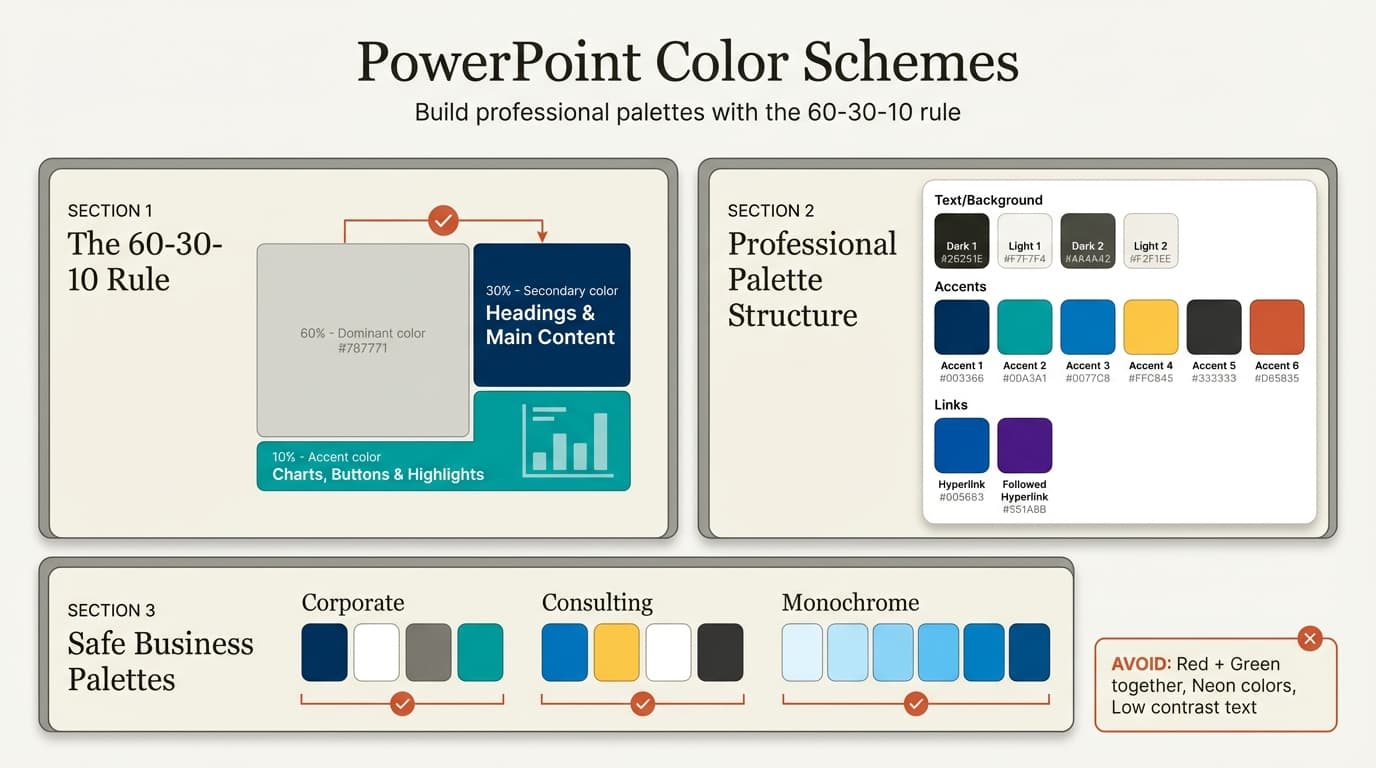
Every PowerPoint color scheme contains 12 colors, organized into specific roles:
| Color Role | Purpose | Count | Usage |
|---|---|---|---|
| Text/Background | Body text and slide backgrounds | 2 pairs (4 total) | Dark text on light background, light text on dark background |
| Accent | Charts, shapes, callouts, data series | 6 colors | Automatically assigned to chart series, SmartArt elements, icons |
| Hyperlink | Unvisited link color | 1 color | Default blue unless customized |
| Followed Hyperlink | Visited link color | 1 color | Default purple unless customized |
When you insert a chart, PowerPoint applies Accent 1 through Accent 6 to the data series in order. When you insert a shape and choose a theme color, you are picking from the Text/Background and Accent colors. Understanding this structure lets you design palettes that produce professional charts without manual color adjustments.
Creating a Custom Color Palette in PowerPoint
Building a custom palette takes under two minutes.
Step-by-step process:
- Click Design tab → arrow under Variants → Colors → Customize Colors
- Set colors in this order:
- Text/Background - Dark 1: Body text (black or dark gray)
- Text/Background - Light 1: Background (white or off-white)
- Text/Background - Dark 2: Secondary text (medium gray)
- Text/Background - Light 2: Secondary background (light gray)
- Accent 1-6: Brand colors for charts and shapes
- Hyperlink and Followed Hyperlink: Link colors
- Use More Colors for hex input or Eyedropper to sample from logos
- Name your palette (e.g., "Acme Brand 2026") and click Save
Your custom palette now appears in the Colors menu under Custom and remains available for future decks.
For detailed guidance on creating and managing custom palettes, see Microsoft's official Create or delete a custom theme color documentation.
Professional Color Combinations for Business Presentations
| Palette | Colors | Use Case |
|---|---|---|
| Navy + Accent | Navy (#003366), White, Gray (#4A4A4A), Teal (#00A3A1) | Consulting, finance, corporate strategy (safest choice) |
| Blue + Yellow | Navy (#002F6C), White, Charcoal (#333333), Blue (#0077C8), Gold (#FFC845) | MBB-style decks (appears in 60% of consulting presentations) |
| Monochromatic Blue | Shades from light (#A3C9E2) to dark (#003D5B), White, Gray | Financial modeling, board reports with 20+ charts |
| Green + Gray | Forest Green (#2C5F2D), White, Charcoal, Bright Green (#27AE60) | ESG presentations, environmental strategy |
Continue reading: Stacked Bar Charts in PowerPoint · Business Model Slide · How to Add Icons to PowerPoint
Work faster in PowerPoint
Use shortcuts, icons, logos, and reusable slides without leaving PowerPoint. 10 free AI prompts. No credit card required.
The 60-30-10 Color Rule for PowerPoint
The 60-30-10 rule from interior design applies directly to slide layout:
- 60% — Dominant: Slide background (white, light gray)
- 30% — Secondary: Text and headings (navy, charcoal)
- 10% — Accent: Charts, callouts (brand color)
Example: 60% white background, 30% navy text, 10% teal chart bars.
Most executives scan slides in under 10 seconds. This ratio creates instant visual hierarchy — background recedes, content stands out, accents guide the eye.
For a detailed breakdown of the 60-30-10 rule in presentation design, see Visme's guide to color theory for presentations.
PowerPoint Color Mistakes That Signal Amateur Work
We have reviewed enough partner feedback to know which color choices trigger revision requests. These mistakes appear in over half of first-draft decks from junior analysts.
Using more than five colors per deck. Every additional color increases cognitive load. Six-color palettes rarely serve a purpose beyond demonstrating that the designer has not internalized restraint. Three to five colors is the professional range. Anything beyond that reads as experimentation.
Low-contrast text on backgrounds. Yellow text on white slides, light gray on medium gray, or pastel blue on cream backgrounds fail readability tests. If the contrast ratio is under 4.5:1, the text will not project clearly in conference rooms. Use WebAIM's Contrast Checker before committing to a palette.
Bright red and green side-by-side. This combination causes problems for colorblind audiences (about 8 percent of men). It also signals traffic lights, which carries unintended stop-go connotations. If you need to show positive and negative, use blue and orange or green and gray instead.
Neon colors in business settings. Chartreuse, hot pink, electric blue, and lime green belong in creative agencies and startup pitch decks, not client presentations for Fortune 500 companies. Neon undermines credibility before the first bullet is read.
Ignoring projector performance. Colors that look sharp on a Retina display wash out on overhead projectors. Pastels disappear. Low-contrast combinations blur. Test your deck on the actual projector before presenting, and adjust colors if needed. Navy, white, and bold accent colors survive projection better than subtle gradients and muted tones.
Inconsistent color application across slides. Using navy for headings on 10 slides and charcoal on the remaining 5 signals carelessness. Pick your palette, apply it everywhere, and do not deviate unless you have a clear reason (e.g., section dividers with inverted colors).
When building professional slides efficiently, color decisions should take under 10 minutes. Define your palette once, save it as a custom theme, and reuse it across decks.
How to Apply a Color Scheme to an Existing Presentation
To apply a saved color scheme:
- Click Design tab → arrow under Variants → Colors
- Select your saved custom palette or a built-in theme
PowerPoint updates every shape, chart, and text element using theme colors. Anything using standard colors remains unchanged.
If colors do not update: You likely used standard colors instead of theme colors. Select each object and reapply theme colors manually. For charts, right-click and reset colors to theme defaults.
Best practice: Always use theme colors when creating new slides. Reserve standard colors for one-off exceptions.
PowerPoint Color Picker and Hex Values
PowerPoint offers three color selection methods:
Theme colors — Update automatically when you change themes. Use these for consistency.
Standard colors — Fixed colors that don't change with themes. Use sparingly.
More Colors dialog — Access via color picker to enter exact hex values (e.g., #003366) or use the Eyedropper tool to sample from logos.
Use hex values when matching brand guidelines or maintaining consistency across PowerPoint, web, and print. See BrightCarbon's guide to hacking PowerPoint custom colors for technical details.
Applying Color Schemes to Charts in PowerPoint
Charts inherit colors from your theme's Accent 1-6 palette. This is powerful if you set up your accents intentionally, and chaotic if you did not.
How PowerPoint assigns chart colors:
- First data series: Accent 1
- Second data series: Accent 2
- Third data series: Accent 3
- And so on through Accent 6
If you have more than six data series, PowerPoint cycles back to Accent 1 and applies tints or shades.
To optimize chart colors:
- Define your six accent colors in logical order (e.g., dark blue to light blue for a monochromatic palette, or alternating warm and cool tones for contrast)
- Insert charts and let PowerPoint apply theme colors automatically
- Manually override specific series only when necessary (e.g., highlighting one bar in a chart to draw attention)
Tools like Deckary generate consulting-grade waterfall charts, Mekko charts, and Gantt charts with professional color schemes built in.
Key Takeaways
- Use three to five colors maximum. One primary, one accent, two to three neutrals. More colors create clutter.
- Apply the 60-30-10 rule. 60% dominant color (background), 30% secondary (text), 10% accent (charts and callouts).
- Always use theme colors, not standard colors. Theme colors update automatically when you change palettes. Standard colors do not.
- Navy, white, and gray with one accent is the safest professional palette. Works across industries and projects well.
- Avoid bright red and green together, low-contrast text, and neon colors. These combinations reduce readability and undermine credibility.
- Test your palette on a projector before presenting. Colors that work on a laptop screen may wash out when projected.
- Save custom palettes for reuse. Define your colors once and apply them across all presentations for consistency.
For a comprehensive walkthrough of every PowerPoint feature, see our PowerPoint tutorial. For guidance on overall design strategy, see our PowerPoint design guide. For professional chart formatting, see how to create waterfall charts in PowerPoint.
Sources:
- Create or delete a custom theme color (Microsoft Support)
- Combining colors in PowerPoint – Mistakes to avoid (Microsoft Support)
- Learn to Pick and Create Custom PowerPoint Color Schemes! (24Slides)
- Color Theory for Presentations: How to Choose the Perfect Colors for Your Designs (Visme)
- Hacking PowerPoint to create custom colors (BrightCarbon)
Work faster in PowerPoint
Use shortcuts, icons, logos, and reusable slides without leaving PowerPoint. 10 free AI prompts. No credit card required.