PowerPoint Slide Design: Complete Guide for Professionals
Design professional PowerPoint slides with proven rules for alignment, typography, color palettes, and layout. Principles from 300+ consulting presentations.
PowerPoint slide design is what separates a presentation that commands attention from one that gets ignored. Most professionals spend hours refining content but treat visual design as an afterthought -- choosing random fonts, clashing colors, and cluttered layouts that undermine the message.
After reviewing slide design across 300+ consulting, corporate, and investor presentations, we have identified a consistent pattern: the decks that land with audiences follow a small set of design principles. These are not about artistic talent. They are about systematic choices -- alignment, contrast, whitespace, typography, and color -- applied consistently across every slide. This guide covers each principle with actionable steps, tables for quick reference, and links to detailed companion guides on themes, backgrounds, slide dimensions, and animations.
What This Guide Covers:
- 5 design principles that make any slide look professional
- Slide size and theme selection to set the visual foundation
- Typography and color rules for business presentations
- Backgrounds and animations that enhance without distracting
- Layout patterns for 8 common slide types
- Pre-presentation checklist to catch design issues before you present
The 5 Design Principles That Make PowerPoint Slide Design Professional
Every well-designed presentation rests on five principles. These are not aesthetic preferences -- they are the structural rules that make content readable, scannable, and credible. Violating any one of them introduces visual friction that distracts from your message.
Alignment
Every element on a slide should align to an invisible grid. Text boxes, images, charts, and shapes offset by even a few pixels create a sense of disorder that the audience perceives subconsciously. PowerPoint's alignment tools (Arrange > Align) handle this in seconds, but most presenters never use them.
The rule: pick a left margin, right margin, and top margin, and snap every element to them. For a complete walkthrough of alignment shortcuts, see our guide on aligning objects in PowerPoint. Tools like Deckary provide one-click alignment shortcuts that reduce a manual alignment pass to under a second.
Contrast
Contrast means the difference in visual weight between elements. Dark text on a light background is the safest contrast choice for projected presentations. Light text on dark backgrounds works for keynote-style decks but fails on printed handouts. The test: if you squint at the slide from 3 meters away, can you still read the title and key message? If not, contrast is insufficient.
Whitespace
Whitespace is the empty space around and between elements. It is not wasted space -- it is what makes the content breathable. Amateur slides fill every square centimeter with text, charts, and logos. Professional slides leave at least 15-20 percent of the slide area empty. This means wider margins, more spacing between bullet points, and fewer elements per slide.
Consistency
Consistency means every slide follows the same visual rules: same fonts, same colors, same margin widths, same bullet styles, same heading sizes. Inconsistency -- a slide where the title is 28pt Calibri followed by a slide where it is 24pt Arial -- signals that the deck was assembled by multiple people without coordination. Slide masters and themes enforce consistency automatically.
Visual Hierarchy
Hierarchy tells the viewer what to read first, second, and third. The title should be the largest, boldest text on the slide. Subheadings should be smaller but still prominent. Body text should be the smallest. When everything is the same size and weight, nothing stands out, and the audience has to work to find the key message.
| Principle | What It Does | Common Mistake | Quick Fix |
|---|---|---|---|
| Alignment | Creates visual order across all elements | Text boxes placed by eye rather than snapped to grid | Use Arrange > Align or alignment shortcuts |
| Contrast | Ensures readability on screens and projectors | Low-contrast color combinations (gray on white, blue on black) | Test at 3 meters; use dark text on light backgrounds |
| Whitespace | Prevents visual clutter and improves scanning | Filling every inch of the slide with content | Leave 15-20% of slide area empty; increase margins |
| Consistency | Makes the deck feel unified and intentional | Mixing fonts, sizes, or colors across slides | Use slide masters to lock design choices |
| Hierarchy | Guides the eye from title to key message to detail | All text the same size and weight | Title 28-36pt bold, body 18-24pt regular |
These five principles apply regardless of industry, audience, or topic. Master them and every slide you build will look intentionally designed, even without a graphic design background.
Choose the Right PowerPoint Slide Size and Theme
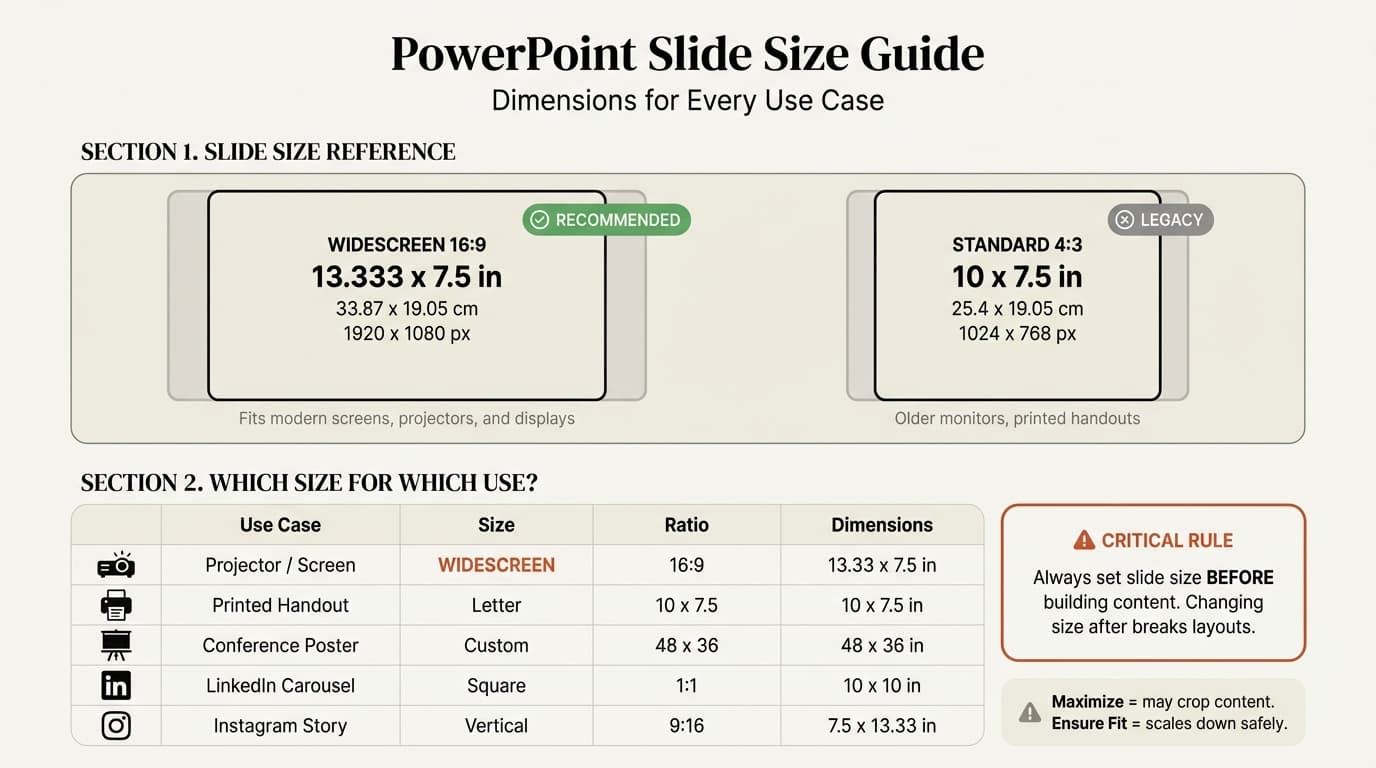
Before designing a single slide, two foundational decisions set the visual framework for the entire presentation: slide dimensions and theme.
Slide Size: 16:9 vs. 4:3
The slide size determines the aspect ratio and resolution of every slide in the deck. Changing it after building content causes text overflow, image distortion, and layout collapse, so set it first.
| Aspect Ratio | Dimensions (cm) | Best For | Avoid When |
|---|---|---|---|
| 16:9 Widescreen | 33.87 x 19.05 | Modern projectors, external monitors, virtual meetings | Presenting on legacy 4:3 projectors |
| 4:3 Standard | 25.4 x 19.05 | Older conference rooms, printed handouts | Using modern screens (black bars appear on sides) |
| Custom | Varies | Posters, kiosk displays, social media | Standard business presentations |
Widescreen 16:9 is the default in PowerPoint and the correct choice for most business presentations. The wider canvas provides more horizontal space for two-column layouts, side-by-side comparisons, and charts with long axis labels. For a detailed walkthrough of how to change slide dimensions, handle content reflow, and work with custom sizes, see our complete PowerPoint slide size guide.
Themes: Setting the Visual Foundation
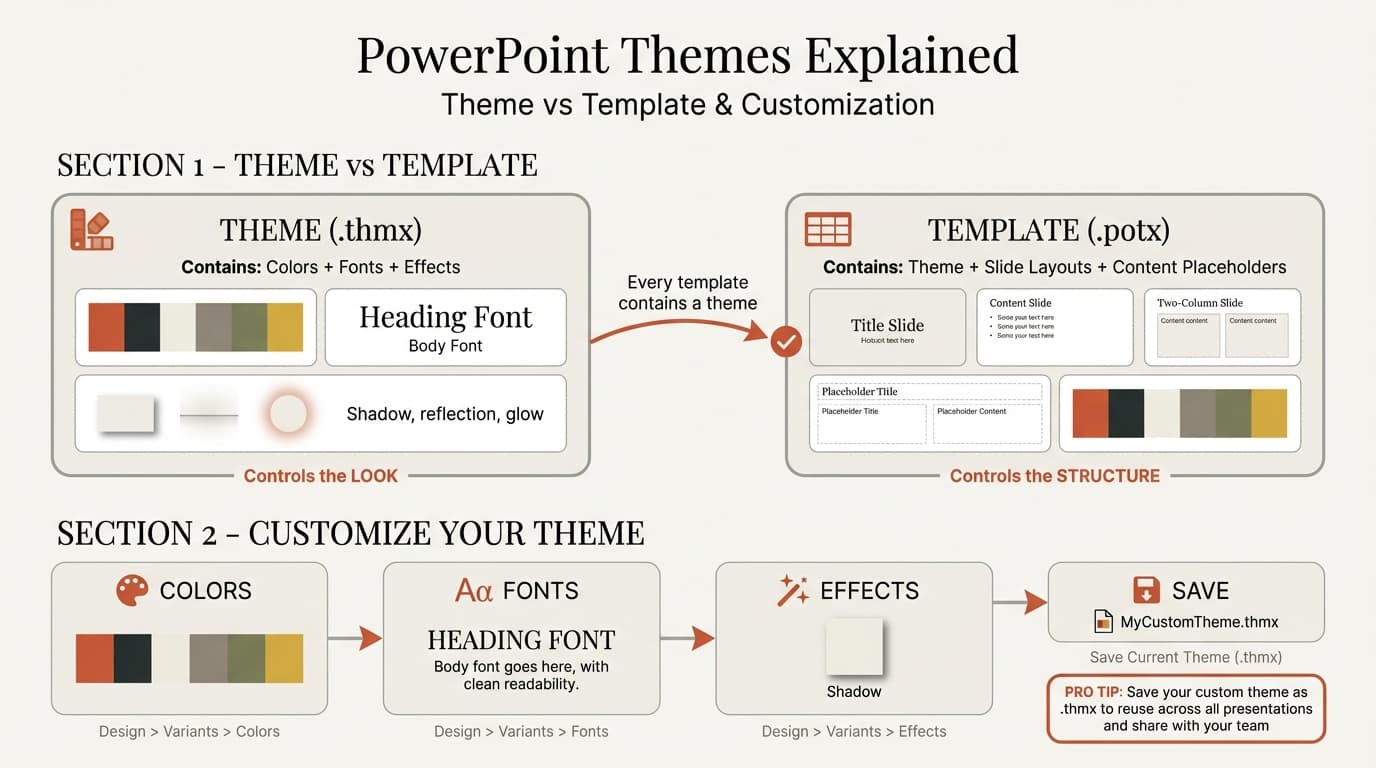
A PowerPoint theme defines your color palette, font pair, background style, and layout placeholders in a single reusable package. Applying a well-designed theme before building content eliminates 80 percent of design decisions because every new slide inherits the theme's visual standards automatically.
The theme controls three elements: the color set (12 coordinated colors), the font pair (heading and body), and the effects set (shadows, reflections, and shape styles). When you change the theme, every slide updates simultaneously. Templates (.potx) add slide master layouts on top of a theme.
For a step-by-step guide on applying, customizing, and creating themes from scratch, see our PowerPoint themes guide. Teams that standardize on a branded theme produce consulting-quality slides without relying on individual design skills.
Typography: Picking and Pairing Fonts for PowerPoint Slide Design
Font choices affect readability, professionalism, and the overall tone of your presentation. The wrong font (Comic Sans, Papyrus, or any decorative typeface) instantly undermines credibility, regardless of content quality.
Font Rules for Business Presentations
Rule 1: Sans-serif fonts for projected presentations. Serif fonts (Times New Roman, Georgia) are designed for print. On screens and projectors, the thin serifs blur. Sans-serif fonts (Calibri, Arial, Segoe UI, Aptos) remain crisp at all resolutions.
Rule 2: Limit to two fonts. One for headings, one for body text. A single font family at different weights (regular, bold, semibold) is even cleaner.
Rule 3: Minimum sizes. Titles should be 28-36pt. Body text should never go below 18pt, and 20-24pt is the comfortable range for projected slides. If you need smaller text to fit content, split the slide in two.
Rule 4: Use weight for emphasis, not underline or italic. Bold text stands out. Italic is harder to read on screens. Underline looks like a hyperlink. For emphasis, use Bold or Semibold weight.
Font Pairs for Professional Presentations
| Heading Font | Body Font | Tone | Best For |
|---|---|---|---|
| Arial Black | Calibri | Clean, corporate | Consulting deliverables, board presentations |
| Segoe UI Semibold | Segoe UI | Modern, unified | Technology companies, product presentations |
| Aptos Display | Aptos | Contemporary, fresh | General business, newer Office 365 users |
| Franklin Gothic Medium | Calibri | Authoritative, classic | Financial services, investor presentations |
| Calibri Bold | Calibri Light | Safe, universal | Any audience; guaranteed to render on all machines |
| Trebuchet MS Bold | Segoe UI | Distinctive, approachable | Marketing presentations, client pitches |
The safest choice for cross-platform compatibility is Calibri. It ships with every version of Office on Windows and Mac, so slides render identically on any machine. Custom brand fonts may substitute on a client's machine, shifting text positions and breaking layouts. If you use a custom font, embed it via File > Options > Save > Embed fonts before sharing.
For teams building slides at speed, Deckary's slide builder applies typography rules automatically, selecting appropriate font sizes and weights based on the content structure you provide.
Continue reading: Slide Deck Design · PowerPoint Design Ideas · PowerPoint Icons
Use consulting-grade layouts in PowerPoint
Start from structured business slides and customize them in your own deck. 14-day free trial. No credit card required.
Color Schemes That Work in PowerPoint Slide Design
Color is the fastest way to make a presentation look either polished or chaotic. The difference comes down to restraint: professional decks use fewer colors, applied consistently.
The 3-Color Rule
Every presentation needs exactly three roles filled by color:
- Primary color -- Used for slide titles, key headings, and the dominant visual element. This is typically the darkest or most saturated color from your brand palette.
- Secondary color -- Used for subheadings, supporting charts, and secondary elements. It should complement the primary without competing with it.
- Accent color -- Used sparingly for emphasis: call-out boxes, highlighted data points, action items. This is the color that draws the eye, so limit it to the one element per slide that you want the audience to notice first.
Professional Color Palettes
| Palette Name | Primary | Secondary | Accent | Best For |
|---|---|---|---|---|
| Corporate Blue | #1B3A5C (navy) | #4A90D9 (medium blue) | #E8792B (warm orange) | Consulting, finance, corporate strategy |
| Forest Executive | #2D4A3E (dark green) | #6B9E8A (sage) | #D4A843 (gold) | Sustainability, ESG, healthcare |
| Charcoal Modern | #333333 (charcoal) | #737373 (medium gray) | #0078D4 (bright blue) | Technology, product, SaaS |
| Slate Professional | #3C3C50 (dark slate) | #7A7A8E (light slate) | #C84B31 (rust red) | Legal, advisory, risk |
| Monochrome Clean | #1A1A1A (near-black) | #B0B0B0 (light gray) | #2196F3 (blue) | Minimalist, data-heavy, investor decks |
Pulling Colors from a Brand Guide
If your organization has a brand guide, use it. Extract the primary and secondary colors directly. If the guide specifies five or more colors, pick three for presentation use. Using all five creates visual overload on slides.
If no brand guide exists, pull colors from the company logo. Use PowerPoint's eyedropper (Shape Fill > Eyedropper) to sample exact hex values. Then generate a complementary palette using Adobe Color.
Color Contrast Checklist
- Dark text on light backgrounds for all body text (minimum contrast ratio of 4.5:1)
- Avoid placing text on gradients or images unless you add a semi-transparent overlay
- Test every slide on a projector or second monitor -- colors shift significantly between laptop screens and projected displays
- Do not use red and green as the only differentiators in charts (approximately 8 percent of men have red-green color blindness)
- Use color consistently: if blue means "current year" on one chart, blue means "current year" on every chart
Color consistency across a full deck is one of the hallmarks of consulting slide standards. When every chart, heading, and highlight uses the same palette, the presentation feels cohesive even across 50+ slides.
Backgrounds That Enhance, Not Distract
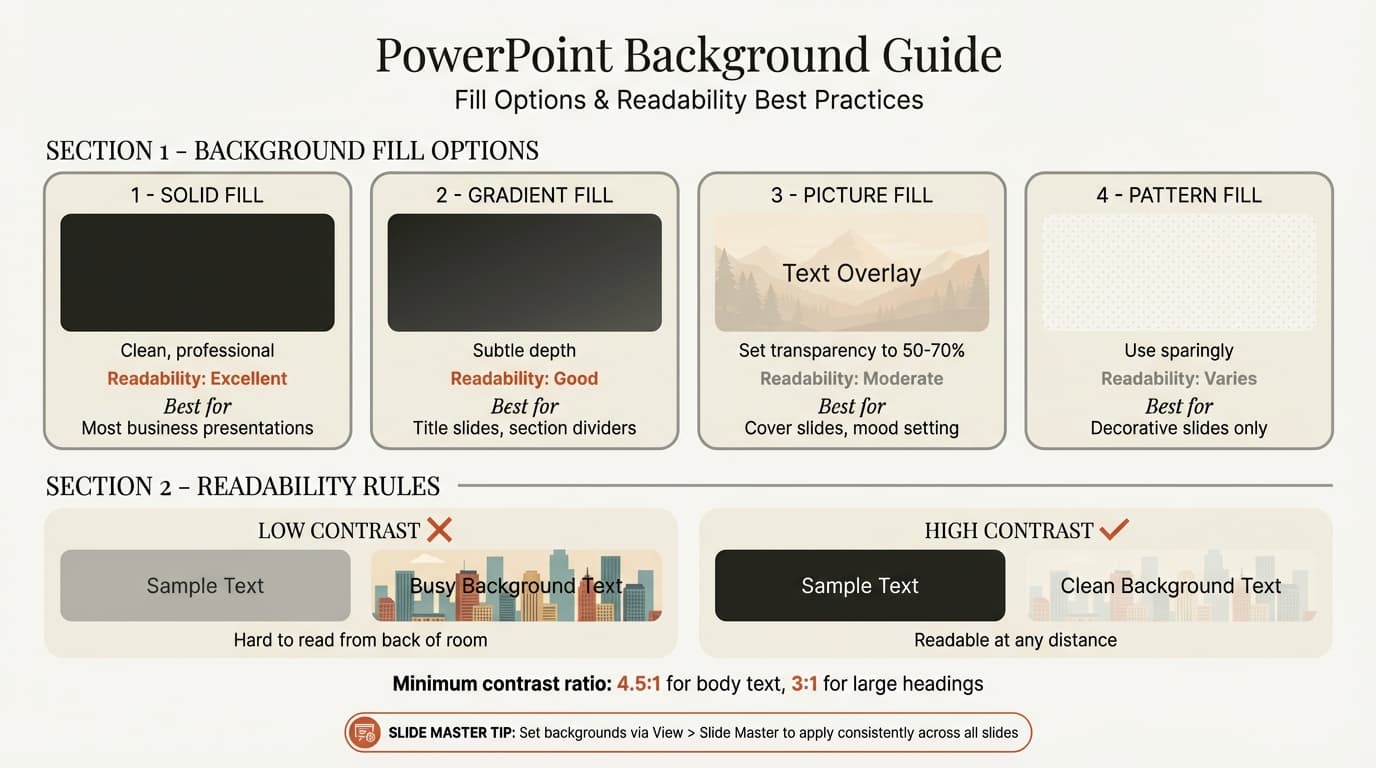
The slide background is the canvas that every other element sits on. A poorly chosen background -- busy patterns, low-contrast gradients, stock photography behind text -- forces the audience to fight through visual noise to reach your content.
Background Principles
White or near-white is the safest choice. A solid white (#FFFFFF) or off-white (#F5F5F5) background provides maximum contrast for text and charts. It prints cleanly, projects reliably, and never competes with content. The vast majority of consulting deliverables from McKinsey, BCG, and Bain use solid white backgrounds.
Dark backgrounds for keynote-style presentations only. Dark backgrounds (#1A1A1A or #2C2C3A) with white text work for executive keynotes and stage presentations. They do not work for printed leave-behinds or shared decks.
Gradients with caution. Subtle top-to-bottom gradients (white to light gray) can add depth without distraction. Avoid radial gradients and any gradient involving more than two colors. If text readability decreases on any part of the gradient, it is too strong.
Never place body text directly on images. If you must use an image background, add a semi-transparent rectangle (70-80 percent opacity) behind the text area. Without this overlay, words disappear into the image unpredictably.
For a detailed guide on changing backgrounds, fixing common issues, and customizing slide master backgrounds, see our PowerPoint background guide. That post covers applying backgrounds to individual slides versus the entire deck, plus troubleshooting when backgrounds do not display as expected.
Using Animations and Transitions Sparingly
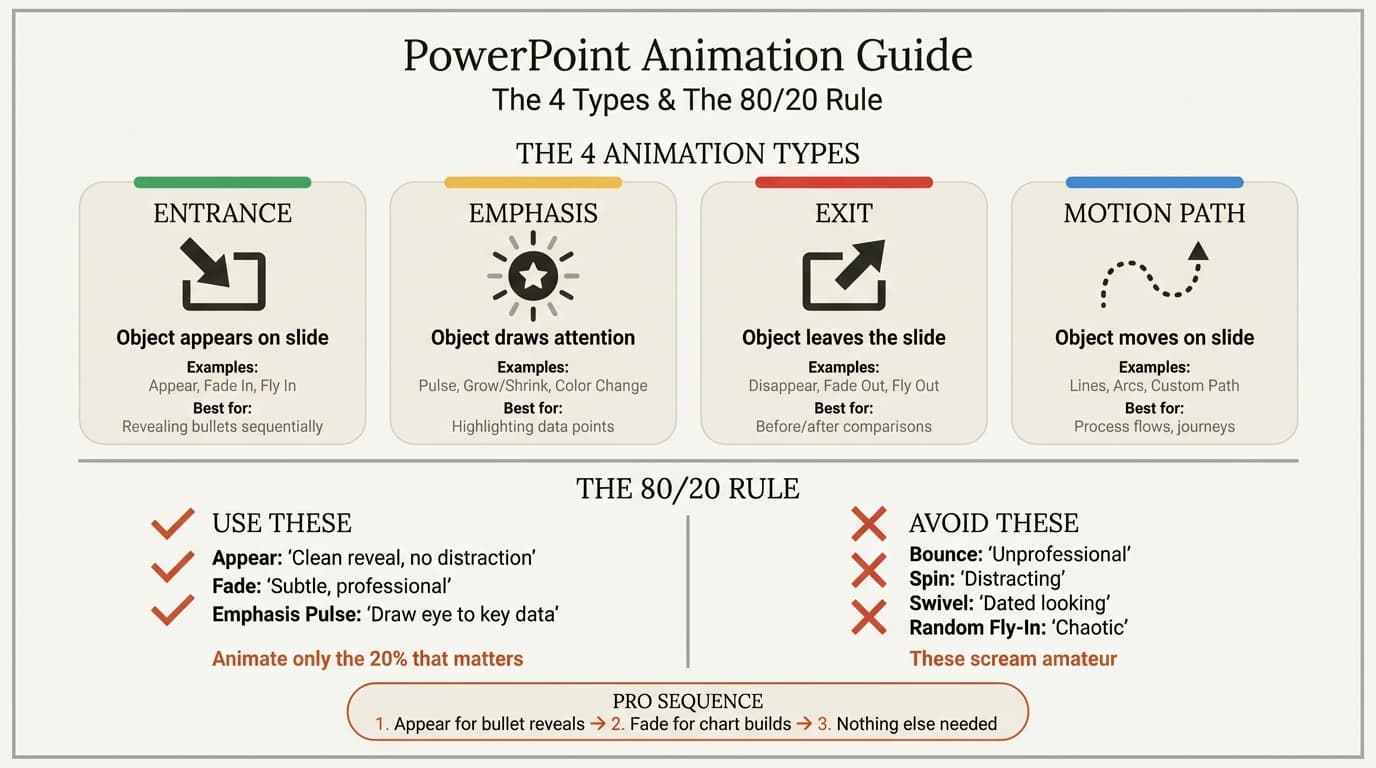
Animations are the most misused feature in PowerPoint. Used well, they reveal information sequentially to guide the audience through a complex argument. Used poorly, they turn a professional presentation into a distraction.
The 80/20 Rule for PowerPoint Animations
80 percent of your slides should have zero animations. The remaining 20 percent -- typically data slides, process flows, or build-up arguments -- benefit from simple reveal animations that show content in the order you discuss it.
| Animation Use | Appropriate | Inappropriate |
|---|---|---|
| Revealing chart data points one at a time | Sequential data narrative | Every chart on every slide |
| Building a process diagram step by step | Complex multi-step workflows | Simple 3-step processes visible at once |
| Fade transition between sections | Section breaks (2-3 per deck) | Between every single slide |
| Appear effect for bullet points | When discussing each point individually | When all bullets are visible context |
Safe Animations for Professional Presentations
- Appear -- Instantly shows the element. No motion, no distraction.
- Fade -- Gradually reveals the element. Subtle and professional.
- Wipe -- Reveals from one direction. Acceptable for chart bars and timeline elements.
Avoid: Fly In, Bounce, Spin, Zoom, Swivel, Float, and any effect labeled "Exciting" in PowerPoint's animation gallery. These draw attention to the transition rather than the content.
For a comprehensive guide to animation types, timing settings, and scenarios where animation adds genuine value, see our PowerPoint animation guide. That post covers trigger-based animations, motion paths, and how to remove inherited animations from template slides.
Layout Patterns for Common PowerPoint Slide Design Types
Most business presentations use the same 8 slide types repeatedly. Having a clear layout pattern for each type eliminates the blank-slide paralysis that wastes time at the start of every new slide.
| Slide Type | Layout Pattern | Key Design Rule | When to Use |
|---|---|---|---|
| Title Slide | Centered title (36-44pt), subtitle below (18-24pt), logo bottom-right | Keep it minimal; title and subtitle only | Opening slide, section openers |
| Section Divider | Large section number or title, minimal text, distinct background color | Use the primary brand color as background | Transitions between major sections |
| Two-Column | Left column (text or image), right column (text or chart), equal width | Align column tops and bottoms precisely | Comparisons, text + visual, before/after (text columns template) |
| Data + Insight | Chart on left (60% width), text callout on right (40% width) | The insight callout is more important than the chart | Presenting data effectively |
| Full-Bleed Image | Edge-to-edge image with text overlay on semi-transparent band | Image must be high resolution (minimum 1920x1080) | Emotional impact, case studies, storytelling |
| Comparison | Side-by-side boxes with consistent labels, color-coded headers | Same structure in both boxes; differences in content | Vendor evaluation, option A vs. option B (comparison table template) |
| Agenda | Numbered list with the current section highlighted in accent color | Highlight shifts on each agenda slide to show progress | Beginning of presentation, before each section (agenda slide template) |
| Key Takeaway | Single sentence (24-28pt) centered on the slide, accent color | One message per slide, no supporting bullets needed | Closing slide, end of each section |
These layout patterns are starting structures you adapt to your content. The audience should identify the slide type within 2 seconds because the layout signals what kind of information to expect.
For teams that build slides frequently, Deckary's AI slide builder generates these layouts automatically based on your content, applying the correct column structure, font sizes, and alignment. Browse the slide library for ready-made layouts that follow consulting slide standards.
PowerPoint Slide Design Ideas: Practical Techniques
Several practical techniques elevate slide design from competent to polished.
Use Icons Instead of Bullet Points
Replacing bullet points with icons for each key point creates a visual anchor that improves retention. A row of 3-4 icons with short labels underneath is more scannable than a list of 3-4 bullet paragraphs. Use a consistent icon style (outline or filled, not both) and keep icon sizes uniform at 48-64px.
Apply the "One Message Per Slide" Rule
If you cannot summarize the slide's point in a single sentence, the slide is trying to do too much. Split the content across two slides. The marginal cost of an additional slide is zero; the cost of a confusing slide is the audience's attention.
Use Grid Lines During Design
Turn on PowerPoint's grid (View > Gridlines) while building slides. The grid ensures consistent spacing and alignment across elements. Turn it off before presenting. Professionals who build slides quickly rely on grid lines and guides rather than eyeballing element positions.
Create Visual Consistency with Slide Masters
The slide master defines placeholder positions, font styles, background elements, and footer content for every layout in the deck. Changes to the master propagate instantly to all slides using that layout. Build your design system in the slide master first, then create content using the master's layouts. For step-by-step instructions, see our PowerPoint themes guide.
PowerPoint Slide Design Checklist Before Presenting
Run through this checklist on every presentation before sharing or presenting. Each check takes under a minute and catches the issues that undermine professional credibility.
| Check | What to Look For | How to Fix |
|---|---|---|
| Alignment pass | Select all objects on each slide; check for misaligned edges | Use Arrange > Align Left/Center/Right or Deckary's alignment shortcuts |
| Font consistency | Scan for mixed fonts, sizes, or weights across slides | Open slide master; verify heading and body fonts match theme |
| Color consistency | Check that chart colors, headings, and accents use the same palette | Replace manual color overrides with theme colors |
| Contrast check | Squint test: can you read all text from 3 meters away? | Increase font size or darken text color |
| Slide master match | Verify no slides have drifted from the master layout | Reset slide layout (Home > Layout > Reset) |
| Spelling and grammar | Run spell check (F7) and read each slide title aloud | Fix errors; pay attention to proper nouns and acronyms |
| Image resolution | Zoom to 100% on each image; check for pixelation | Replace low-resolution images with originals or vector alternatives |
| Projector test | View on an external screen or projector before the live presentation | Adjust colors and font sizes that do not project well |
This checklist is quality assurance, not optional polish. A single misaligned text box on a key slide shifts perception from "this team is thorough" to "this team is sloppy." In consulting, where slide quality signals analytical rigor, the design check is as important as the content review.
Summary
Professional PowerPoint slide design comes down to systematic execution of a small number of principles, not artistic talent. The five foundational principles are the structure. Typography, color, backgrounds, and layout patterns are the implementation. The checklist is the quality gate.
- Set the foundation first -- choose slide size and theme before building any content
- Limit typography -- two fonts maximum, 18pt minimum body text, sans-serif for screens
- Apply the 3-color rule -- primary, secondary, and accent; pulled from brand guide or logo
- Use whitespace deliberately -- 15-20% empty space signals confidence, not absence
- Keep backgrounds simple -- solid white for most business presentations
- Animate with restraint -- 80% of slides should have no animation at all
- Use layout patterns -- match slide type to the correct layout structure for that content
- Run the checklist -- alignment, fonts, colors, contrast, and projector test before every presentation
For teams that want to apply these principles without spending hours on manual formatting, Deckary automates alignment, distribution, icon insertion, and slide generation directly inside PowerPoint. Browse PowerPoint slide design templates in our template gallery, start with a pitch deck template for investor presentations, or generate consulting-quality slides from text descriptions using the AI slide builder.
Use consulting-grade layouts in PowerPoint
Start from structured business slides and customize them in your own deck. 14-day free trial. No credit card required.