PowerPoint Slide Size: How to Change Dimensions and Aspect Ratio
PowerPoint slide size guide covering default dimensions, how to change aspect ratio, custom sizes, and best practices. Includes a full size reference table.
Merging two decks built at different PowerPoint slide sizes is one of the fastest ways to break a presentation. One deck uses 16:9, the other is 4:3, and every pasted slide ends up with black bars, cropped charts, or stretched logos. The fix takes minutes if you understand how slide dimensions work and hours if you do not.
After formatting 500+ client presentations where slide size mismatches caused last-minute rework, we have documented exactly which dimensions to use, how to change them without distortion, and which size fits each use case. This guide covers default sizes, step-by-step resizing instructions, a complete dimension reference table, custom sizes for posters and print, and best practices by delivery method.
PowerPoint Slide Size: Quick Answer
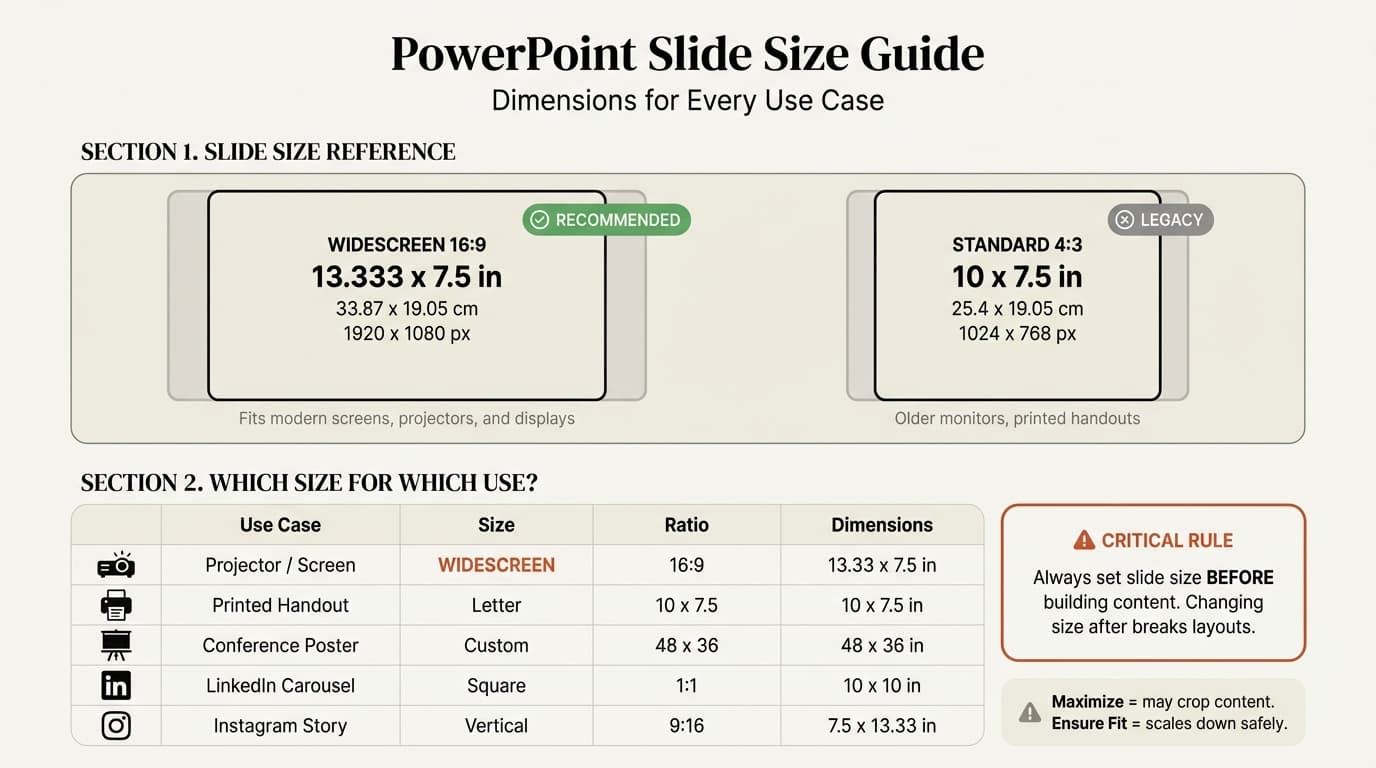
The default PowerPoint slide size is Widescreen 16:9, which measures 13.333 x 7.5 inches or 33.867 x 19.05 cm. Standard 4:3 measures 10 x 7.5 inches. Use 16:9 for modern screens, 4:3 only for legacy projectors, and custom sizes for A4, Letter, posters, or social media exports.
| Size | Aspect Ratio | Inches | Best For |
|---|---|---|---|
| Widescreen | 16:9 | 13.333 x 7.5 | Modern presentations, webinars, projectors |
| Standard | 4:3 | 10 x 7.5 | Legacy projectors, older templates |
| A4 landscape | 1.41:1 | 11.69 x 8.27 | Printed international reports |
| US Letter landscape | 1.29:1 | 11 x 8.5 | Printed US board packs |
Default PowerPoint Slide Sizes
PowerPoint ships with two built-in presets. Which one your file uses depends on when the template was created.
Widescreen (16:9) measures 13.333 x 7.5 inches (33.867 x 19.05 cm). This has been the default since PowerPoint 2013 and matches modern laptops, projectors, and external displays. If you create a blank presentation today, this is what you get.
Standard (4:3) measures 10 x 7.5 inches (25.4 x 19.05 cm). The legacy default, designed for older monitors with a nearly square aspect ratio. You will still encounter 4:3 in templates from firms that have not updated their masters in a decade.
Both presets share the same height (7.5 inches). The difference is width: widescreen gives you 33% more horizontal space. That extra room matters for side-by-side layouts, comparison charts, and data-heavy consulting slides. Files created in PowerPoint 2010 or earlier default to 4:3, so when someone sends you a legacy deck and you start pasting slides into a widescreen template, the mismatch begins.
How to Change PowerPoint Slide Size
The process is the same on Windows and Mac with minor interface differences.
Windows
- Click the Design tab in the ribbon
- Click Slide Size on the far right
- Choose Widescreen (16:9) or Standard (4:3) for quick switching
- For other dimensions, click Custom Slide Size
- Enter your width and height or select a preset from the dropdown
- Click OK
Mac
- Click the Design tab
- Click Slide Size on the right
- Select Widescreen (16:9), Standard (4:3), or Page Setup
- In Page Setup, enter custom width and height
- Click OK
Maximize vs. Ensure Fit
When you change slide size on a deck that already has content, PowerPoint presents two scaling options:
- Maximize scales content up to fill the new area. Elements near the edges may get cropped.
- Ensure Fit scales content down so everything stays visible. You may end up with empty space to redistribute.
Use Ensure Fit in nearly every situation. It preserves all content and lets you manually reposition afterward. Maximize only makes sense when switching from a smaller to a larger size and you want existing content to fill more of the canvas.
For the complete PowerPoint tutorial covering all features beyond slide sizing, see our master guide.
PowerPoint Slide Size: 16:9 vs. 4:3
The PowerPoint aspect ratio you choose affects how slides display on every screen they touch.
| Feature | 16:9 Widescreen | 4:3 Standard |
|---|---|---|
| Dimensions (in) | 13.333 x 7.5 | 10 x 7.5 |
| Dimensions (cm) | 33.867 x 19.05 | 25.4 x 19.05 |
| Horizontal space | 33% more width | Narrower |
| Modern projectors | Fills screen | Black bars on sides (pillarboxing) |
| Legacy projectors | Black bars top/bottom (letterboxing) | Fills screen |
| Virtual meetings | Fills widescreen share window | Wastes side space |
| Print handouts | Slight letterboxing on paper | Closer to paper proportions |
When to use 16:9: Almost always. Every modern conference room projector, laptop, and external monitor uses widescreen. Consulting firms, investment banks, and corporate strategy teams have standardized on 16:9. If you are building professional slides for any screen-based delivery, widescreen is the right default.
When to use 4:3: Only when you know the display is legacy 4:3 hardware, or when the deliverable is primarily a printed document where the squarer format uses page space more efficiently.
Continue reading: Before and After Slide · Excel to PowerPoint · Finance and Banking Icons for PowerPoint Presentations
Use consulting-grade layouts in PowerPoint
Start from structured business slides and customize them in your own deck. 14-day free trial. No credit card required.
Custom Slide Sizes: Poster, A4, Letter, and More
Beyond the two defaults, PowerPoint lets you set any dimensions from 1 inch to 56 inches on either axis. Here are the most common custom scenarios.
Slide Size Reference Table
Pixel values below assume 96 DPI, which is PowerPoint's default image export resolution.
| Size | Inches (W x H) | Centimeters (W x H) | Pixels at 96 DPI (W x H) | Typical Use Case |
|---|---|---|---|---|
| Widescreen 16:9 | 13.333 x 7.5 | 33.867 x 19.05 | 1280 x 720 | Screen presentations, modern projectors |
| Standard 4:3 | 10 x 7.5 | 25.4 x 19.05 | 960 x 720 | Legacy projectors, printed handouts |
| A4 Landscape | 11.69 x 8.27 | 29.7 x 21.0 | 1123 x 794 | International printed reports |
| US Letter Landscape | 11 x 8.5 | 27.94 x 21.59 | 1056 x 816 | US printed reports |
| A3 Landscape | 16.54 x 11.69 | 42.0 x 29.7 | 1588 x 1123 | Large format handouts, workshop boards |
| Ledger (11 x 17) | 13.319 x 7.5 | 33.831 x 19.05 | 1279 x 720 | Tabloid printouts |
| Poster (48 x 36) | 48 x 36 | 121.92 x 91.44 | 4608 x 3456 | Conference and academic posters |
| LinkedIn Carousel | 11.25 x 11.25 | 28.575 x 28.575 | 1080 x 1080 | Square social media posts |
| Instagram Story | 7.5 x 13.333 | 19.05 x 33.867 | 720 x 1280 | Vertical social media content |
Note: PowerPoint supports dimensions up to 56 x 56 inches (142.24 x 142.24 cm). For high-resolution print output, adjust your DPI in the export settings rather than increasing slide dimensions beyond what you need.
A4 or Letter for Printed Deliverables
Consulting leave-behinds and board packs need to print cleanly on standard paper. Set slide size to A4 (29.7 x 21.0 cm landscape) or US Letter (27.94 x 21.59 cm landscape) so content fills the page without scaling artifacts. Note: PowerPoint's built-in "A4 Paper" preset (10.833 x 7.5 in) is smaller than actual A4 paper. Use Custom Slide Size and enter 11.69 x 8.27 in for true A4 dimensions. This matters most when exporting to PDF for distribution -- content designed at 16:9 gets letterboxed on A4 paper, wasting vertical space.
Conference Posters
Most academic conferences require A0 or A1 posters. PowerPoint handles these well:
- Go to Design > Slide Size > Custom Slide Size
- Enter 48 x 36 inches (or your conference's required dimensions)
- Use minimum 24pt body text and 72pt headings -- viewers stand 3 to 6 feet away
- Use high-resolution images (300 DPI or above)
Social Media and Digital Signage
Square slides (11.25 x 11.25 inches) work for LinkedIn carousels. Vertical slides (7.5 x 13.333 inches) match phone screens and portrait kiosk displays. Export each slide as a PNG via File > Export > Change File Type > PNG.
How to Resize Slides Without Distortion
Changing PowerPoint slide size after content exists is where layouts break. Images stretch, text boxes overflow, and aligned elements scatter.
Set size before building. This is the single most important rule. Choosing dimensions on a blank deck takes five seconds. Resizing a 40-slide deck with charts, text boxes, and images can take an hour of cleanup.
Always choose Ensure Fit. It scales everything proportionally. You will have empty space to redistribute, but nothing gets cropped.
Check every slide after resizing. Do not assume the conversion worked cleanly. Common problems:
- Text overflow -- Text that fit in 16:9 may not fit in 4:3 because the slide is narrower. Reduce font size or rewrite.
- Stretched images -- Delete and reinsert at the correct aspect ratio rather than manually stretching back.
- Shifted charts -- Charts hold their relative position but surrounding elements may need repositioning.
- Broken groups -- Ungroup, reposition individual elements, then regroup.
Lock aspect ratios on critical elements. Before resizing, select important images and shapes, open Format > Size, and check Lock aspect ratio. This prevents individual elements from distorting.
Converting 16:9 to 4:3 is the more destructive direction because content loses 33% of its horizontal space. Elements on the right edge overlap or get pushed off-screen. Budget extra review time for this conversion.
Best Practices by Use Case
Match your PowerPoint dimensions to the delivery method to avoid reformatting later.
Screen presentations (meetings, webinars, conferences): Use 16:9. Every modern display is widescreen. This gives you maximum space for side-by-side layouts and data visualizations.
Printed deliverables and board packs: Use A4 or Letter landscape. These match standard paper so printed output fills the page without white borders. Leave at least 0.5 inches on each side for binding and printer margins.
Dual-purpose decks (screen and print): Build at 16:9 for the primary use (screen) and accept minor letterboxing when printing. Maintaining two versions doubles your workload and introduces version-control risk.
Conference posters: Use the exact print dimensions specified by the conference organizers. Design at actual size rather than scaling up a standard slide.
Social media content: Set dimensions to match the platform's native aspect ratio. Export slides as PNG images.
Setting a default for new presentations: If your team always uses a specific size, save it as the default theme. Open a blank presentation, set your preferred size, go to Design > Themes dropdown > Save Current Theme, then right-click it and select Set as Default Theme. Every new presentation will start with the correct dimensions. For details on all supported presets, see Microsoft's official slide size documentation.
Key Takeaways
- Default is 16:9 since PowerPoint 2013. Use it for all screen-based presentations.
- Set slide size before adding content. Resizing afterward breaks layouts and costs hours.
- Choose Ensure Fit when resizing existing decks to prevent cropping.
- Use A4 or Letter landscape for printed deliverables so content fills the page.
- Custom sizes handle posters, social media, and signage -- PowerPoint supports up to 56 x 56 inches.
- Check every slide after any size change. Look for stretched images, overflowing text, and shifted elements.
- Match the display. When uncertain, confirm what hardware or screen will show your slides and size accordingly.
Use consulting-grade layouts in PowerPoint
Start from structured business slides and customize them in your own deck. 14-day free trial. No credit card required.