PowerPoint to PDF: 5 Methods Compared (Step-by-Step)
Convert PowerPoint to PDF using built-in export, Save As, and online tools. Step-by-step instructions for Windows and Mac with quality settings explained.
Converting a PowerPoint presentation to PDF is the standard way to share slides with anyone who might not have PowerPoint installed. The PDF freezes your formatting, prevents unwanted edits, and works on every device. But the conversion method you choose affects quality, file size, and whether features like hyperlinks and speaker notes survive the export.
After exporting over 300 client presentations to PDF across Windows, Mac, and web-based tools, we have identified where each method works well and where it fails. This guide covers five approaches with exact steps, a comparison table, and fixes for the formatting issues that consultants encounter most often.
How to Convert PowerPoint to PDF on Windows
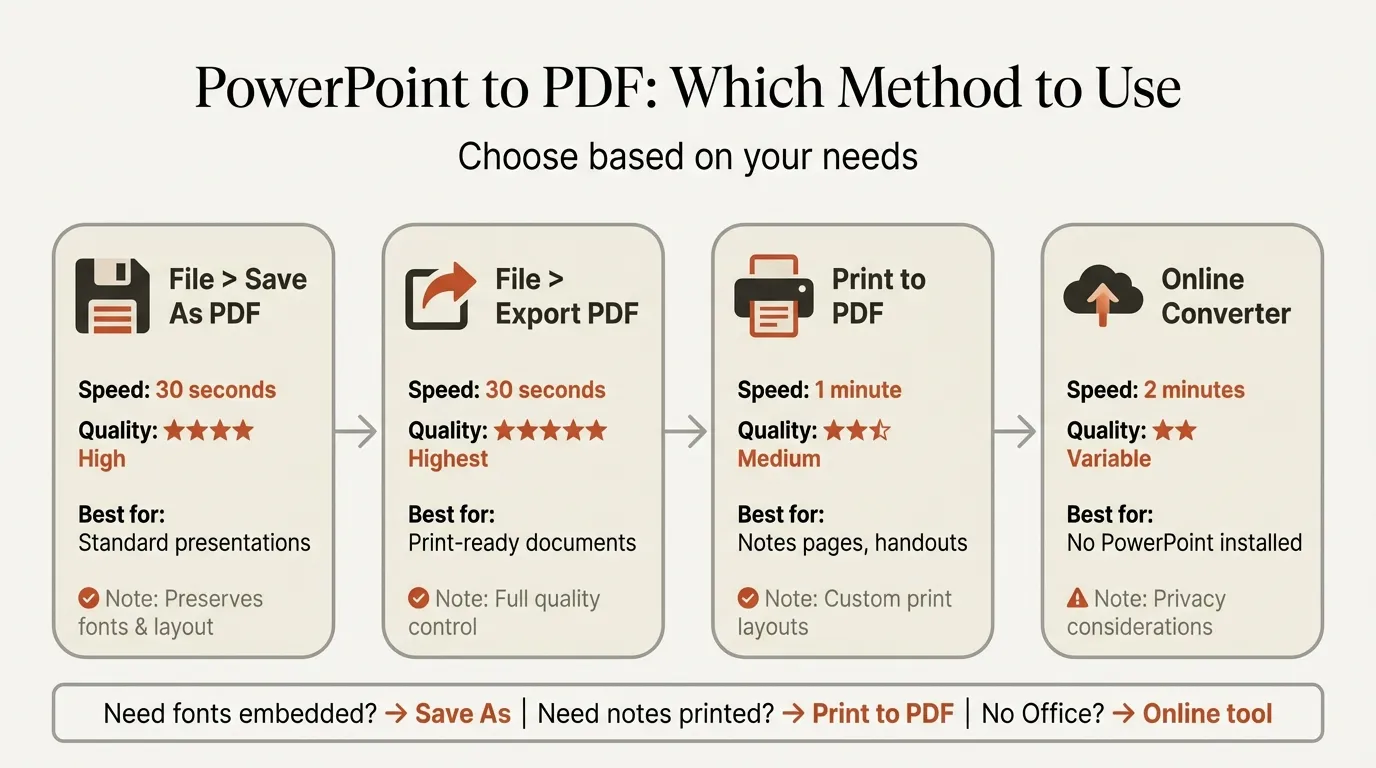
Windows offers the most control over PDF export. There are two built-in paths, and both produce identical output. Microsoft's official documentation covers the basics; the steps below include the advanced options that Microsoft's guide skips.
Method 1: Export (Recommended)
- Open your presentation in PowerPoint
- Click File then Export
- Select Create PDF/XPS Document, then click Create PDF/XPS
- Choose a save location and file name
- Select quality: Standard (print-ready, larger file) or Minimum size (email-friendly, lower resolution)
- Click Options to access advanced settings (see below)
- Click Publish
Method 2: Save As
- Click File then Save As
- Choose a save location
- In the Save as type dropdown, select PDF
- Click Options to adjust settings
- Click Save
Both methods open the same Options dialog. The key settings:
| Setting | What It Controls | Default |
|---|---|---|
| Range | All slides, current slide, or a custom range | All slides |
| Publish what | Slides, Handouts, Notes pages, or Outline view | Slides |
| Slides per page | Number of slides on each PDF page (Handouts only) | 1 |
| Frame slides | Adds a thin border around each slide | Off |
| Include hidden slides | Exports slides marked as hidden | Off |
| Include comments | Adds annotation markup to the PDF | Off |
For consulting deliverables, use Standard quality with Slides selected. If the client wants a leave-behind with notes, switch Publish what to Notes pages. This places each slide and its speaker notes on a separate PDF page.
How to Convert PowerPoint to PDF on Mac
The Mac export is simpler than Windows but has fewer options. Two important limitations: Mac does not preserve hyperlinks in the exported PDF, and it does not support exporting notes pages or handouts.
Steps
- Open your presentation in PowerPoint for Mac
- Click File then Export (or File then Save As)
- Choose a save location
- In the File Format dropdown, select PDF
- Click Export
Setting PDF Quality on Mac
Quality is controlled globally rather than per-export:
- Click PowerPoint in the menu bar, then Preferences
- Select General
- Under Print Quality (Paper/PDF), choose High, Medium, or Low
- Close Preferences, then export
Set this to High before exporting final deliverables. Medium works for internal drafts where file size matters more than image sharpness.
Mac Workarounds
If you need hyperlinks or notes pages in your PDF, two options exist:
- PowerPoint for the web: Upload to OneDrive, open in the browser version, and use File, Download As, Download as PDF. This preserves hyperlinks.
- Print to PDF: Use File, Print, then select Save as PDF in the PDF dropdown at the bottom left. This does not add hyperlinks but gives you access to macOS print layout options.
Continue reading: Beautiful.ai vs PowerPoint · PowerPoint to Word · HTML to PowerPoint
Create an editable presentation in your browser
Turn a prompt or source files into slides you can edit and export to PowerPoint. 14-day free trial. No credit card required.
How to Convert PowerPoint to PDF Online
Online converters are useful when you do not have PowerPoint installed or need to convert on a mobile device.
Top Free Online Tools
| Tool | File Size Limit | Registration Required | Preserves Formatting | Auto-Delete |
|---|---|---|---|---|
| Adobe Acrobat Online | 100 MB | No (limited uses) | Excellent | 1 hour |
| Smallpdf | 5 GB (Pro) | No (2 free/day) | Good | 1 hour |
| iLovePDF | 25 MB | No | Good | 2 hours |
The process is the same across all three: upload your PPTX file, wait for conversion, and download the PDF.
When to use online tools: Quick conversions on shared computers, mobile devices, or machines without Office installed.
When to avoid them: Confidential presentations, files with custom fonts (online tools may substitute fonts), or decks with embedded Excel-linked charts. If your slides contain linked Excel data, convert locally to avoid broken chart references.
PowerPoint to PDF: Method Comparison
| Method | Platform | Quality Control | Hyperlinks | Notes Pages | Handouts | Best For |
|---|---|---|---|---|---|---|
| Export (Windows) | Windows | Standard / Minimum | Yes | Yes | Yes | Full control over output |
| Save As (Windows) | Windows | Standard / Minimum | Yes | Yes | Yes | Same as Export |
| Export (Mac) | Mac | High / Medium / Low | No | No | No | Quick exports |
| PowerPoint for Web | Any | Fixed | Yes | No | No | Preserving hyperlinks on Mac |
| Online Converter | Any | Fixed | Varies | No | No | No PowerPoint installed |
For consulting work where formatting precision matters, the Windows Export method gives you the most options. Mac users who need hyperlinks should export from PowerPoint for the web.
Fixing Common PowerPoint to PDF Problems
Font Substitution
The most frequent issue. When your presentation uses fonts that are not embedded in the file, the PDF viewer substitutes defaults, breaking alignment and spacing.
Fix: Embed fonts before exporting. Go to File, Options, Save, and check Embed fonts in the file. Select Embed all characters for full fidelity. This increases file size but eliminates font issues on any device.
Stick to standard fonts like Calibri, Arial, or Segoe UI when possible. Custom fonts from consultancy brand kits often cause problems because they are not installed on recipient machines.
Transparency Rendering
Transparent images and shapes sometimes render incorrectly. On Windows, transparent elements may appear solid in the PDF. On Mac, transparency typically exports correctly.
Fix: If transparency breaks on Windows, paste the affected element as an Enhanced Metafile (EMF). Right-click the object, select Cut, then use Paste Special and choose Enhanced Metafile. This converts the object to a format PDF generators handle reliably.
Oversized PDF Files
A 30-slide deck should not produce a 50 MB PDF. Bloated files usually stem from high-resolution images that were pasted directly rather than inserted.
Fix: Before exporting, compress images: select any image, click Picture Format, then Compress Pictures. Choose 150 ppi for print quality or 96 ppi for screen-only sharing. Uncheck Apply only to this picture to compress every image in the deck.
For presentations built with data-driven charts, charts rendered natively in PowerPoint export cleanly. Tools like Deckary that generate charts directly inside PowerPoint produce vector-based output that stays sharp at any PDF quality setting. Charts pasted as images from Excel add unnecessary file weight.
Shifted Objects and Text Overflow
Text boxes and shapes sometimes shift position in the exported PDF, especially when the deck was built on Windows and exported on Mac (or vice versa).
Fix: Use slide masters and consistent text box sizing. Avoid text boxes that are filled to the very edge. Leave a buffer of at least 2 mm on each side. If you present data effectively using properly sized placeholders, objects are less likely to shift during export.
Best Practices for Consulting Deliverables
Consulting firms export to PDF constantly: final deliverables, board packs, appendix documents, and pre-read materials all ship as PDFs. A few practices reduce revision cycles.
Embed fonts before exporting. Consultancy brand fonts (McKinsey's Bower, BCG's Henderson, Bain's custom typeface) are not installed on client machines. Embedding ensures the client sees exactly what you designed.
Export at Standard quality for print, Minimum for email. Standard adds roughly 30 to 50 percent to file size but preserves image sharpness. If the PDF will be projected or printed, Standard is worth the tradeoff. For email attachments under 10 MB, use Minimum.
Check the PDF before sending. Open the exported PDF in a viewer (not PowerPoint) and scroll through every slide. Font issues, transparency problems, and shifted objects are only visible in the final PDF. This five-minute check prevents embarrassing formatting failures in front of clients.
Use File, Export rather than Print to PDF. The Export method uses PowerPoint's internal rendering engine, which handles animations, transitions, and complex layouts more reliably than the system print driver. Print to PDF sometimes introduces page margin offsets.
For teams that build professional slides quickly, standardizing on a single export workflow eliminates the inconsistencies that come from each team member using a different method.
When PDF Is Not the Right Format
PDF is not always the best choice. Consider alternatives in these scenarios:
- Client needs to edit the slides: Send the PPTX file instead. PDF prevents edits by design.
- Interactive elements required: Embedded videos, click-through animations, and live Excel links do not work in PDF. Share the PPTX or present live.
- Web publishing: Convert to Google Slides or use a sharing platform if recipients need to view in a browser without downloading.
PDF works best as a final, read-only deliverable. For iterative work where the recipient needs to modify content, the native PowerPoint format remains the right choice.
Create an editable presentation in your browser
Turn a prompt or source files into slides you can edit and export to PowerPoint. 14-day free trial. No credit card required.