PowerPoint Charts: The Complete Data Visualization Guide for Consultants
Pick the right chart type, format it for consulting, and link to Excel. Covers waterfall, Mekko, Gantt, and 10+ chart types with step-by-step examples.
Every consulting presentation lives or dies by its charts. A partner at McKinsey once told me that executives decide whether to trust your analysis within the first three charts. If those charts are cluttered, use wrong chart types, or lack clear data labels, credibility erodes before you reach the recommendation slide. After building presentations for Goldman Sachs M&A deals and Morgan Stanley equity research reports, I have seen exactly which charting practices earn trust and which trigger skepticism.
Whether you use Deckary, Mekko Graphics, or native PowerPoint, the same chart selection and design principles apply. This guide covers everything consultants need to know about PowerPoint charts: selecting the right chart for your data, mastering the consulting staples (waterfall, Mekko, Gantt), avoiding common mistakes, and building workflows that survive last-minute data updates.
Key Takeaways:
- Match charts to your message: waterfall for change analysis, Mekko for two-dimensional comparisons, Gantt for timelines
- Native PowerPoint handles basic charts but falls short on consulting staples like waterfall connectors and Mekko charts
- Follow MBB formatting standards: green for positive, red for negative, gray for totals, no decorative elements
- Excel linking saves hours on recurring presentations but requires disciplined file management
- Add-ins pay for themselves quickly when building charts weekly or more frequently
Why Charts Matter in Consulting Presentations
Charts are not decoration. In consulting, they are the primary vehicle for communicating analysis. A 50-page strategy deck might contain 30-40 charts, each condensing hours of analysis into a single visual that executives can absorb in seconds.
The stakes are high. When a CFO reviews your revenue bridge at a steering committee, they are not admiring your design sense. They are assessing whether you understand their business, whether your analysis is rigorous, and whether your recommendations are credible. Poor chart choices or sloppy formatting signals poor thinking.
| Chart Quality Signal | What Executives Interpret |
|---|---|
| Right chart type for data | Analyst understands the story |
| Consistent formatting | Attention to detail, professionalism |
| Clear data labels | Confidence in the numbers |
| Cluttered visuals | Unclear thinking, too much crammed in |
| Missing source citations | Questionable data provenance |
The consultants who advance fastest are often those who produce the clearest charts. This is not coincidence. Clear charts require clear thinking about what the data actually shows.
Chart Selection Guide: Matching Charts to Your Message
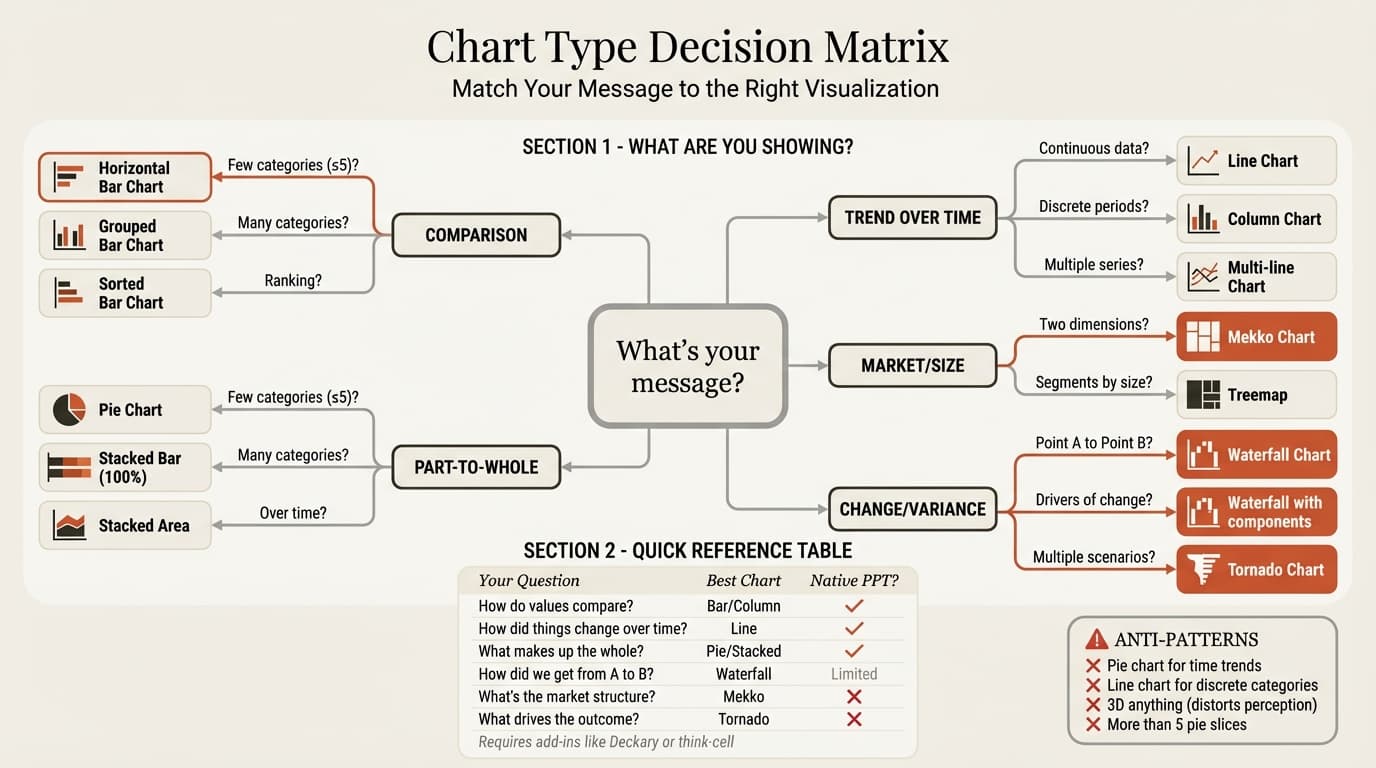
Choosing the wrong chart type is the most common mistake in consulting presentations. A pie chart for time series data, a line chart for category comparisons, or a waterfall chart when changes happen simultaneously all undermine your message.
The Chart Selection Framework
| Your Message | Best Chart Type | Avoid |
|---|---|---|
| Change over time (sequential) | Waterfall chart | Pie chart, grouped bar |
| Trend over many periods | Line chart | Waterfall, bar chart |
| Category comparison | Bar chart | Pie chart, line chart |
| Part of whole (few segments) | Pie, 100% stacked bar | Pie with 10+ segments |
| Two dimensions simultaneously | Mekko chart | Multiple separate charts |
| Project timeline | Gantt chart | Table, bullet list |
| Sensitivity analysis | Tornado chart | Waterfall, bar chart |
| Performance vs. target | Bullet chart | Gauge, speedometer |
| Qualitative assessment | Harvey balls | Numbers, arbitrary scores |
| Two related metrics | Combo chart | Two separate charts |
When to Use Each Major Chart Type
Bar and Column Charts: The workhorses of business presentations. Use for comparing discrete categories (revenue by region, market share by competitor). Horizontal bars work better for many categories or long labels.
Stacked Bar Charts: Show composition within categories. Use for market share over time, revenue by segment, or any part-to-whole comparison across categories.
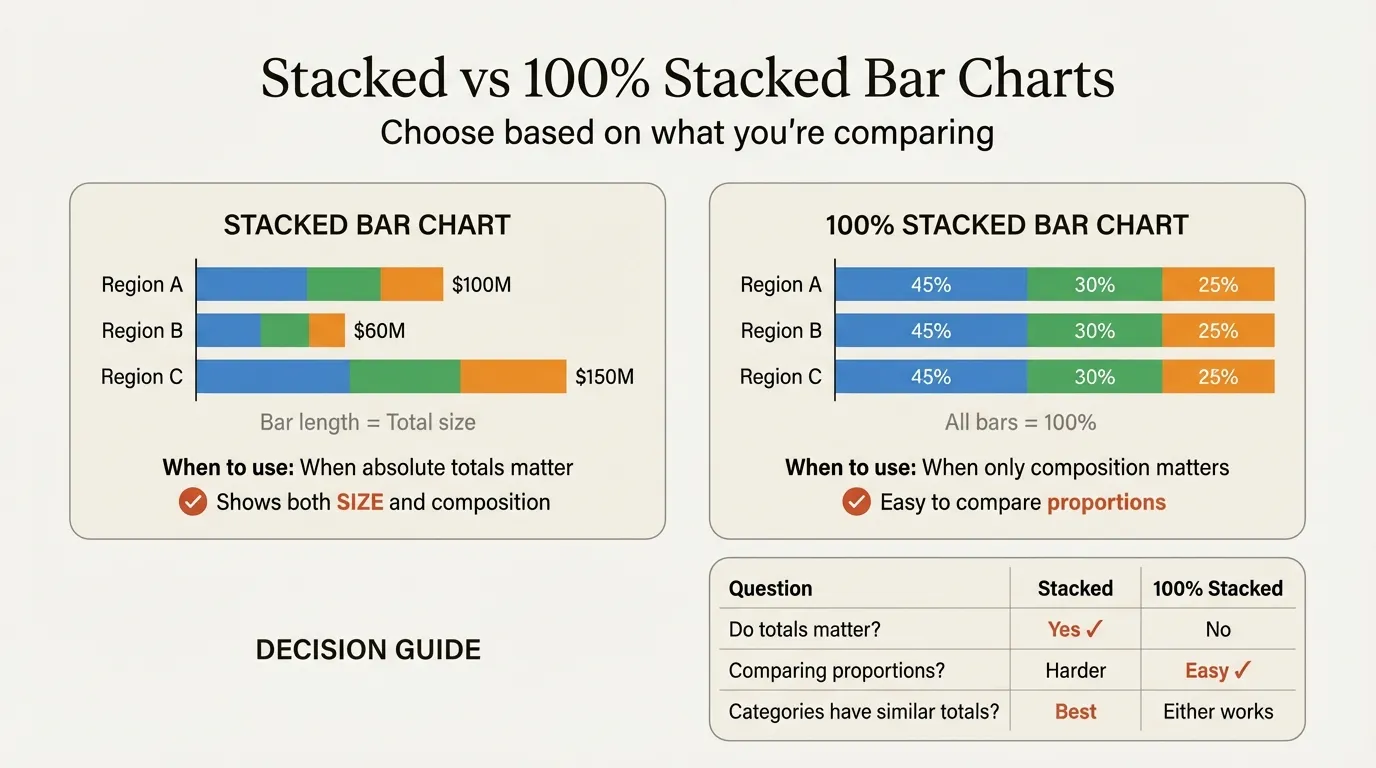
Line Charts: Show trends over continuous time periods. Best when you have more than 5-6 time points. Avoid for discrete category comparisons.
Pie Charts: Use sparingly and only for simple part-to-whole with 3-5 segments. If your pie has more than 6 slices or any slice under 5%, use a bar chart instead.
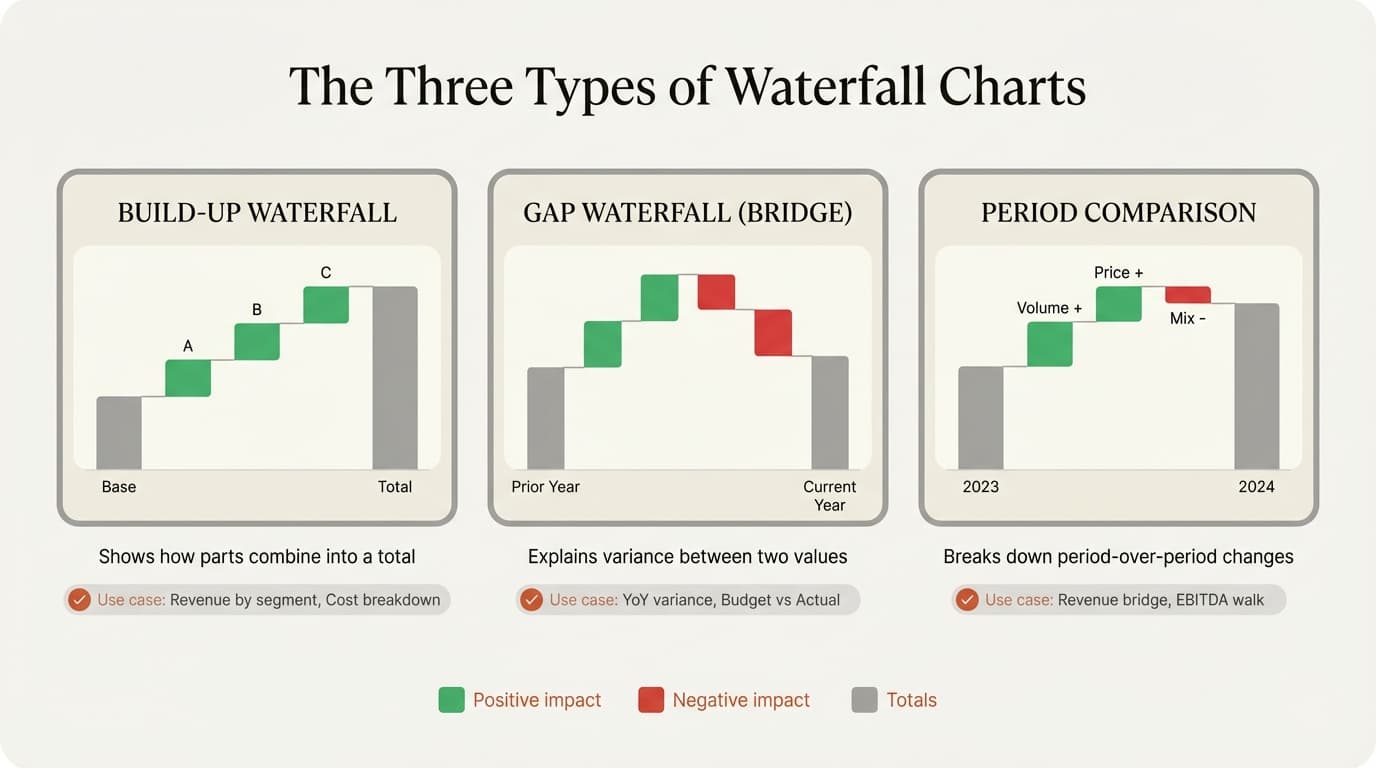
Waterfall Charts: The consulting signature chart. Show how an initial value changes through positive and negative contributions. Essential for bridge charts, EBITDA walks, and variance analysis.
Mekko Charts: Show two dimensions where both the width and height encode data. Standard for market sizing with competitive share, share of wallet analysis, and competitive landscapes.
Gantt Charts: Visualize project schedules with tasks as horizontal bars. Essential for timeline slides, implementation roadmaps, and transformation planning.
Waterfall Charts: The Consulting Signature
Waterfall charts appear in virtually every consulting engagement involving financial analysis. McKinsey popularized them because they solve a specific problem: explaining how you got from point A to point B.
When Waterfall Charts Excel
- Explaining change over time: How did revenue change from last year to this year?
- Breaking down components: How does gross revenue become net income?
- Highlighting gaps: Where are we versus where we need to be?
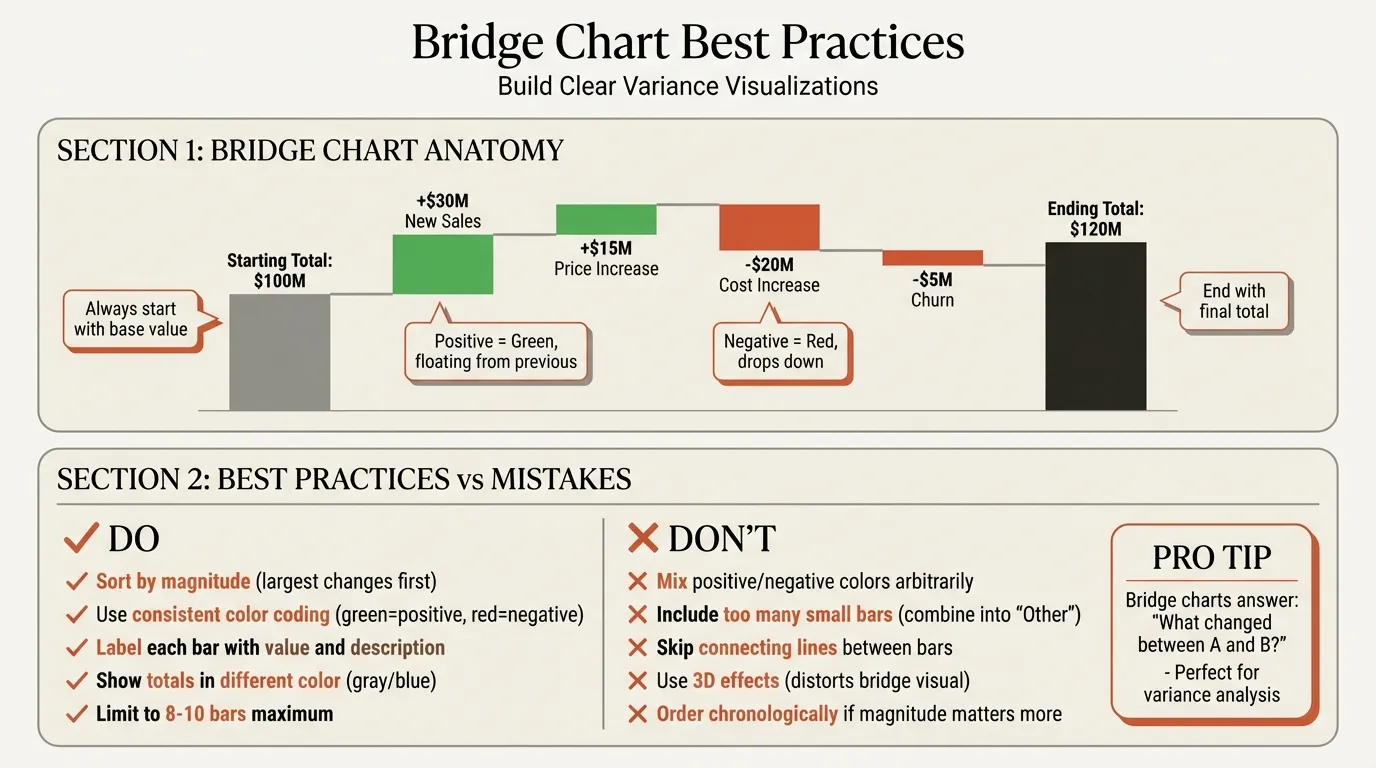
Waterfall Chart Best Practices
| Element | Standard |
|---|---|
| Positive changes | Green |
| Negative changes | Red |
| Totals and subtotals | Gray or blue |
| Bar ordering | By magnitude (largest impact first) |
| Maximum bars | 7-10 (group minor items into "Other") |
| Connectors | Thin lines between floating bars |
| Data labels | On every bar, with +/- signs |
The Native PowerPoint Limitation
PowerPoint added native waterfall charts in Office 2016, but they have significant limitations: no automatic connector lines, no Excel data linking, no stacked waterfall capability, and setting "total" bars requires multiple clicks per bar.
For professional bridge charts that update when your Excel model changes, add-ins like Deckary are standard at MBB firms and investment banks.
Building Waterfall Charts in Excel
For those who want waterfall charts with Excel data but without an add-in, the Excel waterfall approach creates the chart in Excel first, then links it to PowerPoint. This provides Excel's superior waterfall formatting with automatic data connection.
Mekko and Marimekko Charts: Two Dimensions in One View
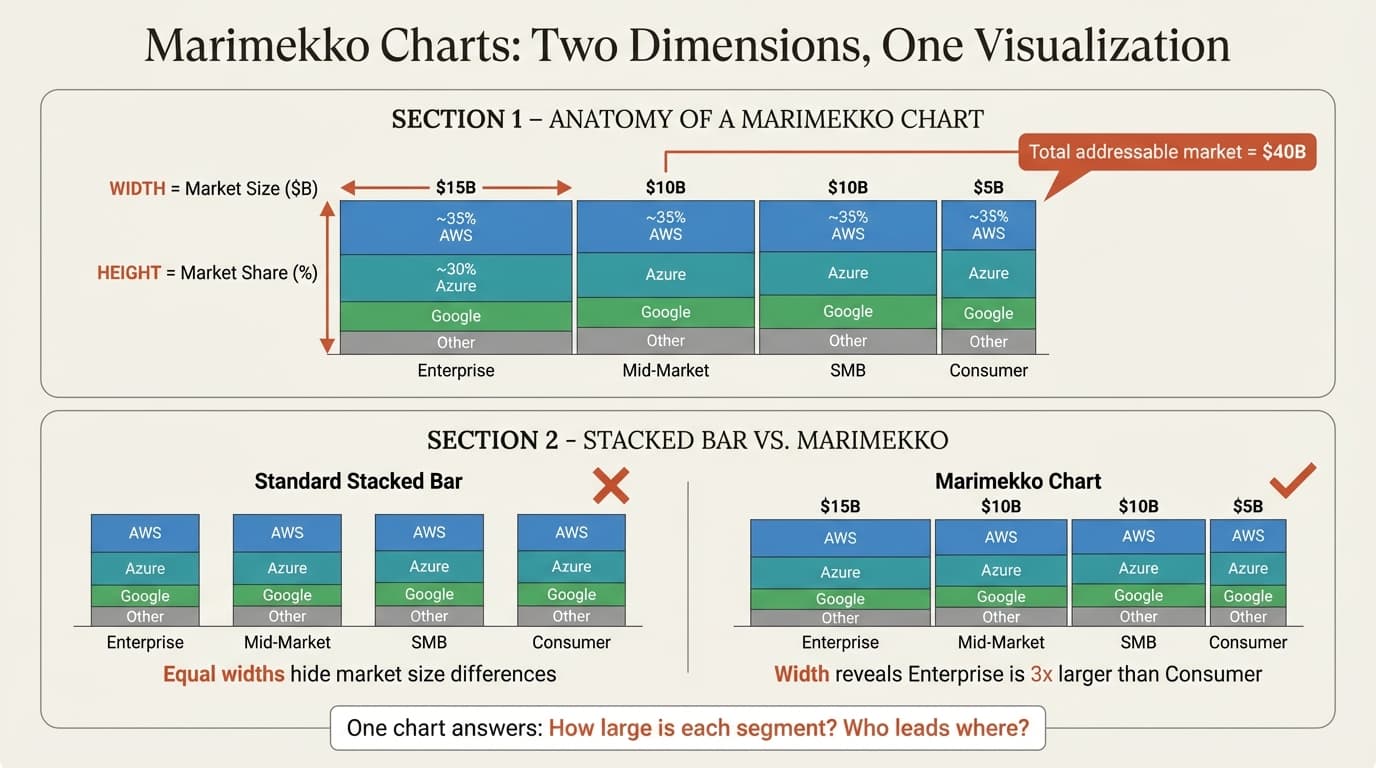
When a partner asks for a market map showing both segment size and competitive share, a standard stacked bar chart falls short. Equal-width columns cannot convey that the enterprise segment is three times larger than SMB. Mekko charts solve this with variable-width columns.
Understanding Mekko Charts
A Mekko chart encodes two dimensions:
- Column width: One variable (typically market size)
- Column height segments: Another variable (typically market share)
This dual encoding makes Mekko charts uniquely powerful for market sizing with competitive positions, share of wallet analysis, competitive landscape mapping, and portfolio analysis across multiple dimensions.
The PowerPoint Problem
PowerPoint cannot create Mekko charts natively. The charting engine assumes all columns have equal width. Your options are a complex Excel workaround with stacked area charts (45-90 minutes, fragile), a PowerPoint add-in designed for consulting charts (30-60 seconds), or exporting from specialized visualization software. For consultants building Mekko charts regularly, add-ins are the only practical solution. Deckary offers Mekko charts starting at $120/year.
Mekko Chart Best Practices
| Element | Standard |
|---|---|
| Maximum columns | 6-8 |
| Maximum segments | 4-6 per column |
| Segment order | Consistent across all columns |
| Width labels | Always include absolute values |
| "Other" category | Gray, at bottom of each column |
| Chart title | State both dimensions explicitly |
Continue reading: Business Presentation Guide · Best Tools for Creating Business Case Presentations in PowerPoint · PowerPoint Design Ideas
Build and improve Excel workbooks with AI
Create models, audit formulas, clean data, and generate output sheets inside Excel. 14-day free trial. No credit card required.
Gantt Charts for Project Timelines
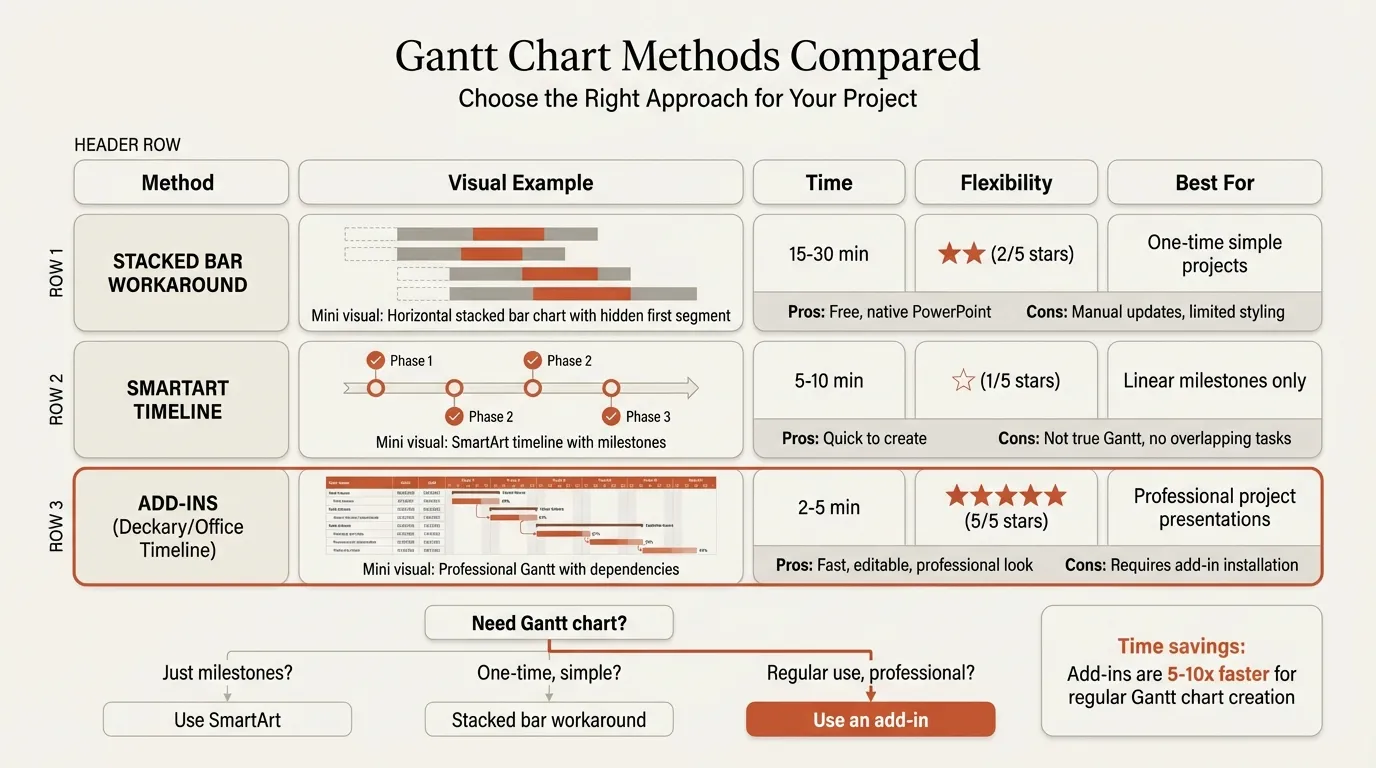
Gantt charts are essential for transformation projects, implementation roadmaps, and any presentation involving project schedules. They show tasks as horizontal bars against a timeline, making duration and overlap instantly visible.
Gantt Chart Components
| Element | Purpose |
|---|---|
| Horizontal bars | Task duration |
| Vertical axis | Task list or workstreams |
| Horizontal axis | Timeline (weeks, months, quarters) |
| Milestones | Key decision points (diamonds) |
| Dependencies | Lines showing task relationships |
| Today marker | Vertical line showing current date |
PowerPoint has no native Gantt chart. A stacked bar workaround takes 45-60 minutes and breaks when dates change. SmartArt timelines handle simple sequences but cannot show overlapping tasks. Add-ins like Deckary and Office Timeline create Gantt charts in seconds with automatic date handling. If you need a ready-made starting point, the Gantt Chart Template provides a pre-formatted layout for project timelines.
Gantt charts often appear alongside simpler timeline slides that show milestones without task-level detail. Use Gantt charts for project team audiences who need to see task overlap; use milestone timelines for executive summaries.
Advanced Consulting Charts
Beyond the core chart types, several specialized charts appear regularly in consulting presentations.
Tornado Charts for Sensitivity Analysis
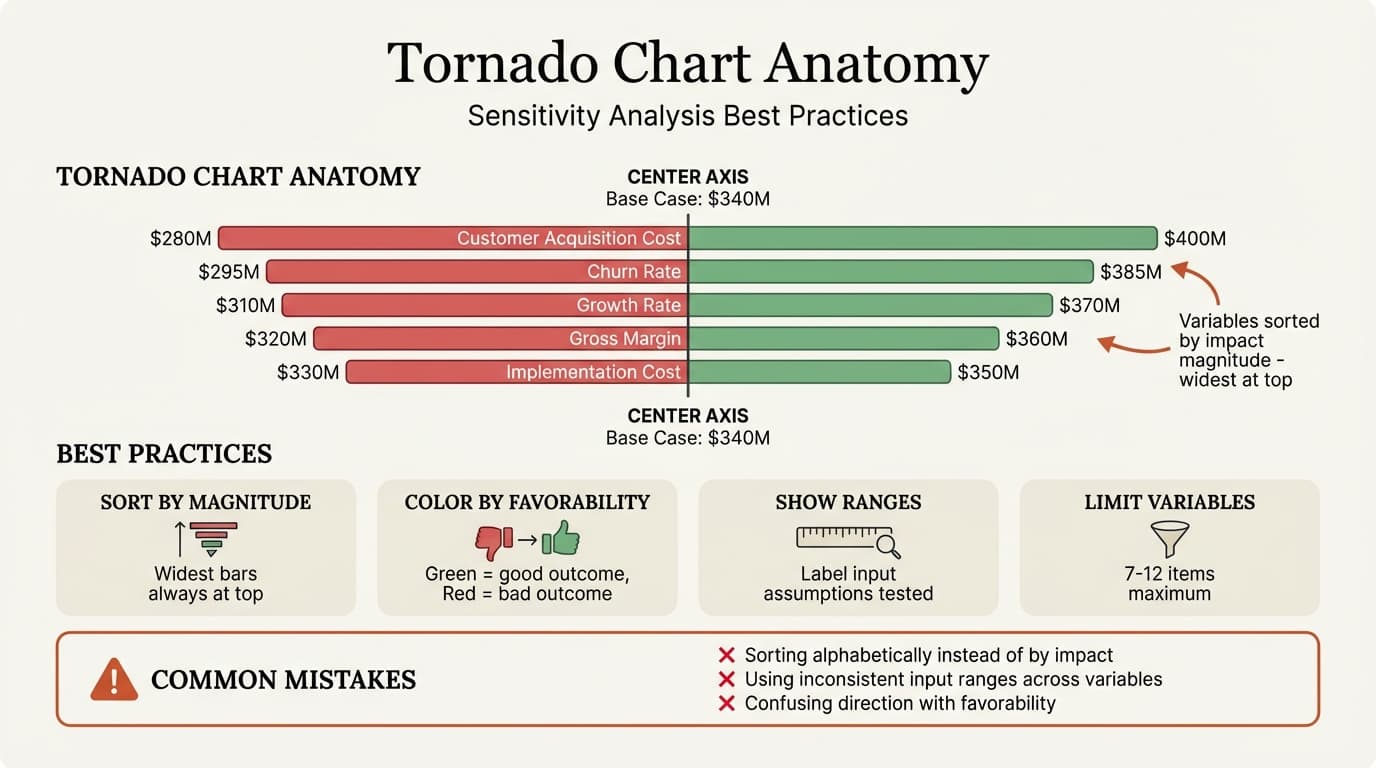
Tornado charts visualize which variables have the most impact on an output. Horizontal bars extend left and right from a central axis, with the widest bars representing the most sensitive variables. Use them for investment decisions (which assumptions drive NPV), risk assessment (which factors could swing the outcome), and financial modeling. Limit to 5-8 variables -- if your tornado looks like a gentle funnel, you are showing too many.
Bullet Charts for Performance vs. Target
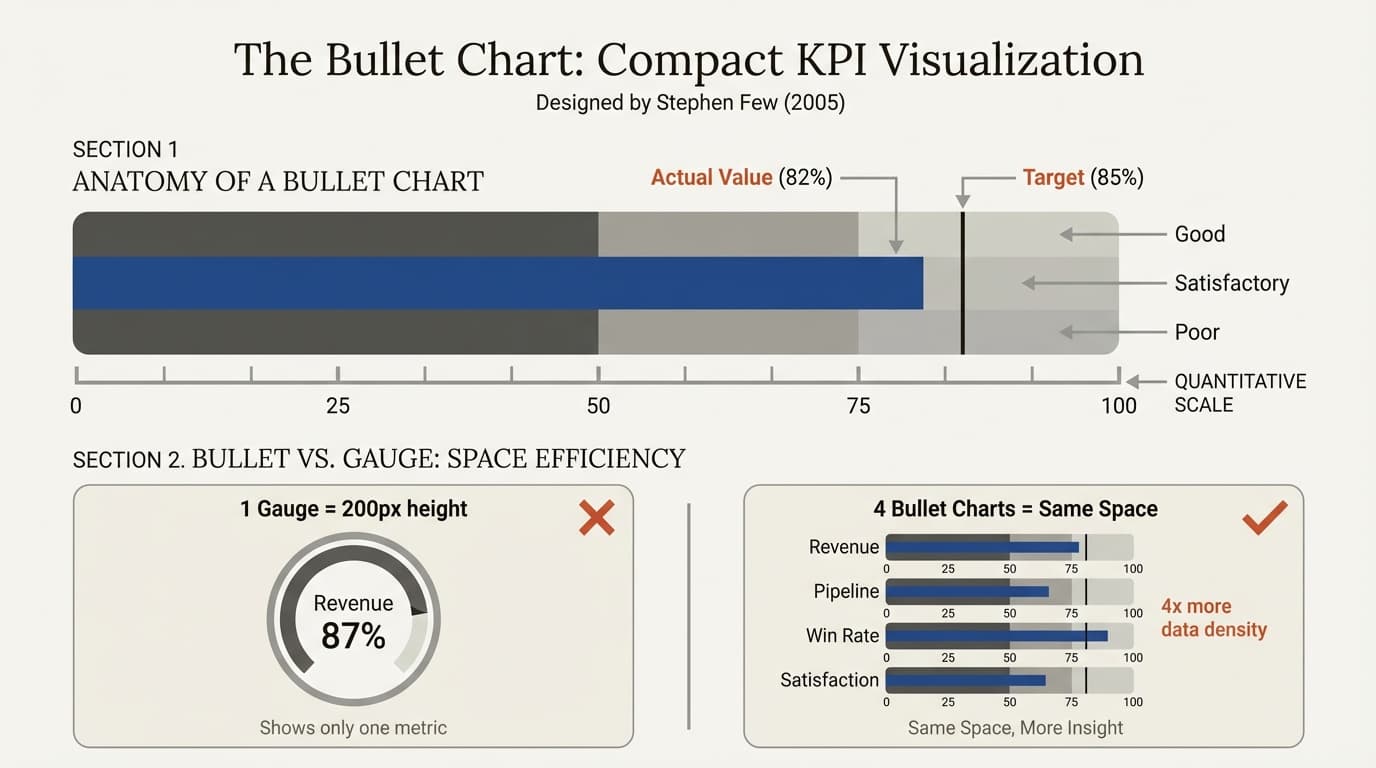
Bullet charts compare actual performance against targets and ranges. They replace cluttered gauges and speedometers with a clean horizontal format: a primary bar for actual performance, a reference line for the target, and background bands for poor/satisfactory/good ranges. Bullet charts stack vertically better than gauges, making them ideal for comparing multiple KPIs on a single slide. For a complete performance overview layout, see the KPI Dashboard Template.
Harvey Balls for Qualitative Assessment
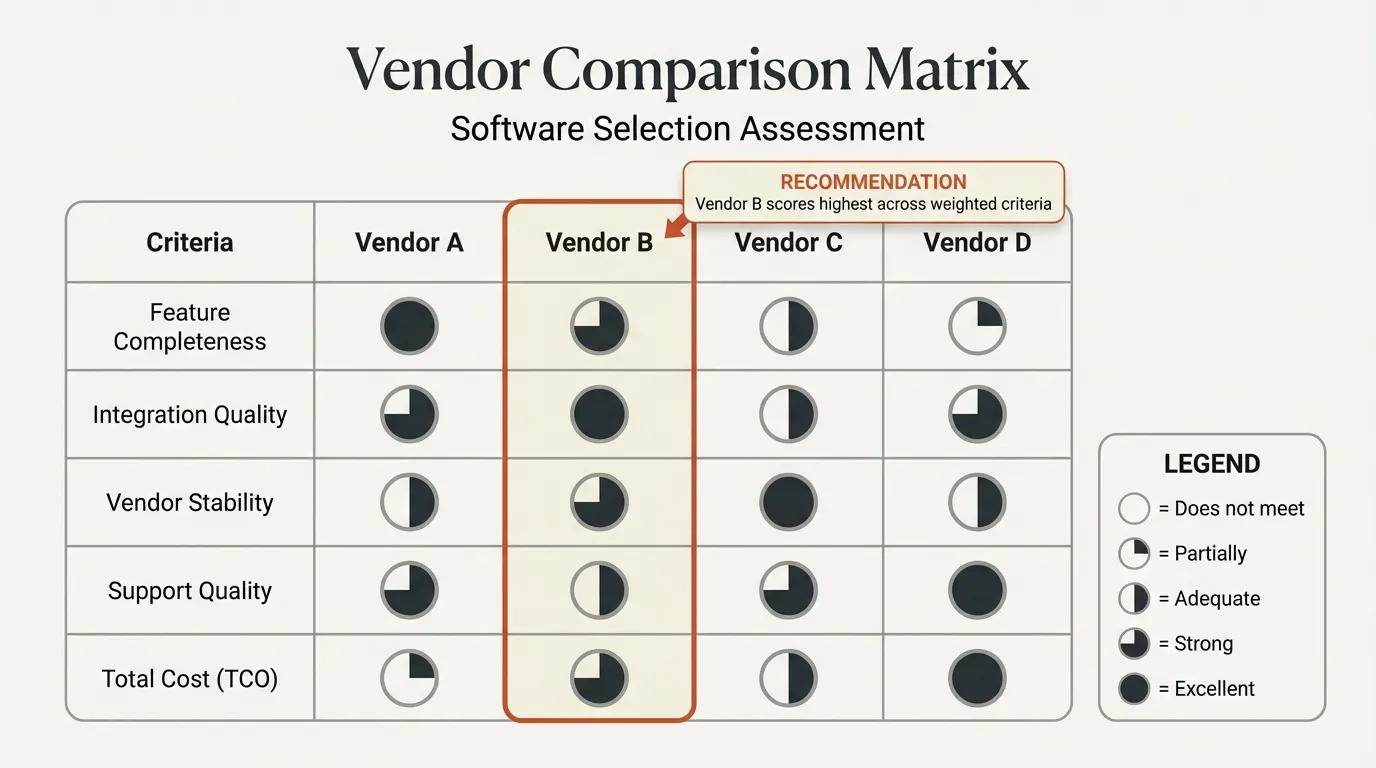
Harvey balls provide visual shorthand for qualitative ratings in vendor comparisons, capability assessments, and feature matrices. Define what each fill level means in a legend, and maintain consistency across the deck.
Combo Charts for Related Metrics
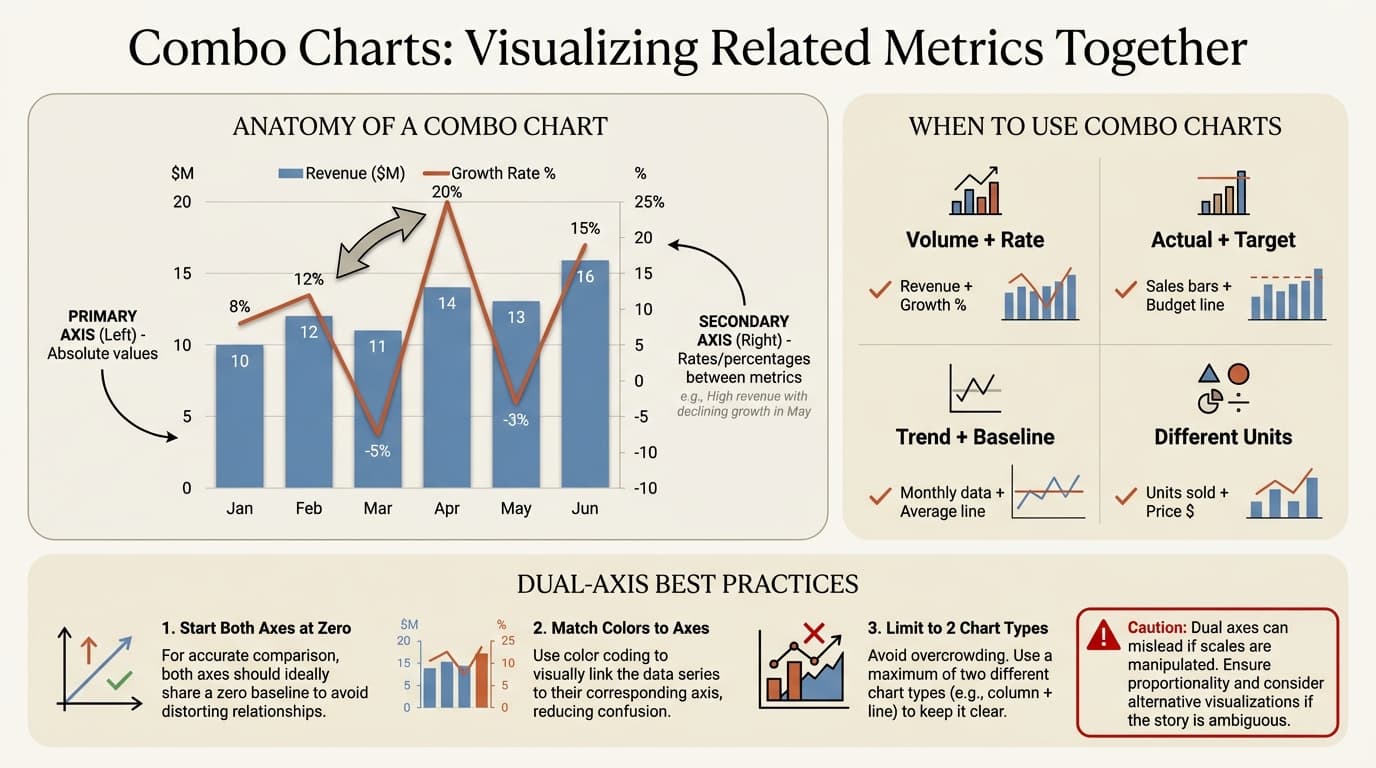
Combo charts overlay two chart types (typically bars and lines) with dual axes to show relationships between metrics at different scales -- revenue (bars) and growth rate (line), volume (bars) and price (line). Warning: dual-axis charts can mislead if scales are not carefully chosen. Ensure the visual relationship reflects the actual data relationship.
Chart Selection in Practice: Two Worked Examples
Example 1: Private Equity Portfolio Review
A PE fund presents quarterly portfolio performance to LPs. The deck needs to show value creation across 12 portfolio companies. The wrong instinct is to build a massive table with rows of financial metrics.
Chart choices made:
| Slide Purpose | Chart Used | Why |
|---|---|---|
| Total fund value creation since inception | Waterfall chart | Shows the bridge from invested capital to current NAV, with gross gains, losses, and fees as contributing bars |
| Portfolio company performance comparison | Horizontal bar chart, sorted by MOIC | Ranks companies clearly; bar length encodes returns magnitude |
| Revenue growth vs. margin trajectory per company | Combo chart (bars + line) | Revenue bars show scale, margin line shows profitability trend -- two stories in one view. A Stock Performance Dashboard works well for public portfolio companies |
| Sector allocation vs. benchmark | Mekko chart | Column widths show fund allocation size, segments show sub-sector breakdown vs. benchmark |
The LP audience could assess fund health in four slides. Each chart answered one question unambiguously.
Example 2: Hospital Network Operational Dashboard
A healthcare consulting team presents monthly operational metrics to a regional hospital network's board. The audience is clinical and administrative leaders, not finance professionals.
Chart choices made:
| Slide Purpose | Chart Used | Why |
|---|---|---|
| Patient volume trend (24 months) | Line chart with target band | Continuous time series; the shaded target band shows acceptable range without cluttering with extra data series |
| Readmission rate by department | Horizontal bar chart, red/green color coding | Departments above target threshold in red, below in green -- the bar color tells the story before anyone reads labels |
| Staffing cost variance (budget vs. actual) | Waterfall chart | Shows exactly which cost categories drove the overrun -- overtime, agency nurses, and benefits each get their own bar. A Budget Table Template can complement this with line-item detail |
| Capital project timeline | Gantt chart | New wing construction, IT system migration, and equipment procurement shown as overlapping workstreams with milestone diamonds at key decision gates |
The clinical leaders did not need to be chart-literate. The color coding and chart type choices made each insight self-evident.
Common Chart Mistakes and How to Avoid Them
Mistake 1: Choosing Chart Types by Aesthetics, Not Data Type
Waterfall charts look impressive, which tempts analysts to use them for data that does not involve sequential change. A waterfall showing market share by region (where regions are independent categories, not sequential contributors) confuses the audience because the visual implies additive logic. Match chart to data structure first, aesthetics second.
Mistake 2: Overloading a Single Chart
When you have three things to say about one dataset, the temptation is to cram them all into one chart with dual axes, multiple colors, annotations, and reference lines. The result communicates nothing clearly. If a chart requires more than 10 seconds to parse, split it into two or three focused charts. One chart, one message.
Mistake 3: Missing or Misleading Axis Labels
Unlabeled axes force audiences to guess what they are looking at. Truncated axes (Y-axis starting at 90 instead of 0) make small differences look dramatic. Both destroy trust. Label every axis with units and start at zero unless there is a compelling reason not to -- and if you truncate, break the axis visually and note it explicitly.
Mistake 4: Inconsistent Color Coding Across the Deck
Green for positive in one chart, blue in the next. Competitor A in red on slide 5, orange on slide 12. When four analysts contribute to one deck, this inconsistency is inevitable unless you establish a color code at project kickoff. Define it once: green always means positive, red always means negative, each competitor has an assigned color. Apply it to every chart.
Mistake 5: Decorative Titles Instead of Insight Titles
"Revenue by Region" is a description. "North America drives 60% of revenue growth" is an insight. Every chart title should tell the audience what to conclude. If the title is just a label, the audience must interpret the chart themselves -- and they may reach a different conclusion than you intended.
Mistake 6: Missing Source Citations
No indication of where the data came from signals questionable provenance. Include "Source: Company filings, BCG analysis" in small text at the bottom of every chart with external data. This is a trust signal, not a formatting detail.
Excel Linking: Building Charts That Update
Linking Excel to PowerPoint transforms chart updates from hours to minutes. When the CFO sends revised Q4 numbers at 10 PM and your deck has 30 charts, linked charts mean clicking refresh rather than manually re-copying each one.
Linking Methods Compared
| Method | Update Behavior | Pros | Cons |
|---|---|---|---|
| Paste (Ctrl+V) | No connection | Quick, simple | Manual updates forever |
| Paste Link | Updates on refresh | Live data connection | Breaks when files move |
| Embed | No connection | Self-contained file | Large file size, manual updates |
| Add-in linking | Updates on refresh | Survives file moves | Subscription cost |
For native linking: create your chart in Excel, copy it, then use Paste Special > Paste Link in PowerPoint. When data changes, right-click the chart and select Update Link. The catch: Excel-PowerPoint links store absolute file paths. When the Excel file moves, is renamed, or is opened from a different machine, the link breaks. Keep source files in a stable folder structure and never rename them after linking.
For presentations with many charts or frequent updates, add-ins provide more reliable linking. Deckary handles this well.
Building a Chart Workflow for Your Team
Consistency across team members matters as much as individual chart quality. When four analysts contribute slides to one deck, inconsistent formatting is immediately visible.
At project kickoff, define your color palette, create chart templates for common types, set up shared Excel source files, and document formatting standards in a one-pager. Maintain a team template library with pre-formatted versions of your most-used chart types. Before client delivery, review that all charts use consistent colors, all data labels are present, all sources are cited, all titles state the insight, and formatting is consistent across the deck.
Deckary's AI Slide Builder generates chart slides from a text description -- no manual formatting needed. Describe your data and the story you want to tell, and it produces a formatted chart slide ready for review.
Tools for Building Better Charts
Native PowerPoint
Best for: Basic bar, line, pie, and stacked charts that will not need frequent updates.
Limitations: No connectors on waterfall charts. Cannot create Mekko charts. No Gantt chart type. No reliable Excel linking.
PowerPoint Add-ins
| Tool | Waterfall | Mekko | Gantt | Excel Link | Price |
|---|---|---|---|---|---|
| Deckary | Yes | Yes | Yes | Yes | $120-180/yr |
| Mekko Graphics | Yes | Yes | Limited | Yes | $399/yr |
| Office Timeline | No | No | Yes | Yes (Plus) | $108-249/yr |
For consultants building charts weekly, add-ins pay for themselves immediately. Deckary offers all the core consulting chart types.
Excel Integration
For complex data visualization, create charts in Excel where the charting engine is more powerful, then link to PowerPoint. This provides more chart type options, better formatting controls, automatic updates when data changes, and formula-driven data labels. The key is maintaining reliable links -- see the Excel linking guide for best practices.
Summary: Building Charts That Earn Trust
Professional charts communicate more than data. They signal analytical rigor, attention to detail, and clear thinking.
-
Choose the right chart type for your message. Waterfall for change analysis. Mekko for two-dimensional comparisons. Gantt for timelines.
-
Follow formatting standards. Green for positive, red for negative. Labels on every bar. No decorative elements. Insight titles, not descriptive titles.
-
Build sustainable workflows. Link Excel to PowerPoint. Use templates for consistency. Invest in add-ins when chart volume justifies it.
-
Avoid the common traps. Chart type chosen by aesthetics, overloaded single charts, inconsistent colors, and missing labels undermine credibility regardless of analysis quality.
-
Match tools to needs. Native PowerPoint for simple charts. Add-ins for consulting staples like waterfall, Mekko, and Gantt.
Ready to build better charts? Explore Deckary's chart capabilities including waterfall, Mekko, and Gantt charts with Excel linking.
Build and improve Excel workbooks with AI
Create models, audit formulas, clean data, and generate output sheets inside Excel. 14-day free trial. No credit card required.