Harvey Balls in PowerPoint: How to Add and Customize Them
Learn how to create Harvey balls in PowerPoint for vendor comparisons and capability assessments. Three methods: manual shapes, Unicode, and add-ins.
- Bob · Former McKinsey and Deloitte consultant with 6 years of experience
- September 11, 2025
- 7 min read
Vendor comparison matrices live or die by scannability. When a procurement team reviews 8 vendors across 12 criteria, they cannot parse 96 text cells quickly. Harvey balls solve this by converting qualitative assessments into visual patterns. A column of mostly filled circles signals strength. A column of empty circles signals weakness. The evaluation becomes visible at a glance.
We have built Harvey ball matrices for software evaluations, M&A target screenings, and capability assessments across 45+ projects. The implementation challenge is consistency: when one analyst scores "75% filled" differently than another, the visual comparison breaks down. We now use explicit scoring rubrics that define what each fill level means for each criterion, eliminating the subjective drift that undermines comparison matrices.
This guide covers the three methods for adding Harvey balls to PowerPoint, when to use them versus alternatives, and the scoring consistency problems most teams encounter. Harvey balls are one of many visual tools consultants use alongside charts — for a complete guide to data visualization in PowerPoint, see our PowerPoint Charts Guide.
What Are Harvey Balls?
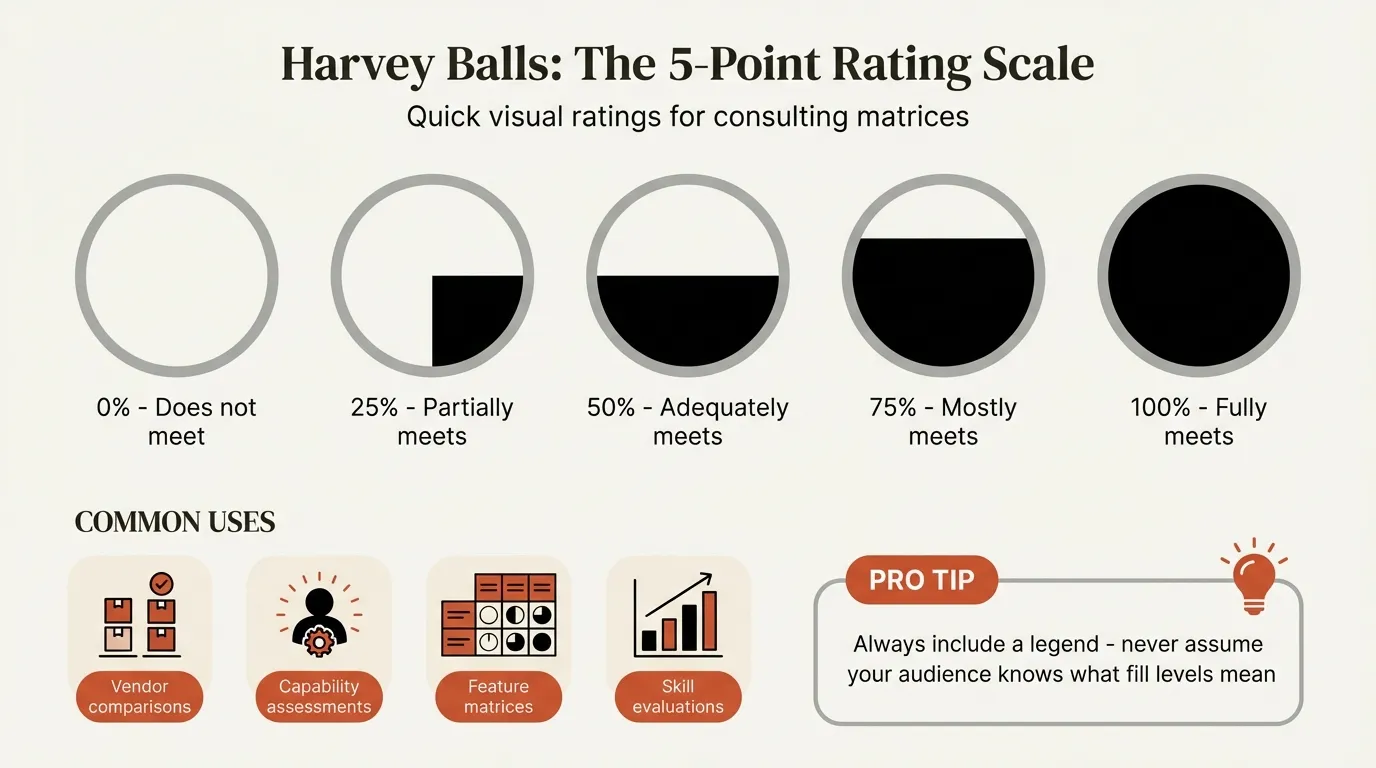
Harvey balls are circular symbols divided into segments to represent qualitative data at a glance—visual shorthand for "how much" or "how well" without exact numbers.
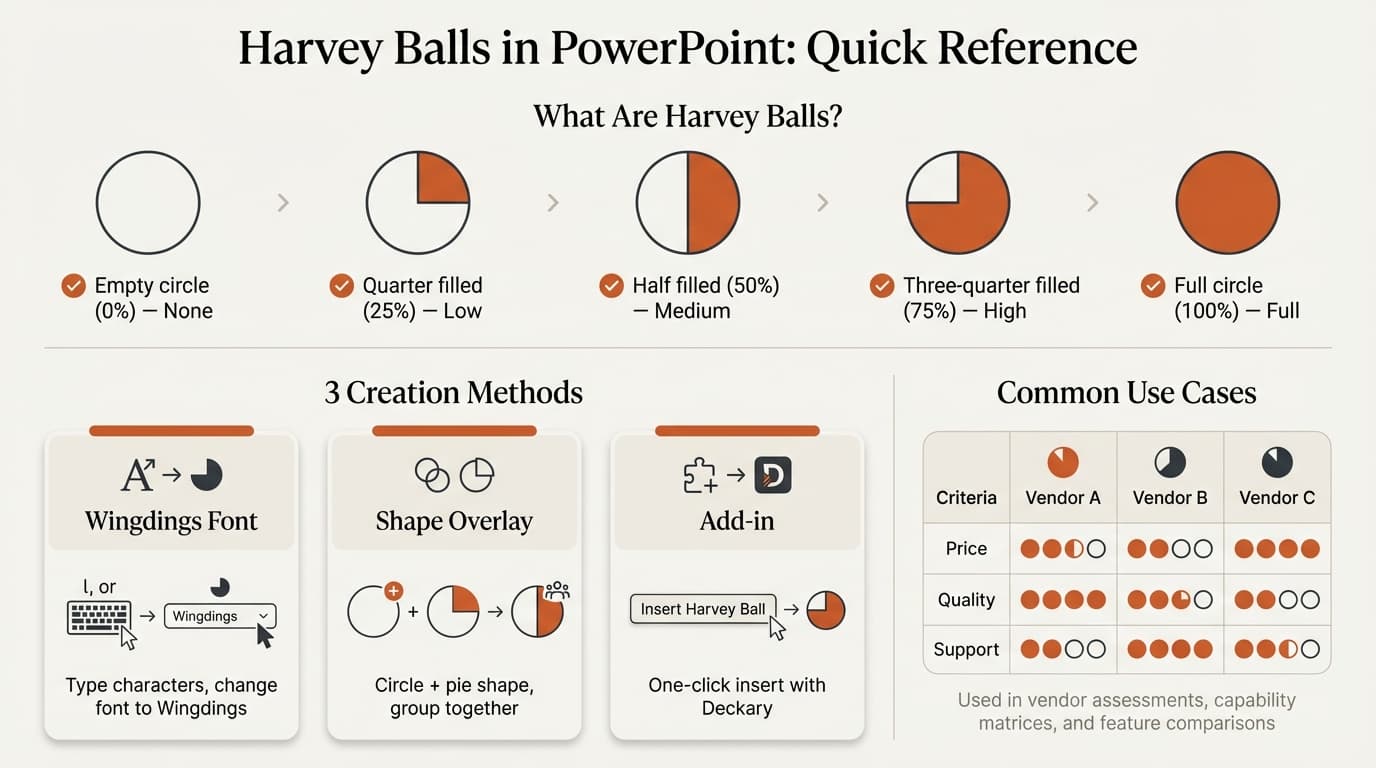
The standard Harvey ball uses a five-point scale:
| Symbol | Fill Level | Meaning |
|---|---|---|
| ○ | 0% | Does not meet criteria |
| ◔ | 25% | Partially meets criteria |
| ◑ | 50% | Adequately meets criteria |
| ◕ | 75% | Mostly meets criteria |
| ● | 100% | Fully meets criteria |
Common use cases: vendor comparisons, capability maturity assessments, feature matrices, skill evaluations, and competitive analysis.
Harvey balls work best when comparing multiple items across multiple criteria. For single comparisons or precise quantitative data, use text or exact numbers instead.
When to Use Harvey Balls vs. Other Rating Systems
Before building a matrix, choose the right visual system. Harvey balls are one of several options, and picking the wrong one undermines the comparison.
Harvey balls vs. RAG status (Red/Amber/Green): RAG signals urgency and risk — something needs attention now, may need attention soon, or is fine. Harvey balls signal degree of capability or completeness. Use RAG for project health dashboards where you need immediate action signals. Use Harvey balls for vendor evaluations or maturity assessments where you are comparing relative strength, not triggering escalation.
Harvey balls vs. percentages: Percentages imply precision you rarely have. When a team scores a vendor's "integration capability" at 73%, that number is fiction — nobody measured it to that level of accuracy. Harvey balls communicate "mostly meets criteria" without false precision. Use percentages when you have real measurement data (uptime SLAs, test scores). Use Harvey balls when the input is expert judgment.
Harvey balls vs. checkmarks: Checkmarks are binary — yes or no. Harvey balls add nuance. If your criteria can genuinely be answered with "does this exist or not," checkmarks are cleaner. If the answer is "it exists but it's mediocre," you need Harvey balls.
The decision comes down to what kind of judgment the matrix captures: urgency (RAG), precision (percentages), presence (checkmarks), or relative strength (Harvey balls).
Continue reading: Project Status Slide · How to Create an Org Chart in PPT · How to Align Objects in PowerPoint
How to Create Harvey Balls in PowerPoint
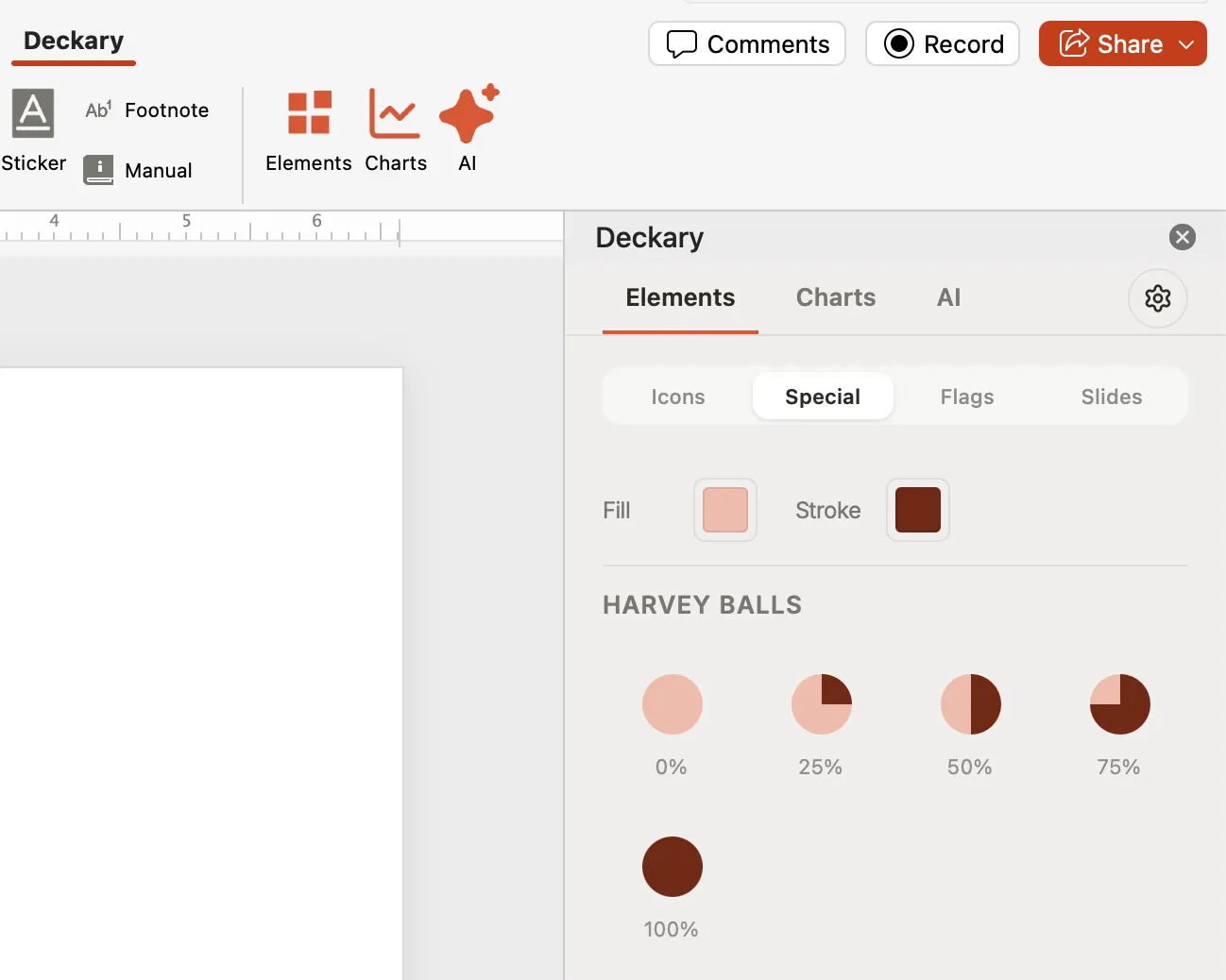
PowerPoint doesn't include native Harvey balls, so you have three options: Unicode characters, manual shapes, or add-ins.
Method 1: Unicode Characters (Fastest)
Copy and paste these directly into any PowerPoint text box:
○ ◔ ◑ ◕ ●
This is the fastest approach for quick drafts and internal work. Paste the characters, adjust the font size to match your table, and move on.
Limitations: Appearance varies by font, colors are difficult to customize, and sizing depends on the surrounding text. For a one-off internal slide this is fine. For a polished client deliverable with 40+ Harvey balls, the inconsistencies become noticeable.
Method 2: Manual Shapes (Most Control)
Use PowerPoint's shape tools to build circles with pie-wedge fills. Create all five fill variations on a template slide, group each one, and copy from there whenever you need them. This gives you full control over color, size, and outline weight.
The downside is setup time — plan on 15-20 minutes to build your initial set. After that, reuse is fast.
Method 3: Add-ins (Best for Scale)
If you build capability matrices regularly, add-ins eliminate the construction work entirely. Deckary's icon library includes Harvey ball sets alongside 2,000+ business icons, with consistent sizing and brand-color customization. Deckary handles the formatting so you can focus on the analysis.
| Method | Setup Time | Per-Use Time | Consistency | Best For |
|---|---|---|---|---|
| Unicode | None | Seconds | Medium | Quick drafts |
| Manual shapes | 15-20 min | 1-2 min/ball | High | One-off presentations |
| Add-ins | 5-10 min install | Seconds | High | Regular users |
Our recommendation: Start with Unicode for quick work. Use add-ins like Deckary if you build comparison matrices regularly.
Best Practices
Always Include a Legend
Never assume your audience knows what Harvey balls mean:
| Symbol | Rating |
|---|---|
| ○ | Does not meet requirements |
| ◔ | Partially meets requirements |
| ◑ | Adequately meets requirements |
| ◕ | Exceeds requirements |
| ● | Best in class |
Define Scoring Criteria Upfront
Before filling in Harvey balls, document what each level means for each criterion:
- ● = Native integrations with top 5 platforms
- ◕ = Native integrations with 3-4 platforms
- ◑ = Native integration with 1-2, APIs for others
- ◔ = API-only integrations
- ○ = No integration capability
This prevents debates about whether something should be "half" or "three-quarters." Without a rubric, you will spend more time arguing about scores than doing the actual evaluation.
Limit Matrix Size
For scannability: maximum 8-10 rows, 10-12 columns. If you need more, split into multiple matrices or group related criteria under headers.
Example: Vendor Selection Matrix
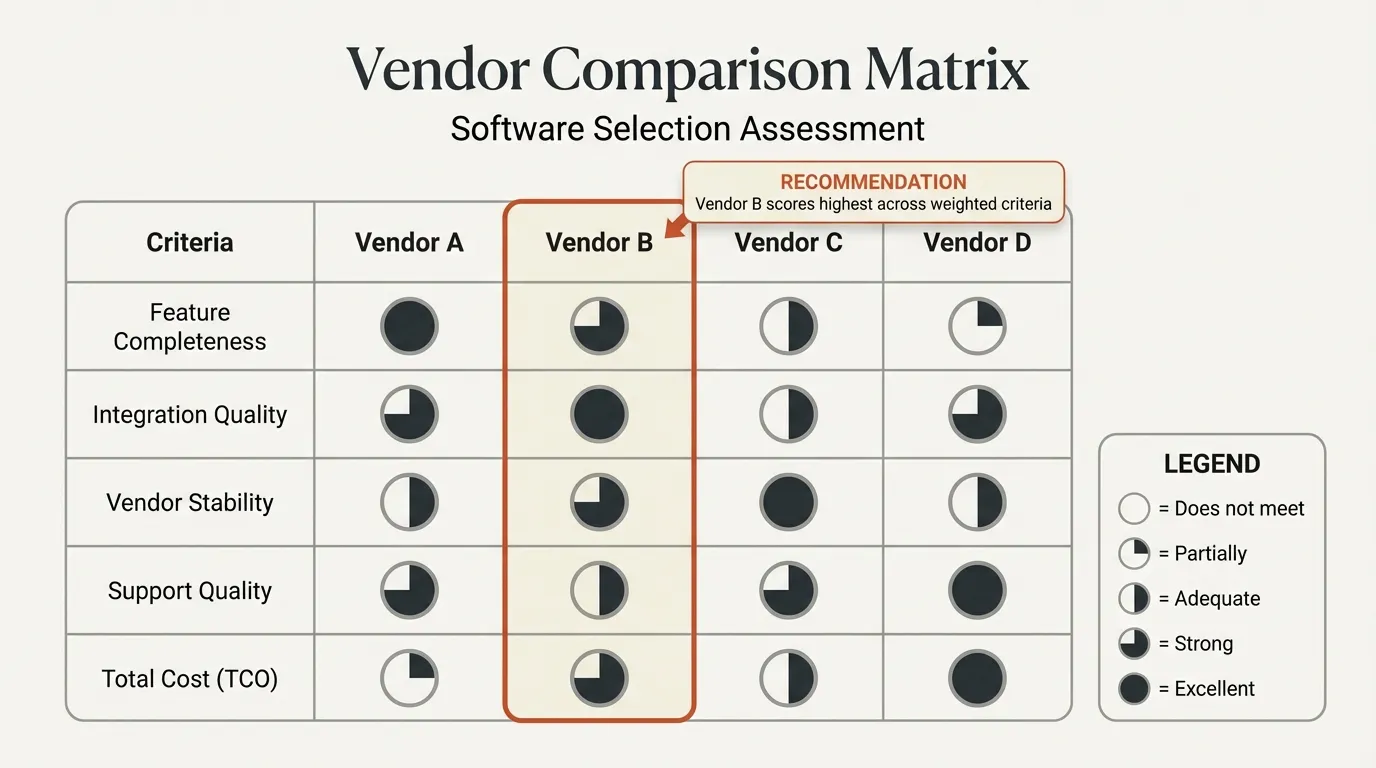
Structure:
- Rows: Vendor names (5-8 vendors)
- Columns: Selection criteria grouped by category
- Column groups: Functionality, Integration, Vendor Stability, Commercial Terms
| Category | Example Criteria |
|---|---|
| Functionality | Core features, Advanced features, Mobile support |
| Integration | API quality, Pre-built connectors, Data migration |
| Vendor | Financial stability, Support quality, Roadmap clarity |
| Commercial | Pricing, Contract flexibility, TCO |
Add a weighted score row at the bottom if certain criteria matter more than others. Weight the criteria before scoring — defining weights after seeing the results is a common way teams back into a preferred answer rather than making an honest comparison.
Summary
Harvey balls transform dense evaluation data into instantly scannable matrices.
Key takeaways:
- Choose the right rating system first — Harvey balls for relative strength, RAG for urgency, percentages for measured data
- Three creation methods: Unicode (fastest), manual shapes (most control), add-ins (best for scale)
- Always include a legend — never assume your audience knows the fill levels
- Define scoring criteria upfront — document what each level means
- Keep it consistent — same size, same scoring, same legend across the matrix
For consultants building comparison matrices regularly, Deckary offers Harvey ball icons alongside charts and productivity shortcuts at $120-180/year.