Tornado Charts in PowerPoint: Sensitivity Analysis Made Easy
Create tornado charts in PowerPoint for sensitivity analysis. Step-by-step setup with Excel linking and consulting use cases.
- Bob · Former McKinsey and Deloitte consultant with 6 years of experience
- October 29, 2025
- 10 min read
Every financial model has dozens of assumptions, but only a handful actually drive the outcome. A tornado chart reveals which ones. When a board member asks "What keeps you up at night about this forecast?" the tornado chart points directly at the variables that could swing the NPV by tens of millions.
Whether you use Deckary or a manual workaround, the principles of effective sensitivity visualization remain the same. This guide covers when sensitivity analysis calls for a tornado chart, how to build one in PowerPoint, and the formatting decisions that separate clear communication from visual noise. For a complete guide to all chart types used in consulting presentations, see our PowerPoint Charts Guide.
What Is a Tornado Chart?
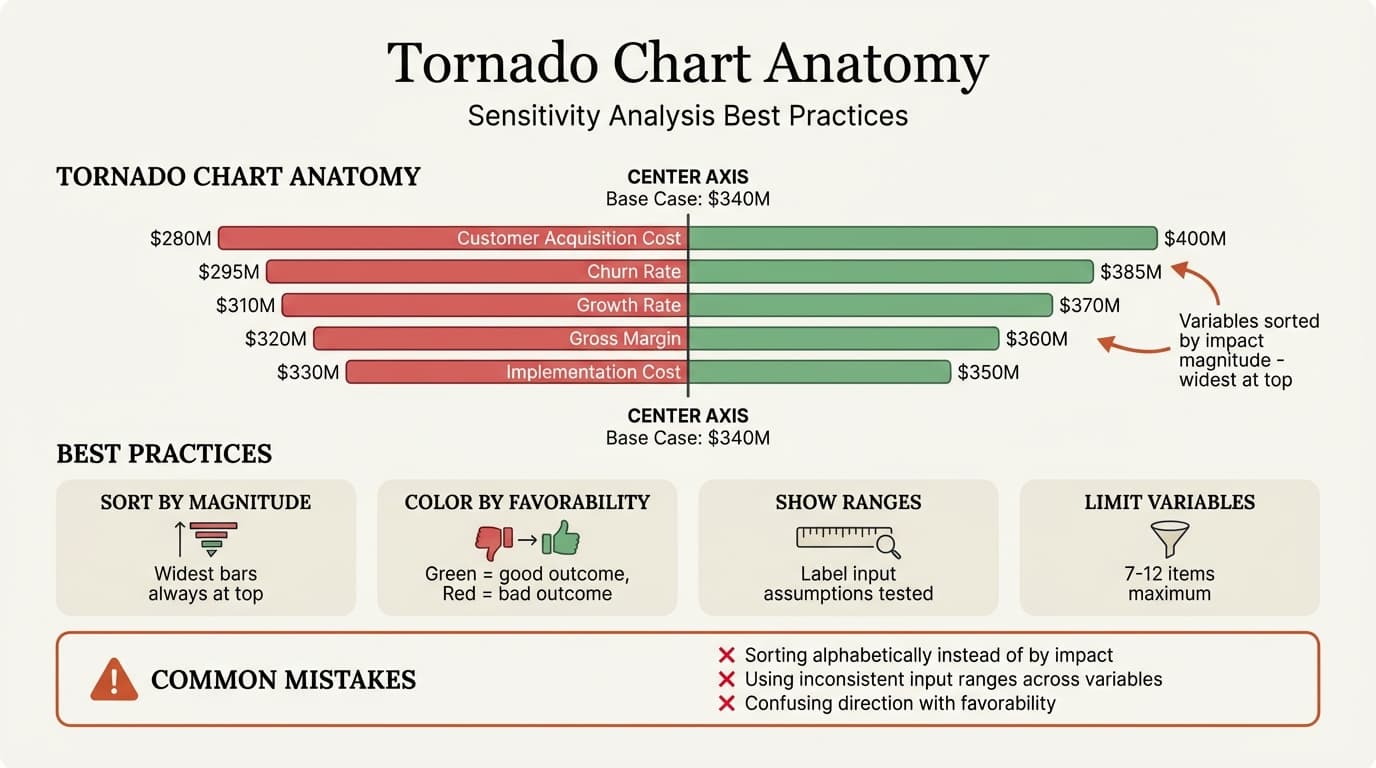
A tornado chart (also called a tornado diagram or sensitivity chart) visualizes how changes in input variables affect an output value. Each horizontal bar represents one variable, extending left and right from a central axis to show the range of impact.
| Other Names | Why It's Called That |
|---|---|
| Tornado diagram | Bars stacked by magnitude create a tornado shape |
| Sensitivity chart | Shows sensitivity of output to inputs |
| Spider chart | Alternative name (though technically different) |
| What-if chart | Visualizes what-if scenario analysis |
The defining characteristic is the tornado shape: variables ordered from most to least impactful, with the widest bars at the top tapering down. This creates an instant visual hierarchy -- the factors that matter most are immediately obvious.
Each bar conveys three things: the base case (center axis), the downside impact (left bar when unfavorable), and the upside impact (right bar when favorable). If your base case NPV is $100M, one variable might swing it from $70M to $130M while another only moves it from $95M to $105M. The tornado chart makes these relative magnitudes instantly comparable.
When to Use Tornado Charts
Tornado charts answer a specific question: "Which assumptions actually matter?" They are best suited for:
- Sensitivity analysis presentations -- DCF valuations, project NPVs, M&A deal values where you need to show which inputs drive the output
- Risk assessment -- Identifying which project risks or market factors deserve the most attention
- Investment decision support -- Helping decision-makers understand the range of possible outcomes in PE, VC, or corporate development contexts
- Model validation -- Demonstrating to boards and auditors that you have stress-tested your analysis
When NOT to Use Tornado Charts
| Don't Use When | Use Instead |
|---|---|
| Showing how values change over time | Line chart or waterfall chart |
| Comparing multiple scenarios side-by-side | Scenario comparison table |
| Analyzing correlations between variables | Scatter plot or correlation matrix |
| Variables are interdependent | Monte Carlo simulation results |
| Only 2-3 variables matter | Simple bar chart comparison |
If you have fewer than four variables, a tornado chart adds unnecessary complexity. If variables are highly correlated, the independent variation assumption breaks down.
Anatomy and Best Practices
Every effective tornado chart includes five components: a clear title stating the output and base case value (e.g., "NPV Sensitivity Analysis, Base Case: $340M"), a center axis marking the base case, variable labels ordered by impact magnitude, range labels showing the input assumptions tested, and impact values at bar endpoints.
Color Coding Conventions
| Element | Recommended Color | Purpose |
|---|---|---|
| Upside impact | Green | Favorable outcomes |
| Downside impact | Red | Unfavorable outcomes |
| Base case line | Gray or Black | Neutral reference point |
| Focus variable | Accent color | Highlight the key driver |
Important: Unlike waterfall charts where green always means increase, tornado chart colors indicate favorability, not direction. A cost decrease (leftward bar) might be green because it is favorable.
Variable Ordering and Count
Always order by total impact magnitude. The variable with the widest total bar span goes at the top. This creates the tornado shape and ensures viewers immediately see what matters most.
| Ordering Approach | When to Use |
|---|---|
| By total bar width | Default -- most common and recommended |
| By downside impact only | When downside risk is the focus |
| By upside potential only | When opportunity identification is the goal |
| By category, then magnitude | When grouping related variables |
7-12 variables is optimal. Fewer than 5 does not justify the format. More than 15 creates visual clutter. If your model has 30+ variables, run sensitivity on all of them, then show only the top 10-12 by impact magnitude on the chart.
Continue reading: 30-60-90 Day Plan Template · Decision Matrix Template · PowerPoint SmartArt
Creating Tornado Charts: Three Methods
Method 1: Native PowerPoint (30-45 minutes)
PowerPoint lacks a native tornado chart type, so you build one using a stacked bar workaround:
- Prepare data in Excel with columns for variable name, base case, low/high scenario outputs, and deviations from base
- Insert a stacked bar chart in PowerPoint with deviation values (negative for left bars, positive for right) and a hidden "spacer" series to center bars around zero
- Format -- color left bars red and right bars green, reverse the category axis so largest bars sit at top, add a manual center axis line, and apply data labels
- Annotate -- add variable names, input assumption ranges, and the base case value
| Issue | Impact |
|---|---|
| Time-consuming | 30-45 minutes per chart |
| No Excel linking | Must rebuild when data changes |
| Fragile formatting | Adjustments break alignment |
| Manual reordering | Must manually sort by magnitude |
Best for: One-time charts where data will not change and you have no add-in access.
Method 2: Excel + Paste Link (25-35 minutes)
Build the tornado chart in Excel, then copy and use Paste Special > Paste Link in PowerPoint. The chart references your Excel file and can be updated via right-click > Update Link. For more on linking strategies, see our guide on linking Excel to PowerPoint.
Best for: Charts that need occasional updates but do not justify add-in costs. Be aware that links break when files move and formatting may shift on update.
Method 3: PowerPoint Add-ins (30-90 seconds)
Add-ins like Deckary and specialized visualization tools create tornado charts automatically with sorting, formatting, and live Excel linking.
| Capability | Native PowerPoint | Add-in (Deckary) |
|---|---|---|
| Creation time | 30-45 min | 30-90 sec |
| Excel linking | Manual paste-link | Automatic |
| Auto-sort by magnitude | No | Yes |
| Update when data changes | Manual rebuild | Click to refresh |
| Consistent formatting | Manual | Automatic |
| Center axis | Manual shapes | Built-in |
| Your Situation | Recommended Approach |
|---|---|
| One-time chart, data won't change | Native PowerPoint |
| Occasional updates needed | Excel + Paste Link |
| Regular sensitivity analysis | Add-in like Deckary |
| Consulting firm or finance role | Add-in (saves hours per month) |
| Budget is zero | Native PowerPoint + patience |
Worked Example: NPV Sensitivity Tornado Chart
You have built a 10-year DCF model for a SaaS company acquisition. Base case NPV is $340 million. The board wants to understand which assumptions drive the most uncertainty.
| Variable | Low Assumption | Base Assumption | High Assumption | Low NPV | High NPV |
|---|---|---|---|---|---|
| Customer Acquisition Cost | $45 | $55 | $65 | $400M | $280M |
| Annual Churn Rate | 2% | 4% | 6% | $410M | $270M |
| Revenue Growth (Y1-3) | 15% | 25% | 35% | $290M | $390M |
| Gross Margin | 65% | 75% | 85% | $300M | $380M |
| Discount Rate | 8% | 10% | 12% | $390M | $295M |
| Terminal Multiple | 8x | 10x | 12x | $310M | $370M |
| Sales Cycle (months) | 4 | 6 | 8 | $360M | $320M |
| Implementation Cost | $15K | $20K | $25K | $350M | $330M |
From this data, calculate deviations from the $340M base case, sort by total swing (Churn at $140M total swing tops the list, followed by CAC at $120M), then build the chart using whichever method suits your workflow. The chart automatically reveals that unit economics variables dominate while implementation cost barely registers.
Common Mistakes
| Mistake | Why It Matters | Fix |
|---|---|---|
| Wrong variable ordering | The tornado shape is the insight -- alphabetical order defeats the purpose | Always sort by total bar width, largest at top |
| Inconsistent input ranges | Testing one variable at +/-50% and another at +/-5% makes magnitude comparisons meaningless | Use consistent percentage variations or ranges reflecting actual uncertainty |
| Too many variables | Visual clutter obscures key drivers | Limit to 7-12 variables maximum |
| Missing context labels | Bars without input assumptions are unactionable | Annotate each bar: "Growth: 15% to 35% (Base: 25%)" |
| Confusing color logic | Green should mean favorable, not just "increase" | Green = favorable outcome, Red = unfavorable, regardless of direction |
| Ignoring correlations | Independent variation of correlated variables overstates uncertainty | Test correlated variables as scenarios; add footnotes on limitations |
Tornado Charts vs. Other Sensitivity Visualizations
| Visualization | Best For | Limitations |
|---|---|---|
| Tornado chart | Ranking variable importance, executive presentations | Assumes variable independence, single output focus |
| Spider/radar chart | Showing multiple scenarios simultaneously | Hard to read with many variables |
| Sensitivity table | Detailed two-way sensitivity (2 variables) | Limited to 2 variables at a time |
| Monte Carlo histogram | Probability distributions with correlations | Requires more complex analysis and explanation |
| Scenario comparison | Distinct strategic scenarios | Limited number of scenarios practical |
For comprehensive presentations, use the tornado chart on the summary slide to show which variables matter, include sensitivity tables in the appendix for the top 2-3 variables, and add scenario analysis for specific strategic cases (Bull, Base, Bear).
Summary
Tornado charts are the standard for communicating sensitivity analysis in consulting, finance, and strategic planning. When built correctly, they answer the critical question: "Which assumptions actually matter?"
Key takeaways:
- Sort by total impact -- the tornado shape is the insight
- Use consistent input ranges -- otherwise magnitude comparisons are meaningless
- Color indicates favorability, not direction -- green for good outcomes, red for bad
- Limit to 7-12 variables -- more creates noise that obscures the message
- Add-ins save significant time -- 30 seconds vs. 30+ minutes per chart
For consultants and analysts building sensitivity charts regularly, the right tools matter. Deckary creates tornado charts in seconds with automatic sorting, Excel linking, and consistent formatting — with a 14-day free trial and no credit card required.