How to Link Excel Charts to PowerPoint (Auto-Update Guide)
Learn how to link Excel charts to PowerPoint for automatic updates. Compare native linking, embedding, and add-in methods with step-by-step instructions and fixes.
- Bob · Former McKinsey and Deloitte consultant with 6 years of experience
- September 14, 2025
- 6 min read
The CFO sends revised Q4 numbers at 9 PM. Your steering committee deck has 23 charts that need updating. If those charts are manually pasted, you are looking at two hours of careful copying, resizing, and praying you do not miss one. If they are linked to Excel, you click refresh and verify the updates in under five minutes. This is the difference that Excel-PowerPoint linking makes at crunch time.
This guide covers three linking methods with honest assessments of each, the file management discipline that prevents broken links, and when add-ins provide more reliable linking than native Office features. For a complete guide to all chart types used in consulting presentations, see our PowerPoint Charts Guide.
Why Link Excel to PowerPoint?
A typical strategy presentation contains 20-50 charts, each connected to an Excel model. When data changes, you have two options: manually copy-paste every chart (2-5 minutes each), or refresh linked charts in seconds.
| Scenario | Manual Update Time | Linked Update Time |
|---|---|---|
| 5 charts, 1 revision | 15-25 min | < 1 min |
| 20 charts, 2 revisions | 2-4 hours | < 2 min |
| 50 charts, 3 revisions | 6-12 hours | < 5 min |
The gap widens with every revision. By the third round of feedback, linked charts have saved you an entire workday.
Three Methods for Connecting Excel and PowerPoint
Method 1: Paste Link (Native PowerPoint)
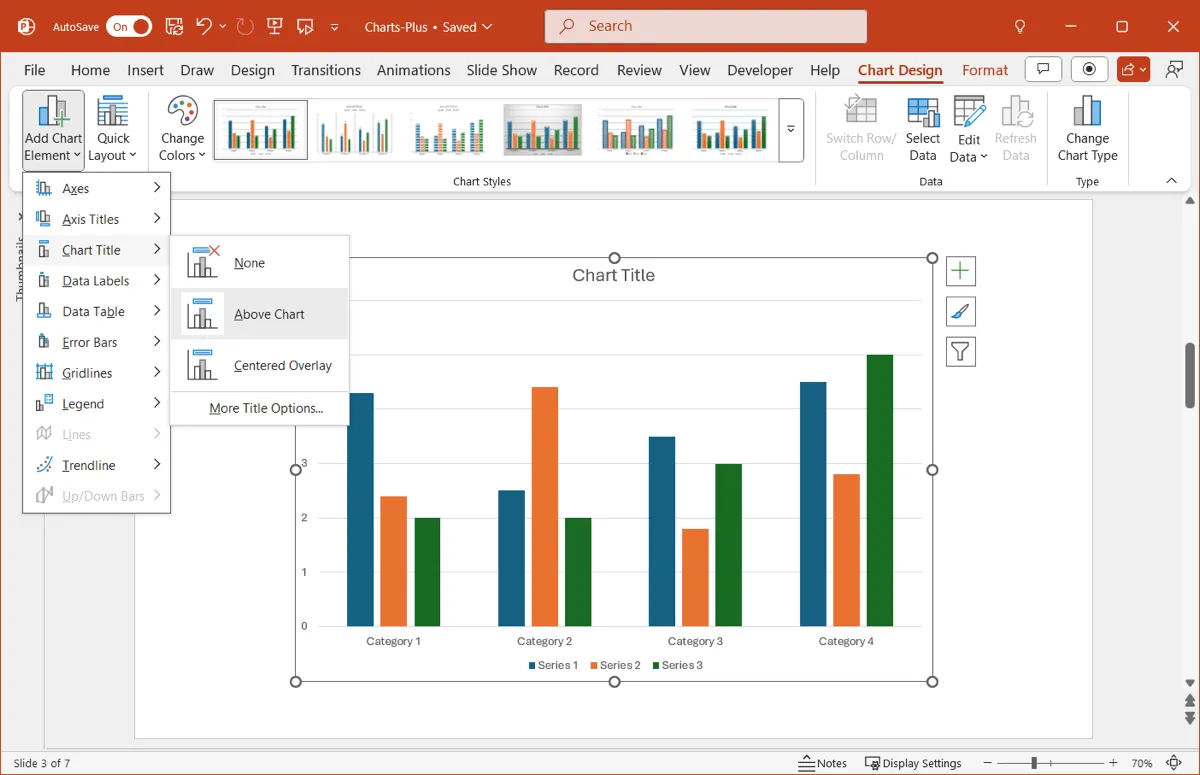
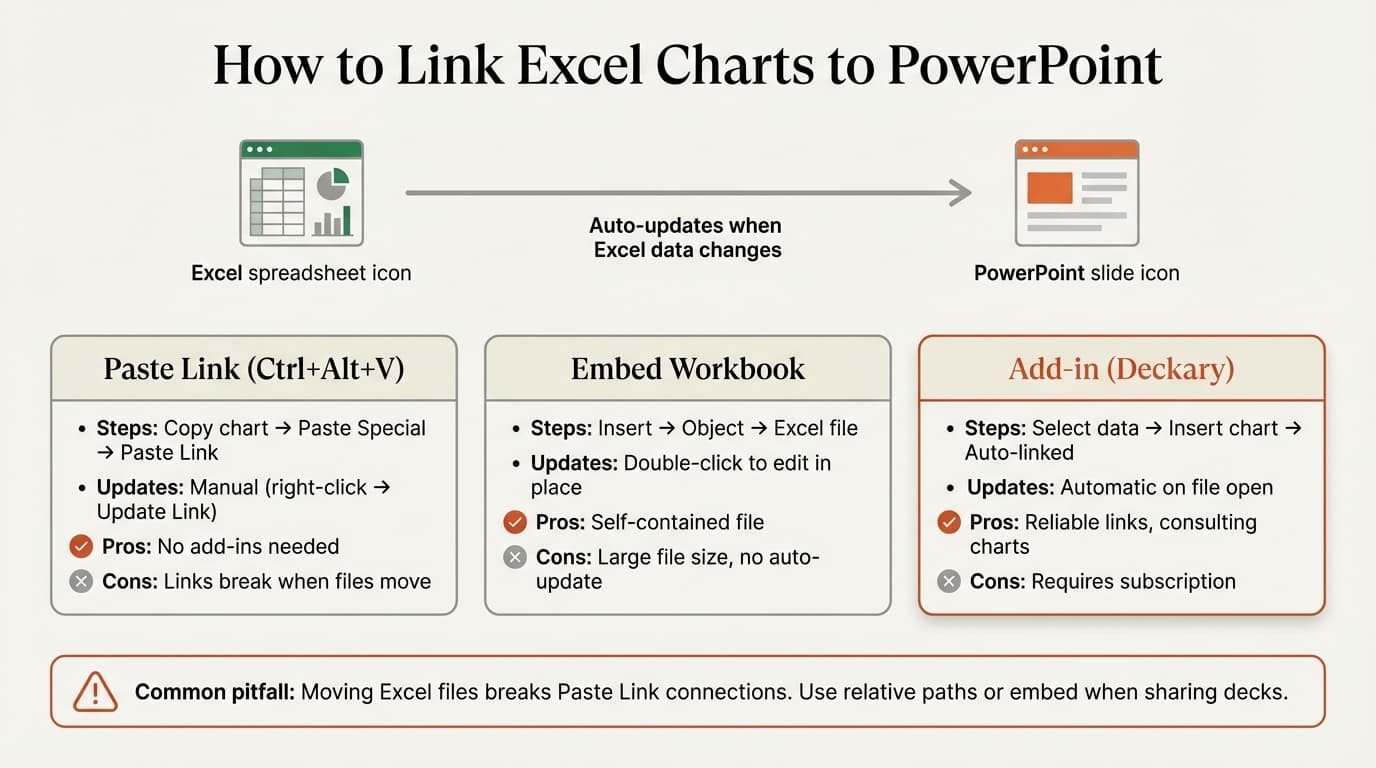
PowerPoint's built-in linking uses OLE to create a live connection. Copy a chart from Excel, then in PowerPoint go to Home > Paste dropdown > Paste Special > Paste Link > Microsoft Excel Chart Object. Keyboard shortcut: Ctrl+Alt+V opens Paste Special directly.
To refresh when data changes: save your Excel file, then in PowerPoint go to File > Info > Edit Links to Source Files, select the linked file, and click Update Now.
Pros: No additional software required; charts update when refreshed.
Cons: Links break when files move or rename; requires manual refresh; link management is buried in menus; charts may resize unexpectedly.
Method 2: Embed Excel (Not True Linking)
Embedding copies Excel data into PowerPoint, creating a self-contained presentation. There is no live connection and no automatic updates. If your source data changes, you must manually re-embed.
Use embedding only for final, archived presentations where data will not change. For active work, embedding solves the wrong problem.
Method 3: Add-in Linking (Deckary)
Specialized add-ins like Deckary create their own link management layer. Select data in Excel, choose a chart type in the add-in ribbon, and the chart appears in PowerPoint with the connection already established.
Pros: Links survive file moves; one-click refresh for all charts; formatting preserved during updates; cross-platform support.
Cons: Requires additional software and a subscription.
For consultants building data-heavy presentations, add-ins provide reliability that native linking lacks.
Continue reading: Capacity Planning Template · How to Create an Org Chart in PPT · Excel to PowerPoint
Native Linking vs. Embedded vs. Add-in
| Feature | Native Paste Link | Embedded | Add-in (Deckary) |
|---|---|---|---|
| Auto-updates | Yes (manual refresh) | No | Yes (one-click) |
| Links survive file moves | No | N/A | Yes |
| One-click refresh all | No | N/A | Yes |
| File size impact | Minimal | Significant | Minimal |
| Cross-platform | Problematic | Yes | Yes |
| Cost | Included | Included | $120-199/year |
| Format preservation | Sometimes breaks | N/A | Maintained |
Use Native Paste Link for fewer than 5 charts with files in fixed locations. Use Embedding for final, self-contained presentations. Use Add-in Linking for 10+ charts, frequent data changes, or team collaboration.
Why Links Break and How to Fix Them
Most broken links come down to four causes:
| Problem | Cause | Solution |
|---|---|---|
| Link not found error | Excel file moved or renamed | File > Info > Edit Links to Source Files > Change Source to repoint |
| "Update Link" missing | Chart was embedded, not linked | Re-paste using Paste Special > Paste Link |
| Chart shows old data | Excel file was not saved before refresh | Save Excel first, then refresh in PowerPoint |
| Chart shows "#REF!" | Data range changed or deleted in Excel | Open Excel, verify chart data, recreate the link if needed |
| Chart formatting breaks after refresh | Theme mismatch between files | Apply the same theme to both files; lock chart dimensions in Excel |
| Links work on Windows, break on Mac | File path format differences | Store sources in OneDrive or SharePoint; use add-ins with cross-platform path handling |
Prevention: Store Excel source files in a dedicated folder that will not change during the project. Name files descriptively from the start. Never move or rename linked files.
ClientX_Project/
├── Deliverables/
│   └── Presentation.pptx
└── Sources/
    ├── Financial_Model.xlsx
    └── Market_Analysis.xlsx
Before presenting, always refresh all links and save. Charts will display current data even if the links cannot reach the source file on the presentation machine.
Linking with Deckary
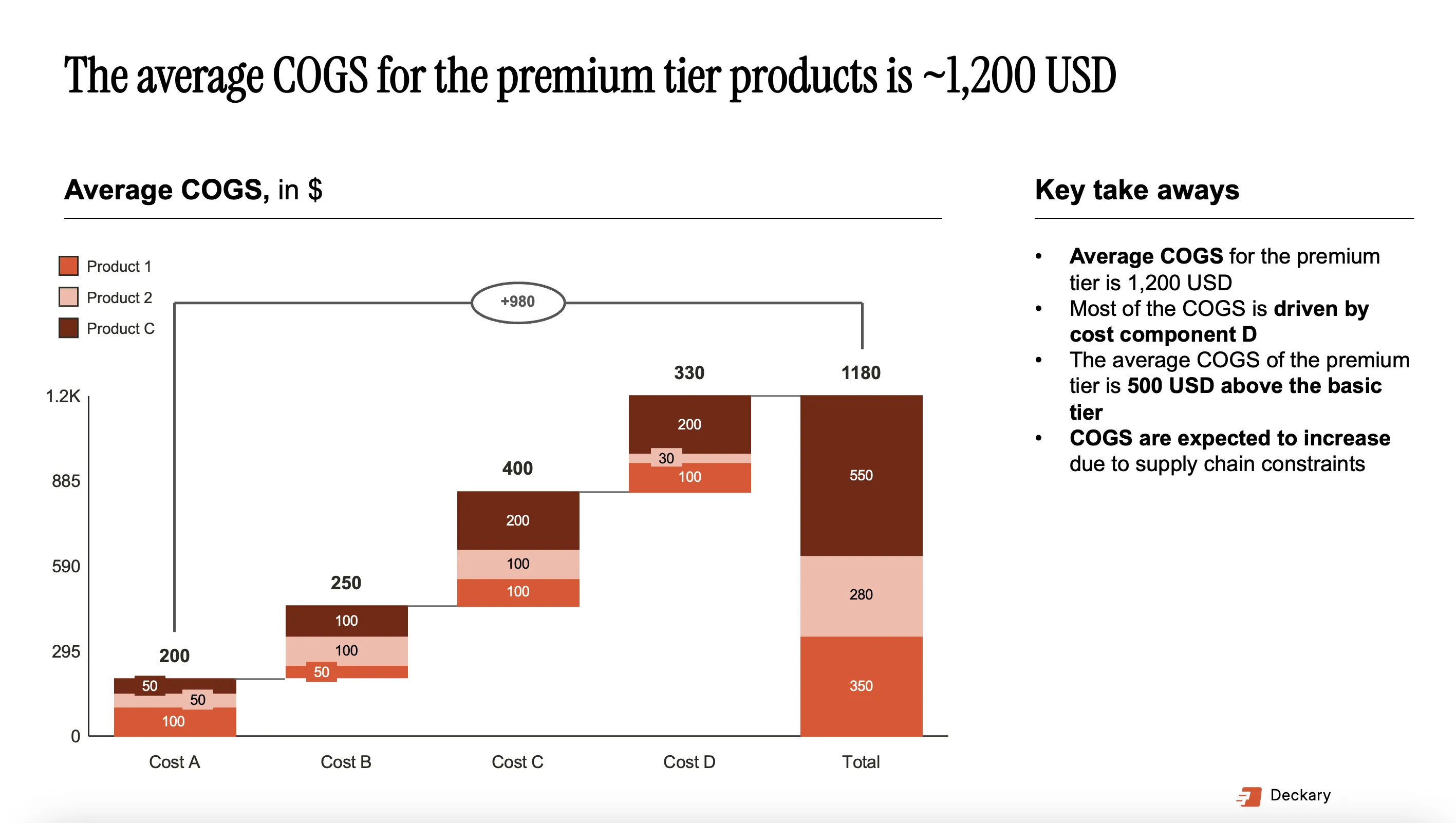
Deckary provides Excel linking designed for consulting workflows:
- Select the data range in Excel (including headers)
- Click the chart type in the Deckary ribbon
- The chart appears in PowerPoint, automatically linked
To refresh, click "Refresh" in the Deckary toolbar. All linked charts update simultaneously. When Deckary detects a missing source file, it prompts you to locate it and updates the link path for future refreshes. Links do not silently break.
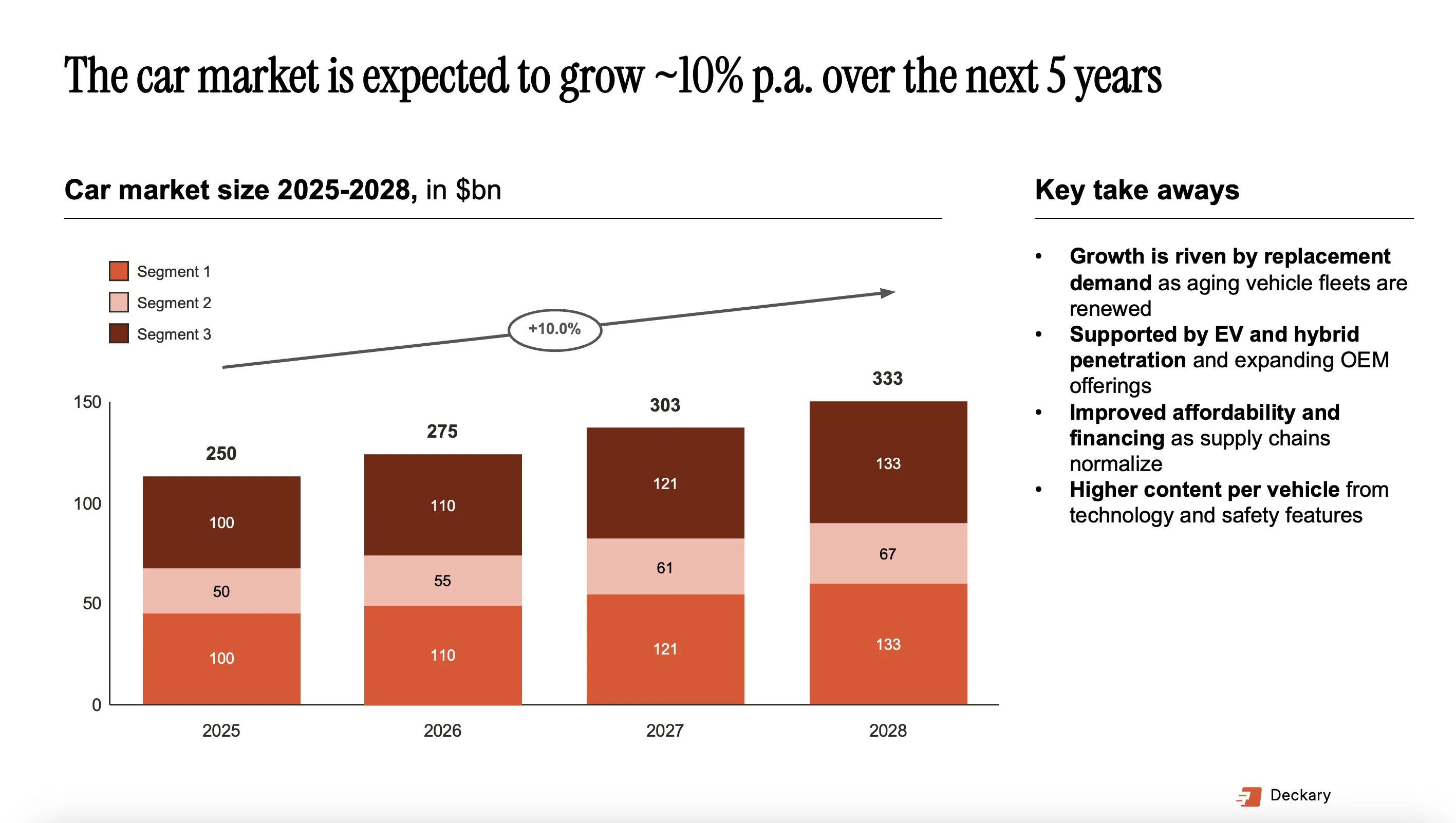
Add-ins like Deckary handle the problems that make native linking fragile: smarter path resolution, one-click refresh, visual link indicators, and consistent behavior across Windows and Mac.
Summary
Linking Excel to PowerPoint transforms how you handle data-driven presentations. Instead of dreading last-minute changes, you update Excel and refresh.
Key takeaways:
- Manual updates waste hours — a 30-chart deck with 3 revisions costs 6-12 hours
- Native Paste Link works but is fragile — links break when files move
- Embedding is not linking — it creates a static copy with no automatic updates
- Add-ins provide reliable linking — one-click refresh, resilient paths, format preservation
- Keep source files organized — dedicated folders prevent most link failures
- Always refresh before presenting — ensure charts show current data
For consultants building data-heavy decks, the question is not whether to link but which method. If budget allows, add-ins like Deckary eliminate the maintenance burden that native linking demands — with Excel-linked waterfall charts, Mekko charts, and Gantt charts.