Back to Blog

Marimekko Charts in Excel: How to Create Market Share Visualizations

Learn how to create Marimekko (Mekko) charts in Excel for market share analysis. Step-by-step instructions, workarounds, and faster alternatives for consulting presentations.

Jessica · Investment banking veteran with 5 years at Goldman Sachs and Morgan StanleyJanuary 9, 202617 min read

Search for "Marimekko chart Excel" and you will find tutorials promising to create one using stacked area charts with helper columns. They work in theory. In practice, you spend 45-90 minutes setting up formulas, and then the chart breaks when a colleague adds a market segment. We have rebuilt the same workaround chart from scratch multiple times before acknowledging that Excel simply was not designed for variable-width columns.

We tested the stacked area method across 25 different market sizing scenarios. The formula approach worked reliably only when the data structure never changed. For dynamic analysis where segments get added, removed, or reordered, the maintenance burden exceeded the time saved versus building charts manually in PowerPoint or using dedicated tools.

This guide walks through the Excel workaround step by step so you understand exactly what is involved, explains why the formulas break under common editing scenarios, and compares the time investment against alternatives that may serve you better.

What Is a Marimekko Chart?#

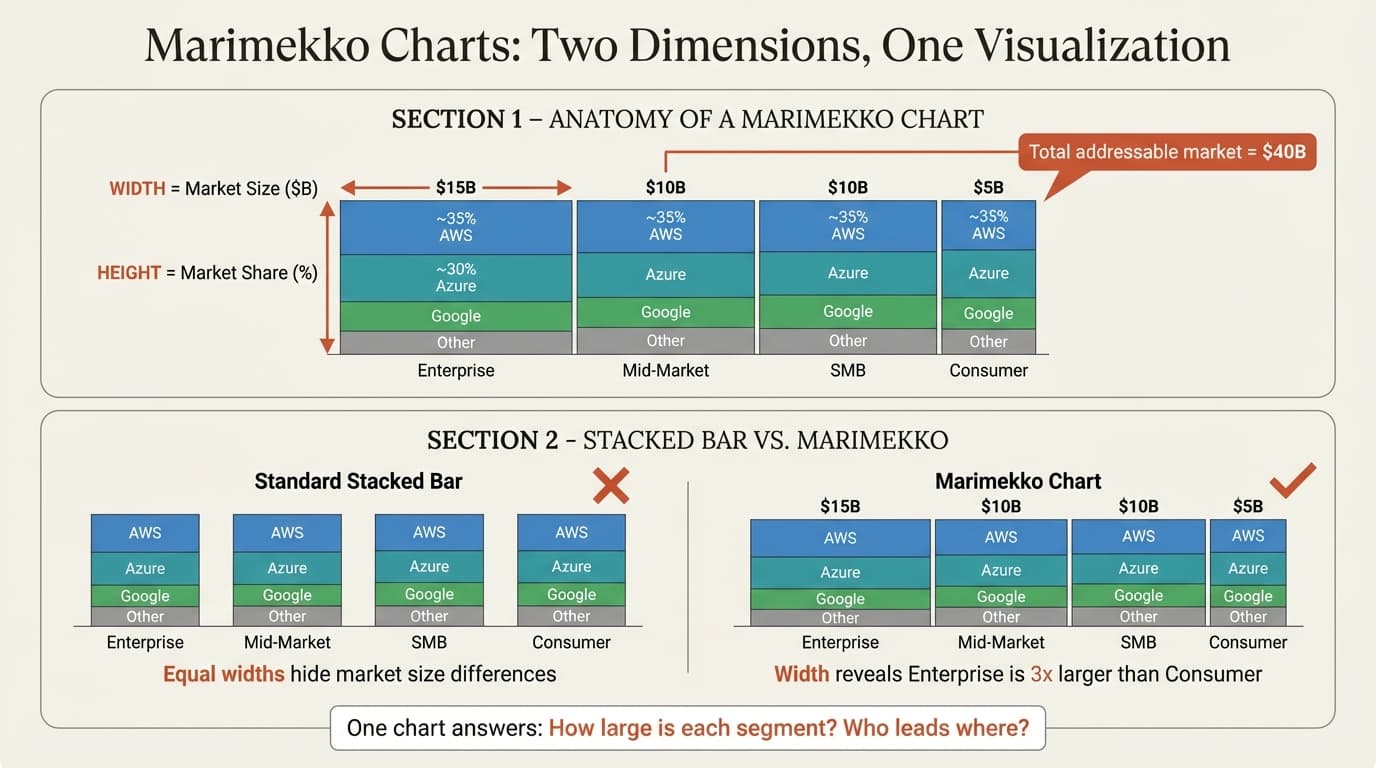
Marimekko chart anatomy and comparison

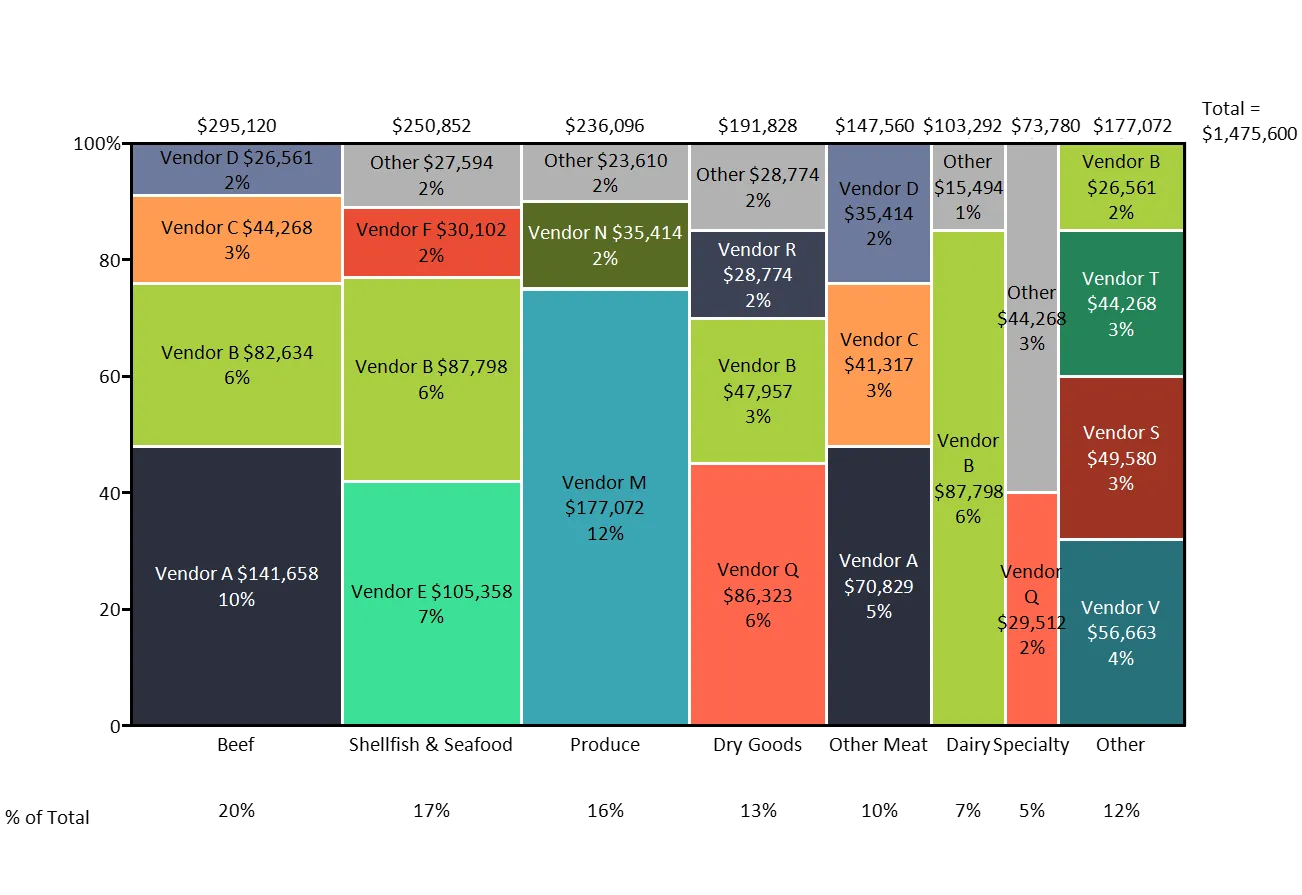
A Marimekko chart (also called a Mekko chart) is a two-dimensional stacked chart where both the width AND height of columns represent data values. Named after the Finnish textile company known for its colorful fabric patterns, the chart creates a mosaic-like visualization that packs significant information into a single view.

Other NamesOrigin
Mekko chartShortened version of Marimekko
Market mapCommon use case for mapping markets
Mosaic chartResembles a mosaic of rectangular tiles
Variable-width chartDefining technical feature

The key difference from a standard stacked bar chart:

  • Standard stacked bar: All columns have equal width
  • Marimekko chart: Column widths vary based on data values

This dual-encoding makes Marimekko charts exceptionally powerful:

  • Column width = One dimension (typically total market size, revenue, or segment importance)
  • Column height segments = Another dimension (typically market share, composition, or breakdown)

Strategy consultants at firms like McKinsey, BCG, and Bain popularized these charts because they answer multiple questions simultaneously: How large is each market segment? Who are the key players? Where are the opportunities?

When to Use Marimekko Charts in Excel#

Marimekko charts excel in specific scenarios where you need to show two dimensions of proportional data:

1. Market Share Analysis#

The classic consulting use case. Show how large each market segment is AND who owns what share.

  • Width = Market size ($B or units)
  • Height = Competitor market share (%)

Example: European cloud market by country, with AWS, Azure, Google, and Others as segments.

2. Share of Wallet Analysis#

Understand how customers allocate spending across categories.

  • Width = Total customer spending ($)
  • Height = Spending by category (%)

Example: Enterprise IT spending by department, broken down by hardware, software, and services.

3. Portfolio Analysis#

Analyze revenue or investment across multiple business dimensions.

  • Width = Revenue by business unit
  • Height = Revenue by customer segment or geography

Example: Product portfolio showing revenue by product line, with customer segments stacked within each.

4. Competitive Landscape Visualization#

Map competitive positions across multiple dimensions.

  • Width = Segment size or attractiveness
  • Height = Competitive intensity or market share

Example: Industry sectors sized by revenue, with market leader shares shown as segments.

When NOT to Use Marimekko Charts#

ScenarioBetter Alternative
Only one dimension mattersStandard bar or stacked bar chart
Showing trends over timeLine chart or waterfall chart
Audience is unfamiliar with the formatSimpler visualization with explanation
Too many categories (10+ columns)Multiple charts or grouped categories
Precise value comparisons neededBar chart with explicit labels

If the variable width doesn't add meaningful insight, you're adding complexity without value. Mekko charts take longer to interpret than simple bar charts—only use them when the dual-encoding genuinely helps.

The Excel Problem: No Native Marimekko Charts#

Excel does not include a native Marimekko chart type.

This is the fundamental challenge. Excel's charting engine assumes all columns have equal width. There is no variable-width column option—it simply doesn't exist in the chart type menu.

To create a Marimekko chart in Excel, you have three options:

  1. Stacked area chart workaround — Complex but possible
  2. Conditional formatting approach — Limited and not a true chart
  3. Third-party add-ins — The professional solution

Let's examine each approach.

Method 1: The Excel Stacked Area Chart Workaround#

The most common technique uses Excel's stacked area chart to simulate variable-width columns. This method works but requires significant setup time and careful formula construction.

How It Works#

The trick is to convert your data into cumulative X-coordinates, then use a stacked area chart to create rectangles of varying widths. Each "column" is actually a series of area chart segments.

Step-by-Step Instructions#

Step 1: Prepare Your Source Data

Start with a standard market share table:

CountryMarket Size ($B)AWSAzureGoogleOther
UK12.532%28%18%22%
Germany15.228%35%15%22%
France8.835%25%20%20%
Netherlands4.238%22%22%18%
Nordics6.330%30%18%22%

Step 2: Calculate Cumulative X-Coordinates

Create a helper table that converts market sizes into cumulative percentages:

  1. Calculate total market size: =SUM(B2:B6) (gives 47.0)
  2. Calculate each country's width as a percentage: =B2/$B$7 (UK = 26.6%)
  3. Calculate cumulative X positions: UK ends at 26.6%, Germany ends at 59.0%, etc.

Step 3: Create the Area Chart Data Structure

This is where it gets complex. You need to create a data series for each competitor where:

  • X values = cumulative positions marking column boundaries
  • Y values = the competitor's share at each position

For each column boundary, you need two X-coordinates (start and end of each segment).

Step 4: Build Invisible Spacer Series

Between each "column," you need a spacer series set to 0% that creates the visual separation. Without spacers, the area chart won't create distinct columns.

Step 5: Insert the Stacked Area Chart

  1. Select your transformed data range
  2. Go to Insert > Charts > Area > Stacked Area
  3. The chart will initially look nothing like a Marimekko

Step 6: Format the Axis

  1. Right-click the horizontal axis
  2. Select "Format Axis"
  3. Change axis type to "Date Axis" — this forces even spacing
  4. Set Major and Minor units appropriately

Step 7: Adjust the Vertical Axis

  1. Right-click the vertical axis
  2. Set Maximum to 1 (or 100%)
  3. This ensures columns stack to full height

Step 8: Add Data Labels and Format

  1. Right-click each series and select "Add Data Labels"
  2. Position labels appropriately
  3. Apply colors to each competitor series
  4. Remove gridlines and unnecessary elements

Why This Method Is Problematic#

IssueImpact
Setup time45-90 minutes for a single chart
Formula complexityOne error breaks the entire visualization
Data updatesRecalculating all X-coordinates when values change
No automationEvery change requires manual adjustment
Label positioningData labels overlap and require manual fixing
Fragile structureAdding or removing categories breaks formulas

I've watched analysts spend entire afternoons debugging Excel Marimekko charts. The formulas for X-coordinates are interconnected—change one value and you may need to recalculate everything downstream.

Verdict: Technically possible but not recommended for professional use or any chart that might need updates.

Method 2: Conditional Formatting Approach#

An alternative approach uses Excel's cell grid with conditional formatting to create a pseudo-Marimekko visualization.

How It Works#

  1. Create a grid of cells (e.g., 100 columns x 100 rows)
  2. Use formulas to determine which cells belong to which segment
  3. Apply conditional formatting rules based on the segment

Limitations#

  • Not a true chart—it's a formatted grid of cells
  • Very low resolution compared to actual charts
  • Cannot export cleanly to PowerPoint
  • Difficult to add proper labels and annotations
  • Breaks when resizing or printing

Verdict: Interesting for exploration but not suitable for client presentations.

Create slides 2x faster with Deckary

Charts, keyboard shortcuts, icons, templates and more. The only PowerPoint add-in you need.

Method 3: Add-Ins for Excel and PowerPoint#

Third-party add-ins eliminate the workaround complexity by providing native Marimekko chart support.

Comparing Marimekko Chart Tools#

ToolPriceExcel SupportPowerPoint SupportMac Support
Mekko Graphics$499/yearYesYesLimited
Think-cell$299/yearVia PowerPointYesYes
Deckary$49-119/yearVia PowerPointYesYes
Native ExcelIncludedNo (workaround only)LimitedYes

Mekko Graphics#

Website: mekkographics.com

The original specialist tool for Marimekko charts, with both Excel and PowerPoint add-ins.

Mekko Graphics interface

Strengths:

  • Purpose-built for Mekko charts
  • Extensive formatting options
  • Direct Excel integration

Price: $499/year

Best for: Organizations with heavy Mekko chart requirements and existing licenses.

Think-cell#

Website: think-cell.com

Industry standard at MBB consulting firms and investment banks.

Think-cell interface

Strengths:

  • Excellent Mekko chart implementation
  • Comprehensive charting toolkit
  • Strong Excel data linking

Price: $299/year minimum

Best for: Enterprise organizations with existing think-cell licenses.

Deckary#

Website: deckary.com

Deckary provides Mekko charts alongside waterfall charts, Gantt charts, and productivity tools at a fraction of competitor pricing.
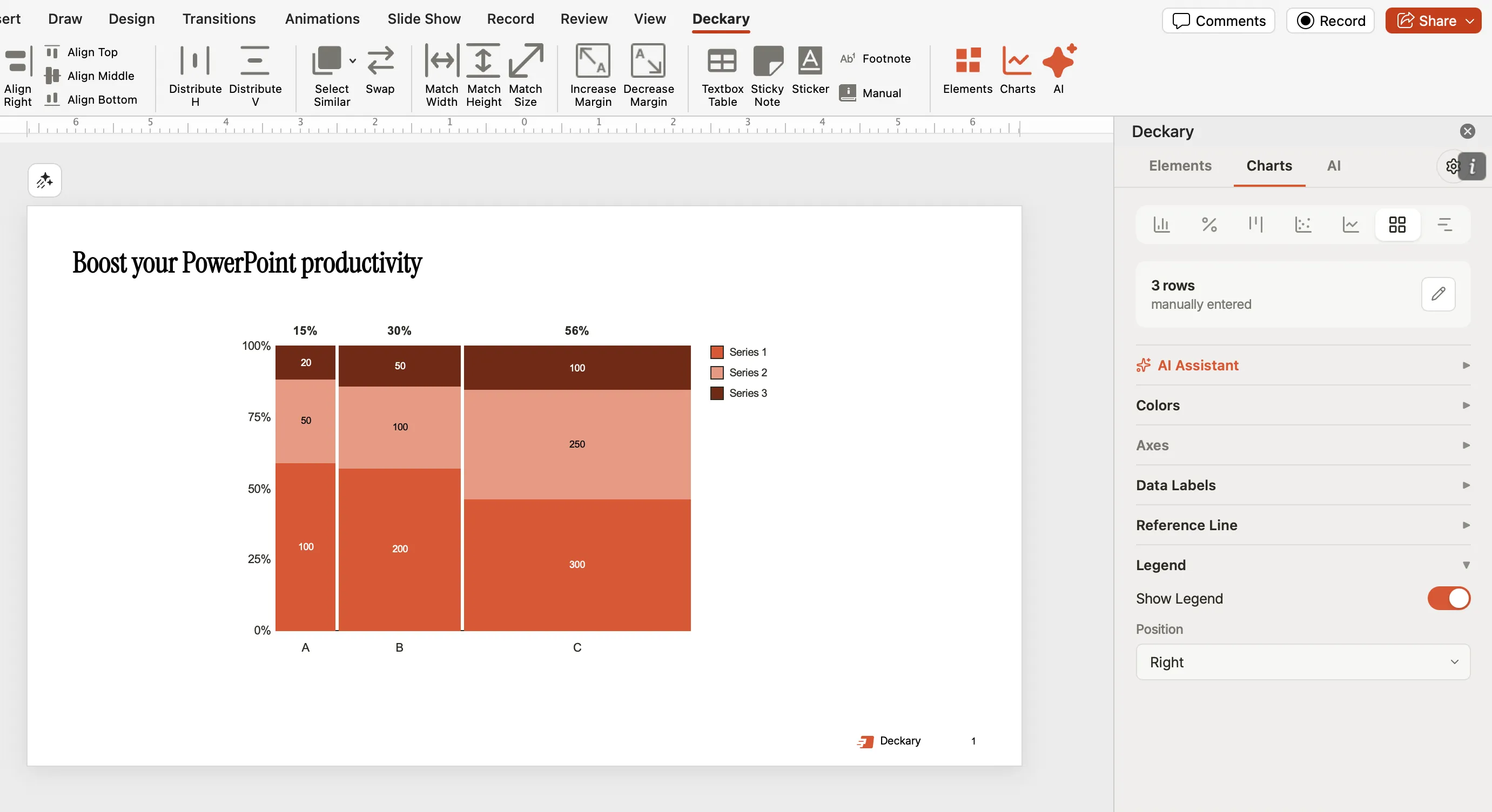
Deckary Mekko chart example

Mekko chart capabilities:

  • 100% stacked and absolute Mekko charts
  • Automatic width calculation from data
  • Excel data linking with live updates
  • One-click chart creation from Excel data
  • Cross-platform (Windows and Mac)

Price: $49/year (Starter), $119/year (Premium), $199 lifetime

Best for: Consultants and analysts who need professional Mekko charts without enterprise pricing.

Which Add-in Should You Choose?#

Your SituationRecommended Tool
Budget-conscious, need multiple chart typesDeckary
Enterprise with existing think-cell licenseThink-cell
Exclusively need Mekko charts, budget allowsMekko Graphics
One-time chart, won't updateExcel workaround (if you have time)

For most consultants and small firms, Deckary offers the best value: professional Mekko charts at $49-119/year versus $299-499 for alternatives.

Excel to PowerPoint: The Linking Challenge#

One of the biggest pain points with Excel Marimekko charts is getting them into PowerPoint while maintaining data links.

The Problem with Native Excel Workarounds#

When you create a Marimekko chart using the stacked area workaround in Excel:

  1. Paste as image: Chart becomes static, no updates possible
  2. Paste as linked chart: The area chart appears in PowerPoint, but still doesn't look like a proper Mekko without extensive formatting
  3. Paste as embedded chart: Requires editing in PowerPoint, which opens Excel—defeating the purpose

The core issue: Excel's stacked area workaround produces a chart type that PowerPoint handles poorly. Links break, formatting shifts, and updates require rebuilding the chart.

How Add-ins Solve the Linking Problem#

Add-ins like Deckary take a different approach:

  1. Select data in Excel — Your source data range
  2. Create chart in PowerPoint — Chart is built natively in PowerPoint
  3. Link maintained — The add-in tracks the Excel source
  4. One-click refresh — Update Excel data, click refresh in PowerPoint, chart updates

This architecture means:

  • Charts survive file moves (relative path handling)
  • Formatting is preserved during updates
  • All linked charts refresh simultaneously
  • Works consistently across Windows and Mac

Step-by-Step: Excel to PowerPoint Linking with Deckary#

Creating the linked Mekko chart:

  1. In Excel, select your data range including headers:
CountryMarket SizeAWSAzureGoogleOther
UK12.532%28%18%22%
..................
  1. Click "Mekko" in the Deckary ribbon
  2. The chart appears in PowerPoint, linked to your Excel data
  3. Position and resize as needed

Updating when data changes:

  1. Update values in Excel
  2. Save the Excel file
  3. In PowerPoint, click "Refresh" in the Deckary toolbar
  4. All linked Mekko charts update automatically

Time comparison:

TaskExcel WorkaroundAdd-in Method
Initial chart creation45-90 minutes60 seconds
Data update (10 values)15-30 minutes30 seconds
Adding a new category20+ minutes2 minutes
Total for 3 revision cycles3-5 hours5 minutes

The math is clear: for any presentation that will go through revisions, add-ins pay for themselves immediately.

Best Practices for Marimekko Charts#

Whether you use the Excel workaround or an add-in, these design principles ensure your Mekko charts communicate effectively.

Color Strategy#

ElementColor Approach
Your company/focus areaAccent color (blue, green)
Major competitorsDistinct, muted colors
"Other" categoryGray
Smallest segmentsLighter shades

Use color to direct attention. If AWS is your client's main competitor, make AWS stand out while others fade into supporting context.

Labeling Guidelines#

Column labels (bottom or top):

  • Show segment name AND absolute value
  • Example: "Germany\n$15.2B"

Segment labels (inside bars):

  • Show percentage OR absolute value, not both
  • Remove labels from segments smaller than 5%
  • Use white text on dark segments, dark text on light segments

Axis labels:

  • Clearly state what width represents (e.g., "Market Size $B")
  • State what height represents (e.g., "Market Share %")

Data Ordering#

Column ordering:

ApproachWhen to Use
Largest to smallest (left to right)Default for most analyses
Geographic logic (West to East)Regional analyses
Strategic priorityWhen highlighting focus areas

Segment ordering within columns:

  • Keep consistent across ALL columns
  • If AWS is on top in UK, AWS should be on top in Germany
  • Inconsistent ordering forces readers to hunt for comparisons

Limit Categories#

Too ManyBetter Approach
12 countriesGroup into 5-6 regions
8 competitorsShow top 4 + "Other"
15 product linesGroup into 4-5 categories

Mekko charts become unreadable with too many segments. The power is in showing the big picture, not every detail.

Common Marimekko Chart Mistakes#

Mistake 1: Inconsistent Segment Order#

Problem: AWS is on top in one column and in the middle in another.

Impact: Readers can't track competitors across segments without hunting.

Fix: Lock segment order across all columns. Use the same color in the same position throughout.

Mistake 2: Missing Width Labels#

Problem: Viewers can see relative widths but not actual values.

Impact: "Germany is wider than France" tells you nothing about the actual market size difference.

Fix: Always label column widths with absolute values ($15.2B, not just "Germany").

Mistake 3: Too Many Segments Per Column#

Problem: Showing 10 competitors when 4 matter.

Impact: Small segments are unreadable. The chart becomes visual noise.

Fix: Group minor players into "Other." The detail can live in an appendix.

Mistake 4: Unclear Dimension Definitions#

Problem: Audience doesn't know what width or height represents.

Impact: "What am I looking at?" is not the reaction you want.

Fix: Add explicit axis labels. Include a chart title that states both dimensions: "European Cloud Market: Size by Country and Share by Provider."

Mistake 5: Using Mekko When Simpler Charts Work#

Problem: Creating a Mekko chart when a stacked bar would suffice.

Impact: Added complexity without added insight. Longer interpretation time.

Fix: Ask: "Does the variable width add meaningful information?" If not, use a simpler chart.

Marimekko Chart Checklist#

Before presenting any Mekko chart, verify:

Data Accuracy

  • Column widths sum to correct total
  • Segment heights sum to 100% (for percentage-based Mekkos)
  • All values have been verified against source data

Visual Clarity

  • 6-8 columns maximum
  • 4-6 segments maximum per column
  • Consistent segment order across all columns
  • Consistent color scheme

Labels and Annotations

  • Column width values labeled
  • Chart title states both dimensions
  • Key insight called out or annotated
  • Legend is clear and positioned appropriately

Formatting

  • Colors direct attention to the key insight
  • Small segments are grouped into "Other"
  • Fonts are readable at presentation size

Real-World Use Case: Cloud Market Analysis#

Here's how a complete Marimekko chart analysis comes together.

The Business Question#

"Where should we focus our European cloud expansion? Which markets are large enough to matter, and where do we have the best competitive position?"

The Data#

CountryMarket Size ($B)Our ShareAWSAzureGoogleOther
UK12.58%32%28%14%18%
Germany15.212%28%35%10%15%
France8.85%35%25%18%17%
Netherlands4.215%38%22%12%13%
Nordics6.310%30%30%12%18%

The Insight#

A Mekko chart reveals:

  1. Germany is the largest market (widest column) — strategic priority
  2. We have strongest share in Germany and Netherlands — areas of competitive advantage
  3. France shows weakest position in a mid-sized market — potential investment or de-prioritization decision
  4. Netherlands is small but we lead — niche strength

One chart, multiple insights, 30-second executive understanding.

Summary#

Marimekko charts are among the most powerful visualizations for market analysis and competitive positioning. They solve a specific problem: showing two dimensions of data—size and composition—in a single, information-dense chart.

The challenge is that Excel cannot create them natively. You either spend hours building fragile stacked area workarounds, or you use a tool designed for the job.

Key takeaways:

  1. Mekko charts show two dimensions — width and height both encode data
  2. Excel has no native Marimekko chart — only complex workarounds exist
  3. The stacked area method takes 45-90 minutes — and breaks when data changes
  4. Add-ins create Mekko charts in under 60 seconds — with Excel linking that actually works
  5. Limit to 6-8 columns and 4-6 segments — more creates visual noise
  6. Always label widths with absolute values — relative width alone is meaningless
  7. Keep segment order consistent — same competitor position in every column

For consultants and analysts building Mekko charts regularly, the right tools pay for themselves immediately. Deckary offers Mekko charts at $49-119/year with a 14-day free trial—no credit card required.

The only PowerPoint add-in you need

20+ shortcuts, Think-Cell style charts, 1,000+ icons and templates. Free 14-day trial for Mac & Windows.

Try Deckary Free