Waterfall Chart Excel: The Complete Guide (With Templates)
Learn how to create waterfall charts in Excel with step-by-step instructions. Covers bridge charts, formatting tips, limitations, and professional alternatives.
- Bob · Former McKinsey and Deloitte consultant with 6 years of experience
- January 9, 2026
- 8 min read
A waterfall chart shows a running total as values are added or subtracted, with color-coded columns distinguishing positive from negative contributions. Excel added native waterfall chart support in 2016, but the implementation has significant limitations: no stacked segments, limited connector formatting, and no live linking to PowerPoint.
Whether you use Excel natively, Deckary, or another add-in, the design principles for effective waterfall charts remain the same. This guide covers how to create waterfall charts in Excel, the native limitations, and when to consider alternatives. Waterfall charts are one of the most important chart types in consulting — for a complete overview of all chart types, see our PowerPoint Charts Guide.
What Is a Waterfall Chart?
A waterfall chart shows how a starting value changes through multiple positive and negative factors to reach an ending value. The initial and final bars anchor to the horizontal axis, while intermediate values appear as floating bars.
| Alternative Names | Origin |
|---|---|
| Bridge chart | Columns "bridge" from start to end value |
| Cascade chart | Values cascade from one to the next |
| Flying bricks chart | Floating bars resemble suspended bricks |
| McKinsey chart | Popularized by McKinsey & Company |
The format became standard in consulting and finance because it solves a specific communication problem: explaining variance between two values visually rather than in a table. Excel added native support in Excel 2016. Before that, analysts built them manually using stacked column charts with invisible base series — a 20-30 minute workaround per chart.
Types of Waterfall Charts
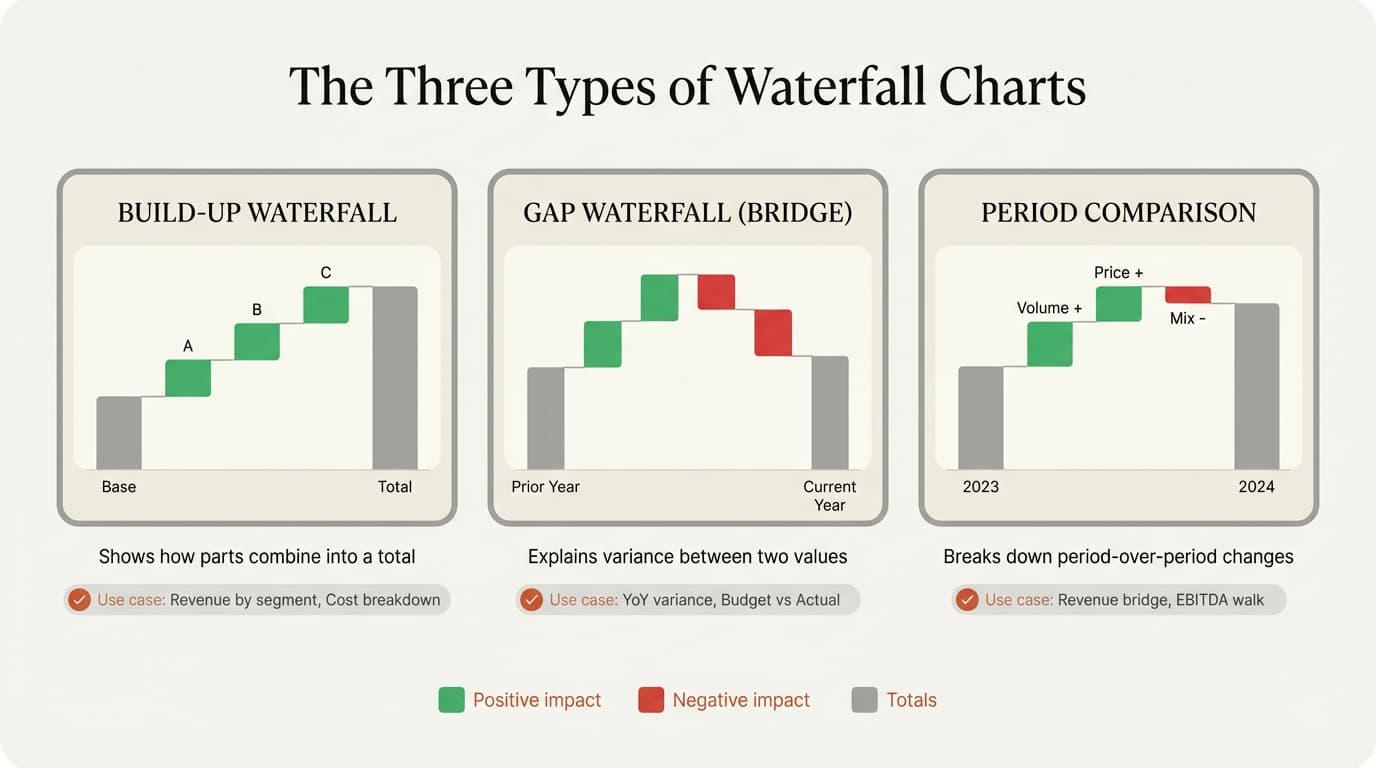
Consultants typically use three variations:
Build-Up Waterfall — Shows how components combine into a total (e.g., revenue by product line building to total revenue).
Gap/Bridge Waterfall — Shows the difference between two values: Starting Value ± Drivers = Ending Value. Common in year-over-year EBITDA bridges and budget vs. actual variance analysis.
Stacked Waterfall — Each bar contains multiple segments showing both the total change and its composition. Excel's native waterfall chart does not support stacking — this requires manual chart building or specialized add-ins.
How to Create a Waterfall Chart in Excel
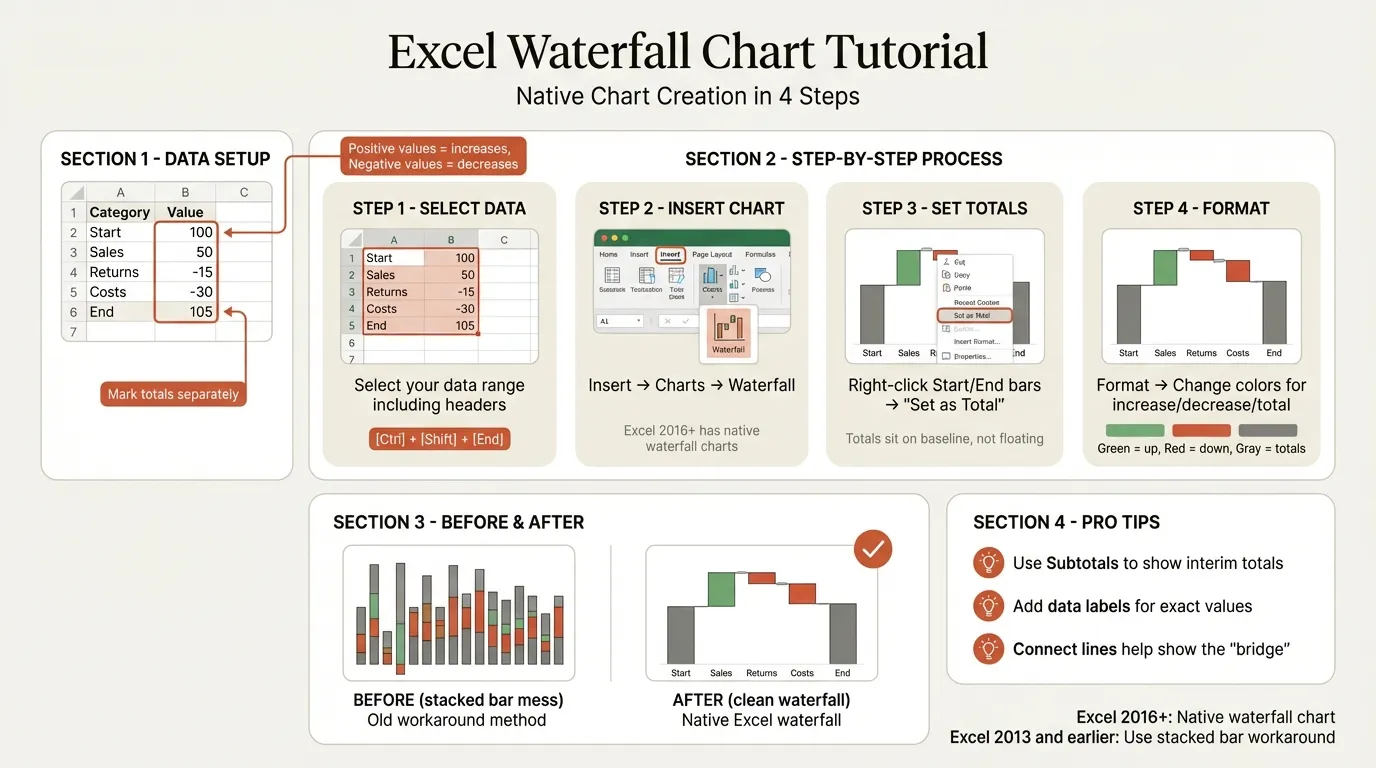
You need Excel 2016 or later. Organize your data with labels in one column and values in an adjacent column, using positive numbers for increases and negative for decreases.
Step 1: Prepare Your Data
| Category | Amount |
|---|---|
| 2024 Revenue | 100 |
| Volume Growth | 12 |
| Price Increase | 8 |
| Currency Impact | -3 |
| Lost Customers | -7 |
| 2025 Revenue | 110 |
Step 2: Insert the Chart
Select your data range (both columns, including headers), go to Insert > Charts, and click the Waterfall chart icon.
Step 3: Set Totals
By default, Excel treats all values as incremental changes. Click on your starting value bar (2024 Revenue), right-click, and choose Set as Total. Repeat for the ending value bar. Total bars will now anchor to the horizontal axis.
Step 4: Format and Clean Up
- Change colors via the chart legend: select the Increase, Decrease, or Total element, right-click, and adjust fill. Green for positive, red for negative, and gray for totals is standard.
- Add data labels via the + button (Chart Elements) > Data Labels > Outside End.
- Remove gridlines and unnecessary legends to reduce clutter.
Continue reading: How to Make a Good PowerPoint · Best Tools for Creating Business Case Presentations in PowerPoint · PowerPoint Infographic Template
Limitations of Excel's Native Waterfall Chart
Excel's native waterfall chart has significant limitations that become frustrating for frequent users:
- No stacked segments — You cannot show multiple components within each bar. No workaround exists within the native chart type.
- Limited connector formatting — Connector lines between bars cannot be styled (dashed, thicker, colored).
- Color scheme restrictions — Manually changing individual bar colors removes dynamic coloring. Bars won't update automatically when data changes sign.
- Cannot overlay additional series — No target lines, benchmarks, or CAGR annotations.
- No automatic scale consistency — Multiple charts in a presentation auto-scale independently, making visual comparisons misleading.
- Category label constraints — Labels can only be horizontal by making the chart extremely wide.
Creating Waterfall Charts in Older Excel Versions
If you're using Excel 2013 or earlier, you need to build waterfall charts manually using stacked column charts with invisible base series.
Create three helper columns — Base, Rise, and Fall — then build a stacked column chart and make the Base series invisible:
| Category | Value | Base | Rise | Fall |
|---|---|---|---|---|
| Start | 100 | 0 | 100 | |
| Growth | 20 | 100 | 20 | |
| Decline | -15 | 105 | 15 | |
| End | 105 | 0 | 105 |
This method works but is fragile. Changing any value requires recalculating the Base column, and formatting adjustments must be redone frequently.
Waterfall Chart Best Practices
Color Coding Standards
| Element | Recommended Color | Purpose |
|---|---|---|
| Positive changes | Green | Increases, gains, favorable variances |
| Negative changes | Red | Decreases, losses, unfavorable variances |
| Totals/Subtotals | Gray or Blue | Neutral, summary values |
Ordering and Grouping
Order bars by magnitude — largest positive drivers first, then smaller positives, then smaller negatives, then the largest negative driver last. This creates a visual hierarchy that guides attention to what matters most.
Keep your chart to 7-10 bars maximum. Group minor categories:
| Too Many Bars | Grouped Version |
|---|---|
| Product A, B, C, D, E, F, G, H | Products (+$5M total) |
| Rent, Utilities, Insurance, Maintenance | Facilities (+$1.2M) |
Annotations
Add plus/minus signs, percentage labels ("–12% vs. PY"), and callout boxes for key drivers. Don't leave interpretation to the viewer.
Excel Waterfall Chart vs. Alternative Methods
| Feature | Native Excel | Manual Stacked Column | Add-in (Deckary) |
|---|---|---|---|
| Ease of creation | Easy (2016+) | Difficult | Easy |
| Stacked segments | No | Yes (complex) | Yes |
| Connector formatting | Limited | Manual shapes | Full control |
| Dynamic colors | Partial | No | Yes |
| Scale consistency | Manual | Manual | Automatic |
| Time to create | 5-10 min | 20-30 min | 1-2 min |
| Time to update | 2-5 min | 10-15 min | 30 sec |
Use native Excel for quick, one-off charts where basic formatting is acceptable. Use add-ins when you build waterfall charts regularly and need professional formatting, stacked waterfalls, or CAGR lines. For consultants building multiple charts per project, tools like Deckary pay for themselves quickly.
Waterfall Charts in PowerPoint vs. Excel
If your destination is PowerPoint, you can build in Excel and paste (linked or embedded), build directly in PowerPoint's native waterfall chart, or use add-ins like Deckary that create charts in PowerPoint while linking to Excel data.
For a deeper dive on the PowerPoint side, see our guide on waterfall charts in PowerPoint. You can also explore Deckary's waterfall chart feature for one-click waterfall creation with Excel linking.
Common Mistakes to Avoid
- Not setting totals — All bars float instead of anchoring start/end values. Fix: right-click and select "Set as Total."
- Inconsistent color coding — Mixing colors for the same data types. Fix: green positive, red negative, gray totals — applied consistently.
- Too many categories — Showing 15+ bars when minor items should be grouped into "Other."
- Missing data labels — Forcing viewers to estimate values from bar heights.
- Wrong ordering — Bars ordered alphabetically when magnitude matters. Order by impact instead.
- Inconsistent axis scales — Multiple charts in a deck with different scales. Manually set axis min/max to match across related charts.
Templates and Resources
- Microsoft Support — Official documentation and examples
- Vertex42 — Templates for horizontal and vertical waterfall charts
- Macabacus Blog — Tutorial with downloadable template
Summary
Excel's native waterfall chart (2016+) works for basic use cases, but limitations emerge quickly when you need stacked segments, precise formatting, or efficient multi-chart workflows.
Key takeaways:
- Excel 2016+ includes native waterfall charts — Insert > Charts > Waterfall
- Always set totals correctly — Right-click starting/ending bars and "Set as Total"
- Native limitations — No stacked segments, limited connector formatting, no consistent scaling
- Color code consistently — Green positive, red negative, gray totals
- Order by magnitude and limit to 7-10 bars — Group minor categories to reduce noise
- Consider add-ins for recurring work — Tools like Deckary save significant time on professional charts