Combo Charts in PowerPoint: How to Combine Chart Types for Better Insights
Learn how to create combo charts in PowerPoint combining columns and lines. Step-by-step instructions, dual-axis tips, and best practices for consultants.
- Bob · Former McKinsey and Deloitte consultant with 6 years of experience
- January 9, 2026
- 8 min read
Dual-axis charts are the most misused visualization in business presentations. A 2% margin change looks dramatic when the secondary axis runs from 18% to 22%, while revenue appears flat on a zero-based scale. The visual correlation becomes misleading.
After auditing 150+ quarterly review decks, we found that roughly 40% of combo charts would have been clearer as two separate visualizations. The combo chart earns its place only when the relationship between metrics genuinely matters and the axes can be scaled honestly.
This guide covers when combo charts outperform separate visualizations, how to build them in PowerPoint, and the formatting decisions that separate honest insights from misleading ones. For a complete overview of all chart types, see our PowerPoint Charts Guide.
What Is a Combo Chart?
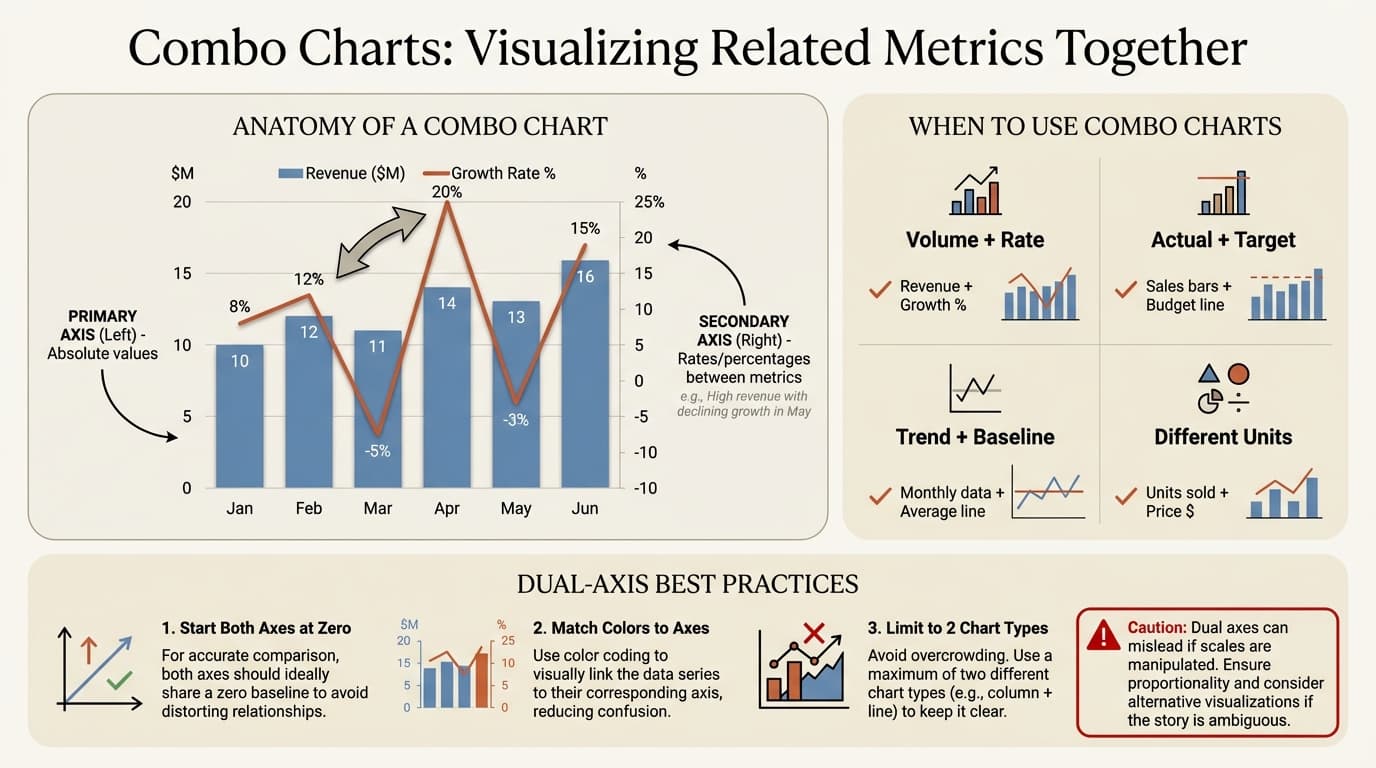
A combo chart (also called a combination chart) displays two or more chart types in a single visualization. The most common combination pairs columns with a line, allowing you to show different metrics on separate axes.
| Term | Description |
|---|---|
| Combo chart | Any chart combining multiple chart types |
| Dual-axis chart | A chart with two vertical axes (primary and secondary) |
| Primary axis | The left vertical axis, typically for the main metric |
| Secondary axis | The right vertical axis, for a second metric with different scale |
When to Use Combo Charts
Combo charts work best in four scenarios:
Trends with different units -- revenue (dollars) with profit margin (percentage), headcount with attrition rate, or units sold with average selling price.
Volume vs. efficiency -- sales volume with conversion rate, production output with defect rate, or customer count with satisfaction score.
Cause and effect -- marketing spend (line) with resulting sales (bars), or training hours (bars) with productivity improvement (line).
Actual vs. target -- actual revenue (bars) with budget line, monthly costs (bars) with spending cap (line), or sales by rep (bars) with quota line.
When NOT to Use Combo Charts
| Scenario | Problem | Better Alternative |
|---|---|---|
| Unrelated metrics | Forces false correlation | Two separate charts |
| Similar scales/units | Secondary axis adds confusion | Single axis with legend |
| Three or more series | Visual overload | Dashboard with multiple charts |
| Precise comparison needed | Dual axes make comparison difficult | Table or single-metric chart |
| Unfamiliar audience | Dual axes require explanation | Simpler chart types |
The golden rule: if you cannot explain why the two metrics belong together in one sentence, they probably should not share a chart.
Types of Combo Charts
PowerPoint supports several combo chart combinations. Here are the most useful for consulting presentations.
| Combo Type | Primary Use | Complexity | When to Use |
|---|---|---|---|
| Column + Line | Volume vs. rate | Low | Default choice for most scenarios |
| Stacked Column + Line | Composition + trend | Medium | When part-whole relationship matters |
| Clustered Column + Line | Multiple comparisons + trend | Medium | When comparing 2-3 categories with overlay |
| Area + Line | Cumulative + rate | Medium | When running totals are important |
| Bar + Line | Horizontal comparisons + trend | Low | When category labels are long |
Column + Line is the standard: columns show discrete values on the primary axis while the line shows a trend or rate on the secondary axis. Stacked Column + Line adds compositional breakdown but packs more information -- use it only when the audience needs both composition and trend simultaneously. Area + Line is less common but effective for cumulative effects with a rate overlay.
Continue reading: How to Make a Good PowerPoint · How to Create an Org Chart in PPT · PowerPoint Design Tips
How to Create a Combo Chart in PowerPoint
Step 1: Insert a Chart
- Click on the slide where you want the chart
- Go to Insert > Chart in the ribbon
- In the left panel, select Combo
- Choose Clustered Column - Line as the starting point
- Click OK
Step 2: Enter Your Data
PowerPoint opens an Excel-like spreadsheet for data entry.
- Replace the sample data with your actual values
- Column A: Categories (typically time periods)
- Column B: First data series (displays as columns)
- Column C: Second data series (displays as line)
- Close the data window when finished
Step 3: Configure the Secondary Axis
If your metrics have different scales:
- Right-click on the line series
- Select Format Data Series
- Under Series Options, select Secondary Axis
The chart now displays two vertical axes -- primary on the left, secondary on the right.
Step 4: Format for Clarity
- Click the + button (Chart Elements) to add Axis Titles, Data Labels, and Legend
- Remove gridlines -- click the gridlines and press Delete
- Use high-contrast colors -- blue columns with orange line is a classic pairing
- Format axis numbers -- right-click each axis and adjust the number format
- Write an action title that states the insight, not just the topic
Best Practices for Combo Charts
Keep It Simple
- Limit to two chart types -- never combine three or more
- Limit data series -- one or two column series, one line
- Remove decorative elements -- no 3D effects, shadows, or gradients
- Use two contrasting colors maximum
Design Dual Axes Carefully
Dual-axis charts are controversial because they can mislead. Follow these guidelines:
- Start both axes at zero unless you have a compelling reason not to
- Match axis ranges to data ranges to avoid excessive white space
- Label axes clearly with units (%, $, units)
- Color-code axes -- match each axis label color to its series color
Write Action Titles
| Weak Title | Strong Action Title |
|---|---|
| Revenue and Growth | Revenue growth accelerated to 28% despite Q3 dip |
| Sales and Margin | Higher sales volume came at cost of 3pp margin decline |
| Spend and Results | Marketing spend increase correlated with 40% traffic jump |
Common Mistakes to Avoid
Forcing unrelated metrics together. Just because two metrics can share a chart does not mean they should. Customer count with customer acquisition cost works. Customer count with office supply expenses does not.
Misleading dual-axis scales. By adjusting axis minimums and maximums, you can make any two lines appear to move together or apart. Start both axes at zero and use scales that reflect actual data ranges. If a different scale would tell a different story, be cautious.
Too many data points. Line charts handle 12-24 data points well, but combining with columns gets cluttered. Aim for 6-8 periods maximum and aggregate if needed (quarterly instead of monthly).
Missing axis labels. Without labels, readers cannot interpret values. Always include axis titles, units, and color-matched labels for dual-axis charts.
Combo Charts vs. Other Chart Types
| Need | Combo Chart | Alternative | Use Combo When |
|---|---|---|---|
| Show two metrics over time | Column + Line | Two separate line charts | Metrics are related and reveal insight together |
| Compare absolute and percentage | Column (absolute) + Line (%) | Index both to 100 | Different units make single axis impossible |
| Show trend with target | Bars + Target line | Bar chart with reference line | Target is a calculated or external value |
| Show composition + total | Stacked column + Line | 100% stacked bar | Both component breakdown and trend matter |
Creating Combo Charts with Excel Links
For consulting presentations where data updates frequently, linking your combo chart to Excel saves hours.
Manual method: Create the combo chart in Excel, copy it, then use Paste Special > Paste Link in PowerPoint. The chart updates when you refresh the link, but links break when files move or rename.
Add-in method: Tools like Deckary offer more robust Excel linking with links that survive file moves, one-click refresh for all charts, and cross-platform support. For presentations with multiple combo charts requiring regular updates, this significantly reduces maintenance overhead.
Key Takeaways
When to use combo charts: comparing metrics with different units, showing correlation between related metrics, or visualizing actual vs. target.
When to avoid them: metrics are unrelated, dual axes could mislead, three or more chart types are needed, or the audience is unfamiliar with the format.
Core best practices: limit to two chart types, use high-contrast colors, label both axes with units, match axis colors to series colors, write action titles, and start axes at zero.
Combo charts solve a real problem: showing how different metrics relate across a common dimension. Use them when the relationship matters, format them for clarity, and your audience will understand complex data at a glance.