Bullet Charts in PowerPoint: A Consultant's Guide to Compact Data Visualization
Learn how to create bullet charts in PowerPoint for KPI dashboards. Step-by-step guide with comparison to gauges, best practices from Stephen Few, and consulting use cases.
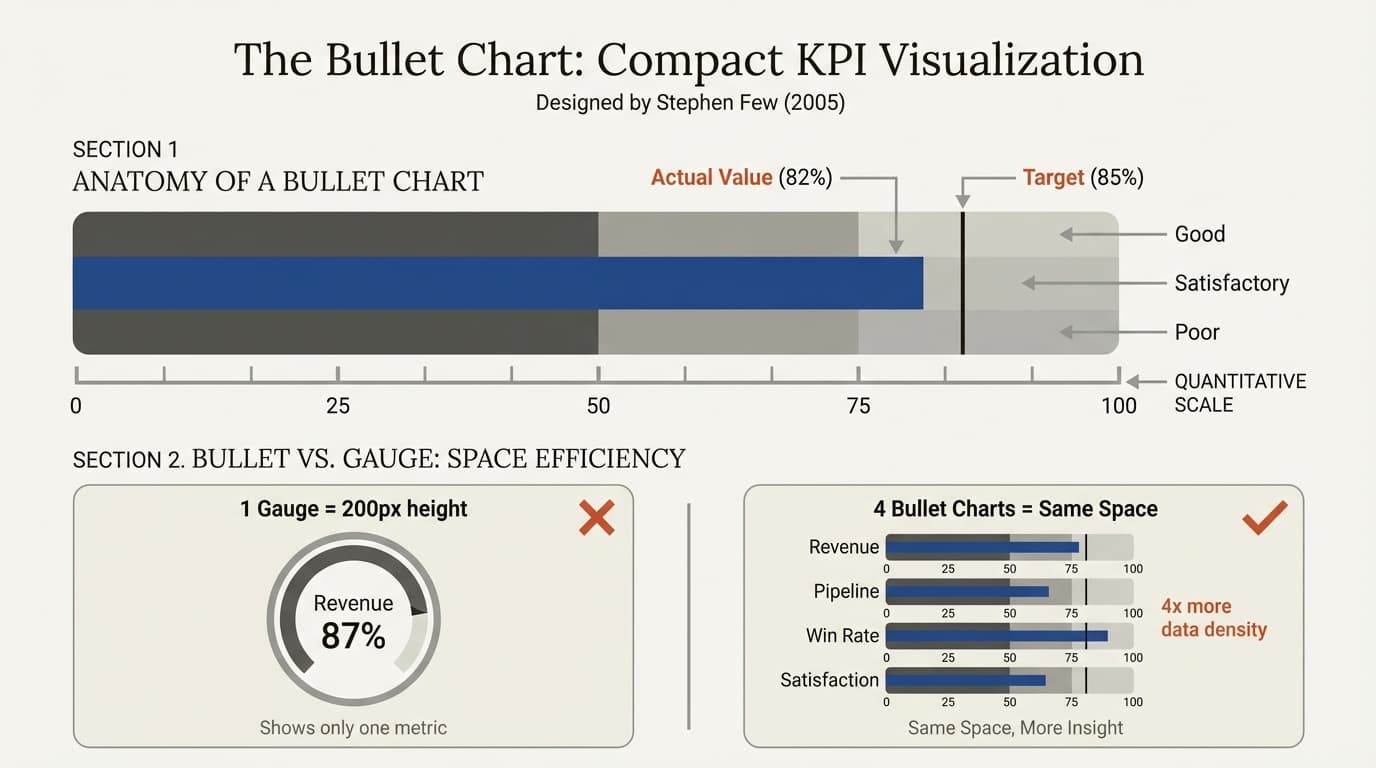
Dashboard gauges look impressive in software demos but fail in practice. A circular speedometer showing 73% completion wastes the space that could display three other KPIs. Stephen Few designed the bullet chart in 2005 specifically to solve this problem: show actual performance, target, and qualitative ranges in a compact horizontal bar that stacks efficiently.
We have implemented bullet charts in 30+ executive dashboards, replacing gauge-heavy designs that partners struggled to scan quickly. The improvement is measurable: stakeholders identify off-track metrics in 2-3 seconds with bullet charts versus 8-10 seconds with scattered gauges. The information density advantage compounds when you have 8 KPIs competing for attention on one slide.
This guide explains the bullet chart anatomy that Few specified, why PowerPoint makes them unnecessarily difficult to build, and the workarounds and add-ins that produce professional results without hours of manual shape alignment.
What Is a Bullet Chart?#

A bullet chart (also called a bullet graph) is a linear visualization designed to display performance data in a compact format. It was created by data visualization expert Stephen Few to replace the circular gauges and meters that dominated early dashboard designs.
| Other Names | Why It's Called That |
|---|---|
| Bullet graph | The primary measure bar resembles a bullet |
| Linear gauge | Horizontal alternative to circular gauges |
| Qualitative bar | Includes qualitative performance ranges |
| Performance bar | Shows performance against targets |
According to Few's original design specification, bullet charts address fundamental problems with dashboard gauges: they display too little information, require too much space, and are cluttered with useless decorations. The bullet chart solves all three issues with an elegant linear design.
Anatomy of a Bullet Chart#
Every bullet chart contains five essential components:
1. Quantitative Scale The horizontal axis showing the numeric range of possible values. This provides context for interpreting all other elements.
2. Primary Measure (Feature Bar) A solid horizontal bar representing the actual current value—your primary performance metric. This is the "bullet" that gives the chart its name.
3. Comparative Measure (Target Marker) A thin vertical line showing the target, goal, or benchmark you're measuring against. This allows instant comparison between actual and target.
4. Qualitative Ranges Shaded background bands indicating performance zones—typically three ranges representing poor, satisfactory, and good performance. These provide context without requiring the viewer to know specific thresholds.
5. Text Labels The metric name and any necessary units or context. A bullet chart without clear labels is meaningless.
How Bullet Charts Encode Information#
The genius of the bullet chart is information density. In a single horizontal bar, you can see:
- Actual performance — how the feature bar extends along the scale
- Target comparison — whether the feature bar reaches or exceeds the target marker
- Performance quality — which qualitative range the actual value falls within
- Headroom or deficit — the visual gap between actual and target
A gauge chart shows only the first of these. A bullet chart shows all four simultaneously.
When to Use Bullet Charts#
Bullet charts excel in specific scenarios where their compact design and target comparison capabilities provide clear advantages.
1. KPI Dashboards and Scorecards#
The primary use case. When you need to display multiple performance metrics on a single slide or screen.

Example applications:
- Executive dashboards with 5-10 KPIs
- Sales performance scorecards
- Monthly operational reviews
- Quarterly business reviews
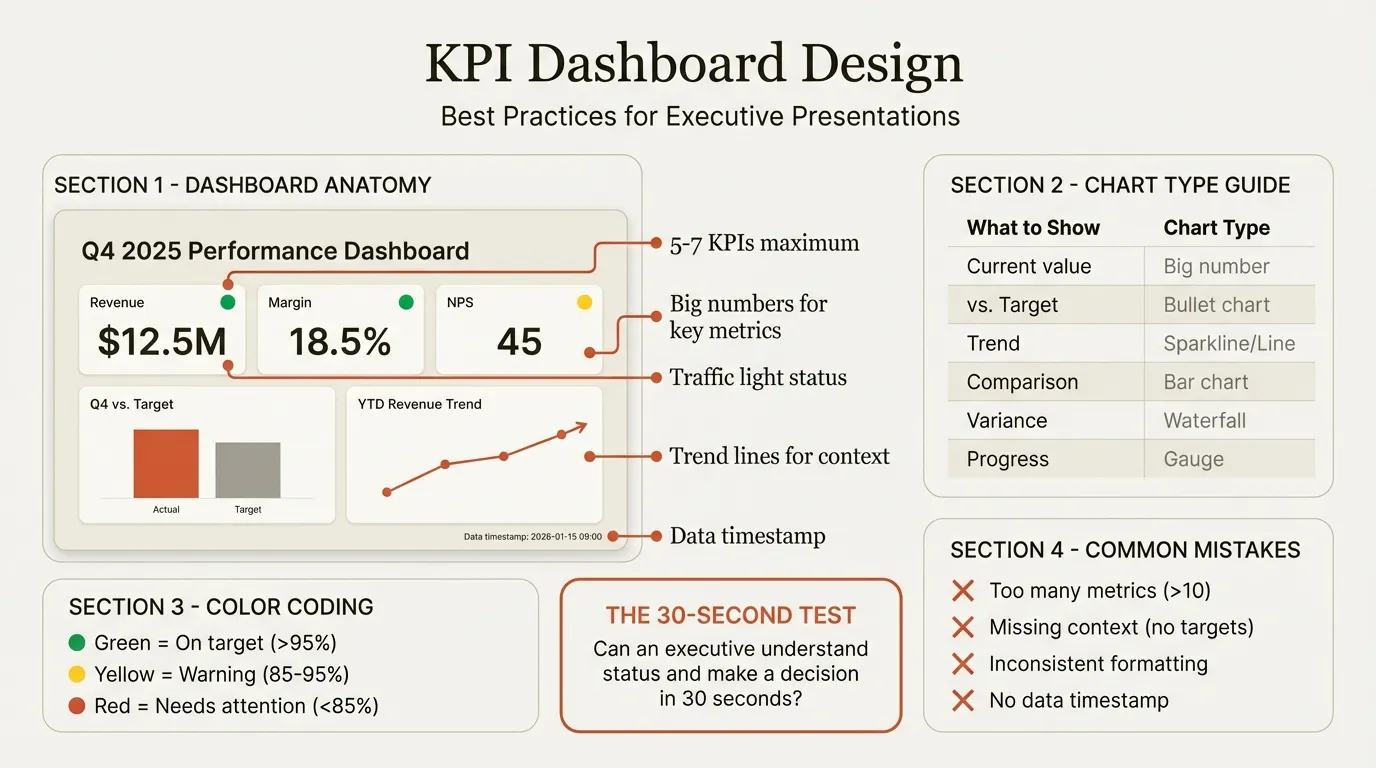
For guidance on designing effective KPI presentations, see our KPI Dashboard PowerPoint guide.
2. Performance vs. Target Comparisons#
Whenever your core message is "are we hitting our targets?"
Example applications:
- Revenue vs. quota tracking
- Budget vs. actual spending
- Service level agreement (SLA) compliance
- Production output vs. capacity
3. Space-Constrained Presentations#
When slide real estate is limited and you need maximum information density.
Example applications:
- One-page summaries
- Mobile dashboard views
- Dense executive briefings
- Multi-metric comparison slides
4. Replacing Gauge Charts#
Anywhere you currently use circular gauges, bullet charts provide more information in less space.
The replacement argument:
- One gauge chart occupies the vertical space of 3-4 stacked bullet charts
- Bullet charts show qualitative ranges; most gauges show only a needle
- Linear scales are easier for humans to read accurately than circular arcs
When NOT to Use Bullet Charts#
| Don't Use When | Use Instead |
|---|---|
| Showing trends over time | Line chart or sparkline |
| Breaking down components of a total | Waterfall chart or stacked bar |
| Comparing many categories against each other | Bar chart |
| Audience is unfamiliar with the format | Simpler bar chart with target line |
| You have only one metric | Large number with context |
| Showing probability distributions | Histogram or box plot |
The biggest risk with bullet charts is audience confusion. While widely used in business intelligence tools, bullet charts are less familiar to general audiences than bar charts. If your viewers need to be trained to read the chart, consider whether the space savings justify the learning curve.
Bullet Charts vs. Gauge Charts: A Detailed Comparison#
Stephen Few designed bullet charts specifically to address gauge chart limitations. Here's how they compare:
Space Efficiency#
| Metric | Gauge Chart | Bullet Chart |
|---|---|---|
| Vertical space for 1 KPI | 150-200 pixels | 40-50 pixels |
| KPIs displayable in 400px | 2-3 max | 8-10 easily |
| Horizontal space required | Large (circular) | Compact (linear) |
A bullet chart demonstrating one metric occupies the same space as a gauge for one metric—but you can stack multiple bullet charts vertically. FusionCharts research confirms that a chart with three bullet categories occupies the same space as a gauge for one category.
Information Density#
| Information Element | Gauge Chart | Bullet Chart |
|---|---|---|
| Current value | Yes | Yes |
| Target comparison | Sometimes | Yes |
| Qualitative ranges | Rarely | Yes |
| Performance zones | Limited | Yes (3+ zones) |
| Trend indication | No | Can add sparkline |
Accuracy of Reading#
Linear scales are inherently easier for humans to interpret accurately than circular arcs. Research on visual perception shows that people estimate position along a line more accurately than position along a curve.
Visual Appeal vs. Function#
Gauges have one advantage: they look like familiar real-world instruments (speedometers, pressure gauges). This familiarity can make them more intuitive for non-technical audiences. However, this advantage rarely outweighs the information density benefits of bullet charts for business presentations.
When to Use Each#
| Situation | Recommended Chart |
|---|---|
| Executive dashboard with 5+ metrics | Bullet charts |
| Single prominent metric display | Either (gauge acceptable) |
| Technical audience familiar with BI tools | Bullet charts |
| General audience, single metric | Gauge may work |
| Mobile or constrained display | Bullet charts |
| Space is unlimited | Either |
Bullet Chart Best Practices#

Following Stephen Few's original design principles and consulting experience, these practices maximize bullet chart effectiveness.
Color Coding the Qualitative Ranges#
Use graduated intensities of a single hue—not different colors. Few's specification recommends:
| Range | Color Intensity | Meaning |
|---|---|---|
| Poor | Dark gray | Below acceptable performance |
| Satisfactory | Medium gray | Acceptable but not target |
| Good | Light gray | Meeting or exceeding targets |
Why gray? The qualitative ranges are background context, not the primary message. Using muted grays keeps attention on the feature bar (actual performance) rather than the background.
If you must use colors, use the darker intensities for poor performance and lighter intensities for good performance. This creates intuitive "danger zone" visual coding.
Formatting the Feature Bar#
The primary measure bar should be:
- Narrower than the qualitative ranges (about 1/3 the height)
- High contrast against the background (dark blue, black, or a brand color)
- Visually prominent—this is what the viewer should see first
Positioning the Target Marker#
The target marker (comparative measure) should be:
- A thin vertical line, not a thick bar
- High contrast against all backgrounds
- Positioned at the exact target value on the scale
- Clearly distinct from the feature bar
Common mistake: making the target marker too thick. It should be 2-3 pixels wide, just enough to be clearly visible.
Handling Different Measure Types#
For metrics where lower is better (costs, churn, defects), Few recommends reversing the direction:
- The bar extends from right to left
- Qualitative ranges reverse (good on left, poor on right)
- This maintains the intuitive "more bar = more performance" logic
Alternatively, frame the metric positively. Instead of "churn rate 4%" (lower is better), show "retention rate 96%" (higher is better).
Scale and Axis Design#
- Start the axis at zero unless there's a compelling reason not to
- End the axis at a round number slightly above the maximum expected value
- Include tick marks at logical intervals (every 25%, every $1M, etc.)
- Label the axis ends and midpoint at minimum
Multiple Bullet Charts Together#
When stacking multiple bullet charts:
- Use consistent scales if metrics are comparable
- Use independent scales if metrics are different types
- Align all charts vertically for easy scanning
- Group related metrics together
- Add category headers for metric groups
Labels and Annotations#
- Place metric names on the left, aligned
- Show actual values at the end of the feature bar
- Indicate units clearly (%, $M, units)
- Add target values near the target marker if space permits
- Consider adding variance text ("+5% vs. target")
Continue reading: OKR Template PowerPoint · Traction Slide · Deloitte Presentation Template
Create slides 2x faster with Deckary
Charts, keyboard shortcuts, icons, templates and more. The only PowerPoint add-in you need.
Creating Bullet Charts in PowerPoint#
PowerPoint does not include a native bullet chart type. You have three options for creating them.
Method 1: Clustered Bar Chart Workaround (20-30 minutes)#
This method uses a clustered bar chart with overlapping series to simulate a bullet chart.
Step 1: Prepare Your Data
Create a table with three data series in this specific order:
| Metric | Range (Background) | Target | Actual |
|---|---|---|---|
| Revenue | 100 | 85 | 92 |
| Pipeline | 100 | 75 | 88 |
| Satisfaction | 100 | 90 | 87 |
The "Range" series will be the background. The "Target" will be formatted as a line. The "Actual" will be the primary feature bar.
Step 2: Insert the Chart
- Insert > Chart > Bar > Clustered Bar
- Enter your data in the spreadsheet that appears
- Ensure series are in order: Range, Target, Actual
Step 3: Overlay the Series
- Click on any bar series
- Right-click > Format Data Series
- Set Series Overlap to 100%
- Set Gap Width to approximately 150-200% (creates space between metrics)
Step 4: Format the Range (Background)
- Click on the Range series (widest bars)
- Format > Shape Fill > Light Gray
- Optionally create graduated ranges by adding multiple series with different gray intensities
Step 5: Format the Target Marker
- Click on the Target series
- Format > Shape Fill > No Fill
- Format > Shape Outline > Black, Weight: 2.25pt
- This creates a line marker instead of a solid bar
Step 6: Format the Actual (Feature Bar)
- Click on the Actual series
- Format > Shape Fill > Dark Blue (or your accent color)
- The bar should appear narrower and in front of the background
Step 7: Adjust Bar Heights
To make the feature bar narrower than the background:
- Unfortunately, native PowerPoint doesn't support different bar widths per series
- Workaround: Use shapes to manually create the narrower feature bar overlay
Step 8: Add Labels and Finish
- Add data labels showing actual values
- Add axis labels with metric names
- Add a chart title
- Remove the legend if unnecessary
Limitations of this method:
- Time-consuming (20-30 minutes per chart)
- Cannot easily achieve different bar widths per series
- Manual adjustments break when data changes
- No automatic Excel linking
- Qualitative ranges require multiple series
Method 2: Stacked Bar with Shapes (15-25 minutes)#
An alternative approach using a 100% stacked bar chart with arrow shapes.
Step 1: Create Qualitative Ranges
- Insert > Chart > Bar > 100% Stacked Bar
- Create three series for Poor, Satisfactory, and Good ranges
- Set values to create the percentage bands you want (e.g., 0-50%, 50-75%, 75-100%)
Step 2: Format Background Ranges
Apply graduated gray fills to each range series.
Step 3: Add Target and Actual Using Shapes
- Draw a thin rectangle shape for the target marker
- Position it precisely at the target value
- Draw a rectangle for the actual value bar
- Size and position it to represent the actual value
Step 4: Group and Align
- Group all elements for each metric
- Align grouped metrics vertically
- Add labels
Limitations:
- Shapes don't update with data changes
- Precise positioning is tedious
- Multiple metrics multiply the manual work
Method 3: PowerPoint Add-ins (30-60 seconds)#
Add-ins like Deckary, think-cell, and specialized visualization tools create bullet charts automatically.
How bullet charts work with add-ins:
- Select your data in Excel (Actual, Target, Range values)
- Click the bullet chart option in the add-in ribbon
- Configure settings (colors, ranges, labels)
- Insert on slide—automatic formatting applied
- Chart remains linked to Excel for instant updates
Capabilities provided by add-ins:
| Capability | Native PowerPoint | Add-in (Deckary) |
|---|---|---|
| Creation time | 20-30 min | 30-60 sec |
| Excel data linking | Manual paste-link | Automatic |
| Qualitative ranges | Multiple series workaround | Built-in |
| Target marker | Manual formatting | Automatic |
| Feature bar sizing | Limited control | Full control |
| Update when data changes | Manual rebuild | Click to refresh |
Which Method Should You Choose?#
| Your Situation | Recommended Approach |
|---|---|
| One-time chart, data won't change | Native PowerPoint workaround |
| Regular dashboard updates | Add-in (Deckary) |
| Multiple bullet charts needed | Add-in (time savings compound) |
| Client presentation quality required | Add-in |
| Budget is zero | Native PowerPoint + patience |
For consultants and analysts building KPI dashboards regularly, add-ins pay for themselves quickly. A chart that takes 30 seconds instead of 25 minutes means the $49-119/year Deckary subscription is recovered in the first week.
Step-by-Step: Building a Sales Performance Bullet Chart#
Here's a complete example creating a sales performance bullet chart.
The Scenario#
You're preparing a quarterly sales review dashboard. The sales VP wants to see five metrics: Revenue, Pipeline Coverage, Win Rate, Average Deal Size, and Sales Cycle Length—each compared against targets.
The Data#
| Metric | Target | Actual | Poor Threshold | Good Threshold |
|---|---|---|---|---|
| Revenue ($M) | 12.0 | 11.4 | 9.0 | 12.0 |
| Pipeline Coverage | 3.0x | 3.8x | 2.0x | 3.0x |
| Win Rate | 35% | 32% | 25% | 35% |
| Avg Deal Size ($K) | 85 | 92 | 65 | 85 |
| Sales Cycle (days) | 45 | 52 | 60 | 45 |
Note: For Sales Cycle, lower is better, so the ranges are reversed.
Building with Deckary (60 seconds)#
- Select your data in Excel
- Click "Bullet Chart" in the Deckary ribbon
- Configure settings:
- Actual column: Actual values
- Target column: Target values
- Range settings: Poor, Satisfactory, Good thresholds
- Reversed: Sales Cycle (lower is better)
- Insert on slide
- Add title: "Q3 Sales Performance vs. Targets"
The chart automatically formats qualitative ranges, positions target markers, and sizes feature bars appropriately.
Building in Native PowerPoint (25+ minutes)#
Step 1: Create the Data Structure
Prepare Excel data with calculated values for the stacked bar approach:
| Metric | Poor Zone | Satisfactory Zone | Good Zone | Target | Actual |
|---|---|---|---|---|---|
| Revenue | 75 | 25 | 100 | 100 | 95 |
(Values normalized to percentages of scale maximum)
Step 2: Build the Chart
- Insert clustered bar chart
- Enter the data series
- Set series overlap to 100%
- Format each series with appropriate gray shades
Step 3: Add Target Markers
- Create thin rectangle shapes
- Position at each target value
- Ensure consistent formatting
Step 4: Add Feature Bars
- Create rectangle shapes for actual values
- Size based on actual values
- Apply consistent color (dark blue)
Step 5: Format and Label
- Add metric names on left axis
- Add actual values as labels
- Add title and any annotations
Real-World Use Cases#
These are the bullet chart applications we encounter most frequently across consulting and banking engagements.
Use Case 1: Executive Dashboard#
Scenario: Board meeting quarterly review requiring 8 KPIs on one slide.
Metrics displayed:
- Revenue vs. target
- EBITDA margin vs. target
- Customer satisfaction score
- Employee engagement score
- Pipeline coverage ratio
- Win rate
- Customer acquisition cost vs. budget
- Churn rate vs. target
Insight delivered: Bullet charts allowed all 8 metrics with targets and qualitative ranges on a single slide, leaving room for commentary and action items. The equivalent gauge layout would have required three slides.
Use Case 2: Sales Performance Review#
Scenario: Regional sales manager presenting team performance.
Metrics displayed:
- Each rep's quota attainment
- Pipeline coverage per rep
- Activity metrics (calls, meetings, proposals)
Insight delivered: Stacking 10 bullet charts vertically created instant visibility into which reps were hitting targets and which needed coaching. The qualitative ranges immediately flagged performance issues.
Use Case 3: Project Status Dashboard#
Scenario: PMO reporting on multiple concurrent projects.
Metrics displayed per project:
- Budget consumed vs. plan
- Schedule completion vs. plan
- Quality metrics vs. target
- Resource utilization vs. plan
Insight delivered: Four bullet charts per project, with five projects on one slide, showed 20 metrics clearly. Color coding in qualitative ranges flagged projects requiring intervention.
Use Case 4: Manufacturing Operations#
Scenario: Plant manager daily operations review.
Metrics displayed:
- Production output vs. target
- Quality rate vs. specification
- Downtime vs. allowable
- Safety incidents vs. goal
- Inventory levels vs. target
Insight delivered: Real-time bullet chart dashboards updated hourly, providing at-a-glance status for shift supervisors. The compact format worked well on wall-mounted displays.
Common Bullet Chart Mistakes#
These errors undermine bullet chart effectiveness.
Mistake 1: Overcomplicated Qualitative Ranges#
Problem: Using five or six qualitative ranges with distinct colors.
Why it fails: Too many ranges create visual noise and require a legend to decode. The viewer spends more time understanding the background than interpreting performance.
Fix: Limit to three ranges (poor, satisfactory, good) using graduated grays. If you need more granularity, use a different visualization.
Mistake 2: Feature Bar Too Similar to Background#
Problem: Using gray for the feature bar when the qualitative ranges are also gray.
Why it fails: The actual performance value—the most important element—gets lost visually.
Fix: Use a high-contrast color for the feature bar (dark blue, black, or a distinct brand color) that stands out from all background shades.
Mistake 3: Missing Target Marker#
Problem: Showing only the actual value bar without a target reference.
Why it fails: Without a target, the bullet chart loses its primary purpose—showing performance vs. expectations. It becomes just a bar chart.
Fix: Always include a clear target marker. Position it precisely and ensure it's visible against all backgrounds.
Mistake 4: Inconsistent Scales Across Metrics#
Problem: Using different scale ranges for similar metrics without clear indication.
Why it fails: Viewers assume consistent scales. A 75% bar for Revenue and a 75% bar for Satisfaction appear equal, even if they represent different underlying performance.
Fix: Use consistent scales where possible. When scales must differ, label them clearly and consider grouping metrics by scale type.
Mistake 5: No Labels or Context#
Problem: Assuming viewers will understand the metric and scale from the chart alone.
Why it fails: Without labels, the chart is ambiguous. Is that bar 75% or $75M or 75 units?
Fix: Label every metric, show actual values, indicate units, and include targets. Context makes the chart actionable.
Mistake 6: Wrong Metric Direction#
Problem: Showing "Cost: $5M" with a long bar when lower cost is better.
Why it fails: Visual logic suggests longer bars = better performance. A long "Cost" bar falsely signals success.
Fix: Either reverse the scale (bar extends from right) or reframe the metric positively (Cost Savings or Cost Efficiency).
Bullet Chart Checklist#
Before presenting any bullet chart, verify:
Data Accuracy
- Actual values are current and verified
- Targets are approved and documented
- Qualitative thresholds align with business definitions
- Reversed metrics (lower is better) are handled correctly
Visual Design
- Feature bar is high contrast against background
- Target marker is visible and correctly positioned
- Qualitative ranges use graduated grays (not rainbow colors)
- Three ranges maximum (poor, satisfactory, good)
Labels and Context
- All metrics are clearly labeled
- Actual values are shown
- Units are indicated
- Chart has a clear title
Layout
- Multiple bullet charts are vertically aligned
- Related metrics are grouped
- Sufficient spacing between metrics
- Scale labels are visible
Summary#
Bullet charts are the space-efficient alternative to dashboard gauges, designed by Stephen Few to maximize information density in performance visualizations. When built correctly, they communicate actual performance, target comparison, and qualitative assessment in a single compact display.
Key takeaways:
- Bullet charts replace gauges — same information in one-third the space
- Five components define them — scale, feature bar, target marker, qualitative ranges, labels
- Use for KPI dashboards — ideal when showing multiple metrics against targets
- Three qualitative ranges — poor, satisfactory, good in graduated grays
- High-contrast feature bar — the actual value should visually dominate
- PowerPoint lacks native support — use clustered bar workarounds or add-ins
- Add-ins save significant time — 30 seconds vs. 25 minutes per chart
For consultants building KPI dashboards and performance reviews regularly, the right tools matter. Deckary creates bullet charts in seconds with automatic formatting and Excel linking—with a 14-day free trial and no credit card required.
Related Guides#
- KPI Dashboard PowerPoint — Design effective performance dashboards
- Waterfall Charts in PowerPoint — Explain variance and change analysis
- Tornado Charts in PowerPoint — Sensitivity analysis visualizations
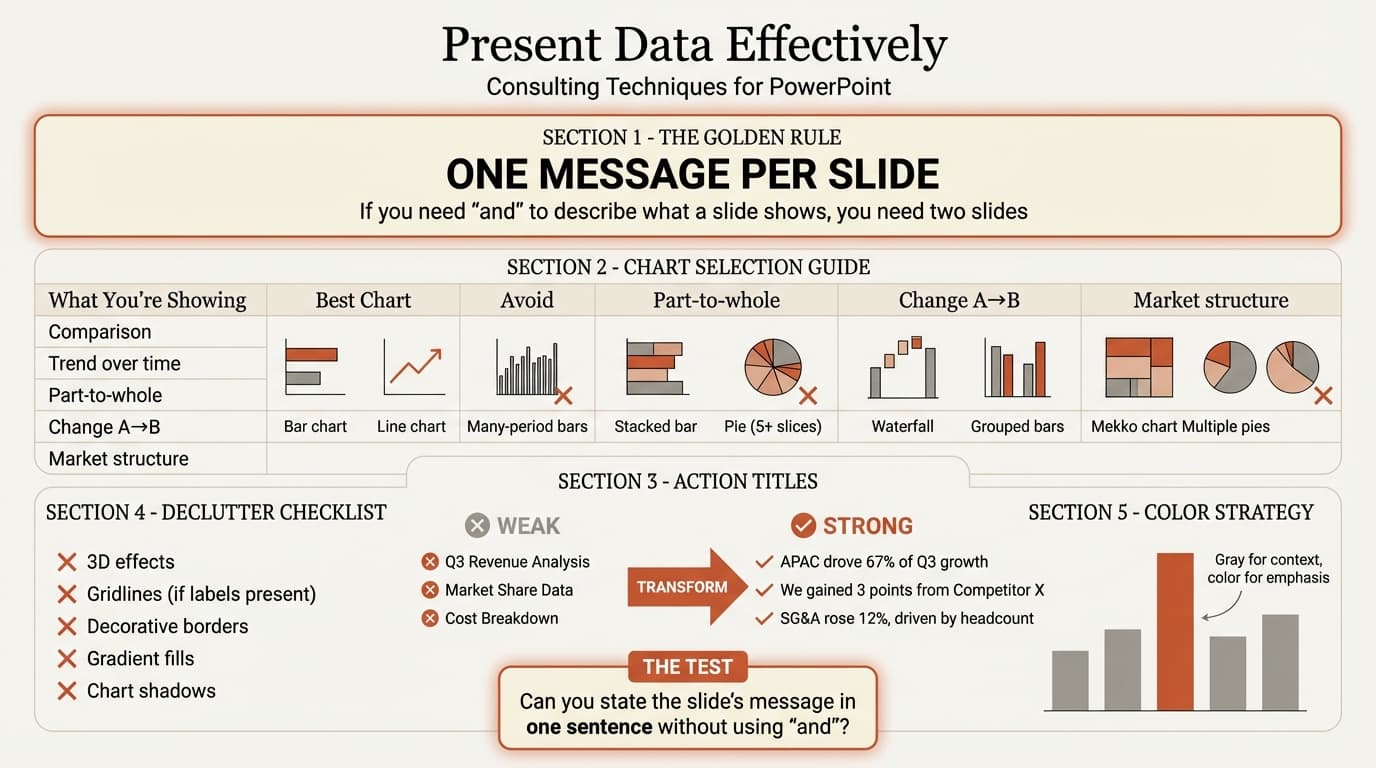
- Present Data Effectively in PowerPoint — Data visualization best practices
Related Articles
The only PowerPoint add-in you need
20+ shortcuts, Think-Cell style charts, 1,000+ icons and templates. Free 14-day trial for Mac & Windows.
Try Deckary Free