Mekko Charts in PowerPoint: The Ultimate Guide
Learn how to create Mekko (Marimekko) charts in PowerPoint. Covers market sizing, competitive analysis, and share of wallet with step-by-step instructions and best practices.
- Bob · Former McKinsey and Deloitte consultant with 6 years of experience
- September 18, 2025
- 8 min read
When a partner asks for a market map showing both segment size and competitive share in one view, a standard stacked bar chart falls short. Equal-width columns cannot convey that the enterprise segment is three times larger than SMB. You need variable-width columns where width encodes market size and height encodes market share. That is a Mekko chart, and PowerPoint cannot make one natively.
Whether you use Deckary, Mekko Graphics, or an Excel workaround, the design principles for effective Mekko charts remain the same. After creating Mekko charts for dozens of market analyses and competitive landscapes, we have tested every available method. This guide covers what makes Mekko charts powerful, compares the creation methods honestly, and provides the formatting standards that make your competitive landscapes readable to executives. Mekko charts are one of several essential chart types for consultants — for a complete overview, see our PowerPoint Charts Guide.
What Is a Mekko Chart?
A Mekko chart (also called a Marimekko chart) is a two-dimensional stacked bar chart where both the height AND width of columns represent data values.
| Other Names | Why It's Called That |
|---|---|
| Marimekko chart | Named after Finnish textile company's fabric patterns |
| Market map | Commonly used to map market landscapes |
| Mosaic chart | Resembles a mosaic of rectangular tiles |
| Variable-width chart | Columns vary in width by data values |
In a standard stacked bar chart, all columns have equal width. In a Mekko chart, column width represents one dimension (typically market size) and column height segments represent another (typically market share). This dual-encoding makes Mekko charts exceptionally powerful for competitive and market analysis.
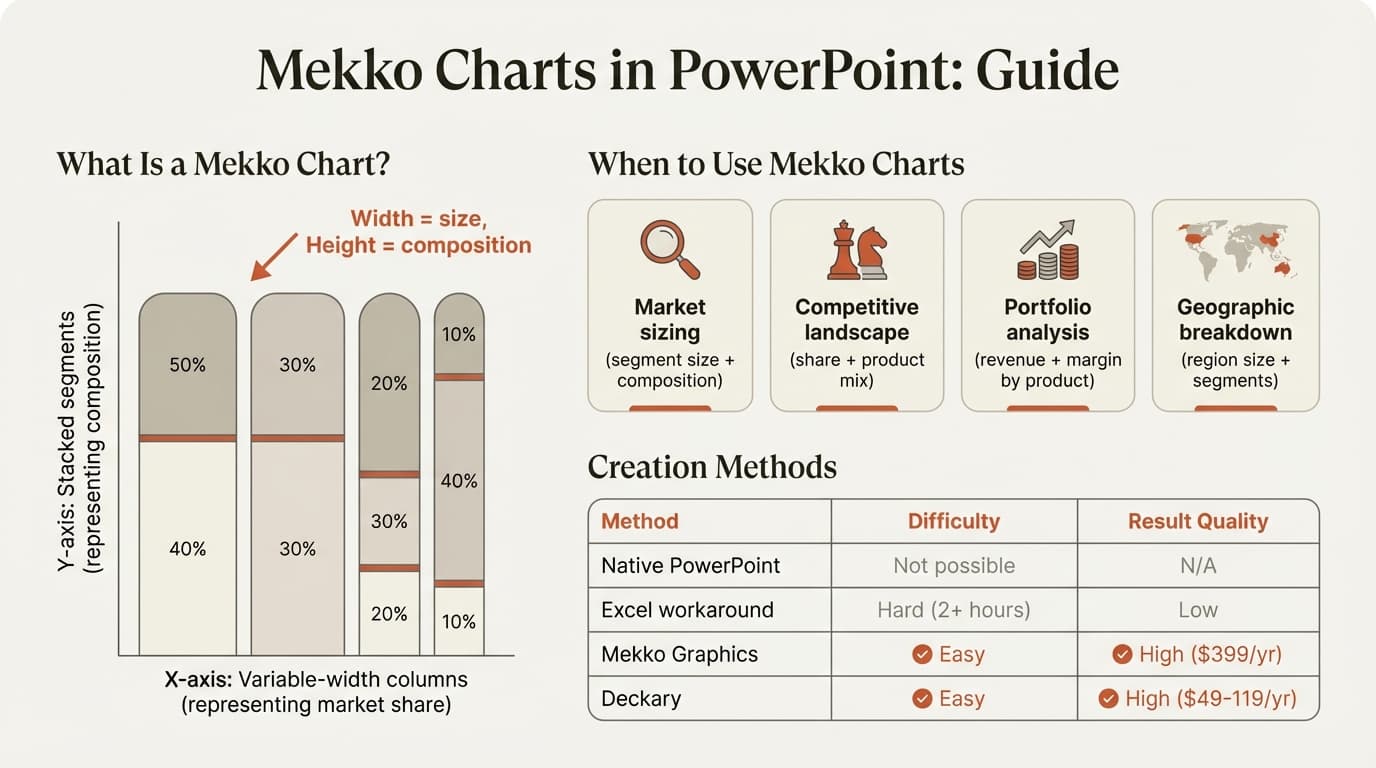
There are two main types. The 100% stacked Mekko is most common: each column sums to 100%, showing composition within segments. The absolute Mekko uses real values for both width and height, suited for revenue matrix or volume-versus-value comparisons.
When to Use Mekko Charts
Mekko charts excel in four scenarios:
- Market sizing and share analysis — Column width = market size ($B), height segments = competitor share (%)
- Share of wallet analysis — Column width = total customer spending, height segments = spending by category
- Competitive landscape visualization — Column width = segment size, height segments = competitive intensity
- Portfolio analysis — Column width = revenue by business unit, height segments = revenue by customer segment
When NOT to Use Mekko Charts
| Don't Use When | Use Instead |
|---|---|
| Only one dimension matters | Standard bar or stacked bar |
| Showing change over time | Line chart or waterfall |
| Comparing a few discrete categories | Grouped bar chart |
| Audience is unfamiliar with the format | Simpler visualization |
If the variable width doesn't add meaningful insight, you're adding complexity without value.
The PowerPoint Problem
PowerPoint cannot create Mekko charts natively. Its charting engine assumes all columns have equal width — there is no variable-width column option. You have two practical paths: an Excel workaround or a purpose-built add-in.
Continue reading: Capacity Planning Template · BCG Matrix Examples · PowerPoint Conditional Formatting
Method 1: The Excel Workaround (Difficult)
You can approximate a Mekko chart using Excel's stacked area chart by transforming data into cumulative percentages, creating invisible spacer series, and manually adding labels. Fair warning: this method is fragile.
| Issue | Impact |
|---|---|
| Setup time | 45-90 minutes for a single chart |
| Data updates | Recalculating all X-coordinates when values change |
| Error-prone | One wrong formula breaks the entire chart |
| No automation | Every change requires manual adjustment |
Unless you're building a one-time chart with data that will never change, this approach isn't practical for professional use.
Method 2: PowerPoint Add-ins (Recommended)
Add-ins like Deckary and Mekko Graphics are purpose-built for consulting charts including Mekko charts.
Comparing Mekko Chart Add-ins
| Tool | Price | Mekko Charts | Excel Linking | Mac Support |
|---|---|---|---|---|
| Deckary | $120-180/year | Yes | Yes | Yes |
| Mekko Graphics | $399/year | Yes | Yes | Limited |
| Native PowerPoint | Included | No | N/A | Yes |
Deckary
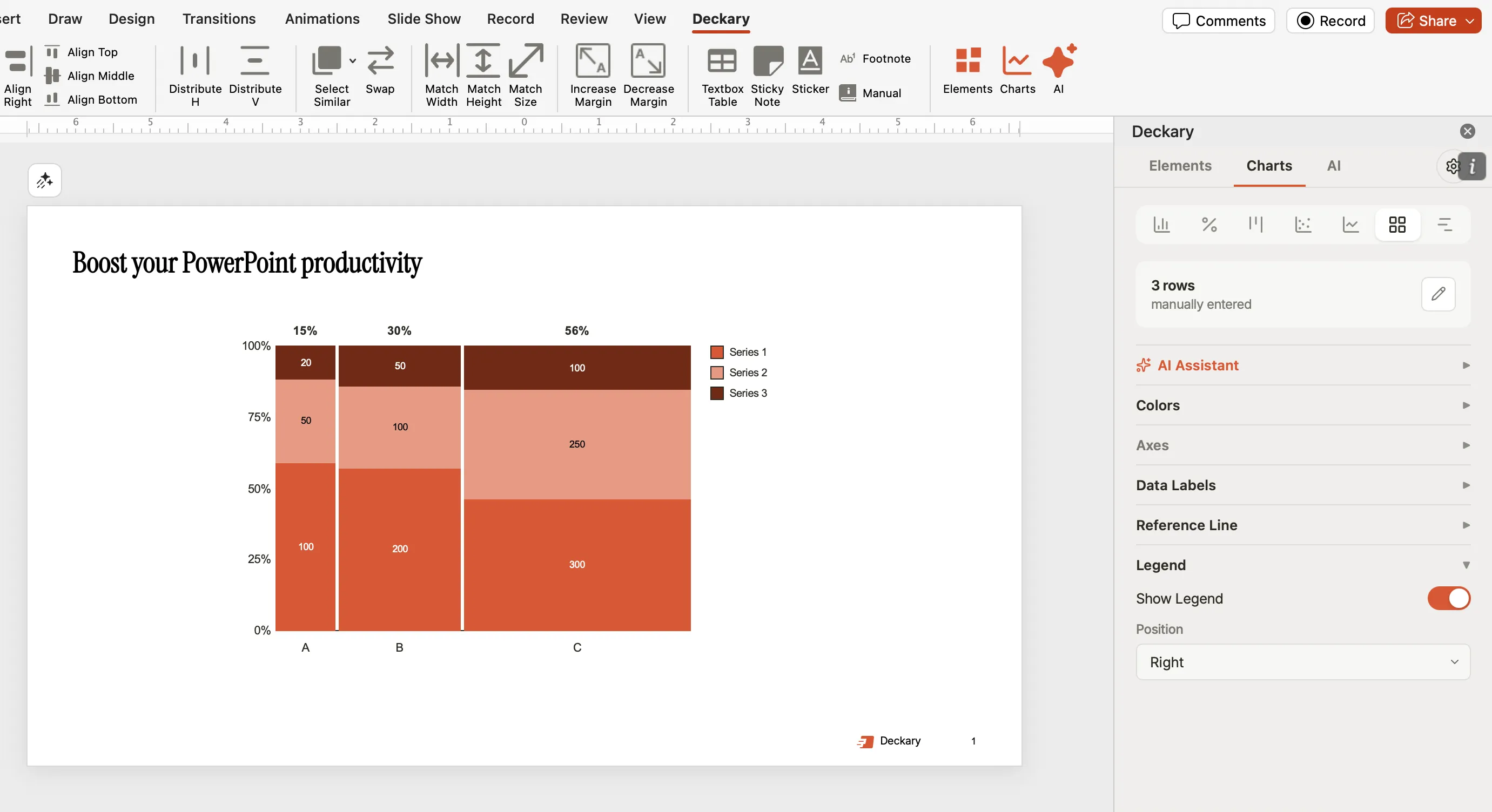
Deckary offers Mekko charts as a core feature alongside waterfall charts, Gantt charts, and productivity tools. It supports both 100% stacked and absolute Mekko charts with automatic width calculation, Excel data linking, and cross-platform support (Windows and Mac).
Price: Starter is $15/month or $120/year; Premium is $19/month or $180/year
Mekko Graphics
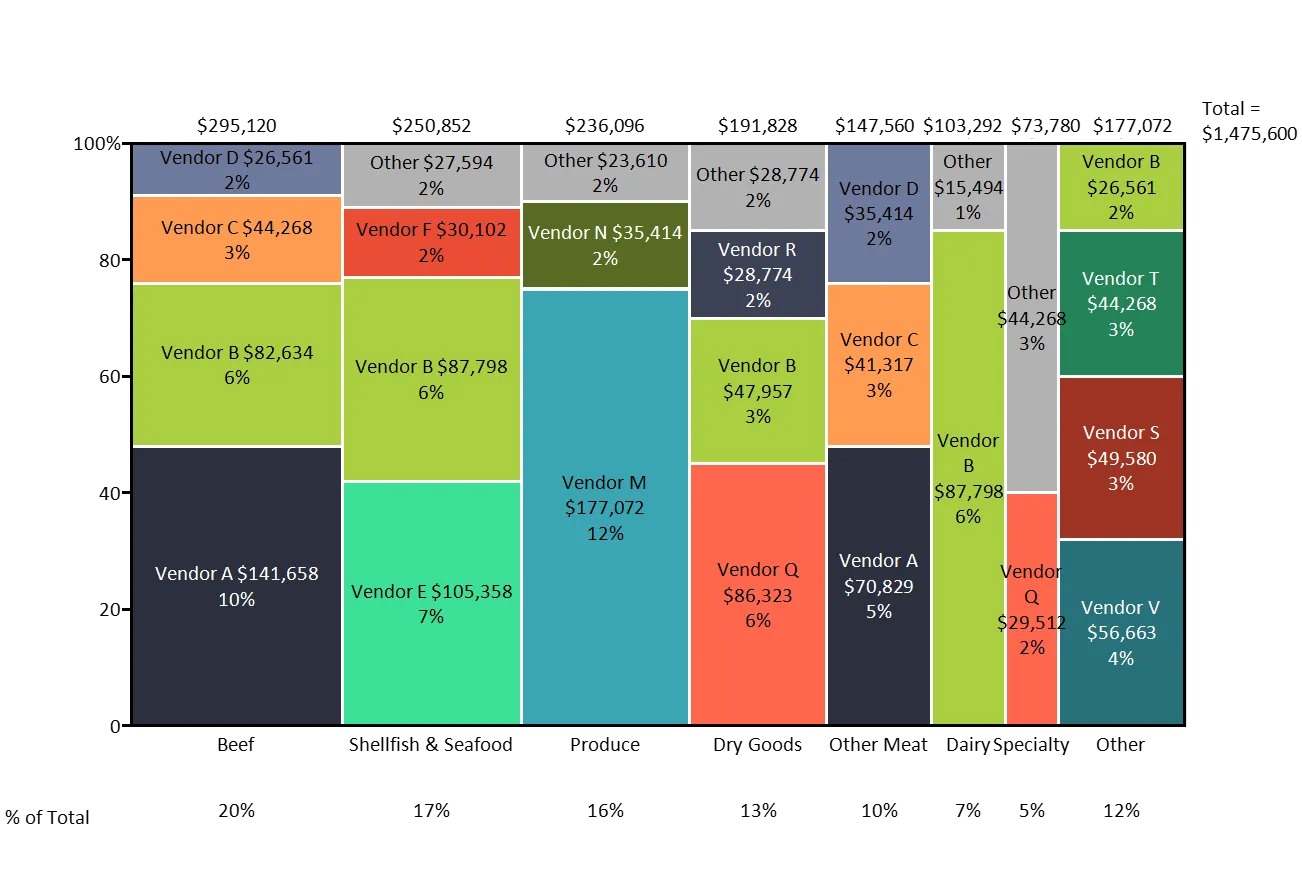
Mekko Graphics focuses specifically on Marimekko and related business charts. It offers strong chart-type depth but limited Mac support and a higher price point at $399/year ($299/year on renewal).
Which Add-in Should You Choose?
| Your Situation | Recommended Tool |
|---|---|
| Budget-conscious, need charts + productivity | Deckary |
| Build Mekko charts daily, need all variations | Mekko Graphics |
| Need Mac support with full functionality | Deckary |
For most consultants and small firms, Deckary offers the best value: professional Mekko charts at $120-180/year versus $299-499 for alternatives.
Step-by-Step: Building a Market Share Mekko Chart
Here is how to build a cloud infrastructure market share Mekko chart using Deckary.
The Data
| Country | Market Size ($B) | AWS | Azure | Other | |
|---|---|---|---|---|---|
| UK | 12.5 | 32% | 28% | 18% | 22% |
| Germany | 15.2 | 28% | 35% | 15% | 22% |
| France | 8.8 | 35% | 25% | 20% | 20% |
| Netherlands | 4.2 | 38% | 22% | 22% | 18% |
| Nordics | 6.3 | 30% | 30% | 18% | 22% |
In Deckary (60 seconds)
- Select your data range in Excel — include headers, market sizes, and percentages
- Click "Mekko" in the Deckary ribbon
- Configure settings — width data, segment data, enable "100% stacked" mode
- Set colors and add labels
The chart automatically calculates column widths proportional to market size.
In Excel Workaround (60+ minutes)
- Calculate cumulative X-coordinates for each country boundary
- Create area chart data series for each vendor with spacer series
- Insert stacked area chart, hide spacers, add labels manually
- Debug overlapping areas and repeat when data changes
Mekko Chart Best Practices
Color and Labeling
| Element | Color Strategy |
|---|---|
| Your company/focus | Accent color (blue, green) |
| Major competitors | Distinct, muted colors |
| "Other" category | Gray |
For labels, show segment name AND absolute value on columns (e.g., "Germany — $15.2B"). For height segments, show percentage OR absolute value, not both. Remove labels from segments smaller than 5%.
Data Ordering
| Column Order | When to Use |
|---|---|
| Largest to smallest | Default for most analyses |
| Geographic logic | Regional analyses |
| Strategic priority | When showing focus areas first |
Keep segment order consistent across all columns. If AWS is on top in UK, it should be on top everywhere.
Common Mistakes to Avoid
- Too many segments — Group minor players into "Other" instead of showing 12 competitors
- Inconsistent segment order — Lock segment order across all columns
- Missing width labels — Always label column widths with absolute values
- Unclear axis purpose — Add explicit axis labels and a chart title stating both dimensions
- Overloading the chart — Mekko charts show two dimensions well; use multiple charts for more
Mekko Chart Checklist
Before presenting any Mekko chart, verify:
- Column widths sum to correct total
- Segment heights sum to 100% (or correct absolute total)
- 6-8 columns maximum, 4-6 segments maximum per column
- Consistent segment order across all columns
- Column width values labeled
- Chart title states both dimensions
Mekko Charts vs. Alternatives
| Visualization | Use When |
|---|---|
| Mekko chart | Two dimensions both matter (size AND composition) |
| 100% stacked bar | Only composition matters, size is irrelevant |
| Treemap | Showing nested hierarchy |
| Bubble chart | Showing three continuous dimensions |
The Bottom Line
Mekko charts solve a specific problem that no other chart type handles as well: showing market size and market share in a single, information-dense visualization. They are a staple of consulting deliverables for market sizing, competitive landscapes, and share of wallet analysis.
The challenge is that PowerPoint cannot create them natively. You either spend an hour building fragile Excel workarounds, or you use a purpose-built tool that handles the variable-width calculation automatically.
For consultants building Mekko charts regularly, Deckary offers professional Mekko charts at $120-180/year with a 14-day free trial and no credit card required.