How to Make Charts in PowerPoint: Complete Guide for Consultants
Learn how to create professional charts in PowerPoint. Covers bar, line, pie, waterfall, Gantt, and Mekko charts with step-by-step tutorials and formatting tips.
- Bob · Former McKinsey and Deloitte consultant with 6 years of experience
- January 9, 2026
- 8 min read
Most chart selection guides offer the same generic advice: use bar charts for comparisons, line charts for trends, pie charts for composition. The advice is correct but incomplete. It does not explain why a horizontal bar chart outperforms a vertical column chart when you have 12 categories with long labels, or why a stacked bar with 8 segments becomes unreadable while one with 4 segments works perfectly.
Whether you use Deckary, Power-user, or native PowerPoint, the same chart design principles apply. This guide covers the decision factors that textbooks skip: when native PowerPoint falls short, which formatting choices trigger revision requests, and the chart types you cannot create without workarounds or add-ins. For a comprehensive overview of every chart type consultants need, see our PowerPoint Charts Guide.
Chart Types: The Complete Overview
PowerPoint offers close to 20 chart types, but consultants use a handful repeatedly.
Standard Charts (Native PowerPoint)
| Chart Type | Best For | Avoid When |
|---|---|---|
| Bar/Column | Comparing categories | More than 10 categories |
| Line | Trends over time | Comparing unrelated categories |
| Pie | Parts of a whole | More than 5 slices |
| Area | Cumulative trends | Precise value reading needed |
| Scatter | Correlation analysis | Discrete categories |
| Combo | Two different scales | Data relationship unclear |
Consulting Charts (Require Add-ins or Workarounds)
| Chart Type | Best For | Native PowerPoint? |
|---|---|---|
| Waterfall | Explaining change/variance | Limited support |
| Gantt | Project timelines | No |
| Mekko | Market sizing, share analysis | No |
| Tornado | Sensitivity analysis | Workaround only |
| Stacked Waterfall | Multi-component bridges | No |
For waterfall, Gantt, and Mekko charts, add-ins like Deckary are the practical solution. Native PowerPoint simply cannot create true Mekko charts or properly formatted Gantt charts.
Chart Type Decision Matrix
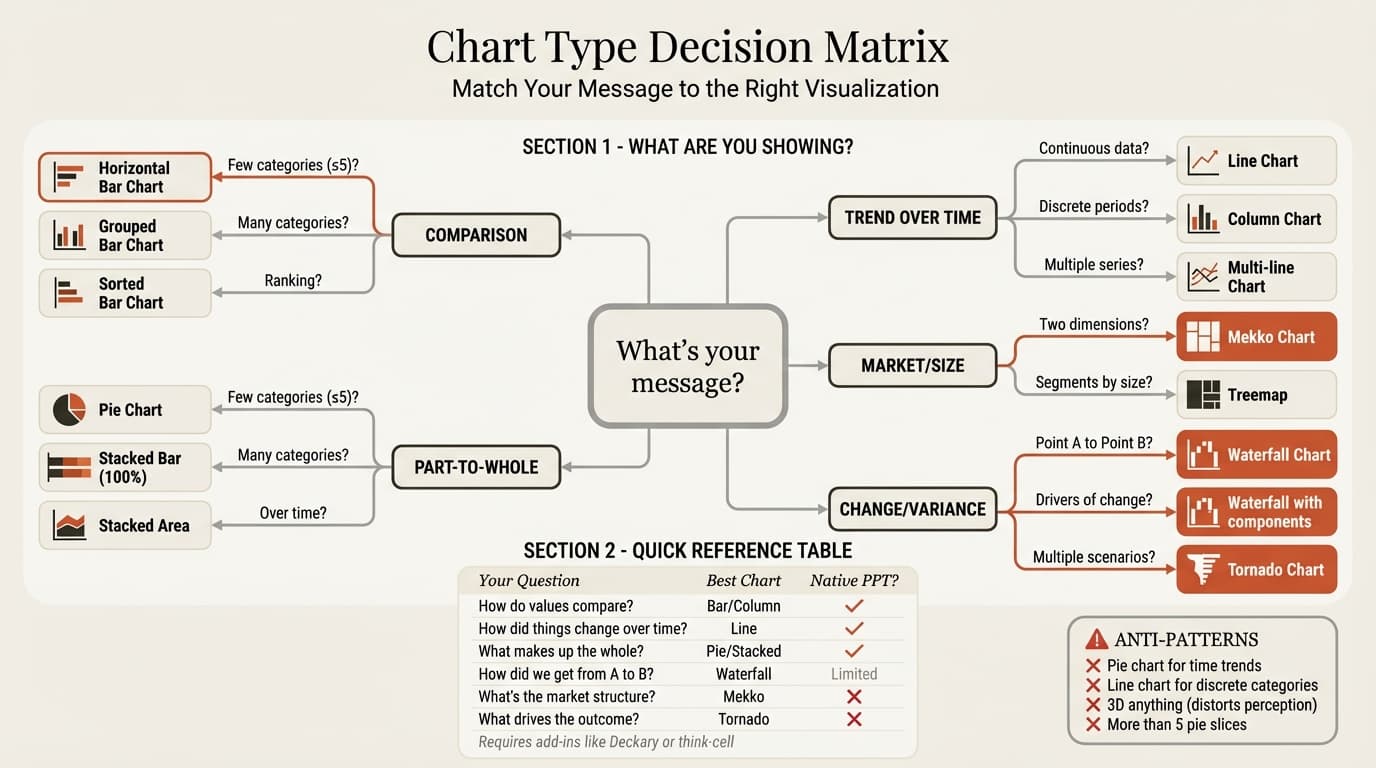
When you are staring at data and unsure which chart to use, ask yourself one question: What story am I trying to tell?
| Your Question | Chart Type |
|---|---|
| How do values compare across categories? | Bar/Column |
| How has a value changed over time? | Line |
| What is the composition of a total? | Pie (few items) or Stacked Bar (many items) |
| How did we get from Point A to Point B? | Waterfall |
| What is the project timeline? | Gantt |
| What is the market size and share landscape? | Mekko |
| Which variables drive the most impact? | Tornado |
| What is the correlation between two variables? | Scatter |
| How do two metrics with different scales relate? | Combo |
Key decision for bar vs. column: Use horizontal bars when category labels are long. Use vertical columns for time-based categories or fewer than 6 items.
Critical pie chart rule: Pie charts work best with fewer than five categories. If you have ten slices, your audience will spend more time decoding the chart than understanding the insight. Use a bar chart instead.
For stacked bar charts, see our stacked bar chart guide.
Continue reading: Business Presentation Guide · Best Tools for Creating Business Case Presentations in PowerPoint · PowerPoint Design Ideas
Step-by-Step: Creating and Formatting Charts
The process for creating any chart in PowerPoint is the same: click Insert > Chart, select the type and subtype, click OK, then replace the sample data in the spreadsheet that opens. The real work is in the formatting.
Formatting for Professional Results
The default PowerPoint chart looks amateurish. Fix it with these adjustments:
- Remove unnecessary elements — Delete gridlines, the default chart border, and the default legend
- Adjust bar width — Right-click any bar > Format Data Series > set Gap Width to 100-150%
- Add data labels — Click the chart > click the + icon > check "Data Labels"
- Set appropriate colors — Use 2-3 colors maximum. Highlight the key data point with an accent color; keep supporting bars in gray
- Fix the axis — Ensure Y-axis starts at zero for bar charts. Remove the axis entirely if data labels make it redundant
Pro tip: The default chart title and legend are notoriously difficult to format. Delete them and add your own text boxes for full control over fonts, sizes, and positioning.
Common Formatting Mistakes
| Mistake | Fix |
|---|---|
| 3D effects | Use flat, 2D charts only — 3D distorts data perception |
| Rainbow colors | Limit to 2-3 colors with purpose |
| Tiny labels | Minimum 20pt font for readability |
| Axis not starting at zero | Always start at zero for bar charts |
| Too many categories | Group into "Other" or use multiple charts |
| Missing context | Add a headline that states the takeaway, not just the topic |
| Inconsistent colors | Same data series = same color throughout the deck |
The "Slide Sorter Test"
Before finalizing any chart, switch to Slide Sorter view and look at your slide from a distance. If you cannot read the chart clearly at thumbnail size, your labels are too small and your chart is too complex.
Advanced Charts: Waterfall, Gantt, and Mekko
These charts are consulting staples but present challenges in native PowerPoint.
Waterfall Charts
Native PowerPoint added waterfall charts in 2016, but the implementation has limitations: no stacked waterfalls, no live Excel linking, difficult connector formatting, and inconsistent negative value handling. For professional waterfall charts, add-ins like Deckary create them in seconds with automatic formatting. See our waterfall chart guide for detailed instructions.
Gantt Charts
Native PowerPoint has no Gantt chart type. Your options are a stacked bar workaround (30-45 minutes, breaks when dates change), SmartArt timeline (sequential milestones only), or add-ins like Deckary and Office Timeline that create proper Gantt charts with automatic date handling.
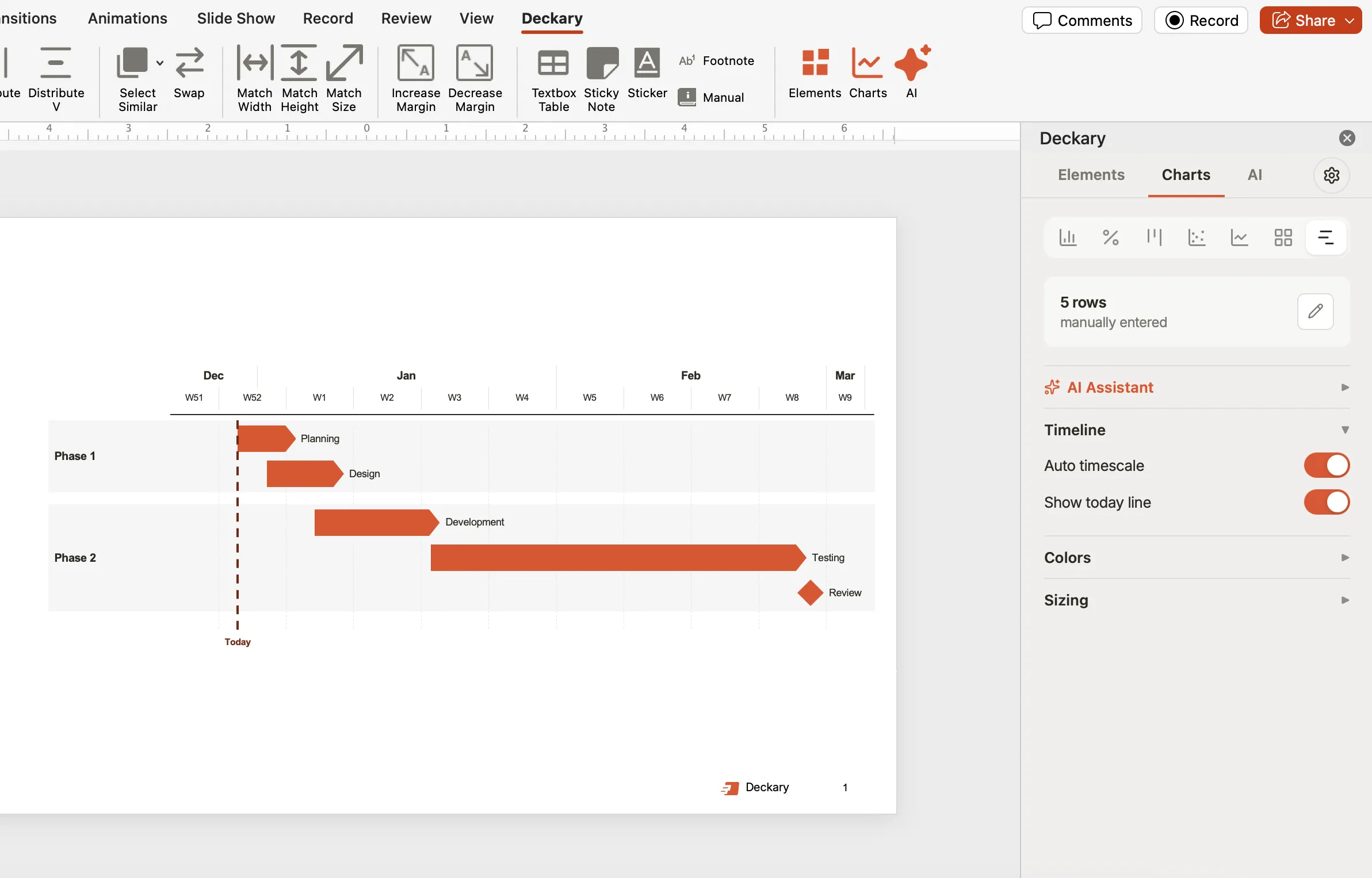
For step-by-step instructions, see our Gantt chart guide.
Mekko (Marimekko) Charts
PowerPoint cannot create Mekko charts natively. The charting engine does not support variable-width columns. Mekko charts show two dimensions simultaneously: column width represents market or segment size, while column height represents percentage composition or market share.
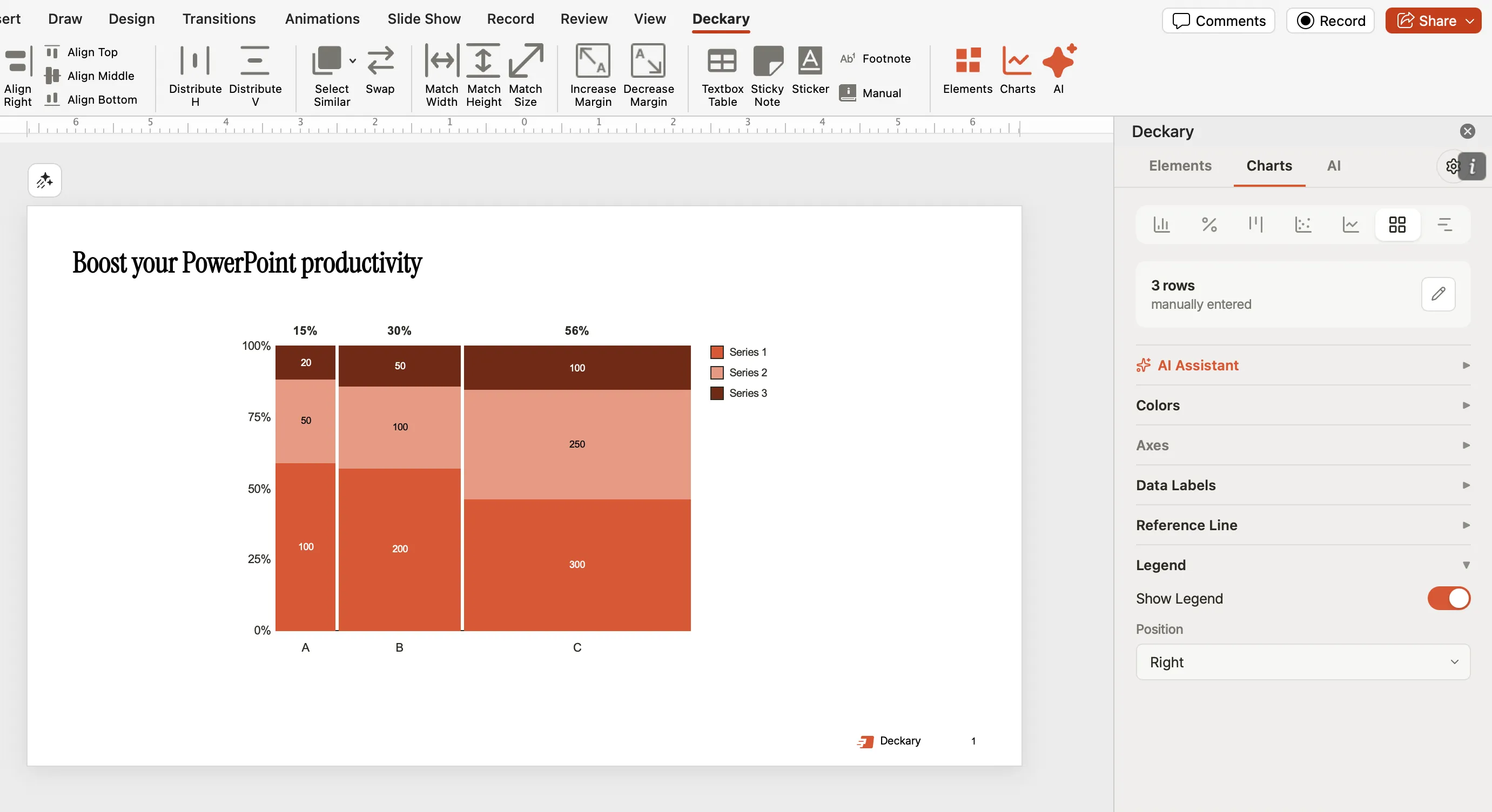
Deckary offers Mekko charts at $120-180/year with Excel linking and automatic formatting. See our Mekko chart guide for detailed use cases.
Tornado Charts
Tornado charts visualize sensitivity analysis — which variables drive the most impact on an outcome. Native PowerPoint requires a stacked bar workaround with manual formatting. For consulting-quality tornado charts, see our tornado chart guide.
Linking Charts to Excel
If your data changes frequently, linking charts to Excel prevents manual updates.
- In Excel: Create and format your chart
- Copy the chart (Ctrl+C)
- In PowerPoint: Click Home > Paste dropdown > Paste Special
- Select "Paste Link" and choose your format
The chart now updates when Excel data changes. Right-click the chart > Update Link to refresh manually, or changes propagate automatically when you open the file.
Limitations: Charts created directly in PowerPoint (Insert > Chart) cannot be linked to external Excel files. Linked charts may break if the Excel file moves or is renamed. For reliable Excel linking with professional formatting, add-ins like Deckary maintain links even when files are shared across teams.
Tools Comparison: Native vs. Add-ins
| Feature | Native PowerPoint | Deckary |
|---|---|---|
| Bar/Column/Line/Pie | Yes | Yes |
| Waterfall charts | Basic | Advanced |
| Gantt charts | No | Yes |
| Mekko charts | No | Yes |
| Tornado charts | Workaround | Yes |
| Excel live linking | Limited | Yes |
| Automatic formatting | No | Yes |
| Mac support | Yes | Yes |
| Price | Included | $120-180/year |
For consultants building charts regularly, the productivity gains from add-ins pay for themselves quickly. A waterfall chart that takes 30 minutes in native PowerPoint takes 30 seconds with the right tools.
Summary
Creating professional charts in PowerPoint requires three things: choosing the right chart type, formatting for clarity, and using appropriate tools for advanced visualizations.
- Match chart type to message — Bar for comparison, line for trends, pie for simple composition, waterfall for variance
- Format for readability — 20pt minimum fonts, remove gridlines, avoid 3D effects, use consistent colors
- Start bar charts at zero — Truncated axes distort perception
- Consider add-ins for advanced charts — Native PowerPoint cannot create Mekko, Gantt, or stacked waterfall charts
- Link to Excel for dynamic data — Use Paste Special > Paste Link or add-ins for live updates
The goal of any chart is to make data obvious at a glance. If your audience needs more than five seconds to understand the point, simplify the chart or choose a different type.