Bridge Chart in PowerPoint: How to Create One (Step-by-Step)
Create bridge charts in PowerPoint for revenue bridges and EBITDA walks. Step-by-step with Excel linking and consulting best practices.
- Bob · Former McKinsey and Deloitte consultant with 6 years of experience
- September 9, 2025
- 6 min read
The term "bridge chart" comes from investment banking, where analysts literally bridge the gap between two financial states. When a CFO asks "How did we get from last year's EBITDA to this year's?" they want a visual story connecting point A to point B through discrete, labeled steps.
We have built bridge charts for M&A due diligence, quarterly board presentations, and budget variance analyses across 75+ client engagements. The most common mistake we see: treating bridges as data dumps rather than narratives. A good bridge chart does not just show numbers floating between two totals. It sequences the story logically, groups related drivers, and makes the largest contributors impossible to miss.
Whether you use Deckary, Mekko Graphics, or native PowerPoint, the principles of effective bridge chart design remain the same. This guide covers how to construct bridge charts that answer the "how did we get here" question in under 10 seconds, the three methods for building them in PowerPoint, and the formatting conventions that distinguish professional bridges from amateur ones. Bridge charts are one of several essential chart types for consultants — for a complete guide to all of them, see our PowerPoint Charts Guide.
What Is a Bridge Chart?
A bridge chart visualizes how an initial value changes through positive and negative contributions to reach a final value. The floating bars create a "bridge" between starting and ending points.
Bridge chart = waterfall chart. The terms are completely interchangeable. PowerPoint calls it a "waterfall chart," but investment bankers and consultants often say "bridge chart." Search for both when looking for templates or tutorials.
| Common Names | When Used |
|---|---|
| Bridge chart | Investment banking, corporate finance |
| Waterfall chart | Software tools, general business |
| EBITDA walk | Financial analysis |
| Revenue bridge | Sales and strategy |
When to Use Bridge Charts
Bridge charts excel in specific scenarios:
| Use Case | Example |
|---|---|
| Variance analysis | Why did we miss our target? |
| Period-over-period change | How did revenue change from 2024 to 2025? |
| Build-up to a total | How do cost components sum to total cost? |
| Walk-down from gross to net | From EBITDA to free cash flow |
When NOT to use: Comparing multiple entities side-by-side (use grouped bars), showing composition at a single point (use pie/stacked bar), or many time periods (use line chart).
Continue reading: Capacity Planning Template · Business Case Template · PowerPoint Conditional Formatting
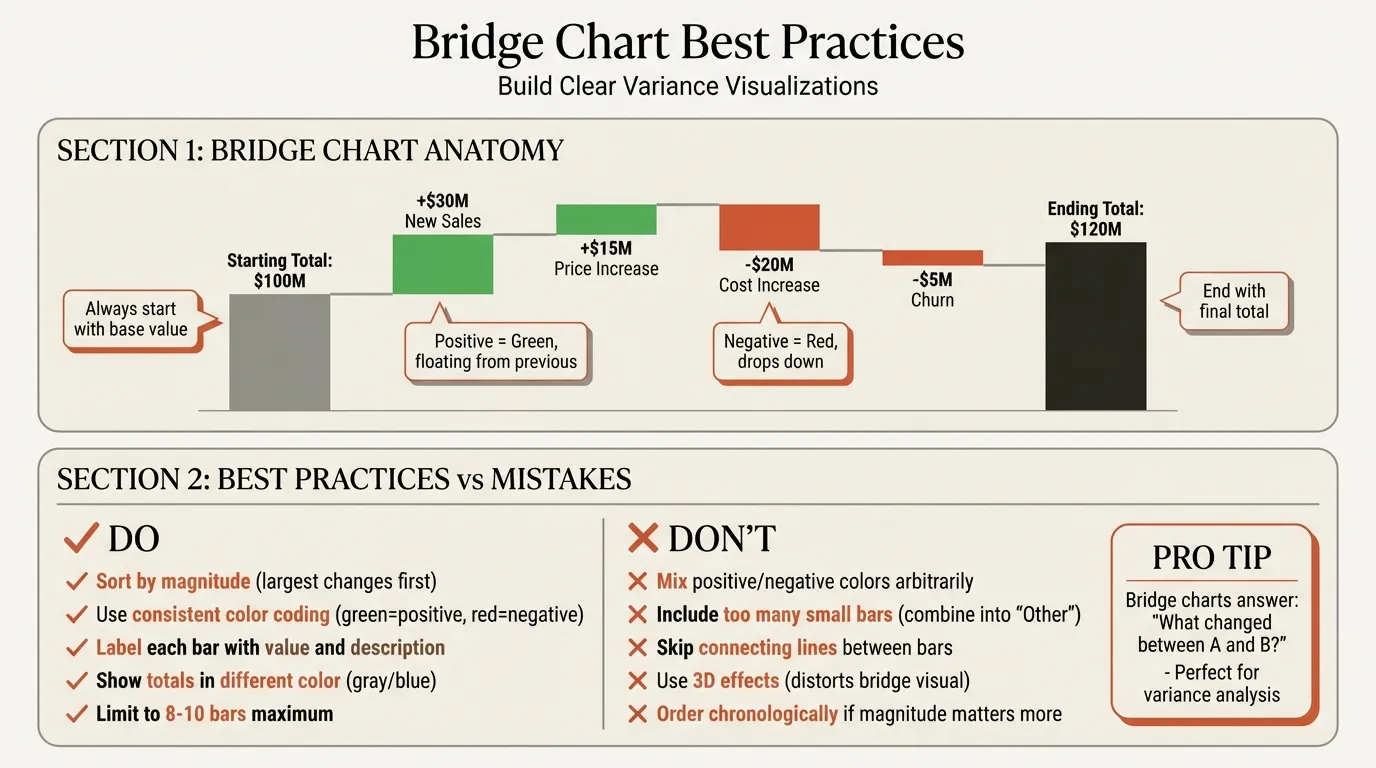
Bridge Chart Best Practices
Color Coding
Color should communicate direction instantly:
| Element | Color | Purpose |
|---|---|---|
| Positive changes | Green | Increases, gains |
| Negative changes | Red | Decreases, losses |
| Totals | Gray or Blue | Starting/ending values |
Never use the same color throughout—the entire purpose is distinguishing what helped from what hurt.
Bar Ordering
Order by magnitude: largest positive impact first, then decreasing positives, then increasing negatives, then largest negative. This creates visual hierarchy.
Limiting Bar Count
7-10 bars maximum. More creates noise that obscures the message.
| Too Many Bars | Grouped Version |
|---|---|
| Product A, B, C, D, E, F, G | Products (+$5M) |
| Customer 1, 2, 3, 4, 5... | Top 10 Customers (+$8M) |
Group minor items. The detailed breakdown belongs in an appendix.
Essential Labels
- Value labels on every bar
- Plus/minus signs reinforcing direction
- Percentage change where relevant ("+12% YoY")
- Callout boxes highlighting the key driver
Creating Bridge Charts in PowerPoint
You have three options with different trade-offs.
Option 1: Native PowerPoint (15-30 min)
- Go to Insert → Chart → Waterfall
- Enter your data in the spreadsheet
- Right-click starting and ending bars → Set as Total
- Format colors manually for each bar
- Add connector lines using shapes
Limitations: No Excel linking, manual connector lines, per-bar color formatting, no stacked waterfalls.
Option 2: Excel + Paste (20-35 min)
Build in Excel, then Paste Special → Link to Excel. Better data management but links break frequently.
Option 3: Add-ins (30-60 seconds)
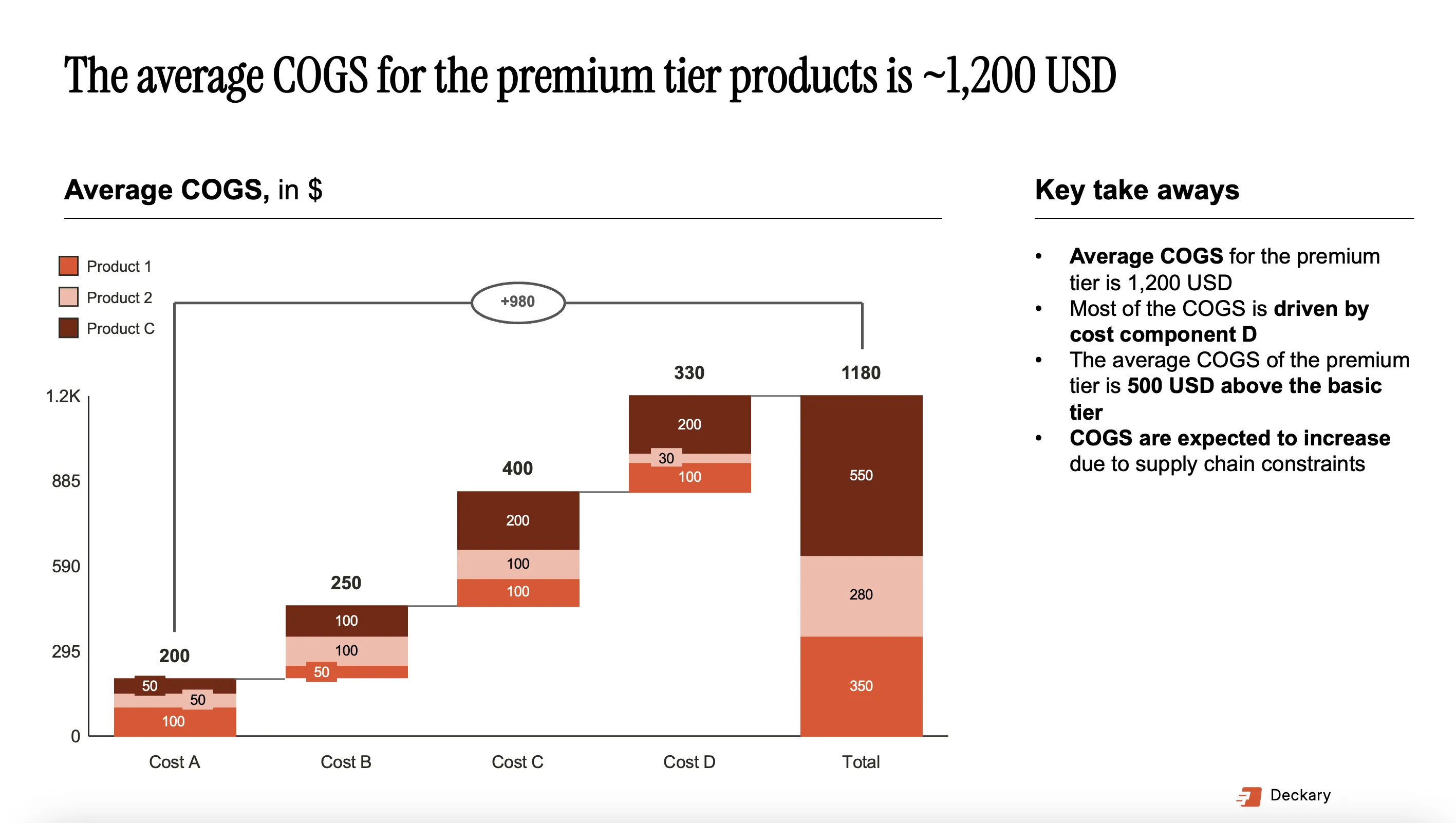
Add-ins like Deckary are purpose-built for consulting charts:
- Select data range in Excel
- Click "Waterfall" in the ribbon
- Chart appears with automatic formatting
Advantages: Live Excel linking, automatic connectors, consistent color rules, subtotals with one click.
Method Comparison
| Factor | Native PowerPoint | Add-in (Deckary) |
|---|---|---|
| Initial creation | 15-30 min | 30-60 sec |
| Update time | 10-20 min | Automatic |
| Excel linking | No | Yes |
| Stacked waterfalls | No | Yes |
| Cost | Included | $120-180/year |
For one-off charts, native works. For recurring or data-driven charts, add-ins pay for themselves in hours saved.
Step-by-Step: Revenue Bridge Example
The Data
| Driver | Impact ($M) |
|---|---|
| 2024 Revenue | 100.0 |
| Volume | +12.5 |
| Price | +5.8 |
| Mix | -3.2 |
| New Products | +4.9 |
| FX Impact | -1.4 |
| 2025 Revenue | 116.5 |
Native Method (Summary)
- Insert → Chart → Waterfall → Enter data
- Right-click "2024 Revenue" → Set as Total
- Right-click "2025 Revenue" → Set as Total
- Format each bar: green (positive), red (negative), gray (totals)
- Draw connector lines with shapes
- Add data labels with plus/minus signs
Add-in Method (Deckary)
- Select data in Excel
- Click Waterfall in Deckary ribbon
- Place on slide—formatting applied automatically
Same output quality. Different time investment.
Common Mistakes
| Mistake | Fix |
|---|---|
| Same color throughout | Green positive, red negative, gray totals |
| Too many bars (15+) | Group minor items into "Other" |
| Alphabetical ordering | Order by magnitude—largest impacts first |
| Missing labels | Add values to every bar |
| Bars don't sum correctly | Verify math before building |
Summary
Bridge charts are the consulting standard for explaining financial change. When built correctly, they replace complex variance tables with instant visual understanding.
Key takeaways:
- Bridge = waterfall — Same chart, different names
- Color coding is essential — Green positive, red negative, gray totals
- Limit to 7-10 bars — Group minor categories
- Order by magnitude — Largest impacts first
- Native PowerPoint has limitations — No Excel linking, manual formatting
- Add-ins save hours — Deckary creates professional bridge charts in seconds at $120-180/year
For consultants building bridge charts regularly, the right tools matter. A chart that should take 30 seconds shouldn't take 30 minutes. See Deckary's waterfall chart feature for professional bridge charts with Excel linking.