PowerPoint Themes: How to Create, Customize, and Apply
PowerPoint themes control colors, fonts, and effects across every slide. Learn how to create custom themes, apply them, and avoid the mistakes that break consistency.
Most inconsistent presentations share the same root cause: someone picked colors and fonts manually on each slide instead of setting a PowerPoint theme once and letting it propagate. A single theme controls your color palette, font pair, and shape effects across every slide in the deck. Change the theme, and every element updates instantly.
After formatting 150+ client presentations across consulting and corporate strategy teams, we have found that the gap between polished decks and messy ones is almost always a theme problem. This guide covers how PowerPoint themes work, how to build a custom theme from scratch, and the mistakes that silently break consistency. For a broader overview of PowerPoint capabilities, see our PowerPoint tutorial.
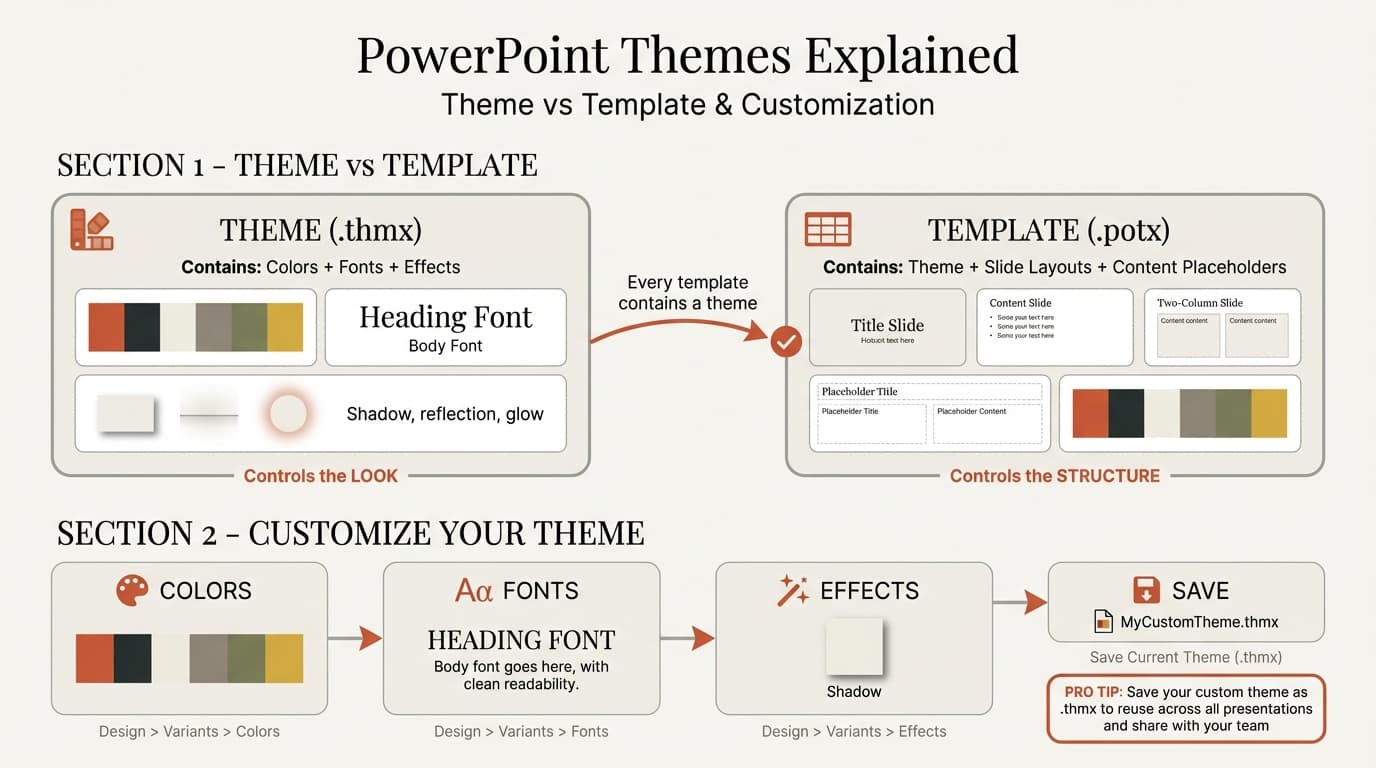
What PowerPoint Themes Control
A PowerPoint theme is a package of three design elements:
- Theme colors -- 12 coordinated slots (4 text/background, 6 accent, 2 hyperlink) that populate every color picker in PowerPoint
- Theme fonts -- A heading font and a body font applied to all text unless manually overridden
- Theme effects -- Preset styles for shapes, lines, and fills (subtle, moderate, intense)
When you select a color from the theme palette, that color is stored as a reference, not a fixed hex value. If you later swap the theme, every object using theme colors updates automatically. Objects colored with "Standard" or "Custom" palette picks do not update -- they stay fixed regardless of theme changes.
This distinction matters more than most people realize. It is the reason some decks update cleanly when you change themes and others turn into a patchwork of mismatched colors.
Built-In vs. Custom vs. Downloaded PowerPoint Themes
PowerPoint ships with over 30 built-in themes. They are functional but generic -- every other presenter using the default "Office" theme has the same blue accent and Aptos font. Here is how your three main options compare:
| Built-In Themes | Custom Themes | Downloaded Themes | |
|---|---|---|---|
| Setup time | Instant | 15-30 minutes | 5-10 minutes |
| Brand alignment | Generic | Exact match | Varies |
| Uniqueness | Low (everyone has them) | High | Medium |
| Consistency control | Full | Full | Depends on source |
| Font safety | System fonts only | You choose | May use missing fonts |
| Best for | Quick drafts, internal decks | Client-facing work, brand enforcement | Inspiration, one-off presentations |
For consulting and professional work, a custom PowerPoint theme built from your brand guidelines is the clear winner. Built-in themes are fine for internal drafts. Downloaded themes from third-party sites often use non-standard fonts that trigger substitution on other machines, so test before committing.
How to Create a Custom PowerPoint Theme
Building a custom theme takes about 20 minutes and saves hours of manual formatting across every future deck.
Step 1: Define Your Theme Colors
- Go to the Design tab, click Variants (small arrows next to theme previews)
- Select Colors, then scroll down and click Customize Colors
- Map your brand colors to the 12 slots:
- Dark 1 / Light 1: Primary text and background (typically black and white)
- Dark 2 / Light 2: Secondary text and background (dark gray, light gray)
- Accent 1: Your primary brand color -- this is the default for shapes and charts
- Accent 2-6: Supporting colors in order of usage frequency
- Hyperlink / Followed Hyperlink: Often Accent 1 and a muted variant
- Name your color set and click Save
Accent 1 through 6 also determine your default chart colors in order. If you build data-heavy slides, assign these six colors so chart series remain visually distinct. For more on this, see consulting slide standards.
Step 2: Choose Theme Fonts
- In the Design tab, click Variants, then Fonts
- Click Customize Fonts at the bottom
- Select a heading font and a body font
- Name the pair and click Save
Reliable combinations for business presentations:
- Aptos / Aptos -- Current Office default, clean and modern
- Calibri / Calibri -- Previous default, universally installed
- Arial / Arial -- Maximum cross-platform compatibility
- Segoe UI / Segoe UI -- Wider letterforms, reads well on screens
Avoid decorative or script fonts. A single sans-serif family for both heading and body is the safest choice for files that will be opened on other machines.
Step 3: Set Background and Effects
- In Design tab, click Variants, then Background Styles
- For most business contexts, use a solid white background
- Select Format Background for granular control over gradients or fills
If your brand requires a colored background, ensure body text maintains a contrast ratio of at least 4.5:1 for readability, especially on projectors in dimmed rooms.
Step 4: Configure the Slide Master
- Go to View, then Slide Master
- Edit the top-level master slide (the large one at the top of the panel)
- Set placeholder positions, text sizes, and footer elements
- Edit individual layouts beneath it for title slides, content slides, two-column layouts, and section dividers
- Close Slide Master view
The Slide Master is where themes and layouts intersect. Your theme controls colors and fonts; the Slide Master controls where elements sit on the slide.
Step 5: Save and Distribute
- Go to Design, click the Themes dropdown, select Save Current Theme
- Name the file descriptively (e.g., "Acme Corp 2026.thmx") and click Save
Your custom theme now appears in the Custom section of the Design tab. To share with your team, distribute the .thmx file and have each person place it in their Document Themes folder:
- Windows:
%appdata%\Microsoft\Templates\Document Themes - Mac:
~/Library/Group Containers/UBF8T346G9.Office/User Content/Themes
Microsoft's documentation on PowerPoint themes covers the basics. The section below addresses the mistakes that trip up most teams.
Continue reading: Business Model Slide · PowerPoint Color Schemes · How to Add Icons to PowerPoint
Use consulting-grade layouts in PowerPoint
Start from structured business slides and customize them in your own deck. 14-day free trial. No credit card required.
How to Apply and Change PowerPoint Themes
Apply to All Slides
- Open your presentation
- Click the Design tab
- Browse the Themes gallery (click the dropdown arrow to see all options)
- Click any theme -- it applies to every slide immediately
Apply to Selected Slides Only
- Select the target slides in the slide panel (Ctrl-click or Cmd-click to multi-select)
- Go to the Design tab
- Right-click the theme you want
- Select Apply to Selected Slides
Use this when you want a different treatment for appendix slides or section dividers. But use it sparingly -- mixing themes within a deck creates mismatched color pickers that make manual color matching inevitable.
Change Themes Mid-Project
Switching themes on an existing deck works well when all objects use theme colors. If anyone on your team used Standard or Custom palette colors, those elements will not update and will clash with the new palette. Before switching, use Find and Replace Colors (or manually audit key slides) to ensure everything references the theme palette.
Best Practices for Professional PowerPoint Themes
Lock Accent 1 to your primary brand color. Every default shape, chart series, and SmartArt element starts with Accent 1. Getting this right means most new objects look on-brand without any manual adjustment.
Use only theme colors. Every time someone picks a color from the Standard or Custom palette, they create an element that will not update with theme changes. This is the single most common source of color inconsistency in shared decks.
Test on a projector. Colors that look distinct on your calibrated monitor may wash out when projected. Test your theme in a dimmed room before finalizing. High contrast between text and background is non-negotiable.
Save the .thmx file alongside your template. Distribute both to your team. The template provides starting layouts; the theme ensures anyone building slides from scratch still gets the right colors and fonts.
Keep keyboard shortcuts in your workflow. Theme setup is a one-time task, but formatting speed matters every day. Once your theme is set, tools like Deckary add single-keystroke alignment and chart creation that inherit your theme colors automatically, so your waterfall charts, icons, and layouts stay on-brand without manual color picking.
Common PowerPoint Theme Mistakes
Using non-theme colors for shapes and charts. Colors picked from the Standard or Custom palettes are fixed values. They do not update when themes change, creating visual drift that compounds as more people touch the deck.
Choosing fonts the recipient does not have. Decorative or custom fonts trigger substitution on other machines, breaking text alignment and line wrapping. Unless you have confirmed every recipient has the font installed, stick to Calibri, Arial, Aptos, or Segoe UI.
Mixing multiple themes in one deck. Applying different themes to different sections creates conflicting color pickers. When you try to match a color from one section in another, the dropdown shows different palettes, forcing manual hex-code entry and inevitable inconsistency.
Not saving the theme after customizing. Spending 20 minutes adjusting colors and fonts means nothing if you forget to save the .thmx file. The next presentation will start from Office defaults. Save immediately and keep a backup in a shared folder.
Skipping contrast testing. Dark text on a medium-toned accent background is a common offender. Check that body text and background maintain at least 4.5:1 contrast. This matters for professional slides that will be projected in conference rooms with ambient light.
Key Takeaways
- A PowerPoint theme controls colors, fonts, and effects across your entire deck from a single source of truth
- Custom themes take 20 minutes to build and save hours of manual formatting on every future presentation
- Use only theme colors for shapes, charts, and text -- Standard and Custom palette picks break consistency when themes change
- Save your theme as a .thmx file and distribute it to your team alongside your template
- Test every custom theme on a projector before finalizing -- contrast that looks fine on a monitor often fails in a dimmed room
- Pair your theme with Slide Master layouts to control both visual identity and element positioning
Use consulting-grade layouts in PowerPoint
Start from structured business slides and customize them in your own deck. 14-day free trial. No credit card required.