PowerPoint Background: How to Change, Customize, and Design
PowerPoint background guide covering solid colors, gradients, images, and patterns. Learn how to change, customize, and apply backgrounds for professional slides.
Your PowerPoint background does more work than most people realize. In client-facing presentations, a clean background signals preparation and professionalism. A busy or inconsistent one signals the opposite, regardless of how strong the analysis is.
After formatting backgrounds across 300+ consulting and corporate decks, we have identified clear patterns: the most effective presentations use the simplest backgrounds. This guide covers how to change your PowerPoint background, when to use each background type, and the design standards that keep slides polished and readable.
How to Change a PowerPoint Background
The fastest path to background settings:
- Right-click any blank area on the slide
- Select Format Background
- The Format Background panel opens on the right
- Choose your fill type: Solid, Gradient, Picture or Texture, or Pattern
- Adjust settings (color, transparency, position)
- Click Apply to All to set the background across every slide, or close the panel to apply to the current slide only
You can also reach this through Design > Format Background in the ribbon. Both paths lead to the same panel.
For applying a background to a specific slide layout, open the Slide Master (View > Slide Master), select the layout, and change the background there. Every new slide using that layout inherits the background automatically.
Solid Color vs Gradient vs Image Backgrounds
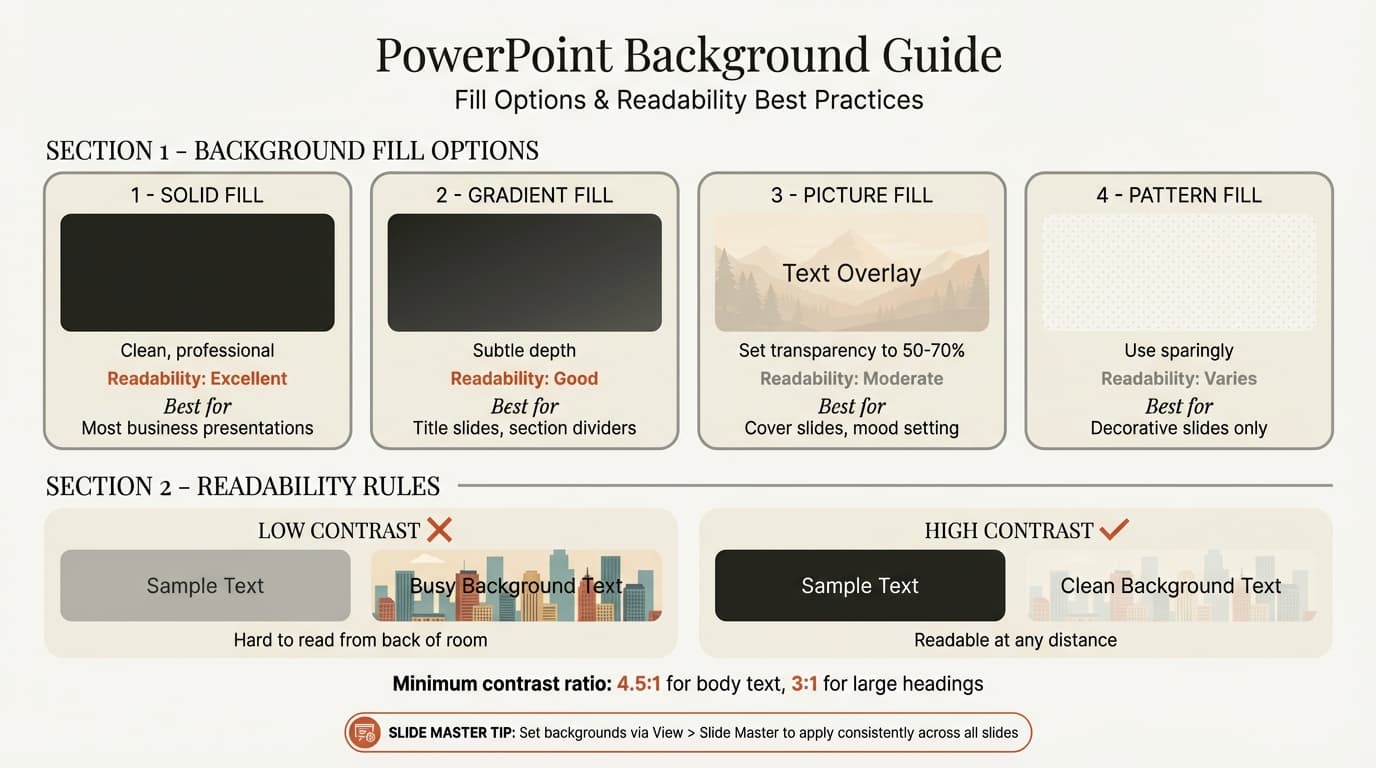
Each PowerPoint background type serves a different purpose. Choosing the wrong one is one of the fastest ways to make a professional deck look amateur.
| Background Type | Best For | Pros | Cons |
|---|---|---|---|
| Solid color | Consulting, corporate, data-heavy slides | Clean, printable, maximizes contrast | Can feel plain without strong content |
| Gradient | Title slides, section dividers | Adds depth without distraction | Looks dated if too vivid or uses more than two colors |
| Image | Cover slides, keynote openers | High visual impact | Hurts readability, inflates file size significantly |
| Pattern | Rarely recommended | Adds subtle texture | Usually distracting; looks like a 2003 template |
Our recommendation: Default to solid white or light gray for content slides. Reserve gradients for title or divider slides. Use images only on cover slides where text is minimal.
Solid Fill is the consulting standard for a reason. White, off-white (#F5F5F5), or a branded dark color gives you maximum contrast with text and charts. For decks that follow consulting slide standards, a solid background is almost always the right choice.
Gradient Fill works on title slides and section breaks. Stick to two colors maximum. Set the gradient direction to linear and angle it at 0 degrees (top to bottom) or 90 degrees (left to right). Radial gradients tend to look amateurish in business contexts.
How to Add a PowerPoint Background Image
Background images can elevate a cover slide or ruin a data slide. Here is how to add one correctly:
- Open Format Background (right-click the slide)
- Select Picture or texture fill
- Click Insert and choose your image source (From a File, Online, or Clipboard)
- Adjust Offset values to position the image
- Set Transparency to 40-60% if you need text over the image
Practical tips for background images:
- Resolution matters. Use images at least 1920 x 1080 pixels. Anything smaller will pixelate on a projector or large screen.
- File size impact. A single high-resolution background image can add 3-8 MB per slide. If you are emailing the deck, this adds up fast. See our guide on how to reduce PowerPoint file size for compression techniques.
- Text readability. Place a semi-transparent rectangle between the image and your text. Set the rectangle fill to white or black at 70-80% opacity (20-30% transparency). This creates contrast without completely hiding the image.
- Consistency. If you use a background image on one slide, the rest of the deck needs to feel visually connected. Mismatched backgrounds look like slides were pulled from different presentations.
Continue reading: How to Make a Good Presentation · PowerPoint Color Schemes · PowerPoint Icons
Use consulting-grade layouts in PowerPoint
Start from structured business slides and customize them in your own deck. 14-day free trial. No credit card required.
How to Apply a PowerPoint Background to All Slides
Applying a background to every slide takes one click, but there is a better approach for decks that need variation between slide types.
Quick method (uniform background):
- Format the background on any slide
- Click Apply to All in the Format Background panel
Better method (Slide Master):
- Go to View > Slide Master
- Select the top-level master slide (the large thumbnail at the top of the panel)
- Format the background here
- Every layout beneath it inherits the background
- Override specific layouts (title slide, section header) by selecting them individually and applying a different background
- Click Close Master View to return to Normal view
The Slide Master approach is better because it centralizes formatting. When you need to update the background later, you change it once in the master instead of editing 40 individual slides. New slides automatically inherit the correct background without manual formatting.
To revert a single slide back to the master background, open Format Background on that slide and check Reset Background.
For a full walkthrough of Slide Master and other core PowerPoint features, see our PowerPoint tutorial.
PowerPoint Background Best Practices for Consulting
Consulting firms follow strict background conventions because their slides get printed, projected, emailed as PDFs, and scrutinized by executives who notice every inconsistency.
Use white or near-white backgrounds for content slides. McKinsey, BCG, and Bain all default to white. The reason is practical: white maximizes contrast with text and charts, reproduces identically across printers and screens, and never clashes with client brand colors.
Reserve dark backgrounds for specific contexts. Dark backgrounds (navy, charcoal) work for keynote presentations where the room is dim and text is large. They do not work for printed handouts, PDF deliverables, or data-dense slides where small text needs maximum contrast.
Match your background to the delivery format:
- Projected in a meeting room: White or light gray. High ambient light washes out dark backgrounds.
- Keynote on a stage: Dark backgrounds with white text. The dim room makes this readable and dramatic.
- Printed handout: White only. Dark backgrounds waste ink and reduce text clarity.
- Emailed PDF: White or light gray. Recipients may print it, and you cannot control their printer settings.
Keep the background consistent across content slides. Variation is acceptable only between slide types (cover, section divider, content, appendix). Flip through the deck in Slide Sorter view (View > Slide Sorter) before finalizing to catch any mismatches.
Common PowerPoint Background Mistakes
Busy photos behind data slides. A cityscape or team photo behind bullet points makes every word harder to read. Reserve full-bleed images for title slides where the only text is a short headline.
Low contrast between text and background. Gray text on a light gray background, or white text on a pastel fill, fails the squint test. If you squint and the text disappears, the contrast is too low. Aim for a contrast ratio of at least 4.5:1.
Inconsistent backgrounds across the deck. Slide 1 has a gradient, slide 2 is white, slide 3 has a photo, slide 4 is light blue. This makes the deck look assembled from parts rather than designed as a whole. The Slide Master prevents this entirely.
Gradients with too many color stops. PowerPoint lets you add unlimited gradient stops, but more than two creates visual noise. Stick to a two-color gradient with a subtle transition: white to light gray, or navy to dark navy.
Not compressing background images. A single high-resolution background image can add 5-15 MB to your file. Multiply that across 30 slides and the deck becomes impossible to email. Compress to 150 ppi for projected presentations, 96 ppi for screen-only sharing.
Using pattern fills. PowerPoint's built-in pattern fills (diagonal stripes, dots, crosshatch) look dated and distract from content. In 300+ deck reviews, we have never seen a pattern fill that improved a slide. If you want subtle texture, a two-color gradient is the better choice.
Tools like Deckary help enforce consistent formatting by generating charts and layouts that integrate with your existing background, reducing the time spent fixing visual conflicts after the content is in place.
Key Takeaways
- Format Background panel is your single control point. Access it by right-clicking any slide or going to Design > Format Background.
- Solid white or light gray is the right default for consulting and corporate decks. Save gradients for dividers and images for covers.
- Slide Master is the correct way to manage backgrounds at scale. Apply once in the master, override only where needed.
- Background images need transparency (40-60%), high resolution (1920 x 1080 minimum), and a shape overlay to preserve readability.
- Match background to delivery format. What works projected in a dark room fails when printed on paper.
- Consistency matters more than any individual background choice. Use Slide Sorter view to audit before presenting. Build professional slides fast by getting the background right once in the Slide Master rather than fixing it slide by slide.
Use consulting-grade layouts in PowerPoint
Start from structured business slides and customize them in your own deck. 14-day free trial. No credit card required.