How to Reduce PowerPoint File Size: 8 Proven Methods
Learn how to reduce PowerPoint file size with 8 methods ranked by impact. Compress images, remove unused masters, strip fonts, and cut 50-90% of bloat.
A 150 MB PowerPoint deck that bounces back from email, chokes SharePoint uploads, and crashes during screen shares is a problem consultants face weekly. The fix is straightforward once you know where the bloat comes from.
After optimizing 500+ client presentations for email and SharePoint delivery, the pattern is clear: most oversized files share the same handful of causes, and you can reduce PowerPoint file size by 50 to 90 percent in under five minutes by targeting them in the right order.
This guide ranks every method by impact so you can start with the techniques that deliver the biggest reductions first, then fine-tune from there.
What Makes PowerPoint Files Large
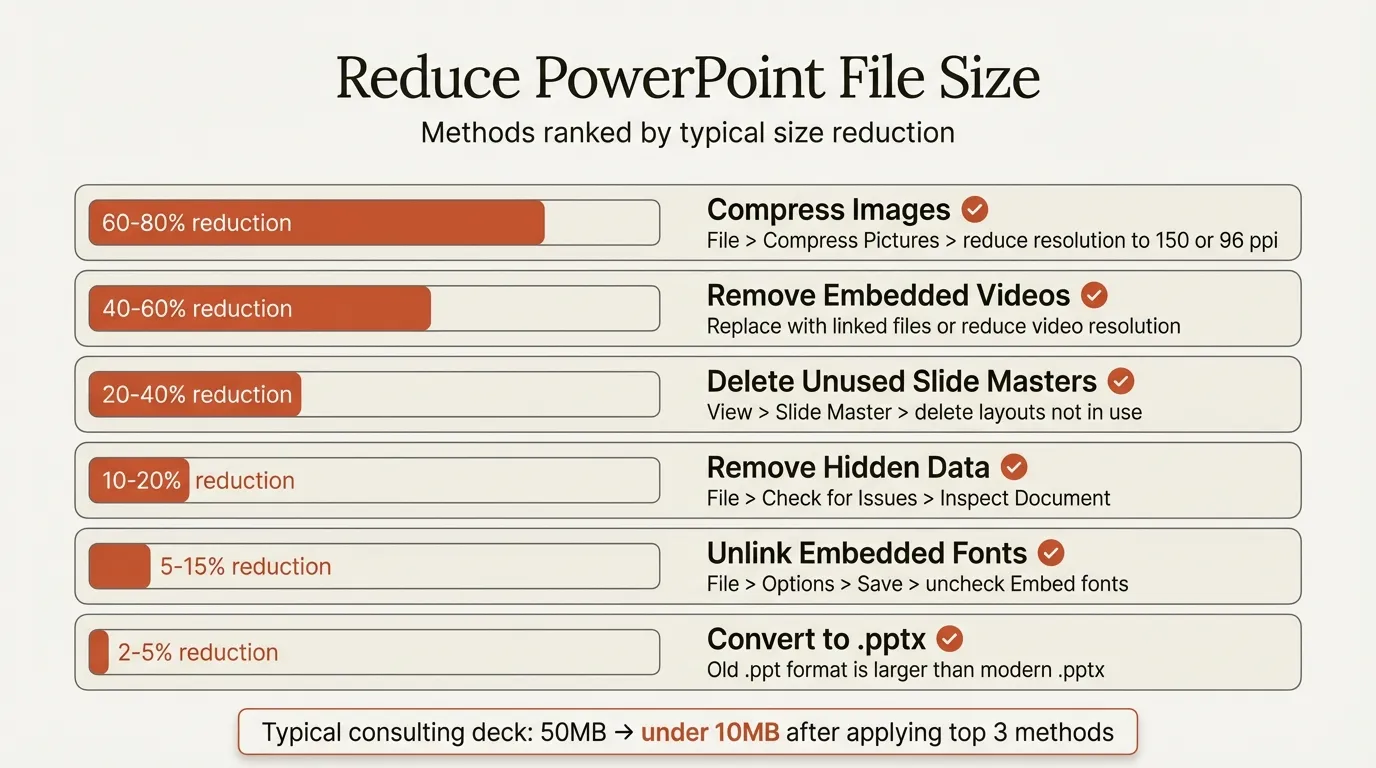
Before jumping to solutions, it helps to understand where file size comes from. Knowing the cause tells you which fix to apply.
| Cause | Typical Size Impact | How Common |
|---|---|---|
| High-resolution images | 5-50 MB per image | Very common |
| Embedded video/audio | 10-500 MB per file | Common |
| Unused slide masters and layouts | 2-20 MB total | Very common |
| Embedded fonts | 2-10 MB per font family | Moderate |
| Stored editing data | 1-5 MB | Common |
| Hidden slides and speaker notes | 0.5-3 MB | Moderate |
| Embedded OLE objects (Excel charts, PDFs) | 1-20 MB per object | Moderate |
In most consulting decks, images and unused slide masters account for 60 to 80 percent of unnecessary file size. That is why those methods come first in the ranked list below.
How to Reduce PowerPoint File Size: Methods Ranked by Impact
Here is every method ordered from highest to lowest typical file size reduction. Start at the top and work down until your file is small enough.
1. Compress All Images (40-70% Reduction)
This is the single most effective method. Images are almost always the largest contributor to PowerPoint file bloat, especially when slides contain screenshots, stock photos, or exported charts at full resolution.
Steps:
- Open your presentation and select any image
- Go to Picture Format > Compress Pictures
- Uncheck Apply only to this picture (this compresses every image in the file)
- Check Delete cropped areas of pictures
- Select a target resolution:
- 96 ppi (Email) for presentations shared digitally
- 150 ppi (Web) for a balance of quality and size
- 220 ppi (Print) only if the deck will be printed at high quality
- Click OK and save
For most consulting presentations displayed on screens and projectors, 150 ppi is indistinguishable from the original. Dropping to 96 ppi saves even more and still looks clean on screen.
Pro tip: Before inserting images, resize them in an image editor to the approximate dimensions you need on the slide. A 4000x3000 pixel photo scaled down to a quarter-slide thumbnail still carries the full-resolution data until you compress it.
2. Compress or Replace Embedded Media (Up to 90% Reduction on Video)
Embedded video and audio files are the fastest way to balloon a file past 100 MB. A single 1080p video clip can add 50 to 200 MB.
Steps (Windows):
- Go to File > Info
- Click Compress Media
- Choose a quality level:
- Full HD (1080p) for moderate savings
- HD (720p) for good balance
- Standard (480p) for maximum compression
PowerPoint will show you exactly how much space was saved after compression. In one common scenario, media can drop from 45 MB to under 5 MB -- over 90 percent savings.
Alternative: Link to videos hosted on SharePoint, OneDrive, or YouTube instead of embedding them. This keeps the file size near zero for video content while maintaining playback.
3. Remove Unused Slide Masters and Layouts (5-30% Reduction)
Every time you copy slides from another deck, their slide masters and layouts come along. After months of building a presentation, you can accumulate dozens of unused masters that silently inflate file size.
Steps:
- Go to View > Slide Master
- Scroll through the left panel and identify masters you do not recognize or use
- Right-click unused masters and select Delete
- Close the Slide Master view and save
In decks assembled from multiple sources, removing orphaned masters can cut 5 to 20 MB. One Microsoft community thread documented a case where eliminating redundant masters reduced a file by over 30 percent.
4. Remove Embedded Fonts (2-10 MB Savings)
Custom fonts look great but embedding them adds 2 to 10 MB per font family. Unless recipients genuinely need the exact fonts, disable embedding.
Steps:
- Go to File > Options > Save
- Uncheck Embed fonts in the file
- Click OK and save
If font consistency matters, embed only the characters used rather than the full font set. This reduces embedded font overhead by 50 to 80 percent.
5. Discard Editing Data
PowerPoint stores undo history and editing metadata that accumulates over the life of a presentation. Stripping it out is a one-click reduction with no visible impact.
Steps:
- Go to File > Options > Advanced
- Under Image Size and Quality, check Discard editing data
- Also confirm Do not compress images in file is unchecked
- Click OK and save
This is especially effective for files that have been edited heavily over weeks or months.
6. Remove Hidden Data with Document Inspector
Speaker notes, comments, revision history, and hidden slides all add weight. The Document Inspector removes them in bulk.
Steps:
- Go to File > Info > Check for Issues > Inspect Document
- Select the categories you want to scan (comments, notes, hidden slides, etc.)
- Click Inspect, then Remove All for each category
This is a good final cleanup step before sharing a deck externally. It also removes personal metadata you may not want recipients to see.
7. Replace Embedded Objects with Static Images
Excel charts, Word tables, and PDF pages embedded as OLE objects carry the full source file data inside your presentation. A linked Excel chart might add 5 to 15 MB depending on the workbook size.
Steps:
- Right-click the embedded object
- Select Copy, then Paste Special > Picture (PNG) or Picture (Enhanced Metafile)
- Delete the original embedded object
If you need live data connections for charts, consider linking Excel to PowerPoint rather than embedding entire workbooks. Linked charts reference external files instead of storing them, keeping presentation size minimal while preserving data updates.
8. Save as .pptx (Not .ppt)
The modern .pptx format uses ZIP-based compression that is inherently smaller than the legacy .ppt format. If you are working with an older file, simply resaving it can reduce size by 20 to 40 percent.
Steps:
- Go to File > Save As
- Choose PowerPoint Presentation (.pptx) from the format dropdown
- Save with a new file name
Continue reading: PowerPoint Background · Share PowerPoint · Claude Code Presentation
Create an editable presentation in your browser
Turn a prompt or source files into slides you can edit and export to PowerPoint. 14-day free trial. No credit card required.
Quick Reference Table to Reduce PowerPoint File Size
| Method | Typical Reduction | Time Required | Preserves Content? |
|---|---|---|---|
| Compress images | 40-70% | 1 minute | Yes |
| Compress media | Up to 90% on video | 2 minutes | Yes (slight quality loss) |
| Remove unused masters | 5-30% | 3-5 minutes | Yes |
| Remove embedded fonts | 2-10 MB flat | 1 minute | Yes (font may change on other machines) |
| Discard editing data | 1-5 MB flat | 1 minute | Yes |
| Document Inspector | 1-5 MB flat | 2 minutes | Removes notes/comments |
| Replace embedded objects | 5-15 MB per object | 2-5 minutes | Converts to static image |
| Save as .pptx | 20-40% | 1 minute | Yes |
For most presentations, compressing images alone gets you under email attachment limits. Combine it with removing unused masters and discarding editing data for consistent, reliable results.
Preventing Large Files From the Start
The best optimization is prevention. A few habits during slide creation keep files lean without any post-hoc compression:
- Resize images before inserting. Crop and scale photos in an external editor to the approximate slide dimensions. There is no reason to embed a 4K image for a half-slide graphic.
- Use charts built in PowerPoint. Native PowerPoint charts render at any size without resolution overhead. For consulting-grade charts like waterfalls, Mekkos, and Gantts, tools like Deckary generate vector-based charts directly in PowerPoint, keeping file sizes minimal while producing presentation-quality data visualizations. See our complete guide to PowerPoint charts for best practices.
- Link, don't embed. Link to Excel data sources and external media rather than embedding full files.
- Standardize on one slide master. Before building a deck from multiple sources, consolidate to a single master to prevent layout accumulation.
- Set default image resolution. Under File > Options > Advanced > Image Size and Quality, set the default resolution to 150 ppi. This automatically compresses images as you add them.
Building professional slides efficiently from the start means less cleanup afterward -- both for quality and for file size.
Summary
Oversized PowerPoint files are a solvable problem. Compress your images first (it is almost always the biggest win), clean up unused slide masters, strip embedded fonts and editing data, and handle media files thoughtfully. These eight methods, applied in order of impact, will get most presentations under 10 MB in five minutes or less.
Create an editable presentation in your browser
Turn a prompt or source files into slides you can edit and export to PowerPoint. 14-day free trial. No credit card required.