PowerPoint Presenter View: Setup, Shortcuts, and Fixes
Learn how to set up and use PowerPoint presenter view on Windows and Mac. Complete guide to features, keyboard shortcuts, and troubleshooting common issues.
PowerPoint presenter view gives you speaker notes, a next-slide preview, and a timer on your screen while the audience sees only the slides. It is the single most practical feature for delivering polished presentations, yet most professionals either do not know it exists or struggle to get it working with their display setup.
After delivering 300+ client presentations using presenter view across Windows and Mac, including earnings calls, board meetings, and partner reviews, we have identified the setup steps and troubleshooting fixes that consistently work. This guide covers how to enable presenter view, the full feature set, every useful keyboard shortcut, and fixes for the most common problems.
What Is PowerPoint Presenter View
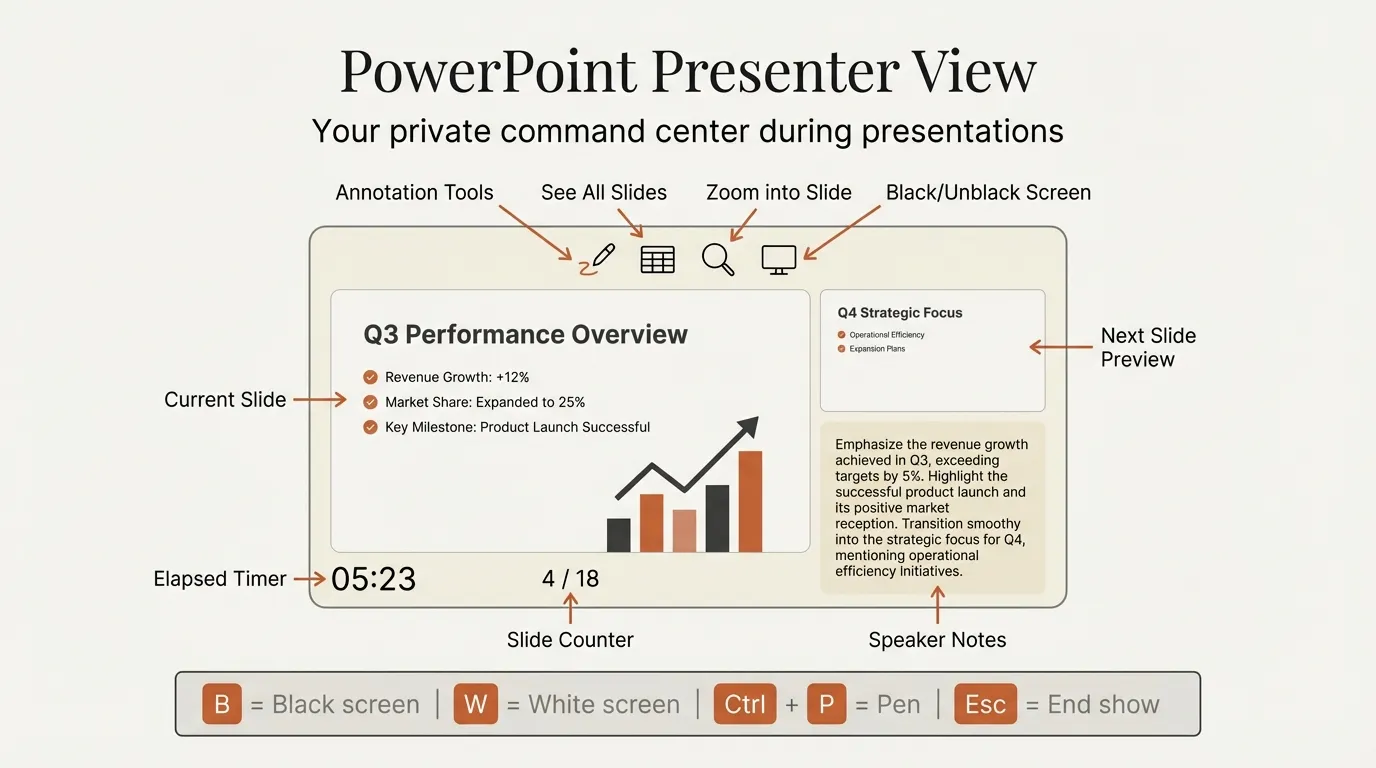
Presenter view is a dual-screen mode in PowerPoint that splits your presentation across two displays. The audience-facing screen (projector, TV, or shared screen) shows only the current slide in full screen. Your personal screen shows a control panel with:
- Current slide displayed prominently on the left
- Next slide preview so you always know what is coming
- Speaker notes rendered in a readable, resizable pane
- Elapsed time with a running timer you can pause and reset
- Annotation tools including pen, highlighter, and laser pointer
- Slide navigation with a thumbnail strip for jumping to any slide
- Zoom to magnify a specific area of the current slide for the audience
This is different from simply pressing F5 to start a slideshow, which shows the same view on both screens. Presenter view is specifically designed for situations where you need private access to notes and controls while the audience sees a clean presentation.
How to Enable PowerPoint Presenter View
On Windows
- Connect your external display (projector, monitor, or TV)
- Set your display mode to Extend (not Duplicate). Press Windows + P and select Extend
- Open your presentation in PowerPoint
- Go to the Slide Show tab in the ribbon
- In the Monitors section, check Use Presenter View
- Use the Monitor dropdown to select which display shows the audience slides
- Press F5 to start the slideshow. Presenter view appears on your laptop screen automatically
On Mac
- Connect your external display
- Open System Settings and go to Displays. Make sure Mirror Displays is turned off
- In PowerPoint, go to the Slide Show tab
- Check Use Presenter View
- Press Cmd+Shift+Return to start from the beginning
Without a Second Monitor
You do not need a projector to use presenter view. This is especially useful for rehearsal and virtual meetings:
- Windows: Press Alt+F5 to launch presenter view on a single screen
- Mac: Go to Slide Show tab and click Presenter View to start directly
- During a slideshow: Right-click on the slide and select Show Presenter View from the context menu
For Zoom and Teams meetings, start presenter view with Alt+F5, then share only the slideshow window (not your entire screen) so the audience sees slides while you retain your notes. This is one of the most underused techniques in virtual presentations.
PowerPoint Presenter View Features and Controls
Here is a breakdown of every control available in presenter view:
| Feature | What It Does | How to Access |
|---|---|---|
| Current slide | Shows the active slide being presented | Always visible (left panel) |
| Next slide preview | Shows upcoming slide | Always visible (top right) |
| Speaker notes | Displays your notes in readable text | Bottom right panel, resizable |
| Timer | Tracks elapsed presentation time | Top left, with pause/reset buttons |
| Pen tool | Draw on slides in real time | Toolbar below current slide |
| Highlighter | Highlight areas on the current slide | Toolbar below current slide |
| Laser pointer | Red dot pointer for emphasis | Toolbar, or hold Ctrl + click |
| Zoom | Magnify a section of the slide | Magnifying glass icon in toolbar |
| See All Slides | Grid view of all slides for navigation | Grid icon in toolbar |
| Black/unblack screen | Temporarily hide the presentation | Toolbar or press B |
| Subtitle settings | Configure live captions | Toolbar (Microsoft 365 only) |
The speaker notes pane is worth highlighting. You can increase or decrease the font size using the buttons below the notes area. This is critical when presenting from a distance or in a brightly lit room where your laptop screen is hard to read. We keep notes at a minimum 18pt during live presentations.
The zoom feature lets you click on an area of the current slide and magnify it for the audience. This works well for dense data slides, financial tables, or when someone in the back of the room asks about a specific number. Click the magnifying glass, select the region, and the audience sees the zoomed-in view. Click again to return to normal.
Continue reading: PowerPoint Master Slide · PowerPoint Slideshow Shortcuts · Grammarly for Word
Work faster in PowerPoint
Use shortcuts, icons, logos, and reusable slides without leaving PowerPoint. 14-day free trial. No credit card required.
Presenter View Keyboard Shortcuts
These keyboard shortcuts work while presenter view is active:
| Shortcut (Windows) | Shortcut (Mac) | Action |
|---|---|---|
| F5 | Cmd+Shift+Return | Start slideshow from beginning |
| Shift+F5 | Cmd+Return | Start from current slide |
| Alt+F5 | -- | Start presenter view (single monitor) |
| N, Enter, or Right Arrow | Same | Next slide |
| P, Delete, or Left Arrow | Same | Previous slide |
| B or Period | Same | Black screen toggle |
| W or Comma | Same | White screen toggle |
| Ctrl+L | Cmd+L | Laser pointer |
| Ctrl+P | Cmd+P | Pen tool |
| Ctrl+I | Cmd+I | Highlighter |
| Ctrl+A | Cmd+A | Arrow pointer (default) |
| Ctrl+E | Cmd+E | Eraser |
| Ctrl+M | Cmd+M | Show/hide ink markup |
| [slide number] + Enter | Same | Jump to specific slide |
| Esc | Esc | End slideshow |
The most useful shortcut in this list is pressing a slide number followed by Enter. When a board member asks you to go back to slide 12, you type 12 Enter instead of clicking backward through ten slides. This keeps the presentation moving and projects confidence.
For more shortcuts that improve your overall PowerPoint speed, see our complete shortcuts guide.
Troubleshooting PowerPoint Presenter View Not Working
These are the most common presenter view problems and their fixes, based on issues we have encountered across hundreds of presentations.
Presenter View Does Not Appear
Cause: Display is set to Mirror/Duplicate instead of Extend.
Fix:
- Windows: Press Windows + P and select Extend
- Mac: Open System Settings, go to Displays, and uncheck Mirror Displays
This is the number one issue. When displays are mirrored, PowerPoint has no second screen to send presenter view to. The Microsoft support page on presenter view confirms that Extend mode is required.
Slides Show on Wrong Screen
Cause: PowerPoint is sending the audience view to your laptop and presenter view to the projector.
Fix: In the Slide Show tab, use the Monitor dropdown to select the correct display for the audience. You can also click Swap Presenter View and Slide Show at the top of the presenter view screen during the presentation.
Presenter View Checkbox Is Grayed Out
Cause: PowerPoint detects only one display.
Fix: Verify your external display is connected and recognized by the operating system. On Windows, press Windows + P and confirm a second display is listed. On Mac, check System Settings and confirm the external display appears. If using a USB-C or HDMI adapter, try disconnecting and reconnecting it.
Display Lag or Flickering
Cause: Hardware graphics acceleration conflicts.
Fix: In PowerPoint, go to File, then Options, then Advanced. Under the Display section, check Disable slide show hardware graphics acceleration. Restart PowerPoint. This resolves most rendering issues, particularly with older projectors or docking stations. See Microsoft's troubleshooting guidance for additional display configuration steps.
Virtual Meeting Issues
When presenting via Zoom or Teams, presenter view can behave unpredictably on a single monitor. The recommended workflow:
- Press Alt+F5 to start presenter view
- In your meeting app, share a specific window (the slideshow window), not your full screen
- This keeps presenter view and notes visible to you while the audience sees only slides
If you cannot find the separate slideshow window, start the slideshow normally with F5, then right-click and select Show Presenter View. PowerPoint will split into two windows.
PowerPoint Presenter View on Mac vs Windows
The core presenter view features are identical on both platforms. The differences are in window management and shortcuts:
| Feature | Windows | Mac |
|---|---|---|
| Resizable presenter view window | Yes | No (always full screen) |
| Alt+F5 single-monitor mode | Yes | Not available |
| Start from beginning | F5 | Cmd+Shift+Return |
| Start from current slide | Shift+F5 | Cmd+Return |
| Windowed slideshow | Yes (right-click during show) | Limited |
| Swap displays during show | Click button at top | Click button at top |
The biggest practical difference is that Windows lets you resize the presenter view window, which is valuable during virtual meetings. You can keep presenter view in a small window alongside Zoom or Teams controls on the same screen. On Mac, presenter view takes over the entire screen, so managing meeting controls requires a third monitor or switching between full-screen apps.
For Mac users who present frequently in virtual meetings, consider using the Slide Show tab's built-in presenter view start button rather than Alt+F5 (which is Windows-only). Alternatively, some presenters use Stage Manager on macOS to manage the full-screen presenter view alongside other apps.
If you are building data-heavy presentations or executive summary slides, presenter view becomes especially important because speaker notes help you narrate complex data without reading directly from the slide. Pairing strong speaker notes with well-structured slides is what separates professional presentations from rushed ones.
Tools like Deckary help on the slide creation side, with keyboard shortcuts for alignment and distribution, consulting-grade chart tools, and an AI slide builder. But once the deck is built, presenter view is what helps you deliver it well.
Work faster in PowerPoint
Use shortcuts, icons, logos, and reusable slides without leaving PowerPoint. 14-day free trial. No credit card required.