PowerPoint Speaker Notes: Add, View, Print, and Present
Learn how to add speaker notes in PowerPoint, use them in Presenter View, print notes pages, and write effective notes for consulting presentations delivery.
PowerPoint speaker notes are the single most underused feature in consulting presentations. They sit right below your slide, invisible to the audience, yet most presenters either ignore them entirely or paste in full scripts they never reference.
After preparing speaker notes for 200+ board presentations, partner reviews, and client pitches, we have found that well-structured notes are the difference between a presenter who commands the room and one who reads from the screen. The problem is rarely awareness. It is that most people never learn the mechanics: where notes live, how to format them, how Presenter View actually works, and how to print them when a partner asks for a hard copy.
This guide covers exactly that: adding and editing notes, using them during presentations, printing notes pages, and writing notes that actually help you deliver.
How to Add PowerPoint Speaker Notes
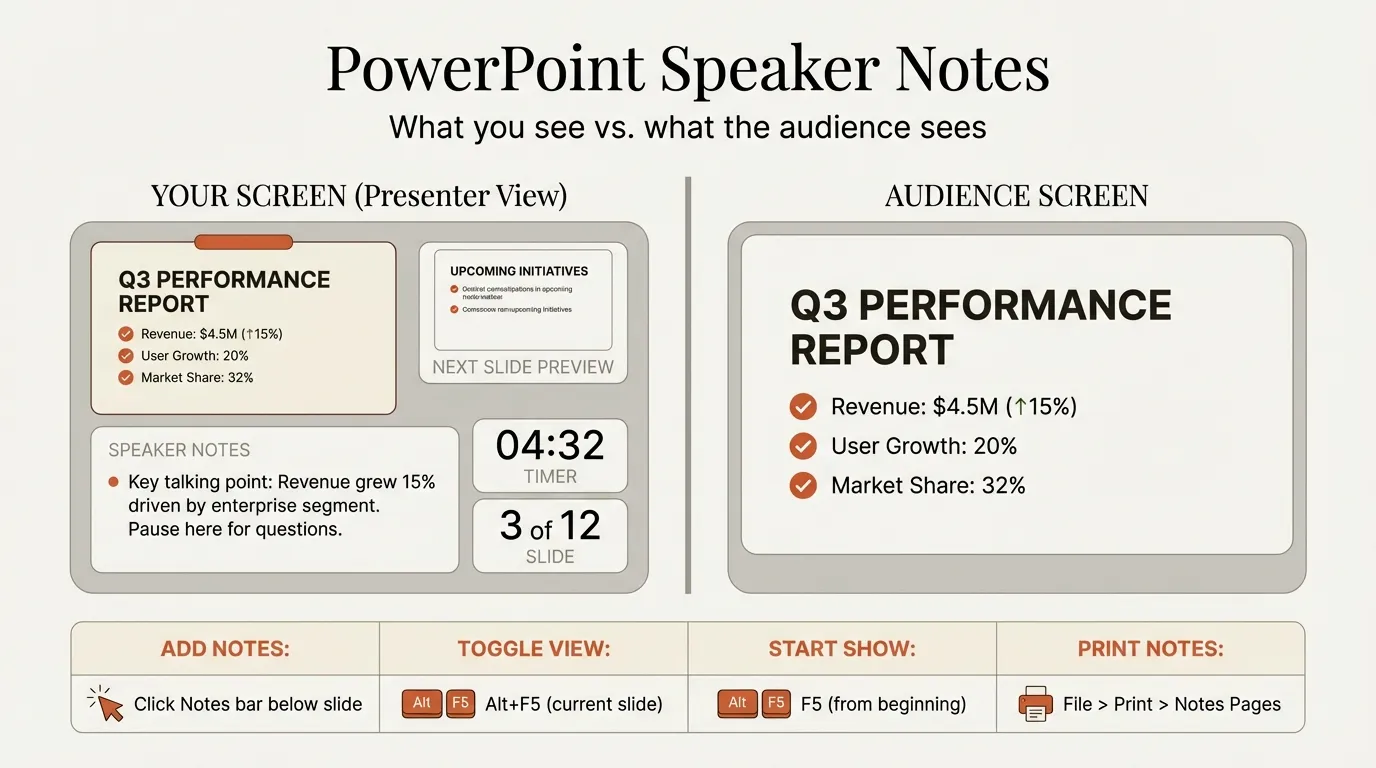
There are two ways to access the notes pane in PowerPoint, and the fastest method depends on your current view.
Method 1: Status bar toggle
Click the Notes button in the status bar at the very bottom of the PowerPoint window. This toggles the notes pane open or closed below your slide in Normal view. It is the fastest method because it works from any slide without switching views.
Method 2: View tab
Go to View > Normal if you are not already in Normal view. The notes pane appears below the active slide. If it is collapsed, drag the divider bar between the slide and the notes area upward, or click the Notes button in the status bar.
Keyboard shortcut (Windows): Press Ctrl+Shift+H to toggle the notes pane visibility.
Once the pane is open, click where it says "Click to add notes" and start typing. Notes save automatically with your file, and each slide maintains its own independent notes section.
| Action | Windows | Mac |
|---|---|---|
| Toggle notes pane | Ctrl+Shift+H | Not available natively |
| Bold text in notes | Ctrl+B | Cmd+B |
| Italic text in notes | Ctrl+I | Cmd+I |
| Bulleted list | Ctrl+Shift+L | Cmd+Shift+L |
| Save | Ctrl+S | Cmd+S |
For keyboard shortcut power users, note that the notes pane accepts the same text formatting shortcuts as the main slide editing area.
Viewing and Editing PowerPoint Speaker Notes
PowerPoint offers three views that display notes, each suited to a different task.
Normal View
The default editing view. The notes pane appears as a narrow strip below the slide. You can resize it by dragging the horizontal divider upward. This view is best for quick additions while building slides, but the limited space makes it poor for reviewing longer notes.
Notes Page View
Go to View > Notes Page. This shows a full-page layout: slide thumbnail on top, notes area filling the bottom half. Notes Page view is the only view that displays full text formatting, including font size, font color, and paragraph spacing. It also matches exactly what prints when you select Notes Pages in the print dialog.
Use Notes Page view when you need to:
- Review notes across multiple slides in sequence
- Apply detailed formatting (headers, font changes, colored text)
- See precisely what your printed notes will look like
Outline View
Go to View > Outline View. This displays slide titles and body text in an outline format on the left panel. While the notes pane is still accessible at the bottom, this view is more useful for restructuring slide order than editing notes. We mention it for completeness, but Normal and Notes Page are the two views that matter for notes work.
| View | Best For | Notes Formatting | Shows Full Layout |
|---|---|---|---|
| Normal | Quick edits while building slides | Basic (bold, italic, lists) | No |
| Notes Page | Detailed review and formatting | Full (font, size, color, spacing) | Yes (matches print) |
| Outline | Restructuring slide order | Basic | No |
Continue reading: PowerPoint Slide Design · PowerPoint Header and Footer · AI PowerPoint Agent Benchmark
Create an editable presentation in your browser
Turn a prompt or source files into slides you can edit and export to PowerPoint. 14-day free trial. No credit card required.
Using PowerPoint Speaker Notes in Presenter View
Presenter View is where speaker notes become genuinely useful. It displays your notes on your screen while the audience sees only the projected slide. This is non-negotiable for any high-stakes presentation: partner reviews, board meetings, investor pitches.
Enabling Presenter View
Windows: Go to Slide Show > Use Presenter View and check the box. When you start the slideshow with F5 or from the Slide Show tab, PowerPoint automatically sends the slides to the projector and keeps Presenter View on your laptop.
Mac: Go to Slide Show > Presenter View. The behavior is identical.
Single monitor: If you are presenting on a single screen (common during virtual meetings), you can still use Presenter View. On Windows, start the slideshow, then right-click and select Show Presenter View. On Mac, the option appears in the Slide Show menu.
What You See in Presenter View
Presenter View divides your screen into four sections:
- Current slide (large, center-left) — what the audience sees
- Next slide (top-right) — so you can set up transitions
- Speaker notes (bottom-right) — scrollable, resizable text area
- Timer and controls (top bar) — elapsed time, slide navigation, pen tools
Adjusting Notes in Presenter View
You can resize the notes text using the A buttons (increase/decrease font) at the bottom of the notes panel. The notes area itself is resizable by dragging the divider between the notes and the next slide preview. Since PowerPoint 2024, you can also edit notes directly in Presenter View without exiting the slideshow.
For presenters who need to present data effectively, having the key data points in your notes prevents the common mistake of turning around to read numbers off the screen.
How to Print PowerPoint Speaker Notes
Partners and directors frequently request printed notes for pre-reads or to follow along during rehearsals. There are three approaches depending on the output you need.
Method 1: Print Notes Pages (Standard)
- Go to File > Print
- Under Settings, click the dropdown that says Full Page Slides
- Select Notes Pages under Print Layout
- Click Print
This produces one page per slide: slide thumbnail on top, notes text below. This is the format Microsoft recommends and the one most presenters expect.
Method 2: Export to Word for Custom Formatting
If you need more control over the printed layout, formatting, or want to add comments between slides:
- Go to File > Export > Create Handouts
- Select Notes next to slides
- Click Create Handouts
This opens a Word document with slides and notes in a table layout. You can then edit, reformat, or add supplementary content before printing.
Method 3: Print Notes Only (Without Slide Thumbnails)
PowerPoint does not natively support printing notes without slide thumbnails. The workaround:
- Switch to View > Notes Page
- On each notes page, click the slide thumbnail and delete it
- Print using the Notes Pages layout
This is tedious for large decks, so the Word export method above is usually faster if you want notes-only output.
| Print Method | Output | When to Use |
|---|---|---|
| Notes Pages | Slide + notes, one per page | Standard pre-reads, rehearsal copies |
| Export to Word | Customizable table layout | When formatting matters or you need to add content |
| Notes only (manual) | Notes without slide images | Rare; script-style printout for speaker |
| PDF export | File > Save As > PDF with Notes Pages | Digital distribution, email pre-reads |
Speaker Notes Best Practices for Presentations
Knowing the mechanics is only half the equation. The structure of your notes determines whether you actually use them under pressure or abandon them two slides in.
Write Keywords, Not Scripts
Full sentences are a trap. Under the stress of a live presentation, you will either read them verbatim (which sounds robotic) or ignore them entirely (which defeats the purpose). Instead, write keywords and short phrases that trigger your memory.
| Approach | Example | Effect on Delivery |
|---|---|---|
| Full script | "Our Q3 revenue increased by 18% year over year, driven primarily by enterprise expansion in the EMEA region" | Reads word-for-word, loses eye contact |
| Keyword notes | "Q3 rev +18% YoY - EMEA enterprise drove growth" | Glances down, speaks naturally |
Structure Notes for Scanning
Use this format for each slide's notes:
- Key message — The one thing you must communicate (bolded)
- Supporting data — 2-3 numbers or facts
- Transition cue — How you will move to the next slide
This structure mirrors how consultants write executive summary slides: lead with the conclusion, support with evidence, bridge to the next point.
Keep Notes Under 50 Words Per Slide
If your notes exceed 50 words, you are either trying to script your delivery or your slide is carrying too many messages. Both are problems. Fifty words gives you roughly 20 seconds of glanceable content, which is all you should need if the slide itself is well-designed.
For teams building slide decks at speed, tools like Deckary's AI slide builder generate structured slides with clear action titles, reducing how much supporting context you need in your notes. When the slide communicates the insight directly, your notes can focus on delivery cues rather than content reminders.
Notes for Rehearsal vs. Notes for Delivery
Many presenters write detailed notes during slide creation, then forget to trim them before presenting. Build a two-pass workflow:
- First pass (building): Write everything: context, data sources, backup arguments, anticipated questions. This serves as your research log.
- Second pass (before presenting): Strip down to keywords, transition cues, and must-say data points. Delete everything you have internalized through rehearsal.
This ensures you build professional slides fast without losing the preparation depth that detailed notes provide during the creation phase.
Use Notes for Q&A Preparation
Add anticipated questions and one-line answers at the bottom of relevant slides' notes. During a board presentation, when the CFO asks about methodology, you will not need to fumble for the appendix. The answer is already on your Presenter View screen, right below the slide the question relates to.
Speaker notes are a delivery tool, not a documentation tool. If you write them for the version of yourself standing in front of a room with 30 seconds of attention per slide, they will serve you every time.
Create an editable presentation in your browser
Turn a prompt or source files into slides you can edit and export to PowerPoint. 14-day free trial. No credit card required.