Embed Video in PowerPoint: 3 Methods That Actually Work
Learn how to embed video in PowerPoint from your computer, YouTube, or online sources. Step-by-step instructions with format compatibility and troubleshooting.
Most video playback failures during presentations are preventable. The video file was linked instead of embedded, the format is incompatible with the presenting machine, or the online video lost its internet connection mid-slide. Each method of adding video to PowerPoint has different tradeoffs for reliability, file size, and portability.
After embedding videos in 150+ client presentations across Windows and Mac, we have identified exactly which approaches work reliably and which ones fail when it matters most. The difference usually comes down to choosing the right insertion method for your situation.
This guide covers three methods to embed video in PowerPoint: from your computer, from YouTube or online sources, and via screen recording. We also cover format compatibility, common failures, and the settings that prevent problems before they happen.
How to Embed Video in PowerPoint from Your Computer
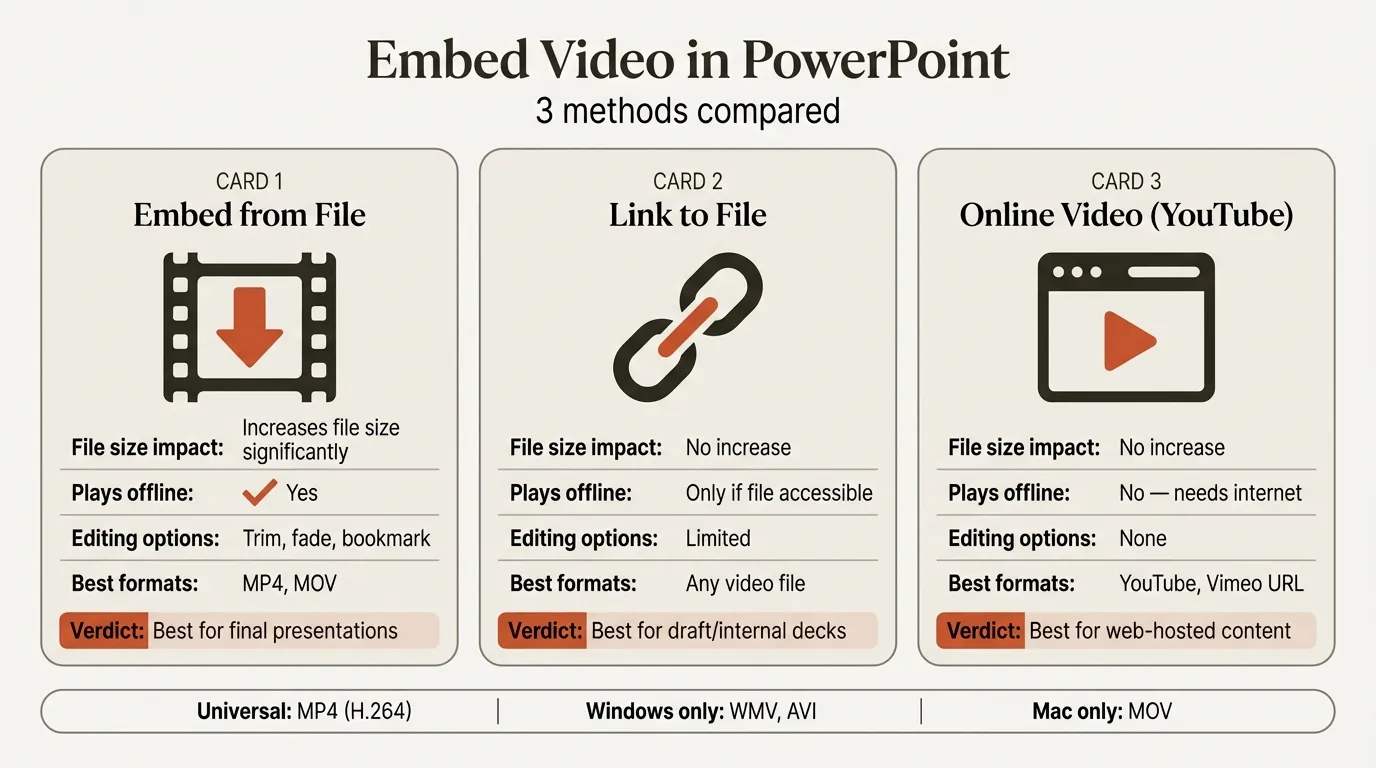
Embedding a video file directly from your computer is the most reliable method. The video data lives inside the PowerPoint file itself, so there is no dependency on internet connections or external file paths.
Step-by-step instructions:
- Open your presentation and navigate to the slide where you want the video
- Click the Insert tab in the ribbon
- Click the Video dropdown arrow in the Media group
- Select This Device (or Video on My PC in older versions)
- Browse to your video file, select it, and click Insert
- Resize and position the video on your slide by dragging the handles
Once inserted, you can configure playback behavior in the Playback tab that appears when the video is selected:
- Start: Choose between "On Click" or "Automatically" for when the video begins playing
- Trim Video: Cut the start and end points without editing the original file
- Loop until Stopped: Useful for background videos or lobby displays
- Hide While Not Playing: Keeps the video thumbnail hidden until playback begins
- Rewind after Playing: Returns to the first frame when the video ends
Important: Use the Insert option, not Link to File. Linking creates a reference to the file path on your computer. If you move the presentation to another machine or email it to a colleague, the link breaks and the video will not play.
How to Embed YouTube and Online Video in PowerPoint
For videos hosted on YouTube, Vimeo, or other platforms, PowerPoint lets you embed them directly using a URL. This keeps your file size small since no video data is stored in the presentation.
Step-by-step instructions:
- Copy the video URL from your browser (for YouTube, the standard
youtube.com/watch?v=URL works) - In PowerPoint, go to the Insert tab
- Click Video then select Online Video
- Paste the URL into the dialog box
- Click Insert
PowerPoint will display a thumbnail of the video on your slide. During the slideshow, clicking the thumbnail plays the video directly within PowerPoint using an embedded player.
Requirements and limitations:
- You must have an active internet connection during the presentation for the video to play
- PowerPoint 2013 or later on Windows, or PowerPoint 2019 or later on Mac
- Some corporate networks and firewalls block YouTube playback, so test on the actual network beforehand
- The video owner can remove or make the video private at any time, breaking your embed
- Playback controls are limited compared to local files: no trimming, no looping, no autostart in some versions
This method works well for internal presentations where you control the network environment. For client-facing presentations in unfamiliar conference rooms, embed from your computer instead.
Continue reading: PowerPoint Themes · PowerPoint Header and Footer · PowerPoint Add-ins for Mac
Create an editable presentation in your browser
Turn a prompt or source files into slides you can edit and export to PowerPoint. 14-day free trial. No credit card required.
Embed Video in PowerPoint: Method Comparison
Choosing the right method depends on your priorities. This table compares the three main approaches:
| Feature | Embed from Computer | Online Video (URL) | Link to File |
|---|---|---|---|
| Reliability | High (self-contained) | Medium (needs internet) | Low (path-dependent) |
| File size impact | Large (video in file) | Minimal (streaming) | Minimal (reference only) |
| Offline playback | Yes | No | Yes (if file accessible) |
| Portability | Excellent (share via email) | Good (any internet device) | Poor (breaks on other machines) |
| Trimming/looping | Full controls | Limited or none | Full controls |
| Best for | Client presentations | Internal meetings | Personal use only |
| Format dependency | MP4 recommended | Platform handles format | MP4 recommended |
Our recommendation: For any presentation you will share or present on a device other than your own, embed from your computer using an MP4 file. The larger file size is worth the reliability. Use online video only when file size is a hard constraint or when the video is updated frequently and you want viewers to always see the latest version.
Supported Video Formats and Compatibility
Not all video formats work across all versions of PowerPoint and operating systems. This is where most playback failures originate.
| Format | Windows | Mac | Notes |
|---|---|---|---|
| MP4 (H.264/AAC) | All modern versions | All modern versions | Recommended by Microsoft |
| MOV | 2013 and later | All versions | Apple format, works cross-platform with H.264 |
| WMV | All versions | Not supported | Windows-only format |
| AVI | All versions | Not supported | Legacy format, large files |
| M4V | 2013 and later | All versions | Similar to MP4 |
| MKV | Microsoft 365 only | Not supported | Limited support |
The safe choice is always MP4 with H.264 video and AAC audio. This combination is officially recommended by Microsoft and works on Windows, Mac, and PowerPoint for the web. If you receive a video in another format, convert it to MP4 before inserting. Free tools like HandBrake or VLC can handle the conversion.
Common Issues and How to Fix Them
Video not playing during presentation
Cause: The most common reason is a codec mismatch. PowerPoint cannot play the video because the required codec is not installed on the presenting machine.
Fix: Convert the video to MP4 (H.264/AAC). Then go to File then Info then Optimize Compatibility. This option only appears if PowerPoint detects potential issues, and it will re-encode media to maximize compatibility. For more details, see Microsoft's playback troubleshooting guide.
File size too large after embedding video
A 5-minute 1080p video can add 500 MB or more to your presentation file. This causes problems with email attachments, SharePoint uploads, and general performance.
Fix: Go to File then Info then Compress Media. PowerPoint offers three quality levels:
- Full HD (1080p): Best quality, moderate compression
- HD (720p): Good balance for most presentations
- Standard (480p): Smallest file size, acceptable for small video windows
For most conference room projectors and screen shares, 720p is indistinguishable from 1080p. You can cut file size by 50 to 80 percent without visible quality loss.
Video works on your machine but not on the presenting machine
Cause: You used Link to File instead of Embed, or the presenting machine lacks the required codec.
Fix: Re-insert the video using This Device with the Insert option (not Link to File). Verify by checking the file size: if your PPTX is under 10 MB but contains a 3-minute video, it is almost certainly linked rather than embedded.
Mac-specific differences
PowerPoint for Mac has a few limitations compared to Windows:
- No WMV or AVI support. These Windows-only formats will not play on Mac. Convert to MP4.
- No built-in screen recording. Windows users can record their screen directly from PowerPoint (Insert then Screen Recording). Mac users need to use QuickTime Player or another screen capture tool, then insert the resulting file.
- Online video requires PowerPoint 2019 or later. Older Mac versions cannot embed YouTube URLs.
If your team works across both platforms, standardize on MP4 files and test on both operating systems before presenting. For keyboard shortcuts that speed up formatting and alignment across platforms, a consistent workflow makes cross-platform collaboration smoother.
Best Practices for Video in Presentations
Keep videos short. In consulting and business contexts, embedded videos should support a point, not replace the presentation. Aim for 30 to 90 seconds per clip. Longer videos lose audience attention and signal that the presenter has not distilled the message.
Set videos to start on click, not automatically. Automatic playback removes your control over pacing. If the slide loads before you are ready to discuss the video, the audience watches without context. On-click gives you time to set up the point the video illustrates.
Always have a fallback. If the video fails during a live presentation, you need a way to continue without derailing the meeting. Include a screenshot of the key frame on the slide behind the video, or prepare a verbal summary. This applies especially to high-stakes presentations where data and visuals need to land perfectly.
Test on the actual presenting device. This is the single most effective way to prevent playback failures. Open the full slideshow on the exact laptop and projector combination you will use. Test the audio output. Verify that online videos load on the venue's network.
Compress before sharing. Before emailing or uploading a presentation with embedded video, run Compress Media. For teams building professional slides quickly, a streamlined file that opens without lag makes a better impression than a bloated file that takes 30 seconds to load.
Match video quality to display context. A video playing in a small window on one slide does not need 4K resolution. Right-size your video resolution to the display area. For full-slide background videos, 1080p is appropriate. For a small demo clip in one corner, 720p saves significant file size with no visible difference.
When working with Excel-linked charts and data that updates frequently, combining live data with embedded video can create compelling presentations that blend analysis with narrative. Just be mindful of the total file size when both video and linked data are in the same deck.
Create an editable presentation in your browser
Turn a prompt or source files into slides you can edit and export to PowerPoint. 14-day free trial. No credit card required.