Compress PowerPoint: 5 Methods That Shrink File Size
Learn how to compress PowerPoint files using built-in tools, image compression, media optimization, and online compressors. Steps for email-ready decks.
Most oversized PowerPoint files have a single culprit: uncompressed images. A 50-slide client deck with embedded photos can easily reach 80 MB or more, far beyond the 25 MB attachment limit on most email providers. Knowing how to compress PowerPoint files gets those decks under the limit without rebuilding them from scratch.
After compressing 400+ presentation files for email delivery and client portals, we have found that image compression alone solves the problem 80 percent of the time. The remaining cases require media compression, format optimization, or an online compressor.
This guide covers five practical methods to compress PowerPoint files, from built-in tools to online compressors, with real before-and-after file sizes so you know what to expect. For a comprehensive guide covering all file size reduction methods (including deleting unused masters, removing metadata, and restructuring content), see our complete guide to reducing PowerPoint file size.
How to Compress PowerPoint Using Built-In Tools
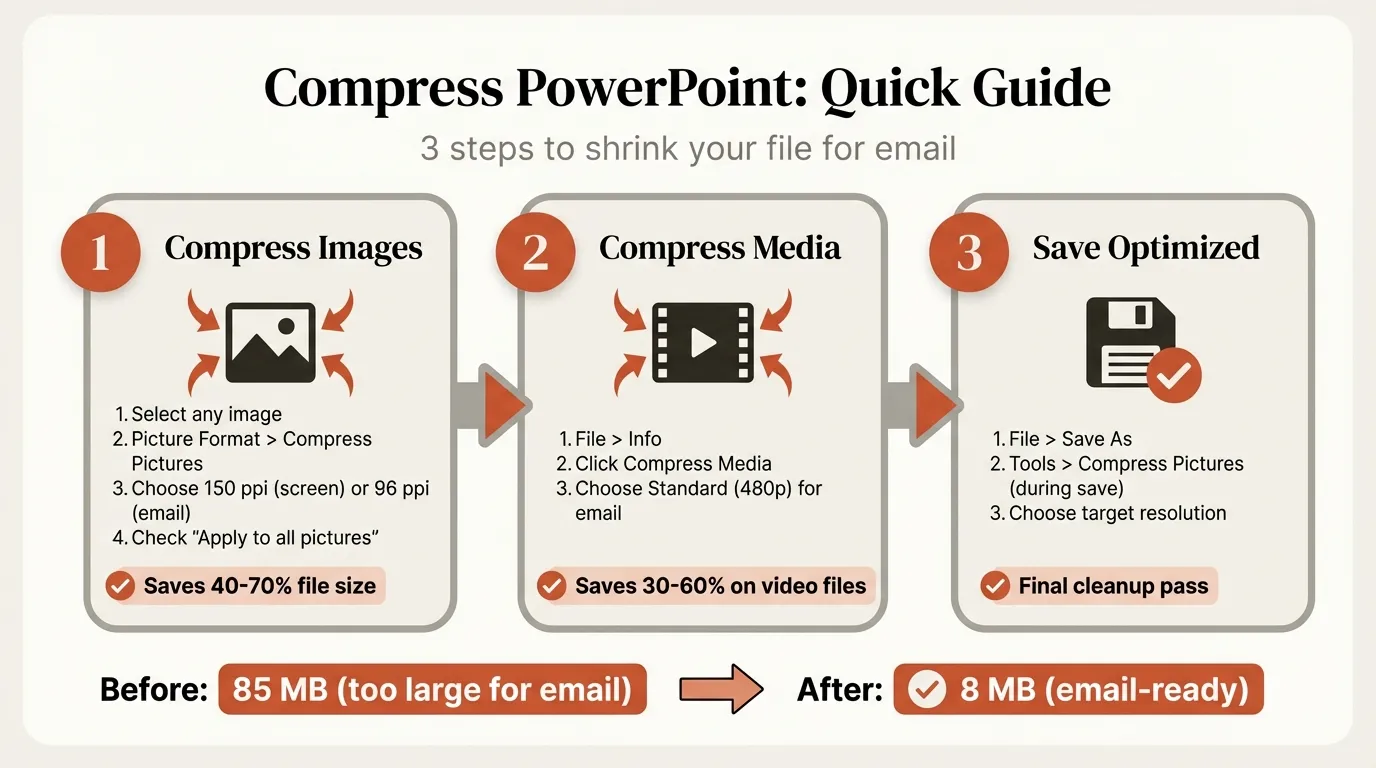
PowerPoint includes two built-in compression features that handle the most common causes of bloated files: oversized images and embedded media. No add-ins or external tools required.
Image compression (all versions)
This is the single most effective method. PowerPoint stores images at their original resolution by default, which means a 12 MP phone photo takes up the same space on a slide as it does on your hard drive.
Steps:
- Open your presentation in PowerPoint
- Click any image to select it
- Go to Picture Format tab and click Compress Pictures
- Choose your target resolution (see table below)
- Check Delete cropped areas of pictures to remove hidden image data
- Uncheck Apply only to this picture to compress all images at once
- Click OK
| Resolution Setting | PPI | Best For | Typical Reduction |
|---|---|---|---|
| High Fidelity | Original | Archival, no compression | 0% |
| HD (330 PPI) | 330 | High-res displays | 20-40% |
| Print (220 PPI) | 220 | Printed handouts | 40-60% |
| Web (150 PPI) | 150 | Screen-only viewing | 50-70% |
| Email (96 PPI) | 96 | Email attachments | 60-80% |
For most consulting presentations displayed on projectors or shared screens, 150 PPI (Web) provides the best balance between quality and file size. The 96 PPI email setting is fine for quick reviews but will look soft on 4K displays.
Important: Image compression is permanent after saving. Save a copy of your original file before compressing if you might need the full-resolution images later.
Default compression setting
You can also set a default compression level that applies every time you save:
- Go to File and then Options and then Advanced
- Scroll to Image Size and Quality
- Set Default resolution to your preferred PPI
- Check Discard editing data to remove undo history for images
This prevents future presentations from storing oversized images in the first place.
Compress Images in PowerPoint: Before and After
To show how much compression actually matters, here are real results from a 35-slide strategy presentation with 22 embedded images:
| Compression Level | File Size | Reduction | Visual Quality |
|---|---|---|---|
| No compression (original) | 74 MB | -- | Full resolution |
| HD (330 PPI) | 41 MB | 45% | Indistinguishable on projector |
| Print (220 PPI) | 28 MB | 62% | Excellent for print and screen |
| Web (150 PPI) | 19 MB | 74% | Good for screen, slight softness in photos |
| Email (96 PPI) | 12 MB | 84% | Acceptable for review, noticeable on retina |
The "Delete cropped areas" option alone saved an additional 6 MB in this test because several images had been cropped from larger photos.
Pro tip: Compress images selectively when quality matters. Select individual high-importance images (cover photos, detailed charts) and compress them at 220 PPI, then compress everything else at 150 or 96 PPI. This keeps key visuals sharp while still hitting your file size target.
If your presentation includes Excel-linked charts, those typically add minimal file size since they store data references rather than embedded images. The main offenders are always photographs and screenshots.
Continue reading: PowerPoint Background · Share PowerPoint · Claude Code Presentation
Create an editable presentation in your browser
Turn a prompt or source files into slides you can edit and export to PowerPoint. 14-day free trial. No credit card required.
Compress Media and Video in PowerPoint
Embedded video is the other major source of bloated PowerPoint files. A single 2-minute HD video can add 50 MB or more to your presentation.
PowerPoint for Windows includes a Compress Media feature (not available on Mac or PowerPoint for the web):
- Go to File and then Info
- Click Compress Media in the Media Size and Performance section
- Choose a quality level:
| Quality Level | Resolution | Best For |
|---|---|---|
| Full HD (1080p) | 1920x1080 | Large screens, high quality |
| HD (720p) | 1280x720 | Standard presentations |
| Standard (480p) | 854x480 | Email sharing, small file size |
Expected reduction: A 90 MB presentation with embedded video typically drops to 40-50 MB at HD (720p) and 25-35 MB at Standard (480p).
Limitations to know:
- Only available on Windows. Mac users need to compress videos externally before embedding
- Embedded subtitles and alternate audio tracks are removed during compression
- The process is irreversible once saved, so keep a backup
For presentations where video quality matters, consider linking to externally hosted video (YouTube, Vimeo, or SharePoint) instead of embedding. This keeps the file size minimal while preserving full video quality. See Microsoft's guide to compressing media for version-specific steps.
Online PowerPoint Compressors Compared
When built-in tools are not enough, or you do not have PowerPoint installed, online compressors offer a quick alternative. We tested five popular options with the same 74 MB test file:
| Tool | Free Tier Limit | Compression Result | Signup Required | Batch Mode |
|---|---|---|---|---|
| Smallpdf | 2 files/day | 18 MB (76%) | No | Paid only |
| WeCompress | 50 MB | 21 MB (72%) | No | No |
| SlideSpeak | No limit | 20 MB (73%) | No | No |
| YouCompress | No limit | 23 MB (69%) | No | No |
| ClipCompress | No limit | 22 MB (70%) | No | No |
Key takeaways:
- Smallpdf produced the smallest file but limits free users to two compressions per day
- WeCompress is the easiest to use (drag, drop, download) but has a 50 MB upload limit
- SlideSpeak offers configurable compression and lets you choose which elements to remove (videos, fonts)
- All tools processed files in under 60 seconds
Privacy note: These tools upload your file to their servers for processing. For confidential client presentations, stick with PowerPoint's built-in compression or use a desktop tool. SlideSpeak and some others claim to process files locally in-browser, which is preferable for sensitive content.
For more on building presentations that stay lean from the start, see our guides on presenting data effectively and creating professional slides fast.
Compress PowerPoint for Email: Quick Methods
When you need to send a deck in the next five minutes, here is the fastest path to getting under the 25 MB email attachment limit.
Method 1: Image compression only (2 minutes)
This works for 80 percent of cases:
- Open the file, click any image, go to Picture Format and then Compress Pictures
- Select Email (96 PPI) and check Delete cropped areas
- Uncheck Apply only to this picture
- Save As a new file (to preserve the original)
Method 2: ZIP compression (30 seconds)
PPTX files are already ZIP archives internally, so further ZIP compression typically yields only 10 to 20 percent reduction. Still, it can be the difference between fitting under the email limit or not.
- Windows: Right-click the file and select Send to and then Compressed (zipped) folder
- Mac: Right-click and select Compress
Method 3: Save as PDF (1 minute)
If the recipient does not need to edit the file, saving as PDF often cuts file size by 50 percent or more while preserving visual quality:
- Go to File and then Save As
- Choose PDF from the format dropdown
- Select Minimum size (publishing online) for the smallest output
This also eliminates the risk of recipients accidentally modifying your slides.
Method 4: Cloud link instead of attachment
For files that refuse to shrink below the email limit, upload to OneDrive, Google Drive, or SharePoint and share a link. Most email clients now support this natively:
- Outlook: Click the attachment icon and select Share from OneDrive
- Gmail: Click the Drive icon to insert a link
This approach has no file size limit and gives you version control over the shared file.
Quick decision guide
| Situation | Best Method | Expected Result |
|---|---|---|
| File is 30-50 MB, mostly images | Image compression (96 PPI) | Under 15 MB |
| File is 25-30 MB, needs a small trim | ZIP compression | 10-20% smaller |
| Recipient does not need to edit | Save as PDF | 50%+ smaller |
| File is over 100 MB with video | Compress Media + Image compression | 60-80% smaller |
| File exceeds 25 MB after all compression | Share via cloud link | No size limit |
Key Takeaways
Image compression is the highest-impact, lowest-effort method for reducing PowerPoint file size. Start there before trying anything else. For presentations with embedded video, use the Compress Media feature on Windows. Online compressors work well as a last resort but require uploading your file to external servers.
Build compression into your workflow rather than treating it as a last-minute scramble. Set your default image resolution to 150 or 220 PPI in PowerPoint options, and your presentations will stay lean from the first slide. For consultants building data-heavy decks, tools like Deckary that generate optimized charts directly in PowerPoint produce smaller files than pasting chart screenshots, since vector-based charts take a fraction of the space that rasterized images require.
For detailed steps on every method to reduce file size, including removing unused slide masters, cleaning up embedded fonts, and stripping hidden metadata, see Microsoft's full guide to reducing presentation file size.
Create an editable presentation in your browser
Turn a prompt or source files into slides you can edit and export to PowerPoint. 14-day free trial. No credit card required.