PDF to PowerPoint: 5 Best Conversion Methods Compared
We tested Adobe Acrobat, Smallpdf, iLovePDF, and more for inserting PDFs into presentations and converting to editable PPTX without layout cleanup.
Converting a PDF to PowerPoint sounds straightforward until you actually try it. Fonts shift, charts flatten into images, tables break apart, and what should have been a 5-minute task turns into an hour of manual cleanup.
After converting 200+ PDF reports back to editable presentations for client deliverables, pitch books, and internal decks, the pattern is clear: the conversion method you choose determines whether you spend 5 minutes or 5 hours on the result. This guide covers every practical method for PDF to PowerPoint conversion, compares output quality across tools, and explains when rebuilding slides from scratch is faster than converting.
Put this into practice: Use a readable PDF as source material for a new editable presentation. The workflow creates a narrative from the report; it does not promise identical page layouts. See the workflow.
5 Methods to Convert PDF to PowerPoint
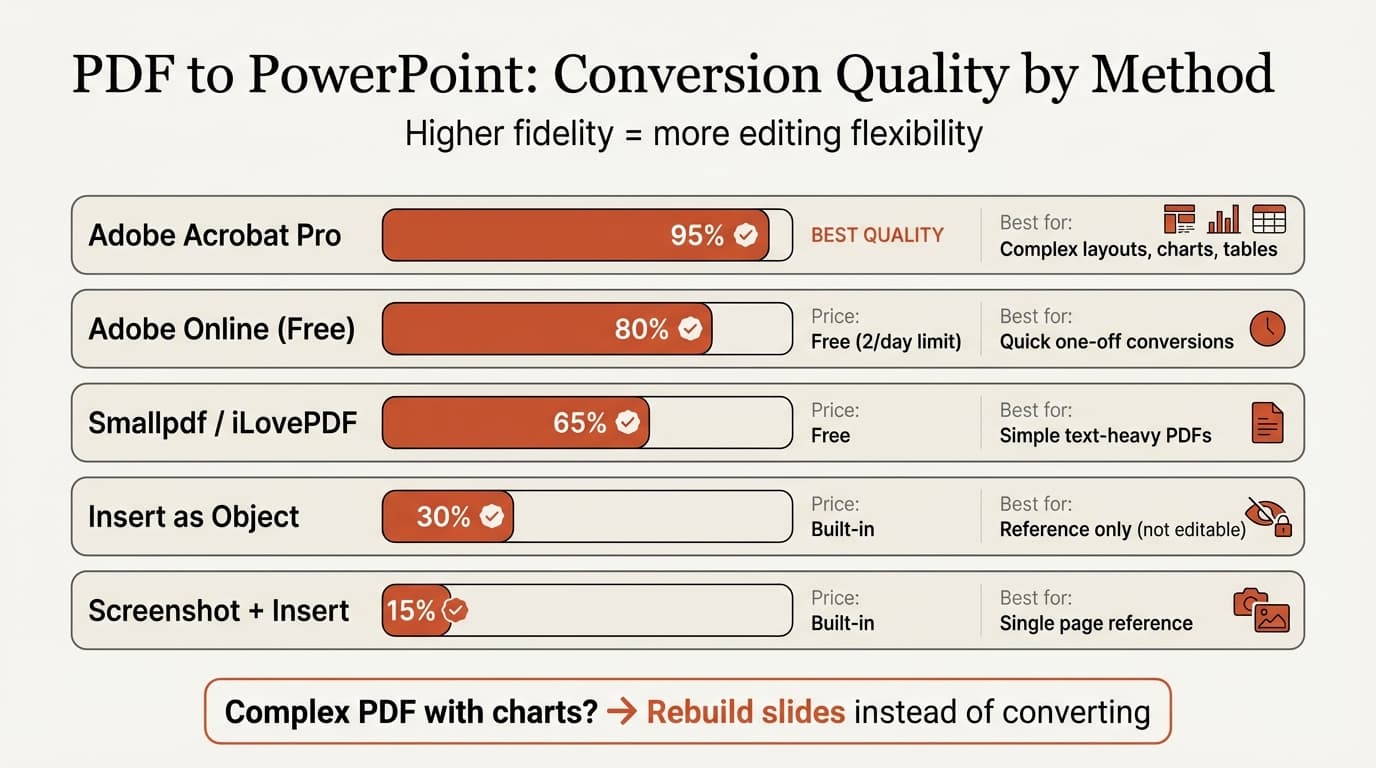
There are five distinct approaches, each with different tradeoffs between cost, quality, and effort.
| Method | Cost | Editable Text | Chart Quality | Best For |
|---|---|---|---|---|
| Adobe Acrobat Pro | $22.99/mo | Yes | Good | Complex documents |
| Adobe Acrobat Online | Free (limited) | Yes | Moderate | Occasional conversions |
| Free online tools | Free | Yes | Poor to moderate | Simple, text-heavy PDFs |
| PowerPoint Insert as Object | Free | No | N/A (embedded) | Displaying PDF during presentation |
| PowerPoint Screenshot | Free | No | N/A (image) | Single-page references |
The first three methods produce editable slides. The last two embed the PDF as a non-editable element. Most professionals need editable output, so the real decision is between Adobe Acrobat and free online converters.
Method 1: Adobe Acrobat Pro (Highest Quality)
Adobe Acrobat Pro produces the most accurate PDF to PowerPoint conversions because Adobe created the PDF format itself. The export engine handles vector graphics, embedded fonts, and complex table structures better than any alternative.
Steps:
- Open the PDF in Adobe Acrobat Pro
- Click Export PDF in the right-hand panel
- Select Microsoft PowerPoint as the export format
- Choose export settings (adjust image quality if needed)
- Click Export and save the PPTX file
What it handles well: Multi-column layouts, embedded fonts, hyperlinks, form fields, vector graphics, and layered elements. Acrobat preserves the original font when it is available on your system and applies intelligent substitution when it is not.
What it struggles with: Heavily designed slides with overlapping gradients, custom shapes built from multiple layered objects, and charts created in specialized tools. These elements often convert as flattened images rather than editable PowerPoint shapes.
Cost consideration: At $22.99 per month for a full Acrobat Pro subscription, this method only makes sense if you convert PDFs regularly or need the highest possible fidelity.
Method 2: Adobe Acrobat Online (Free, Limited)
Adobe offers a free online PDF to PowerPoint converter that handles basic conversions without requiring a subscription. Quality is a step below Acrobat Pro but significantly above most free alternatives.
Steps:
- Go to Adobe Acrobat's online PDF to PPT tool
- Upload your PDF (drag and drop or browse)
- Wait for processing
- Download the converted PPTX file
Limitations: File size caps, daily conversion limits, and fewer export settings than the desktop version. Complex layouts may lose some formatting that the Pro version would preserve.
Continue reading: PowerPoint Slide Design · Word to PowerPoint · HTML to PowerPoint
Create an editable presentation in your browser
Turn a prompt or source files into slides you can edit and export to PowerPoint. 14-day free trial. No credit card required.
Method 3: Free Online Converters
Free tools like Smallpdf, iLovePDF, and Canva handle straightforward conversions adequately. They work best for text-heavy PDFs with simple layouts.
Steps (similar across all tools):
- Navigate to the converter website
- Upload your PDF
- Wait for server-side processing
- Download the PPTX output
Quality varies significantly by source material:
| PDF Content Type | Free Tool Quality | Manual Cleanup Needed |
|---|---|---|
| Text paragraphs with headings | Good | Minimal |
| Simple tables | Moderate | Some cell adjustments |
| Charts and graphs | Poor | Extensive or rebuild |
| Multi-column layouts | Moderate | Reposition elements |
| Custom fonts | Poor | Font substitution throughout |
| Images with text wrapping | Poor | Reposition and resize |
Privacy note: Free online tools upload your file to their servers for processing. Do not use these services for confidential client materials, financial data, or legally privileged documents. If privacy matters, use desktop software that processes files locally.
Method 4: Insert PDF as an Object in PowerPoint
This method does not convert the PDF. It embeds the file inside your presentation so viewers can open it during a slideshow.
Steps:
- Open PowerPoint and navigate to the target slide
- Go to Insert > Object
- Select Create from file and browse to your PDF
- Click OK to embed
The PDF appears as a clickable thumbnail. Double-clicking opens the full PDF in your default reader. This approach works for presenting reference materials alongside your slides, but it does not produce editable content.
According to Microsoft's official documentation, the quality of the embedded PDF preview is reduced, and this feature is not available in PowerPoint for the web.
Method 5: Insert PDF as a Screenshot
For referencing a single page from a PDF, PowerPoint's built-in screenshot tool captures it as an image.
Steps:
- Open the PDF in any viewer so the target page is visible
- In PowerPoint, go to Insert > Screenshot
- Select Screen Clipping
- Drag to select the area you want to capture
This creates a static image. No text editing, no reformatting. It is useful for including a single-page reference, a chart snapshot, or a visual comparison.
Common PDF to PowerPoint Formatting Issues
Every conversion method except embedding produces some formatting problems. Understanding the most frequent issues helps you decide whether conversion or rebuilding is the better path.
Font substitution. If the PDF uses fonts not installed on your system, the converter substitutes them. This changes line breaks, spacing, and sometimes overall slide layout. Corporate fonts used in consulting decks and pitch books are particularly prone to this.
Text box fragmentation. A single text block in a PDF often splits into multiple disconnected text boxes in PowerPoint. Paragraphs break mid-sentence, bullet points separate from their headings, and you end up manually merging dozens of text frames.
Chart and graph flattening. Charts created in Excel or specialized tools become static images after conversion. You cannot edit data points, change colors, or update values. The chart is just a picture. For guidance on building charts that remain editable, see our PowerPoint charts guide.
Table distortion. Complex tables frequently lose cell alignment, merge incorrectly, or convert with mismatched column widths. Tables with merged cells or nested content are especially problematic.
Image displacement. Images shift position, lose their cropping, or change resolution. Text wrapping around images almost never survives conversion.
Numbered list corruption. PowerPoint does not support decimal-numbered lists (1.1, 1.2, 1.3), so structured numbering schemes from PDF documents break during conversion.
When to Convert vs. When to Rebuild
Conversion is not always the fastest path. Sometimes rebuilding slides from scratch produces a better result in less time.
| Scenario | Recommendation | Why |
|---|---|---|
| Text-heavy PDF with simple formatting | Convert | Free tools handle this well |
| PDF with standard business charts | Rebuild | Charts flatten to images; faster to recreate |
| Client deck with custom branding | Rebuild | Font and layout fidelity matters too much |
| 50+ page report for reference | Convert | Volume makes rebuilding impractical |
| Consulting slide with data tables | Rebuild | Table formatting rarely survives conversion |
| PDF from a scanner (image-based) | Convert with OCR | Adobe Acrobat Pro handles OCR conversion |
For presentations where quality matters more than speed, rebuilding gives you full control over formatting, animations, and editable charts. Tools like Deckary's AI Slide Builder can generate consulting-quality slides from text descriptions, which is often faster than fixing a botched conversion when the source PDF had complex layouts.
When rebuilding, the key is separating content extraction from slide design. Copy the text content from the PDF first, structure your key messages, then build professional slides using proper templates. This two-step approach avoids the trap of trying to replicate the original PDF layout pixel-for-pixel.
Getting the Best Results from Any Conversion
Regardless of which method you choose, these practices improve output quality:
Install source fonts first. Before converting, install any fonts used in the original PDF. This eliminates the most common formatting issue. If you do not have the exact fonts, identify close substitutes and set them as defaults in PowerPoint before opening the converted file.
Convert in smaller batches. Large PDFs (50+ pages) produce worse results in free tools. Split the PDF into sections and convert separately, then combine the PPTX files.
Check slide masters immediately. Conversions often create dozens of unused slide layouts. Clean these up before editing to avoid inconsistencies when applying formatting changes.
Use the original PDF as a reference. Keep the PDF open side-by-side with the converted file. Work through each slide systematically rather than scrolling back and forth. This catches subtle spacing and alignment issues that are easy to miss.
PDF to PowerPoint conversion is a practical skill that every professional who works with presentations will need eventually. The right method depends on your source material, quality requirements, and how much time you are willing to spend on cleanup. For simple text documents, free tools get the job done. For anything with complex formatting, either invest in Adobe Acrobat Pro or consider whether rebuilding the slides from scratch will actually save you time.
Create an editable presentation in your browser
Turn a prompt or source files into slides you can edit and export to PowerPoint. 14-day free trial. No credit card required.