How to Make Consulting Slides: The Complete MBB Guide
Learn how to make consulting slides like McKinsey, BCG, and Bain. Master action titles, the So What test, pyramid structure, and MBB formatting standards.
- Bob · Former McKinsey and Deloitte consultant with 6 years of experience
- January 8, 2026
- 19 min read
Consulting slides work differently than typical corporate presentations. A CEO can flip through a 50-page McKinsey deck in ten minutes and understand the complete argument—because every title states a conclusion, every chart answers a specific question, and the structure leads with the answer rather than building to it.
These aren't aesthetic preferences. They're consulting slide standards that MBB firms enforce because they make communication faster and clearer for time-constrained executives.
This guide covers how to build consulting-quality slides: the key principles (action titles, pyramid structure, the "So What?" test), formatting rules, chart best practices, the difference between presentation decks and leave-behinds, and tools that accelerate the work. The goal isn't slides that look like McKinsey made them—it's communication with the clarity that executive audiences demand. For a comprehensive overview of MBB presentation standards, see our Consulting Presentations Guide.
What Makes Consulting Slides Different
Before diving into how to build consulting slides, you need to understand why they look and feel different from typical corporate presentations.
The Purpose Is Different
Most corporate slides serve as visual aids during a presentation. The speaker talks, the audience listens, and the slides provide supporting imagery. The slides aren't meant to stand alone.
Consulting slides serve as standalone documents that can be read without a presenter. A managing partner might flip through your 80-page deck in ten minutes, reading only the titles. A board member might receive the PDF on a Friday night and read it before Monday's meeting. The slides must communicate completely on their own.
This fundamental difference drives every other distinction.
The Structure Is Inverted
Corporate presentations often build to a conclusion. You start with background, walk through analysis, and reveal your recommendation at the end. This feels natural because it mirrors how you did the work.
Consulting presentations lead with the conclusion. The first slides state your recommendation. Everything that follows exists to support and prove that recommendation. This is the Pyramid Principle in action—you think from the bottom up, but you present from the top down.
Why the difference? Time. A CEO might have fifteen minutes between meetings. If your conclusion is on slide 45, they'll never see it. If it's on slide 2, they can engage immediately and decide whether to drill into detail.
The Titles Tell the Story
The most visible difference between consulting and corporate slides is in the titles.
| Corporate Slide Title | Consulting Slide Title |
|---|---|
| Market Analysis | German market growing 12% annually, 3x faster than US |
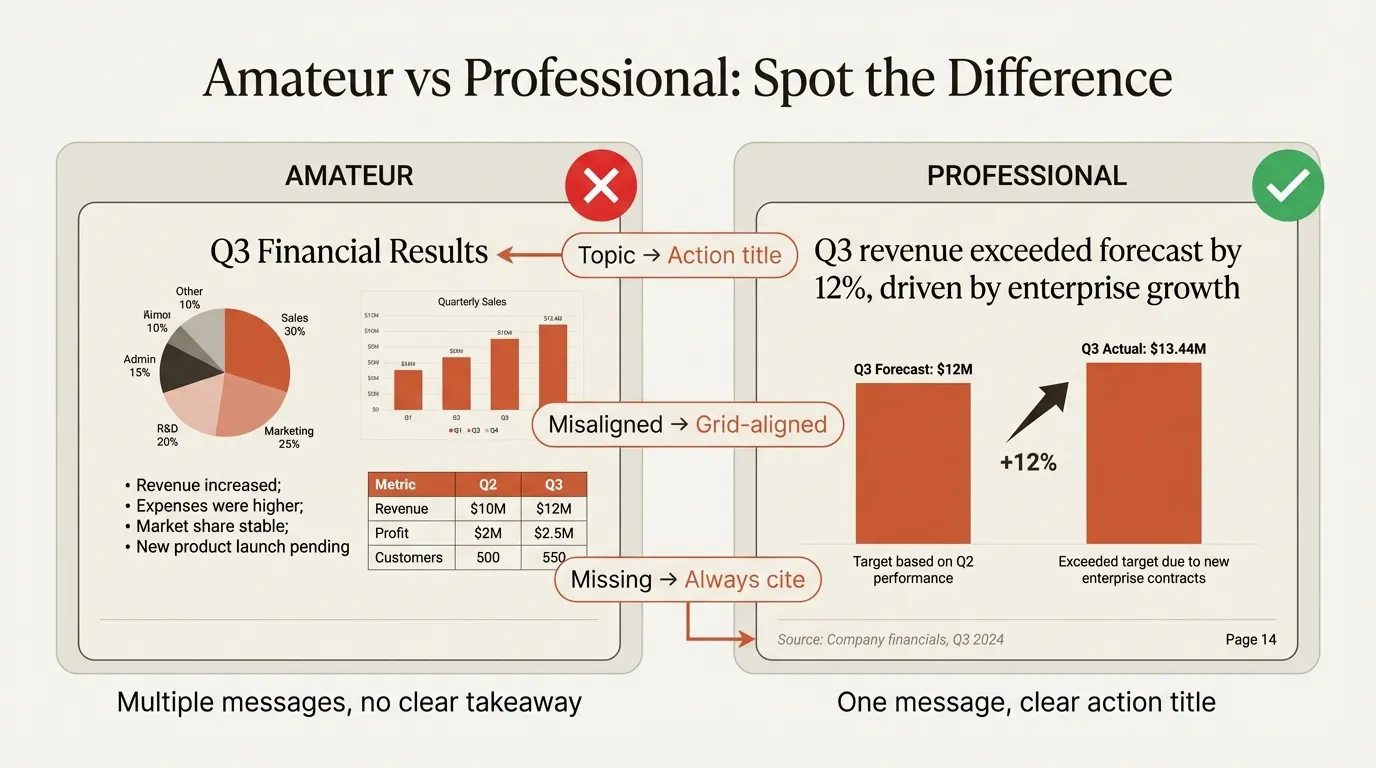
| Q3 Financial Results | Q3 revenue exceeded forecast by 12%, driven by enterprise |
| Customer Research | Customer interviews reveal onboarding takes 3x longer than competitors |
| Competitive Landscape | We outperform on 4 of 6 key purchase criteria |
| Cost Structure | Fixed costs at 68% of total limit flexibility during downturns |
Corporate titles describe what's on the slide. Consulting titles tell you what to conclude from it. This distinction, called action titles versus topic titles, is the single most important difference to master.
BCG consultants are trained to write slides and summaries that allow someone to understand a presentation by only reading the titles. This is called "horizontal flow"—the ability to read across the deck, title by title, and follow the complete argument.
The Core Principles of Consulting Slides
Four principles form the foundation of every consulting-quality slide deck. Master these, and you'll produce work that meets MBB standards.
Principle 1: One Message Per Slide
Each slide should communicate exactly one insight. That insight is stated in the action title and supported by the slide body.
This is the hardest discipline to maintain. You've done the analysis. You've found five interesting things. You want to show all of them. Don't.
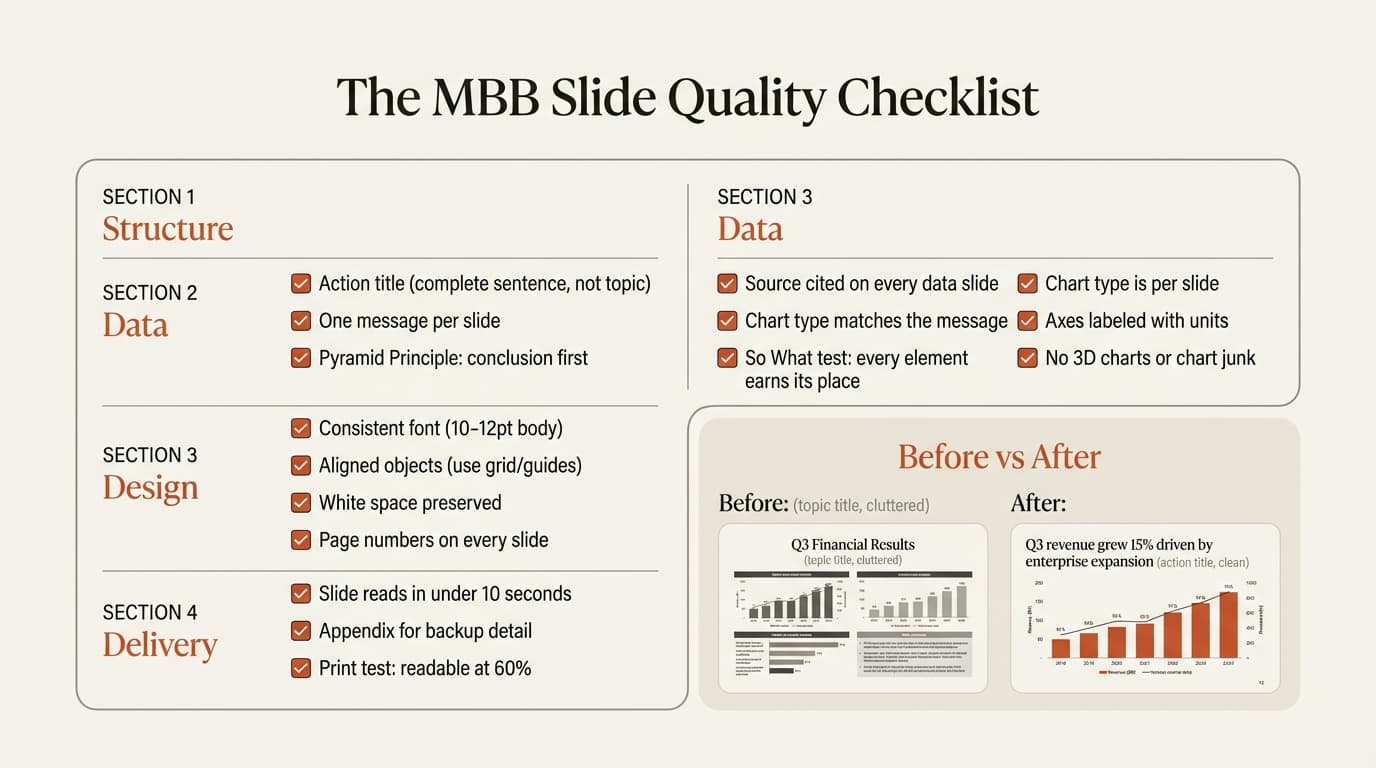
Signs you have multiple messages:
- Your action title contains "and"
- You're struggling to write a clear title
- The slide body doesn't all support one conclusion
- Readers don't know where to look first
If you can't state your message in one sentence, you have multiple messages. Split them.
Wrong: One slide covering market size, growth rate, and competitive dynamics Right: Three slides, each with one message
The test is simple: Can you summarize the slide in one sentence that matches your title? If not, you've got too much going on.
Principle 2: Action Titles, Not Topic Titles
Every slide needs a title that states the key takeaway as a complete sentence. The title actively tells the reader what to conclude, not what the slide contains.
Rules for action titles:
- Maximum 15 words (never exceed two lines)
- Use active voice ("Revenue grew" not "Revenue was grown")
- Be specific and quantify when possible
- State a conclusion, not a process
The transformation:
Instead of: "We interviewed 13 customers about the onboarding process" Write: "Customer interviews revealed onboarding takes 3x longer than competitors"
The first describes what you did. The second tells the reader what you learned. Executives care about outcomes, not your process.
The horizontal flow test: Flip through your deck reading only the titles. Can someone understand your complete argument? If not, your action titles need work. This is how partners review decks before client meetings.
Principle 3: The Pyramid Structure
The Pyramid Principle, developed by Barbara Minto at McKinsey in the 1960s, structures communication by leading with your conclusion.
At the deck level:
- Executive summary states the recommendation
- Section dividers introduce key arguments
- Detail slides provide evidence
- Appendix holds backup material
At the slide level:
- Action title (top of pyramid): The key takeaway
- Supporting elements (middle): 2-4 key points
- Evidence (bottom): Data, charts, details
Everything works top-down. Senior executives can stop reading at any level and still have a complete understanding. They can read just the executive summary, or just section headers, or dive into detail. The structure accommodates all depths of engagement.
SCQA Framework for Opening:
Most consulting decks open with an SCQA structure:
- Situation: Current state, something the audience agrees with
- Complication: What changed, what's at stake
- Question: What needs to be solved
- Answer: Your recommendation (top of the pyramid)
This framework captures attention and sets up your recommendation with context.
Principle 4: Visual Hierarchy
Consulting slides follow strict visual hierarchy that guides the reader's eye through content in the correct order.
The visual layers:
- Action title: Largest text, top of slide, first thing the eye sees
- Subtitles/section headers: Second-largest, guides to supporting structure
- Slide body: Charts, text, data that proves the title
- Source line: Smallest text, bottom of slide
Everything on the slide should answer one question: "Why should I believe the action title?" If data or text doesn't directly support the title, cut it.
The "So What?" Test
If you learn one thing from this guide, make it this: every slide must pass the So What? test.
The So What? test asks a simple question: Why does this matter?
It's relevant at the individual slide level. For any slide you create, ask yourself: "What is the key takeaway from this slide? How does this fit into my overall presentation? Is it absolutely necessary to include this point to get my story across?"
How to Apply the So What? Test
When you see a chart showing revenue by quarter, ask: "So what?"
Wrong answer: "This is the revenue data." Right answer: "Revenue growth accelerated to 15% in Q4, signaling the turnaround is working."
The difference is the difference between a topic and an insight. One describes data. The other interprets it.
The question isn't just "What's happening?" but "What are we going to do about it?" If the "so what" isn't obvious within three seconds, you've failed. The fix: Add the implication to every data point. Don't just show the number—show what it means for the business, the project, or the decision at hand.
The Three-Part Sniff Test
At consulting firms, every slide must pass three checks:
- Accurate: Is the data correct and not misleading?
- Relevant: Does this support the storyline? (So What?)
- Actionable: Does this lead to a recommendation or decision?
If a slide fails any of these, it doesn't belong in your deck. First, check to make sure the content is accurate and not misleading. Then, check for some insight, recommendation, or point of view. Is this relevant to the storyline or logic of the presentation? Is this just another repetitive slide of the same point?
So What? in Practice
Here's how to transform a descriptive slide into an insight-driven one:
| Descriptive Version | So What? Version |
|---|---|
| "Market trends over the past decade" | "Focus on emerging markets to achieve 15% growth" |
| "Revenue by product line" | "Product A drives 60% of revenue but only 30% of profit" |
| "Customer satisfaction survey results" | "Satisfaction scores dropped 15% since new pricing launched" |
| "Competitor market share" | "Three competitors vulnerable to disruption in adjacent segments" |
The descriptive versions describe what's on the slide. The So What? versions tell you what to conclude and what to do about it.
Continue reading: Problem Solving Frameworks · Box Plot in PowerPoint · Investment Banking Pitch Book
Layout Rules: Margins, Fonts, Colors, and White Space
Formatting matters more than you think. When formatting is inconsistent, readers notice subconsciously. It signals carelessness and undermines credibility before they even read your content.
Margins and White Space
Never go outside the slide margins. Use PowerPoint's guides to clearly view margins when in design view. Margins help define the visual space within your slides, keeping text and visuals legible, well-aligned, and aesthetically balanced.
White space principles:
- Leave large margins around the slide edges
- Don't fill every inch—clutter is a failure of design
- Use white space to separate elements and reduce visual fatigue
- If content doesn't fit, the problem is the content, not the margins
As design expert Nancy Duarte puts it: "It's okay to have clear space—clutter is a failure of design."
Font Standards
Best practice is to use two text sizes on the main body of the slide, ideally two points apart:
- Size 18-20pt for action titles
- Size 11-14pt for body text
- Size 9-10pt for source lines and footnotes
Font families:
- McKinsey uses Arial for body content and Georgia for titles
- BCG uses Trebuchet MS
- The key principle: Pick one or two fonts and stick to them
Consistency rules:
- All titles should be identical size across all slides
- Body text should be identical size throughout
- Never shrink fonts to fit—simplify the message instead
If you reduce your title font from 18pt to 14pt to squeeze in a longer headline, you've failed. The solution is to simplify the message or split into multiple slides, not to break formatting.
Color Standards
Keep the color palette simple:
- Maximum 3-4 colors used consistently
- Use bright colors selectively to draw attention to key data
- Create a color hierarchy and apply it throughout
- Each firm has signature colors (McKinsey blue, BCG green, Bain red)
Colors should communicate meaning, not decoration. Use color to highlight key data points, differentiate categories in charts, and create visual hierarchy. Never use color randomly.
Alignment
Content on all slides should be aligned to a grid. Titles and subheadings should have the same exact position across all slides. When you flip through your slides, the position of the headline should not move, and the font size should not change.
Deckary provides keyboard shortcuts for alignment and distribution that make this process faster. Instead of navigating through menus, you can align objects with single keystrokes—which matters when you're aligning elements hundreds of times per deck.
Typography Details
Line spacing: Adjusting line-spacing (leading) between 1.1 and 1.3 improves readability of text blocks.
Line length: Keep lines to 8-12 words or about 45-90 characters. Shorter lines are more comfortable to read.
Consistency: If you have different bullet styles, different indentation levels, or different spacing throughout your deck, readers notice. These small inconsistencies signal that nobody reviewed the work carefully.
Chart Best Practices: When to Use Waterfall, Mekko, and Standard Charts
Consulting decks rely heavily on specific chart types that are difficult to build in native PowerPoint. Understanding when to use each type—and how to build them correctly—separates professional work from amateur attempts.
Waterfall Charts (Bridge Charts)
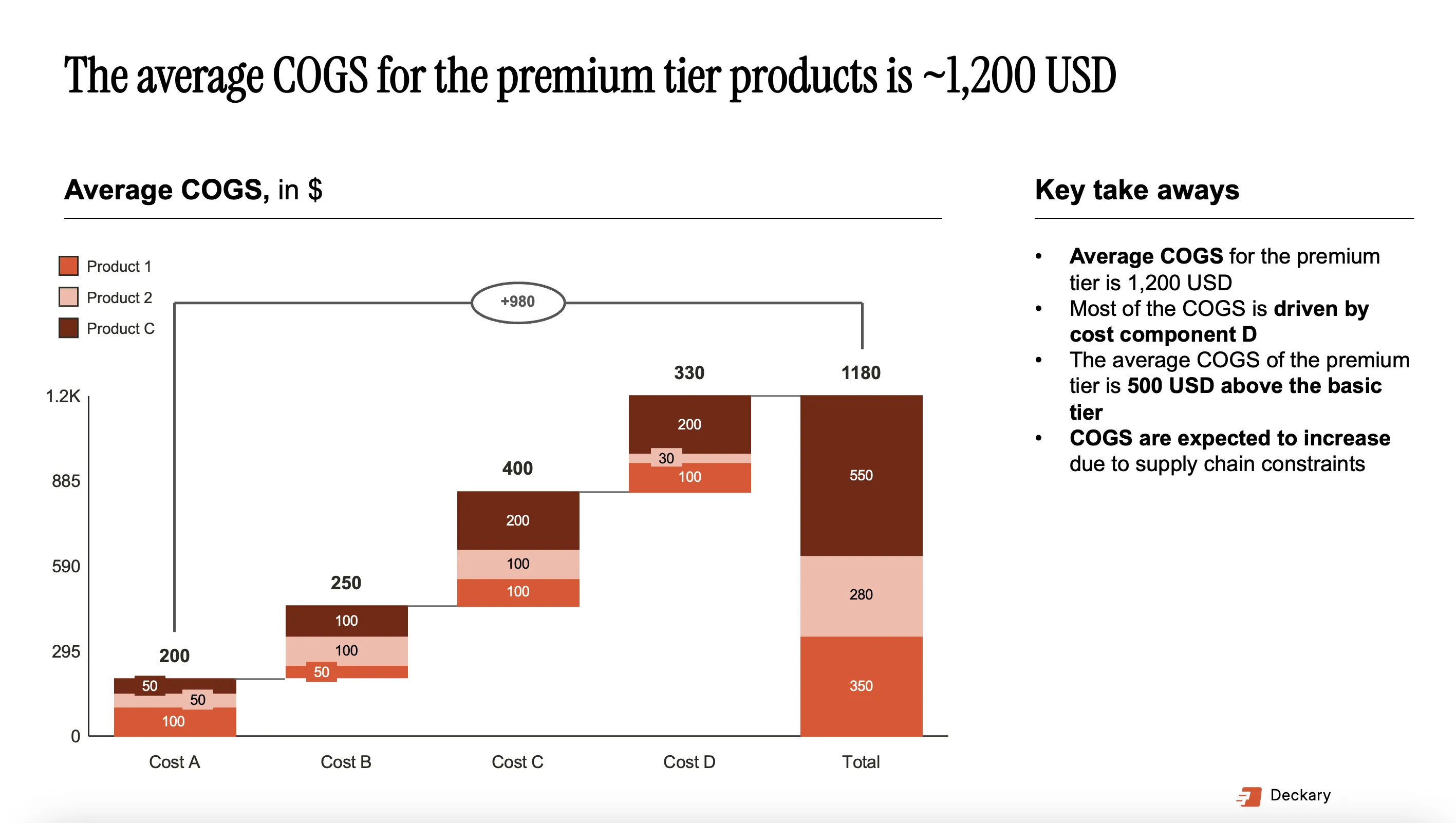
Waterfall charts, also called cascade or bridge charts, show how you get from one value to another.
When to use:
- Revenue bridges (FY2024 to FY2025)
- EBITDA walks (Revenue to EBITDA)
- Cost breakdowns (Gross margin to net income)
- Changes in any key metric over time
The chart type was popularized by McKinsey, so it's sometimes called the "McKinsey chart." It's the preferred chart type for many consultants and finance professionals because it clearly shows which categories contributed most to a change.
Best practices:
- Arrange values from largest to smallest (unless time or process order matters)
- Use color to distinguish positive from negative contributions
- Keep labels clean and readable
- Always include units and time periods
Native PowerPoint can technically build waterfall charts, but they're tedious to format. Add-ins like Deckary make waterfall charts easy to build and automatically update when source data changes.
Mekko Charts (Marimekko Charts)
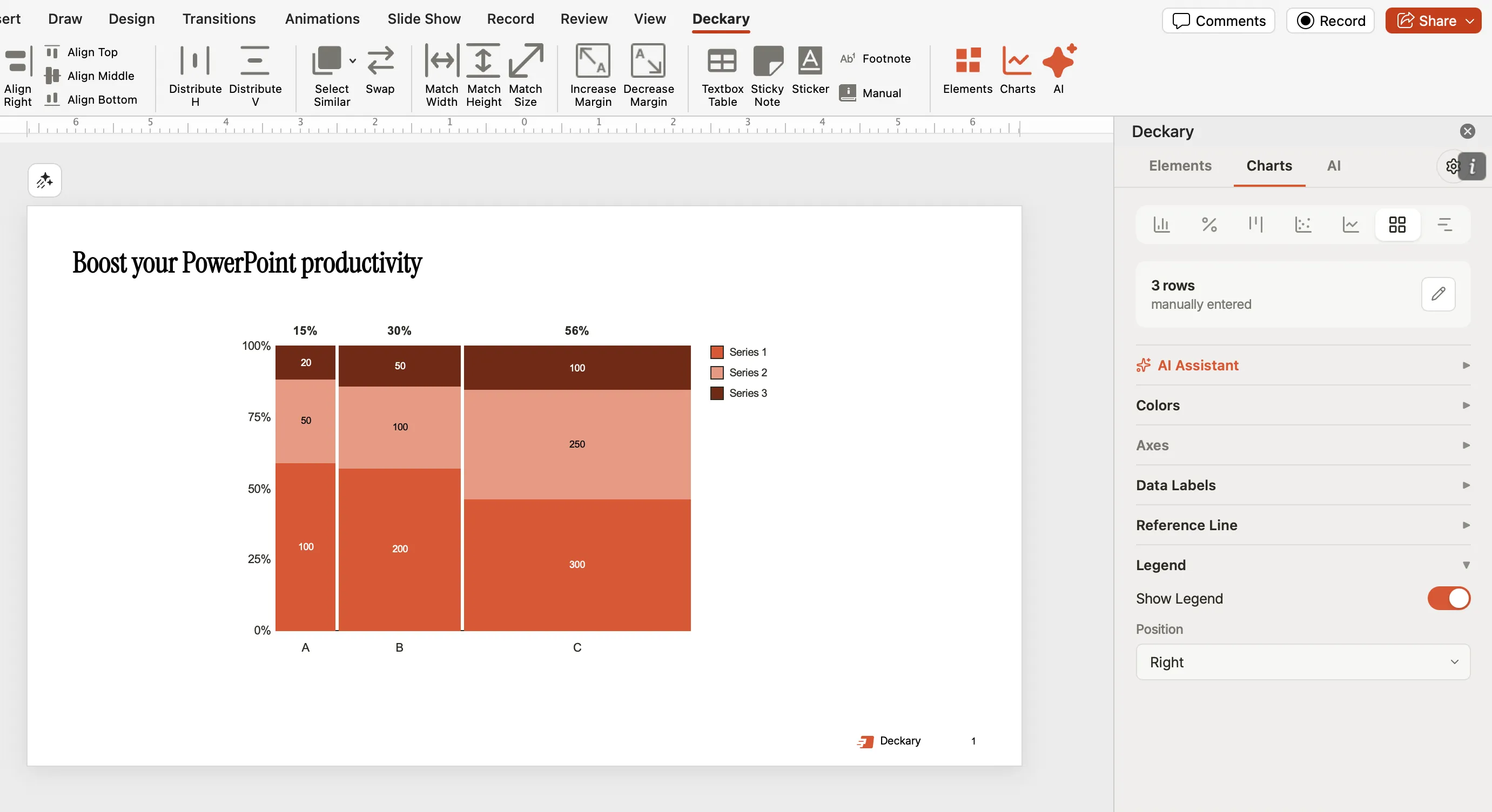
Mekko charts are beloved by strategy consulting firms because they answer multiple questions with a single visualization.
What they show:
- Column width represents one variable (e.g., total revenue)
- Column height represents another variable (e.g., market share by segment)
- Segment height within each column shows composition
When to use:
- Market sizing (company revenue on x-axis, segment breakdown on y-axis)
- Competitive positioning (market size by competitor)
- Portfolio analysis (revenue by business unit with profitability breakdown)
- Any situation where you need to show both size and composition
Caution: Mekko charts can be difficult to understand if overloaded. They work best when the story is simple: "These three companies dominate the market, and each has a different segment focus."
Excel and PowerPoint do not support Mekko charts natively. You need specialized add-ins like Deckary or Mekko Graphics to create them.
Standard Charts Done Right
Even basic bar charts and line charts require consulting-level formatting:
Every chart needs:
- Clear title (ideally action-oriented)
- Axis labels with units
- Legend (if multiple series)
- Source line at the bottom
- Callouts highlighting key data points
Common charting mistakes to avoid:
- Missing axis labels or units
- No source citation
- 3D effects (never use these)
- Legends that don't match the data order
- Too many data series (stick to 3-5 max)
Presentation Deck vs. Leave-Behind: Know the Difference
One of the most common mistakes in consulting presentations is building one deck that tries to serve two purposes. It fails at both.
What's the Difference?
Presentation deck (for live delivery):
- Minimal text—just key points
- Visual-heavy with large images and charts
- Slides are incomplete without the speaker
- Designed to be glanced at, not read
- Works at "presentation distance" (across a room)
Leave-behind (for independent reading):
- More detailed, text-rich
- Self-explanatory without a presenter
- Can be understood by someone who wasn't in the room
- Designed to be read closely
- Works at "reading distance"
As Duarte explains, a properly-prepared set of visuals for a presentation will fail as leave-behind collateral. Your slides are supposed to be incomplete; they are supposed to be no more than the tease for the words that you will speak.
Which One Should You Build?
In consulting, we almost always build leave-behinds.
Why?
- Executives often read decks before or after meetings, not during
- Decks get forwarded to people who weren't in the room
- Partners review decks independently before client presentations
- The deck itself is often the deliverable
Your leave-behind deck is the vehicle that carries your message to all these people who weren't in that room. It needs to work without you there to explain it. It needs to be self-contained enough that someone reading it for the first time, without your voice guiding them, can understand your value and get excited about it.
If You Need Both
Sometimes you genuinely need a presentation deck for the meeting and a leave-behind for afterward. In that case:
- Build the leave-behind first (more detailed version)
- Create a presentation version by stripping text and enlarging visuals
- Keep them as separate files—never try to make one deck serve both purposes
Some consultants use PowerPoint's Notes View to create leave-behind content while keeping the projected slides clean. But this only works if you're certain the audience will view the Notes. More often, you need two distinct decks.
How Deckary Helps Create Consulting-Grade Output Faster
Building consulting-quality slides is time-consuming. At McKinsey, we'd spend hours aligning objects, formatting charts, and maintaining consistency across 80-page decks. The right tools can dramatically speed up this process.
The Bottlenecks
Most of the time in slide building goes to repetitive tasks:
- Aligning objects (hundreds of times per deck)
- Building charts that PowerPoint doesn't support natively
- Formatting text and elements consistently
- Finding and inserting icons
- Updating charts when data changes
Native PowerPoint is functional but slow for consulting work. You navigate through multiple menus for each alignment. You can't build waterfall or Mekko charts without manual workarounds. You spend hours on formatting instead of thinking.
What Deckary Provides
Deckary is built specifically for consultants and finance professionals. Here's what matters:
Keyboard shortcuts for alignment and distribution: Instead of navigating Format > Align > Distribute Horizontally, you hit one key. When you're aligning hundreds of objects per deck, this saves hours.
Consulting-standard chart types: Waterfall charts, Mekko charts, Gantt charts—the charts consultants actually use, built with Excel linking so they update automatically when your data changes.
Professional icon library: 2,000+ icons designed for business presentations. No more hunting through Google Images for a decent strategy icon.
AI Slide Builder: Describe your business problem and AI generates complete slides with consulting-style layouts, bullet points, charts, and icons—all in native PowerPoint.
Cross-platform support: Works on both Windows and Mac, which matters when your team uses both.
Pricing that makes sense: At $10-15/month (billed annually, or $120-180/year), it's accessible for individual consultants and small teams.
The goal isn't to replace your design skills—it's to remove the mechanical friction so you can focus on the message. Tools only accelerate execution. The principles in this guide are what separate consulting-quality work from everything else.
Common Mistakes to Avoid
These errors immediately signal that someone hasn't worked at a top consulting firm. Avoid them and you'll stand out from 90% of business presentations.
Topic Titles Instead of Action Titles
Wrong: "Q3 Financial Results" Right: "Q3 revenue exceeded forecast by 12%, driven by enterprise segment"
This is the most common and most damaging error. If your titles don't communicate your argument, your recommendation gets lost.
Building Up Instead of Leading Down
Wrong: Starting with background, revealing recommendation at the end Right: Executive summary first, recommendation on slide 2, then supporting sections
This approach loses your audience before you get to the point. Lead with your answer.
Missing the "So What"
Wrong: A chart with the title "Revenue by Quarter" Right: The same chart with "Revenue growth accelerated to 15% in Q4, recovering from Q3 dip"
Every slide must answer: "Why does this matter?" If the reader has to figure out the implication, you haven't done your job.
Shrinking Fonts to Fit
Wrong: Reducing title font to squeeze in a longer headline Right: Simplify the message or split into multiple slides
Font size should never vary within element types. If content doesn't fit, the problem is the content.
Decorative Elements
Wrong: Clip art, stock photos, fancy transitions, 3D charts Right: Remove them entirely
Consulting slides are not marketing materials. Decoration distracts from the message.
Missing Sources
Wrong: Charts without attribution Right: "Source: Company annual reports (2023-2025); Deckary analysis"
Unsourced numbers destroy credibility in seconds. Every data point needs attribution.
Summary: The Checklist
Building consulting-quality slides isn't about design talent or expensive tools. It's about applying principles consistently.
The core principles:
- One message per slide: If you have two points, make two slides
- Action titles: State the takeaway, not the topic
- Pyramid structure: Lead with conclusions, support with evidence
- Visual hierarchy: Guide the eye through content in the correct order
- The So What? test: Every slide must answer why this matters
Layout rules:
- Maximum 2 font families, consistent sizes throughout
- 3-4 colors used with purpose
- Adequate margins and white space
- Perfect alignment on every slide
- Source line on every data chart
Chart best practices:
- Waterfall charts for bridges and walks
- Mekko charts for market sizing and positioning
- Clear labels, legends, and sources on every chart
- No 3D effects or decoration
Know your format:
- Presentation decks support a live speaker
- Leave-behinds work independently
- Consulting usually builds leave-behinds
- Never try to make one deck serve both purposes
These standards apply whether you're at McKinsey, a boutique firm, or an internal strategy team. They work because they've been tested against decades of executive audiences with no patience for ambiguity.
Start with your next deck. Write the ghost deck first. Transform every topic title into an action title. Apply the So What? test to every slide. Split any slide with multiple messages.
Your audiences will notice the difference immediately.