Before and After Slide: Layouts and Design Best Practices
Before and after slide guide covering 5 proven layouts, design principles, color strategies, and common mistakes in transformation presentations.
Every transformation story needs proof. In change management presentations, process improvement decks, and turnaround board reports, stakeholders want to see the impact—not just hear about it. A before and after slide in PowerPoint delivers that proof in a single glance.
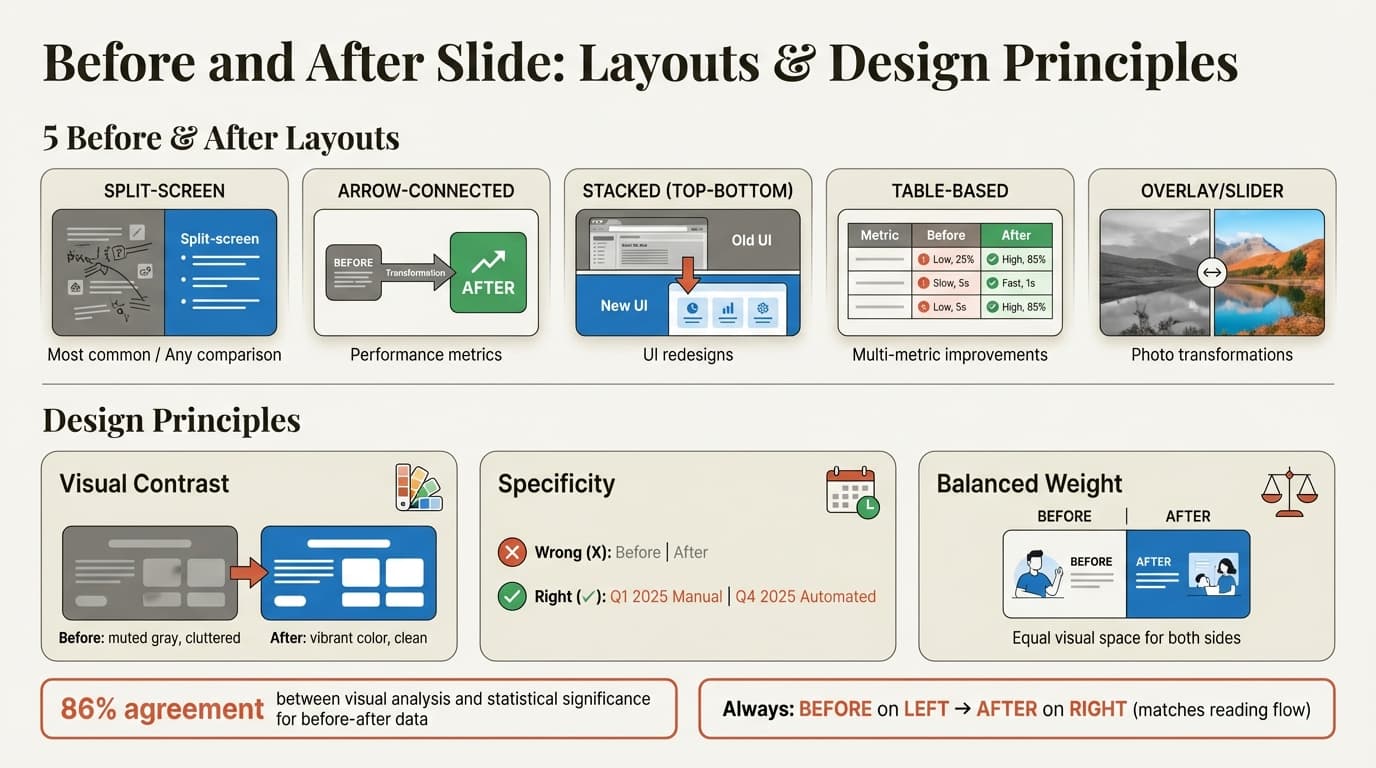
At McKinsey, Deloitte, and BCG, before and after slides appear in nearly every transformation deck because they communicate results faster than waterfall charts or bullet lists. Research on visual inspection found 86% agreement between visual analysis and statistical significance when comparing before-after data—the format works because it leverages how people naturally process comparisons.
After reviewing before and after slides across 180+ consulting presentations covering digital transformations, process reengineering, and performance turnarounds, we have identified five layouts that consistently work, the design principles that make transformations feel credible, and the mistakes that undermine the entire message.
Why Before and After Slides Work
A before and after slide does more than show change. It makes transformation tangible by anchoring abstract improvements to concrete visuals.
1. Immediate comprehension. The human brain processes comparisons faster than isolated data points. When a steering committee sees side-by-side screenshots of a 12-step manual process versus a 3-click automated workflow, they understand the improvement in under 5 seconds—no explanation required.
2. Emotional contrast. The best before and after slides make the before state feel inadequate. As Inknarrates notes, it is not just that something is better—it is that the current situation is untenable. Muted colors, cluttered layouts, and problem-focused labels amplify dissatisfaction with the status quo.
3. Credibility through specificity. Generic claims like "30% faster" mean little without context. A before and after slide showing a dashboard with 45-minute load times beside a redesigned version loading in 5 seconds gives the number meaning. Visuals anchor the claim to reality.
| Use Case | Before Shows | After Shows | Metric Highlighted |
|---|---|---|---|
| Process redesign | Manual workflow diagram (12 steps) | Automated workflow (3 steps) | Cycle time reduction |
| Digital transformation | Legacy system screenshot | Modern interface | User experience improvement |
| Performance turnaround | Declining revenue chart | Growth trajectory | Revenue recovery |
| Product redesign | Old interface (cluttered) | New design (streamlined) | Usability metrics |
| Organizational change | Fragmented org chart | Integrated structure | Reporting lines simplified |
Five Before and After Slide Layouts
The right layout depends on what you are comparing—processes, data, interfaces, or organizational structures. These five formats work across contexts.
1. Split-Screen Layout
The most common format. The slide divides vertically into two equal halves: before on the left, after on the right.
Structure:
+----------------------+----------------------+
|      BEFORE          |       AFTER          |
| [Image/data/text]    | [Image/data/text]    |
| Problem-focused      | Solution-focused     |
+----------------------+----------------------+
Best for: Interface comparisons, workflow diagrams, organizational charts, dashboard screenshots.
Design tips:
- Use a vertical divider line to separate halves clearly
- Label each side with "Before" and "After" headers
- Keep both sides visually balanced (same amount of content)
- Add a transformation arrow or connector in the center
- Use contrasting colors: muted left, vibrant right
The split-screen works because it forces side-by-side comparison. When a CFO sees a cluttered Excel-based reporting process on the left and a clean automated dashboard on the right, the improvement is self-evident.
2. Arrow-Connected Layout
Before state flows into after state via an arrow, showing progression rather than static comparison.
Structure:
+-----------+    ====>    +-----------+
|  BEFORE   |             |   AFTER   |
| Baseline  |   Arrow     | Improved  |
| metrics   |   with      | metrics   |
+-----------+   label     +-----------+
Best for: Performance metrics, process timelines, KPI transformations, sequential improvements.
Design tips:
- Position before and after elements asymmetrically (before smaller, after larger)
- Label the arrow with the intervention ("After 90-Day Plan" or "Post-Implementation")
- Use upward-angled arrows for positive change
- Add specific timeframe or investment to the arrow label
This layout emphasizes causality—the arrow signals that the change caused the improvement, not just correlation.
3. Stacked Layout (Top-Bottom)
Before occupies the top half, after occupies the bottom half, separated by a horizontal divider or arrow.
Structure:
+-------------------------------+
|          BEFORE               |
| [Screenshot/chart/diagram]    |
+-------------------------------+
            ↓ Transformation
+-------------------------------+
|          AFTER                |
| [Screenshot/chart/diagram]    |
+-------------------------------+
Best for: Website redesigns, product interfaces, slide makeovers, visual transformations.
Design tips:
- Use when vertical space is more important than horizontal (website screenshots, mobile interfaces)
- Add a transformation label between sections ("After UI Redesign")
- Keep images pixel-aligned horizontally for clean comparison
- Works well for slide makeover examples showing design improvements
The stacked layout shines when the transformation is visual. Product managers use this format to show app redesigns because stakeholders can compare interface elements top-to-bottom without eye movement disruption.
4. Table-Based Comparison
A structured table lists metrics, processes, or features with before and after columns.
Structure:
| Metric/Feature    | Before      | After       | Change    |
|-------------------|-------------|-------------|-----------|
| Process time      | 45 min      | 5 min       | -89%      |
| Manual steps      | 12          | 3           | -75%      |
| Error rate        | 8%          | below 1%    | -87%      |
| Team capacity     | 20 hrs/week | 4 hrs/week  | -80%      |
Best for: Process improvements, performance turnarounds, efficiency gains, multi-metric transformations.
Design tips:
- Limit to 4-6 rows maximum
- Use color coding: red/gray for before, green/blue for after
- Add a "Change" column showing percentage or absolute improvement
- Bold the metrics with highest impact
- Avoid decimal precision beyond what matters (45.3 minutes vs 45 minutes)
Ann K. Emery notes four visualization approaches for before-after comparisons—tables work best when the audience needs to reference specific numbers rather than absorb a general trend.
5. Overlay or Slider Layout
Before and after images overlap with a slider or fade effect showing both states simultaneously.
Best for: Photo-based transformations, physical space redesigns, product packaging changes, brand refreshes.
Design tips:
- Requires identical camera angles or framing for both images
- Add a vertical slider line showing transition point
- Label each side clearly
- Works best in interactive presentations (as Microsoft notes, implementing sliders in PowerPoint requires animation or layering)
This layout is rarely used in consulting because it demands photo-quality assets. Manufacturing and retail transformations use it to show facility upgrades or store redesigns.
Layout Comparison
| Layout | Visual Impact | Creation Time | Best Context | Data Type |
|---|---|---|---|---|
| Split-Screen | High | 10 minutes | Most use cases | Any |
| Arrow-Connected | Medium | 10 minutes | Performance metrics | Quantitative |
| Stacked | Medium | 15 minutes | Visual redesigns | Visual/qualitative |
| Table-Based | Low | 5 minutes | Multi-metric improvements | Quantitative |
| Overlay/Slider | High | 25 minutes | Physical transformations | Photo-based |
Continue reading: Change Management Models · Stacked Bar Charts in PowerPoint · Investment Banking Pitch Book
Create an editable presentation in your browser
Turn a prompt or source files into slides you can edit and export to PowerPoint. 10 free AI prompts. No credit card required.
Design Principles for Before and After Slides
Three principles separate professional transformation slides from amateur ones.
Principle 1: Visual Contrast Reinforces the Message
The before state should look visibly worse than the after state—not just different, but inadequate.
Techniques:
- Color saturation: Before uses muted grays, washed-out blues, or desaturated tones. After uses vibrant greens, saturated blues, or bold brand colors. Storydoc emphasizes that the before can be gray or muted, while the after is vibrant and full of life.
- Visual density: Before appears cluttered, busy, or complex. After appears clean, organized, or streamlined.
- Typography: Before can use smaller, less readable fonts. After uses larger, bolder, clearer type.
- Layout polish: Before tolerates slight misalignment or inconsistent spacing. After has pixel-perfect alignment using tools like Deckary's keyboard shortcuts for distribution.
The goal: if someone glances at the slide for 3 seconds, they should intuitively understand which side represents the problem and which represents the solution.
Principle 2: Specificity Over Generic Labels
Avoid labeling sides simply as "Before" and "After." Add context that explains when or what changed.
Generic:
- Before | After
Specific:
- Q1 2025 (Manual Process) | Q4 2025 (Automated Workflow)
- Legacy System | Post-Migration Cloud Platform
- Initial State (Pre-Transformation) | Current State (Post-Implementation)
Context anchors the comparison to real timelines and interventions. When a board sees "Before Digital Transformation (2024)" versus "After Implementation (2026)," they immediately understand the timeframe and investment period.
Principle 3: Balanced Visual Weight
Both sides should occupy equal visual space even if one is more impressive. Unbalanced layouts signal bias or data cherry-picking.
Checklist:
- Before and after sections occupy equal slide area (50/50 split)
- Both sides use similar font sizes and element counts
- Images or charts maintain consistent scale
- White space distributed evenly across both halves
- Avoid making the after side larger or more prominent through sizing tricks
SlideModel notes that effective comparison slides balance both sections to make the comparison feel organized and fair. Disproportionate sizing damages credibility.
Common Before and After Slide Mistakes
These errors appear repeatedly in the transformation decks we review.
Mistake 1: No Visual Contrast
Problem: Before and after sides look nearly identical—same colors, same layout, same visual treatment.
Why it fails: If both sides look the same, the audience assumes the change was trivial. The slide wastes their time instead of demonstrating impact.
Fix: Apply the visual contrast techniques in Principle 1. Make the before state visibly inadequate using color, layout density, or design polish differences. For color guidance, see our PowerPoint color schemes guide.
Mistake 2: Information Overload
Problem: Cramming too much data, text, or visuals into both halves, making the slide unreadable.
Why it fails: Inknarrates warns that overloading slides with charts, bullet points, and visuals together defeats the purpose. The visuals should do the heavy lifting—if the audience reads text instead of seeing the difference, the format fails.
Fix: Show one key metric, process, or interface per slide. If you need to compare 8 metrics, use a table-based layout or split into multiple slides. Each before-after comparison should communicate one transformation.
Mistake 3: Wrong Side Placement
Problem: Placing after on the left and before on the right, reversing the natural reading flow.
Why it fails: Western audiences read left to right. Best practice guidance consistently recommends placing before on the left and after on the right to match natural eye movement and timeline expectations.
Fix: Always position before on the left, after on the right. If you use a top-bottom layout, place before on top and after on bottom.
Mistake 4: Missing Context or Metrics
Problem: Showing visual change without quantifying the improvement.
Why it fails: A cleaner interface is nice, but how much faster is it? How many fewer clicks? What revenue impact did it drive? Without numbers, the transformation feels cosmetic.
Fix: Add specific metrics to each side or in labels: "Manual entry: 45 min/report" versus "Automated: 5 min/report." Include percentage change if relevant (-89% time reduction). For more on presenting data effectively, see our data storytelling guide.
Mistake 5: Fabricated or Misleading Comparisons
Problem: Using exaggerated before states (intentionally cluttered screenshots) or cherry-picked after states (best-case scenarios) to inflate the perceived impact.
Why it fails: Savvy audiences—especially executives and board members—recognize manipulation. Once credibility erodes, the entire transformation narrative fails.
Fix: Use real screenshots, actual process diagrams, and representative data. If the before state is genuinely bad, it will speak for itself. If it is not bad enough to justify the investment, reconsider whether a before-after slide is the right format.
Real-World Applications
Digital Transformation Initiatives
Digital transformation presentations rely on before and after slides to justify multi-year investments. Prosci research found that CFOs increasingly focus on transformation ROI but many lack the data and metrics connecting adoption levels to business outcomes.
Typical comparisons:
- Legacy system interface versus modern cloud platform
- Manual reporting workflows versus automated dashboards
- Fragmented tool ecosystem (8+ applications) versus integrated platform (single system)
- Paper-based approval process versus digital workflow
Design approach: Split-screen layout with system screenshots. Label with specific time savings, error rate reductions, or adoption metrics.
Process Improvement Projects
Lean Six Sigma and operational excellence initiatives use before and after slides to demonstrate efficiency gains. Change management statistics show that 71% of organizations implementing a change management strategy completed their projects on schedule.
Typical comparisons:
- Process flow diagrams (12-step versus 3-step)
- Cycle time charts (45 minutes versus 5 minutes)
- Resource allocation tables (20 FTEs versus 4 FTEs)
- Quality metrics (8% defect rate versus below 1%)
Design approach: Arrow-connected layout or table-based comparison with percentage improvements highlighted.
Change Management and Organizational Design
Organizational restructuring presentations use before and after slides to clarify new reporting lines and accountability. After reviewing transformation slides across 600+ consulting presentations, common patterns emerge.
Typical comparisons:
- Org charts (siloed structure versus integrated teams)
- Responsibility matrices (fragmented ownership versus clear RACI)
- Communication flows (8 handoffs versus 2)
Design approach: Split-screen with simplified org chart visuals. Highlight reduced layers or consolidated functions.
Tools and Techniques
| Tool | Best For | Price |
|---|---|---|
| Deckary | AI-generated comparison slides, alignment tools | $120-180/yr |
| PowerPoint SmartArt | Basic process diagrams | Built-in |
| Screenshot tools | Capturing before state visuals | Free (Snipping Tool, macOS Screenshot) |
| Excel linked charts | Updating data automatically | Built-in |
For creating consistent layouts, use PowerPoint's Slide Master to define before-after templates. For pixel-perfect alignment across both halves, Deckary's keyboard shortcuts enable precise distribution and spacing without manual adjustments.
Summary
The before and after slide is the most efficient way to demonstrate transformation impact in a single visual. It leverages natural comparison processing, creates emotional contrast, and anchors abstract improvements to concrete evidence.
Key principles:
- Choose the right layout: Split-screen for most use cases, arrow-connected for metrics, stacked for visual redesigns, table-based for multi-metric improvements, overlay for photo transformations.
- Use visual contrast intentionally: Muted colors and cluttered layouts for before, vibrant colors and clean design for after.
- Add specificity: Label with timeframes, interventions, or metrics—not just "Before" and "After."
- Balance visual weight: Both sides occupy equal space and visual importance.
- Avoid information overload: Show one key comparison per slide. Let visuals do the heavy lifting.
- Place before on the left, after on the right: Match natural reading flow.
- Include quantified metrics: Percentage improvements, time savings, cost reductions, error rate changes.
The best before and after slides make transformation feel inevitable—the before state is so inadequate and the after state so superior that the investment justifies itself. For ready-to-use transformation slide templates, explore Deckary's slide library or generate custom comparison slides with the AI Slide Builder.
Sources
- PubMed — Comparison of Visual Inspection and Statistical Analysis of Single-Subject Data (1998)
- Inknarrates — Before and After Slide Design Guide
- Ann K. Emery — 4 Ideas for Visualizing Before-After Comparisons
- Microsoft Learn — Before and After Picture Slider in PowerPoint
- Storydoc — Before and After Slide Best Practices
- SlideModel — Comparison Slide Design Guide
- Scissortail Creative Solutions — Slide Makeovers: 7 Before and After Examples
- Prosci — Rethinking the ROI of Change Management
- Mooncamp — 65+ Change Management Statistics for Success in 2026
- The Analyst Academy — Consulting Presentations Database
Create an editable presentation in your browser
Turn a prompt or source files into slides you can edit and export to PowerPoint. 10 free AI prompts. No credit card required.