PowerPoint Animation: A Practical Guide for Professionals
PowerPoint animation guide: which effects improve comprehension, which to avoid, and how to use the Animation Pane. Written for business professionals.
Most PowerPoint animation makes presentations worse, not better. Spinning text, bouncing charts, and swooping transitions signal that the presenter invested time in decoration instead of thinking. But animation used with restraint solves a genuine problem: it controls when the audience sees information, keeping their attention on what you are discussing right now rather than reading three bullets ahead.
After reviewing PowerPoint animation usage across 200+ consulting and corporate presentations, we have identified a clear pattern. Professionals who animate well follow one rule: animate to reveal, never to decorate. This guide covers the four animation types, how to apply them step by step, how to manage sequences with the Animation Pane, and which effects belong in business settings versus which ones to cut entirely.
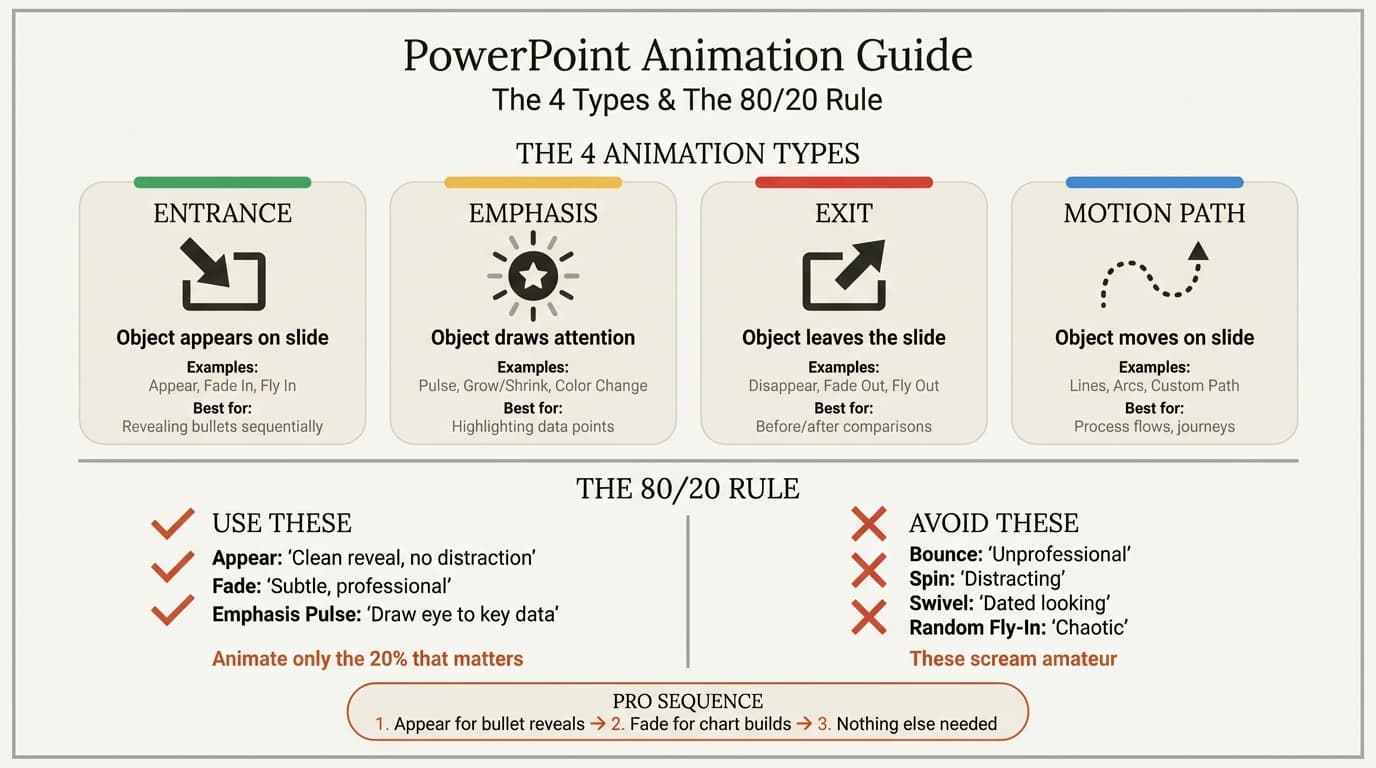
Types of PowerPoint Animation Effects
PowerPoint groups animations into four categories, each color-coded in the ribbon. Knowing these categories lets you pick the right effect without scrolling through dozens of options.
| Type | Color | What It Does | Best Business Use | Appropriateness |
|---|---|---|---|---|
| Entrance | Green | Brings an object onto the slide | Revealing bullets or chart elements sequentially | High — Fade and Appear are standard |
| Emphasis | Yellow | Highlights an object already visible | Drawing attention to a key metric or callout | Medium — use Pulse or Bold Reveal sparingly |
| Exit | Red | Removes an object from the slide | Clearing a previous point before the next | Low — rarely needed |
| Motion Path | Blue | Moves an object along a defined path | Showing geographic movement or process flow | Low — specific diagrams only |
Entrance animations are what most professionals need. They control when content appears so you can build a slide incrementally as you speak. Fade and Appear are the only entrance effects required for business presentations.
Emphasis animations occasionally help when you need to draw the eye to a number or callout after it has appeared. Exit and Motion Path animations have narrow use cases outside of training materials or product demos.
How to Animate in PowerPoint
Adding a PowerPoint animation takes four clicks. The nuance is in the settings you configure afterward.
- Select the object you want to animate (text box, image, shape, or chart)
- Click the Animations tab in the ribbon
- Click an effect from the gallery — start with Fade or Appear
- A small number appears next to the object, showing its position in the animation sequence
To add animations to additional objects on the same slide:
- Select the next object
- Click Add Animation (not the main gallery — clicking the gallery replaces any existing animation on that object)
- Choose the effect
Critical distinction: The animation gallery replaces an existing animation on a selected object. The Add Animation button adds a new animation to the sequence. Confusing these two is the most common mistake when building multi-step reveals.
Configuring Animation Behavior
After adding an animation, adjust these settings in the Animations tab:
- Start: "On Click" (default) waits for your click. "With Previous" plays simultaneously with the prior animation. "After Previous" plays automatically once the prior animation finishes.
- Duration: How long the animation takes. For business presentations, 0.25 to 0.50 seconds feels responsive without dragging. Default is 0.50 seconds.
- Delay: Wait time before starting. Useful when combining "After Previous" animations for automatic sequences.
For most business use, keep Start on "On Click" and Duration at 0.50 seconds or less. Manual control lets you pace your delivery.
Continue reading: How to Make a Good PowerPoint · PowerPoint Transitions · PowerPoint Icons
Use consulting-grade layouts in PowerPoint
Start from structured business slides and customize them in your own deck. 14-day free trial. No credit card required.
Using the Animation Pane in PowerPoint
The Animation Pane is where you manage anything beyond a single animation per slide. Without it, you are guessing at order, timing, and triggers.
To open it: Click the Animations tab, then click Animation Pane on the right side of the ribbon. A sidebar appears listing every animation on the current slide.
The pane shows:
- Animation order — numbered list from first to last
- Object name — which shape or text box each animation belongs to
- Trigger type — mouse icon (On Click), clock icon (After Previous), or no icon (With Previous)
- Duration bar — visual timeline showing start time and length
Key actions in the Animation Pane:
- Reorder: Drag animations up or down to change the sequence
- Delete: Select an animation and press Delete
- Adjust timing: Double-click an animation to open the Effect Options dialog
- Preview: Click Play From at the top to test the sequence without entering slideshow mode
When you build a slide with sequential reveals, always verify in the Animation Pane that the order matches your talking points. Knowing how many clicks each slide requires prevents the awkward pause of clicking with nothing happening — especially important when using Presenter View to manage delivery.
PowerPoint Animation Best Practices for Business
The difference between professional and amateur animation comes down to restraint.
Use Fade or Appear for content reveals. These effects are invisible as animations — content simply shows up. The audience notices the content, not the mechanism. Every other entrance effect (Fly In, Float Up, Zoom) draws attention to itself.
Limit each slide to three animations. More than three reveal steps usually means the slide has too much content. Split it instead. Fewer animations also means fewer clicks to manage during delivery.
Set duration to 0.50 seconds or below. Slow animations waste audience time. A 2-second Fade on every bullet across a 30-slide deck with three animations per slide adds over 3 minutes of dead time. Keep effects at 0.25 to 0.50 seconds.
Pick one slide transition and use it everywhere. Fade or None between slides is safe. Cube, Ripple, and Vortex transitions signal an unsophisticated presenter. Consistency matters more than variety.
Animate charts to build the narrative. One legitimate use of animation is revealing chart data series sequentially. Show the baseline, then comparison bars, then the gap. Select a chart, add a Wipe effect, and use Effect Options to animate "By Series." Tools like Deckary produce consulting-grade charts quickly, and adding a simple Fade to each series matches the storytelling flow.
Add animations last, not first. Animate only after slide content is final. Restructuring animated slides wastes time because changing layout means re-sequencing the animation order.
Animations That Help vs. Animations That Hurt
Not all effects are equal. Some improve comprehension. Most degrade it. We have seen enough partner reactions to be opinionated about which effects belong in a professional deck.
Animations that help:
- Appear — Instant reveal, zero motion. Best for bullet-by-bullet builds where you want no distraction.
- Fade — Smooth opacity transition. Best for images, charts, and callout boxes that benefit from a gentle entrance.
- Wipe — Directional reveal. Acceptable for process diagrams showing left-to-right flow or timeline progression.
- Pulse (emphasis) — Subtle size pulse to draw attention to a specific number. Use once or twice per deck maximum.
Animations that hurt:
- Fly In / Float Up — Moving text forces the audience to track motion instead of reading words. Every Fly In animation adds cognitive load.
- Bounce — Trivializes content. A revenue number that bounces into view loses credibility before it is read.
- Spin / Swivel — No business use case. These exist for school projects.
- Checkerboard / Blinds / Random Bars — Retro effects from PowerPoint 2003. Their presence in a 2026 deck suggests the template has not been updated in decades.
The rule: if someone watching your presentation notices the animation as an animation, it is the wrong choice. Animation should be invisible infrastructure that controls timing.
Common PowerPoint Animation Mistakes
Animating everything on the slide. When every element animates in, the audience watches a 15-second loading sequence before absorbing your message. Animate only the elements that benefit from sequential reveal. Titles, logos, and background shapes should be static.
Mixing different effects on one slide. Bullet one fades, bullet two flies in from the left, bullet three wipes from the top. Inconsistency signals experimentation, not design. Pick one entrance effect per slide and apply it uniformly.
Forgetting to test the click sequence. If a slide has six "On Click" animations, you need six clicks to fully reveal it. Presenters who skip rehearsal end up clicking through blank pauses or accidentally advancing past a slide. The Animation Pane shows the exact count — check it.
Leaving inherited animations from copied slides. When you paste slides from other decks, they carry animation settings. A slide that appeared static in the source might have 12 hidden animations. After pasting, open the Animation Pane and remove anything you did not deliberately add.
Overusing automatic timing. Setting all animations to "After Previous" creates a self-running sequence that removes your control. This works for kiosk displays, but in live settings you want to control pace. Default to "On Click" for presentations you deliver in person.
When building professional slides efficiently, treat animation as a finishing step — not a substitute for clear content and strong structure.
Key Takeaways
- Fade and Appear are the only entrance animations most professionals need. Everything else is decorative.
- Open the Animation Pane whenever you work with animations. It is your control center for order, timing, and triggers.
- Limit animations to three per slide. More than three usually means the slide has too much content.
- Set duration to 0.50 seconds or below. Fast animations feel professional; slow animations waste time.
- Never use Bounce, Spin, Fly In, or novelty effects in business presentations. They undermine credibility.
- Test your click sequence before presenting. Know how many clicks each slide requires.
For a comprehensive walkthrough of every PowerPoint feature, see our PowerPoint tutorial. To enhance presentations with multimedia, see how to embed video in PowerPoint. For Microsoft's official reference on animation options, see the PowerPoint animation documentation.
Use consulting-grade layouts in PowerPoint
Start from structured business slides and customize them in your own deck. 14-day free trial. No credit card required.