Send to Back Shortcut PowerPoint: Complete Layer Guide for Windows & Mac
Master PowerPoint layer shortcuts: Ctrl+Shift+[ for Send to Back, Ctrl+Shift+] for Bring to Front. Complete Windows and Mac guide with Selection Pane tips.

PowerPoint's layer shortcuts—Send to Back (Ctrl+Shift+[), Bring to Front (Ctrl+Shift+])—control which objects appear in front of or behind others. On complex slides with overlapping shapes, charts, and text boxes, layer management determines whether you can even click the right object.
This guide covers all layer shortcuts for Windows and Mac, the Selection Pane for complex slides, and the difference between "Send to Back" (all the way) versus "Send Backward" (one layer at a time).
After building thousands of slides with overlapping elements, we've identified the layer management techniques that save the most time—and the common mistakes that make simple edits frustrating.
What Is Layering (Z-Order) in PowerPoint?#
Every object on a PowerPoint slide—shapes, text boxes, images, charts, icons—exists on its own layer. When objects overlap, some appear in front of others. This front-to-back arrangement is called the "z-order" or "stacking order."
Think of it like a stack of papers on a desk. The paper on top is visible; papers underneath are partially or fully hidden. PowerPoint works the same way:
- Top layer (front): Visible, covering objects beneath
- Bottom layer (back): Behind other objects, may be partially or fully hidden
When you add a new object to a slide, PowerPoint automatically places it on the top layer—in front of everything else. As you add more objects, each new one goes on top of the previous ones.
The four layer commands:
| Command | What It Does |
|---|---|
| Bring to Front | Moves object to the top of all layers |
| Bring Forward | Moves object up one layer |
| Send to Back | Moves object to the bottom of all layers |
| Send Backward | Moves object down one layer |
Understanding these commands is fundamental for building slides where objects overlap—org charts, process diagrams, layered graphics, or any design with depth.
When to Use Layer Shortcuts#
Layer management matters whenever objects overlap. Here are the most common scenarios:
Overlapping Shapes and Graphics#
Creating visual depth often requires shapes behind text or icons on top of backgrounds. For example:
- Colored rectangles behind text boxes (highlight effect)
- Shadow shapes behind main shapes (3D effect)
- Background images behind content
- Icons on top of colored circles
Without layer control, you can't build these designs efficiently.
Complex Diagrams#
Process flows, org charts, and relationship diagrams often have connecting lines that should appear behind shapes, or shapes that need specific front-to-back ordering.
Example: A process diagram where:
- Connector arrows are behind the step shapes
- Step shapes are behind the step numbers
- Step numbers are in front of everything
Getting this order wrong creates visual confusion.
Selecting Hidden Objects#
The most frustrating layer problem: clicking an object but selecting something else because a larger, transparent object is in front of it.
Classic scenario: You place a chart, then add a text box for the title. The text box's bounding area (invisible) extends over the chart. When you try to click the chart, you select the text box instead.
Layer shortcuts solve this immediately—send the text box backward, and the chart becomes selectable.
Building Presentation Templates#
Master slides and template layouts require precise layering. Background elements must stay behind content placeholders. Decorative shapes need consistent layer positions across slides.
For more on template design, see our guide to PowerPoint keyboard shortcuts.
Layer Shortcuts: Complete Reference#
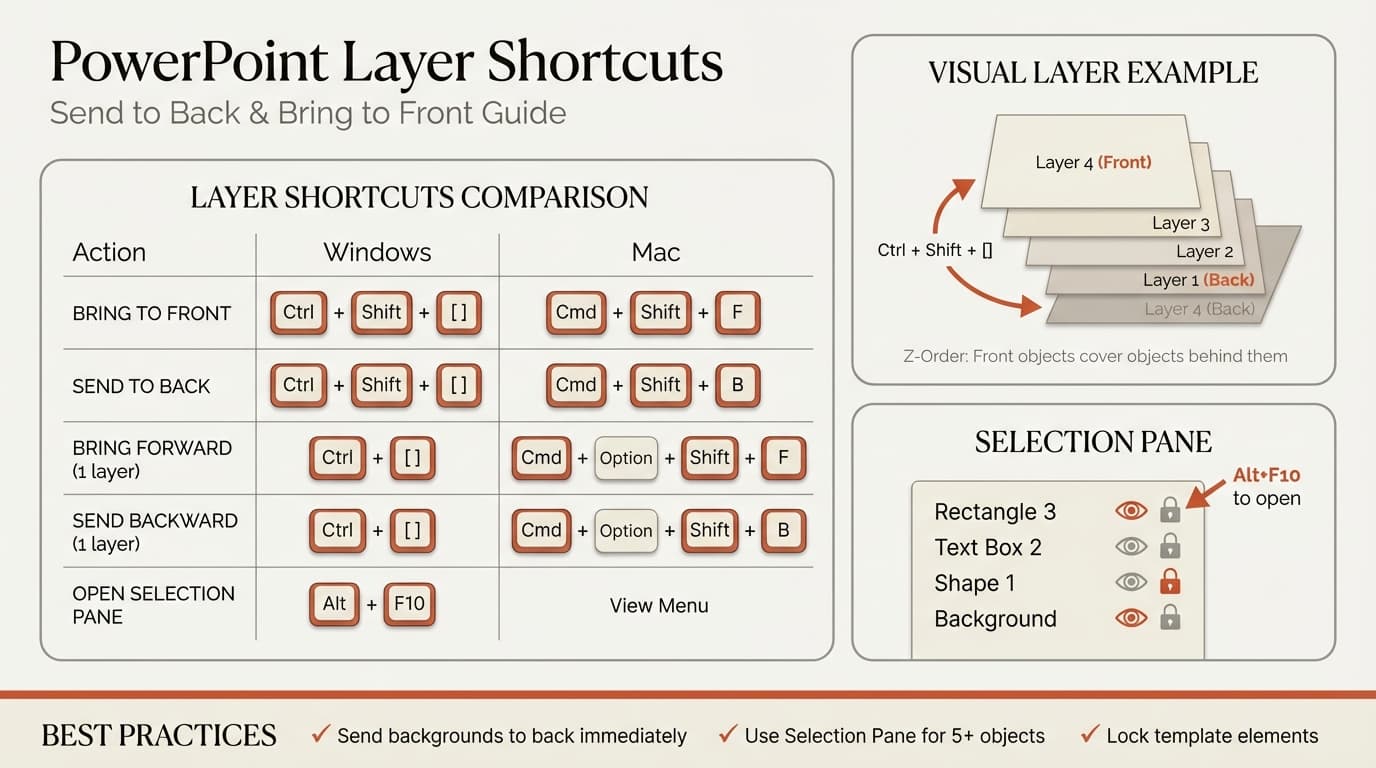
Here are all layer-related keyboard shortcuts for PowerPoint on Windows and Mac:
Windows Shortcuts#
| Action | Shortcut | Description |
|---|---|---|
| Bring to Front | Ctrl+Shift+] | Moves object in front of all others |
| Send to Back | Ctrl+Shift+[ | Moves object behind all others |
| Bring Forward | Ctrl+] | Moves object forward one layer |
| Send Backward | Ctrl+[ | Moves object backward one layer |
| Open Selection Pane | Alt+F10 | Shows all objects in layer order |
Mac Shortcuts#
| Action | Shortcut | Description |
|---|---|---|
| Bring to Front | Cmd+Shift+F | Moves object in front of all others |
| Send to Back | Cmd+Shift+B | Moves object behind all others |
| Bring Forward | Cmd+Option+Shift+F | Moves object forward one layer |
| Send Backward | Cmd+Option+Shift+B | Moves object backward one layer |
Note: Mac shortcuts differ significantly from Windows. The bracket keys ([ and ]) aren't used on Mac; instead, you use F (Front) and B (Back) with modifier keys.
Quick Access Toolbar Alternative#
If the keyboard shortcuts don't stick, add layer commands to your Quick Access Toolbar (QAT):
- Click the QAT dropdown arrow (top-left of PowerPoint)
- Select "More Commands"
- Choose "All Commands" from the dropdown
- Find and add: Bring to Front, Send to Back, Bring Forward, Send Backward
- Commands are now accessible via Alt+1, Alt+2, etc.
This approach is especially useful for investment banking and consulting workflows where you need rapid access to layer commands. According to Wall Street Prep, adding these to the QAT is one of the most recommended productivity setups for finance professionals.
How to Use Layer Shortcuts: Step-by-Step#
Send to Back (Ctrl+Shift+[ on Windows)#
Use this when you want an object completely behind all other objects.
Steps:
- Select the object you want to send backward
- Press Ctrl+Shift+[ (Windows) or Cmd+Shift+B (Mac)
- The object moves to the bottom layer
When to use:
- Placing background shapes or images
- Moving decorative elements behind content
- Fixing accidentally overlapping objects
Example: You have a large decorative circle that's covering your text. Select the circle, press Ctrl+Shift+[, and it moves behind the text instantly.
Bring to Front (Ctrl+Shift+] on Windows)#
Use this when you want an object completely in front of all other objects.
Steps:
- Select the object you want to bring forward
- Press Ctrl+Shift+] (Windows) or Cmd+Shift+F (Mac)
- The object moves to the top layer
When to use:
- Making sure key content is visible
- Bringing callout shapes or annotations to front
- Ensuring interactive elements are selectable
Example: Your data label text box is hidden behind a chart element. Select the text box (use Selection Pane if clicking doesn't work), press Ctrl+Shift+], and it appears in front.
Send Backward (Ctrl+[ on Windows)#
Use this for precise, one-layer-at-a-time positioning.
Steps:
- Select the object
- Press Ctrl+[ (Windows) or Cmd+Option+Shift+B (Mac)
- Object moves back one layer
- Repeat until in desired position
When to use:
- Fine-tuning layer order in complex designs
- Moving an object behind some things but not others
- Iterating through layers to find the right position
Bring Forward (Ctrl+] on Windows)#
Use this for precise, one-layer-at-a-time positioning forward.
Steps:
- Select the object
- Press Ctrl+] (Windows) or Cmd+Option+Shift+F (Mac)
- Object moves forward one layer
- Repeat until in desired position
When to use:
- Fine-tuning layer order
- Moving an object in front of some things but not others
- Precise stacking control
The Selection Pane: Your Layer Control Center#

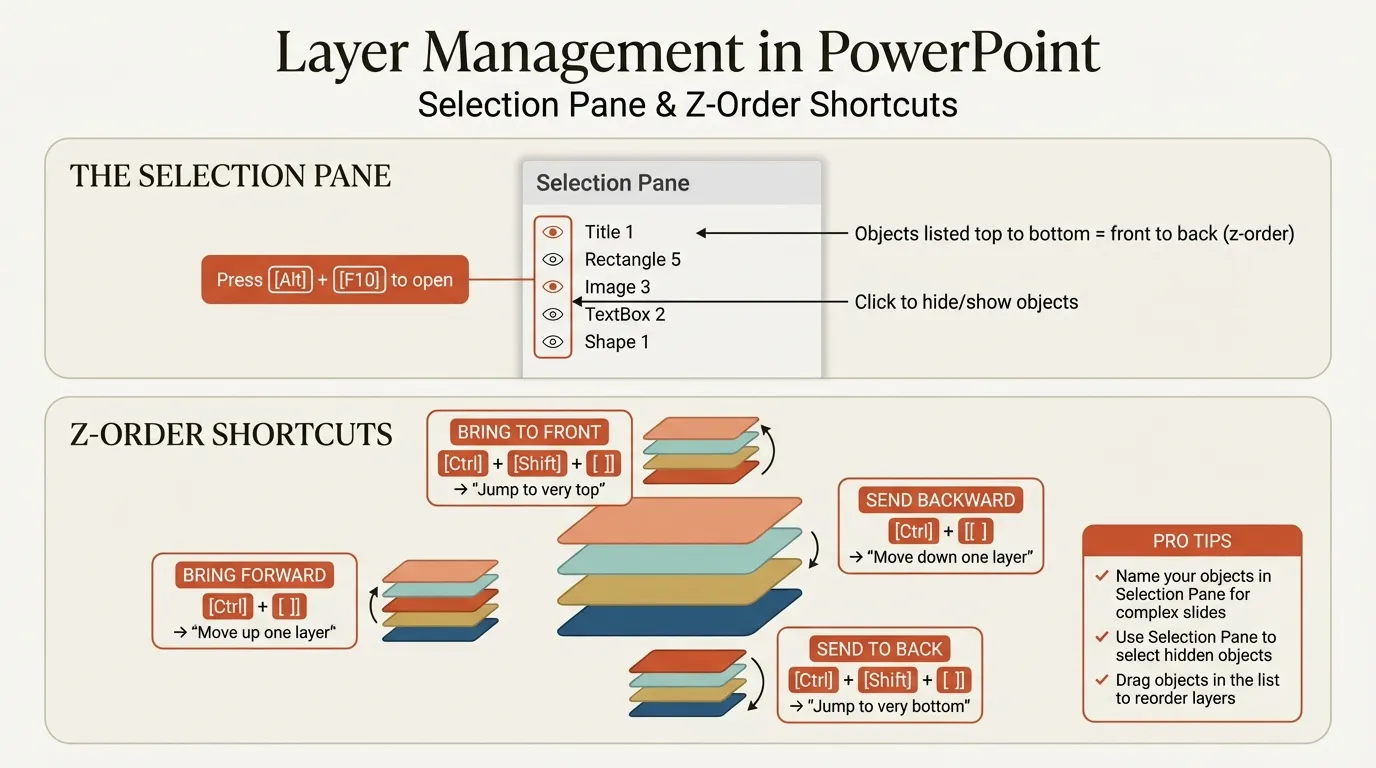
For complex slides with many objects, the Selection Pane is essential. It shows every object on the slide in a list, ordered by layer—top object first, bottom object last.
Opening the Selection Pane#
- Windows: Press Alt+F10 (or Home > Select > Selection Pane)
- Mac: View menu > Selection Pane
According to Microsoft's official documentation, the Selection Pane is the recommended way to manage complex object arrangements.
What the Selection Pane Shows#
The pane lists all objects with:
- Object names: Default names like "Rectangle 1" or custom names you assign
- Visibility icons: Eye icon to show/hide objects
- Lock icons: Padlock to prevent accidental moves or edits
- Layer order: Top of list = front; bottom of list = back
Reordering Layers in the Selection Pane#
Instead of using shortcuts, you can drag objects up or down in the Selection Pane:
- Open Selection Pane (Alt+F10)
- Click and drag an object name
- Move it up (toward front) or down (toward back)
- Release to set new position
This visual approach is often easier for complex arrangements where you need to see all objects simultaneously.
Hiding and Showing Objects#
The Selection Pane's visibility feature is invaluable for complex slides:
- Click the eye icon next to an object to hide it
- Click again to show it
Use cases:
- Hide front objects to work on objects behind them
- Test designs with/without certain elements
- Reduce visual clutter while editing
As noted in Great Circle Learning's tutorial, "Hiding or unhiding a slide item can be useful to test out a design option, temporarily hide slide assets that might be needed later, or just to reduce visual clutter during the design process."
Locking Objects#
Click the lock icon to prevent an object from being moved or edited:
- Locked objects can't be selected by clicking on the slide
- You can still select them in the Selection Pane
- Useful for background elements that shouldn't change
Renaming Objects for Clarity#
Default names ("Rectangle 1," "TextBox 3") aren't helpful in complex slides. Rename objects for easier identification:
- Double-click an object name in the Selection Pane
- Type a descriptive name ("Header Background," "Company Logo")
- Press Enter
According to Buffalo 7's PowerPoint layers guide, "Giving your objects relevant names is especially useful when constructing complicated animations. The names you give your elements in the Selection Pane will carry across to your Animation Pane in perfect cohesion."
Continue reading: Bullet Charts in PowerPoint · Deloitte Presentation Template · Healthcare Icons for PowerPoint
Build consulting slides in seconds
Describe what you need. AI generates structured, polished slides — charts and visuals included.
Comparison: Shortcuts vs Selection Pane vs Menu#
Here's when to use each method:
| Method | Speed | Best For | Limitations |
|---|---|---|---|
| Keyboard shortcuts | Fastest | Quick reordering, simple slides | Must remember shortcuts |
| Selection Pane drag | Medium | Complex slides, precise ordering | Requires pane to be open |
| Right-click menu | Slow | Occasional use, teaching | Multiple clicks required |
| Ribbon menu | Slowest | Rarely | Far too many clicks |
Our recommendation: Learn the keyboard shortcuts (Ctrl+Shift+[ and Ctrl+Shift+]) for daily use. Open the Selection Pane (Alt+F10) for complex slides with many overlapping objects.
Best Practices for Layer Management#
After building thousands of slides with complex layering, here are the practices that save the most time:
1. Establish Consistent Layer Logic#
Before building a slide, decide on your layer hierarchy:
Standard consulting slide hierarchy:
- Background shapes (bottom layer)
- Images and graphics
- Charts and data visualizations
- Text boxes and labels
- Callouts and highlights (top layer)
Following a consistent pattern makes slides predictable and easier to edit.
2. Send Backgrounds to Back Immediately#
When you add a background shape or image, immediately send it to the back. Don't wait until other objects are added—you'll forget, and the background will interfere with selections.
Workflow:
- Insert background shape
- Press Ctrl+Shift+[ immediately
- Now it won't interfere with future objects
3. Use the Selection Pane for 5+ Objects#
The keyboard shortcut threshold is about five overlapping objects. Beyond that, the Selection Pane becomes more efficient:
- Visual layer order is easier to understand
- You can hide objects to work on others
- Renaming helps identify objects quickly
Keep the Selection Pane open (Alt+F10) when building complex slides.
4. Name Critical Objects#
For any object you'll need to select or modify repeatedly, rename it in the Selection Pane. This is especially important for:
- Logo elements (so team members know not to edit them)
- Background shapes (clearly marked as backgrounds)
- Template elements (identified as part of master design)
5. Lock Background Elements#
After positioning background elements, lock them:
- Open Selection Pane
- Click the lock icon next to background objects
- They can't be accidentally selected or moved
This is a lifesaver for templates where certain elements must stay fixed.
6. Group Related Objects Before Layering#
If multiple objects should move together in the layer stack, group them first:
- Select all related objects
- Press Ctrl+G (Windows) or Cmd+Option+G (Mac) to group
- Now layer the group as one unit
Grouped objects maintain their internal layer order when you move the group forward or backward. For more on grouping, see our group shortcut PowerPoint guide.
Common Mistakes and How to Fix Them#
Mistake 1: Clicking Instead of Using Shortcuts#
The problem: You need to move an object to the back, so you right-click, navigate to "Send to Back," and click. This takes 3-4 seconds.
The fix: Use Ctrl+Shift+[ (Send to Back) or Ctrl+Shift+] (Bring to Front). These take less than half a second once memorized.
Time impact: On a complex slide with 10 layer adjustments, menu clicking costs 30+ seconds. Shortcuts take 5 seconds total.
Mistake 2: Not Knowing Which Object Is Selected#
The problem: You press the layer shortcut, but nothing visible changes. The wrong object was selected.
The fix: Always verify your selection before using layer shortcuts:
- Look for selection handles around the intended object
- Check the Selection Pane—the selected object is highlighted
- When in doubt, click elsewhere first to deselect, then carefully select the target
Mistake 3: Using Send to Back When Send Backward Is Needed#
The problem: You send an object to the back, but now it's behind a background shape you wanted it in front of.
The fix: Understand the difference:
- Send to Back (Ctrl+Shift+[): All the way to the bottom
- Send Backward (Ctrl+[): One layer at a time
Use Send Backward (Ctrl+[) when you need the object behind some things but not everything.
Mistake 4: Forgetting About Transparency#
The problem: A transparent shape is blocking clicks on objects beneath it, but you don't realize it's there.
The fix: Open the Selection Pane to see all objects, including fully transparent ones. Look for unexpected objects above your target. Hide or send them backward.
Mistake 5: Not Using the Selection Pane for Complex Slides#
The problem: You have 15+ overlapping objects and keep clicking the wrong one. You're wasting time trying to select the right object.
The fix: Stop clicking on the slide. Open Selection Pane (Alt+F10) and click object names directly. You can select, multi-select (Ctrl+Click), hide, and reorder from the pane without playing the "click the right object" game.
Mistake 6: Grouping Before Ordering#
The problem: You group objects, then realize one should be in front of another within the group.
The fix: Always set layer order before grouping. Once grouped, internal layer order is fixed. To change it:
- Ungroup (Ctrl+Shift+G)
- Adjust layer order
- Regroup (Ctrl+Shift+J)
Troubleshooting Layer Shortcuts#
Shortcut Doesn't Work#
Possible causes:
- No object selected: Select an object first
- Object is locked: Unlock in Selection Pane
- Object is part of a group: Select the group, or ungroup first
- Keyboard conflict: Another application may have hijacked the shortcut
According to Indezine's troubleshooting guide, other programs running can hijack PowerPoint shortcuts. Close background applications like Camtasia or screen recording software that use similar key combinations.
Object Won't Go Behind Another Object#
Possible causes:
- Target object is on a master slide: Objects on regular slides can't go behind master slide elements
- Target is a placeholder: Placeholders have special layer rules tied to the master
- Already at the back: The object is already at the bottom layer
Solution: Check the Selection Pane to see the actual layer order and identify any constraints.
Can't Select an Object#
The problem: Clicking on an object selects something else.
Solutions:
- Open Selection Pane (Alt+F10) and click the object name directly
- Hide the obstructing objects (click eye icon in Selection Pane)
- Press Tab to cycle through objects on the slide
- Send the blocking object backward until your target is accessible
Layer Order Doesn't Save#
Possible cause: You're editing a slide that's linked to a master slide, and the master slide has different layer settings.
Solution: Check if the element is from the master slide (View > Slide Master). Master slide elements can override regular slide layering.
Advanced Layer Techniques#
Technique 1: Layered Animations#
Layer order affects animation order. When you animate objects, lower-layer objects typically animate first (though you can override this in the Animation Pane).
Tip: Set your layer order to match your intended animation sequence. This creates cleaner Animation Pane organization.
Technique 2: Accessibility Considerations#
Screen readers read slide content based on layer order—typically from back to front. If accessibility matters (and it should), arrange layers so content reads in logical order.
As noted in Microsoft's documentation, the Selection Pane is the recommended tool for setting and fixing reading order for accessibility purposes.
Technique 3: Morph Transition Trick#
When using Morph transitions between slides, PowerPoint matches objects by name. Use the Selection Pane to give objects identical names across slides (with !! prefix) to force specific morph behaviors.
Example: Name an object "!!KeyShape" on both slides, and Morph will animate that specific shape's transition even if other shapes look similar.
Technique 4: Template Layer Locking#
For presentation templates, lock all non-editable elements:
- Create your template with background shapes, logos, etc.
- Open Selection Pane
- Lock all template elements
- Save as template
Users can add content but can't accidentally move your carefully positioned template elements.
Layer Management with Deckary#
While PowerPoint's built-in shortcuts handle basic layer management, Deckary enhances the broader workflow for consultants and professionals:
Alignment After Layering#
Once you've arranged layers, you often need to align objects. Deckary provides single-keystroke alignment shortcuts:
| Action | Windows | Mac |
|---|---|---|
| Align Left | Ctrl+Alt+L | Cmd+Option+L |
| Align Center | Ctrl+Alt+C | Cmd+Option+C |
| Align Right | Ctrl+Alt+R | Cmd+Option+R |
| Align Top | Ctrl+Alt+T | Cmd+Option+T |
| Align Middle | Ctrl+Alt+M | Cmd+Option+M |
| Align Bottom | Ctrl+Alt+B | Cmd+Option+B |
| Distribute Horizontally | Ctrl+Alt+H | Cmd+Option+H |
| Distribute Vertically | Ctrl+Alt+V | Cmd+Option+V |
These complement layer shortcuts—arrange your layers, then align objects with a single keystroke. See our alignment shortcuts guide for detailed techniques.
Grouping Integration#
Layer management and grouping work hand-in-hand. After organizing layers, group related objects to preserve that arrangement:
- Arrange layer order (Ctrl+Shift+[, Ctrl+])
- Align objects (Ctrl+Alt+L, etc. with Deckary)
- Group objects (Ctrl+G)
- Move the group as one unit
Consulting-Quality Charts#
Deckary's waterfall, Mekko, and Gantt charts are built from native PowerPoint shapes. Unlike embedded objects from some tools, these charts integrate seamlessly with PowerPoint's layer system—you can send individual chart elements forward or backward as needed.
600+ Business Icons#
The Deckary icon library inserts icons as native shapes. They layer correctly with other objects, can be grouped, and don't have the SVG conversion issues that external icons sometimes cause.
Try Deckary free for 14 days—all features included, no credit card required.
Real-World Workflow Example#
Here's a complete example showing layer management in action:
Scenario: Building a Process Diagram#
You're creating a four-step process flow for a consulting deliverable. Each step needs:
- A colored background circle
- An icon
- A step number
- A description label
- Connector arrows between steps
Step-by-Step Workflow#
1. Create the background circles
- Insert four circles
- Format with your colors
- Immediately send to back (Ctrl+Shift+[) so they don't interfere with other objects
2. Add connector arrows
- Insert arrows between circles
- Send backward (Ctrl+[) so they're behind circles but could be above a slide background
3. Add icons
- Insert icons (from Deckary library or your source)
- Icons are on top by default—correct layer position
4. Add step numbers
- Insert text boxes with numbers
- These should be in front—correct layer position
5. Add description labels
- Insert text boxes below each circle
- Layer position is correct by default
6. Organize in Selection Pane
- Open Selection Pane (Alt+F10)
- Rename objects: "Step 1 Background," "Step 1 Icon," "Arrow 1-2," etc.
- Verify layer order makes sense
- Lock background circles (they shouldn't move)
7. Group each step
- Select all objects for Step 1 (circle, icon, number, label)
- Group (Ctrl+G)
- Repeat for other steps
8. Align and distribute
- Select all step groups
- Align Top (Ctrl+Alt+T with Deckary)
- Distribute Horizontally (Ctrl+Alt+H)
Result: A professional process diagram with proper layering, organized Selection Pane, and grouped elements that maintain their structure during future edits.
Speed Comparison: Layer Methods#
We timed different approaches to common layer tasks:
| Task | Menu Method | Shortcut Method | Time Saved |
|---|---|---|---|
| Send to back (1 object) | 3.8 seconds | 0.5 seconds | 87% |
| Bring to front (1 object) | 3.6 seconds | 0.5 seconds | 86% |
| Reorder 5 objects | 19 seconds | 2.5 seconds | 87% |
| Find hidden object | 12 seconds | 3 seconds (Selection Pane) | 75% |
Monthly impact: For a consultant building 15-20 decks per month with average layer complexity, shortcuts save 20-30 minutes monthly compared to menu navigation.
Keyboard Shortcut Cheat Sheet#
Windows#
| Action | Shortcut |
|---|---|
| Send to Back | Ctrl+Shift+[ |
| Bring to Front | Ctrl+Shift+] |
| Send Backward (one layer) | Ctrl+[ |
| Bring Forward (one layer) | Ctrl+] |
| Open Selection Pane | Alt+F10 |
| Group | Ctrl+G |
| Ungroup | Ctrl+Shift+G |
Mac#
| Action | Shortcut |
|---|---|
| Send to Back | Cmd+Shift+B |
| Bring to Front | Cmd+Shift+F |
| Send Backward (one layer) | Cmd+Option+Shift+B |
| Bring Forward (one layer) | Cmd+Option+Shift+F |
| Group | Cmd+Option+G |
| Ungroup | Cmd+Option+Shift+G |
For a complete shortcut reference, see our PowerPoint keyboard shortcuts guide.
Summary#
Layer management is fundamental to building complex PowerPoint slides. The send to back shortcut PowerPoint users need most is Ctrl+Shift+[ on Windows and Cmd+Shift+B on Mac. For bringing objects forward, use Ctrl+Shift+] (Windows) or Cmd+Shift+F (Mac).
Key takeaways:
- Four layer commands: Send to Back, Send Backward, Bring to Front, Bring Forward
- Windows shortcuts: Ctrl+Shift+[ (back), Ctrl+Shift+] (front), Ctrl+[ (backward), Ctrl+] (forward)
- Mac shortcuts: Cmd+Shift+B (back), Cmd+Shift+F (front), plus Option for one-layer moves
- Selection Pane (Alt+F10): Essential for complex slides—shows all objects, allows dragging to reorder, hide/show, and lock
- Best practice: Send background elements to back immediately after inserting
- Rename objects: Use descriptive names in Selection Pane for complex slides
- Lock backgrounds: Prevent accidental moves with the lock feature
- Group after ordering: Lock layer relationships by grouping related objects
Layer shortcuts become instinctive after a few days of deliberate practice. The time investment pays back quickly—every complex slide becomes faster to build and easier to edit.
Next steps:
- Memorize the four layer shortcuts for your platform
- Practice opening Selection Pane (Alt+F10) until it's automatic
- On your next complex slide, use the Selection Pane to rename and organize objects
- Consider Deckary for alignment shortcuts that complement your layer workflow
Proper layer management transforms frustrating "click the right object" struggles into efficient, predictable slide building. Master these techniques and complex designs become achievable, not aggravating.
Build consulting slides in seconds
Describe what you need. AI generates structured, polished slides — charts and visuals included.
Try Free