Copy Formatting in PowerPoint: Shortcuts & Tips (2026 Guide)
Master the Format Painter and copy formatting shortcuts in PowerPoint. Learn Ctrl+Shift+C/V, Paste Special, and pro tips for Windows and Mac.
- Bob · Former McKinsey and Deloitte consultant with 6 years of experience
- November 14, 2025
- 8 min read
Format Painter and the Ctrl+Shift+C/V shortcuts let you copy formatting from one object to another—fonts, colors, sizes, effects—without manually adjusting each property. This single feature can save 10-15 minutes per deck when standardizing formatting across dozens of objects.
This guide covers every method for copying formatting in PowerPoint: Format Painter (single and persistent modes), keyboard shortcuts for Windows and Mac, and Paste Special options for controlling format inheritance. For a complete reference of all PowerPoint keyboard shortcuts including formatting, see our PowerPoint Shortcuts Guide.
What Is Format Painter in PowerPoint?
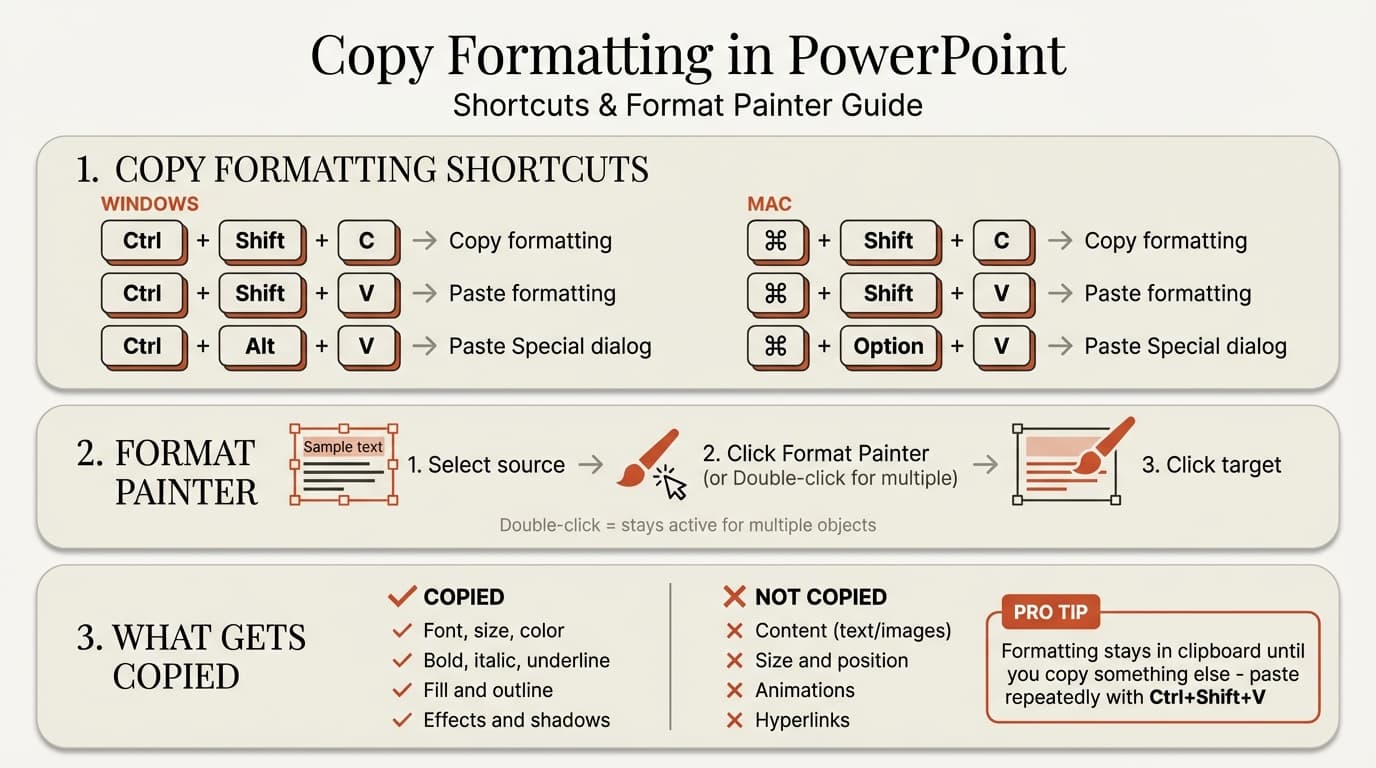
Format Painter is PowerPoint's built-in tool for copying visual formatting from one object to another. Instead of manually setting font, size, color, line weight, fill, and other properties, you copy all formatting at once and apply it to target objects.
Format Painter works on:
- Text formatting — Font, size, color, bold, italic, underline, spacing
- Shape formatting — Fill color, outline color, outline weight, effects
- Paragraph formatting — Alignment, line spacing, bullet styles, indentation
- Object formatting — Shadows, reflections, glow effects, 3D formatting
Format Painter does NOT copy:
- Actual content (text, images)
- Object size or position
- Animation settings
- Hyperlinks
Where to Find Format Painter
Format Painter lives on the Home tab in the Clipboard group. It's the paintbrush icon next to Cut, Copy, and Paste.
| Location | How to Access |
|---|---|
| Ribbon | Home > Format Painter (paintbrush icon) |
| Alt Key Sequence (Windows only) | Alt, H, F, P |
| Keyboard Shortcut | Ctrl+Shift+C / Cmd+Shift+C (copy) + Ctrl+Shift+V / Cmd+Shift+V (paste) |
Copy Formatting Shortcuts (Windows & Mac)
Here is the complete shortcut reference for both platforms:
| Action | Windows | Mac |
|---|---|---|
| Copy Formatting | Ctrl+Shift+C | Cmd+Shift+C |
| Paste Formatting | Ctrl+Shift+V | Cmd+Shift+V |
| Format Painter (single) | Alt, H, F, P | Click icon on Home tab |
| Format Painter (persistent) | Alt, H, F, P, P | Double-click icon |
| Paste Special | Ctrl+Alt+V | Cmd+Option+V |
| Paste Keep Source | Ctrl+V | Cmd+V |
Note: Alt key ribbon sequences do NOT work on Mac. The Cmd+Shift+C/V shortcuts are the primary option on macOS. For more Mac shortcuts, see our complete guide to PowerPoint shortcuts for Mac.
The Ctrl+Shift+C/V Method
This is the fastest method for copying formatting:
- Select source object — Click the object with the formatting you want
- Press Ctrl+Shift+C (Cmd+Shift+C on Mac) — Copies the formatting (not the content)
- Select target object(s) — Click or Shift-click multiple objects
- Press Ctrl+Shift+V (Cmd+Shift+V on Mac) — Applies the copied formatting
Key advantage: Unlike Format Painter, the formatting stays in your clipboard until you copy something else. You can paste the same formatting repeatedly without re-copying.
The Alt Key Sequence (Windows Only)
If you prefer using the ribbon via keyboard:
- Select source object
- Press Alt, H, F, P — This activates Format Painter
- Click target object — Formatting is applied, Format Painter deactivates
For multiple objects, press Alt, H, F, P, P (the second P keeps Format Painter active). Click each target object, then press Esc when done.
How to Use Format Painter Step by Step
Method 1: Format Painter Button (Single Use)
Best for: Copying formatting to one object quickly.
- Select the object with formatting you want to copy
- Click Format Painter on the Home tab (paintbrush icon)
- Your cursor changes to a paintbrush
- Click the target object
- Formatting is applied; Format Painter deactivates
Method 2: Format Painter Button (Multiple Objects)
Best for: Applying the same formatting to many objects in sequence, including across slides.
- Select the source object
- Double-click Format Painter (this keeps it active)
- Click each target object—formatting is applied to each. You can navigate between slides while Format Painter stays active.
- Press Esc when finished
To format many objects on the same slide at once, use the keyboard shortcut method instead: copy formatting from the source with Ctrl+Shift+C, multi-select targets (Shift+Click, Ctrl+Click, or drag a selection box), then paste with Ctrl+Shift+V.
Method 3: Keyboard Shortcuts (Fastest)
Best for: Power users who want maximum speed and flexibility.
- Select the source object
- Press Ctrl+Shift+C (Cmd+Shift+C on Mac)
- Select target object(s)
- Press Ctrl+Shift+V (Cmd+Shift+V on Mac)
- Repeat step 4 on additional objects as needed
Why this is faster: The formatting stays copied until you copy something else. You can paste the same formatting 50 times without re-copying. With Format Painter, you need to return to the source object each time (unless using double-click mode).
Example: Standardizing heading formatting across 30 slides. Copy formatting from your master heading once, then navigate through slides pressing Ctrl+Shift+V on each title.
Continue reading: PowerPoint Charts · How to Make a Good PowerPoint · How to Add Icons to PowerPoint
Paste Special Options in PowerPoint
Paste Special gives you control over how content is pasted, including formatting options. Access it with Ctrl+Alt+V (Cmd+Option+V on Mac).
| Option | What It Does | When to Use |
|---|---|---|
| Keep Source Formatting | Preserves original formatting | Pasting from another deck with correct styling |
| Use Destination Theme | Applies target deck's theme | Pasting content that should match your deck |
| Picture | Pastes as static image | When you want to prevent editing |
| Keep Text Only | Strips all formatting | Pasting from Word/web with unwanted styling |
When pasting from Excel, Paste Special lets you choose between embedding (editable, data stays linked), pasting as a picture (static, smaller file size), keeping source formatting, or using the destination theme. When pasting from the web or Word, use Keep Text Only to strip unwanted formatting, then apply your own styles.
For more on paste options, see our guide to linking Excel to PowerPoint.
Copy Formatting Between Slides
Copying formatting across slides works seamlessly with the keyboard shortcut method:
- Copy formatting from source object (Ctrl+Shift+C)
- Navigate to target slide (Page Down or slide thumbnail)
- Select target object(s)
- Paste formatting (Ctrl+Shift+V)
The formatting stays in clipboard while you navigate—you can paste on slide 47 formatting copied from slide 3.
Copying Slide Layouts
To copy an entire slide's layout structure, right-click the slide thumbnail and select Duplicate Slide (Ctrl+D), then replace the content while keeping formatting. For truly consistent formatting across all slides, use View > Slide Master to format master layouts—all slides using that layout automatically inherit the formatting. This is the professional approach for branded presentations.
Common Format Painter Mistakes
These are the mistakes we see most often when training consultants on PowerPoint efficiency:
Mistake 1: Copying Incompatible Formatting
Format Painter does not always work between different object types. Copying text formatting to a shape with no text produces no visible change. Match source and target object types: text-to-text, shape-to-shape, chart element-to-chart element.
Mistake 2: Using Ctrl+V Instead of Ctrl+Shift+V
Regular Ctrl+V pastes everything (content and formatting). Ctrl+Shift+V pastes only formatting. This is the most common mistake and the easiest to fix once you internalize the difference.
Mistake 3: Format Painter Deactivating Unexpectedly
Single-click activates Format Painter for one object only. Double-click to keep it active for multiple objects. Press Esc when done.
Mistake 4: Overwriting Clipboard Too Soon
Ctrl+C overwrites your clipboard, including formatting you copied with Ctrl+Shift+C. Complete all formatting paste operations before copying anything else.
Pro Tip: Build a "Formatting Source" Slide
Create a hidden slide at the end of your deck with correctly formatted examples:
- Title text box with proper font/size
- Body text with correct bullet styling
- Standard shapes with your color scheme
- Properly formatted callout boxes
When you need to format new objects, navigate to this slide, copy formatting, and apply elsewhere. This is faster than hunting for correctly formatted objects throughout your deck.
When to Use Format Painter vs. Shortcuts
Both methods copy formatting, but they suit different situations:
| Scenario | Best Method | Why |
|---|---|---|
| Single object | Format Painter (click) | Fast and intuitive |
| Multiple objects, same slide | Ctrl+Shift+C/V with multi-select | Apply to all at once |
| Multiple objects, different slides | Format Painter (double-click) | Stays active while navigating |
| Repeated formatting, scattered objects | Ctrl+Shift+C/V | Paste repeatedly without re-copying |
| Chart element formatting | Ctrl+Shift+C/V | Format Painter doesn't work well on chart parts |
| Global changes | Slide Master | One-time setup, permanent consistency |
Our recommendation: Learn the keyboard shortcuts (Ctrl+Shift+C/V). They are faster once memorized and more flexible for complex formatting workflows.
Summary
Copying formatting in PowerPoint is essential for maintaining consistency across professional presentations. Here are the key takeaways:
Key shortcuts:
- Ctrl+Shift+C — Copy formatting (Cmd+Shift+C on Mac)
- Ctrl+Shift+V — Paste formatting (Cmd+Shift+V on Mac)
- Ctrl+Alt+V — Paste Special for format control
Best practices:
- Use keyboard shortcuts (Ctrl+Shift+C/V) for speed and flexibility
- Double-click Format Painter when applying to multiple objects across slides
- Create a "formatting source" slide for quick reference
- Use Slide Master for global, template-level consistency
- Match source and target object types for best results
The time investment to learn these shortcuts is minimal—30 minutes of practice builds muscle memory that saves hours every month. For even faster formatting workflows, Deckary adds single-keystroke alignment shortcuts that complement copy formatting for pixel-perfect slides. For anyone building presentations regularly, copy formatting shortcuts are among the highest-ROI productivity improvements you can make.