How to Distribute Objects Evenly in PowerPoint: Step-by-Step Guide
Master PowerPoint's distribute feature to space objects evenly. Learn the Distribute Horizontally and Vertically tools, keyboard shortcuts for Windows and Mac, and avoid common spacing mistakes.
- Bob · Former McKinsey and Deloitte consultant with 6 years of experience
- November 17, 2025
- 10 min read
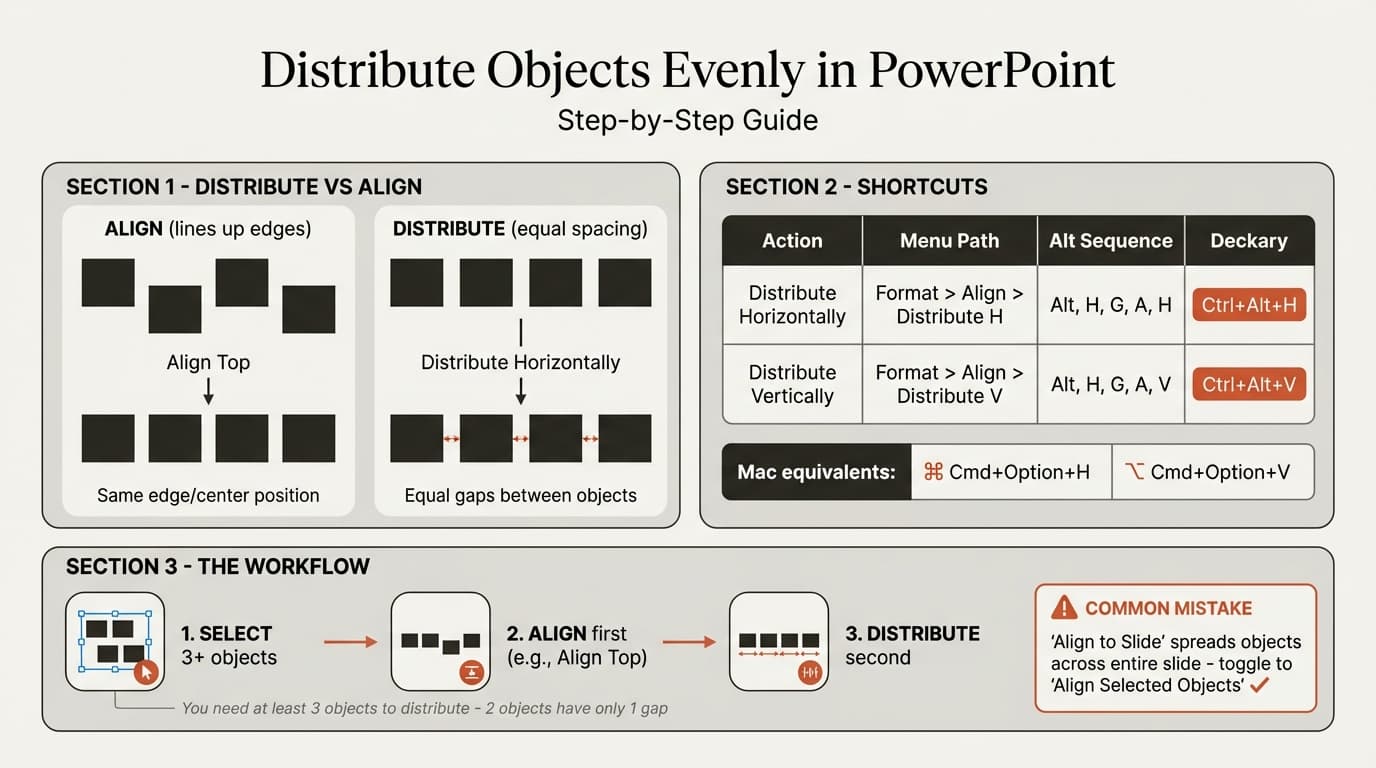
PowerPoint's Distribute Horizontally and Distribute Vertically commands create equal spacing between three or more objects instantly—no manual measurement or pixel-nudging required.
This guide covers how to use PowerPoint's distribution tools: native menu methods, keyboard shortcuts for Windows and Mac, the difference between "Align to Slide" and "Align to Selected Objects," and common mistakes that cause distribution to behave unexpectedly.
What Is Distribution vs Alignment?
Before diving into methods, let's clarify the difference between these two related but distinct operations.
Alignment: Lining Up Edges
Alignment moves objects so their edges or centers match:
| Alignment Type | What It Does |
|---|---|
| Align Left | Lines up left edges of selected objects |
| Align Center | Lines up horizontal centers |
| Align Right | Lines up right edges |
| Align Top | Lines up top edges |
| Align Middle | Lines up vertical centers |
| Align Bottom | Lines up bottom edges |
Alignment answers: "Where should these objects be positioned?"
Distribution: Creating Equal Spacing
Distribution adjusts the gaps between objects to be equal:
| Distribution Type | What It Does |
|---|---|
| Distribute Horizontally | Creates equal horizontal gaps between objects |
| Distribute Vertically | Creates equal vertical gaps between objects |
Distribution answers: "How far apart should these objects be from each other?"
Why You Often Need Both
In practice, alignment and distribution work together. For example, when creating a row of icons:
- First, use Align Top or Align Middle to put all icons on the same horizontal line
- Then, use Distribute Horizontally to create equal spacing between them
Without alignment first, distribution would space the icons evenly but they might sit at different heights—still looking messy.
| Operation | Minimum Objects |
|---|---|
| Alignment | 2 objects |
| Distribution | 3 objects |
Distribution needs at least 3 objects because it calculates the spacing between the outermost objects and fills in the middle. With only 2 objects, there's nothing to adjust—the spacing is already the spacing.
Method 1: Using the Distribute Tool (Step-by-Step)
The native PowerPoint method works on all versions and platforms. Here's exactly how to do it:
Step 1: Select Your Objects
You have three ways to select multiple objects:
Option A: Shift+Click
- Click the first object
- Hold Shift and click each additional object
- All clicked objects are now selected
Option B: Ctrl+Click (Windows) / Cmd+Click (Mac)
- Click the first object
- Hold Ctrl (Windows) or Cmd (Mac) and click additional objects
- This also allows you to deselect individual objects from a selection
Option C: Drag Selection Box
- Click on an empty area of the slide
- Drag to create a selection rectangle around all target objects
- All objects within the rectangle are selected
Pro tip: Use the Selection Pane (Alt+F10 on Windows) when objects overlap or are hard to click directly.
Step 2: Access the Distribute Menu
Once objects are selected:
- Go to the Shape Format tab (appears when objects are selected)
- Look for the Arrange group on the ribbon
- Click the Align dropdown button
- You'll see both alignment and distribution options
Step 3: Choose Your Distribution
| Option | When to Use |
|---|---|
| Distribute Horizontally | Objects should spread left-to-right with equal gaps |
| Distribute Vertically | Objects should spread top-to-bottom with equal gaps |
What happens when you click:
- PowerPoint identifies the leftmost and rightmost objects (horizontal) or topmost and bottommost (vertical)
- Those outer objects stay in place
- All objects in between are repositioned to create equal spacing
Align to Slide vs Align to Selected Objects
This setting dramatically changes distribution behavior:
Align to Selected Objects (default):
- Distribution uses the outermost selected objects as boundaries
- Middle objects reposition within that range
- Outer objects stay exactly where they are
Align to Slide:
- Distribution uses the slide edges as boundaries
- Objects spread across the entire slide width (horizontal) or height (vertical)
- All objects may move, including those at the edges
How to toggle:
- Go to Shape Format > Align
- Look for "Align to Slide" or "Align Selected Objects"
- Click to toggle the setting
- A checkmark indicates the active mode
| Mode | Use Case |
|---|---|
| Align to Selected Objects | Distributing objects within a specific area of your slide |
| Align to Slide | Centering or spreading objects across the full slide |
Step 4: Verify the Results
After distributing:
- Zoom to 100% to check spacing visually
- If something looks off, ensure "Align to Slide" isn't accidentally enabled
- For pixel-perfect verification, use PowerPoint's Smart Guides—drag an object slightly and check if spacing markers appear equal
Complete Example: Distributing Process Icons
Goal: Create a 5-step process diagram with equally spaced icons
- Insert 5 icons representing your process steps
- Roughly position them in a horizontal row (doesn't need to be perfect)
- Select all 5 icons (Shift+Click or drag selection box)
- Go to Shape Format > Align > Align Middle (creates a horizontal row)
- With icons still selected, go to Shape Format > Align > Distribute Horizontally
- Result: All 5 icons sit in a perfect row with equal spacing
Time required: About 10 seconds for professional-quality spacing.
Continue reading: Bubble Chart in PowerPoint · Business Model Slide · How to Add Icons to PowerPoint
Method 2: Keyboard Shortcuts for Distribution
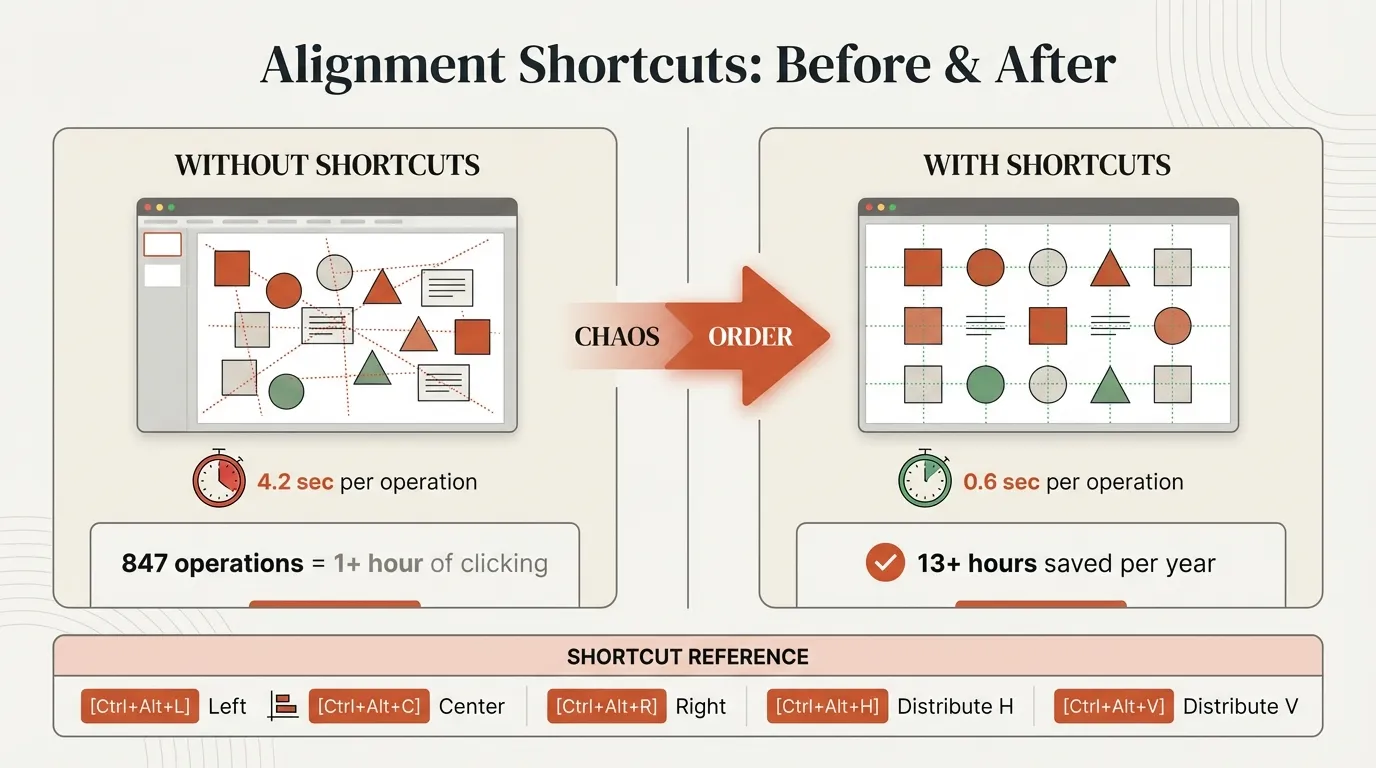
Clicking through menus works, but shortcuts are significantly faster. Here are all the options:
Windows: Alt Key Sequences
PowerPoint's ribbon supports Alt key navigation. Press Alt to see the KeyTips, then type the sequence:
| Action | Key Sequence |
|---|---|
| Distribute Horizontally | Alt, J, P, A, A, AH |
| Distribute Vertically | Alt, J, P, A, A, AV |
| Align to Slide (toggle) | Alt, J, P, A, A, AS |
| Align to Selected Objects (toggle) | Alt, J, P, A, A, AO |
This takes about 2-3 seconds once memorized, compared to 4-5 seconds of menu clicking.
Mac: No Native Shortcuts
The Alt key sequences don't work on Mac PowerPoint. Apple's keyboard conventions differ from Windows, and Microsoft didn't create Mac-specific alternatives. Mac users must rely on the ribbon menu or use an add-in.
Add-in Shortcuts: Deckary
Deckary provides true single-keystroke shortcuts for distribution:
| Action | Windows Shortcut | Mac Shortcut |
|---|---|---|
| Distribute Horizontally | Ctrl+Alt+H | Cmd+Option+H |
| Distribute Vertically | Ctrl+Alt+V | Cmd+Option+V |
| Align Left | Ctrl+Alt+L | Cmd+Option+L |
| Align Center | Ctrl+Alt+C | Cmd+Option+C |
| Align Right | Ctrl+Alt+R | Cmd+Option+R |
| Align Top | Ctrl+Alt+T | Cmd+Option+T |
| Align Middle | Ctrl+Alt+M | Cmd+Option+M |
| Align Bottom | Ctrl+Alt+B | Cmd+Option+B |
Speed comparison:
| Method | Time per Operation |
|---|---|
| Menu clicking | 4-5 seconds |
| Alt key sequence | 2-3 seconds |
| Deckary shortcut | 0.5-1 second |
Over 100 distribution operations, shortcuts save 5+ minutes compared to menu clicking. For consultants and analysts building complex decks daily, that adds up to hours per month. For a complete reference of all PowerPoint keyboard shortcuts, see our PowerPoint Shortcuts Guide.
Common Mistakes When Distributing Objects
These are the distribution errors we see most often when training consultants and analysts on PowerPoint.
Mistake 1: Distributing Only 2 Objects
You select 2 objects, click Distribute, and nothing happens. Distribution needs at least 3 objects—with 2 objects, there's only one gap and nothing to equalize. If you need to position 2 objects with a specific gap, use alignment to line them up and then manually position, or add a temporary third object, distribute, then delete it.
Mistake 2: Forgetting "Align to Slide" Is Enabled
You distribute 5 icons, and they spread across the entire slide instead of staying in their current area. This happens when "Align to Slide" was toggled on during a previous operation. Undo (Ctrl+Z), go to Shape Format > Align, ensure "Align Selected Objects" is checked, and distribute again.
Mistake 3: Distributing Before Aligning
Your distributed objects have equal spacing, but they're at different heights—still looking messy. Distribution only affects spacing, not alignment. Always align first (e.g., Align Top for a horizontal row), then distribute (e.g., Distribute Horizontally).
Mistake 4: Distributing Objects of Very Different Sizes
After distribution, the visual spacing looks uneven even though PowerPoint measured it correctly. PowerPoint measures edge-to-edge spacing, not visual weight. A small icon next to a large icon will have the same gap measurement but looks imbalanced. Use objects of similar sizes when possible, or consider grouping smaller objects with invisible shapes to balance visual weight.
Best Practices for Perfect Spacing
1. Use the Align-Then-Distribute Workflow
For any row or column of objects:
Horizontal row:
- Align Top (or Align Middle) first
- Then Distribute Horizontally
Vertical column:
- Align Left (or Align Center) first
- Then Distribute Vertically
This two-step workflow handles 90% of spacing scenarios.
2. Establish Consistent Margins First
Before distributing objects, ensure your slide has consistent margins: typically 0.5" left/right from the slide edge, 1.0" below the title, and 0.5" from the bottom. Objects distributed within consistent margins look intentional. Objects spread edge-to-edge often look cramped.
3. Group Related Elements Before Distribution
When multiple elements should stay together (e.g., icon + label pairs), group each set (Ctrl+G) before distributing. This keeps internal relationships intact while creating equal spacing between groups.
4. Use Smart Guides for Verification
After distributing, slightly drag one object and watch for the spacing arrows that appear. They should show equal measurements. Release without dropping if verification succeeds.
Tools That Make Distribution Faster
Beyond native PowerPoint features, Deckary adds the distribution shortcuts that PowerPoint lacks—single keystrokes that work identically on Windows and Mac. Beyond shortcuts, it includes waterfall and Mekko chart builders, Excel-linked charts, a 2,000+ icon library, and Gantt chart tools. Start Deckary's 14-day free trial to experience the difference.
Summary: Key Takeaways
The fundamentals:
- Distribution creates equal spacing between objects (minimum 3 objects required)
- Distribution works independently from alignment—you often need both
The methods:
- Native method: Shape Format > Align > Distribute Horizontally/Vertically
- Windows Alt sequences: Alt, J, P, A, A, AH (horizontal) or AV (vertical)
- Mac: No native shortcuts—use menu or add-in
- Deckary: Ctrl+Alt+H / Cmd+Option+H (fastest option)
Avoid these mistakes:
- Distributing only 2 objects (nothing happens)
- Having "Align to Slide" enabled when you want "Align to Selected Objects"
- Distributing without aligning first
Best practice: Always align first, then distribute—this sequence solves 90% of spacing problems. For anyone building presentations regularly, mastering distribution transforms slide quality while saving hours of tedious manual spacing.